Your apps are no longer in iTunes: the current iTunes has no Apps section, so iPhone apps are listed in the App Store on your iPhone under Apps & Purchase History > Your Apps.
This guide shows where purchased apps appear on iPhone, Mac and Windows, what iTunes, Finder and Apple Devices can still do with app files, and how to bring back apps that seem to have vanished.
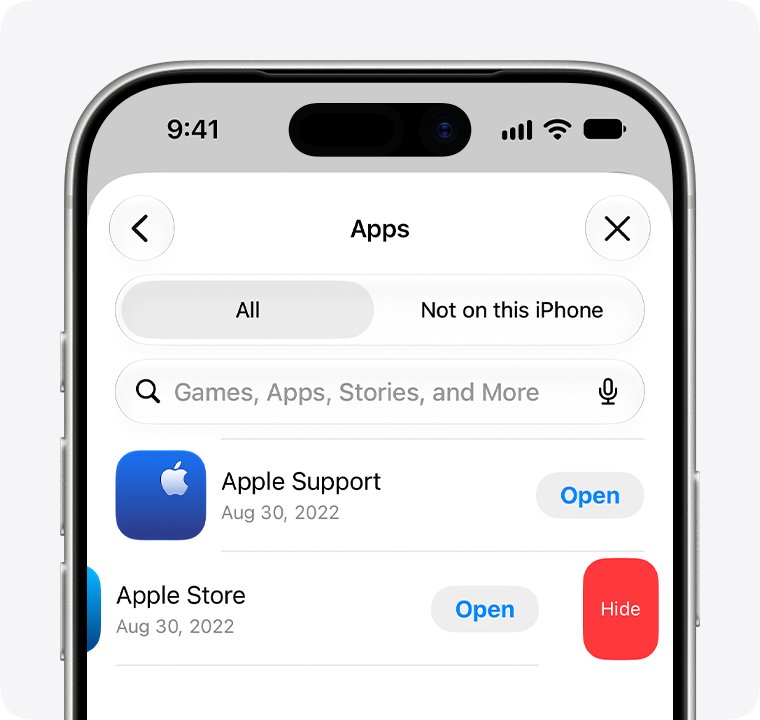
Where are apps in iTunes now?
Every app you have bought or downloaded, free or paid, stays in your App Store purchase list. Redownloading an app you already own costs nothing.
- Open the App Store app on your iPhone.
- Tap the My Account button or your photo at the top of the screen.
- Tap Apps & Purchase History, then tap Your Apps.
- Tap Not on this iPhone to see apps you own that are not installed.
- Find the app and tap the Redownload button.
If you use Family Sharing, tap a family member's name to show the apps they share. An app only appears if it is still available in the App Store.
Where to find iPhone apps on iPhone, Mac and Windows
Each Apple app shows a different slice of your apps. Pick the row for the device in front of you.
| Where you look | What you see | Use it to |
|---|---|---|
| App Store on iPhone | Every app on your Apple Account, installed or not | Redownload apps you already own |
| App Library on iPhone | All installed apps, including ones removed from the Home Screen | Open or move an installed app |
| App Store on Mac | Your Mac apps, plus iPhone and iPad apps that run on a Mac with Apple silicon | Redownload apps on the Mac |
| Finder on Mac (macOS Catalina or later) | A Files tab listing only apps that can share files | Copy documents to and from those apps |
| iTunes on Windows | File Sharing for apps that share files; Purchased covers music, movies, TV shows and audiobooks only | Move app documents, sync media |
| Apple Devices on Windows | A Files list of apps that support file sharing | Move app documents, back up and update the iPhone |
Apple Music, Apple TV and Apple Devices sit alongside other phone and media apps for Windows, and once installed they take over syncing from iTunes.
How to see purchased apps in the App Store on Mac
On a Mac, the App Store keeps the same purchase list. It also shows iPhone and iPad apps that can run on a Mac with Apple silicon.
- Open the App Store on your Mac.
- Click your name in the sidebar. If it is missing, click Sign In, sign in to your Apple Account, then click your photo.
- Click Apps & Purchase History, then click Your Apps.
- Click a family member's name if you want to see their shared purchases.
- Find the app and click the Redownload button.
Some apps have no Mac version. An app bought on iPhone may appear in your list but not install on the Mac.
How to find apps in App Library on iPhone
If an app is installed but not on your Home Screen, App Library has it. It lists every app, sorted into categories such as Social and Entertainment.
- Go to the Home Screen.
- Swipe left past all your Home Screen pages until App Library opens.
- Tap the search field at the top and type the app's name, or scroll the alphabetical list.
- Tap the app to open it.
- To put it back on the Home Screen, touch and hold the app until it moves to the Home Screen, then lift your finger.
You can also swipe down from the middle of the Home Screen, or tap the Search field at the bottom on iOS 16 and later, and type the app's name.
Where is File Sharing in iTunes for iPhone apps?
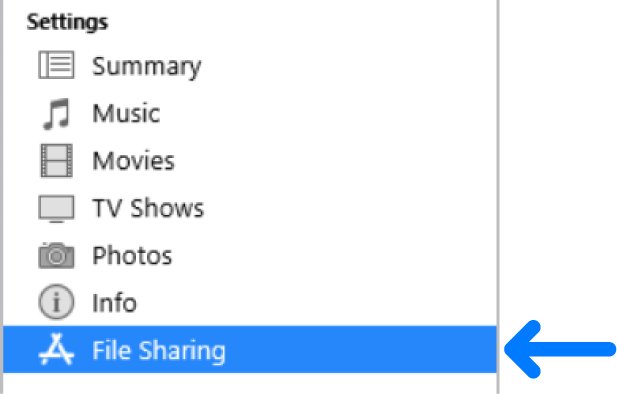
iTunes on Windows still connects to app data in one place: File Sharing. It lists only the apps on your iPhone that support file sharing, and it moves their documents, not the apps themselves.
- Connect the iPhone to your PC with a USB or USB-C cable, or over Wi-Fi if Wi-Fi syncing is on.
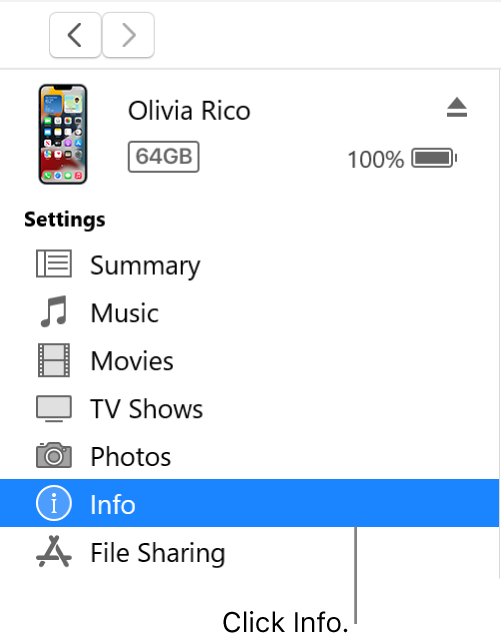
- Open iTunes and click the Device button near the top left of the window.
- Click File Sharing.
- Select the app in the list on the left.
- Click Add to copy a file to the iPhone, or select a file on the right, click Save to and choose a folder on the PC.
- Click the eject button before you disconnect the iPhone.
If the menus look different from these steps, update iTunes on your PC to the latest version.
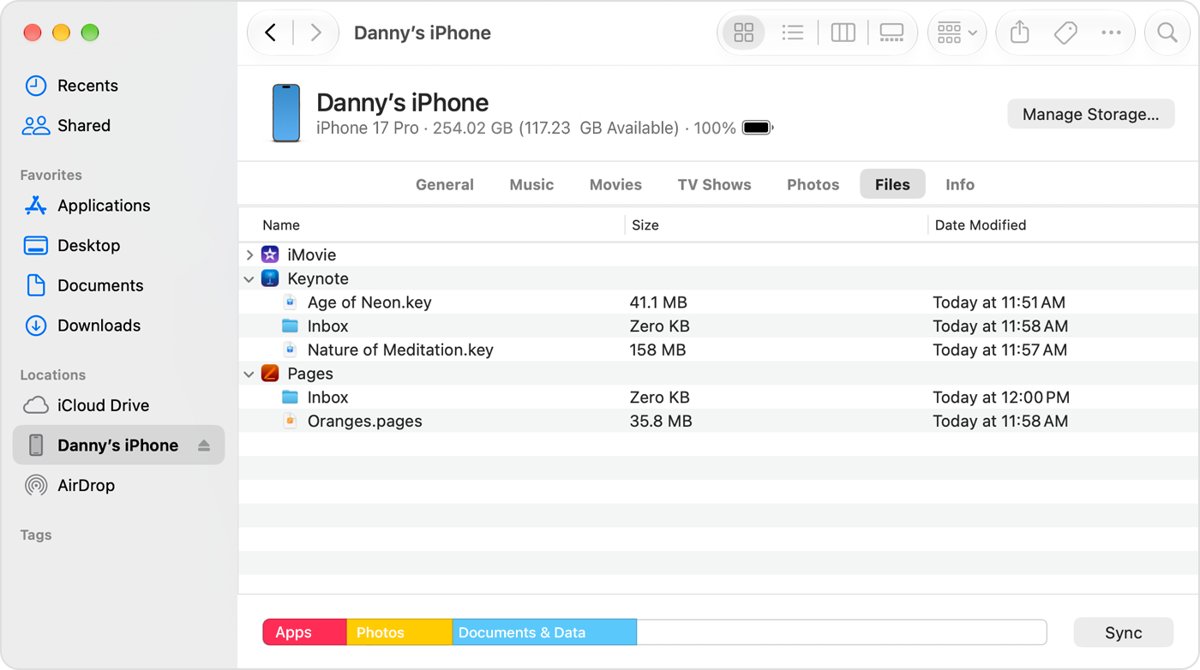
Where are iPhone apps in Finder on Mac?
On macOS Catalina and later, Finder replaced iTunes for managing an iPhone. Like iTunes File Sharing, its Files tab shows only apps that can share files.
- Open a Finder window.
- Connect the iPhone to the Mac with a USB cable.
- Select the iPhone in the Finder sidebar.
- Click the Files tab to see the apps that can share files.
- Click the triangle next to an app to see its files.
- Drag files onto the app to copy them to the iPhone, or drag them to a Mac folder to copy them off.
If there is no Files section, no app on the iPhone supports file sharing. Deleting an app from the iPhone also deletes its shared files from the iPhone and its backup, so copy them to the Mac first.
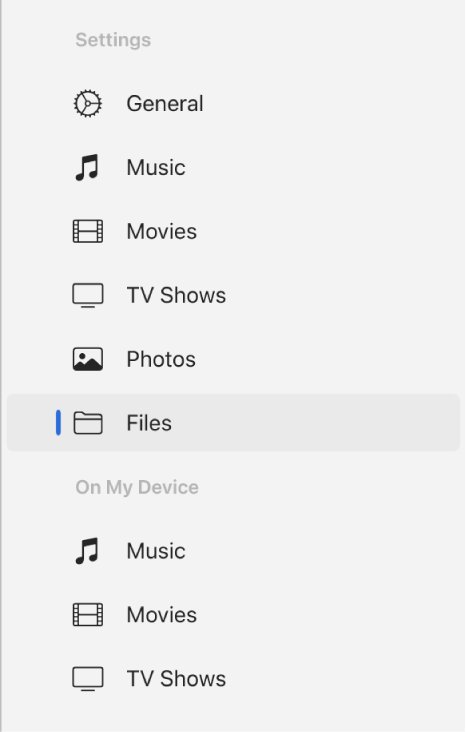
Where are iPhone apps in the Apple Devices app?
On Windows, the Apple Devices app does the same job as Finder. You don't need to sync to move files this way.
- Connect the iPhone to the Windows PC with a cable, or over Wi-Fi.
- Open Apple Devices and select the iPhone in the sidebar.
- Select Files in the sidebar to list the apps that support file sharing.
- Drag files from the PC onto an app to transfer them straight to the iPhone.
- Select an app to see its files. To delete files, select them, press Control-Delete, then select Delete.
- Select the Eject button in the sidebar before you disconnect.
What can iTunes still sync to iPhone?
iTunes, Finder and Apple Devices still manage media, backups and software updates. Apps are installed from the App Store on the iPhone instead.
| Item | iTunes on Windows | Apple Devices on Windows | Where apps fit |
|---|---|---|---|
| Music and playlists | Yes, unless you use Apple Music or iTunes Match | Yes, unless iCloud Music Library is on | Not applicable |
| Movies and TV shows | Yes | Yes | Not applicable |
| Photos | Yes, if you don't use iCloud Photos | Yes, if iCloud Photos is off | Not applicable |
| Contacts, calendars, Safari bookmarks | Yes, from the Info pane | Not in its sync list | Not applicable |
| App documents | File Sharing | Files | Only apps that support file sharing |
| The apps themselves | No | No | Download from the App Store on the iPhone |
| Backups and iOS updates | Yes, from Summary | Yes, from General | Backups include files shared with apps |
How to make new apps show on the iPhone Home Screen
New apps can go straight to App Library instead of the Home Screen, which makes a fresh download look missing. Change that here.
- Open the Settings app on your iPhone.
- Tap Home Screen & App Library.
- Choose Add to Home Screen so new downloads appear on a Home Screen page.
- Turn on Show in App Library if you also want notification badges on apps in App Library.
When Home Screen pages are hidden, new apps may still land in App Library. Show the hidden pages again if apps keep disappearing.
How to unhide apps in the App Store purchase list
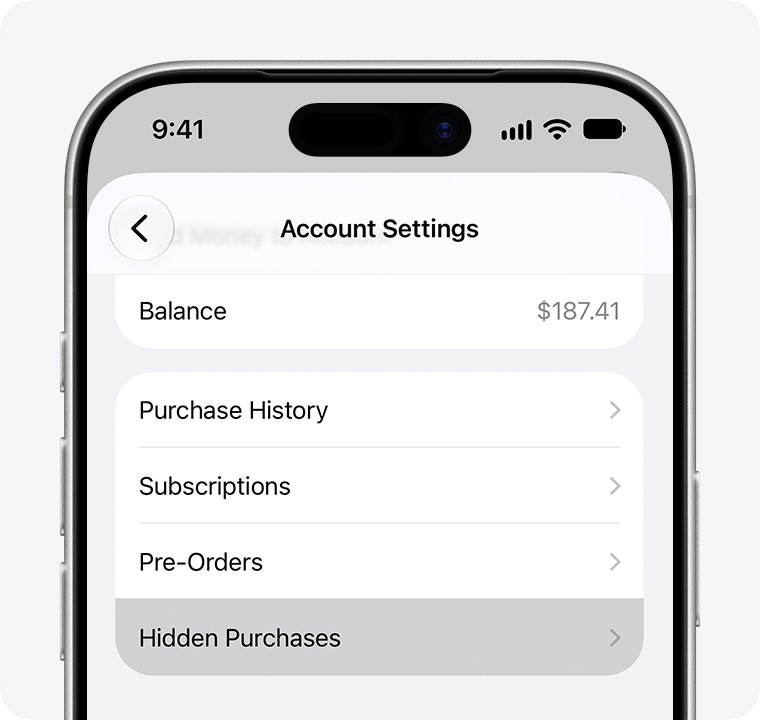
A hidden purchase disappears from Your Apps but stays in your full purchase history. Unhide it before you try to redownload it.
- Open the App Store and tap your photo or initials.
- Tap your name on the page that appears, and sign in if asked.
- Tap Hidden Purchases.
- Find the app and tap Unhide.
- Go back to Your Apps and tap Redownload, because unhiding does not reinstall the app.
On a Mac, click your name at the bottom of the App Store sidebar, click your name or Apple Account again, then click Hidden Purchases and Unhide. You don't have to buy the app again.
How to tell if a redownloaded app is installed on iPhone
- Watch the app icon: a progress indicator appears on it while it downloads.
- Swipe left past your Home Screen pages to App Library.
- Look in the Recently Added category at the top, where new downloads appear.
- Tap the app to open it and sign in to it again if it asks.
Where did my apps go on iPhone?
Why are all my apps not displayed
The apps are on a hidden Home Screen page, or set to App Library only.
- Touch and hold an empty area of the Home Screen.
- Tap Edit, then Edit Pages, or tap the dots near the bottom of the screen.
- Tap any unchecked circle to show that page again.
- Tap Done.
Why are my apps invisible
In iOS 18 and later, a hidden app leaves the Home Screen and App Library and does not show in Search.
- Swipe left to App Library and scroll down to the Hidden folder.
- Tap Hidden and unlock it with Face ID, Touch ID or your passcode.
- Touch and hold the app, then tap Don't Require Face ID to return it to App Library.
- For a full list, open Settings > Apps > Hidden Apps.
Where is my app in the purchase list
The purchase is hidden, belongs to another Apple Account, or is not a normal app purchase.
- Check Hidden Purchases and unhide the app.
- Make sure you are signed in to the Apple Account that bought it.
- Games played through Apple Arcade do not appear in purchases; search for the game and download it again.
- If the app is no longer available in the App Store, it cannot be redownloaded.
Apps in iTunes FAQ
Where are my apps on iPhone?
Installed apps are on your Home Screen pages or in App Library, which you reach by swiping left past the last Home Screen page. Apps you own but removed are in the App Store under your photo > Apps & Purchase History > Your Apps.
Where are my apps listed?
Your full app list is in the App Store purchase list. On iPhone, tap your photo, then Apps & Purchase History and Your Apps. On a Mac, click your name in the App Store sidebar. Purchase History also lists free and paid apps with dates.
Where are my apps located on my computer?
Current iTunes, Finder and Apple Devices do not store or list iPhone apps. They show only apps that share files, under File Sharing or Files. iPhone apps are installed from the App Store on the iPhone, and Mac apps are listed in the Mac App Store.
Why are all my apps not displayed?
Some Home Screen pages may be hidden, or new apps may be set to App Library only. Touch and hold the Home Screen, tap Edit, then Edit Pages to show pages again, and choose Add to Home Screen in Settings > Home Screen & App Library.
Why are my apps invisible on iPhone?
In iOS 18 and later, a hidden app moves into the Hidden folder at the bottom of App Library and does not appear in Search. Open the folder with Face ID, Touch ID or your passcode, then touch and hold the app and tap Don't Require Face ID.
Where do I find my apps after deleting them?
Open the App Store, tap your photo, then Apps & Purchase History, Your Apps and Not on this iPhone. Tap Redownload next to the app. You don't pay again for an app you already bought, as long as it is still in the App Store.
Can I still download iPhone apps through iTunes?
No. The iTunes Purchased page on Windows covers music, movies, TV shows and audiobooks only. Download iPhone apps from the App Store app on the iPhone, where a download icon in place of Get or a price means you already own the app.