Apple Pay has no field for editing a card's bank details, so add the new bank card in Wallet, drag it to the front of the stack to make it the default, then remove the old card from Card Details.
Below are the steps for iPhone, iPad, Apple Watch and Mac, plus the separate bank accounts used by Apple Cash, Apple Card and your Apple Account.
How to change bank account on Apple Pay
Wallet only shows the last four digits of a card and never lets you retype its number. Switching banks means swapping cards: new one in, old one out.
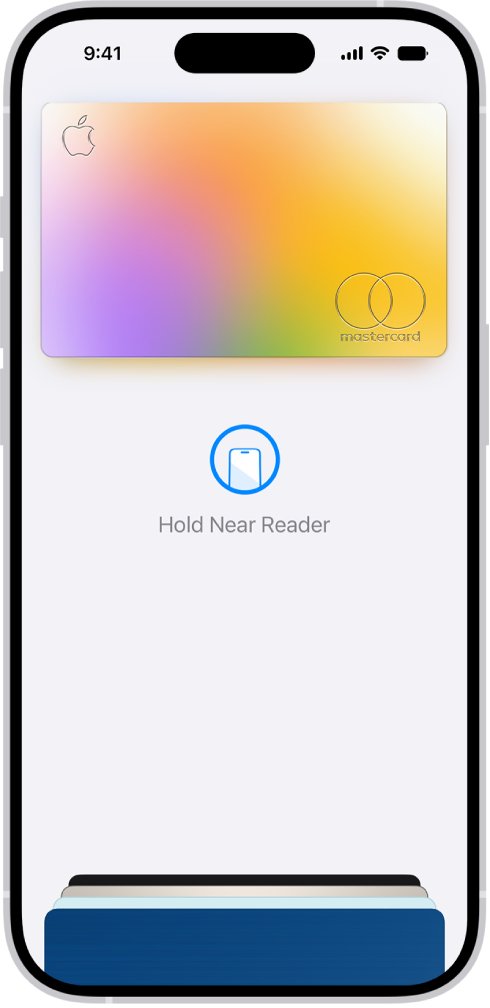
- Open the Wallet app on your iPhone and tap the Add button (+).
- Choose the debit or credit card option and follow the onscreen steps to add the card from your new bank. Your bank can ask you to confirm by text message, security questions or its own app.
- Touch and hold the new card, then drag it in front of your other cards to make it your default card.
- Tap the old bank's card, tap the More button, then tap Card Details.
- Scroll down and tap Remove Card.
Removing a card on iPhone does not remove it from Wallet on your other devices, so repeat the removal on your iPad, Apple Watch and Mac.
Where to change bank info in Apple Pay, Apple Cash and Apple Card
Apple keeps bank details in several places, and each one has its own screen. Find the detail you want to change, then go to that section.
| What you want to change | Where to change it | Notes |
|---|---|---|
| The card Apple Pay charges in stores and apps | Wallet: add the new card, remove the old one | Card numbers cannot be edited |
| Which card is used first | Drag the card to the front in Wallet | Or Set as Default Card at checkout |
| A card's billing address | The card's details in Wallet settings | Per card; also selectable at checkout |
| Shipping address, email and phone for Apple Pay | Settings > Wallet & Apple Pay > Apple Pay Defaults | Used to prefill online checkouts |
| The bank account Apple Cash transfers to | Apple Cash card > Card Details > Bank Account | U.S. bank accounts only |
| The bank account that pays your Apple Card bill | Apple Card > Account Details > Bank Accounts | Also at card.apple.com |
| The card behind App Store, iCloud+ and Apple Music charges | Settings > your name > Payment & Shipping | Separate from the cards in Wallet |
Setting up Apple Pay with a new bank card
Add the new card on each device you pay with. The first payment card you add to Wallet on a device becomes that device's default card.
- iPhone: open Wallet, tap the Add button (+), choose the debit or credit card option, and follow the onscreen instructions.
- Apple Watch: on your iPhone, open the Apple Watch app, tap My Watch > Wallet & Apple Pay, then tap Add Card.
- iPad: open Settings, tap Wallet & Apple Pay, then tap Add Card.
- Mac with Touch ID: choose Apple menu > System Settings, click Wallet & Apple Pay, then click Add Card and type the card details or use the camera.
- Complete any verification your bank asks for before you try to pay with the card.
If the new card will not add, contact the bank that issued it: only supported cards from participating card issuers work with Apple Pay.
How to change the default card in Apple Pay
- iPhone: open Wallet, touch and hold the card you want as default, and drag it in front of your other cards.
- iPhone at checkout: after tapping the Apple Pay button, tap Change Payment Method or Other Cards & Pay Later Options, tap the Info button next to the card, then tap Set as Default Card.
- Apple Watch: on your iPhone, open the Apple Watch app, tap My Watch > Wallet & Apple Pay > Apple Pay Defaults > Default Card, then tap a card.
- iPad: open Settings > Wallet & Apple Pay, scroll to Transaction Defaults, tap Default Card and choose a card.
- Mac with Touch ID: open System Settings > Wallet & Apple Pay and choose a card from the default card menu.
How to remove a bank card from Apple Pay
Remove the old card on every device where it was added, because a removal on iPhone stays on iPhone. You can add the card again later.
- iPhone: in Wallet, tap the card, tap the More button, tap Card Details, scroll down and tap Remove Card. On iOS 15 and earlier there is no Card Details option.
- iPad: open Settings > Wallet & Apple Pay, tap the card, then tap Remove Card.
- Apple Watch: open Wallet on the watch, tap the card, scroll down and tap Remove.
- Mac with Touch ID: open System Settings > Wallet & Apple Pay, click the card, then click the Remove button.
If the device with the old card is lost, mark it as lost in Find My, which turns off Apple Pay on it, or remove Apple Pay remotely from another phone you still control.
Change Apple Pay billing address
Each card in Wallet carries its own billing address. Update it when you move or when your bank has your address on file differently.
- iPhone: open Wallet, tap the card, tap the More button, then tap Card Details to find the card's billing address.
- iPad: open Settings > Wallet & Apple Pay, tap the card, and change the billing address on the card's details screen.
- Enter the address exactly as your bank has it, then save the change.
- At an online checkout, review the Billing and shipping addresses line on the Apple Pay sheet and pick the right address before you authenticate.
Change Apple Pay address, email and phone number
Apple Pay fills these details into online and in-app checkouts. They are set once for all your cards.
- Open the Settings app on your iPhone.
- Tap Wallet & Apple Pay, then tap Apple Pay Defaults.
- Under Transaction defaults, change the shipping address, email or phone number.
- On iPad, the same options sit under Transaction Defaults in Settings > Wallet & Apple Pay.
How to change bank on Apple Cash
Apple Cash keeps its own bank account and routing number for free 1 to 3 business day transfers, so you change the Apple Cash transfer bank account inside the Apple Cash card, not among your Apple Pay cards. Editing it on one device updates every device signed in to your Apple Account.
- iPhone: open Wallet, tap your Apple Cash card, tap the More button, then tap Card Details.
- iPad: open Settings > Wallet & Apple Pay, then tap your Apple Cash card.
- Scroll down, tap Bank Account, and tap the account you want to update.
- Tap the routing or account number, enter the new details, confirm them, and tap Next.
- To switch banks completely, tap Delete Bank Account Information, tap Delete to confirm, then add the new bank.
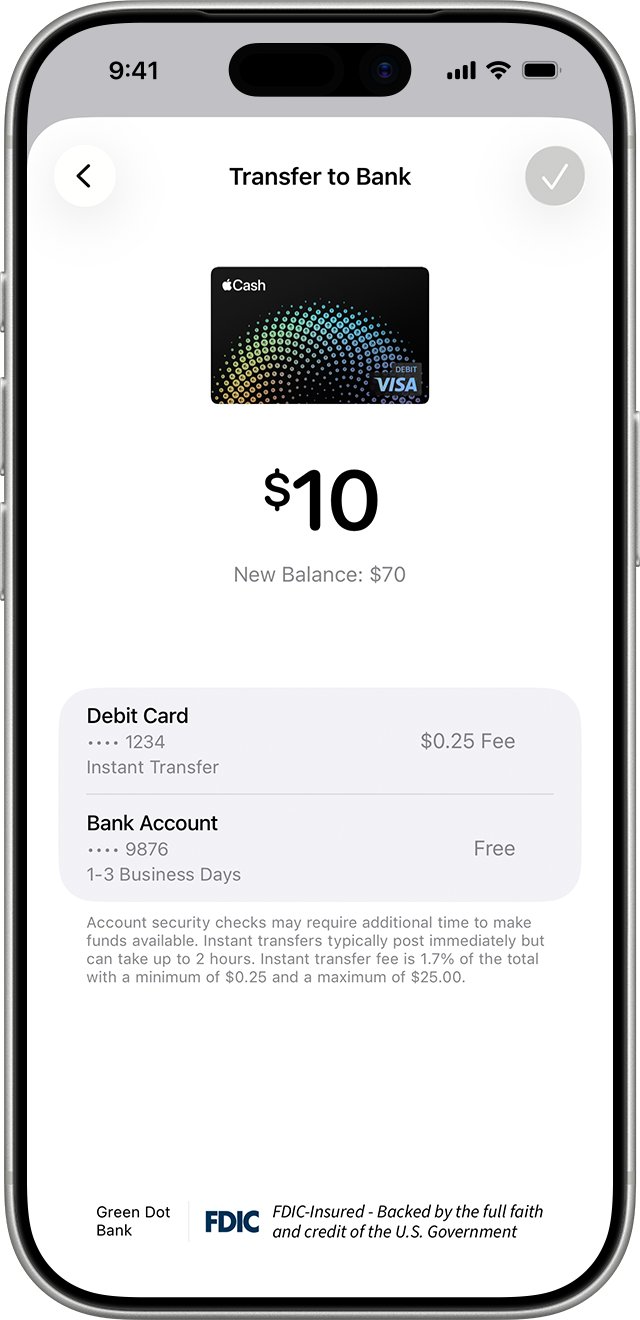
Apple Cash only transfers to U.S. bank accounts. Instant Transfer sends money to a debit card instead, and you can switch the Instant Transfer debit card when you start a transfer.
Apple Card changing banks
Apple Card pays its bill from a bank account you link to it. Add the new bank before you remove the old one, and cancel any payment scheduled from the old account first.
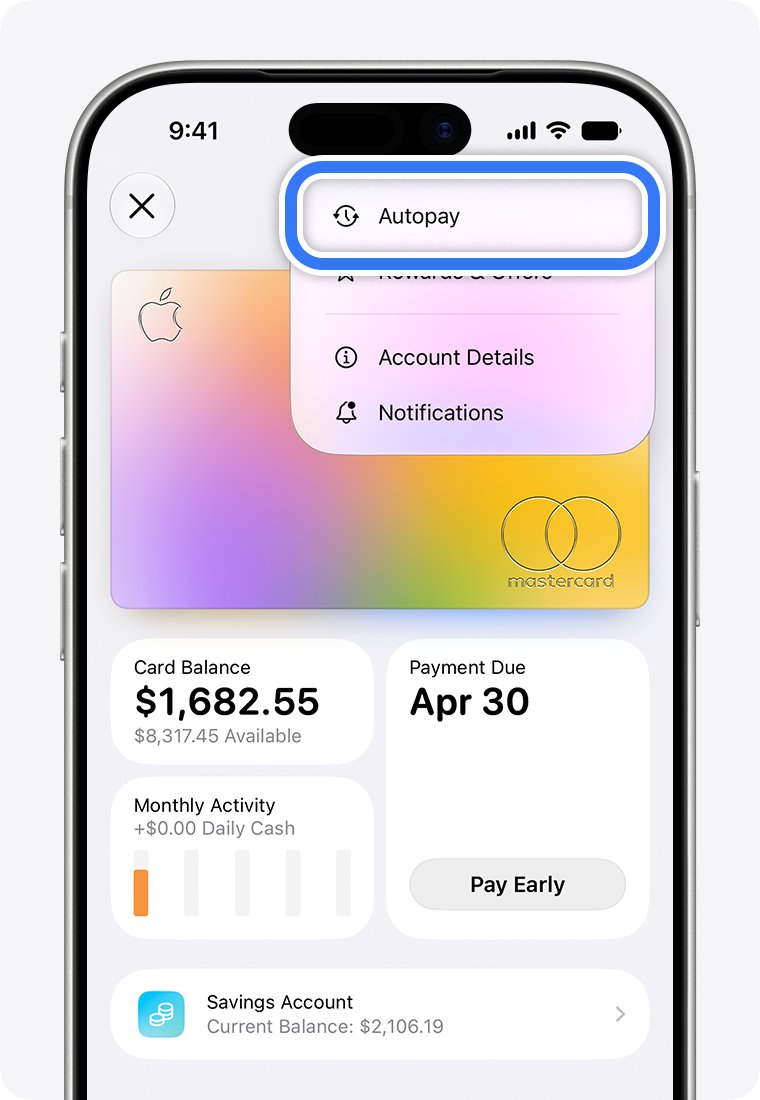
- Open Wallet and tap Apple Card.
- Tap the More button, then tap Account Details.
- Scroll down and tap Bank Accounts.
- Tap Add Bank Account or Add Another Bank Account, enter the routing number and account number, tap Next, enter both again to confirm, and tap Save.
- To remove the old bank, tap Edit, tap the minus sign next to it, then tap Delete.
- On a computer, sign in at card.apple.com, click Settings, and manage the list under Bank Accounts.
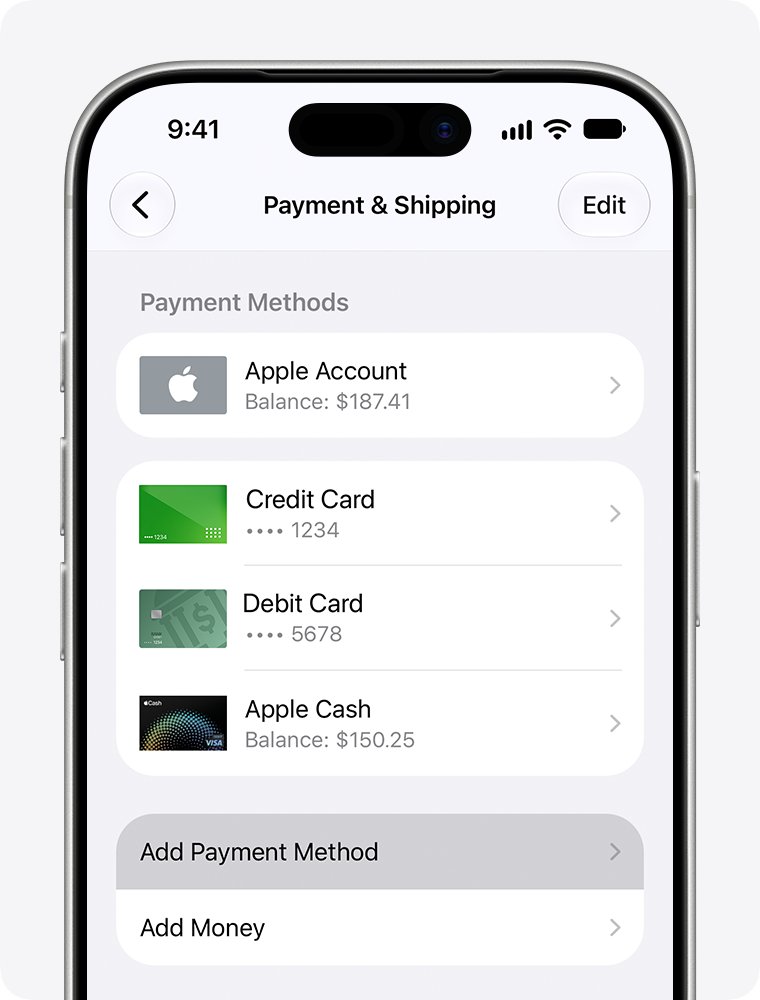
Change Apple Account payment method
App Store, iCloud+ and Apple Music charges use the payment method on your Apple Account, not the default card in Wallet. Change it separately when you switch banks.
- Open Settings on your iPhone or iPad and tap your name.
- Tap Payment & Shipping and sign in if asked.
- To update an existing card's billing information, tap the payment method, tap Edit, enter the new details, and tap Done.
- To switch to a new bank card, tap Add Payment Method, enter it, and tap Done.
- Tap Edit, tap the red delete button next to the old payment method, then tap Remove.
On a Mac, open the App Store, click your name, click it again on the page that opens, then click Payment Methods to make the same changes.
How to see your default card in Apple Pay
- On an iPhone with Face ID, double-click the side button; on iPhone SE, double-click the Home button.
- Check that the card that appears first is the new bank's card, then lock the iPhone without holding it near a payment reader.
- Open Settings > Wallet & Apple Pay > Apple Pay Defaults and confirm the card listed as the default card.
- On Apple Watch, check Default Card under Wallet & Apple Pay > Apple Pay Defaults in the iPhone's Apple Watch app.
- Open Wallet on each device and make sure the old bank's card is no longer in the stack.
Apple Pay banking information FAQ
How do I change my Apple Pay bank account?
Add the card from your new bank in the Wallet app with the Add button, drag it to the front of the card stack to make it the default, then tap the old card, tap More > Card Details and tap Remove Card. Repeat the removal on your other Apple devices.
How do I update my bank on Apple Pay when I get a new card?
Add the new card in Wallet as a fresh card, because Wallet does not let you edit a card number. Once the new card is verified, remove the old one. If the bank only changed your address, update the billing address in the card's details instead.
How do I change the card on Apple Pay?
To pay with a different card that is already in Wallet, touch and hold it and drag it in front of your other cards. At checkout, you can also tap Change Payment Method, tap the Info button next to a card, and tap Set as Default Card.
How do I change the bank on Apple Cash?
Open Wallet, tap your Apple Cash card, tap More > Card Details, then tap Bank Account. Tap the routing or account number to edit it, or tap Delete Bank Account Information and add the new bank. The change applies to every device on your Apple Account.
How do I change payment for Apple purchases?
Go to Settings, tap your name, then tap Payment & Shipping. Edit the existing card's billing information, or tap Add Payment Method to add a new one and then remove the old method. This controls App Store and subscription charges, not Apple Pay in stores.
Is Apple Pay linked to my bank account?
Apple Pay is linked to the debit and credit cards you add, and each card is offered by its card issuer, not by Apple. Apple Pay is not a bank. Only Apple Cash and Apple Card store a bank account and routing number, for transfers and bill payments.
Can I move Apple Pay money to my bank account?
Yes, from Apple Cash. Open your Apple Cash card in Wallet, tap More > Transfer to Bank, and choose 1-3 Business Days for a free transfer or Instant Transfer to a debit card for a 1.7% fee, with a $0.25 minimum and $25 maximum.
Who handles Apple Pay bank support?
The bank or card issuer handles problems with a card in Apple Pay, including adding or removing it. For Apple Cash transfers, contact an Apple Cash Specialist at Green Dot Bank. You can also get in touch with Apple Pay support for Wallet issues.