To fix copy-paste not working in Windows 11 or Windows 10, restart Windows Explorer from Task Manager, restart the Clipboard User Service in Services, and turn clipboard history back on with Windows + V.
This guide works through ten checks in order, from a quick test that shows where the clipboard fails to service, sync, app and Windows Update fixes, then covers Windows + V, keyboard shortcuts, File Explorer and Remote Desktop problems.
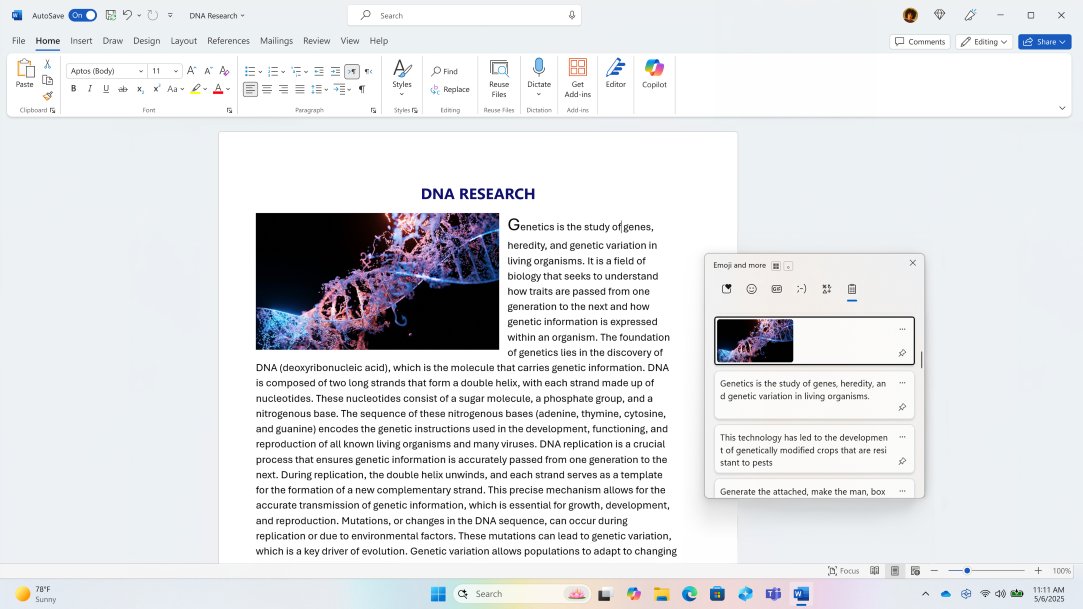
Fix Windows 10/11 copy-paste not working with clipboard service and history checks
Match what you see to a row and start there. The only prerequisites are a signed-in Windows account and, for the service and policy fixes, administrator rights.
| What you see | Likely cause | Fix first |
|---|---|---|
| Nothing pastes in any app | The Explorer shell or the clipboard service is stuck | Step 4: restart Windows Explorer, then Step 5: check the Clipboard User Service |
| Windows + V shows nothing or asks to turn on | Clipboard history is off or blocked by policy | Step 2: turn on clipboard history |
| Clipboard history shows old or stuck items | History is full or holds a bad entry | Step 3: clear the clipboard history |
| Paste fails in one app only | That app or a background program interferes | Step 9: check for app-specific conflicts |
| Ctrl + C fails but right-click Copy works | A keyboard or shortcut problem | Use Ctrl + Insert and Shift + Insert, then test the keyboard |
| Copying works locally but not into a remote PC | Clipboard redirection is off for the connection | Tick Clipboard in Remote Desktop Connection's Local Resources |
| Paste is grayed out in File Explorer | The clipboard holds no file | Copy the file again, then restart Windows Explorer |
Step 1: Test whether the issue happens everywhere
A two-minute test tells you whether the clipboard itself is broken or only one app, one shortcut or one connection.
- Open Notepad, type a line of text, select it and press Ctrl + C.
- Click on a new line and press Ctrl + V.
- Repeat the test with right-click Copy and right-click Paste.
- Paste the same text into a second app, such as a browser address bar or Word.
- Open File Explorer with Windows + E, copy a small file with Ctrl + C, and paste it into another folder with Ctrl + V.
- If you use Remote Desktop, test once on the local PC and once inside the remote session.
- Note which tests fail, then use the table below to pick your next step.
What to look for when copy and paste fails
| Test result | What it means | Go to |
|---|---|---|
| Every test fails in every app | The clipboard or Explorer shell is not responding | Step 4 and Step 5 |
| Text pastes, but Windows + V shows no history | Clipboard history is off or blocked | Step 2 |
| Notepad works, one app fails | The problem sits in that app or something running alongside it | Step 9 |
| Right-click copy works, keyboard shortcuts don't | The keyboard, the Ctrl key or the app's shortcuts | If copy works with the mouse but not keyboard shortcuts |
| Text works, files won't paste in File Explorer | File Explorer lost the copied file or can't write to the folder | If paste is grayed out in File Explorer |
| Local PC works, remote session doesn't | Clipboard or drive redirection is off | If the copy-paste issue happens only in Remote Desktop |
| A large picture never shows up in history | Clipboard history keeps items up to 4 MB only | Copy a smaller image; this is a limit, not a fault |
Step 2: Check that clipboard history is enabled
Clipboard history is off by default. On Windows 11 and on Windows 10 the setting sits in the same place; Windows 10 has it from version 1809.
- Select Start > Settings > System > Clipboard.
- Set Clipboard history to On.
- Or press Windows + V and select Turn on when the prompt appears.
- Copy two different words, then press Windows + V. Both should appear in the list.
- If the toggle is grayed out or turns itself off, a policy is blocking it; follow the fix under If Windows + V does nothing.
Once it is on, you can view your clipboard history and pin the items you paste often.
Step 3: Clear the clipboard history
Clearing removes everything except pinned items, on this PC and in the cloud if sync is on.
- Select Start > Settings > System > Clipboard.
- In the Clear clipboard data area, select Clear.
- Copy fresh text in Notepad and paste it to test.
The same reset is handy for privacy, and you can clear the clipboard in Windows 11 the same way whenever you copy a password.
Alternate quick method to clear the clipboard
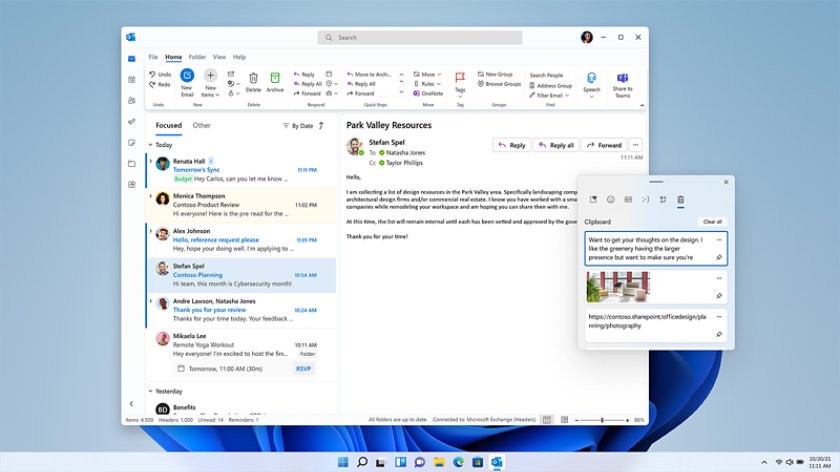
- Press Windows + V to open clipboard history.
- Select Clear all at the top of the panel.
- To remove one item instead, select See more (…) next to it, then select Delete.
Step 4: Restart Windows Explorer to reset the clipboard
Windows Explorer runs the taskbar, desktop and File Explorer. Restarting it reloads the shell without a full PC restart. Save open work first.
- Press Ctrl + Shift + Esc, or right-click the taskbar and select Task Manager.
- On the Processes tab, find Windows Explorer.
- Right-click Windows Explorer and select End task. The taskbar and desktop icons disappear.
- In Task Manager, select File > Run new task.
- Type
explorer.exeand press Enter. - Wait for the taskbar to return, then test copy and paste in Notepad.
Step 5: Make sure the Clipboard User Service is running
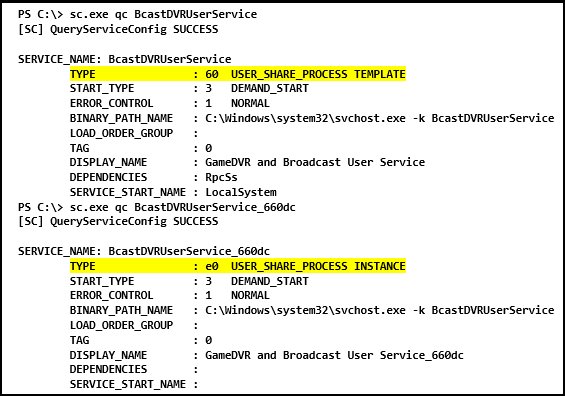
Windows uses the Clipboard User Service (cbdhsvc) for clipboard history and sync across devices. It is a per-user service: Windows creates a copy for you at sign-in, named Clipboard User Service_ followed by a short code, and its default start type is automatic with a delayed start.
- Press Windows + R, type
services.mscand press Enter. - Scroll to Clipboard User Service_ with the code after it, for example Clipboard User Service_443f50.
- Check the Status column. It should say Running.
- Double-click the service and check Startup type on the General tab.
- Follow the matching section below, depending on whether it is running.
If the Clipboard User Service is running
- Right-click Clipboard User Service_ and select Restart.
- Wait a few seconds, then copy and paste in Notepad.
- If the restart fails or changes nothing, sign out and back in (Step 7). Windows stops and deletes per-user services at sign-out and creates fresh ones at sign-in.
If the Clipboard User Service is not running
A stopped service usually starts on request. If it shows Disabled, its template was disabled, and Windows then creates your copy in a stopped and disabled state at every sign-in.
- Right-click Clipboard User Service_ and select Start, then test copy and paste.
- If Start is grayed out and Startup type says Disabled, type
cmdin Search, right-click Command Prompt and select Run as administrator. - Run
sc qc cbdhsvcto read the template's settings. A start type of DISABLED confirms the cause. - Run
sc.exe config cbdhsvc start= delayed-autoto set it back to an automatic, delayed start. Keep the space afterstart=. - Sign out and sign back in so Windows recreates the service.
- On a work PC, ask IT before changing it, because the service may be disabled on purpose.
Step 6: Check sync across devices settings
Sync is tied to your Microsoft account or work account. It doesn't stop local copy and paste, but a wrong setting makes copied text appear missing on your other PC.
- Select Start > Settings > System > Clipboard.
- In Clipboard history across your devices, set the toggle to On if you want sync.
- Select Automatically sync text that I copy. The manual option only uploads items you sync from Windows + V.
- Sign in with the same Microsoft account or work account on every PC.
- To rule sync out as a cause, turn the toggle Off, then test copy and paste on this PC.
If the toggle is grayed out, check the Allow Clipboard synchronization across devices policy under Computer Configuration > Administrative Templates > System > OS Policies; when it is disabled, clipboard contents can't be shared to other devices.
Step 7: Sign out and sign back in
- Save your work and close open apps.
- Press Ctrl + Alt + Del and select Sign out.
- Sign back in to your account.
- Test copy and paste in Notepad. Signing in creates a new Clipboard User Service for your session.
Step 8: Restart your PC
A restart clears clipboard history, except pinned items, and reloads every service and driver.
- Pin any clipboard item you need to keep: press Windows + V and pin it.
- Select Start > Power > Restart.
- After you sign in, test copy and paste in Notepad and in the app that failed.
Step 9: Check for app-specific conflicts
If Notepad works but one program doesn't, the cause is that program or something running next to it.
- Copy the same text in Notepad and paste it into the failing app to confirm the problem follows the app.
- Use the app's own Edit menu or right-click Paste to see whether only its shortcut is affected.
- Close other programs that read or change the clipboard, such as clipboard managers and remote-access tools, then test again.
- Update the app, then restart it.
- If it still fails, run the clean boot test below to find a conflicting service or startup app.
What to do when copy-paste fails in one app
A clean boot starts Windows with only essential drivers and startup programs, which isolates background software. Use it on a personal PC; network policies on a work PC can block it.
- Sign in as an administrator, select Search, type
msconfigand open System Configuration. - On the Services tab, select Hide all Microsoft services, then Disable all, then Apply.
- On the Startup tab, select Open Task Manager.
- On the Startup apps tab, select each Enabled item and select Disable. Note which ones you change.
- Close Task Manager, select OK in System Configuration and restart.
- Test copy and paste in the app. If it works now, a disabled item caused the problem.
- Turn services and startup apps back on in small groups, restarting each time, until the failure returns and points to the culprit.
- When you finish, re-enable everything you disabled so Windows starts normally.
Step 10: Run Windows Update for clipboard fixes
- On Windows 11, select Start > Settings > Windows Update.
- On Windows 10, select Start > Settings > Update & Security > Windows Update.
- Select Check for updates.
- If updates are available, select Download & install.
- Restart when prompted, then test copy and paste again.
Windows clipboard tips and troubleshooting notes
| Topic | What applies in Windows 11 and 10 |
|---|---|
| Copy | Ctrl + C or Ctrl + Insert |
| Paste | Ctrl + V or Shift + Insert |
| Cut | Ctrl + X |
| Paste as plain text | Ctrl + Shift + V, which does not work in every app |
| Clipboard history | Windows + V; off until you turn it on |
| History size | The last 25 copied entries; older unpinned items drop off |
| Item size and types | Up to 4 MB per item; text, HTML and bitmap images |
| After a restart | History is cleared except pinned items |
| Sync across devices | Needs the same Microsoft account or work account on each device |
| Remote Desktop files | Disabling drive redirection also blocks file copy through the clipboard; text and images still work |
If Windows + V does nothing
Windows + V opens a prompt instead of your history
Clipboard history is turned off.
- Press Windows + V and select Turn on.
- Copy something new, then press Windows + V again.
The Clipboard history toggle is grayed out
The Allow Clipboard History policy is disabled, so Windows can't store history.
- On Pro, Enterprise or Education, press Windows + R, type
gpedit.mscand press Enter. - Go to Computer Configuration > Administrative Templates > System > OS Policies.
- Open Allow Clipboard History, select Not Configured or Enabled, then select OK. The change takes effect immediately.
- On Windows Home, open Registry Editor, go to
HKEY_LOCAL_MACHINE\SOFTWARE\Policies\Microsoft\Windows\System, and set theAllowClipboardHistoryvalue to1. - On a work PC, ask IT, because the policy may be set on purpose and will return.
Windows + V opens the local history during a Remote Desktop session
Windows key combinations are applied to the local PC.
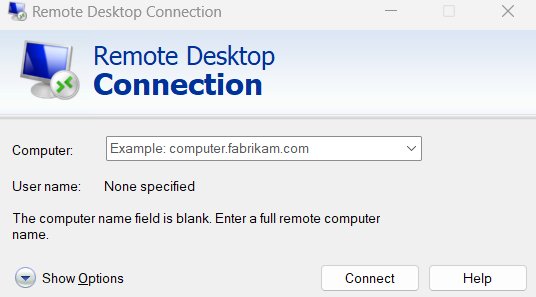
- Open Remote Desktop Connection and select Show Options.
- On the Local Resources tab, open Apply Windows key combinations.
- Choose On the remote computer, or Only when using the full screen and connect in full screen.
- Connect again and press Windows + V inside the session.
If copy works with the mouse but not keyboard shortcuts
Ctrl + C and Ctrl + V do nothing, but right-click Copy and Paste work
The Ctrl key, the keyboard or its connection is failing, not the clipboard.
- Try Ctrl + Insert to copy and Shift + Insert to paste.
- Test other Ctrl shortcuts, such as Ctrl + A and Ctrl + Z in Notepad, to see whether Ctrl responds at all.
- Use the Ctrl key on the other side of the keyboard.
- Connect a different keyboard and test again.
- If shortcuts work on another keyboard, repair or replace the original one.
Shortcuts fail in one app only
That app uses its own shortcuts or doesn't support a particular paste format.
- Use the app's Edit menu or right-click Paste instead.
- Remember that Ctrl + Shift + V for plain text does not work in every app.
- Check the app's settings for custom keyboard shortcuts and reset them.
The full set of copy and paste keyboard shortcuts also helps when one combination is taken by an app.
If paste is grayed out in File Explorer
Paste is grayed out after copying a file
The clipboard no longer holds a file: you copied text since, restarted, or File Explorer lost the item.
- Select the file again and press Ctrl + C, or right-click it and select Copy.
- Open the destination folder, right-click an empty area and select Paste, or press Ctrl + V.
- If Paste is still unavailable, restart Windows Explorer (Step 4) and copy the file once more.
Paste works in one folder but not another
You don't have permission to write to the destination, such as a protected system folder or a read-only share.
- Paste the file into Documents to test.
- If that works, choose a folder you own, or ask the share's owner for write access.
If the copy-paste issue happens only in Remote Desktop
Nothing pastes between your PC and the remote session
Clipboard redirection is off for this connection.
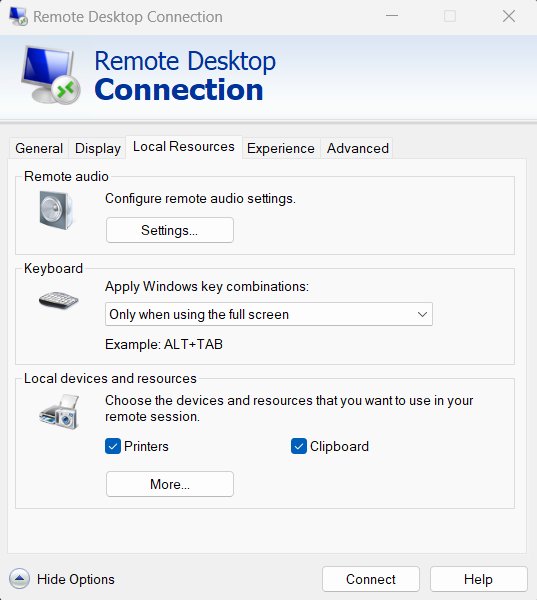
- Open Remote Desktop Connection, or run
mstsc.exe. - Select Show Options, then the Local Resources tab.
- Under Local devices and resources, tick Clipboard.
- Connect again and test with a line of text.
Text pastes into the session but files don't
Drive redirection is off, which also blocks file transfer through the clipboard.
- On the Local Resources tab, select More… under Local devices and resources.
- Tick the drive you want to share, select OK, and reconnect.
- If the option is blocked, ask the remote PC's administrator, because a policy controls it.
Clipboard never works on a work remote PC
The Do not allow Clipboard redirection policy is enabled on the remote PC, or this PC has clipboard redirection disabled. The most restrictive setting wins.
- Ask the administrator whether Do not allow Clipboard redirection is set under Remote Desktop Session Host > Device and Resource Redirection.
- On your own PC, check whether
HKEY_LOCAL_MACHINE\Software\Microsoft\Terminal Server Clienthas aDisableClipboardRedirectionvalue of1, which blocks the clipboard in every session. - Change it only on a personal PC, then reconnect.
Copy-paste still not working in Windows: if nothing helps
Copy and paste still fails after every step
Missing or corrupted system files can stop Windows features from working.
- Type
cmdin Search, right-click Command Prompt and select Run as administrator. - Run
DISM.exe /Online /Cleanup-image /Restorehealthand wait for it to finish. - Run
sfc /scannowand keep the window open until verification reaches 100%. - Restart the PC and test copy and paste.
System File Checker can't repair everything
Windows components are damaged beyond what SFC can replace.
- On Windows 11, select Start > Settings > System > Recovery.
- Under Fix problems using Windows Update, select Reinstall now.
- Choose whether to restart automatically, then select OK. Your apps, files and settings stay in place.
- Keep the PC on power and online until the reinstall finishes, then test again.
Copy-paste not working in Windows FAQ
Why is copy and paste not working in Windows 11?
Common causes are a stuck Explorer shell, a stopped Clipboard User Service or clipboard history that is turned off. Restart Windows Explorer from Task Manager, restart Clipboard User Service_ in Services, and clear clipboard history in Settings > System > Clipboard. If it fails only in one app, test with a clean boot.
How do I turn on clipboard history in Windows 10 and 11?
Press Windows + V and select Turn on, or go to Settings > System > Clipboard and set Clipboard history to On. History is off by default on both versions, and Windows 10 needs version 1809 or later.
Why can't I see my clipboard history?
Clipboard history is off, or it was cleared by a restart. Windows clears history each time the PC restarts, except pinned items. Turn it on with Windows + V and pin anything you want to keep across restarts.
Why do items disappear from my clipboard history?
Clipboard history keeps only the last 25 copied entries. Older items that aren't pinned are removed automatically to make room for new ones, so pin anything you paste regularly from the Windows + V panel.
Why can't I copy an item into clipboard history?
Clipboard history stores items up to 4 MB each in text, HTML and bitmap formats. Larger images or other formats can still paste normally, but they won't appear in the Windows + V list.
How do I restart the Clipboard User Service?
Press Windows + R, type services.msc and press Enter. Right-click Clipboard User Service_ followed by its code and select Restart. Signing out and back in also recreates the service, because Windows builds per-user services at each sign-in.
Why is the clipboard history setting grayed out?
The Allow Clipboard History policy is disabled on the PC. On Pro, Enterprise or Education, set it to Not Configured in Group Policy under System > OS Policies. On a work PC, IT controls this setting and may keep it off.
Why is my clipboard not syncing between devices?
Sync needs the same Microsoft account or work account on each device and the Clipboard history across your devices toggle on. Select Automatically sync text that I copy; the manual option uploads only items you sync from Windows + V.
Does restarting the PC clear the clipboard?
Yes. Restarting clears clipboard history and the current clipboard contents, except items you have pinned in the Windows + V panel. Pin anything you need before restarting during troubleshooting.
How do I paste as plain text in Windows?
Press Ctrl + Shift + V. Microsoft notes that this shortcut does not work in every app, so use the app's own plain-text paste option where it exists, or paste into Notepad first and copy the text again from there.