When The Weather Channel widget on an iPhone 16 Pro stays empty while the app itself shows the forecast, the widget cannot refresh on its own: allow the app to use your location, turn on Background App Refresh, turn off Low Power Mode and Low Data Mode, then open the app once and add the widget again.
This guide covers each of those settings on iOS 26 and later, how often iOS refreshes widgets, how to add the widget to the Home Screen and Lock Screen, and what to do when it still shows nothing.
How to fix Weather Channel widget not showing info on iPhone
Work through these steps in order and look at the widget after each one. The app and the widget share the same settings, so a forecast that loads in the app but not on the Home Screen points to a background or location restriction.
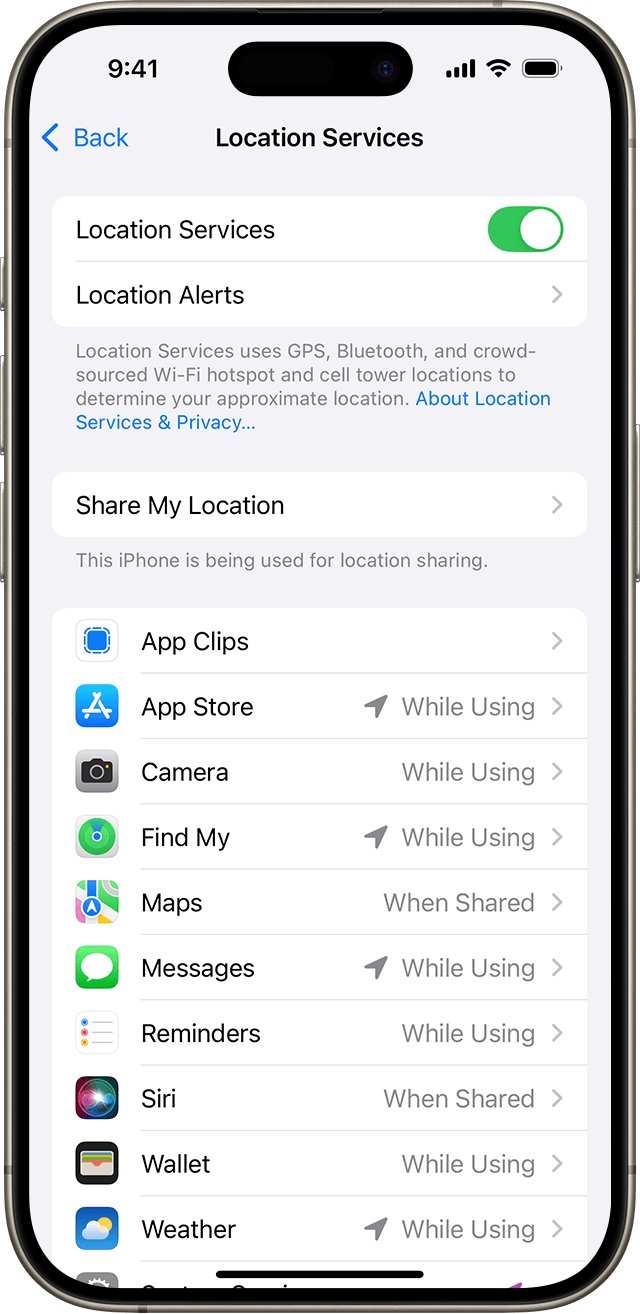
- Open Settings > Privacy & Security > Location Services, tap The Weather Channel, and choose While Using the App or Always instead of Never.
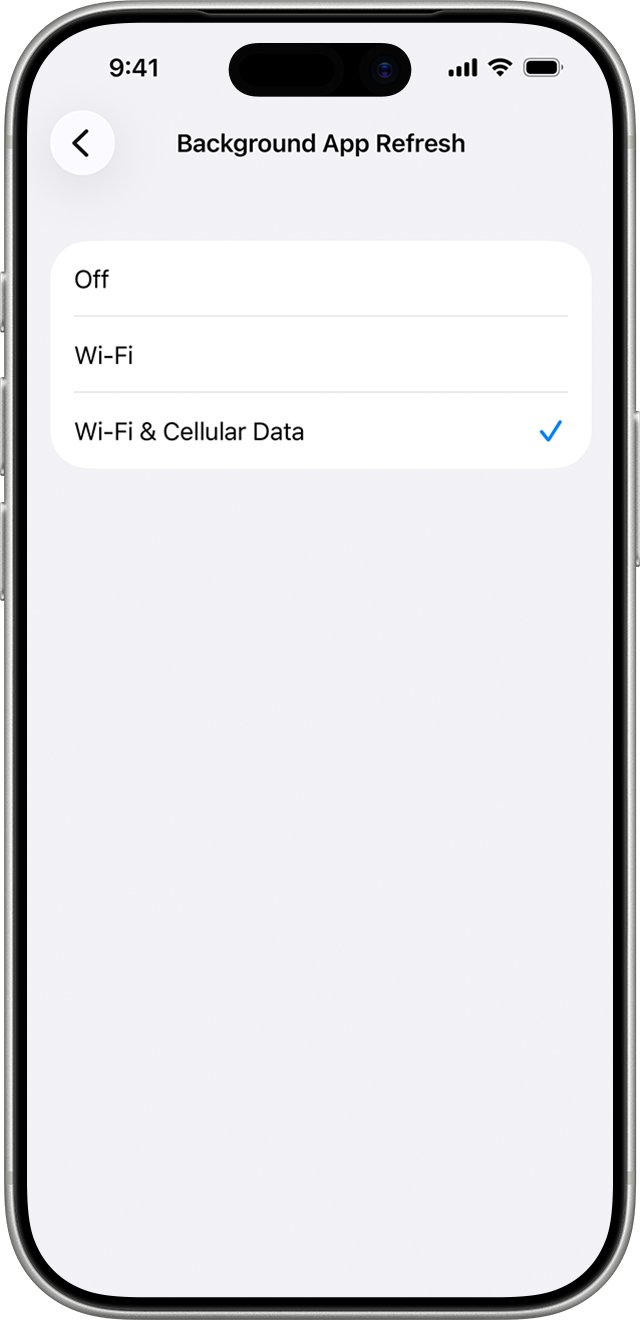
- Open Settings > General > Background App Refresh, tap Background App Refresh again, and choose Wi-Fi & Cellular Data.
- Open Settings > Battery > Power Mode and turn off Low Power Mode.
- Open The Weather Channel app, wait for the current conditions to load, then swipe up to go back to the Home Screen without quitting the app from the App Switcher.
- Restart the iPhone: press and hold either volume button and the side button, drag the slider, wait 30 seconds, then hold the side button until the Apple logo appears.
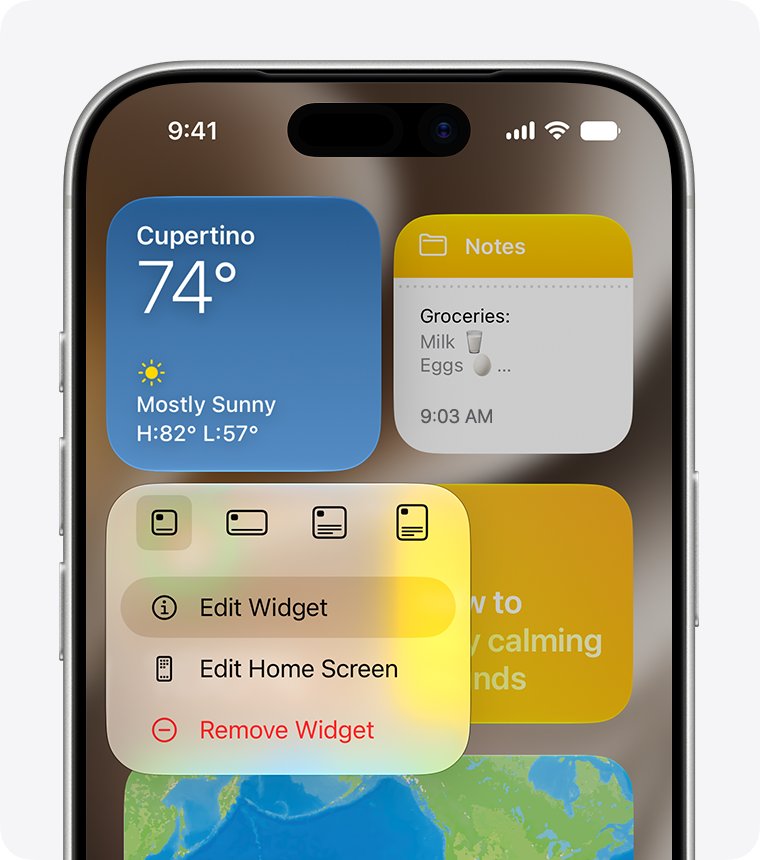
- If the widget is still blank, touch and hold it, tap Remove Widget, tap Remove, and add it again from the widget gallery.
Apple notes that an app you quit from the App Switcher might not be able to check for new content until you open it again, so leave The Weather Channel in the switcher once the widget works.
If the app itself closes as soon as you open it, fix the Weather Channel app crashing first, because a widget cannot show data the app fails to load.
Why is my Weather Channel widget blank on iPhone?
| What you see | Likely cause | Fix |
|---|---|---|
| Widget is empty right after you add it, but the app loads | The widget has not had a refresh yet | Open the app once, then give the widget time; iOS spreads widget refreshes over the day |
| Widget shows no location or no forecast for where you are | The app's location access is Never or Ask Next Time Or When I Share | Set Location Services for The Weather Channel to While Using the App or Always |
| Widget worked earlier but stopped updating | Background App Refresh is off, or Low Power Mode turned it off | Turn on Background App Refresh and turn off Low Power Mode |
| Widget only updates on Wi-Fi | Cellular data is off for the app, or Low Data Mode is on | Turn on cellular data for The Weather Channel and turn off Low Data Mode |
| Apple's Weather widget works, The Weather Channel's does not | A setting or bug specific to The Weather Channel app | Update the app, then delete and reinstall it |
| Every weather widget on the iPhone is empty | No connection, or iOS itself needs a restart or update | Restart the iPhone and install any update in Software Update |
How to give the Weather Channel widget location access on iPhone
The widget needs your location to show local conditions. When you add a widget that uses location, iOS asks whether to extend the app's location permission to that widget; if you declined, change it in Settings.
- Open Settings and tap Privacy & Security.
- Tap Location Services and make sure Location Services is turned on.
- Scroll down and tap The Weather Channel.
- Select While Using the App, which allows access when the app or one of its features is visible on screen, or Always.
- Leave Precise Location on so the forecast matches your street, not just your region.
- Go back to the Home Screen and check the widget after a few minutes.
Never blocks location completely, and Ask Next Time Or When I Share makes iOS ask again instead of giving the widget a location. Some apps offer only two options, so pick the one that allows access.
Turn on Background App Refresh for the Weather Channel widget
Background App Refresh lets a suspended app check for new content. With it off, the widget relies on you opening the app to get new data.
- Open Settings and tap General.
- Tap Background App Refresh.
- Tap Background App Refresh once more at the top of the screen.
- Select Wi-Fi & Cellular Data so the widget can update away from Wi-Fi.
- Go back to the Home Screen and check the widget after a few minutes.
Low Power Mode and Low Data Mode both switch Background App Refresh off, so a widget can stay frozen even with this setting on; the next section turns both modes off.
Turn off Low Power Mode and Low Data Mode on iPhone 16 Pro
Low Power Mode turns off Background App Refresh, and so does Low Data Mode. Either one can leave a widget showing old data or nothing at all.
- Open Settings, tap Battery, then tap Power Mode.
- Turn off Low Power Mode; the battery icon in the status bar is no longer yellow.
- Open Settings > Cellular > Cellular Data Options, tap Data Mode, and choose an option other than Low Data Mode.
- Open Settings > Wi-Fi, tap the Info button next to your network, and turn off Low Data Mode.
- Open Settings > Cellular, scroll to the app list, and make sure The Weather Channel is turned on.
On an iPhone that supports Adaptive Power with it turned on, Low Power Mode switches on by itself below 20% battery, which explains a widget that stops updating late in the day. Low Power Mode turns off again once the iPhone charges to 80% or higher.
How to add Weather Channel widget to iPhone home screen
Add the widget again only after the app has loaded a forecast, so the new widget has data to show from its first refresh.
- Open The Weather Channel app and let the forecast for your location load.
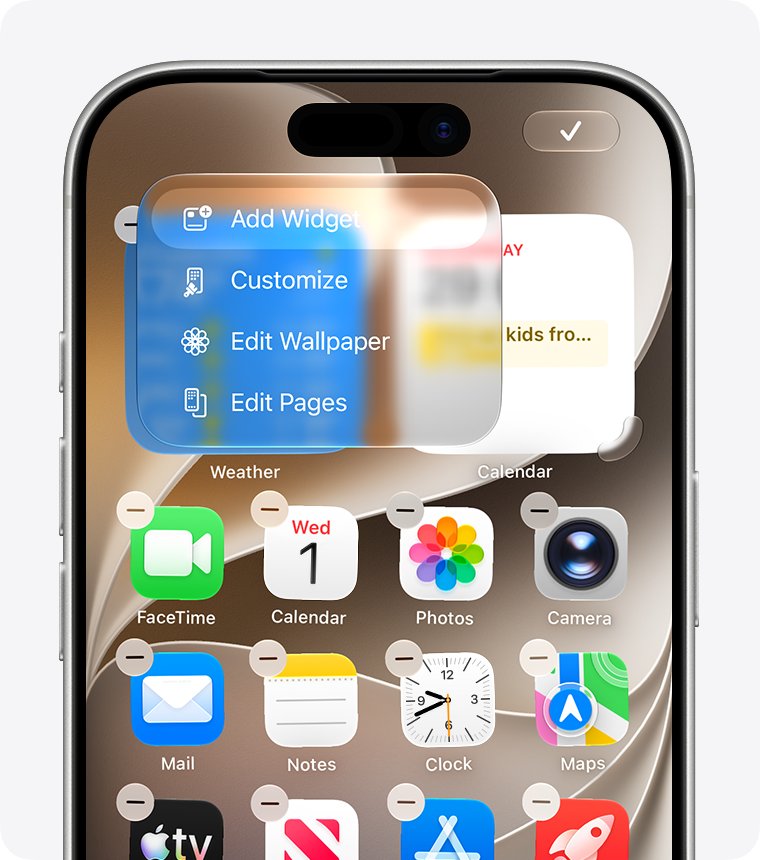
- Go to the Home Screen, then touch and hold a widget or an empty area until the apps jiggle.
- Tap the Edit button in the upper-left corner, then tap Add Widget.
- Search for Weather Channel and tap it.
- Swipe to the size you want, then tap Add Widget.
- Drag the widget where you want it, then tap Done.
If iOS asks whether the widget can use your location, allow it. Without that, the widget has no place to show a forecast for.
Add weather widget to iPhone lock screen
Lock Screen widgets need iOS 16 or later, and you add them while you customize the iPhone Lock Screen. The Weather Channel's App Store listing describes its Home Screen widget, so check the Lock Screen list for its name; Apple's Weather app offers Lock Screen widgets such as the temperature.
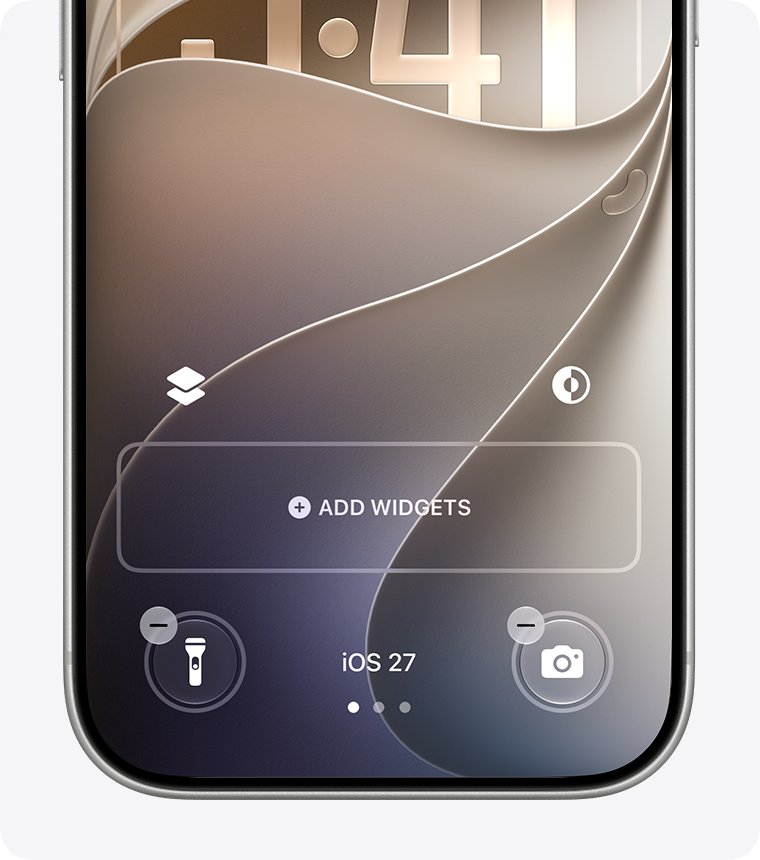
- Touch and hold the Lock Screen until the Customize button appears, then tap Customize.
- Tap Add Widgets.
- Tap or drag the weather widget you want into the widget area.
- If there is not enough room, tap the Remove button on an existing widget to make space.
- Swipe down from the widgets list, then tap Done.
Update the Weather Channel app and iOS on iPhone 16 Pro
The current Weather Channel app requires iOS 26.0 or later. An update to either the app or iOS can fix a widget that stopped loading after a change on one side.
- Open the App Store and tap your picture in the top-right corner.
- Tap App Updates, then tap Update next to The Weather Channel if it is listed.
- Open Settings > General > Software Update to see the installed iOS version.
- Tap Download and Install if an update is waiting, and follow the onscreen instructions.
- Open The Weather Channel once after the restart so the widget can refresh.
Updating iOS keeps your data and settings, and Apple recommends a backup to iCloud or a computer before you start.
Reinstall the Weather Channel app to fix a blank widget
Deleting the app removes it and its data from the iPhone, including saved locations and its widget. A fresh install clears any damaged widget data that survives an update.
- Touch and hold The Weather Channel on the Home Screen or in App Library.
- Tap Remove App, then tap Delete App, then tap Delete.
- Open the App Store, tap your picture, tap Apps & Purchase History, then tap Your Apps.
- Find The Weather Channel and tap the download button next to it.
- Open the app, allow location access when it asks, and let the forecast load.
- Add the widget to the Home Screen again.
Choose Delete App, not Remove from Home Screen; removing only moves the app to App Library and leaves its data in place.
How to tell if the Weather Channel widget is updating again
- Open The Weather Channel and note the location, temperature and current conditions.
- Go to the Home Screen and compare the widget; it should name the same place and show matching conditions.
- Lock the iPhone and leave it for an hour without opening the app.
- Unlock it and compare the widget with the app again; the widget should have caught up with the app.
- Turn off Wi-Fi for a while and check that the widget still updates on cellular data.
A widget that matches the app after an hour away is refreshing in the background. If it only changes when you open the app, Background App Refresh or Low Power Mode is still blocking it.
How often does the Weather Channel widget update on iPhone?
Widgets do not update live. iOS gives each widget a refresh budget and decides when it reloads, so a few minutes of stale data is normal.
| What affects the widget | What iOS does |
|---|---|
| Daily refresh budget | A widget you look at often typically gets 40 to 70 refreshes a day, roughly every 15 to 60 minutes, and the interval varies |
| How you use the widget | The budget depends on how often and when the widget is visible, when it last reloaded, and whether the app is active |
| A newly added widget | iOS takes a few days to learn your habits and may refresh the widget more often during that period |
| The app open on screen | Refreshes while The Weather Channel is in the foreground do not count against the widget's budget |
| Your location | The widget gets location only for a short time after it is visible, and only if you allowed the widget to use location |
| Quitting the app from the App Switcher | The app might not check for new content until you open it again |
| Low Power Mode or Low Data Mode | Both turn off Background App Refresh, which stops background updates |
How to change weather widget on iPhone
Most widgets can be adjusted from the Home Screen, and the Weather widget can show your current location or a different one.
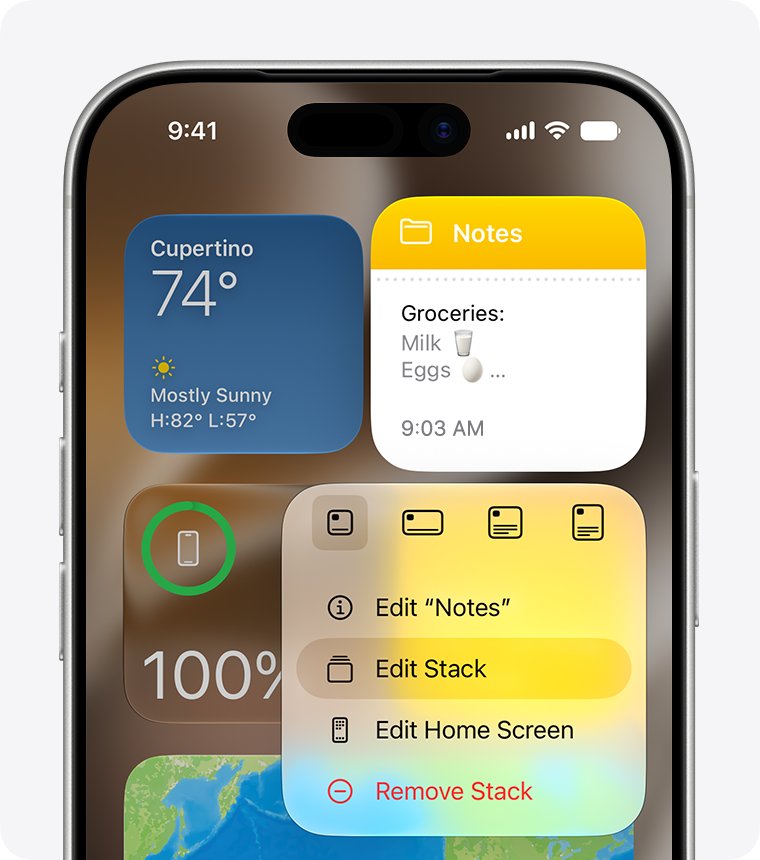
- Touch and hold the widget on the Home Screen or in Today View.
- Tap Edit Widget, or Edit Stack if the widget sits in a Smart Stack.
- Change the options the widget offers, such as the location it shows.
- Tap Done, or tap outside the widget in Today View.
- To change the size, remove the widget and add it again in the size you want.
- To move it, touch and hold the widget, tap Edit Home Screen, drag it to its new place, then tap Done.
In a Smart Stack, turn off Smart Rotate under Edit Stack if you want The Weather Channel widget to stay on top instead of rotating with other widgets.
iPhone weather widget not working: Weather Channel fixes
iPhone weather widget location access needed
The app or the widget has no permission to use your location, or the location settings are damaged.
- Open Settings > Privacy & Security > Location Services and tap the weather app.
- Select While Using the App or Always, and turn on Precise Location.
- If the widget still asks, open Settings > General > Transfer or Reset iPhone > Reset and tap Reset Location & Privacy.
- Open the weather app and allow location again; after the reset, apps do not use your location until you give permission.
Where is my weather widget?
The widget moved into a Smart Stack, Today View or another Home Screen page, or it was removed.
- Swipe left and right across your Home Screen pages to look for it.
- Swipe right from the Home Screen or Lock Screen to check Today View.
- Swipe up and down on any Smart Stack to see the widgets inside it.
- If it is gone, add it again with Edit > Add Widget.
Weather Channel widget shows the wrong city
The widget is set to a saved location, Precise Location is off, or the iPhone's clock is wrong.
- Touch and hold the widget, tap Edit Widget, and check which location it uses.
- Turn on Precise Location for The Weather Channel in Location Services.
- Open Settings > General > Date & Time and turn on Set Automatically, which improves GPS accuracy.
iPhone weather widget not working at all
The iPhone or the app is stuck in a state a normal restart does not clear.
- Force restart the iPhone: press and quickly release volume up, press and quickly release volume down, then hold the side button until the Apple logo appears.
- Open The Weather Channel, let it load, and check the widget again.
- If only The Weather Channel widget fails, contact The Weather Company through support.weather.com with your iPhone model and iOS version.
Weather Channel widget on iPhone FAQ
How do I add a weather widget to my iPhone?
Touch and hold an empty area of the Home Screen until the apps jiggle, tap Edit in the upper-left corner, then tap Add Widget. Search for Weather or The Weather Channel, choose a size, tap Add Widget, and tap Done.
How do I add weather to my iPhone screen?
Weather can go on the Home Screen, the Lock Screen or Today View. For the Lock Screen, touch and hold it, tap Customize, tap Add Widgets, and pick a weather widget. For Today View, swipe right from the Home Screen and use Edit > Add Widget.
How do I change my weather widget?
Touch and hold the widget and tap Edit Widget to change options such as its location. To change its size, remove it and add it again in a different size. In a Smart Stack, tap Edit Stack to reorder widgets or turn off Smart Rotate.
Where is my weather widget?
Check every Home Screen page, swipe right for Today View, and swipe through any Smart Stack, because a stacked widget can rotate out of view. If the widget is not there, it was removed; add it again from Edit > Add Widget.
Why is my iPhone weather widget not working?
A blank or frozen weather widget usually means it cannot refresh in the background. Allow the app to use your location, turn on Background App Refresh, turn off Low Power Mode and Low Data Mode, and open the app once.
Why does my iPhone weather widget say location access is needed?
The widget has no permission to use your location. Open Settings > Privacy & Security > Location Services, tap the weather app, choose While Using the App or Always, and turn on Precise Location. Then check the widget again.
Does the Weather Channel have an iPhone widget?
Yes. The Weather Channel app includes a Home Screen widget that shows local weather, radar, alerts and the forecast for the next three hours. The current app requires iOS 26.0 or later, so update iOS first if the widget does not appear in the widget gallery.
Do I need to download the Apple Weather widget?
No. The widget comes with Apple's Weather app, so there is nothing separate to download. If Weather is missing, search App Library or download Weather again from the App Store, then add its widget from the widget gallery.