Press the keyboard brightness keys if your Mac has them; on an M1 MacBook Air, which has none, press Fn-C to open Control Center and drag the Keyboard Brightness slider.
This guide covers each Mac keyboard layout, adding Keyboard Brightness to the menu bar, the Touch Bar, the brightness shortcuts Apple lists, automatic backlight settings, and what to do when the keys do the wrong thing.
How to use keyboard to adjust keyboard brightness on a Mac
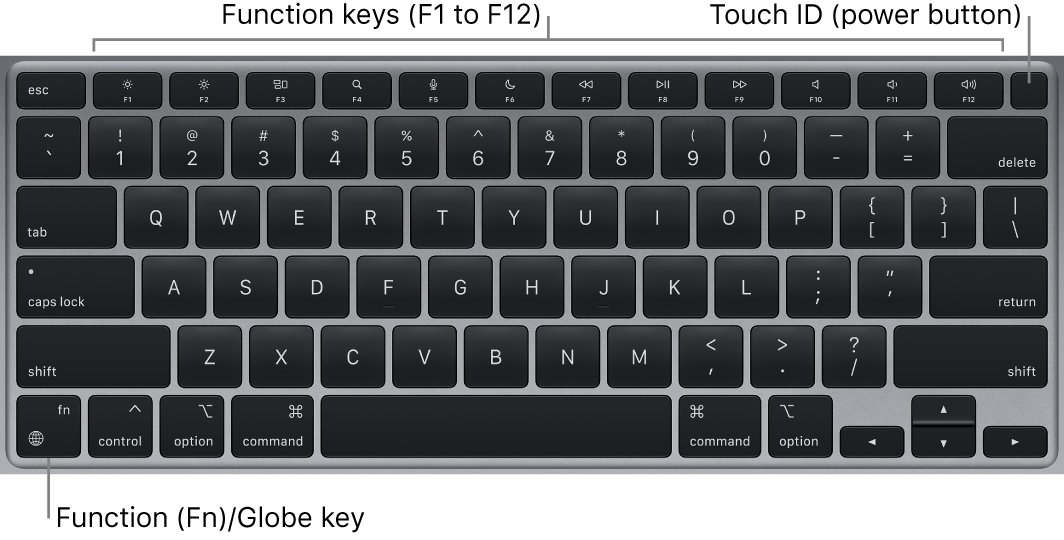
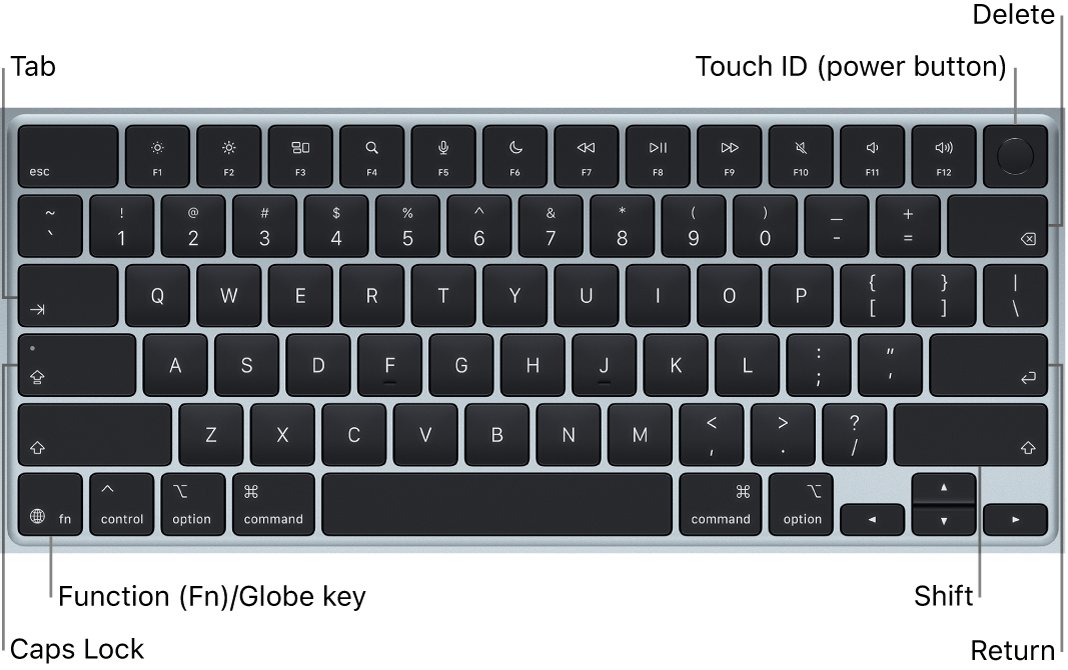
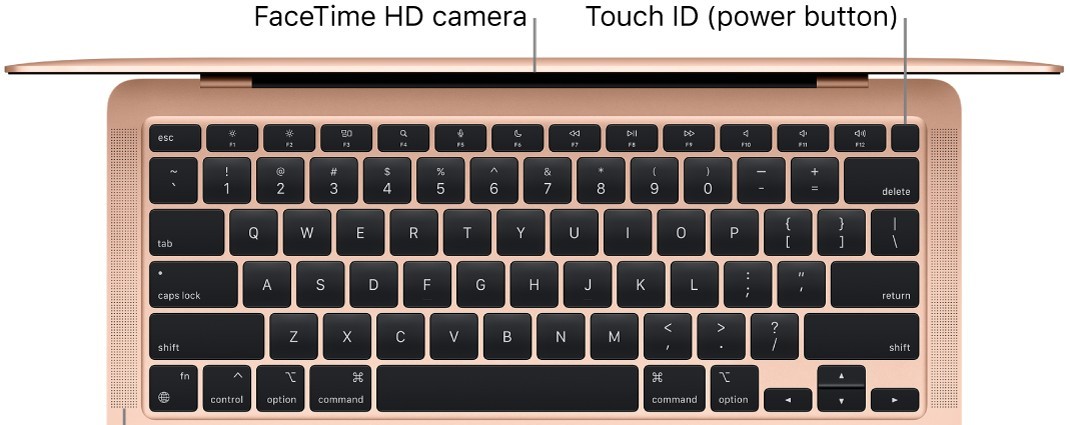
Find your Mac in the left column. The M1 MacBook Air and current MacBook Air models use F5 for Dictation and F6 for Do Not Disturb, so no key on their top row changes the backlight.
| Your Mac | Keyboard route | What happens |
|---|---|---|
| Mac laptop with keyboard brightness keys on the top row | Press the increase or decrease keyboard brightness key | Each press changes the backlight one step. Keep pressing decrease to turn it off |
| MacBook Air (M1, 2020) and current MacBook Air | Press Fn-C (Globe-C), then click Keyboard Brightness in Control Center | A slider opens. Drag it to set the level |
| Any Mac with Keyboard Brightness added to the menu bar | Click the keyboard brightness icon in the menu bar | A slider opens straight from the menu bar |
| MacBook Pro with Touch Bar | Expand the Control Strip, then use its keyboard brightness control | The backlight changes from the Touch Bar |
| Any Mac laptop with a backlit keyboard | Apple menu > System Settings > Keyboard | Drag the Keyboard brightness slider. All the way left turns the backlight off |
MacBook Air M1 keyboard brightness shortcut with Fn-C
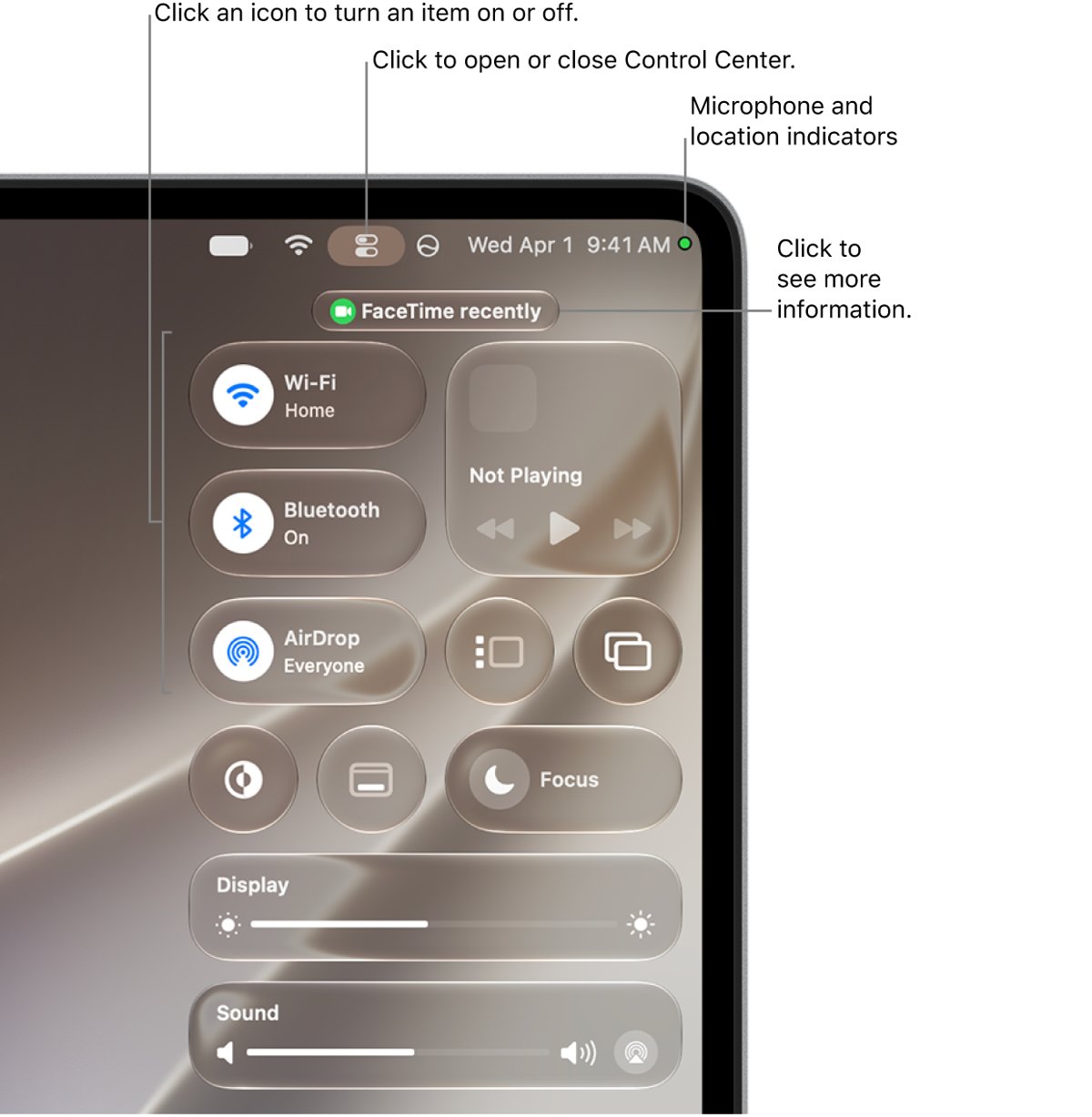
Apple's shortcut Fn-C shows or hides Control Center. It is the shortest keyboard route on a MacBook Air without backlight keys.
- Press and hold Fn (the Globe key), then press C.
- In Control Center, click Keyboard Brightness.
- Drag the slider right to brighten the keys or left to dim them.
- Drag it all the way left to turn the backlight off.
- Press Fn-C again to close Control Center.
If Keyboard Brightness is missing from Control Center, add it with the steps in the next section and turn on Show in Control Center instead of, or as well as, Show in Menu Bar.
Add Keyboard Brightness to the Mac menu bar
A menu bar icon puts the slider one click away. The steps differ between macOS Sonoma and the newest macOS releases.
- On macOS Sonoma, choose Apple menu > System Settings and click Control Center in the sidebar.
- Scroll to Other Modules and find Keyboard Brightness.
- Turn on Show in Menu Bar, and Show in Control Center if you want it there too.
- On newer macOS, click the Control Center icon in the menu bar and click Edit Controls.
- Drag Keyboard Brightness into Control Center and click Done.
- Control-click Keyboard Brightness in Control Center and choose Add to Menu Bar.
To reach the menu bar without the trackpad, Fn-Control-F8 moves keyboard focus to the status menus. Turn that shortcut on first in System Settings > Keyboard > Keyboard Shortcuts > Keyboard.
Change keyboard brightness on MacBook Pro with Touch Bar
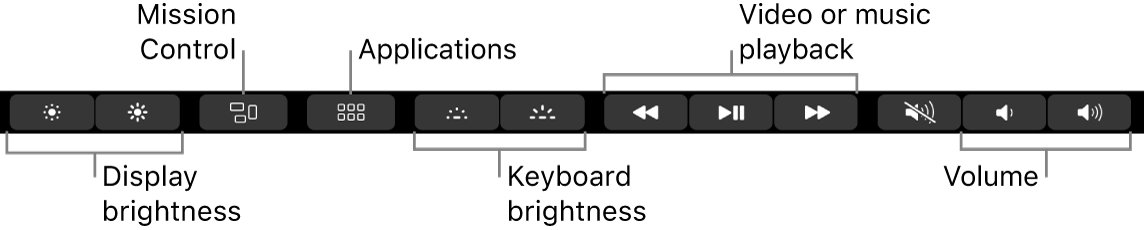
On a MacBook Pro with Touch Bar, the keyboard brightness control sits in the expanded Control Strip, between Applications and the playback buttons.
- Tap the Expand button in the Control Strip. On some models and setups, press and hold Fn or the Globe key instead.
- Find the keyboard brightness control in the expanded Control Strip.
- Tap or touch and hold it to raise or lower the backlight.
To see F1 through F12 on the Touch Bar instead, press and hold Fn.
Keys to change brightness on a Mac keyboard
These shortcuts come from Apple's Mac keyboard shortcut list. The keyboard brightness rows work only on Macs that have keyboard brightness keys.
| Press | What it does |
|---|---|
| Keyboard brightness up or down key | Raises or lowers the keyboard backlight |
| Option-Shift-Keyboard Brightness Up or Down | Changes the keyboard backlight in smaller steps |
| Option-Keyboard Brightness Up | Opens Keyboard settings |
| Brightness down or up (F1, F2 on MacBook Air) | Lowers or raises the display brightness |
| Option-Shift-Brightness Up or Down | Changes display brightness in smaller steps |
| Control-Brightness Up or Down | Changes the brightness of a supported external display |
| Option-Brightness Up | Opens Displays settings |
| Command-Brightness Down | Turns video mirroring on or off with more than one display |
| Fn-C | Shows or hides Control Center, where the Keyboard Brightness slider lives |
How to change screen brightness with keyboard on a Mac
Display brightness has its own keys on the top row. On a MacBook Air they are F1 and F2.
- Press the brightness down key (F1) to dim the screen or brightness up (F2) to brighten it.
- Hold Option-Shift while you press either key to change brightness in smaller steps.
- Hold Control with either key to change a supported external display.
- If the keys act as plain F1 and F2, hold Fn while you press them.
- To make the top row control brightness again without Fn, open System Settings > Keyboard > Keyboard Shortcuts > Function Keys and turn off Use F1, F2, etc. keys as standard function keys.
Adjust keyboard brightness in low light on Mac
Two settings change the backlight without any key press. Both live in Apple menu > System Settings > Keyboard, which you may need to scroll down to find.
| Setting | What it does | When to change it |
|---|---|---|
| Keyboard brightness slider | Sets the backlight level by hand | Drag left to dim or turn off, right to brighten |
| Adjust keyboard brightness in low light | Lets the Mac set the backlight from the light sensor near the camera | Turn it off if the level keeps changing after you set it |
| Turn keyboard backlight off after inactivity | Turns the light off after the time you pick in the pop-up menu | Pick a longer time if the light goes out while you read |
Keep the area around the camera uncovered in low light, or the automatic setting misreads the room.
How to tell if your Mac has keyboard brightness keys
- Look at the top row for keys with a keyboard backlight symbol, separate from the display brightness keys on F1 and F2.
- Hold Option and press the key you suspect. If Keyboard settings opens, it is a keyboard brightness key.
- If F5 starts Dictation and F6 toggles Do Not Disturb, your Mac uses the MacBook Air layout with no backlight keys.
- Open System Settings > Keyboard. A Keyboard brightness slider confirms the keyboard is backlit, whatever the keys show.
Mac keyboard brightness keys not working
F5 or F6 starts Dictation or Do Not Disturb instead of dimming the keys
On the MacBook Air layout, F5 is Dictation/Siri and F6 is Do Not Disturb; neither controls the backlight.
- Press Fn-C to open Control Center.
- Click Keyboard Brightness and drag the slider.
Brightness keys type F1 or F2 in apps
The top row is set to work as standard function keys.
- Hold Fn while you press the brightness key.
- To change it for good, turn off Use F1, F2, etc. keys as standard function keys in System Settings > Keyboard > Keyboard Shortcuts > Function Keys.
Keyboard brightness changes on its own
Adjust keyboard brightness in low light is on, and the light sensor near the camera reacts to the room.
- Open System Settings > Keyboard.
- Turn off Adjust keyboard brightness in low light.
- Set the level you want with the Keyboard brightness slider.
Keyboard backlight turns off after a few seconds
The inactivity timer switches the backlight off when you stop typing.
- Open System Settings > Keyboard.
- Click the pop-up menu next to Turn keyboard backlight off after inactivity and choose a longer time.
Keyboard Brightness is missing from Control Center
The module is not added.
- On macOS Sonoma, open System Settings > Control Center and turn on Show in Control Center under Keyboard Brightness.
- On newer macOS, click Edit Controls in Control Center, drag Keyboard Brightness in, and click Done.
A non-Apple keyboard's top row does not change brightness
Third-party keyboards do not always map their keys to Mac functions.
- Look for Use F1, F2, etc. keys as standard function keys in Keyboard settings. If it is missing, the keyboard is not made by Apple.
- Install the keyboard maker's own utility to set what its keys do, as Apple advises.
Mac keyboard brightness FAQ
How do I use the keyboard to adjust brightness on a Mac?
Press the brightness keys on the top row, F1 and F2 on a MacBook Air, to change the screen. For the keyboard backlight, press the keyboard brightness keys if your Mac has them, or press Fn-C and use the Keyboard Brightness slider in Control Center.
How do I change keyboard light brightness on a MacBook Air?
Open Control Center with Fn-C or the menu bar, click Keyboard Brightness and drag the slider. You can also drag the Keyboard brightness slider in System Settings > Keyboard. The M1 MacBook Air has no top-row key for the backlight.
Can I assign a keyboard shortcut to keyboard brightness on a Mac?
Apple's Mac shortcut list has no keyboard brightness shortcut for Macs without backlight keys. The closest built-in routes are Fn-C for Control Center and a menu bar icon you reach with Fn-Control-F8 after turning that shortcut on in Keyboard Shortcuts.
How do I turn off the keyboard backlight on a Mac?
Keep pressing the decrease keyboard brightness key until the light goes out, or drag the Keyboard brightness slider all the way left in System Settings > Keyboard. The same works with the slider in Control Center or the menu bar.
Why does my MacBook keyboard light turn off by itself?
The Turn keyboard backlight off after inactivity timer switches it off when you stop typing, and Adjust keyboard brightness in low light dims it in bright rooms. Change both in System Settings > Keyboard.
How do I change screen brightness with the keyboard on a Mac?
Press the brightness down or up key on the top row. Add Option-Shift for smaller steps, or Control for a supported external display. If the keys type F1 and F2 instead, hold Fn while you press them.
How do I change brightness on a PC keyboard?
Laptop brightness and backlight keys depend on the laptop maker, so look for brightness or keyboard-light icons on the top row. Windows 11 also has a Brightness slider behind the Network icon on the taskbar, and supported keyboards add automatic keyboard backlight brightness in Windows 11.
Where is the keyboard light sensor on a MacBook?
Apple places the light sensor at the top of the Mac near the camera. Keep that area uncovered in low light, or Adjust keyboard brightness in low light sets the backlight from a misleading reading.