Safari disappears from an iPhone when Screen Time turns it off, so allow it again under Settings > Screen Time > Content & Privacy Restrictions, then pick it under Default Apps > Browser App.
This guide covers the iOS 26 and iOS 27 paths, a child's iPhone, finding Safari in App Library, and websites that hide their menus or refuse to open.
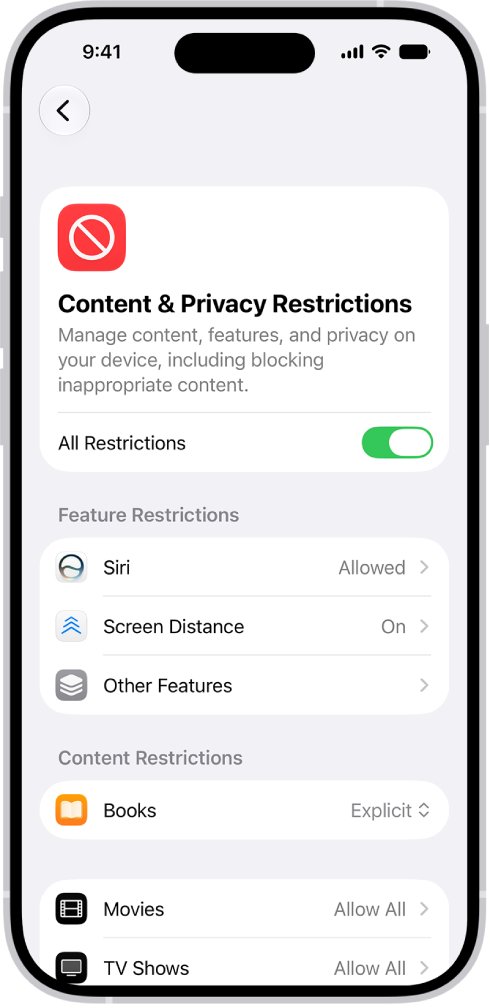
How to get Safari back on iPhone in Screen Time
Apps that come installed, Safari included, can't be hidden with the Home Screen hide option. A missing Safari icon is either sitting in App Library or turned off in Screen Time.
- Open Settings and tap Screen Time.
- Tap Content & Privacy Restrictions, then enter the Screen Time passcode if asked.
- On iOS 26 or iOS 18, tap Allowed Apps & Features and turn Safari back on.
- On iOS 27, tap Other Features and allow any built-in app or feature that shows as blocked.
- Go back to the Home Screen and look for the Safari icon.
Turning an app off in Allowed Apps & Features does not delete it. iOS hides it from the Home Screen until you turn it back on.
Where to unblock Safari in Screen Time by iOS version
Apple rebuilt Screen Time and parental controls in iOS 27, so the menu names depend on the iOS version and on whose iPhone it is.
| Your iPhone | Open this | Then |
|---|---|---|
| Your own iPhone on iOS 26 or iOS 18 | Settings > Screen Time > Content & Privacy Restrictions | Tap Allowed Apps & Features and turn Safari on |
| Your own iPhone on iOS 27 | Settings > Screen Time > Content & Privacy Restrictions | Tap Other Features and allow anything blocked |
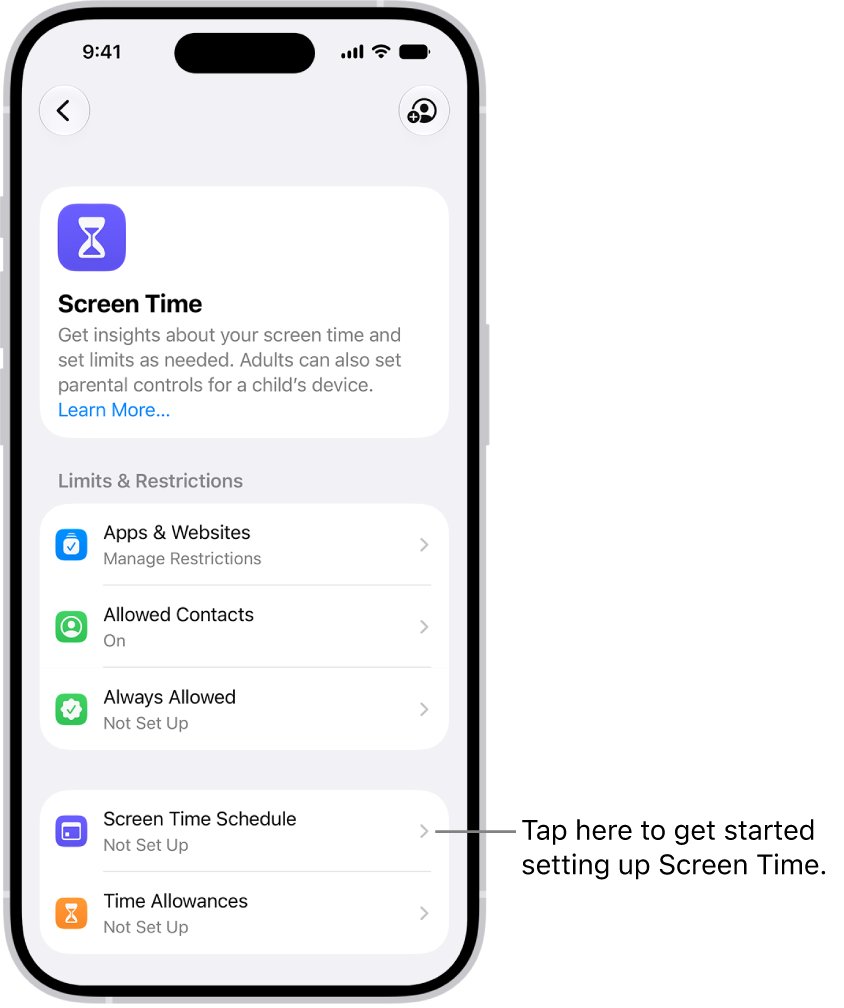
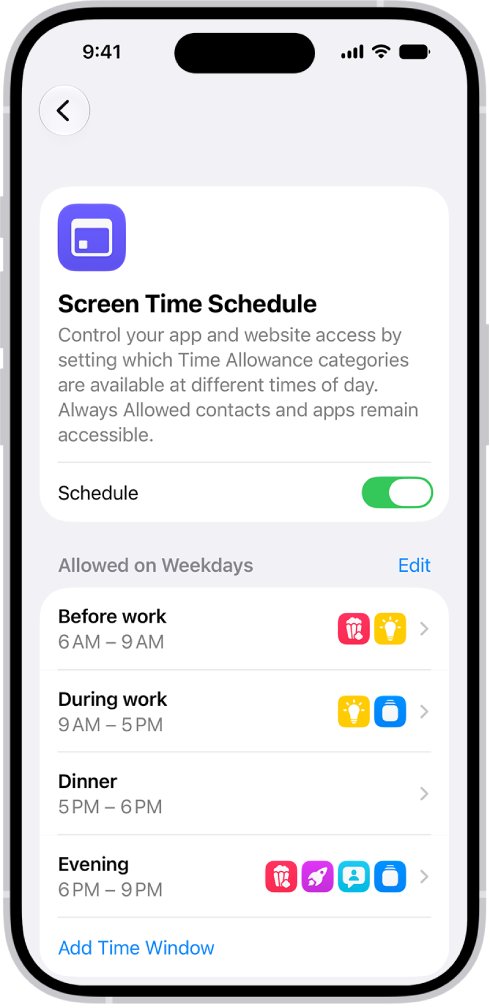
| Your own iPhone on iOS 27 with a Screen Time Schedule | Settings > Screen Time > Always Allowed | Tap Add Apps and add Safari so the schedule never locks it |
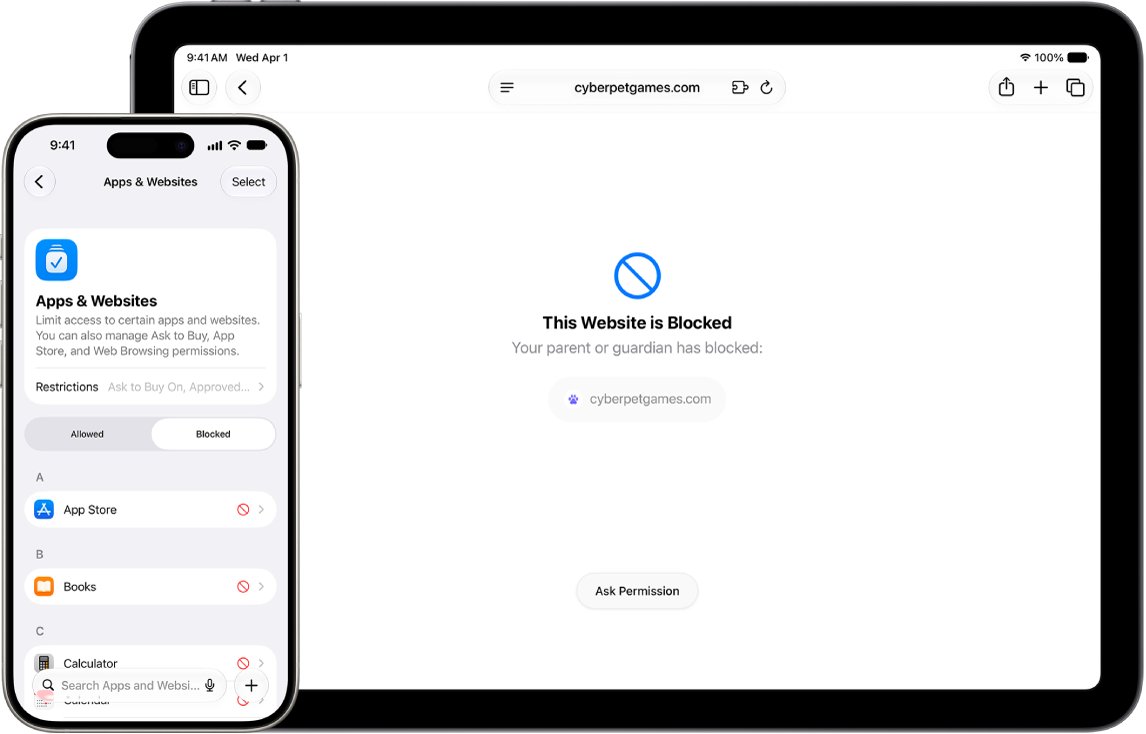
| A child's iPhone using iOS 27 parental controls | On the parent's iPhone: Settings > Family > child's name > Apps & Websites | Open the Blocked tab, then allow Safari |
| A child's iPhone on iOS 26 | Settings > Screen Time > child's name > Content & Privacy Restrictions | Tap Allowed Apps & Features and turn Safari on |
The Screen Time passcode is not the passcode that unlocks the iPhone. On a child's device, the Family Sharing organizer or a parent resets it from their own device.
Make Safari the default browser app on iPhone
Once Safari is back, make it the default browser so it opens web links from Mail, Messages and other apps. The Default Apps page needs a recent version of iOS.
- Open Settings, then tap Apps.
- Tap Default Apps at the top of the list of your apps.
- Tap Browser App.
- Tap Safari.
Only one browser can be the default at a time. In the European Union and Japan, iOS may show a browser choice screen first, and the same steps change that choice later.
Where did my Safari go? Find Safari in App Library
App Library lists every app on the iPhone, including apps removed from the Home Screen.
- Go to the Home Screen and swipe left past all your Home Screen pages.
- Tap the search field at the top of App Library.
- Type Safari, then tap the icon to open it.
- To put it back on the Home Screen, touch and hold the icon until the icons jiggle and it moves to the Home Screen, then lift your finger.
You can also swipe down on the Home Screen and search for Safari. Built-in apps never go into the Hidden folder, so Safari will not be in Settings > Apps > Hidden Apps.
Turn on JavaScript in Safari on iPhone
Store pickers, search boxes and drop-down menus on large shopping sites run on JavaScript. With JavaScript off, those options can be missing or do nothing when you tap them.
- Open Settings, then tap Apps.
- Tap Safari.
- Tap Advanced.
- Turn on JavaScript.
- Open Safari again and reload the website.
Turn off Safari content blockers for one website
Content blockers and other Safari extensions change what a page shows. A strict blocker can remove buttons, menus or sign-in boxes along with the ads.
- Open the website in Safari.
- Tap the icon on the left side of the search field, then tap Manage Extensions.
- Turn off each extension for that website.
- Reload the page and check whether the missing options appear.
To turn an extension off everywhere, open Settings > Apps > Safari > Extensions, tap the extension and turn off Allow Extension.
Unblock websites in Safari restricted by Screen Time
Web Content limits in Screen Time decide which sites Safari will open. A site on the Never Allow list stays blocked even if it is a well-known store.
- Open Settings and tap Screen Time.
- Tap Content & Privacy Restrictions and enter the Screen Time passcode if asked.
- Tap App Store, Media, Web, & Games, then tap Web Content.
- Check the Never Allow list and remove the website you need.
- If a stricter web setting is selected, choose Limit Adult Websites instead.
- Open the website in Safari again.
These menu names apply to iOS 26 and iOS 18. A child's iPhone on iOS 27 uses the parent's Family settings in the next section.
Unblock websites on a child's iPhone with Safari filtering
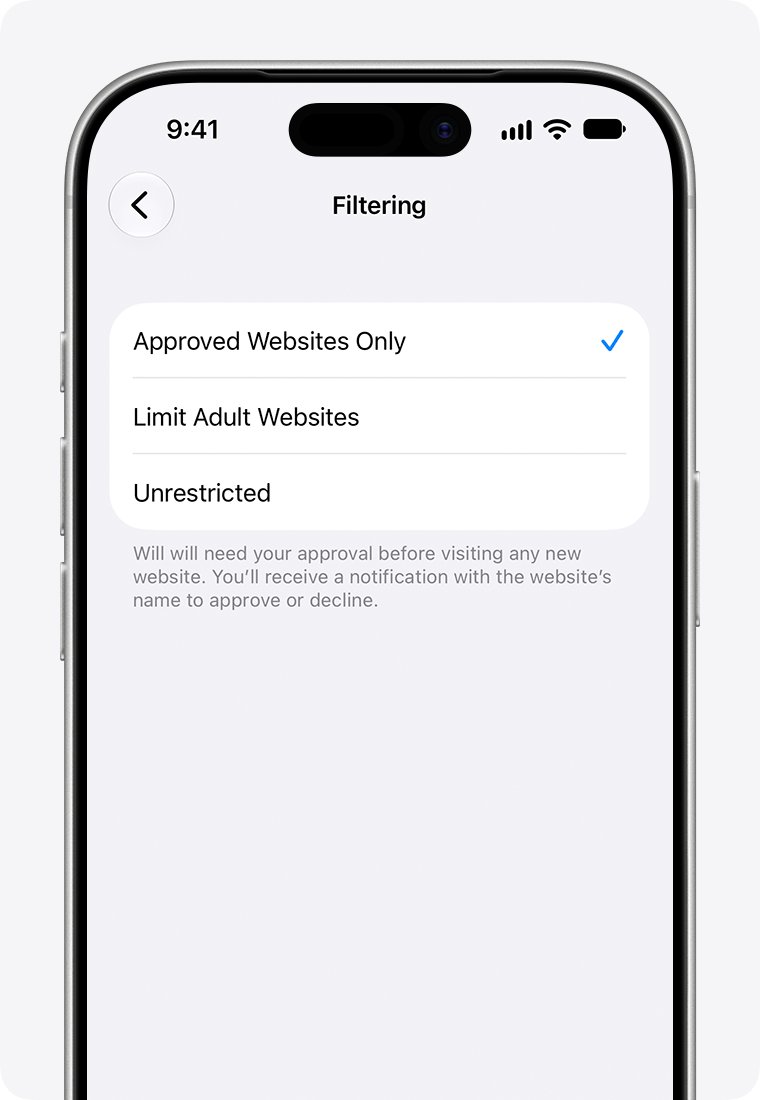
On a Child Account, Approved Websites Only is on by default for children under 13, and Limit Adult Websites is on by default for children under 18. Ages vary by country or region.
- On the parent's iPhone, open Settings and tap Family.
- Tap the child's name, then tap Apps & Websites.
- Tap Restrictions, then tap Filtering under Websites.
- Tap Limit Adult Websites to allow everything except detected adult sites, or Unrestricted to allow all sites.
- To allow one site only, go back to Apps & Websites, tap the Add button and enter the website.
With Ask to Browse on, the child sends a request before opening a new website in Safari, and the parent approves or declines it from their own device.
How to tell if Screen Time is blocking Safari on iPhone
- Swipe left to App Library and search for Safari. If it opens, it was only removed from the Home Screen.
- Open Settings > Screen Time > Content & Privacy Restrictions.
- If iOS asks for a Screen Time passcode you do not know, someone else set the restrictions.
- On iOS 26 or iOS 18, open Allowed Apps & Features and check whether Safari is off.
- On a child's iPhone, a dimmed Safari icon means a parent blocked it; the app is not deleted.
Safari Screen Time restrictions explained
| Setting | What it does to Safari |
|---|---|
| Allowed Apps & Features (iOS 26 and earlier) | Turning Safari off hides it from the Home Screen until you turn it back on |
| Web Content > Never Allow | Every site on the list is blocked in Safari |
| Limit Adult Websites | Limits detected adult sites and leaves other sites open |
| Approved Websites Only (Child Account) | Only sites a parent has approved open in Safari |
| Ask to Browse (Child Account, iOS 27) | The child must request access before visiting a new website |
| Blocked app (Apps & Websites, iOS 27) | The app stays installed but can't be used until a parent allows it |
| Screen Time passcode | Needed to change any of these settings; separate from the unlock passcode |
| Hide app on the Home Screen | Not available for Safari or any other app that comes installed |
Safari not working on iPhone
Why can't I open Safari
A Screen Time Schedule or a parent's block makes the app unavailable at certain times.
- Open Settings > Screen Time > Screen Time Schedule.
- Turn off Schedule, or keep it and add Safari under Screen Time > Always Allowed > Add Apps.
- On a child's iPhone, ask the parent to allow Safari in Apps & Websites.
Why is Safari not in my settings
App settings now sit inside the Apps list, not on the main Settings screen.
- Open Settings and scroll down.
- Tap Apps.
- Tap Safari.
- If Safari is not in the Apps list either, turn it back on in Screen Time first.
Why can't I search on Safari or why does Safari say it can't find the server
The iPhone can't reach the site or search engine on its current network, so Safari shows a cannot connect to server error.
- Load www.apple.com over cellular data, or join a different Wi-Fi network.
- Check your VPN settings, because an active VPN can stop some sites from loading.
- Restart the iPhone and try the search again.
Safari not working properly on some websites
Stored website data, JavaScript turned off or iCloud Private Relay can break a single site.
- Open Settings > Apps > Safari and tap Clear History and Website Data.
- Tap Clear History to confirm.
- Turn on JavaScript under Settings > Apps > Safari > Advanced.
- If only one site fails, turn off Private Relay temporarily in iCloud settings and reload the page.
- If it still fails, contact the website's developer.
Safari missing on iPhone FAQ
Do I have Safari on my iPhone?
Yes. The Safari browser comes installed on every iPhone and can't be hidden like downloaded apps. If you can't find it, search App Library or Spotlight, then check Screen Time for a restriction that turned it off.
Where did my Safari go?
Safari is either in App Library, if it was removed from the Home Screen, or turned off by Screen Time. Swipe left past your last Home Screen page and search for Safari. If it isn't there, check Content & Privacy Restrictions.
Why is Safari not listed in Settings?
Safari's settings sit inside the Apps list. Open Settings, tap Apps, then tap Safari. If it is missing from that list, a Screen Time restriction has turned Safari off, and allowing it again brings back its settings.
Why can't I open Safari?
A Screen Time Schedule, a Time Allowance or a parent's block can make Safari unavailable. Turn off the schedule or add Safari to Always Allowed in Settings > Screen Time. On a child's iPhone, the parent allows it from their own device.
Why can't I search on Safari?
Safari can't reach the search engine on the current network. Try cellular data or another Wi-Fi network, check any VPN, restart the iPhone, and clear history and website data in Settings > Apps > Safari.
Why does Safari say it can't find the server?
The iPhone can't connect to the website. Load apple.com on another network to test the connection, check your VPN settings, and restart the iPhone. If only one site fails, contact that website's developer.
Why is Safari not working properly?
Stored website data, JavaScript turned off, a content-blocking extension or a Screen Time web limit can each break pages. Clear history and website data, turn on JavaScript, disable extensions for the site, and check Web Content in Screen Time.
Why am I blocked from seeing options on well-known websites?
Missing menus or options usually come from JavaScript being off or a content blocker removing page parts. A Screen Time web limit can also block the whole site. Turn on JavaScript, turn off extensions for that site, and check Web Content.