Outlook settings open from the Settings gear at the top right in new Outlook and Outlook on the web, and from File > Options in classic Outlook for Windows.
This guide covers where each setting lives, signatures, calendar sharing, encryption, new vs classic Outlook, and the fixes for the problems readers hit most often.

Step-by-step guide to accessing Outlook settings
Each Outlook version keeps its settings in a different place, so find your version in the left column first.
| Outlook version | Where settings live | What you change there |
|---|---|---|
| New Outlook for Windows | Settings gear at the top right, or View > View settings | Accounts, signatures, layout, appearance, compose format, rules |
| Classic Outlook for Windows | File tab > Options (Mail, Calendar, General, Trust Center, Add-ins) | Fonts, signatures, encryption, add-ins, new Outlook options |
| Classic Outlook account settings | File > Account Settings > Account Settings | Server names, ports, password, sync window, profiles |
| Outlook on the web and Outlook.com | Settings gear at the top of the page | Same layout as new Outlook: Accounts, Mail, Calendar, General |
| Windows Control Panel | Mail icon > Email Accounts | Classic Outlook account and profile settings without opening Outlook |
Work mail lives at outlook.office365.com and personal mail at outlook.live.com, and both use the same Settings pane once you open Outlook on the web.
Feature comparison between new Outlook and classic Outlook versions
New Outlook is built on web technology (WebView2) and shares its code with Outlook on the web, which is why it gets fixes within hours instead of monthly builds.
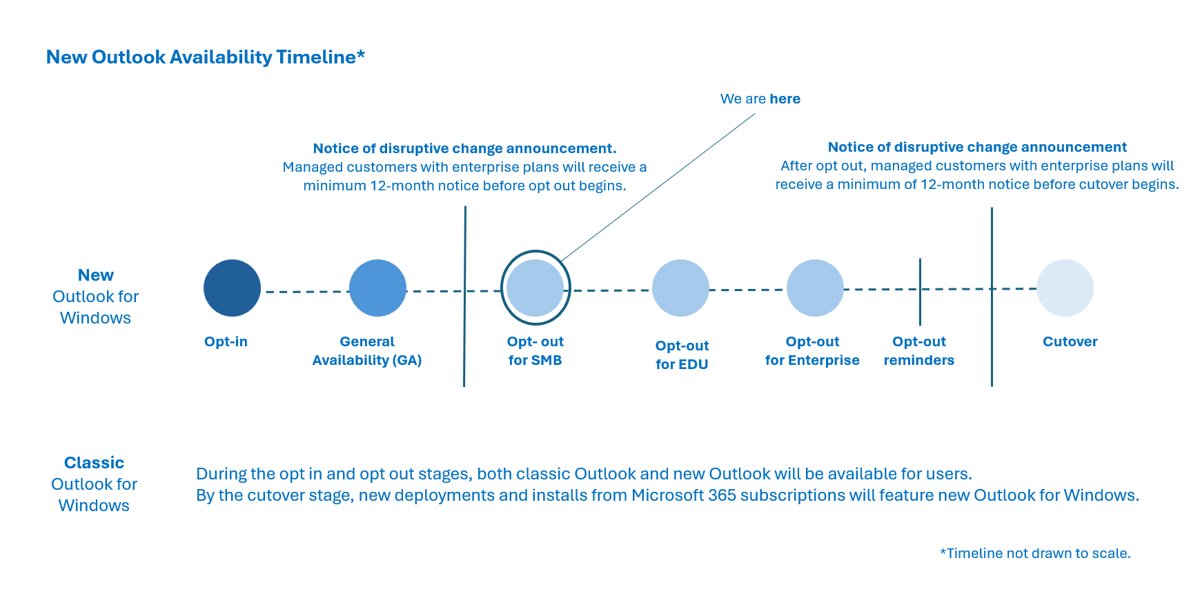
Classic Outlook is the Win32 app from Microsoft 365 and Office, and Microsoft supports it until at least 2029. The table compares the features that decide which one fits you.
| Feature | New Outlook | Classic Outlook |
|---|---|---|
| COM add-ins, VBA macros and the Outlook Object Model | Not supported | Supported |
| Web add-ins | Supported (not for third-party accounts) | Supported (not for third-party accounts) |
| PST files | Partial support | Full support |
| Working offline | Partial support | Full support (Cached Exchange Mode) |
| Rules | Partial; no rules import or export | Full, including rules import and export |
| Quick Steps, mail merge, search folders | Partial | Full |
| Pin, snooze, schedule send, undo send | Yes | Not available as built-in features |
| Copilot and Microsoft Teams integration | Native, with extra Copilot features | Copilot available, without the new-only extras |
| iCloud and Gmail accounts | Supported | Gmail supported; iCloud partial |
| Updates | Service-delivered within hours | Monthly or semi-annual channel builds |
Most complaints about new Outlook come from the first rows: missing COM add-ins, partial PST support and no rules import or export. The full breakdown of new Outlook vs old Outlook explains each gap.
Should you switch to new Outlook now?
Classic Outlook is still widely used because businesses depend on COM add-ins, macros and local PST archives. New Outlook has improved on speed, search and features such as snooze and undo send.
| Your situation | Use this version | Why |
|---|---|---|
| You rely on a COM add-in, VBA macro or mail merge | Classic Outlook | New Outlook cannot run COM add-ins or macros |
| You archive mail in local PST files | Classic Outlook | New Outlook supports PST files only partially |
| You use Outlook.com, Gmail or iCloud on a home PC | New Outlook | Free, preinstalled on Windows 11, and adds pin, snooze and schedule send |
| You want Copilot and Teams inside your mail | New Outlook | Copilot and Teams are built in |
| Your company has not enabled the toggle | Classic Outlook | Admins control the switch for work accounts |
Some Microsoft 365 users prefer classic Outlook simply because their workflow depends on features that new Outlook marks as partial or not supported.
How to switch between new Outlook and old Outlook
Classic Outlook shows a Try the new Outlook toggle at the top right. New Outlook shows a New Outlook toggle in the same place.

- In classic Outlook, turn on Try the new Outlook at the top right to try new Outlook now.
- To go back, turn off the New Outlook toggle in new Outlook.
- Choose Switch back to classic Outlook to stay there, or Use classic Outlook this time for one session.
- If the toggle is gone, open the Help tab in new Outlook and select Go to classic Outlook.
- To stop the automatic switch to new Outlook, go to File > Options > General in classic Outlook.
- Under New Outlook options, clear Automatically switch me to new Outlook.
Microsoft moves Microsoft 365 Personal and Family users to new Outlook automatically. You can switch from Outlook (new) to classic at any time, and new PCs without the desktop app can still install classic Outlook on Windows 11.
How to add a signature in Outlook’s new version
An Outlook email signature puts your name and contact details in every message without retyping them. You can save several signatures, for example one internal and one external.
- Select Settings at the top right of new Outlook.
- Select Accounts > Signatures.
- If you have more than one account, pick the account for this signature.
- Select Add signature and give it a distinct name.
- Type your signature in the editing box and format the font, color and style.
- Use the checkboxes to add it to new messages, replies and forwards, or leave them blank.
- Select Save.
To insert a saved signature by hand, open New mail, go to the Insert group on the Message tab and select Signature. To change one later, select the Edit signature button next to it under Accounts > Signatures.
How to add a signature in Outlook’s classic version
These steps work in classic Outlook for Microsoft 365, Outlook 2016, Outlook 2019 and Outlook 2021, and they let you add an image or logo.
- Open a new email message.
- On the Message tab, select Signature > Signatures.
- In the E-mail account box, choose the account for the signature.
- Under Select signature to edit, select New, then type a name.
- Compose the signature under Edit signature.
- To add a logo, select the image button, pick the file and select Insert.
- Under Choose default signature, set New messages and Replies/forwards.
- Select OK.
To insert a signature manually in classic Outlook, select Signature on the Message tab and pick one from the flyout. To resize a logo, right-click it, choose Picture, open the Size tab and keep Lock aspect ratio checked.
How to create a signature in Outlook for the web
Outlook on the web and Outlook.com store their own signature, separate from the desktop app, so create one in each place you send from.
- Select Settings at the top of the page.
- Select Accounts > Signatures.
- Select Add signature and enter a name.
- Type and format the signature in the editing box.
- Tick the boxes for new messages, replies and forwards as needed.
- Select Save.
In the Outlook app for Android, iPhone and iPad, open Settings, tap Signature under Mail, and turn on Per Account Signature to give each account its own. Outlook for Mac has its own signature settings in the app.
How to encrypt emails in Microsoft Outlook
Encryption turns a message into cipher text that only the intended recipient can read. You need a qualifying Microsoft 365 subscription, and S/MIME also needs a digital ID (certificate) installed.
| What you want | Outlook version | Path |
|---|---|---|
| Encrypt a single email with Microsoft Purview (Office 365 encrypted email) | Classic Outlook | In the message, Options > Encrypt, then pick Encrypt or Do Not Forward |
| Encrypt a single email with Microsoft Purview | New Outlook | Options > Encrypt, then choose an option (needs an Office 365 Enterprise E3 license) |
| Encrypt one email with S/MIME certificates | New Outlook | Options > More Options, tick Encrypt this message (S/MIME) |
| Encrypt one email in Outlook on the web (OWA) | Outlook on the web | More options > Message options, tick Encrypt this message (S/MIME) |
| Set all emails to encrypt by default | Classic Outlook | File > Options > Trust Center > Trust Center Settings > Email Security, tick Encrypt contents and attachments for outgoing messages |
| Set all emails to encrypt by default | New Outlook and the web | Settings > Mail > S/MIME, tick Encrypt contents and attachment for all messages I send (the web needs the S/MIME control installed) |
| Encrypt email in Outlook mobile (iOS and Android) | Outlook mobile | Turn on S/MIME in the app first; Purview-encrypted mail opens on both platforms |
Encrypting protects sensitive data such as contracts and personal details from anyone who intercepts the message. Any message with a digital signature or an IRM restriction such as Do not forward is encrypted automatically.
Encrypt vs. digitally sign: what’s the difference?
Encryption hides the content. A digital signature (S/MIME) proves the sender's identity and shows the message was not tampered with, using a digital ID from a certification authority.
The security options you get depend on your account type. This table lists each one and who can use it.
| Security option | Work or school account with Microsoft 365 | Microsoft account with Microsoft 365 | Microsoft account without Microsoft 365 |
|---|---|---|---|
| Use encryption to prevent unauthorized access | Yes | Yes | No |
| Send messages with a digital signature to verify sender identity | Yes | No | No |
| Protect messages with Information Rights Management (IRM) | Yes | No | No |
| Apply sensitivity labels to your emails | Yes | No | No |
| Open encrypted or protected emails sent from others | Yes | Yes | Yes |
Sensitivity labels only classify a message, such as Confidential or Public; they do not stop recipients acting on it. Recipients on other mail services get a link that opens the protected message in the Microsoft Purview Message Encryption portal.
Update or change your email settings in Outlook for Windows
Change account settings after a password change, when your provider asks for new server details, or when sending and receiving stops working.
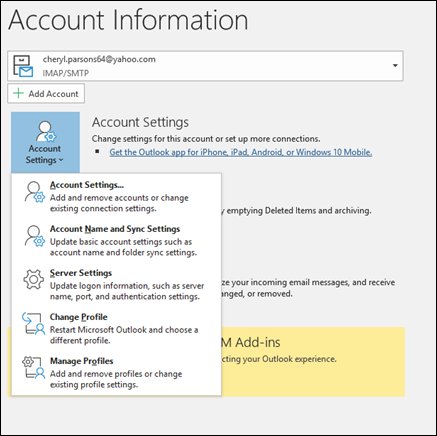
- Open classic Outlook and select File.
- Pick the account from the drop-down under Account Information.
- Select Account Settings, then Server Settings.
- Select Incoming mail or Outgoing mail and update the password, server name, port or authentication.
- Select Next > Done.
The same menu holds Account Name and Sync Settings, Change Profile and Manage Profiles. Server names and ports for each provider are listed in the walkthrough to set up a POP3 or IMAP account.
Changing email account settings via Control Panel
Outlook account settings are stored in your mail profile, which the Mail applet in Control Panel edits even when Outlook will not open. You need the account type, server names, and SSL and port settings.
- Type control panel in the taskbar search box on Windows 11 or Windows 10 and open Control Panel.
- Search for and open Mail.
- In Mail Setup – Outlook, select Email Accounts.
- Select the account and choose Change.
- Check the incoming and outgoing mail servers, user name and password.
- Select More Settings > Advanced and compare the port numbers and encryption type.
- Select OK, then Test Account Settings; green check marks mean the settings work.
Change settings for mail
Most Outlook mail settings sit in the same Settings pane in new Outlook, Outlook on the web and Outlook.com. Classic Outlook spreads them across the View tab and File > Options.
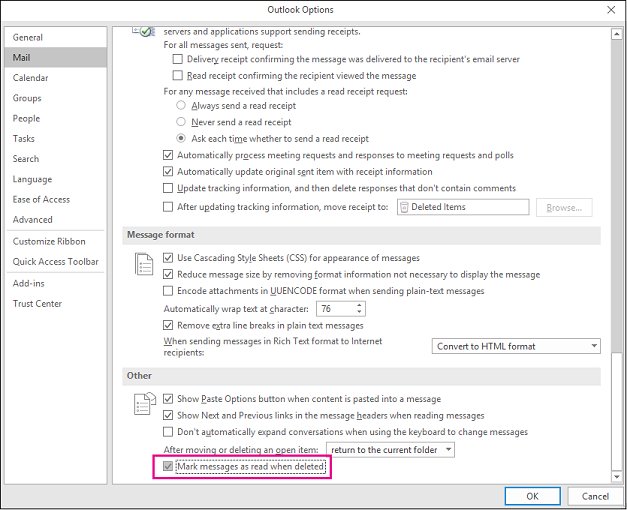
| Setting | New Outlook and the web | Classic Outlook |
|---|---|---|
| Dark mode and theme | Settings > General > Appearance | File > Office Account > Office Theme > Black |
| Default message font and format | Settings > Mail > Compose | File > Options > Mail > Stationery and Fonts |
| Read receipts | Settings > Mail > Message handling | File > Options > Mail > Tracking |
| Conversations | Settings > Mail > Layout > Message organization | View > Show as Conversations |
| Message list and Focused Inbox | Settings > Mail > Layout | View > Show Focused Inbox |
| Reading pane position | View > Layout > Reading pane | View > Layout > Reading Pane |
| Message options such as missing-attachment warnings | Settings > Mail | File > Options > Mail |
Outlook on the web offers three read receipt choices: Ask me before sending a response, Always send a response and Never send a response. Each one is explained with the steps to turn read receipts on or off.
You can also enable dark mode in Outlook per device, and change the default font for every new message.
What you can do with Outlook settings
Beyond layout and signatures, everyday sending features each have a menu path. The table gives the path and the full walkthrough.
| Task | Where to start | Full walkthrough |
|---|---|---|
| Schedule an email | Send drop-down > Schedule send in new Outlook and the web | schedule an email in Outlook |
| Hold every message before it goes | A classic Outlook rule that defers delivery | delay send for all emails |
| Recall a sent message | Works only inside one Microsoft 365 organization | recall an email in Outlook |
| Set automatic replies | File > Automatic Replies (classic) or Settings > Accounts > Automatic replies | set an out of office reply |
| Hide recipients | Show the Bcc field in the message window | use BCC in Outlook |
| Add emojis | Open the emoji panel while the cursor is in the message | insert emojis in Outlook email |
| Mail a group in one address | Contact groups (classic) or contact lists (new Outlook) | create an email group or add members to a distribution list |
How to share Outlook calendar
Calendar sharing in new Outlook adds one person at a time and lets you choose how much they see.
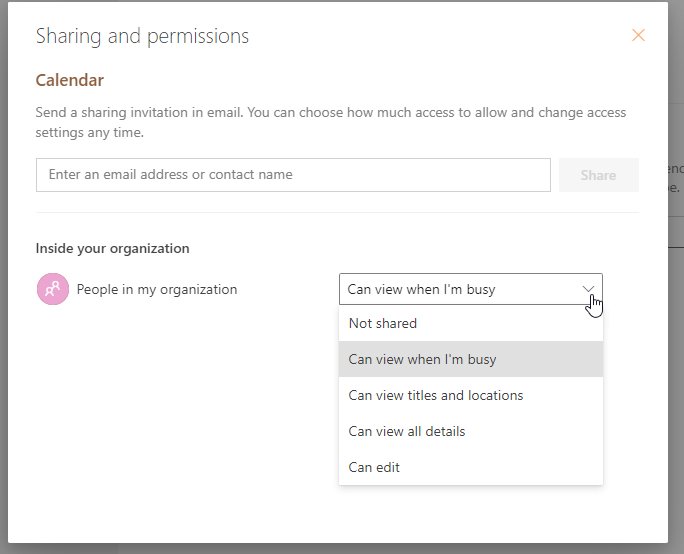
- Select Calendar in the navigation pane.
- On the Home tab, select Share Calendar.
- On Sharing and permissions, enter the person's name or email address.
- Open the drop-down next to their name and pick Can view when I'm busy, Can view titles and locations, Can view all details, Can edit or Delegate.
- Select Share.
In classic Outlook, delegates are added under File > Account Settings > Delegate Access, and they get Editor rights to your calendar by default. A team that needs one shared schedule can create a group calendar through a Microsoft 365 group.
To find a meeting time, the Scheduling Poll in Outlook sends attendees time options and books the slot once required attendees agree. Apple users can add iCloud Calendar to Outlook on Windows.
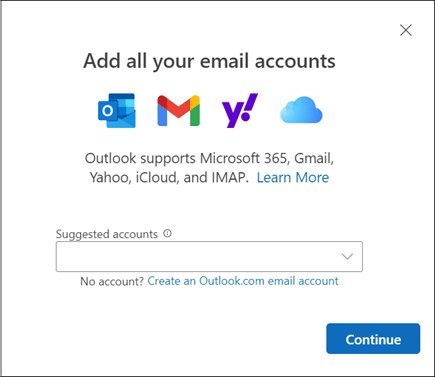
Outlook desktop app, Outlook on the web and Outlook mobile app setup
Before any setting matters, Outlook needs to be installed and signed in. The desktop app gives full control, Outlook on the web runs in any browser, and the mobile app keeps the essentials.
| Starting point | What to do |
|---|---|
| No Microsoft address yet | Create an Outlook email account free at outlook.com |
| Old Hotmail address | Sign in at Outlook.com with the same address; the Hotmail sign-in steps cover recovery |
| Signing in safely | Add a passkey or two-step verification to your Outlook.com login, or sign in with a QR code from the mobile app |
| Windows 11 PC without Outlook | Install Outlook on Windows 11 from the Microsoft Store |
| Windows Mail app user | Mail and Calendar support ended on December 31, 2024, so reinstalling the Mail app no longer gives a working client |
| Existing Gmail or work address | Add an existing email account through Accounts > Add account |
| Browser only | Install Outlook on the web as an app; the Outlook PWA explained covers Edge and Chrome, and you can pin the PWA to your desktop |
| Linux PC | There is no desktop app; run Outlook on Linux through the web version |
Advanced customization options (all platforms)
Power users and admins change Outlook configuration beyond the Settings pane. These are the advanced options most people look for.
| Option | What it does | Details |
|---|---|---|
| Add-ins | Add features from Get Add-ins or Add apps | install and manage add-ins; the Mimecast tab in Outlook is a common example |
| Shared mailbox | An admin creates it and adds you; it appears after a restart | add a shared mailbox |
| Alias | A second address that delivers to the same inbox | create an alias in Outlook |
| PST data files | Local archive of mail, contacts and calendar items in classic Outlook | Outlook PST files and when to avoid them |
| Message size limit | Exchange Online sends up to 35 MB and receives up to 36 MB by default | Admins can configure the max email size up to 150 MB |
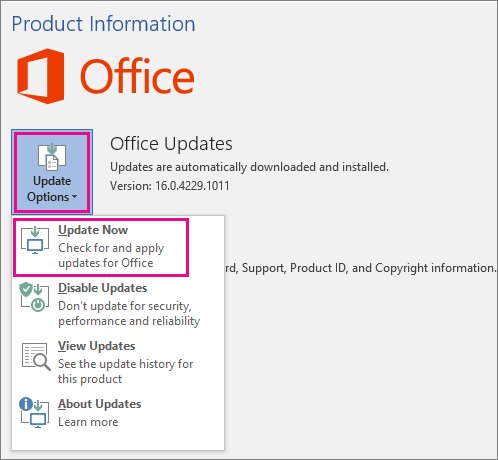
How to check which Outlook version you have
- Look at the top right of the Outlook window.
- A New Outlook toggle that is on means you run new Outlook for Windows.
- A Try the new Outlook toggle, or a File tab with Options, means classic Outlook.
- A browser address of outlook.office365.com or outlook.live.com means Outlook on the web.
- Pick the matching tab in any Microsoft support article before following its steps.
The most common new Outlook complaints (and what to do)
Match the symptom to its usual cause, then apply the fix in the right column. These cover new Outlook and classic Outlook.
| Symptom | Likely cause | Fix |
|---|---|---|
| Outlook only opens in Safe Mode | A COM add-in or a /safe switch in the shortcut | Turn off the add-in and fix Outlook stuck in Safe Mode |
| Not all emails show in the inbox | A filter, Focused Inbox, a rule or a short sync window | Clear the filter and find missing inbox emails |
| New mail does not arrive | Sync paused or Work Offline turned on | Press F9 to refresh the Outlook inbox |
| Messages stuck in the Outbox | Large attachment, offline mode or a password prompt | Open the Outlook Outbox folder and resend |
| Attachment too large to send | Size limit on the client or the Exchange mailbox | Raise the attachment size limit |
| "The name cannot be matched to a name in the address list" | Stale nickname cache or a hidden mailbox | Clear the nickname cache error |
| "Cannot open the set of folders" or a corrupt data file | Damaged .pst or .ost file | Repair it with the Inbox Repair tool |
| Copilot buttons missing in classic Outlook | An Outlook build issue Microsoft has since fixed | Update Outlook and check the classic Outlook Copilot buttons fix |
Potential issues with Outlook settings
Why do my Outlook view settings keep changing?
An update moved a layout option, or Outlook switched you to new Outlook, which keeps view settings separately.
- Check the toggle at the top right to confirm which Outlook you are in.
- In classic Outlook, use View > Change View to pick your view again.
- Select Apply Current View to Other Mail Folders so every folder matches.
- In new Outlook, reset the layout under Settings > Mail > Layout, or change the inbox view back step by step.
The Try the new Outlook toggle doesn't appear
Classic Outlook is a one-time purchase version or standalone license, the work account is not supported, or an admin hid the toggle.
- Confirm you run Outlook from a Microsoft 365 subscription.
- Install the latest Outlook updates.
- Ask your IT admin whether new Outlook is allowed for your account.
Troubleshooting common Outlook encryption issues
The recipient's public key is missing, or your account lacks a qualifying Microsoft 365 subscription.
- Confirm your subscription includes encryption.
- For internal recipients, check your connection so Outlook can read the key from the global address list.
- For external recipients, exchange a digitally signed email first and install their certificate.
- Send again; if Outlook warns that some recipients cannot decrypt, remove them or send unencrypted.
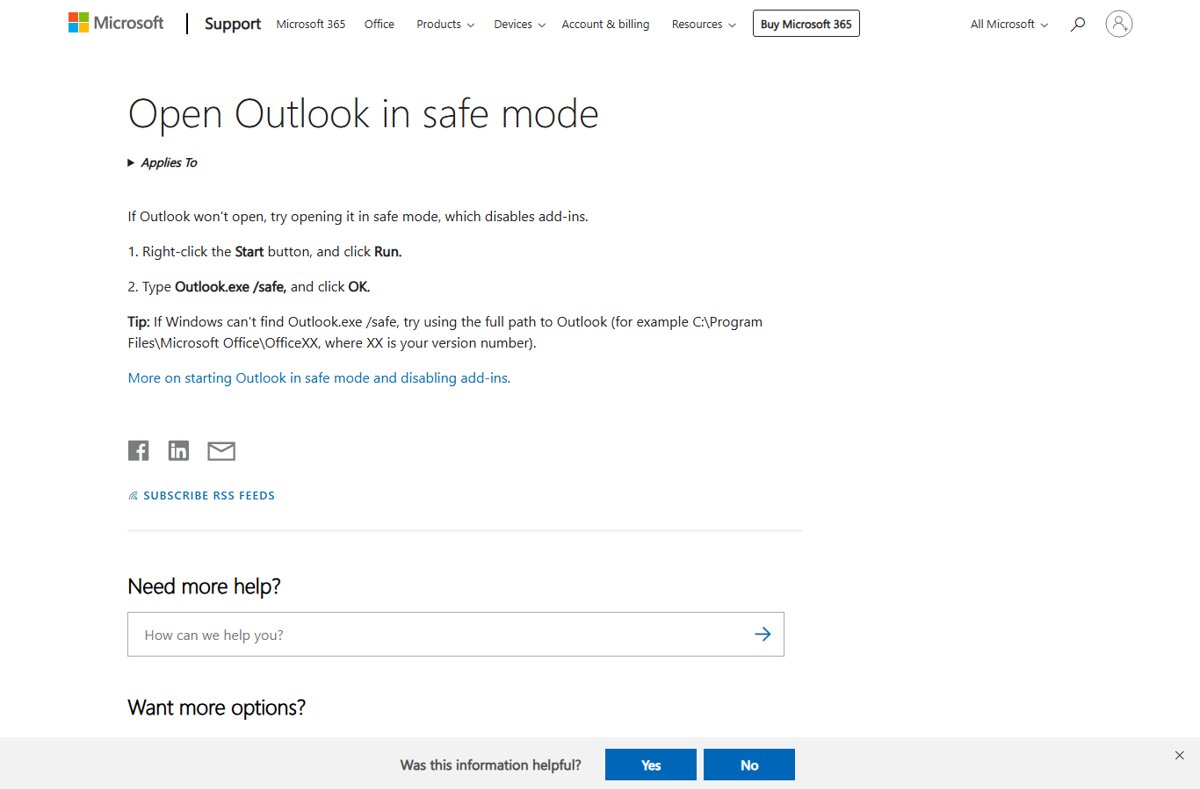
Outlook will not start, or the folder pane is broken
A faulty add-in or a damaged navigation pane file.
- Press Windows + R, type
Outlook.exe /safeand select OK to open Outlook in safe mode. - If it starts, turn off COM add-ins under File > Options > Add-ins > Go.
- If the folder pane is the problem, close Outlook and run
Outlook.exe /resetnavpanefrom the Run box.
How to reset Outlook to default settings
Classic Outlook has no single reset button. Command-line switches reset one area each, and a new profile resets account settings.
- Close classic Outlook completely.
- Press Windows + R to open the Run box.
- Type
Outlook.exe /cleanviewsand select OK to restore default views; custom views are lost. - To rebuild the folder pane, close Outlook again and run the /resetnavpane command the same way.
- To reset account settings, run
Outlook.exe /profiles, select New, name the profile and add your email account.
Run one switch at a time. New Outlook keeps its settings in your account online, so it has no equivalent local reset.
Outlook settings FAQ
Where is Outlook settings menu?
In new Outlook and Outlook on the web, select the Settings gear at the top right. In classic Outlook, open the File tab and select Options. Account server settings in classic Outlook sit under File > Account Settings > Account Settings.
Where is Outlook settings in Windows 11?
On Windows 11, new Outlook is preinstalled and its settings open from the gear icon at the top right or from View > View settings. Classic Outlook account settings can also be changed from Control Panel > Mail > Email Accounts.
How do I reset Outlook to default settings?
Close classic Outlook, press Windows + R and run Outlook.exe /cleanviews to restore default views, or Outlook.exe /resetnavpane to rebuild the folder pane. For account problems, create a new profile with Outlook.exe /profiles and add your account again.
How do I change Outlook font settings?
In classic Outlook, go to File > Options > Mail > Stationery and Fonts and set the font for new mail and replies. In new Outlook and on the web, set the default font under Settings > Mail > Compose.
Why did my Outlook settings change?
The usual reason is that Outlook switched you to new Outlook, which keeps its own settings, or an update moved a layout option. Check the toggle at the top right, then set the view again under View or Settings > Mail > Layout.
Why is Outlook asking for IMAP settings?
Outlook asks for IMAP settings when it cannot detect your provider's servers automatically. Enter the incoming and outgoing server names, ports and encryption type from your email provider, then test the account.
How do I share my Outlook calendar?
In new Outlook, open Calendar, select Share Calendar on the Home tab, enter the person's address, pick a permission such as Can view all details or Can edit, and select Share. Each person is added one at a time.
How do Outlook calendar polls work?
A Scheduling Poll sends attendees a set of proposed times to vote on. Outlook limits the options to working hours and schedules the meeting automatically once the required attendees agree on a slot.
How do I add a calendar to Outlook?
In Outlook on the web or Outlook.com, select Add calendar, then Subscribe from web and paste the calendar's URL. Work accounts can also choose Add personal calendars to connect an Outlook.com or Google calendar.
Why do I have Mail and Outlook settings?
Windows has a Mail icon in Control Panel that edits classic Outlook profiles and accounts, separate from the settings inside Outlook. The old Windows Mail app is a different program whose support ended on December 31, 2024.
Bottom line: which Outlook should you use?
Use new Outlook for personal accounts and stay on classic Outlook only if you depend on COM add-ins, macros or PST archives. New Outlook puts settings, signatures and calendar sharing in one Settings pane and updates within hours, while classic Outlook still runs the add-ins and local data files that many businesses need.