When download speed suddenly drops, restart your modem and router first, then close any app that is eating bandwidth in the background, because those two causes account for most sudden slowdowns.
This guide matches each symptom to a fix on Windows 11 and Windows 10, covering metered connections, Delivery Optimization limits, Wi-Fi bands, network commands, driver reinstalls and a full network reset.
The fastest fix: restart your modem and router
A restart creates a fresh connection to your internet provider. Everyone on the network is disconnected for a few minutes.
- Unplug the power cable from the router.
- Unplug the power cable from the modem; if its lights stay on, remove its backup battery.
- Wait at least 30 seconds.
- Plug the modem back in and wait for its lights to stop blinking.
- Plug the router back in and wait a few minutes for both status lights to settle.
- Reconnect your PC and start the download again.
If you have a modem and router in one box, you only need to restart that single device.
Understanding Why Your Download Speed Suddenly Becomes Slow
| Cause | Typical sign |
|---|---|
| Another app or device using the bandwidth | Speed recovers when other PCs, consoles or cloud sync apps are idle |
| Weak or crowded Wi-Fi signal | Fast near the router, slow in another room; worse when a 2.4 GHz cordless phone or microwave is running |
| Metered connection turned on | Microsoft Store downloads pause and Windows Update fetches only priority updates |
| Delivery Optimization bandwidth limit | Background Windows updates crawl while browser downloads stay fast |
| Malware or spyware | Network activity even when you are not using the PC |
| Browser add-ons or low system resources | Only browser downloads are slow, or every program feels sluggish |
| Busy website or peak-time congestion | One site is slow, or everything slows in the evening |
| ISP data cap reached | Speed drops near the end of a billing cycle and recovers when it resets |
| Corrupted network settings or driver | Slowdown started right after an update or VPN install |
Proven Solutions to Fix Slow Download Speeds
| Your symptom | Fix to try | Why it works |
|---|---|---|
| Everything on every device is slow | Restart modem and router; check for an outage with your ISP | Clears a stuck connection to the provider |
| Only this PC is slow | Close bandwidth-heavy apps in Task Manager | Background uploads and syncs compete with your download |
| Store or Windows Update downloads stall | Turn off Metered connection | Metered mode pauses Store downloads |
| Windows updates download slowly in the background | Raise the Delivery Optimization limit | A low limit caps automatic update speed |
| Slow on Wi-Fi but fine on Ethernet | Switch Wi-Fi band, move closer, turn off adapter power saving | Signal and interference are the bottleneck |
| Slow since an update or VPN install | Run the network commands, reinstall the adapter driver, then network reset | Rebuilds the network stack and adapter settings |
Stop apps that are using your bandwidth
- Press Ctrl + Shift + Esc to open Task Manager.
- Select Processes and click the Network column header to sort by network use.
- Select an app you do not need right now, such as a cloud sync client or game launcher, and choose End task.
- Pause downloads and streams on other devices on the same network.
- Restart your download and compare the speed.
Constant network activity from a process you do not recognise is a reason to run a full antivirus scan, since spyware and viruses use bandwidth too.
Turn off metered connection
On a metered connection, Windows Update downloads only priority updates and Microsoft Store downloads may pause. Wi-Fi is non-metered by default, but the switch is easy to turn on by accident.
- Open Settings > Network & internet.
- Select Wi-Fi and then the network you are connected to, or select Ethernet and your wired network.
- Switch Metered connection to Off.
- Retry the Store or Windows Update download.
If the switch is grayed out, remove any data limit under Advanced network settings > Data usage > Remove limit, and sign in with an administrator account.
Raise the Delivery Optimization bandwidth limit
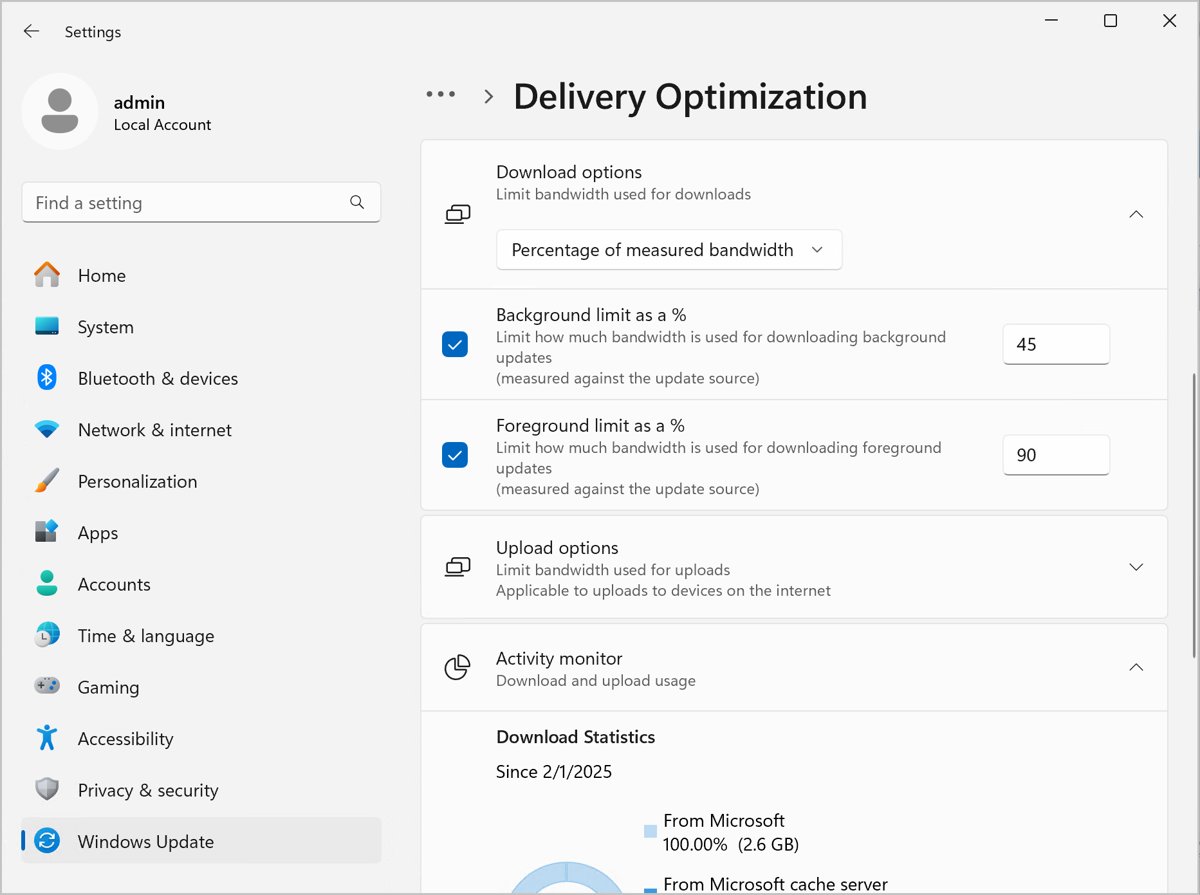
These limits apply only to automatic update downloads. Updates you start manually in Windows Update or the Microsoft Store ignore them.
- Select Start > Settings > Windows Update > Advanced options > Delivery Optimization.
- Open the advanced options and find Download options.
- Clear the Absolute bandwidth or Percentage of measured bandwidth limits, or raise the values.
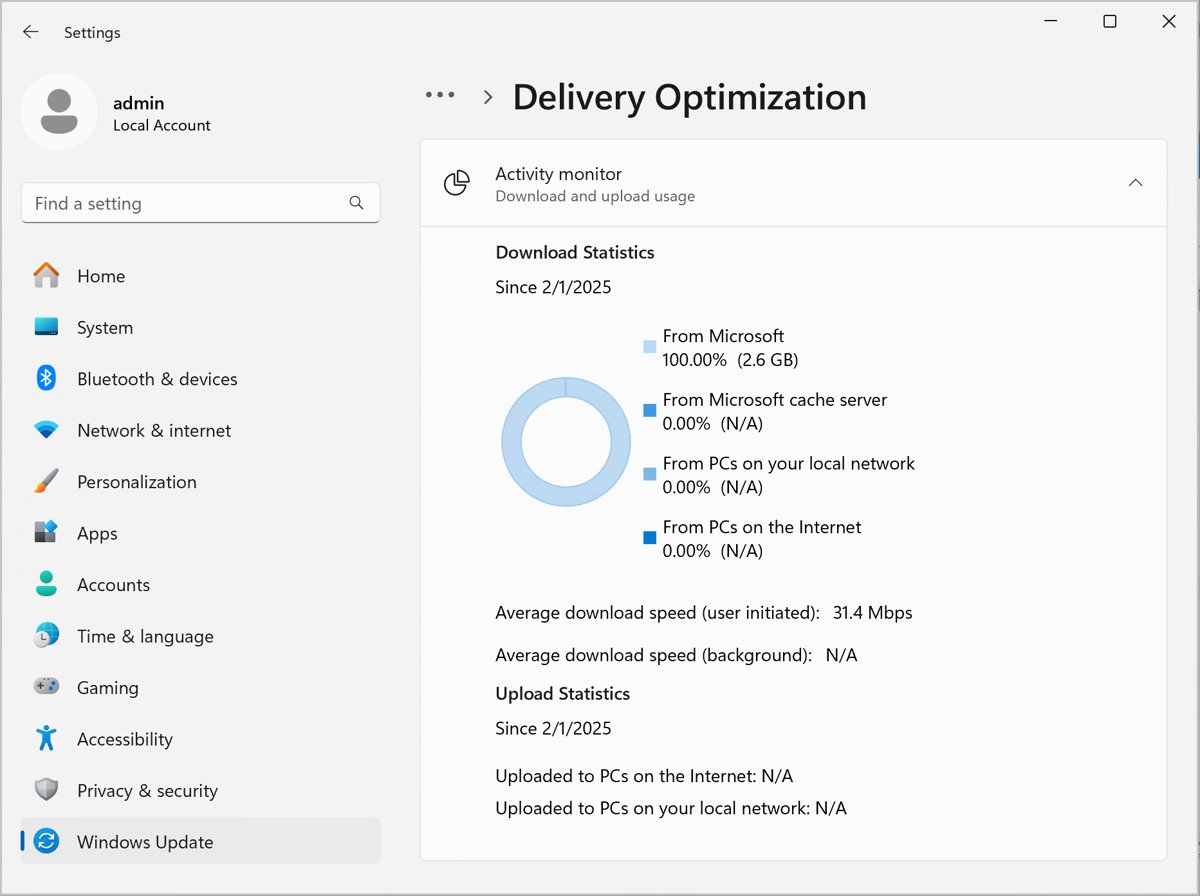
- Go back and select Activity monitor to see the average download speed this month.
Fix a slow Wi-Fi connection
- Move the PC closer to the router and clear physical obstructions between them.
- Keep 2.4 GHz cordless phones and microwave ovens away from the PC and router.
- If both a 2.4 GHz and a 5 GHz network appear in the Wi-Fi list, connect to the other band.
- Open Device Manager, expand Network adapters, right-click the Wi-Fi adapter and select Properties.
- On the Power Management tab, clear Allow the computer to turn off this device to save power and select OK.
- Test the same network on a phone or another laptop; if it is fast there, the problem is on your PC.
Reset the network stack from Command Prompt
Search for command prompt, select Run as administrator and choose Yes. Run these five commands in order, pressing Enter after each.
netsh winsock reset
netsh int ip reset
ipconfig /release
ipconfig /renew
ipconfig /flushdns
Resets Winsock and the TCP/IP stack, releases and renews your IP address, and clears the DNS resolver cache.
You should see: Each command reports that it completed. Restart the PC after the two netsh resets, then test the download again.
Reinstall the network adapter driver
Try this if the slowdown began after a recent update. Download the latest network driver from your PC maker's site first and keep it on a USB drive as a backup.
- Search for device manager and open Device Manager.
- Expand Network adapters and right-click your adapter.
- Select Uninstall device, tick Attempt to remove the driver for this device, then select Uninstall.
- Select Start > Power > Restart.
- Let Windows reinstall the driver automatically; if it does not, install the backup driver.
Use network reset as a last resort
Network reset removes and reinstalls every network adapter and returns its settings to the defaults. You may need to reinstall VPN software afterwards.
- Open Settings > Network & internet.
- On Windows 11, select Advanced network settings > Network reset; on Windows 10, select Status > Network reset.
- Select Reset now, then Yes.
- Wait for the PC to restart and reconnect to your network.
How to check whether the slowdown is your PC, router or provider
Find your router's address first: run ipconfig and note the Default gateway for your connection, for example 192.168.1.1.
ping 192.168.1.1Sends four test packets to the router, using your own Default gateway address in place of the example.
You should see: Four replies with 0% loss mean the PC reaches the router, so a remaining slowdown sits with the modem or your provider. No replies point to the router or Wi-Fi link.
Then run a speed test with Ookla Speedtest on the PC and on a phone, and compare both with the speed your plan promises.
Fix slow downloads by symptom
Slow browser download speed, other apps fine
Browser add-ons and a full temporary-file cache can slow the browser itself.
- Disable browser extensions you do not need, then restart the browser.
- Clear the browser's temporary files to free disk space.
- Try the same download in a second browser to confirm.
Slow download speed on the PC only
Background apps, the Wi-Fi adapter or its driver on this PC.
- Close bandwidth-heavy apps in Task Manager.
- Turn off adapter power saving and switch Wi-Fi band.
- Run the network commands, then reinstall the adapter driver.
Download speed suddenly slow on every device
The modem, router or provider, including local congestion at peak times.
- Restart the modem and router.
- Ping the router to confirm the local link works.
- Contact your provider or check its outage page from a phone.
- Check whether a plan data cap has slowed the connection until the billing cycle ends.
Extremely slow download speed with constant network activity
Spyware or a virus can send traffic in the background.
- Run a full scan in Windows Security > Virus & threat protection > Scan options.
- Remove anything it finds and restart the PC.
- Check Task Manager's Network column again for unknown processes.
Slow downloads on a work network
Corporate proxy servers and admin limits on large downloads during busy hours.
- Try the download outside peak hours.
- Ask your network administrator whether large downloads are throttled.
Additional Tips for Maintaining Optimal Download Speeds
| Habit | Benefit |
|---|---|
| Use Ethernet for large downloads | Avoids Wi-Fi interference and distance problems |
| Schedule big downloads outside evening peak hours | Less local congestion on your provider's network |
| Keep Windows updated through Settings > Windows Update | Brings network driver and stack fixes |
| Keep real-time antivirus on | Stops malware that eats bandwidth |
| Review Delivery Optimization's Activity monitor monthly | Shows how much update traffic your PC uploads and downloads |
| Keep the router's firmware current | Microsoft lists outdated router firmware as a Wi-Fi problem to rule out |
Frequently asked questions
Why is my download speed suddenly slow?
The usual causes are another app or device using the bandwidth, a weak Wi-Fi signal, a stuck modem or router, or congestion at your provider at peak times. Restart the modem and router, then check Task Manager's Network column for busy apps.
How do I fix slow download speed on a PC?
Close bandwidth-heavy apps in Task Manager, turn off Metered connection for your network, and switch Wi-Fi band or use Ethernet. If that fails, run the netsh and ipconfig reset commands, reinstall the network driver, and finally use Network reset.
How do I fix slow browser download speed?
Disable unneeded browser extensions, clear the browser's temporary files and retry the download in a second browser. If every browser is slow, the cause is the connection, not the browser, so work through the network fixes instead.
What makes my download speed slow?
Connection type, Wi-Fi distance and interference, background apps, malware, low memory or disk space, busy websites and provider congestion all reduce speed. A data cap on your plan can also slow the connection until the billing cycle ends.
How do I fix extremely slow download speed?
Restart the modem and router, then ping your router to see whether the local link works. Run a full antivirus scan if the network is busy when you are idle, and contact your provider if every device is equally slow.
What should I do for slow download speed?
Start with a modem and router restart, then check Task Manager for apps using the network. Next, confirm Metered connection is off and Delivery Optimization limits are not set too low, and test on Ethernet to rule out Wi-Fi.
Does a metered connection slow downloads?
It does not lower the line speed, but it restricts what downloads. Windows Update fetches only priority updates and Microsoft Store downloads may pause. Turn it off under Settings > Network & internet for your Wi-Fi or Ethernet network.
Will a network reset fix slow downloads?
It can, when corrupted adapter settings or a VPN cause the slowdown. Network reset reinstalls every network adapter with default settings, so use it last and reinstall any VPN software afterwards.