Press Esc or F10 repeatedly as soon as the HP logo appears to open the BIOS (UEFI) setup on an HP laptop.
This guide covers the startup keys for Windows 11, 10, 8 and 7 laptops, the Windows route that needs no key, booting from a USB drive, and what to do when the key does nothing.
How to Enter BIOS/UEFI Setup on an HP Laptop
HP names Esc and F10 as its BIOS keys. The key works before Windows loads, so it is the same on Windows 11, 10, 8 and 7.
- Save your work and shut down or restart the laptop.
- Press the power button, or let the restart begin.
- Start tapping F10 as soon as the screen lights up, about once per second.
- If a menu appears instead of the setup screen, use the arrow keys or the key shown on screen to open BIOS setup.
- If Windows loads, restart and tap Esc repeatedly instead.
- Move through the setup screens with the arrow keys and press Enter to open an item.
Press the key repeatedly rather than holding it down. Microsoft notes that many PCs show the firmware key on the startup screen, so read any text under the HP logo.
HP BIOS and Boot Menu Keys at a Glance
Pick the row that matches what you want to do. Windows versions only matter for the routes that start inside Windows.
| What you want to do | Use this | Works on |
|---|---|---|
| Open BIOS setup at power-on | Tap Esc or F10 at the HP logo | Windows 11, 10, 8 and 7 laptops |
| Open BIOS without a key | Advanced startup > UEFI Firmware Settings | Windows 11 and 10 on UEFI laptops |
| Pick a boot device for one start | Boot device menu reached from the startup key | Any HP laptop with a USB port |
| Change the boot order for every start | Boot menu inside BIOS setup | Any HP laptop |
| Windows starts too fast for the key | Shift + Restart, then UEFI Firmware Settings | Windows 11 and 10 |
HP's own guidance lists Esc or F10 for its PCs. Other makers use different keys, such as F2 or Delete, so ignore generic key lists when you own an HP.
How to Open the HP Boot Menu and Choose a Boot Device
The boot device menu starts the laptop from a USB drive, disc or network once, without changing the saved boot order. On HP laptops you reach it from the same startup key used for BIOS setup.
- Plug in the USB drive or other device you want to start from.
- Turn on the laptop and tap Esc repeatedly at the HP logo.
- In the menu that opens, choose the boot device option shown on screen.
- Select the entry that names both the mode and the device, for example UEFI: USB Drive.
- Press Enter to start from that device.
- Remove the device and restart when you want the laptop to start Windows again.
Microsoft notes that the same drive can appear twice, once as a UEFI entry and once as a BIOS entry. Each starts the same media in a different firmware mode, so pick the UEFI entry for a Windows 11 or Windows 10 installer.
Accessing BIOS from Windows 11, 10, and 8 Settings
This route restarts straight into the firmware screen, so you never have to catch the logo. It needs a laptop that boots in UEFI mode, and BitLocker may ask for its recovery key.
| Windows version | Where to start | Then select |
|---|---|---|
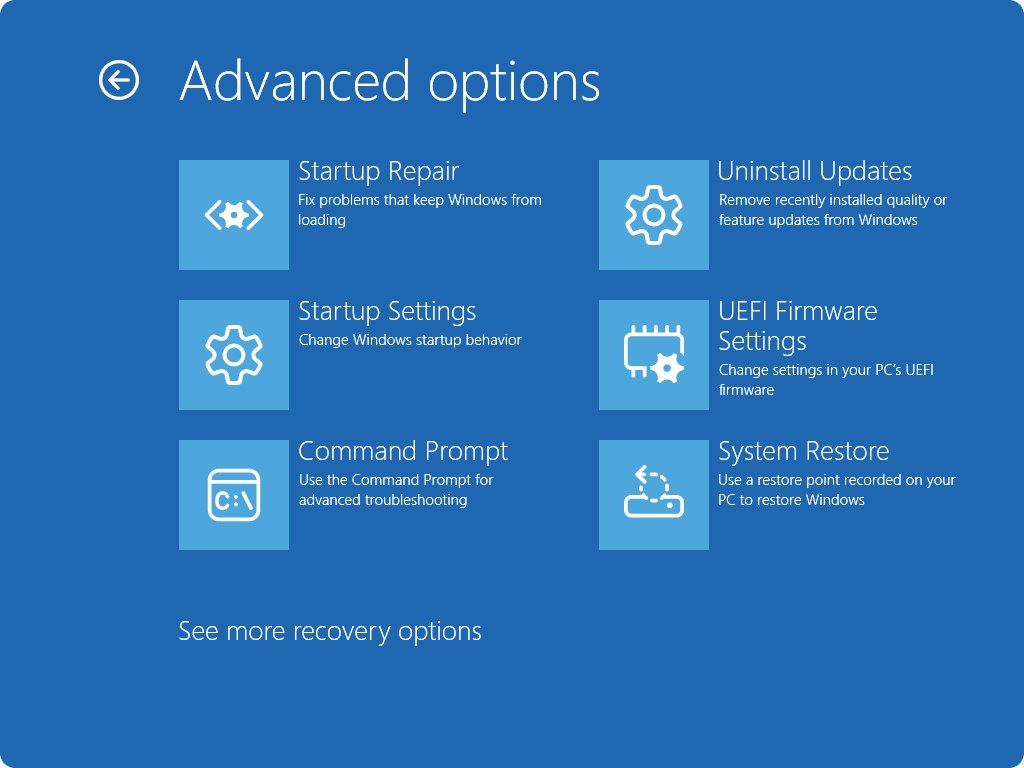
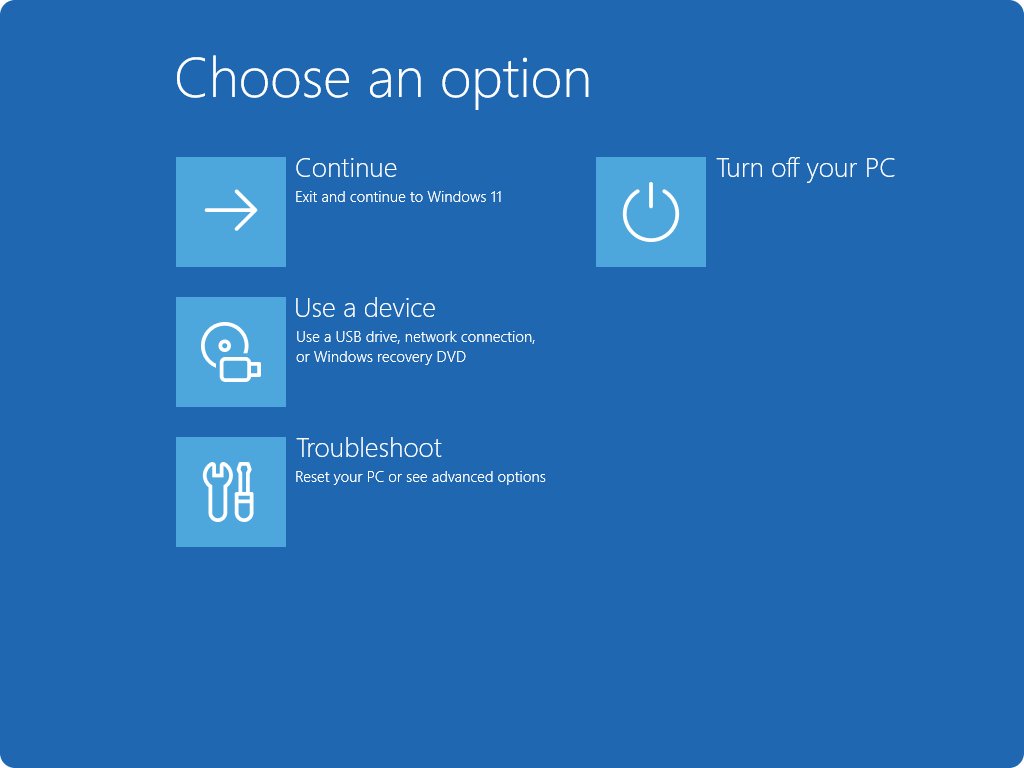
| Windows 11 | Settings > System > Recovery > Advanced startup > Restart now | Troubleshoot > Advanced options > UEFI Firmware Settings > Restart |
| Windows 10 | Settings > Update & Security > Recovery > Advanced startup > Restart now | Troubleshoot > Advanced options > UEFI Firmware Settings > Restart |
| Windows 11 or 10, any screen | Hold Shift while you select Power > Restart on the sign-in screen or Start menu | Troubleshoot > Advanced options > UEFI Firmware Settings |
| Windows 8 and 8.1 | Restart the laptop | Use the Esc or F10 key at the HP logo; Microsoft no longer documents a Windows 8 route |
| Windows 7 | No Windows route | Use the Esc or F10 key at the HP logo |
Windows 10 reached end of support on October 14, 2025, but the route still works on laptops that run it. If UEFI Firmware Settings is not listed, use the startup key instead.
Booting from USB on HP Laptops
Use this to install Windows, run a recovery drive or start a live tool. Microsoft recommends UEFI mode for Windows installs because it has more security features than legacy BIOS mode.
- Create the bootable USB drive on another PC and plug it into the HP laptop.
- Restart the laptop and tap Esc at the HP logo.
- Open the boot device menu from the options shown.
- Choose the UEFI entry for the USB drive and press Enter.
- If the drive is not listed, enter BIOS setup, open the Boot menu and move the USB device above the internal drive.
- Save changes from the Exit menu and let the laptop restart from the USB drive.
Some media only start in legacy BIOS mode. Microsoft notes that such devices may need Secure Boot turned off under Security > Secure Boot, and HP says the same for unrecognized recovery media. Turn Secure Boot back on when you finish, because it blocks untrusted boot code.
What each HP BIOS menu controls
HP says menu names and options vary by model. These are the typical menus you will see after pressing F10.
| Menu | What it holds | Typical reason to open it |
|---|---|---|
| Main | Date, time and BIOS version | Check the BIOS version before an update |
| Advanced | CPU, USB ports and virtualization settings | Turn on virtualization for a virtual machine |
| Boot | Boot order, fast boot and Secure Boot | Start from a USB drive by default |
| Security | Passwords and TPM | Set a BIOS administrator password |
| Exit | Save or discard changes | Leave setup with or without your changes |
Change only the setting you came for. HP warns that wrong BIOS changes can stop the laptop from starting, and a default-settings option exists if you need to undo them.
How to check you reached BIOS or booted from USB
- Look for a text-based or menu screen with tabs such as Main, Boot and Security; that is BIOS setup.
- Open Main and confirm the BIOS version and date are shown.
- After a USB boot, check that the installer or tool on the drive starts instead of Windows.
- If Windows loads, the key was missed or the USB entry was not chosen; repeat the steps.
What to Do If the BIOS or Boot Menu Key Does Not Work
Windows starts before you can press the key
The laptop starts too quickly, often because Fast Startup is on.
- Use the Windows route: hold Shift and select Power > Restart.
- Select Troubleshoot > Advanced options > UEFI Firmware Settings > Restart.
- Or turn off Fast Startup in Windows Power Options, then shut down and try the key again.
- Start tapping the key the moment you press the power button, not after the logo appears.
UEFI Firmware Settings is missing in Advanced startup
Windows cannot restart this laptop straight into its firmware screen.
- Restart the laptop.
- Tap Esc or F10 at the HP logo instead.
- If Windows will not start at all, it enters Windows Recovery Environment after repeated failed starts; use the key from there on the next restart.
The USB drive does not appear in the boot menu
The drive is not bootable, sits behind the internal drive, or only supports legacy BIOS mode.
- Recreate the USB drive and plug it into a different USB port.
- Look for both a UEFI entry and a non-UEFI entry for the same drive and try the UEFI one first.
- Enter BIOS setup and move the USB device up in the Boot menu.
- For legacy-only media, turn off Secure Boot, start the drive, then turn Secure Boot back on.
The laptop asks for a BitLocker recovery key
Changing firmware settings or boot order can trigger BitLocker protection.
- Enter the BitLocker recovery key when the blue recovery screen asks for it.
- Undo the boot order or Secure Boot change if you made one by mistake.
- Restart and confirm Windows starts normally.
BIOS settings are wrong and the laptop will not start
A changed setting, such as boot order or Secure Boot, no longer matches the installed Windows.
- Enter BIOS setup with F10.
- Use the option to restore default settings, then save and exit.
- If that fails, contact HP support; HP also documents a CMOS reset for some models.
Frequently Asked Questions
What key do I press to enter BIOS on an HP laptop?
Press Esc or F10 repeatedly as soon as the HP logo appears. HP lists both keys for its PCs; if Esc shows a menu instead of setup, choose the setup option from it.
How do I boot into BIOS on an HP laptop?
Restart the laptop and tap F10 at the HP logo. On Windows 11 or 10 you can also hold Shift, select Power > Restart, then choose Troubleshoot > Advanced options > UEFI Firmware Settings > Restart.
What is the HP boot menu key for choosing a USB drive?
Tap Esc at the HP logo and, if a menu appears, open the boot device option it lists and choose the UEFI entry for your USB drive. This boots the drive once without changing the saved boot order.
How do I get into BIOS on an HP laptop if Windows starts too fast?
Use the Windows route. Hold Shift while selecting Power > Restart, then select Troubleshoot > Advanced options > UEFI Firmware Settings > Restart. The laptop restarts straight into BIOS setup.
Why is my HP laptop not showing the USB drive in the boot menu?
The drive may not be bootable, may be listed under a UEFI or legacy entry you missed, or may need Secure Boot off. Recreate the drive, try another port and check the Boot menu order.
Can I change the permanent boot order instead of using the one-time boot menu?
Yes. Enter BIOS setup with F10, open the Boot menu, move the device you want to the top of the boot order, then save and exit. The laptop uses that order on every start.
Is the HP BIOS key different on Windows 7 and Windows 11?
No. The key works in the firmware before Windows loads, so Esc and F10 are the same whatever Windows version is installed. Only the Settings route to UEFI Firmware Settings depends on the Windows version.
Is it safe to change HP BIOS settings?
Changing the boot order or a single setting is safe when you know what it does. HP warns that wrong changes can stop the laptop from starting, so note what you change and restore defaults if problems appear.
Bottom Line
Tap F10 at the HP logo for BIOS setup and Esc for the boot device menu; on Windows 11 or 10, use Shift + Restart and UEFI Firmware Settings when the logo flashes by too fast. These are the keys HP documents for its PCs, and the Windows route reaches the same firmware screen without any timing.