To see the Google reviews you wrote, open Google Maps, click Menu, then Your contributions and Reviews; on a phone, tap Contribute and then View your profile.
This guide covers the desktop and mobile routes, how business owners read reviews left for them, how to edit or delete a review, and why a review may not show.
How to See Your Google Reviews on Desktop
Every review you post on Google Maps is stored on your contributions page. Sign in with the same Google account you used to write the reviews.
- Open Google Maps in your browser and sign in to your Google account.
- Click Menu at the top left.
- Click Your contributions.
- Click Reviews to see every place you have reviewed.
- Click Contribute instead if you want suggestions of places you have visited but not reviewed yet.
Your reviews stay on this list until you delete them. If you have no Google account yet, create a Google account first; reviews always need a signed-in account.
Which reviews do you mean: ones you wrote or ones about your business?
"My Google reviews" means two different things. Match your situation to a row and go to that section.
| Your situation | Where to look | What you get |
|---|---|---|
| You want reviews you left, on a computer | Google Maps > Menu > Your contributions > Reviews | Your full review history, with edit and delete options |
| You want reviews you left, on a phone | Google Maps app > Contribute > View your profile > See all reviews | The same list inside the app |
| You own a business and want customer reviews | Your Business Profile > Read reviews | Reviews left for your business, with a Reply button |
| You want to read reviews of any place | Google Maps > search the place > click the number of reviews | Everyone's public reviews of that place |
How to Find Your Google Reviews on Mobile
The steps are the same in the Google Maps app on Android phones, iPhones and iPads. The reviews live on your profile, which you reach from the Contribute tab.
- Open the Google Maps app and make sure you are signed in.
- Tap Contribute in the bar at the bottom.
- Tap View your profile.
- Scroll down and tap See all reviews to open the full list.
- Tap Write review on the Contribute screen instead if you want places waiting for a review.
How to View Reviews You Left on Google Maps
Once you have found a review, you can open it, share it or jump to the place it belongs to. This table puts both device paths side by side, including how to share a single review.
| Task | Computer | Android, iPhone and iPad |
|---|---|---|
| Open your review list | Menu > Your contributions > Reviews | Contribute > View your profile > See all reviews |
| Find places to review next | Menu > Your contributions > Contribute | Contribute > Write review |
| Share one review | Click Share at the bottom of the review | Tap Share at the bottom of the review |
| Change or remove a review | Click More next to the review | Tap More next to the review |
The list includes only reviews posted on Google Maps under your account. Reviews written under another Google account appear on that account's profile, not this one.
How to see Google reviews for your business
Business owners read and answer customer reviews from their Business Profile. You must verify the business before you can reply.
- Go to your Business Profile at business.google.com and sign in with the owner or manager account.
- Select Read reviews to see every review customers left.
- Select Reply next to a review if you want to answer it.
- Type your answer in the dialog box and select Reply again.
- To edit an answer later, select Edit under it, change the text and select Update.
Google checks replies against its content policies before posting them. That usually takes up to 10 minutes but can take up to 30 days, and your reply shows as the business, not your personal name.
How to see Google reviews for any business
Anyone can read the public reviews of a place, with or without an account.
- Open Google Maps on your computer.
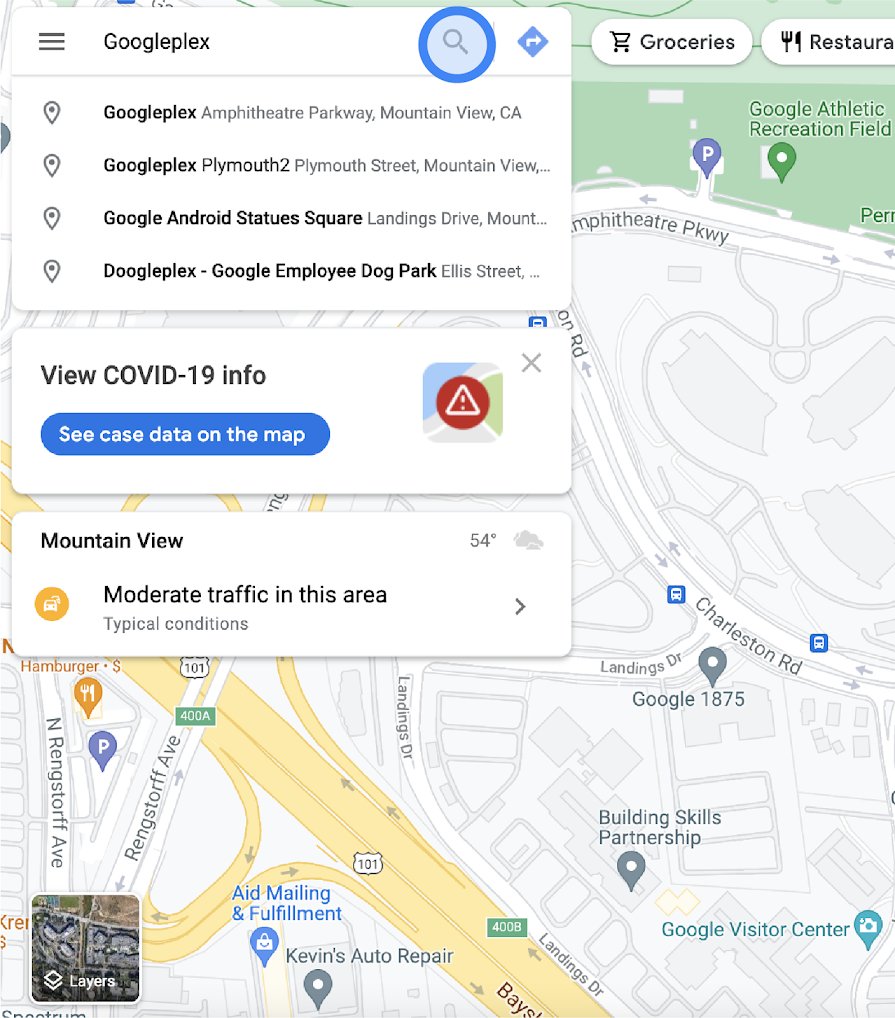
- Search for the place or business by name.
- Find the star rating below the place's name.
- Click the number of reviews to the right of the rating to open all reviews.
- Click Helpful under a review to vote for it, or click More > Flag as inappropriate to report one that breaks the rules.
To copy a direct link to a single review, click More next to it, choose Share review, then Send a link and COPY LINK.
How to Edit or Delete Your Google Reviews
You can change the text, star rating or photos of a published review, or remove it completely. Editing replaces the review's date with the date of your last edit.
| Step | On a computer | On Android, iPhone or iPad |
|---|---|---|
| 1. Open your reviews | Google Maps > Menu > Your contributions > Reviews | Google Maps app > Contribute > View your profile > See all reviews |
| 2. Open the options | Click More next to the review | Tap More next to the review |
| 3. Choose the action | Select Edit review or Delete review | Select Edit review or Delete review |
| 4. Finish | Follow the on-screen steps to save or confirm | Follow the on-screen steps to save or confirm |
A deleted review is gone from the place and from your profile. There is no restore option, so copy the text first if you might want to post it again.
How to check your review is live
A review on your contributions list is not always visible to others yet. Check it from the place's own page.
- Open Google Maps and search for the place you reviewed.
- Click the number of reviews next to the star rating.
- Look for your name and the date of your review in the list.
- Click Share on your review from Your contributions and open the link to confirm it loads.
If the review is on your profile but not on the place's page, it may still be in moderation. The next section covers that case.
Why Your Google Reviews May Not Be Showing
You can't see your Google reviews on your profile
You are signed in to a different Google account, or the review was removed for a policy violation.
- Click your profile picture in Google Maps and check the signed-in account.
- Switch to the account you used when you wrote the review.
- Open Your contributions > Reviews again.
- If the review is still missing, it was likely removed for spam or inappropriate content, and Google does not reinstate reviews removed for policy violations.
A new review for your business is not showing yet
Google checks reviews against its policies first, and that can take a few days.
- Wait a few days, then open Read reviews on your Business Profile again.
- If you recently merged two Business Profiles, allow a few days for reviews from both to show on Search and Maps.
- Ask a customer who cannot post a review to update the Google Maps app, since older phones and app versions can fail to submit reviews.
You can't see Google reviews for a business at all
Reviews are available only in certain countries or regions and for certain business categories, and Google can temporarily turn them off for some profiles.
- Search for a different business in the same area to see whether reviews load elsewhere.
- If reviews load for other places, the business category or a temporary restriction is the likely reason.
- Business owners who believe their category is wrong can change it in the Business Profile.
- If reviews vanished after a suspended Business Profile was reinstated, contact Google Business Profile support.
The star rating has not changed after new reviews
The review score is recalculated on a delay.
- Wait up to 2 weeks after a new review for the updated score.
- Check the review count next to the rating; a new review can appear before the average changes.
Tips for Managing Your Google Review History
| Tip | Why it matters |
|---|---|
| Review your past activity regularly under Your contributions | Old reviews stay up until you remove them, even if the place has changed |
| Write reviews you are happy to see under your name | All reviews are public, and you cannot post an anonymous review |
| Check the name on your About me page | That name shows next to every review, alongside your other Maps photos, videos and reviews |
| Edit rather than delete when a place improves | The review keeps its place, but its date changes to your last edit |
| Follow Google's content policy | Reviews removed for spam or inappropriate content are never restored |
| Keep your Google account secure | Anyone who gets into the account can edit or delete your reviews; set up Google Authenticator for 2-Step Verification |
How Google reviews work
| What you see | How it works |
|---|---|
| Star rating | Each rating is 1 to 5 stars, with 5 the highest |
| Review score | The average of all ratings published on Google for that place |
| Score updates | Can take up to 2 weeks to reflect a new review |
| Reviews from other sites | Some Business Profiles also show reviews from trusted non-Google review sites |
| Moderation | Google moderates reviews and removes those that break its content policy |
| Payment | Reviews are voluntary; Google does not pay reviewers |
Frequently Asked Questions
How do I see my Google reviews I left?
Open Google Maps on a computer, click Menu, then Your contributions and Reviews. In the Maps app on Android or iPhone, tap Contribute, then View your profile and See all reviews. The list shows every review posted under your signed-in account.
How do I see all my Google reviews in one place?
Your Google Maps profile holds all of them. On a computer, go to Menu > Your contributions > Reviews. On a phone, tap Contribute > View your profile > See all reviews. Reviews written under a second Google account appear only on that account's profile.
How do I see Google reviews for my business?
Go to your Business Profile and select Read reviews. You see every review customers left and can select Reply to answer one. You must verify the business before you can reply to reviews.
How do I see Google reviews for a business?
Search for the business in Google Maps, find the star rating under its name, and click the number of reviews next to the rating. You do not need to own the business, and the reviews are public.
Why can't I see my Google reviews?
The usual reasons are a different signed-in Google account or a review that Google removed for a policy violation, such as spam. Check the account first, then open Your contributions again. Google does not restore reviews removed for policy violations.
Why can't I see Google reviews anymore for a business?
Google can temporarily turn off reviews for certain Business Profiles or business categories, and reviews are available only in certain countries and categories. New reviews can also take a few days to appear while Google checks them.
Can I edit or delete a Google review after posting it?
Yes. Open your reviews list, click or tap More next to the review, and choose Edit review or Delete review. After an edit, the review shows the date of your last change instead of the original date.
Are my Google reviews public?
Yes. All Google Maps reviews are public, and you cannot post one anonymously. Others can see the name on your About me page, your other reviews, and the photos and videos you added to Google Maps.
How do Google reviews work?
Signed-in users rate a place from 1 to 5 stars and can add text and photos. Google moderates reviews against its content policy, and the place's review score is the average of all published ratings, which can take up to 2 weeks to update.
Bottom Line
Use Your contributions > Reviews in Google Maps for reviews you wrote, and Read reviews in your Business Profile for reviews about your business. Those are the only two places Google lists reviews by author and by business, and both give you the edit, delete or reply controls in the same screen.