Open web.snapchat.com in Chrome, Edge or Safari and sign in with your Snapchat username and password — nothing is downloaded and nothing is installed.
This guide covers the browser login, what Snapchat for Web can and cannot do, camera and microphone permissions, and the error codes that block a login.
How to Access Snapchat Online Without Downloading
Snapchat for Web runs entirely in the browser tab. Snap lists Google Chrome, Microsoft Edge and Safari as the supported browsers, on their latest versions.
- Open Chrome, Edge or Safari and go to web.snapchat.com.
- Enter the username or email address on your Snapchat account, then enter your password.
- Enter the one-time login code if two-factor authentication is switched on for the account.
- Allow the browser prompt for Camera and Microphone if you plan to send Snaps or take calls.
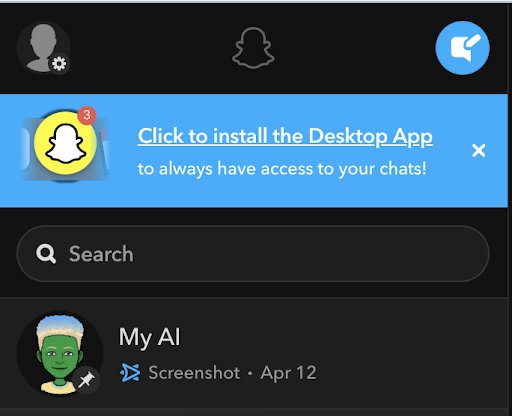
- Wait for the Chat feed to load; your Bitmoji appears at the top of the window once you are signed in.
A Snapchat account cannot be created here. The account has to exist already and be signed in on the phone app running the latest version of Snapchat.
Which browser route should you use?
Three different Snap sites answer three different needs. Match your situation to a row instead of trying all three.
| Your situation | Go to | Why |
|---|---|---|
| You want to chat, call and send Snaps | web.snapchat.com | The full Snapchat for Web client, no install |
| You are locked out or forgot the password | accounts.snapchat.com | Password reset and account unlock live here |
| Your account is locked and you want it back | accounts.snapchat.com | Sign in and select Unlock for a temporary lock |
| You want Memories, My Eyes Only or privacy settings | The Snapchat mobile app | These are not on the web yet |
| You want a real desktop app rather than a tab | The Snapchat desktop route | Covered in how to set up and use Snapchat on PC or laptop |
What you need before you start
| Requirement | Detail |
|---|---|
| Browser | Google Chrome, Microsoft Edge or Safari, on the latest version |
| Account | An existing Snapchat account; sign-up is not offered on the web client |
| Phone app | The latest version of Snapchat on your phone, signed in to the same account |
| Login code | An SMS code or an authenticator code if two-factor authentication is on |
| Sessions | One computer at a time — signing in elsewhere ends the first session |
| Permissions | Camera and microphone access in the browser for Snaps and calls |
Snapchat can send login codes by SMS or generate them in an authenticator app. Setting up the second option is covered in how to set up Google Authenticator and add codes.
Second method: Chat, Snap and call from Snapchat for Web
Everything below happens inside the browser tab. Nothing here writes a file to your computer.
- Click a friend's name in the Chat feed to open the conversation.
- Type your message in the chat box to send a Chat.
- Click the Camera to send a Snap instead.
- Click the lens icon at the bottom of the screen for a photo, or hold the lens icon down for a video.
- Click the video camera icon to start a video chat, or the phone icon to start a voice call.
- Click the share button next to the video and microphone controls during a call to share your screen.
A Snap taken with the web camera can be sent to your Story. The posted Story itself is managed in the mobile app.
Third method: Manage your account at accounts.snapchat.com
The account portal is a separate browser site from the chat client, and it is where a locked-out login is repaired.
- Go to accounts.snapchat.com in any browser.
- Enter the phone number or email address on the account.
- Click Forgot Password if you cannot sign in.
- Choose to have a one-time login code sent to your phone or your email.
- Follow the instructions in the message to set a password of at least 8 characters.
- Sign in and select Unlock if the account shows a temporary lock.
Alternative Methods to Use Snapchat Online Without Downloading Apps
Chrome and Edge can pin Snapchat for Web to the desktop as a browser shortcut. The page still runs in the browser engine — no installer, no store, no package.
- Sign in at web.snapchat.com in Chrome or Edge.
- Click the link to install the Desktop App at the top of your feed, if it is shown.
- Click your Bitmoji at the top right instead, then click Create Desktop Shortcut.
- Launch Snapchat from the new shortcut; the session carries over from the browser.
- Sign in on a phone browser and use the same web address when no computer is available.
Android emulators are the other route people reach for, and they are a genuine download and install. Stay on the web client if the point is to avoid one.
How to check the web login worked
- Confirm your Bitmoji is shown at the top of the Snapchat for Web window.
- Confirm the Chat feed lists the same conversations you see in the phone app.
- Send a Chat from the browser and check it appears in the same thread on your phone.
- Open a conversation and click the video camera icon; a camera preview proves the browser permission is granted.
- Check that the phone app has not signed you out — both stay signed in to the same account.
Understanding the Limitations of Snapchat's Web Accessibility
Snap states plainly that some app features are not on the web yet. Knowing which ones saves a search for a menu that is not there.
| Task | On Snapchat for Web? | Where it is done |
|---|---|---|
| Chats, voice calls, video calls | Yes | web.snapchat.com |
| Sending a Snap and Lenses on calls | Yes | web.snapchat.com |
| Screen sharing and file sharing in a call | Yes | web.snapchat.com |
| Opening Snaps saved to Memories | No | Snapchat app for iOS or Android |
| My Eyes Only | No | Memories in the Snapchat app, behind its passcode |
| Managing posted Stories or Story analytics | No | Snapchat app for iOS or Android |
| Changing your Snapchat username | No | Snapchat app for iOS or Android |
| Updating privacy settings | No | Snapchat app for iOS or Android |
| Password reset and account unlock | Yes | accounts.snapchat.com |
Snap's wording is that these features are not available "yet" on the web, so the split is a snapshot of the current client rather than a permanent rule.
How to Change Snapchat for Web Permissions for Notifications, Camera, and Microphone
A missing camera or a silent notification is almost always a browser permission, not a Snapchat fault.
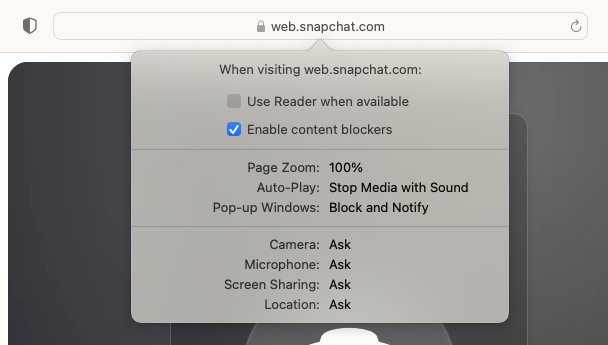
- Click the lock icon in the address bar in Chrome or Edge while web.snapchat.com is open.
- Toggle on Camera, Microphone and Notifications.
- Click Site settings in Chrome, or Permissions for this site in Edge, if the toggles are not listed, then enable them there.
- Refresh the page.
- In Safari, click Safari at the top, then click Settings for web.snapchat.com and select Allow for Camera and Microphone.
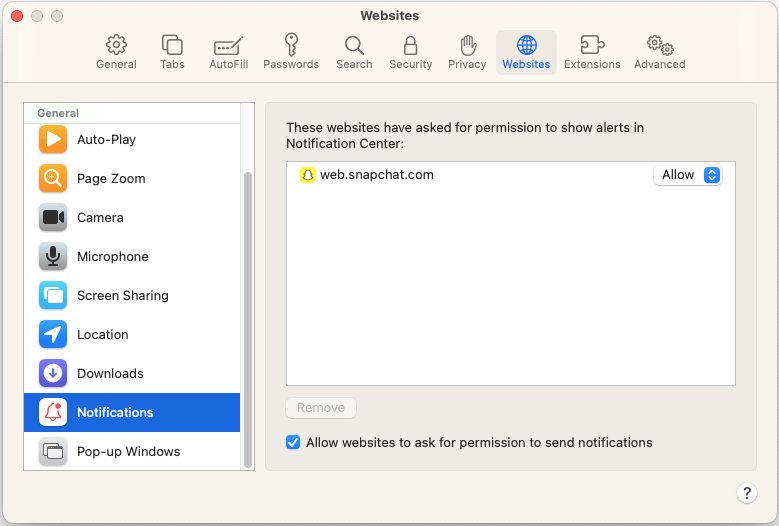
- For Safari notifications, click Safari > Settings > Websites > Notifications and toggle web.snapchat.com to Allow.
How to sign out and remove the web shortcut
- Open Snapchat for Web on the computer you want to clear.
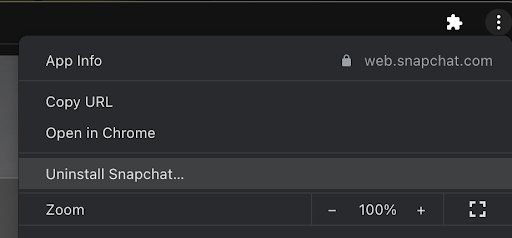
- Click the three dot menu icon at the top right, then click Uninstall Snapchat to remove a desktop shortcut created in Chrome or Edge.
- Click Remove to confirm.
- Sign in to Snapchat for Web on another computer to end the old session, since only one computer can be signed in at a time.
- Change your password at accounts.snapchat.com if the computer was not yours.
Troubleshooting Common Issues
The login code never arrives
The SMS or email is delayed, or the login looks unfamiliar to Snapchat.
- Try logging in from a device or Wi-Fi network you have used before with this account.
- Enter your username and password, then enter your recovery code when prompted for a code.
- Wait a few minutes and check your connection if you see a "Too many requests" message, then try again.
An error code appears instead of the Chat feed
Snapchat blocks repeated failed logins, banned devices and unstable connections with distinct codes.
- Wait 48 hours before trying again if you see SS01, SS03 or SS08, or switch to a different Wi-Fi network.
- Go to accounts.snapchat.com, sign in and select Unlock if you see SS04.
- Try a different device if you see SS10, which means the device does not meet Snapchat's integrity requirements.
- Disconnect from Wi-Fi and use mobile data if you see C13A, C14A, C14B or C16A, which are connectivity errors.
Snapchat says your network is blocked
Snapchat detected suspicious activity from the IP address, or a VPN is in use.
- Switch to a different Wi-Fi connection.
- Turn off Wi-Fi and use mobile data instead.
- Disable the VPN on the device and log in to Snapchat again.
- Wait — an IP address block is usually temporary and clears on its own.
Your Snapchat account is locked
A Community Guidelines violation, suspicious activity, a compromised account or a third-party plugin.
- Wait 48 hours before trying to log in again, unless the message names a different period.
- Go to accounts.snapchat.com, log in and select Unlock for a temporary lock.
- Open the Snapchat app, attempt to log in and tap Appeal Decision on the pop-up if one is offered.
- Allow up to 30 days for a decision on an appeal.
The camera or microphone does not work on the web
The browser has not been granted camera or microphone access for web.snapchat.com.
- Click the lock icon in the address bar in Chrome or Edge and toggle on Camera and Microphone.
- Click Site settings or Permissions for this site if the toggles are missing, then enable them there.
- Refresh the page and start the call again.
Browser notifications never appear
Notifications are off in Snapchat, in the browser, or at the operating system level.
- Click your Bitmoji at the top left and confirm notifications are enabled.
- Click the lock icon in the address bar in Chrome or Edge and toggle on Notifications.
- In Safari, set web.snapchat.com to Allow under Settings > Websites > Notifications.
- Check your operating system settings and confirm the browser itself is allowed to show notifications.
You keep getting signed out of Snapchat for Web
Snapchat for Web allows one signed-in computer at a time.
- Sign in on one computer only and close the session on the other.
- Update Snapchat on your phone to the latest version and confirm it is signed in to the same account.
- Sign in again at web.snapchat.com in Chrome, Edge or Safari.
Tips for Secure and Effective Use of Snapchat Web
Snapchat for Web often runs on a shared or work computer, which changes what is worth protecting.
- Treat anything you send as permanent: a Snapchatter can screenshot a Snap or photograph the screen with another device.
- Turn on two-factor authentication so a stolen password alone cannot open your account.
- Keep the recovery code Snapchat gives you when you enable two-factor authentication, in case the login code never arrives.
- Sign out of Snapchat for Web before you leave a shared computer.
- Type web.snapchat.com yourself rather than following a link that promises a Snapchat login or a saved-Snap viewer.
Snap also warns that third-party Snapchat plugins get accounts locked. Use the official web client only.
Frequently Asked Questions
Can you login to Snapchat on PC?
Yes. Go to web.snapchat.com in Google Chrome, Microsoft Edge or Safari and sign in with your Snapchat username or email and password. No software is downloaded. You also need the latest Snapchat app on your phone, signed in to the same account.
How to login in Snapchat in laptop?
Open web.snapchat.com in Chrome, Edge or Safari on the laptop, enter your username or email and password, then enter the one-time login code if two-factor authentication is on. The Chat feed loads in the browser tab.
How to log in to Snapchat web?
Snapchat for Web is at web.snapchat.com. Sign in with the account credentials you use on the phone app. Allow camera and microphone access in the browser prompt if you want to send Snaps or take calls from the computer.
How to login to Snapchat without phone?
You can sign in at web.snapchat.com using your email address and password instead of a phone number. A login code is still required if two-factor authentication is enabled, and Snapchat expects the same account to be signed in on the mobile app.
How to use My Eyes Only on Snapchat web login?
My Eyes Only is not available on Snapchat for Web. Open it in the Snapchat app: swipe up from the camera screen to open Memories, swipe left to the My Eyes Only tab and enter your passcode.
How to log into my Snapchat account when I forgot the password?
Go to accounts.snapchat.com, enter your phone number or email address and click Forgot Password. Snapchat sends a one-time login code to your phone or email. Follow the message to set a new password of at least 8 characters.
Can we login Snapchat on laptop and phone at the same time?
Yes, but only one computer at a time. Snapchat for Web allows a single signed-in computer, while the phone app stays signed in to the same account. Signing in on a second computer ends the first web session.
Why do people use Snapchat on the web?
The web client puts Chats, voice calls, video calls and screen sharing on a full keyboard and a larger screen without installing anything. It suits long conversations and work computers where installing an app is not allowed.
Does Snapchat for Web work in Firefox?
Snap lists Google Chrome, Microsoft Edge and Safari as the supported browsers for Snapchat for Web, each on its latest version. Other browsers are not listed as supported, so use one of those three.
Does Snapchat notify screenshots taken on the web?
Snap's guidance is that anyone viewing your Snaps or Chats can capture and copy them, and a Snapchatter can always photograph the screen with another device. Treat anything sent on the web as possible to keep.
Can you create a Snapchat account from the web?
No. Snapchat for Web signs you in to an existing account and expects the latest Snapchat app on your phone signed in to the same account. Create the account in the mobile app first, then use the browser.
Final Thoughts
Use web.snapchat.com in Chrome, Edge or Safari for chatting, calling and sending Snaps from a computer, and keep the phone app for Memories, Stories and privacy settings. The web client needs no installer and covers the conversation features, while account management, My Eyes Only and Story tools are still app-only.