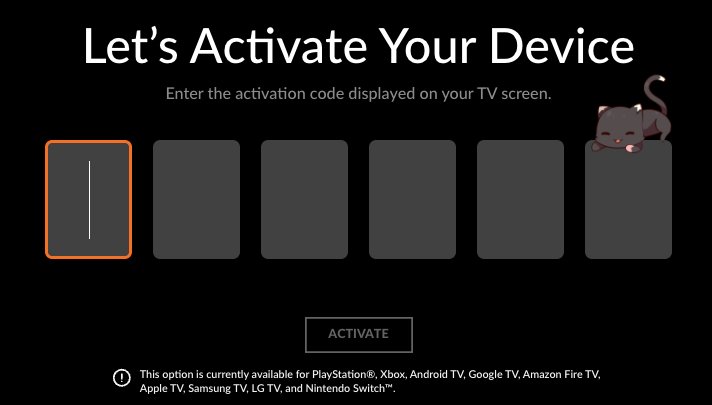
To activate Crunchyroll on a TV or console, open the app, choose Login with Activation Code, then enter the 6-character code at crunchyroll.com/activate on your phone or computer.
This guide covers the code flow on smart TVs, streaming sticks and game consoles, signing in on phones and browsers, how to confirm the link worked, and fixes when the code fails.
The fastest way to activate Crunchyroll on a TV or console
Crunchyroll's own help center lists this flow for PlayStation, Xbox, Android TV, Fire TV, Apple TV, smart TVs and Nintendo Switch. It saves you typing an email and password with a remote or controller.
- Open the Crunchyroll app on the TV or console.
- Go to the Login page and select Login with Activation Code.
- Wait for a unique 6-character code to appear on the TV screen.
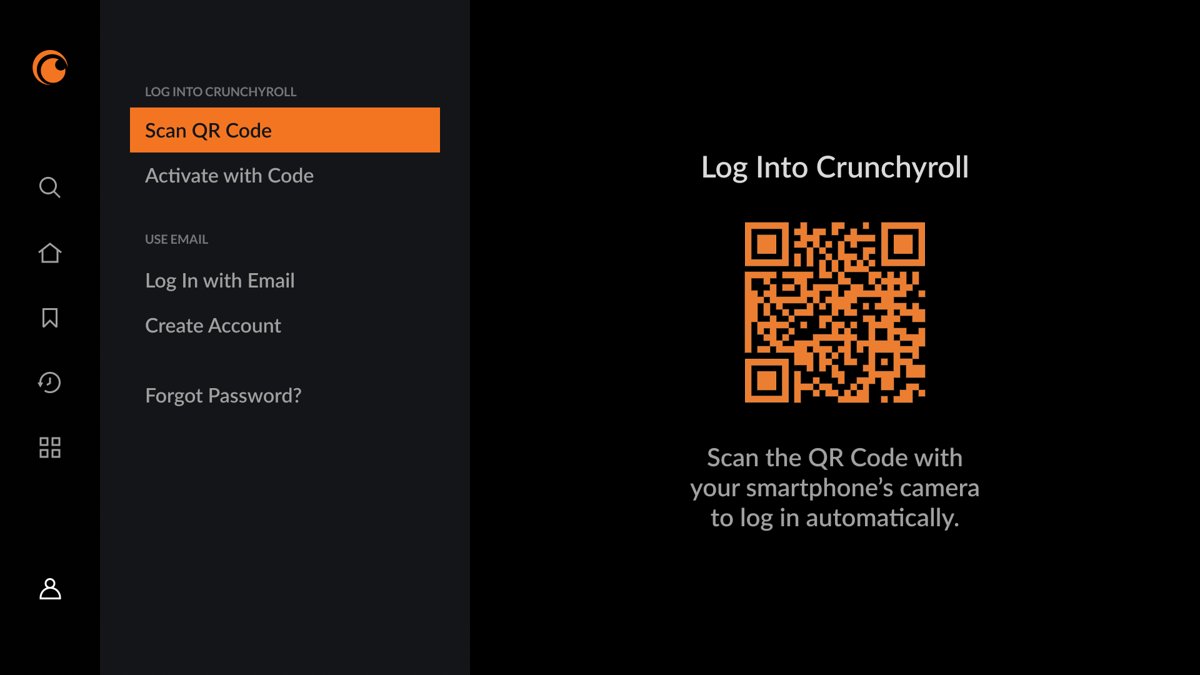
- On your phone or computer, visit crunchyroll.com/activate, or scan the QR code shown on the TV.
- Sign in to your Crunchyroll account there if you are asked to.
- Type the 6-character code exactly as shown and submit it.
- Look back at the TV. The app signs in on its own and opens your account.
If you already have the Crunchyroll mobile app, you can open it instead of the browser to finish the sign-in.
What You Need Before Activating Crunchyroll
Activation is a sign-in, so everything hinges on having a working account and a second screen. Check these before you start.
| What you need | Why it matters | How to check |
|---|---|---|
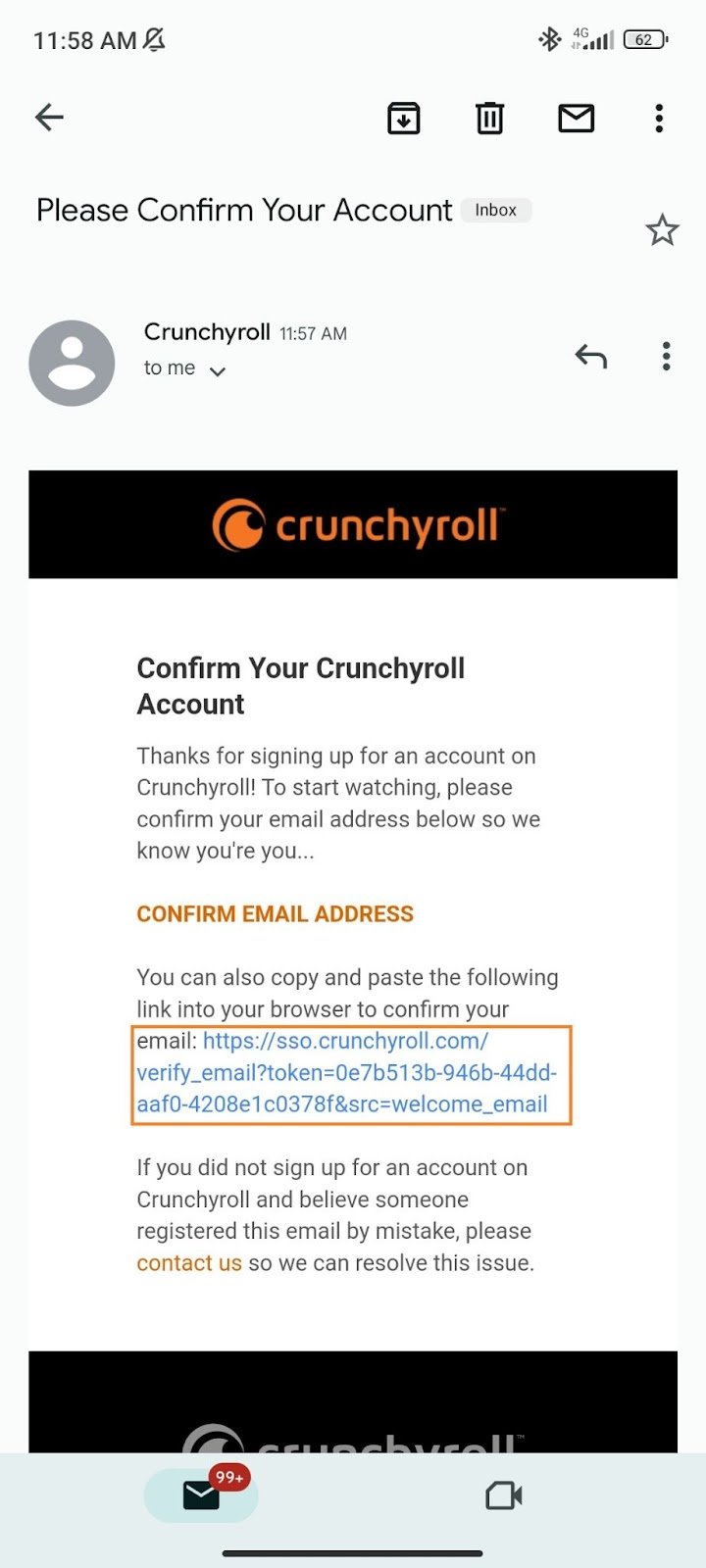
| A Crunchyroll account with a verified email | Crunchyroll asks new accounts to verify the email linked to the profile | Look for the verification email, including spam and promotions folders |
| Your current email and password | The phone or browser you use to enter the code must be signed in to the same account | If you recently changed either, use the newest credentials |
| A supported device with the Crunchyroll app installed | The code only appears inside the official app | Install it from the device's own app store |
| A phone, tablet or computer with a browser | This is where you type the code at crunchyroll.com/activate | Any supported browser or the Crunchyroll mobile app works |
| Premium on the right account, if you pay | Premium perks follow the account, not the device | Open Membership Info in your account settings on the web |
Forgot the password? Reset it on the web first, then come back to the TV. A fresh code is quicker than fighting a sign-in with a remote.
How Crunchyroll Device Activation Works
The TV never sees your password. It shows a short code, and your signed-in phone or browser tells Crunchyroll which account that code belongs to.
| Sign-in route | What you do | Best for |
|---|---|---|
| Activation code | Select Login with Activation Code on the TV, then enter the code at crunchyroll.com/activate | Any TV or console where typing with a remote is slow |
| QR code sign-in | Scan the QR code shown on the TV with your phone | People who already have their phone signed in |
| Direct app login | Type your email and password into the app with the remote or controller | Devices where no code option appears |
| Phone or browser login | Sign in with email and password on crunchyroll.com or in the mobile app | Mobile devices and computers, which never need a code |
Activation versus a direct app login comes down to typing. Both end with the same account signed in, and both devices then show up in Device Management.
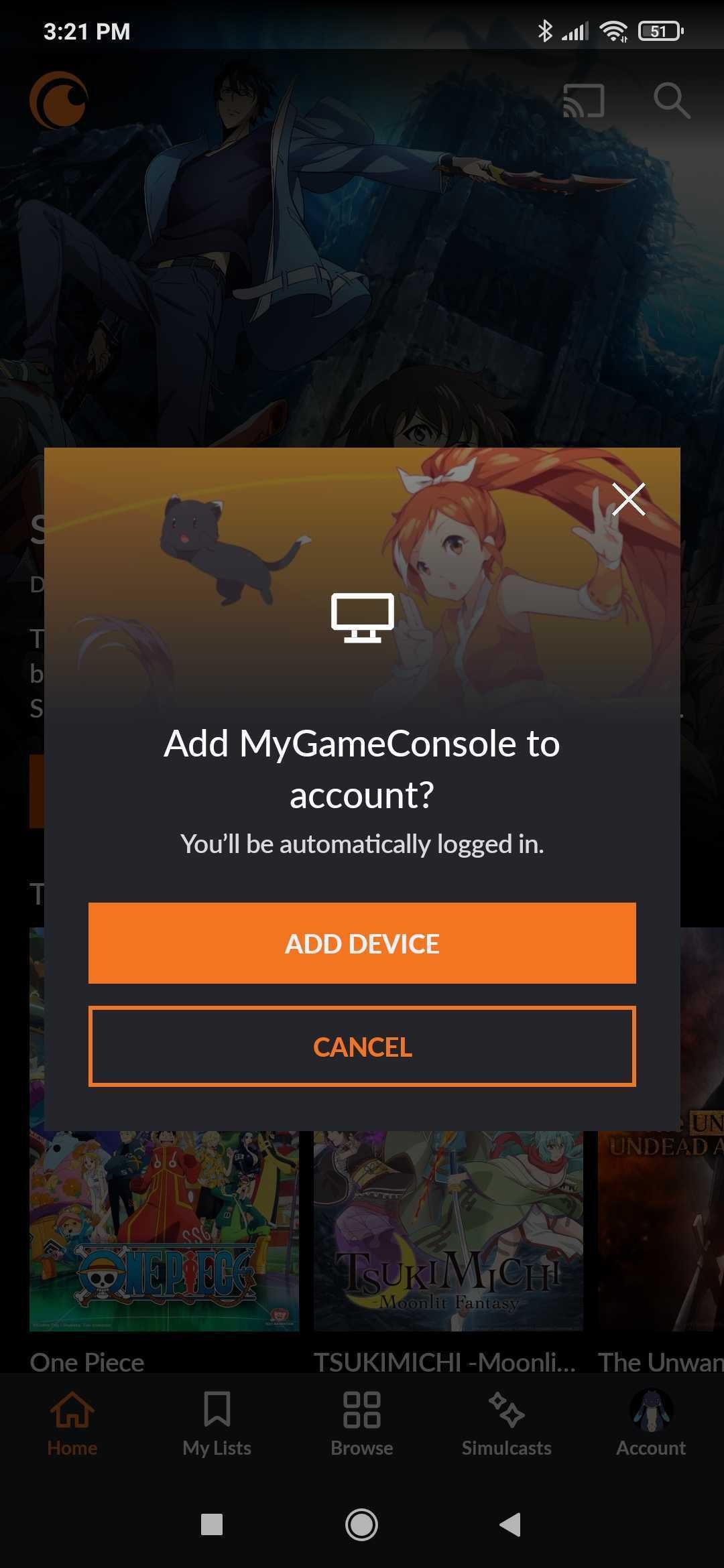
How to Activate Crunchyroll on Smart TVs and Streaming Devices
Every TV platform uses the same code page. Install the Crunchyroll app from the TV's own app store first, then match your device to a row.
| Your device | How to activate | Worth knowing |
|---|---|---|
| Amazon Fire TV | Login with Activation Code, then crunchyroll.com/activate | You can also subscribe on Fire TV with Quick Subscribe or an in-app purchase |
| Android TV | Login with Activation Code, then crunchyroll.com/activate | Crunchyroll lists Android TV as a code-activation device |
| Apple TV | Login with Activation Code, then crunchyroll.com/activate | Scan the on-screen QR code with an iPhone to skip typing the URL |
| Samsung and other smart TVs | Login with Activation Code, then crunchyroll.com/activate | Samsung TVs can also subscribe through Samsung Checkout |
| Roku | Use the code option if your Roku app shows one; otherwise sign in with email and password | Crunchyroll's activation article does not name Roku, so follow what the app shows |
Subscribed through Amazon, Samsung or another platform? Sign in with the Crunchyroll account that subscription is attached to, or Premium will not appear.
How to Activate Crunchyroll on Game Consoles
PlayStation, Xbox and Nintendo Switch all accept the activation code and QR sign-in. Install the app from the console's store first.
- Install the Crunchyroll app from your PlayStation, Xbox or Nintendo Switch store.
- Launch the app and check for an update if the console prompts you.
- Open the Login page and choose Login with Activation Code.
- Note the 6-character code, or scan the QR code with your phone.
- Go to crunchyroll.com/activate on your phone or computer and enter the code.
- Return to the console and wait for your profile or home screen to load.
Crunchyroll's help center covers setup separately for PlayStation 4 and 5, Xbox and Nintendo Switch, and has a dedicated page on whether the app runs on Switch 2.
How to Activate Crunchyroll on Mobile Devices and Web Browsers
Phones, tablets and computers need no activation code. You sign in directly, and that signed-in device then becomes the tool you use to activate TVs.
- On a phone or tablet, install the Crunchyroll app from your device's app store.
- On a computer, open crunchyroll.com in a supported browser. No app is needed.
- Sign in with your email and password.
- If you do not have an account yet, create one and verify your email when the message arrives.
- Keep this device signed in. It is where you will open crunchyroll.com/activate for your TV.
For the mobile and browser sign-in checks, confirm there are no extra spaces in your email and that you use the same login method you signed up with.
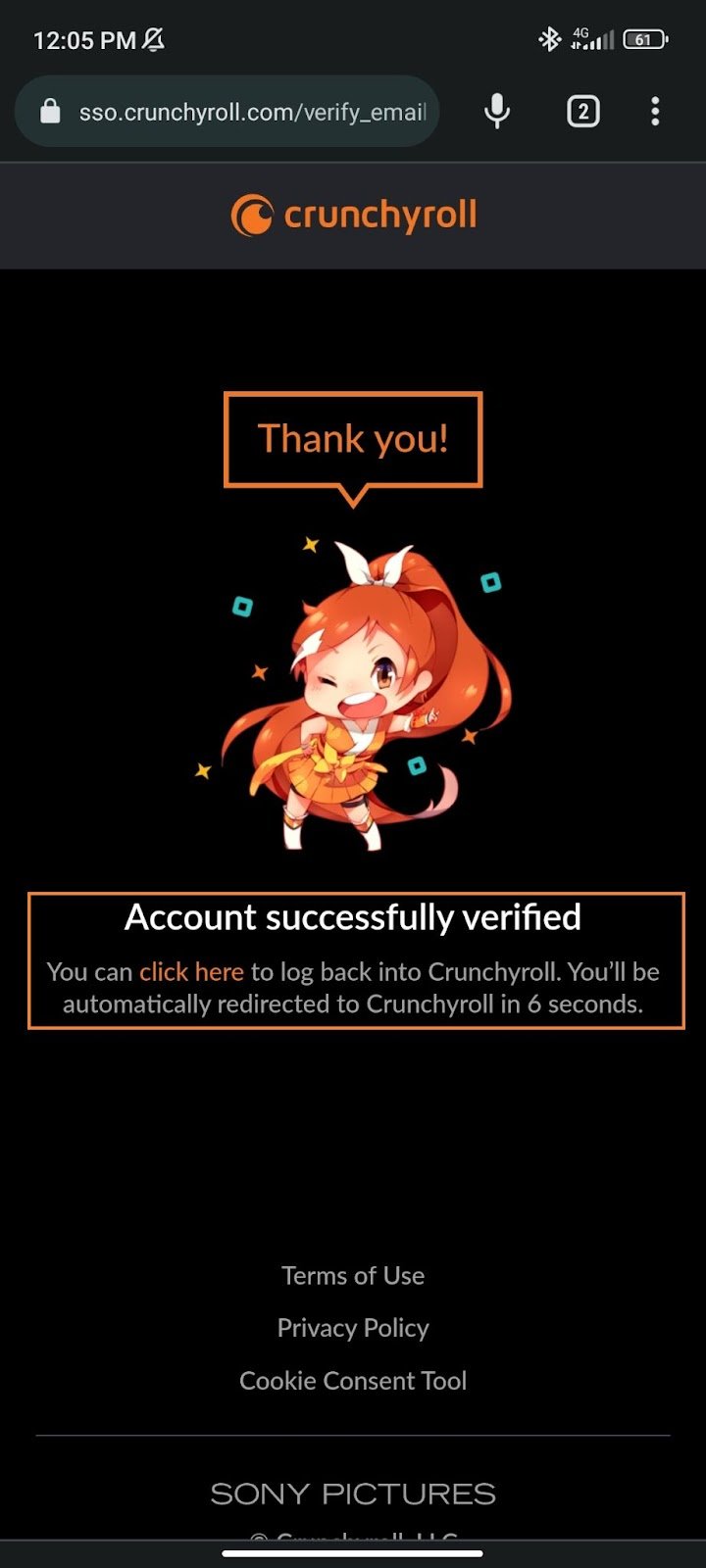
How to check the device is linked to your account
- Look at the TV. It should leave the login screen and show your profile or the home feed.
- Open a title you know needs Premium if you pay for it. It should play without an upgrade prompt.
- In a web browser, go to Settings > Device Management.
- Find the TV or console in the list of devices signed in to your account.
- If Premium is missing, open Membership Info in account settings and confirm you are on the upgraded account.
How to remove a device you activated
Use this after a hotel stay, when you sell a console, or when a device you do not recognise shows up.
- Open crunchyroll.com in a web browser and sign in.
- Go to Settings > Device Management.
- Select Deactivate next to the device you want to remove.
- To sign out everywhere at once, select Deactivate All Devices.
- Sign in again on any device you still use, with a fresh activation code if it is a TV.
Seeing a device you never used? Change your password as well, then deactivate everything.
Troubleshooting Crunchyroll Activation Problems
Match what you see to a symptom below. Most activation failures come from an old code or the wrong account on the phone.
The Crunchyroll activation code does not work
The code on the TV is no longer the current one, or it was mistyped.
- Go back on the TV and select Login with Activation Code again to get a new code.
- Enter all 6 characters at crunchyroll.com/activate straight away.
- Check the browser on your phone is signed in to the account you want on the TV.
- Try the QR code instead so nothing has to be typed.
The TV or console is not showing an activation code
The app is out of date, or you are on the email login screen instead of the code option.
- Open the Login page and look for Login with Activation Code.
- Update the Crunchyroll app from the device's store.
- Restart the device and open the app again.
- If no code option appears, sign in with your email and password in the app.
"Invalid email or password" or "Something went wrong" when signing in
Wrong credentials, an old password, or the wrong login method for the account.
- Retype your email and password, watching for typos and extra spaces.
- Use your newest password if you changed it recently.
- Confirm you use the same login method the account was created with.
- Reset your password on the web if it still fails.
Activated, but Premium is not showing
The device is signed in to a different account, or a new upgrade has not registered yet.
- Check the TV is on the account your upgrade confirmation email was sent to.
- Wait a few minutes after upgrading, especially through Google Play, Apple or another partner.
- Open Membership Info on the web to see how the subscription is billed.
- Deactivate the device in Device Management and activate it again on the correct account.
The app crashes or will not play after activation
A stale app cache or an outdated app on the TV.
- Update the Crunchyroll app.
- Restart the device.
- Clear the app's cache and data, which Crunchyroll recommends on Fire TV and Roku.
- Uninstall and reinstall the app, then activate it again with a new code.
- Contact Crunchyroll Support if the problem continues.
When to reinstall or reset: only after an update and a restart have both failed, because a reinstall signs the device out and you need a new code.
Frequently Asked Questions
Where do I enter my Crunchyroll activation code?
Enter it at crunchyroll.com/activate on a phone, tablet or computer. Sign in to your Crunchyroll account on that page, type the 6-character code from your TV, and submit it. The TV signs in by itself a moment later.
How do I log in to Crunchyroll on a TV?
Open the app, go to the Login page and choose Login with Activation Code. Enter the code at crunchyroll.com/activate or scan the on-screen QR code with your phone. You can also type your email and password with the remote instead.
How do I sign up for Crunchyroll?
Create an account on crunchyroll.com or in the mobile app, then verify your email using the link Crunchyroll sends. Once the account exists, you can use it to activate any TV or console with the activation code.
How do I install Crunchyroll?
Install the official Crunchyroll app from your device's own app store on phones, tablets, TVs, streaming sticks and consoles. On a computer, no install is needed: open crunchyroll.com in a supported browser and sign in.
How do I get Crunchyroll on PC?
Open crunchyroll.com in a supported web browser and sign in. Crunchyroll lists web browsers among its supported platforms, so a computer needs no activation code and no separate install to start watching.
How do I use Crunchyroll for free?
Crunchyroll offers a standard 7-day free trial of Premium, and promotions can change the length. Check the offer details on the sign-up page, and cancel auto-renewal before the trial ends if you do not want to be charged.
Can I activate Crunchyroll on multiple devices with the same account?
Yes. Each TV, console, phone or browser you sign in with appears under Settings > Device Management on the website. From there you can deactivate any single device or all of them at once.
Why is my TV or console not showing a Crunchyroll activation code?
You are usually on the email login screen, or the app needs an update. Open the Login page and choose Login with Activation Code. If the option still does not appear, update the app, restart the device, or sign in with your email and password.
What should I do if my Crunchyroll activation code does not work?
Request a new code on the TV by selecting Login with Activation Code again, then enter it immediately at crunchyroll.com/activate. Make sure the phone or browser is signed in to the account you want on the TV.
How does Crunchyroll work on a TV without typing a password?
The TV shows a short code tied to that session. When you enter the code on a device that is already signed in, Crunchyroll links the TV to the same account, so your password is never typed with the remote.
Bottom Line
Use Login with Activation Code on every TV and console, and keep one phone or browser signed in to your Crunchyroll account to enter codes at crunchyroll.com/activate. It avoids typing a password with a remote, works across PlayStation, Xbox, Switch, Fire TV, Android TV, Apple TV and smart TVs, and every linked device can be removed later from Device Management.

![What is Outlook PWA and How to Install it [2-min Read]](https://techdows.com/wp-content/uploads/2026/09/Microsoft-Edge-menu-showing-Install-this-site-as-an-app-520x338.jpg)