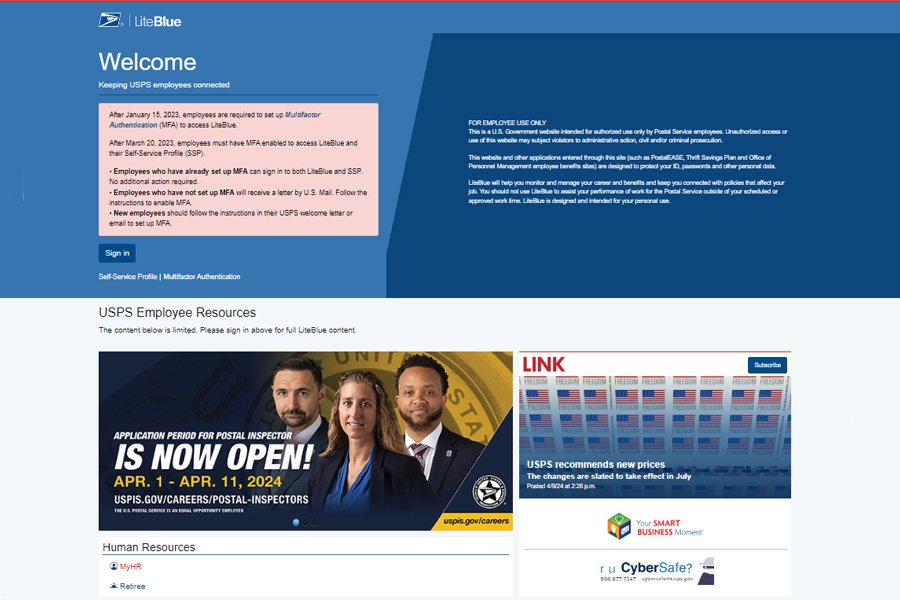
To access your USPS LiteBlue account, type https://liteblue.usps.gov into your browser, enter your eight-digit Employee ID and your Self-Service Profile (SSP) password, then approve the multifactor authentication (MFA) prompt.
This guide covers what you need before signing in, how to manage pay and personal details through PostalEASE and ePayroll, how to reset a forgotten password or a lost MFA method, and how to spot the fake LiteBlue sites USPS warns employees about.
How to Access Your USPS LiteBlue Account
These steps work in a browser on a computer, phone or tablet. LiteBlue was rebuilt in 2021 as a responsive site, and USPS reports that most LiteBlue page views now come from mobile devices.
- Open your browser and type
https://liteblue.usps.govinto the address bar yourself. Do not reach it through a search ad or a link in a text message. - Enter all eight digits of your Employee ID in the Employee ID field, for example
########. - Enter your SSP password, the same password you use for PostalEASE and ePayroll.
- Select the sign-in button and complete the MFA check with the method you registered, such as an authenticator app or a one-time passcode.
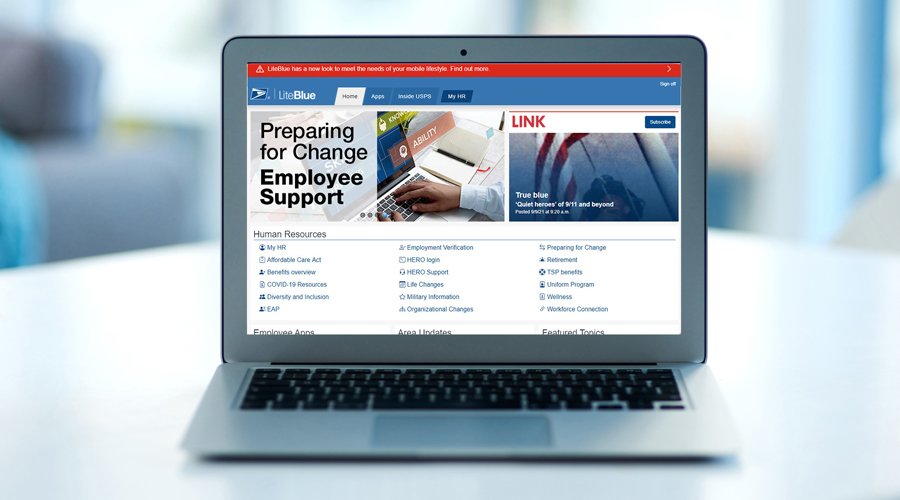
- Wait for the LiteBlue home page to load with its Employee Apps and Human Resources sections.
- Bookmark the page once you are signed in so you never have to search for it again.
If you have forgotten the password or no longer have your MFA device, skip to the reset sections below.
What Is USPS LiteBlue and Who Can Use It?
LiteBlue is the Postal Service's website for its own employees. It carries USPS news, Human Resources information and links to the employee apps you use most, all behind one sign-in.
| Question | Answer |
|---|---|
| Who can sign in | USPS employees with an Employee ID and an active Self-Service Profile password |
| What it is for | News, HR information, career tools and links to employee apps |
| Main areas | Apps for frequently used applications, Home for regularly used pages, and My HR for Human Resources information |
| Apps opened with the same SSP password | LiteBlue, PostalEASE, ePayroll, eRetire, eOPF, eReassign, IdeaSMART and HERO |
| Devices | Any computer or mobile device with an internet connection |
| The only real address | https://liteblue.usps.gov |
Requirements Before Logging In to LiteBlue
LiteBlue will not let you in with only an ID and a password. Since 2023, every employee must also have MFA set up for both LiteBlue and the Self-Service Profile.
| What you need | Details |
|---|---|
| Employee ID | Your eight-digit Employee ID, entered in full |
| SSP password | At least 15 characters; it cannot contain your first name, last name or Employee ID, and your last five passwords cannot be reused |
| MFA method | A registered second factor, such as an authenticator app or a one-time passcode |
| Security question and SSN digits | Needed when you set up or recover your Self-Service Profile, which asks you to verify security question answers and the last four digits of your Social Security number |
| A trusted device and connection | Your own phone or computer on a private network, not public Wi-Fi |
Employees who had not set up MFA were sent instructions by mail. If you never received that letter, contact the USPS IT Service Desk before your first login.
Resetting Your LiteBlue Password or Recovering Access
LiteBlue uses your Self-Service Profile password, so resetting it fixes PostalEASE and ePayroll at the same time.
- Go to
https://liteblue.usps.gov. - Select the password recovery link on the login screen.
- Enter your Employee ID and follow the prompts to verify who you are.
- Create a new password of at least 15 characters that does not include your name or Employee ID and is not one of your last five passwords.
- Sign in again with the new password to confirm that access works.
If the verification step fails, call the USPS IT Service Desk at 800-877-7435 and ask an agent for help with your account.
Reset your LiteBlue MFA when you lose or replace your phone
A new phone or a deleted authenticator app locks you out even when the password is right. Since November 2025 you can request an MFA reset yourself from the login screen.
- Go to
https://liteblue.usps.gov. - Select the Self-Service MFA Reset link on the login screen.
- Submit the request.
- Wait for your manager to approve it.
- Open the email USPS sends and use its link to set up, update or recover your MFA method.
- Sign in to LiteBlue again with the new method.
If the self-service reset does not work, call the USPS IT Service Desk at 800-877-7435 and ask an agent for an MFA reset.
How to check you are on the real LiteBlue and signed in
- Look at the address bar and confirm the site name is exactly
liteblue.usps.gov, with nothing added before.usps.govand no extra words or hyphens. - Confirm the page asked for MFA after your password. A site that accepts only an ID and password is not behaving like LiteBlue.
- Check that the home page shows the Employee Apps section and the Apps, Home and My HR navigation.
- Open PostalEASE or ePayroll from LiteBlue and confirm your own name and pay details appear.
Managing Your Personal Information and Employee Services
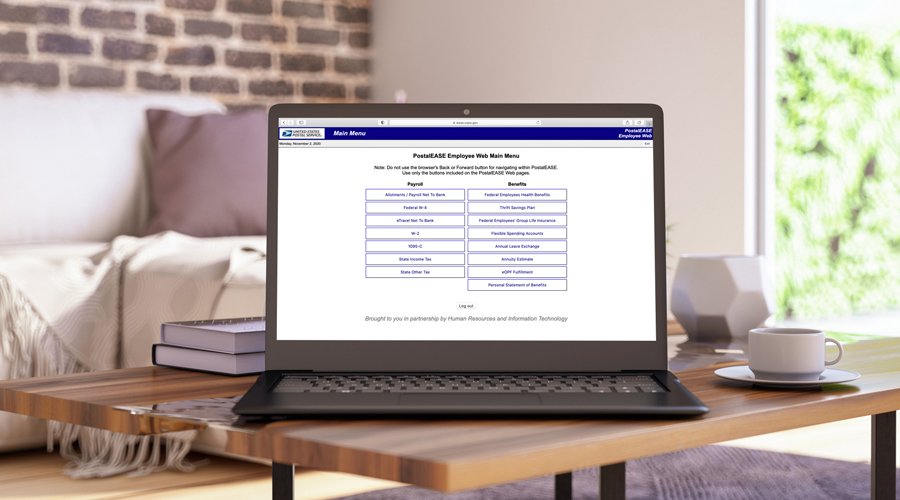
Most account changes happen in apps you open from LiteBlue rather than on LiteBlue itself. Pick the row that matches what you want to change.
| You want to | Open this | Where to go |
|---|---|---|
| Start, stop or change direct deposit or an allotment | PostalEASE | Under Payroll, select Allotments / Payroll Net to Bank and complete the worksheet |
| See your earnings statement or pay stub | ePayroll | Open it from LiteBlue; the mobile version formats statements for phones |
| Change your SSP password, email address, MFA preferences or security questions | Self-Service Profile (SSP) | Open it from LiteBlue |
| Reset the PIN you use for phone (IVR) transactions | Self-Service PIN Reset | Find it on LiteBlue under the Employee Apps heading |
| Review your personnel file, plan retirement or request a reassignment | eOPF, eRetire or eReassign | Open them from LiteBlue with the same SSP password |
| Read HR information | My HR | Select My HR in the LiteBlue navigation |
For PostalEASE problems, call the Human Resources Shared Service Center at 877-477-3273, select option 5 and ask for "benefits" when prompted. The TTY number is 866-260-7507.
Common LiteBlue Login Problems and Where to Get Help
LiteBlue says your login is not working or your password is wrong
The SSP password is mistyped, expired under the password rules, or the Employee ID is missing digits.
- Re-enter all eight digits of your Employee ID.
- Check that Caps Lock is off and retype the password.
- Select password recovery and set a new password of at least 15 characters.
- Call the USPS IT Service Desk at 800-877-7435 if the reset does not restore access.
You cannot complete the MFA step
The registered phone or authenticator app has changed, been reset or been lost.
- Select Self-Service MFA Reset on the LiteBlue login screen.
- Submit the request and wait for your manager's approval.
- Use the link in the email to set up the new method.
- Call 800-877-7435 and ask for an MFA reset if the email never arrives.
You cannot complete the password reset
The verification details do not match your Self-Service Profile records.
- Confirm you are entering the last four digits of your Social Security number and your own security question answers.
- Call the USPS IT Service Desk at 800-877-7435 and ask an agent to help recover your account.
PostalEASE will not load or reject your changes
The problem sits in PostalEASE rather than in your LiteBlue sign-in.
- Sign out, sign back in at
https://liteblue.usps.govand open PostalEASE again from LiteBlue. - Call the HR Shared Service Center at 877-477-3273, select option 5 and ask for "benefits".
You entered your details on a site that only looked like LiteBlue
Criminals build lookalike LiteBlue sites to capture Employee IDs and passwords.
- Go to
https://liteblue.usps.govdirectly and reset your password straight away. - Report it to the USPS Cybersecurity Operations Center at [email protected] or 866-877-7247.
- Check PostalEASE for direct deposit or allotment changes you did not make.
Security Tips for Protecting Your LiteBlue Account
USPS has found and shut down fake versions of LiteBlue built to steal Employee IDs and passwords. The criminals behind them want your pay, so direct deposit changes are the main target.
| Habit | Why it matters |
|---|---|
Save https://liteblue.usps.gov as a bookmark and use only that |
Lookalike sites often appear in search results and texts |
| Keep your Employee ID private and never share your login | The ID is half of what a fake site needs |
| Ignore any call, text, email or social media message about your account | USPS says it will not initiate contact about an employee's account by phone, postal email, text or social media |
| Avoid public Wi-Fi for LiteBlue | USPS advises secure connections only |
| Keep MFA set up and never read a passcode to anyone | MFA stops a stolen password from being enough |
| Check your pay and allotments regularly | Unexpected changes are the clearest sign of misuse |
| Report anything suspicious to [email protected] or 866-877-7247 | The Cybersecurity Operations Center can act on fake sites |
Frequently Asked Questions
Can I log in to LiteBlue from my personal phone or home computer?
Yes. LiteBlue works on any computer or mobile device with an internet connection, and most of its traffic comes from phones. Use a private network rather than public Wi-Fi, and type https://liteblue.usps.gov yourself instead of following a link.
What information do I need to sign in to my USPS LiteBlue account?
You need your eight-digit Employee ID, your Self-Service Profile password and a registered MFA method such as an authenticator app or one-time passcode. The same password also opens PostalEASE, ePayroll, eOPF and eRetire.
What should I do if I forgot my LiteBlue password?
Go to https://liteblue.usps.gov, select password recovery and follow the prompts. The new password must be at least 15 characters, cannot include your name or Employee ID, and cannot match your last five passwords. Call 800-877-7435 if the reset fails.
Can I update my address, direct deposit, or benefits through LiteBlue?
Direct deposit and allotments change in PostalEASE, which you open from LiteBlue: go to Payroll and select Allotments / Payroll Net to Bank. For PostalEASE and benefits questions, call the HR Shared Service Center at 877-477-3273, option 5.
What should I do if LiteBlue says my account is locked or my login is not working?
Reset your password with password recovery first, and use Self-Service MFA Reset if the MFA step is the problem. If neither restores access, call the USPS IT Service Desk at 800-877-7435 and ask an agent for help.
How do I reset my LiteBlue MFA after getting a new phone?
Select Self-Service MFA Reset on the LiteBlue login screen and submit the request. After your manager approves it, USPS emails you a link to set up, update or recover your MFA method.
Will USPS ever call or text me about my LiteBlue account?
No. USPS says it will not initiate contact about an employee's account by phone, postal email, text message or social media. Treat any such message as phishing and report it to [email protected] or 866-877-7247.
How do I report a fake LiteBlue website?
Email the USPS Cybersecurity Operations Center at [email protected] or call 866-877-7247. If you already entered your details on the fake site, reset your password at https://liteblue.usps.gov immediately.
Bottom Line
Bookmark https://liteblue.usps.gov, sign in only from that bookmark, and keep an MFA method you can reach so password recovery and Self-Service MFA Reset are all you ever need. Fake LiteBlue sites exist to steal Employee IDs and redirect pay, and the two self-service resets fix almost every lockout without waiting on a phone queue.