Techdows

Windows how-to guides, fixes and software downloads

  • Home
  • Windows guides

    • Printer settings and problems
    • Windows Update
    • Wi-Fi and network settings
    • Sound and microphone
    • Keyboard shortcuts and symbols

    Popular fixes

    • Get help in Windows 11
    • Connect a wireless printer
    • Re-pair Bluetooth earbuds for stereo sound
    • Cancel a stuck print job
    • Change default programs

    Windows 11 26H2

    • Should you install 26H2?
    • 26H2 not showing in Windows Update
    • 26H2 build numbers explained
    • Where is My Computer (This PC)
    • ncpa.cpl network connections

    All Windows how-to guides →

  • Popular downloads

    • GTA V for PC
    • YouTube app for PC
    • Google Meet for PC
    • Cisco Packet Tracer
    • TikTok for PC

    Office and productivity

    • Microsoft Office
    • Microsoft Word
    • Google Sheets for PC
    • Office product key

    Windows tools

    • PC Health Check app
    • HEVC Video Extension
    • DirectX 12
    • Cinebench R23

    All software downloads →

  • Microsoft Edge

    • Fix WebView2 using too much memory
    • Internet Explorer mode in Edge
    • Manage Edge favorites
    • Set or remove Edge as default

    Chrome and Firefox

    • Make Chrome the default browser
    • Restore closed tabs
    • Change the default web browser
    • Google Chrome news and tips
    • Firefox news and tips

    All Microsoft Edge articles →

  • Office apps

    • Office product key
    • Office Deployment Tool
    • What is OneDrive?
    • Turn off OneDrive in Windows 11

    Outlook and Teams

    • Outlook inbox view changed
    • Schedule an email in Outlook
    • Outlook dark mode
    • Teams breakout rooms
  • PHP security

    • PHP2Shell patch download
    • PHP critical RCE security update
    • CVE-2026-109618 fix
    • CVE-2026-109619 explained
    • Mitigations if you can't update

    Update PHP

    • Update PHP to the latest version
    • Check your PHP version
    • Update PHP on Ubuntu and Debian
    • Restart PHP-FPM

    Hosting and local servers

    • Update PHP in XAMPP
    • Change PHP version in cPanel
    • Update PHP in Laragon and WampServer
    • Update PHP Docker images
    • WordPress PHP version check

    PHP downloads

    • PHP 8.5.12 download
    • PHP 8.4.27 download
    • PHP 8.3.36 and 8.2.35 download
    • Download PHP for Windows

    PHP2Shell by platform

    • PHP 8.3 fix on Ubuntu 24.04
    • PHP 8.1 fix on Ubuntu 22.04
    • PHP 8.2 and 8.4 fix on Debian
    • Update PHP on IIS
    • Cloudflare PHP2Shell WAF rule

    All PHP guides →

  • News

How to Reset Hosts File to its default

December 12, 2009 by Venkat Eswarlu

Hosts file in Windows is used to look for websites IP address whenever you type the website URL in your browser, Since IP addresses for websites won’t be in the Hosts file, your computer will ask your ISP to look for IP addresses of websites and open them. Unknowingly, if you made any modifications to the hosts file or some malware hijacked your hosts file, then you can reset hosts file to its default without affecting websites redirecting problems.

Hosts file location

Hosts file is hidden and will be located at “%WinDir%\system32\drivers\etc “. You need administrative privileges to access or modify the contents of the file.

hosts file in Windows XP

Windows Hosts File Generator

Fix to “ Host File contains forbidden domain name guru.avg.com Detected on Open”

To reset the hosts file to default

1. Navigate to hosts file by entering “%WinDir%\system32\drivers\etc “ in Run command box and press enter.

2. Now rename hosts file to hosts.bak or other extension old.

3. Now right click on empty space in that directory and select New>TEXT Document and type it’s name as hosts. Click ‘Yes’ to confirm changes and hosts file extension should not be text.

4. Now open this empty hosts file with notepad and paste the below text under title “Hosts file for Windows XP” in it and save changes.

Hosts file for Windows XP

—————————————————————————-

# Copyright (c) 1993-1999 Microsoft Corp.
#
# This is a sample HOSTS file used by Microsoft TCP/IP for Windows.
# This file contains the mappings of IP addresses to host names. Each
# entry should be kept on an individual line. The IP address should
# be placed in the first column followed by the corresponding host name.
# The IP address and the host name should be separated by at least one
# space.
#
# Additionally comments (such as these) may be inserted on individual
# lines or following the machine name denoted by a ‘#’ symbol.#
# For example:
#
#      102.54.94.97     rhino.acme.com          # source server
#       38.25.63.10     x.acme.com              # x client host

127.0.0.1       localhost

—————————————————————————————-

  • How to Block a Website in all Browsers
  • How to Fix ”Google Error We‘re sorry “

If still the hosts file appears with text extension,

  • Open Windows Explorer, from Tools menu, select Folder Options
  • Remove tick mark for “Hide extensions for known file types” and now remove the txt extension after hosts file, and save the changes .

Update 26/02/11 :  Download and run this Microsoft Fixit tool to automatically reset Hosts file to default.

Venkat Eswarlu
Venkat Eswarlu

Venkat is an independent technology journalist and the founder of Techdows. He has been covering web browsers, Windows, and software news since 2009. His exclusive scoops on Chrome, Firefox, and Edge features have been cited by Forbes, TechCrunch, Wired, CNET, and other major publications.

More in How to

How to print a test page to test your printer in Windows 11How to print a test page to test your printer in Windows 115 hours agoMicrosoft Teams, Zoom and Google Meet on Windows: join, schedule, record and fix meetingsMicrosoft Teams, Zoom and Google Meet on Windows: join, schedule, record and fix meetings5 hours agoInstall, uninstall and manage apps and programs in Windows 11/10Install, uninstall and manage apps and programs in Windows 11/104 hours agoMicrosoft Edge guide: settings, extensions, clear cache and fixesMicrosoft Edge guide: settings, extensions, clear cache and fixes4 hours agoBluetooth in Windows 11/10: turn on, pair devices and fix problemsBluetooth in Windows 11/10: turn on, pair devices and fix problems3 hours agoWindows 11 File Explorer search not working: 8 ways to fix itWindows 11 File Explorer search not working: 8 ways to fix it3 hours ago
Posted in: How to, Security, Tips and Tricks Tagged: Hosts file, reset hosts file

More from Techdows

How to Print a Test Page to Test your Printer in Windows 11
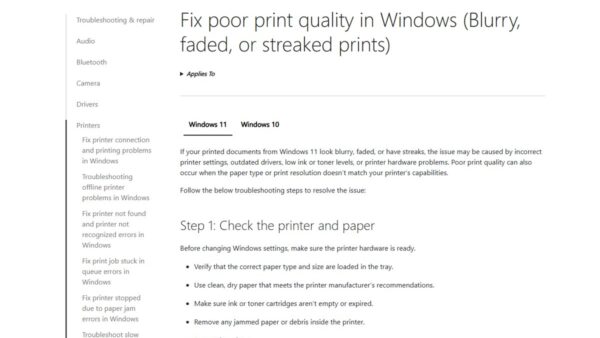
How to print a test page to test your printer in Windows 11
How to · 5 hours ago
Join a Teams meeting or Zoom video call on a Windows laptop
Microsoft Teams, Zoom and Google Meet on Windows: join, schedule, record and fix meetings
How to · 5 hours ago
Uninstall programs and manage apps on a Windows laptop
Install, uninstall and manage apps and programs in Windows 11/10
How to · 4 hours ago
Microsoft Edge settings, extensions and clear cache on a Windows laptop browser
Microsoft Edge guide: settings, extensions, clear cache and fixes
How to · 4 hours ago
Bluetooth headphones to pair with a Windows 11 PC
Bluetooth in Windows 11/10: turn on, pair devices and fix problems
How to · 3 hours ago
Windows 11 File Explorer Search Not Working: 8 Ways to Fix It
Windows 11 File Explorer search not working: 8 ways to fix it
How to · 3 hours ago
Update drivers for graphics cards and PC hardware in Windows
Windows drivers: update, install, roll back and fix graphics, audio and network drivers
How to · 2 hours ago
How to install a printer driver without the printer
How to · 2 hours ago

© 2009–2026 Techdows · About · Contact · Privacy Policy

Copyright © 2026 Techdows.

Techdows WordPress Theme by Techdows