C++ is a fast, compiled programming language that grew out of C, and you can start learning it today by installing a free compiler, writing a hello.cpp file and compiling it into a program you run.
This introduction explains why C++ exists, its main features and uses, how to set up Visual Studio or VS Code on Windows, the basic syntax every beginner needs, and how to fix the first errors you are likely to hit.
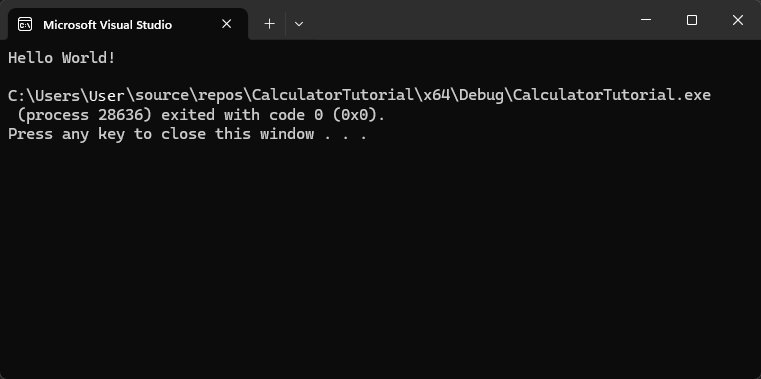
Write and run your first C++ program on Windows
This route uses the Microsoft C++ compiler (MSVC) from the command line. It needs Visual Studio with the Desktop development with C++ workload, or the Build Tools for Visual Studio.
- Open Start > All apps, open the Visual Studio folder and select Developer Command Prompt for VS.
- Type
cland press Enter; a Microsoft C/C++ Optimizing Compiler banner confirms the tools work. - Type
md C:\hello, thencd C:\helloto create and enter a project folder. - Type
notepad hello.cppand select Yes to create the file. - Paste the hello-world code shown below into Notepad and select File > Save.
- Back in the prompt, type
cl /EHsc hello.cppto compile it intohello.exe. - Type
helloand press Enter; the line of text prints in the window.
The program: #include <iostream> on the first line, then int main() { std::cout << "Hello, world, from Microsoft C++!" << std::endl; }. Each part is explained in the program structure section below.
Why was C++ created?
C++ was built to keep the speed and hardware access of C while adding ways to write larger programs at a higher level of abstraction. Backward compatibility with C was one of its original requirements.
| Goal | How C++ meets it |
|---|---|
| Keep C's performance | Compiles to native machine code, with access to low-level hardware features to maximise speed and minimise memory use |
| Stay compatible with C | C-style code with raw pointers, arrays and null-terminated strings still compiles |
| Work at high and low levels | The same language can model abstract designs or code close to the silicon |
| Make big programs safer | Classes, templates, smart pointers and standard containers reduce the need for error-prone C idioms |
| Standardise the language | C++ is defined by the ANSI/ISO C++ International Standard (ISO/IEC 14882), so code is portable between compilers |
Modern C++ means C++11 and later. Code written in that style is simpler and safer than C-style code, and just as fast.
Features of C++
| Feature | What it gives a beginner | Example |
|---|---|---|
| Compiled to native code | Fast programs with no interpreter at run time | cl /EHsc hello.cpp produces hello.exe |
| Classes and structs | Group data and functions into your own types | class widget { ... }; |
| Templates | Write one function or class that works with many types | std::vector<int>, std::vector<std::string> |
| RAII and smart pointers | Memory and files are released automatically when an object goes out of scope | std::unique_ptr, std::shared_ptr, std::weak_ptr |
| Standard Library containers | Tested, optimised data structures instead of raw arrays | std::vector, std::map, std::set |
| Standard Library strings | Safer text handling than C-style character arrays | std::string, std::string_view (C++17) |
| Standard Library algorithms | Ready-made searching, sorting and filtering | std::sort, std::for_each, std::transform |
| Lambda expressions | Short inline functions passed to algorithms | [](int x) { return x > 0; } |
| Exception handling | Report and handle errors without return-code checks everywhere | try { ... } catch (...) { ... } |
| Language standards | Pick the feature set your compiler uses | MSVC: /std:c++14 (default), /std:c++17, /std:c++20, /std:c++latest |
Applications of C++
C++ can build almost any kind of program. It is the usual choice where speed, memory control or hardware access matters most.
| Area | Why C++ is used there |
|---|---|
| Games and game engines | Frame-by-frame performance and direct control of memory |
| Device drivers | Low-level access to hardware features |
| High-performance computing | Optimised libraries and parallel Standard Library algorithms (C++17 and later) |
| Cloud and server software | Efficient use of CPU and memory under heavy load |
| Desktop applications | Native Windows programs built with Visual Studio |
| Embedded systems | Small memory footprint on constrained devices |
| Mobile apps | Shared, fast core code across platforms |
| Compilers and libraries | Libraries and compilers for other programming languages are often written in C++ |
Best C++ compiler and editor for beginners on Windows
You need a compiler to turn .cpp files into programs, and an editor to write them. All three setups below are free for learning.
| Your situation | Use this | Why |
|---|---|---|
| Want everything in one app, with a debugger | Visual Studio Community with Desktop development with C++ | Editor, MSVC compiler and debugger in one install; Community is for individuals and classroom learning |
| Only want the compiler for exercises | Build Tools for Visual Studio | Installs just the command-line compilers, tools and libraries, and installs quickly |
| Prefer a lightweight editor, or also use Mac or Linux | VS Code with the C/C++ extension and MinGW-w64 GCC | VS Code is cross-platform; GCC comes from MSYS2 on Windows |
Install Visual Studio Community for C++
- Restart your PC so pending updates do not interfere, and free up space on the system drive.
- Download the Visual Studio bootstrapper from Microsoft's Visual Studio download page and choose Free download for Community.
- Run the downloaded file to install the Visual Studio Installer.
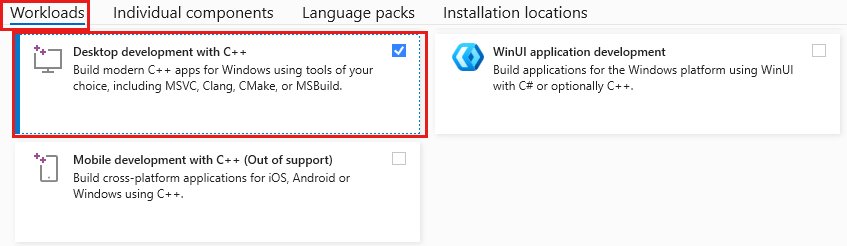
- On the Workloads tab, tick Desktop development with C++.
- Leave the optional components in Installation details at their defaults, then select Install.
- When installation finishes, open Developer Command Prompt for VS and type
clto check the compiler responds.
Visual Studio also comes in Professional and Enterprise editions for commercial teams, with licensing and team features that a beginner does not need.
Set up C++ in VS Code with MinGW-w64
MSYS2 provides current native builds of GCC and MinGW-w64 for Windows. It needs 64-bit Windows 10 version 1809 or later.
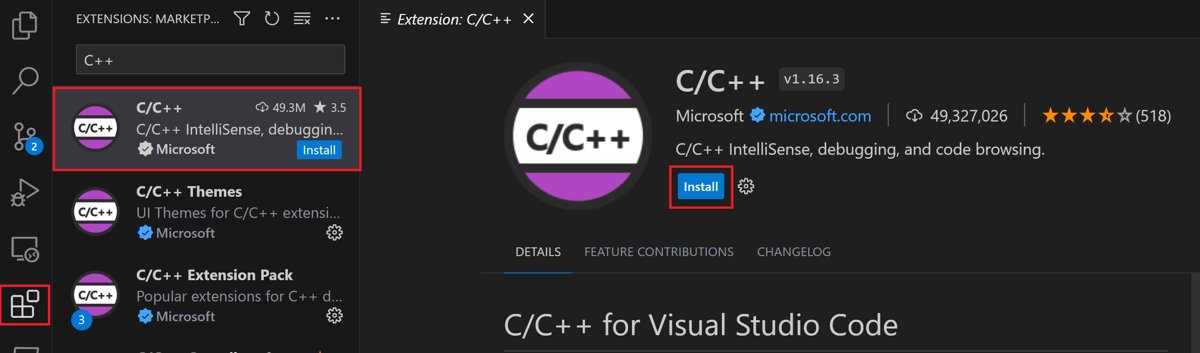
- Install Visual Studio Code, then press Ctrl + Shift + X, search for C++ and install the C/C++ extension.
- Install MSYS2 from its official page, leave the default folder, and keep Run MSYS2 now ticked when you select Finish.
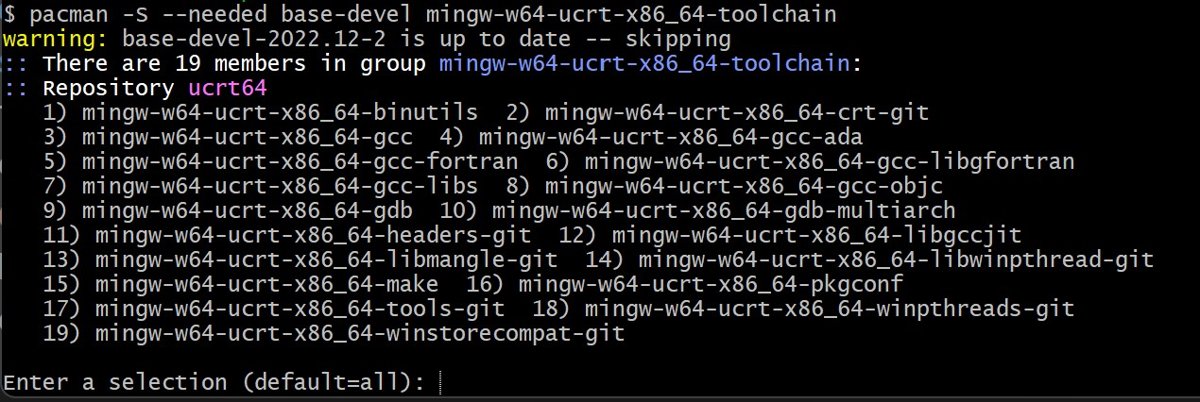
- In the MSYS2 terminal, run
pacman -S --needed base-devel mingw-w64-ucrt-x86_64-toolchainand accept the default packages. - Add
C:\msys64\ucrt64\binto the Path entry under your User variables in Environment Variables, then select OK twice. - Open a new terminal and run
g++ --versionto confirm GCC is found. - In VS Code, create
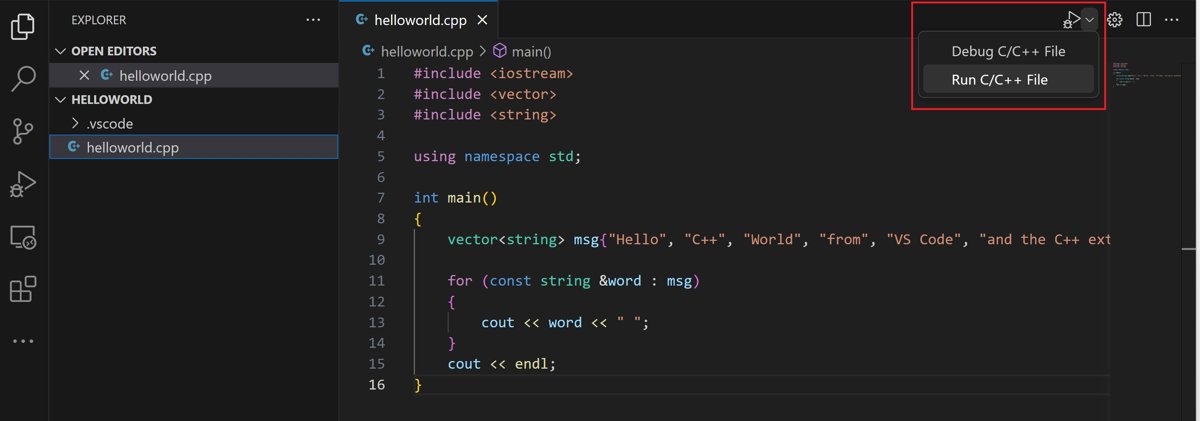
helloworld.cpp, paste your code and save it. - Select the play button in the top-right corner of the editor and choose the g++ compiler the first time.
VS Code saves that choice in tasks.json as the default build task, so the play button reuses it next time.
Structure of a C++ program explained line by line
Every C++ program starts in a function called main. Here is what each part of the hello-world program does.
| Code | What it does |
|---|---|
#include <iostream> |
Brings in the Standard Library header for input and output streams |
int main() |
The entry point; the program starts running here |
{ and } |
Mark the start and end of the function body |
std::cout |
The standard output stream, usually the console window |
<< |
Sends the value on its right into the stream |
"Hello, world!" |
A string literal, the text to print |
std::endl |
Ends the line and flushes the output |
; |
Ends each statement |
std:: |
The namespace that holds Standard Library names; using namespace std; lets you drop the prefix |
Save source files with a .cpp extension. Notepad adds .txt by default unless you choose All Files (*.*) in Save as type.
C++ basics for beginners: variables, input, conditions and loops
These building blocks appear in almost every beginner exercise. Add #include <string> when you use std::string.
| Concept | Example | What it does |
|---|---|---|
| Variable | int age = 30; |
Stores a whole number in a named variable |
| Other built-in types | double price = 9.99; bool done = false; char grade = 'A'; |
Decimal numbers, true/false values and single characters |
| Text | std::string name = "Ana"; |
Stores text with a Standard Library string |
| Input | std::cin >> age; |
Reads a value typed by the user into a variable |
| Condition | if (age >= 18) { ... } else { ... } |
Runs one block or the other |
| Counting loop | for (int i = 0; i < 5; ++i) { ... } |
Repeats a block five times |
| Condition loop | while (!done) { ... } |
Repeats until the condition becomes false |
| Function | int add(int a, int b) { return a + b; } |
Packages reusable code that returns a value |
| List of values | std::vector<int> scores = {90, 75, 82}; |
A resizable array; add items with push_back |
| Range-based loop | for (int s : scores) { std::cout << s; } |
Visits each element of a container |
Various resources to learn C++
Learn in this order: get one program compiling, then the basics, then modern C++ habits. These official resources match each stage.
| Your stage | Resource | What you get |
|---|---|---|
| First program | Microsoft Learn: Compiling a native C++ program on the command line | A hello-world walkthrough with MSVC and the developer command prompt |
| First project in an IDE | Microsoft Learn: Create a console calculator in C++ | A step-by-step Visual Studio project that you build and debug |
| Using VS Code | VS Code docs: Using GCC with MinGW | Toolchain setup, building, running and debugging in VS Code |
| Writing good code | Microsoft Learn: Welcome back to C++ (Modern C++) | Smart pointers, containers, algorithms and other C++11-and-later practices |
| Looking up syntax | Microsoft Learn: C++ language reference and C++ Standard Library reference | Keywords, operators, types, classes, templates and library headers |
Check that your C++ compiler is installed
cl
g++ --version
Run cl in a Developer Command Prompt to check MSVC, or g++ --version in any new Windows Terminal or Command Prompt window to check MinGW-w64 GCC. Use whichever matches the toolchain you installed.
You should see: cl prints a Microsoft (R) C/C++ Optimizing Compiler banner with a version number and a usage line. g++ --version prints the GCC version.
Fix common C++ setup errors on Windows
'cl' is not recognized as an internal or external command
You opened a normal Command Prompt, which does not have the MSVC paths set.
- Close the window and open Developer Command Prompt for VS from the Visual Studio folder in All apps.
- Type
clagain. - If it still fails, reinstall the MSVC component through the Visual Studio Installer.
Error C1034 or LNK1104 when compiling
The developer command prompt is not set up correctly, or the MSVC install is damaged.
- Open a fresh Developer Command Prompt for VS.
- Right-click the shortcut and select Run as administrator if your security settings require it.
- Repair or reinstall the MSVC tools if the error continues.
The compiler cannot find hello.cpp
The file was saved as hello.cpp.txt or in a different folder.
- Type
dirto list the files in the current folder. - In Notepad, select File > Save As, set Save as type to All Files (*.*) and save as
hello.cppin the project folder.
'g++' is not recognized after installing MSYS2
The ucrt64 bin folder is missing from your PATH, or the terminal was open before you changed it.
- Check the Path user variable includes
C:\msys64\ucrt64\bin, or your own install path. - Close every terminal and VS Code window, then reopen them.
- Run
g++ --versionagain.
"The value of miDebuggerPath is invalid" in VS Code
The GDB debugger package is missing from the MinGW-w64 install.
- Open the MSYS2 terminal.
- Run the
pacmantoolchain command again so themingw-w64-gdbpackage is installed.
C++ for beginners FAQ
Is C++ hard for beginners?
C++ asks more of a beginner than some languages because it exposes memory and compilation. Modern C++ makes it much easier: use std::string, std::vector and smart pointers instead of raw arrays, C-style strings and manual new and delete.
Should I learn C before C++?
No. C++ was designed to be compatible with C, but modern C++ style deliberately avoids many C idioms. Starting with modern C++ teaches safer habits from the first program.
What do I need to start programming in C++?
A compiler and a text editor. On Windows, Visual Studio Community with the Desktop development with C++ workload gives you both, or pair VS Code with the C/C++ extension and the MinGW-w64 GCC compiler.
Is Visual Studio free for learning C++?
Yes. Visual Studio Community is free for individual developers, classroom learning, academic research and open-source work. The Build Tools for Visual Studio give you just the command-line compiler, and VS Code is also free.
What is the file extension for C++ code?
Use .cpp for C++ source files, such as hello.cpp. The compiler turns the source into an .obj file and the linker then creates an .exe program you can run on Windows.
Which C++ standard should a beginner use?
Use a recent one, such as C++17 or C++20. MSVC compiles C++14 by default; add /std:c++17 or /std:c++20 to the cl command, or set it in the project properties, to use newer features.
What is the difference between C and C++?
C++ keeps C's low-level features but adds classes, templates, exceptions, lambdas and a large Standard Library of containers, strings and algorithms. Most C code compiles as C++, but not the other way round.
What can I build with C++?
Games, device drivers, high-performance computing software, cloud services, desktop and embedded apps, mobile apps, and even compilers and libraries for other languages. It suits any program where speed and memory control matter.
Bottom line: should you learn C++ as a beginner?
Learn C++ if you want to build games, system software or anything performance-critical, and start with Visual Studio Community and modern C++ style. One install gives you the compiler, editor and debugger, and modern C++ features such as std::vector and smart pointers remove most of the memory mistakes that make the language hard for newcomers.


![How to install or update a printer driver in Windows 11? [Full guide]](https://techdows.com/wp-content/uploads/2026/10/How-to-Install-or-Update-a-Printer-Driver-in-Windows-11-600x338.jpg)