To troubleshoot network issues with netstat in Windows 11, open Terminal or Command Prompt and run netstat -ano to list every connection and listening port with the process ID that owns it.
This guide covers what each netstat column and switch means, how to match a port to a program, how to read connection states, how to spot port exhaustion and protocol errors, the PowerShell equivalent, and netstat on Linux.
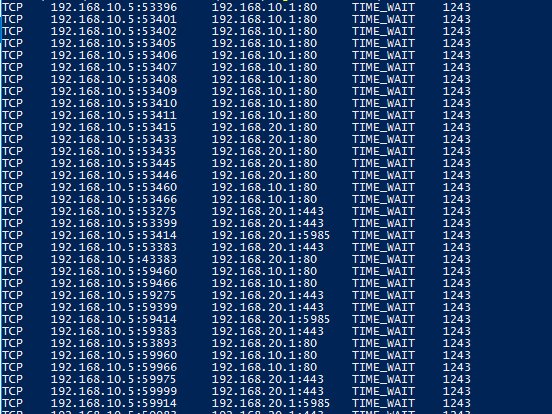
How to use netstat command in Windows
Netstat ships with Windows 11, Windows 10 and Windows Server, so there is nothing to install. Run on its own, it lists active TCP connections only.
- Search for cmd in the Start menu and open Command Prompt.
- Type
netstat -anoand press Enter. - Read the Proto, Local Address, Foreign Address, State and PID columns for each line.
- Add a number to refresh the list, for example
netstat -ano 5redraws it every 5 seconds. - Press Ctrl + C to stop a refreshing list.
Type netstat /? to print the full list of switches your Windows build supports.
What is netstat command in Windows
Netstat shows active TCP connections, the ports your PC listens on, Ethernet statistics, the IP routing table, and IPv4 and IPv6 statistics for IP, ICMP, TCP and UDP. It only works when the Internet Protocol (TCP/IP) component is installed on a network adapter.
| Column | What it shows |
|---|---|
| Proto | The protocol, TCP or UDP |
| Local Address | Your PC's IP address and the port it uses; an asterisk (*) means the port is not yet established |
| Foreign Address | The remote computer's IP address and port; names appear instead of numbers unless you add -n |
| State | The TCP connection state, such as LISTENING, ESTABLISHED or TIME_WAIT |
| PID | The process ID that owns the connection; shown only with -o |
Netstat command usage in Windows
Netstat switches can be combined, so netstat -ano is the same as netstat -a -n -o. These are the switches Microsoft documents for Windows 11, Windows 10 and Windows Server.
| Switch | What it does | Example |
|---|---|---|
| -a | All active TCP connections plus the TCP and UDP ports the PC is listening on | netstat -a |
| -b | The executable behind each connection or listening port; slow, and fails without administrator rights | netstat -ab |
| -e | Ethernet statistics such as bytes and packets sent and received; combines with -s | netstat -e -s |
| -n | Addresses and ports as numbers, with no name lookups, which makes output faster | netstat -n |
| -o | The process ID (PID) for each connection; combines with -a, -n and -p | netstat -n -o |
| -p protocol | Only one protocol: tcp, udp, tcpv6 or udpv6; with -s also icmp, ip, icmpv6 and ipv6 | netstat -s -p tcp udp |
| -q | All connections, listening ports and bound nonlistening TCP ports | netstat -anobq |
| -r | The IP routing table, the same as route print | netstat -r |
| -s | Statistics by protocol for TCP, UDP, ICMP and IP, plus IPv6 versions when installed | netstat -s |
| interval | Redisplays the output every set number of seconds until Ctrl + C | netstat -o 5 |
Using netstat command to troubleshoot network issues
Match the problem you see to a row, run the command, and look for the sign in the last column. Each command narrows the fault to the app, the port or the network path.
| Problem | Run this | What to look for |
|---|---|---|
| An app says its port is already in use | netstat -ano | find ":80" | A LISTENING line on that port and the PID that holds it |
| A server app does not accept connections | netstat -an | find "LISTENING" | No LISTENING line on the port means the service is not listening |
| You suspect an unknown program is talking to the internet | netstat -abno | Executable names next to ESTABLISHED connections to unfamiliar addresses |
| Connections fail after the PC has run for a while | netstat -anobq | Thousands of TIME_WAIT or BOUND entries for one PID, a sign of port exhaustion |
| Pages load slowly or drop | netstat -e -s | Rising error, discard or retransmitted segment counts |
| Traffic goes out the wrong adapter or VPN | netstat -r | The default route (0.0.0.0) and which interface it points to |
| A connection opens and closes repeatedly | netstat -ano 5 | The same remote address reappearing every refresh |
If netstat shows the right service listening but clients still cannot connect, the block is on the network path, such as a firewall or proxy. Ping the IP address of the server next to test basic reachability.
How to find which program is using a port with netstat
The -o switch adds the process ID to every line, and that number leads straight to the program. Replace 443 with the port you are checking.
- Open Command Prompt or Terminal.
- Run
netstat -ano | find ":443"to show only lines that contain port 443. - Note the number in the last column, the PID, for the LISTENING or ESTABLISHED line.
- Run
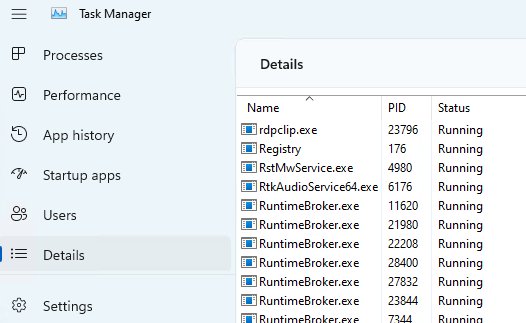
tasklist /fi "PID eq 888", replacing 888 with that PID, to see the program's image name. - Or press Ctrl + Shift + Esc to open Task Manager and sort by the PID column to find the same process.
- If the program should not hold that port, close it normally, or run
taskkill /pid 888to end it.
Because a program already holds the port, no other program can use it until the first one releases it. That is the usual cause of "port already in use" errors from web servers and game servers.
How to check if a port is open in Windows with netstat
A port is open for incoming connections when a program is listening on it. Netstat shows that directly, so you can check a service before blaming the firewall.
netstat -an | find "LISTENING"Lists every TCP port in the LISTENING state in numeric form. Add the port to narrow it, for example netstat -an | find ":3389" for Remote Desktop.
You should see: A line such as TCP 0.0.0.0:3389 0.0.0.0:0 LISTENING means the service is listening on every IPv4 address on that port.
A local address of 127.0.0.1 means the service only accepts connections from the same PC. Other devices cannot reach it even after you allow the port in Windows Firewall.
Netstat connection states explained
The State column tells you where each TCP connection is in its life. Most troubleshooting comes down to the first four rows.
| State | Meaning | When it matters |
|---|---|---|
| LISTENING | A program is waiting for incoming connections on that port | Proves a server or service is ready |
| ESTABLISHED | An open, working connection between the two addresses | Shows what your PC is talking to right now |
| TIME_WAIT | The connection closed and the port is held for 4 minutes by default before release | Large numbers for one PID can lead to port exhaustion |
| CLOSE_WAIT | The remote side closed the connection and the local program has not closed its end yet | Many lines for one app point to an app that is not releasing connections |
| SYN_SENT | Your PC sent a connection request and is waiting for a reply | Lines that never become ESTABLISHED point to a blocked or unreachable host |
| SYN_RECEIVED | A connection request arrived and the reply is in progress | Many at once can signal a flood of requests |
| FIN_WAIT_1, FIN_WAIT_2, LAST_ACK, CLOSED | Stages of a connection closing down | Normally brief; they clear on their own |
Check for port exhaustion with netstat -anobq
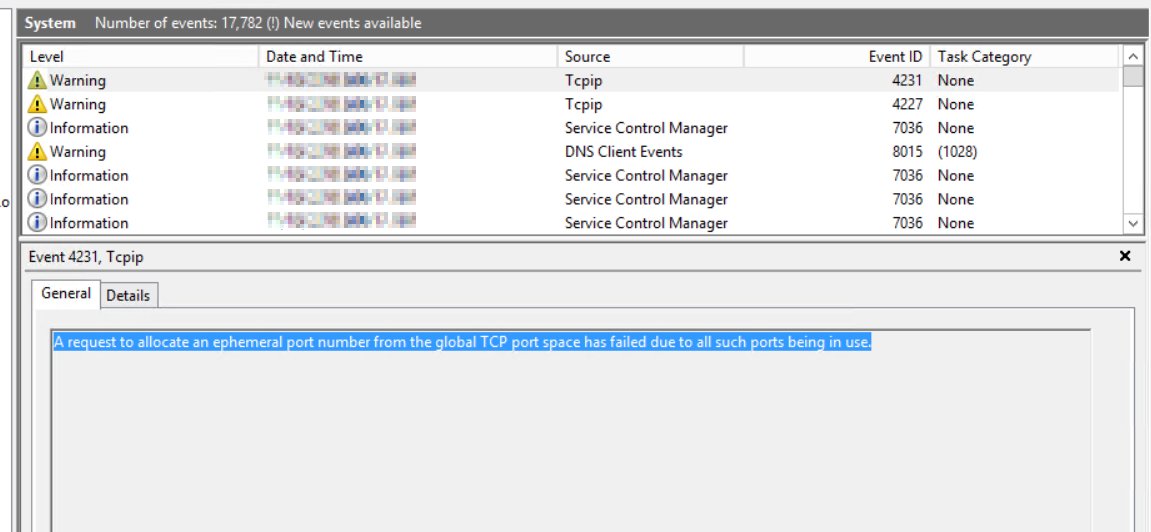
Windows uses the dynamic port range 49152 to 65535 for outgoing connections. When one process opens connections faster than it releases them, the range runs out and new connections fail. Look for Event ID 4227 or 4231 in the System log, then run netstat.
netstat -anobqRun it as administrator. It lists all connections, listening ports and bound nonlistening ports with numeric addresses, the PID and the executable for each.
You should see: Healthy output shows no single PID with a huge share of TIME_WAIT or BOUND entries. One process owning thousands of them is the one leaking ports.
Run netsh int ipv4 show dynamicport tcp to see the dynamic port range on the PC. Raising the range only buys time; the fix is in the process that keeps the ports.
Netstat command to check routing table and network statistics
When connections exist but perform badly, the statistics switches show whether packets are being lost or sent the wrong way.
- Run
netstat -e -sto show Ethernet statistics and the statistics for every protocol. - Check the error and discard counts in the Ethernet section; counts that climb between runs point to a cable, driver or adapter fault.
- Run
netstat -s -p tcp udpto show statistics for TCP and UDP only. - Compare retransmitted segments with segments sent in the TCP section; a high share of retransmissions points to packet loss on the path.
- Run
netstat -rto print the routing table and confirm the default route uses the adapter you expect.
If the routes or adapter look wrong, open Network Connections with ncpa.cpl to check which adapters are enabled. A stale address lookup is a separate problem that flushing the DNS cache clears.
How to run netstat command as administrator
Most netstat switches work in a normal window. The -b switch, which names the executable behind each connection, fails unless the window has administrator rights.
- Search for cmd in the Start menu.
- Select Run as administrator and approve the User Account Control prompt.
- Run
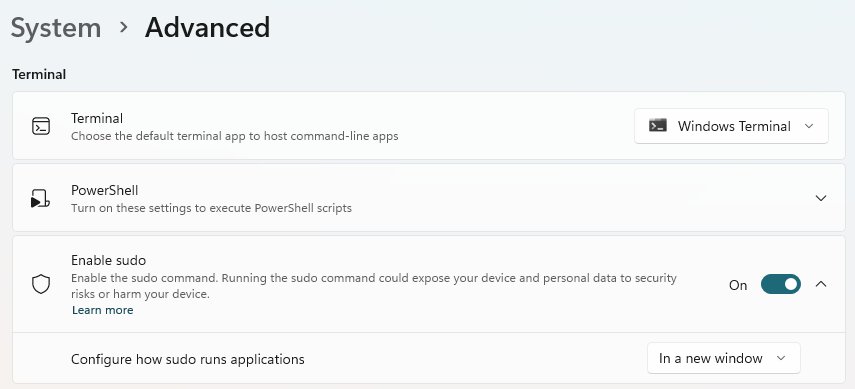
netstat -abnoto list connections with numeric addresses, PIDs and executable names. - On Windows 11, version 24H2 or later, you can instead turn on Enable sudo in Settings > System > Advanced.
- With sudo enabled, run
sudo netstat -abfrom a normal console window.
There are several other ways to run Command Prompt as an administrator if the Start menu search is slow.
Get-NetTCPConnection as a PowerShell netstat alternative
PowerShell's Get-NetTCPConnection returns the same TCP data as objects you can filter by state, port or process, which is easier than reading text.
Get-NetTCPConnection -State EstablishedLists every TCP connection in the Established state with local and remote addresses, ports and the owning process. Use -LocalPort 443 to filter by port or -OwningProcess 888 to filter by PID.
You should see: A table of connections with LocalAddress, LocalPort, RemoteAddress, RemotePort, State and OwningProcess columns.
Get-NetTCPConnection also shows BOUND ports on Windows 10 and later, so it works for port exhaustion checks too.
Netstat command in Linux with examples
Linux has its own netstat from the net-tools package, with different switches from Windows. Its manual page calls it mostly obsolete and names ss as the replacement.
| Linux command | What it shows | Modern replacement |
|---|---|---|
| netstat -tulpn | TCP (-t) and UDP (-u) listening (-l) sockets with the program (-p) and numeric addresses (-n) | ss |
| netstat -a | Both listening and non-listening sockets | ss |
| netstat -r | The kernel routing table | ip route |
| netstat -i | A table of network interfaces | ip -s link |
| netstat -g | Multicast group membership for IPv4 and IPv6 | ip maddr |
| netstat -s | Summary statistics for each protocol | No single replacement named |
| netstat -c | Prints the selected information every second, continuously | No single replacement named |
On Linux, the -p column needs superuser rights to show programs for sockets you do not own, so run it with sudo. Note that -o on Linux shows timers, not the process ID it shows on Windows.
Netstat command FAQ
Why do we use the netstat command?
Netstat shows which connections and listening ports exist on a computer and which process owns each one. That makes it the quickest way to find a program holding a port, confirm a service is listening, or spot unexpected connections.
What does the netstat command show?
It shows active TCP connections, the TCP and UDP ports the computer listens on, Ethernet statistics, the IP routing table, and per-protocol statistics for IPv4 and IPv6. Without switches, it lists active TCP connections only.
What does netstat do in cmd?
In Command Prompt, netstat prints a table of network connections with the protocol, local address, foreign address and state. Switches such as -a, -n, -o and -b add listening ports, numeric addresses, process IDs and executable names.
How do I run the netstat command?
Open Command Prompt or Terminal, type netstat -ano and press Enter. For executable names with -b, open Command Prompt with Run as administrator first, or use sudo netstat -ab on Windows 11, version 24H2 with sudo enabled.
Can we check network connectivity using netstat?
Partly. Netstat shows whether a connection to a remote address is ESTABLISHED and whether a service is listening, but it does not test reachability. Use ping or a port test tool to check the path when netstat shows nothing wrong locally.
How do I see network issues in Windows with netstat?
Run netstat -e -s and look for rising error, discard and retransmission counts, then run netstat -ano to see stuck connections. Thousands of TIME_WAIT entries for one process point to port exhaustion.
How do I find what is using a port in Windows?
Run netstat -ano | find ":443" with your port number, note the PID in the last column, then run tasklist /fi "PID eq <number>" or check the PID column in Task Manager to see the program.
Is netstat available in Windows 11?
Yes. Netstat is built into Windows 11, Windows 10 and Windows Server 2016 through 2025. It needs no download and runs from Command Prompt, Windows Terminal or PowerShell.
How do I use the netstat command in Linux?
Run netstat -tulpn to list listening TCP and UDP sockets with programs and numeric addresses, using sudo to see every program. The netstat manual page marks it mostly obsolete and names ss as its replacement.