HDMI cables come in four types: Standard, High Speed, Premium High Speed and Ultra High Speed, and only Ultra High Speed is rated at 48 Gbps for HDMI 2.1 features such as 4K at 120Hz and 8K.
This guide explains the HDMI versions, what each cable type carries, the connectors and adapters you will meet, the features in the spec, and how to pick and test a cable for your TV, console or Mac.
What are the different types of HDMI cables?
The cable type matters less than the ports at each end. A cable cannot add a feature that the TV, console or computer does not support.
Buy a certified Ultra High Speed HDMI cable for 4K at 120Hz, 8K, 4K at 240Hz or Dolby Vision, and use a High Speed or Premium High Speed cable for ordinary 1080p and 4K at 60Hz connections. Xbox requires an Ultra High Speed HDMI cable that supports HDMI 2.1 for 4K at 120Hz, and Apple names an Ultra High Speed 48 Gbps cable for 8K on a Mac. Lower-rated cables cover the features of HDMI 2.0 and earlier.
Look for the cable type printed on the packaging rather than a version number. Cables are sold by speed category, while ports are described by HDMI version.
Understanding the basics: HDMI standards and versions
HDMI stands for High-Definition Multimedia Interface. It carries digital video and audio over one cable and replaced analog connections such as composite, S-Video and VGA.
Each HDMI version adds bandwidth and features. A device lists its HDMI version in its tech specs, and the lower version at either end sets the limit.
| HDMI version | What it adds | Where you see it |
|---|---|---|
| HDMI 1.4 | HD video and audio over one cable, no HDR support | Older TVs, projectors and laptops; the Surface Hub (v1) guest input is HDMI 1.4 at up to 1080p 60Hz |
| HDMI 2.0 | 4K resolution at 60Hz and HDR | 4K TVs, monitors and streaming players with HDMI 2.0 ports |
| HDMI 2.1 | 8K resolution, higher refresh rates, Dynamic HDR, eARC, VRR, ALLM and QFT | Xbox Series X for 4K at 120Hz; Macs with M2 Pro or later for up to 8K at 60Hz or 4K at 240Hz |
Apple lists older Macs, such as the 2012 to 2015 MacBook Pro, at up to 4K at 30Hz over HDMI. Newer 2021 and later MacBook Pro models reach 4K at 60Hz, and the 2023 M2 Pro models go further.
Types of HDMI cables: From standard to Ultra High Speed
HDMI cables are named by speed category, not by version. Buy by the category printed on the box, because "HDMI 2.1 cable" is marketing shorthand for an Ultra High Speed cable.
| Cable type | What it handles | Use it for |
|---|---|---|
| Standard HDMI | The basic category for HD connections | Older HD equipment only; replace it when you move to 4K |
| High Speed HDMI | The most common type; supports most HDMI features | 1080p TVs, monitors, set-top boxes and laptops |
| Premium High Speed HDMI | Certified for more advanced features such as HDR | 4K HDR at 60Hz from HDMI 2.0 players and consoles |
| Ultra High Speed HDMI | 48 Gbps, the bandwidth HDMI 2.1 needs | 4K at 120Hz on Xbox Series X|S, 8K or 4K at 240Hz on a Mac, Dolby Vision on Apple TV 4K |
| HDMI with Ethernet | Adds the HDMI Ethernet channel so connected devices can share a network connection | Only when both devices use the HDMI Ethernet channel |
Microsoft says only an Ultra High Speed HDMI cable that supports HDMI 2.1 gives 4K gaming at 120 frames per second on the Xbox Series X console. Xbox Series S owners who want 4K at 120Hz need to buy a certified Ultra High Speed HDMI cable.
The HDMI connectors: More than Type A
The full-size HDMI plug on TVs, consoles, streaming boxes and many laptops is the connector most people mean by HDMI. Smaller HDMI connectors exist for compact devices, so check the device manual for its port before you buy a cable.
Many computers have no HDMI port at all and reach HDMI through an adapter.
| Port on your device | How it connects to HDMI | Limit to know |
|---|---|---|
| Full-size HDMI | A standard HDMI cable straight to the TV or monitor | Connect directly for the highest resolutions; Apple supports 4K at 240Hz on a Mac only without an adapter |
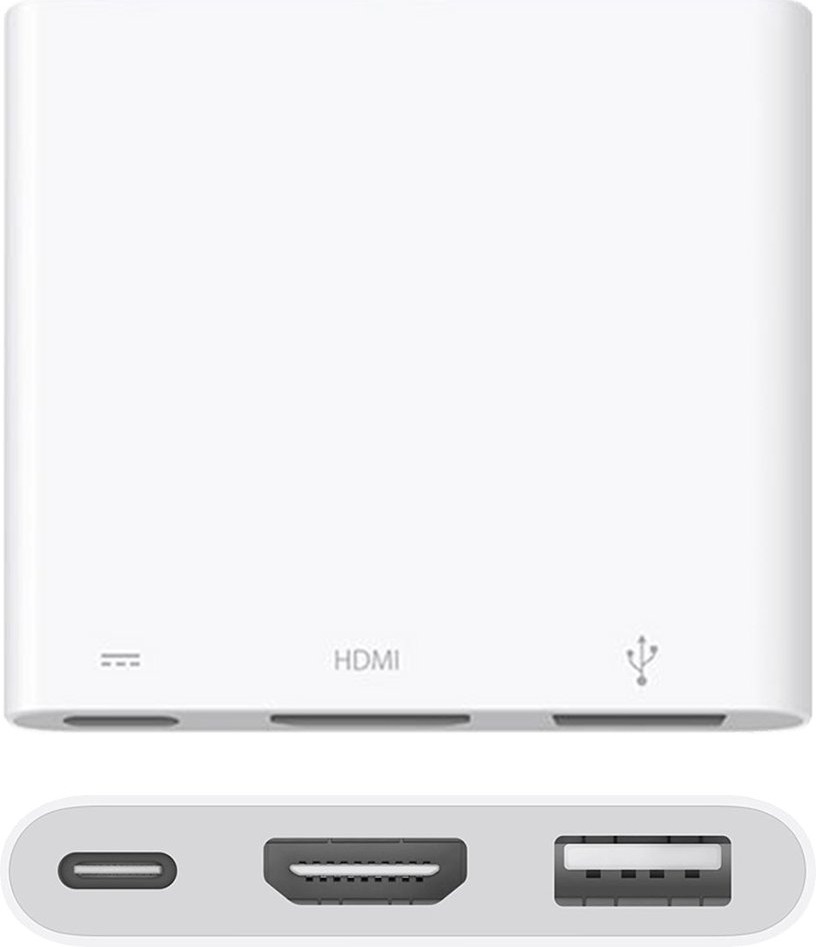
| Thunderbolt 5, 4 or 3, or USB-C | A USB-C to HDMI adapter, such as the Apple USB-C Digital AV Multiport Adapter | The adapter sets the maximum resolution and refresh rate |
| USB-C with HDMI Alt Mode | Sends HDMI signals over USB-C from laptops and phones that support it | The device must support HDMI Alt Mode |
| Thunderbolt 2, Thunderbolt or Mini DisplayPort | A Mini DisplayPort to HDMI adapter or cable | Older Macs; check the adapter's supported resolution |
| DisplayPort | A DisplayPort to HDMI adapter or cable | Most adapters work in one direction only, from DisplayPort output to HDMI input |
| Phone or tablet with MHL | Mobile High-Definition Link sends audio and video to a TV over an HDMI cable | Only phones and tablets that support MHL |
HDMI specifications and capabilities: An ocean of features
HDMI does more than carry a picture. Each feature below needs support on both connected devices, and several need HDMI 2.1 ports.
| Feature | What it does | Needs |
|---|---|---|
| Audio over HDMI | Sends sound with the video on the same cable; Macs output up to 8-channel 24-bit audio at 192kHz, Dolby Surround 5.1 and stereo | Multi-channel support on the source; some Macs with HDMI ports do not support it |
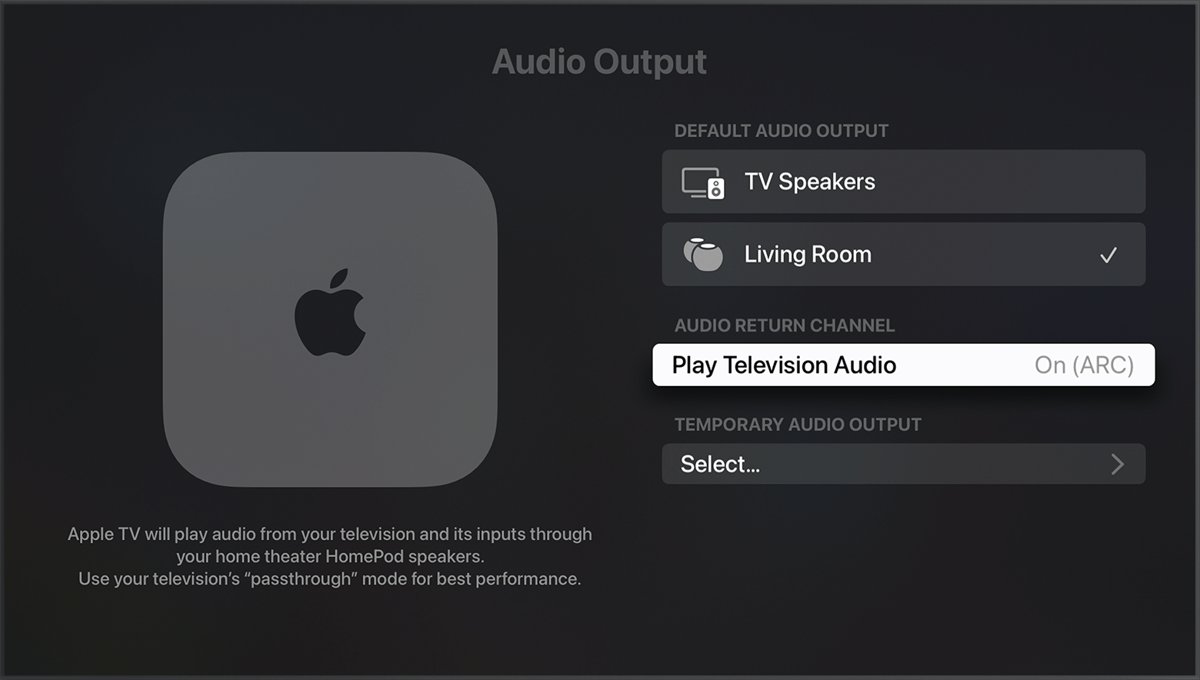
| ARC (Audio Return Channel) | Sends TV audio back to a soundbar or AV receiver over the same HDMI cable | An ARC port on the TV and the audio device |
| eARC (Enhanced Audio Return Channel) | Carries higher-quality formats such as Dolby Atmos and DTS:X, with better audio and video sync | eARC ports on the TV and the audio device |
| CEC (Consumer Electronics Control) | Lets one remote control several connected devices; a Mac's display can sleep and wake with the Mac | CEC support on each device; on Mac, certain 2023 to 2025 models or a supported adapter |
| HDCP (High-bandwidth Digital Content Protection) | Copy protection that streaming apps and Blu-ray players require | An HDCP-compatible display |
| HDR and Dynamic HDR | HDR widens brightness and color; Dynamic HDR adjusts scene by scene or frame by frame | HDR from HDMI 2.0; Dynamic HDR is an HDMI 2.1 feature |
| VRR (Variable Refresh Rate) | Matches the display refresh rate to the game's frame rate to cut tearing and stutter | HDMI 2.1 ports on the console or PC and the display |
| ALLM (Auto Low Latency Mode) | Switches the TV to its low-latency mode when a console starts a game | HDMI 2.1 support on both devices |
| QFT (Quick Frame Transport) | Reduces latency between the source and the display | HDMI 2.1 support on both devices |
| Deep Color | Sends a wider range of colors than standard video signals | Support on the source and the display |
HDMI ARC vs eARC
ARC and eARC both send sound from the TV back to a soundbar or receiver, so you need only one HDMI cable between them. The difference is the audio quality each one carries.
| Question | HDMI ARC | HDMI eARC |
|---|---|---|
| What it sends | TV audio back to a soundbar or AV receiver | The same, with higher-quality audio formats |
| Dolby Atmos and DTS:X | Not listed as an ARC capability | Supported |
| Audio and video sync | Standard | Better synchronization between audio and video |
| HDMI version | Found on HDMI ports labeled ARC | Part of the HDMI 2.1 feature set |
| What to connect | The ARC-labeled HDMI port on the TV | The eARC-labeled HDMI port on both the TV and the audio device |
If the TV lacks the audio format you need, HDMI audio extraction can split the sound from the HDMI signal and send it to a soundbar or receiver.
HDMI and other technologies
HDMI sits alongside several other display connections. The table shows where each one fits and how it connects to an HDMI screen.
HDMI replaced analog VGA cables, ports and adapters, which top out at lower resolutions and need a converter to reach an HDMI input.
| Technology | How it compares with HDMI | Connecting it to HDMI |
|---|---|---|
| DisplayPort | Common on PC monitors and graphics cards; often supports higher resolutions and refresh rates, plus MST daisy-chaining and Adaptive Sync | A DisplayPort to HDMI adapter; many DisplayPort sources switch to HDMI signalling when they detect an HDMI display |
| USB-C and Thunderbolt | Carry video from laptops, tablets and phones through HDMI Alt Mode or a dock | A USB-C to HDMI adapter or cable |
| VGA | Analog video at lower resolutions and refresh rates | A VGA to HDMI adapter or converter |
| HDMI over Ethernet extenders | Send HDMI over Cat5e or Cat6 network cable for long runs | A transmitter and receiver pair at each end |
| HDMI switches and splitters | A switch puts several sources on one TV input; a splitter sends one source to several screens | Check that the switch supports the 4K and HDR formats you use |
Microsoft recommends HDMI over DisplayPort when a long cable is needed, because HDMI has cost-effective long-haul cables and repeaters.
Choosing the best HDMI cable
Match your setup to a row. Certified cables are the safe choice, because Microsoft notes that only cables certified by testing labs are certain to work at their rated length.
| Your setup | Cable to buy | Why |
|---|---|---|
| 1080p TV, monitor or projector | High Speed HDMI | Covers 1080p video and audio; a faster cable adds nothing the ports can use |
| 4K HDR at 60Hz from an HDMI 2.0 device | Premium High Speed HDMI | Certified for HDR at 4K |
| Apple TV 4K with Dolby Vision or HDR10+ | Ultra High Speed HDMI 2.1 cable with the Dolby Vision mark | Apple recommends these cables because they were tested with Apple TV 4K and many TVs |
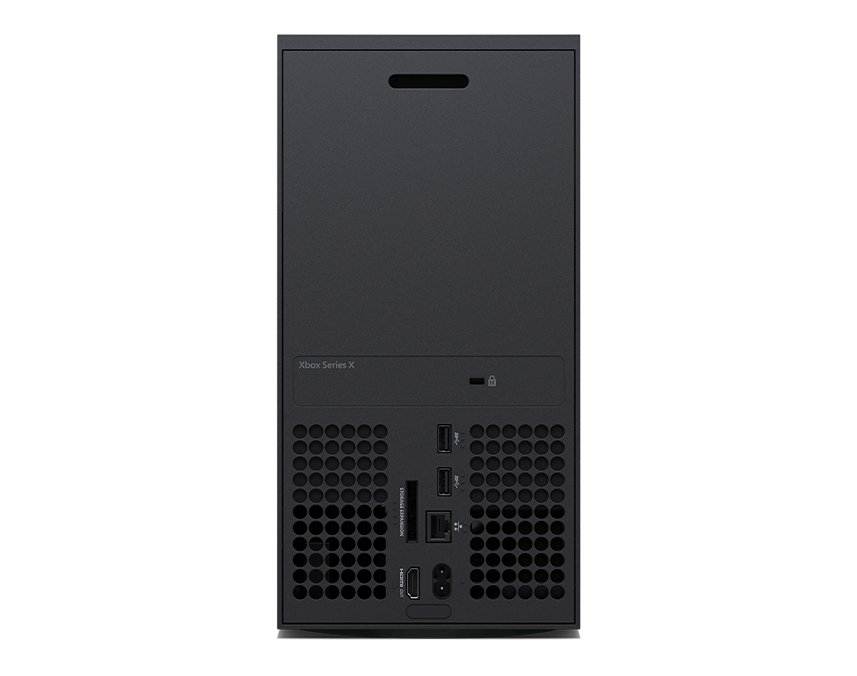
| Xbox Series X at 4K 120Hz | The Ultra High Speed HDMI cable included with the console | Microsoft requires an Ultra High Speed cable and a TV that supports HDMI 2.1 |
| Xbox Series S at 4K 120Hz | A certified Ultra High Speed HDMI cable | Microsoft says Series S owners need to acquire one |
| Mac at 8K 60Hz or 4K 240Hz | Ultra High Speed 48 Gbps HDMI cable, connected directly | Apple does not support adapters at these resolutions and refresh rates |
| Laptop with only USB-C or Thunderbolt | A USB-C to HDMI adapter plus an HDMI cable | The adapter converts the signal; its rating sets the limit |
| Long run across a room or building | A certified long cable, a repeater or an HDMI over Ethernet extender | Long uncertified cables are the most likely to fail |
How to set 4K 120Hz on Xbox Series X
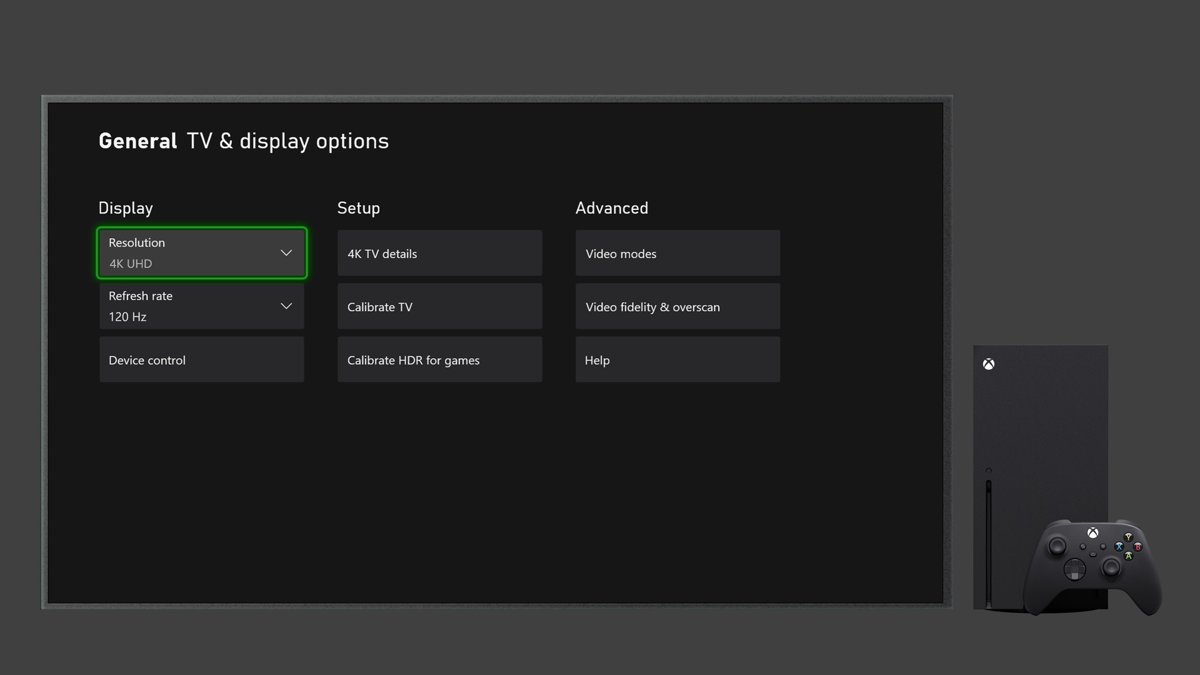
You need an Xbox Series X, an Ultra High Speed HDMI cable that supports HDMI 2.1, and a TV with an HDMI 2.1 input.
- Plug the Ultra High Speed HDMI cable into an HDMI 2.1 input on the TV; the TV manual names that input.
- Press the Xbox button to open the guide.
- Select Profile & system > Settings > General > TV & display options.
- Set Resolution to 4K UHD.
- Set Refresh rate to 120 Hz.
If 120 Hz is missing from the list, the cable, the TV input or a receiver between them is not passing HDMI 2.1.
How to test an HDMI cable on Apple TV 4K
Apple TV 4K has a built-in test that checks whether the cable can keep a stable connection. It takes about two minutes.
- Connect the Apple TV 4K to the TV with the cable you want to test.
- Open Settings on the Apple TV.
- Select Video and Audio.
- Select Check HDMI Connection and follow the onscreen instructions.
- If the test reports a problem, replace the cable with an Ultra High Speed HDMI 2.1 cable labeled Compatible Dolby Vision.
HDMI cable not working at 4K 120Hz or HDR
Most HDMI cable faults show up as a missing mode or a dropped picture rather than no signal at all. If Windows does not detect the screen at all, fix the HDMI port in Windows 11 before you replace the cable.
The TV says the HDMI cable might be having trouble maintaining a stable connection
The cable cannot carry the 4K HDR or Dolby Vision signal reliably.
- Run Check HDMI Connection under Settings > Video and Audio on Apple TV 4K.
- Replace the cable with an Ultra High Speed HDMI 2.1 cable with the Dolby Vision mark.
- Connect the source straight to the TV to rule out a switch or splitter.
4K 120Hz is not available on Xbox Series X|S
The cable, the TV input or an AV receiver does not support HDMI 2.1.
- Use the Ultra High Speed HDMI cable that came with the Xbox Series X, or a certified one for Series S.
- Move the cable to the TV input that the manual lists for 4K and HDMI 2.1, because some inputs support only lower resolutions.
- If a receiver sits in between, use the Ultra High Speed cable there too.
- Ask the receiver maker for a fix if 4K at 120Hz still fails through it.
4K HDR or Dolby Vision stops working through a receiver or HDMI switch
The receiver input or the switch does not pass 4K and HDR.
- Plug every cable in the chain into HDMI inputs that support 4K and HDMI 2.1.
- Use cables compatible with 4K and HDR between the source, receiver and TV.
- Remove HDMI switches and splitters, which can interfere with the signal.
4K 240Hz or 8K is missing on a Mac connected through an adapter
Apple does not support adapters at these resolutions and refresh rates.
- Connect the display to the Mac's built-in HDMI port.
- Use an Ultra High Speed 48 Gbps HDMI cable.
- Check that the Mac is a model with M2 Pro or later from 2023 onward.
Black screen when you play protected video over HDMI
The display or an adapter in the chain is not HDCP compatible.
- Connect the source to an HDCP-compatible display.
- Remove adapters or capture devices between the source and the display.
- Play the video again from the original app.
HDMI cable types FAQ
Can HDMI carry audio and video together?
Yes. HDMI carries digital audio and video in one cable, so a TV, monitor or soundbar gets both from a single connection. Multi-channel audio depends on the source; Apple notes that some Macs with HDMI ports do not support it.
What is the maximum resolution and refresh rate that HDMI supports?
HDMI 2.1 supports up to 8K and higher refresh rates such as 4K at 120Hz. Macs with M2 Pro or later output up to 8K at 60Hz or 4K at 240Hz over HDMI. HDMI 2.0 supports 4K at 60Hz.
What is the difference between HDMI 1.4 and HDMI 2.0?
HDMI 2.0 supports 4K at 60Hz and HDR, while HDMI 1.4 does not support HDR. For 4K HDR at 60Hz, both devices need HDMI 2.0 ports and a Premium High Speed or faster cable.
What is HDMI 2.1?
HDMI 2.1 is the HDMI version that adds 8K, higher refresh rates, Dynamic HDR, eARC, VRR, ALLM and QFT. It needs an Ultra High Speed HDMI cable rated at 48 Gbps to reach its full bandwidth.
What is HDMI ARC, and how does it work?
HDMI ARC, the Audio Return Channel, sends sound from the TV back to a soundbar or AV receiver over the same HDMI cable. It removes the need for a separate audio cable.
What is eARC?
eARC, the Enhanced Audio Return Channel, is the HDMI 2.1 version of ARC. It carries higher-quality formats such as Dolby Atmos and DTS:X and keeps audio and video better in sync.
What is HDMI CEC?
HDMI CEC, Consumer Electronics Control, lets one remote control several HDMI devices. With CEC on supported models, a Mac's display can sleep and wake with the Mac.
Can I connect multiple devices to a single HDMI port on my TV?
Yes. An HDMI switch connects several sources to one TV input, and you pick the active one. Check that the switch supports 4K and HDR, because Apple warns that switches can interfere with those signals.
Can I use an HDMI cable with a DisplayPort?
Not directly. Use a DisplayPort to HDMI adapter or cable to connect a DisplayPort output to an HDMI input. Most such adapters work in one direction only, so buy one that matches which end is the source.