A deleted iCloud Mail folder cannot be restored from iCloud.com, so you recover it from a copy: a Time Machine backup of Mail on a Mac, an exported mailbox, or emails that are still in Trash.
This guide covers each route, how to move recovered emails back into iCloud, how long iCloud keeps deleted mail, and how to keep it from happening again.
Can you recover a deleted folder in iCloud Mail
Apple says deleting an iCloud Mail folder deletes everything inside it, including subfolders and their emails. The recovery tools on iCloud.com cover files, contacts, calendars, notes, reminders and bookmarks, and for Mail they point only to the Trash.
| Your situation | What to do | Why |
|---|---|---|
| A Mac with Mail and Time Machine was set up before the deletion | Restore the mailbox from Time Machine, then move the emails back to iCloud | Time Machine can restore content that Mail had downloaded |
| You exported the mailbox earlier as an .mbox file | Import it with File > Import Mailboxes in Mail on a Mac | Mail reads mailboxes exported from Mail or in mbox format |
| The folder was deleted less than 30 days ago | Check Trash on iCloud.com and on your iPhone | Deleted emails stay in Trash for 30 days before they are erased |
| Trash was emptied, and no backup or export exists | Treat the emails as gone | Apple says emptied Trash cannot be recovered |
Recover a deleted iCloud Mail folder with Time Machine on Mac
This route works only if Mail on that Mac had downloaded the folder's messages and Time Machine backed them up before the deletion. Work on the Mac that used the iCloud account.
- Open the Mail app on the Mac and leave its window in front.
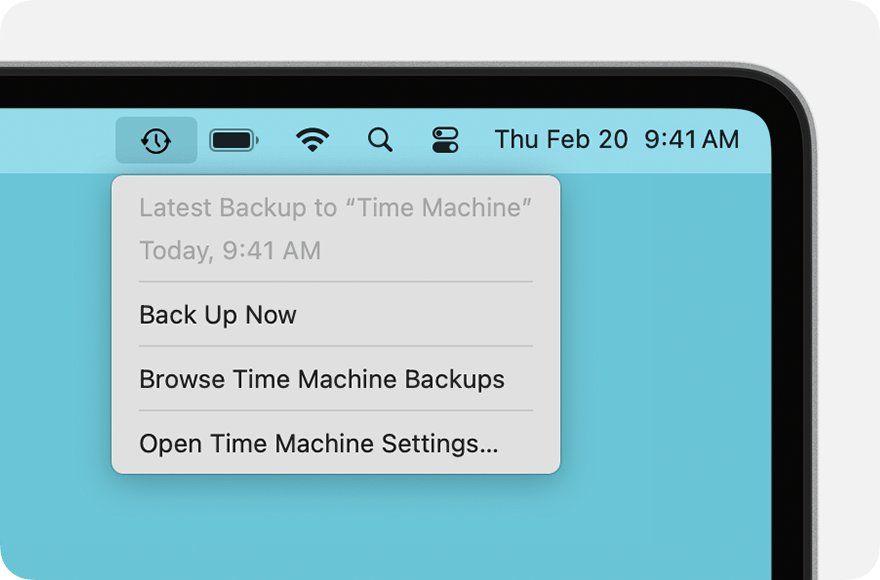
- Open Time Machine with Spotlight. A message may appear while the Mac connects to the backup disk.
- Use the arrows or the timeline on the right to move back to a backup taken before the folder was deleted.
- Select the missing mailbox in the Mail window of that backup.
- Click Restore, then wait for Time Machine to return to the current Mail window.
- Look in the Mail sidebar for the restored mailbox and open it to check that the emails are there.
- Repeat for each missing mailbox, one at a time.
A restored mailbox lives on the Mac only. Move its emails into an iCloud mailbox, as shown below, so they appear on your other devices again.
Import an exported mailbox into Mail on Mac
Use this when you have an .mbox package from Mailbox > Export Mailbox, or a copy of the ~/Library/Mail folder from another Mac.
- Open the Mail app on the Mac.
- Choose File > Import Mailboxes.
- Select Apple Mail for a mailbox exported from Mail or a ~/Library/Mail folder, or select Files in mbox format for files from a Windows or UNIX computer.
- Click Continue and locate the exported mailbox or folder.
- Open the new Import mailbox in the Mail sidebar to see the messages.
To reach the Mail folder on a Mac, click the desktop, hold Option, choose Go > Library, then open Mail.
How to move restored emails back into iCloud Mail
Mailboxes created under On My Mac stay on that Mac. Create the folder under the iCloud account instead, then move the recovered emails into it.
- In Mail on the Mac, choose Mailbox > New Mailbox.
- Click the Location pop-up menu and choose your iCloud account, not On My Mac.
- Type the folder's old name and click OK.
- Open the restored or Import mailbox, select its messages, and drag them onto the new iCloud mailbox.
- Sign in at icloud.com/mail and confirm the new folder and its emails appear in the Mailboxes list.
- Delete the empty restored or Import mailbox from the Mac once the emails are safely in iCloud.

How to retrieve deleted emails in iCloud on iCloud.com
Check the Trash first. Emails deleted on iCloud.com wait there for 30 days, and Apple's deleted-email setting decides whether they go there at all.
- Go to icloud.com/mail and sign in to your Apple Account.
- Select Trash in the Mailboxes list.
- Select the emails you want back. On a computer, Command-click on a Mac or Control-click on Windows to select several.
- Select Move, then choose a folder, or create a new folder for them.
- Select Move again, then open that folder to check the emails.
Also open Archive. Archived emails stay there until you delete them, so messages you thought were lost may sit there instead.
Recover deleted iCloud emails on iPhone
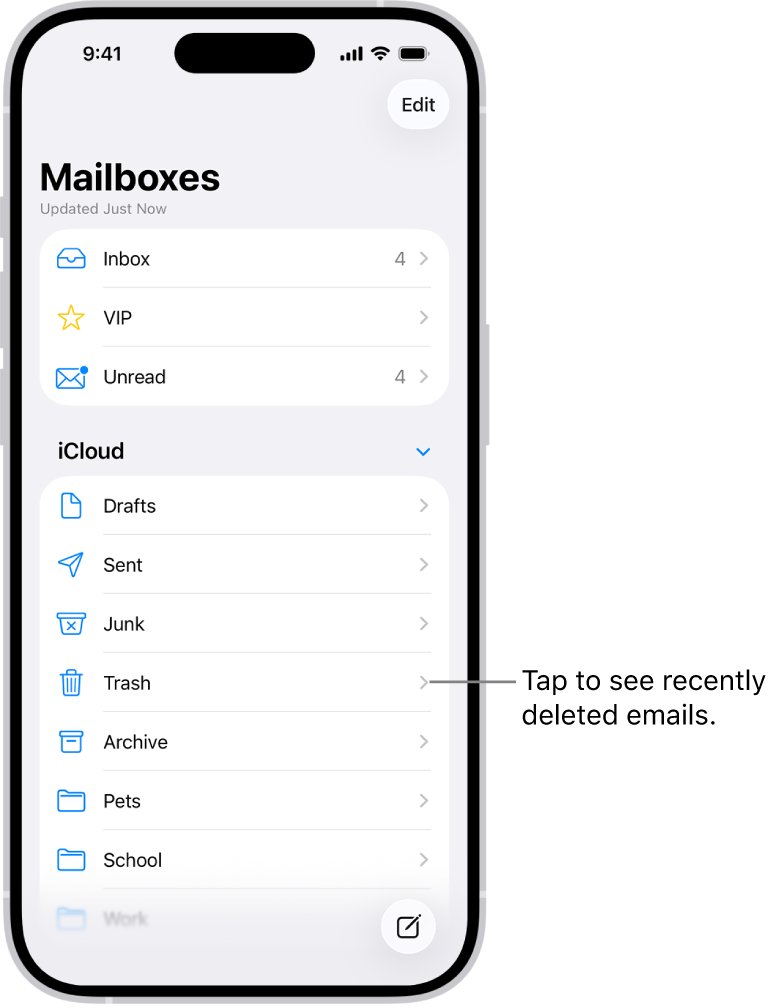
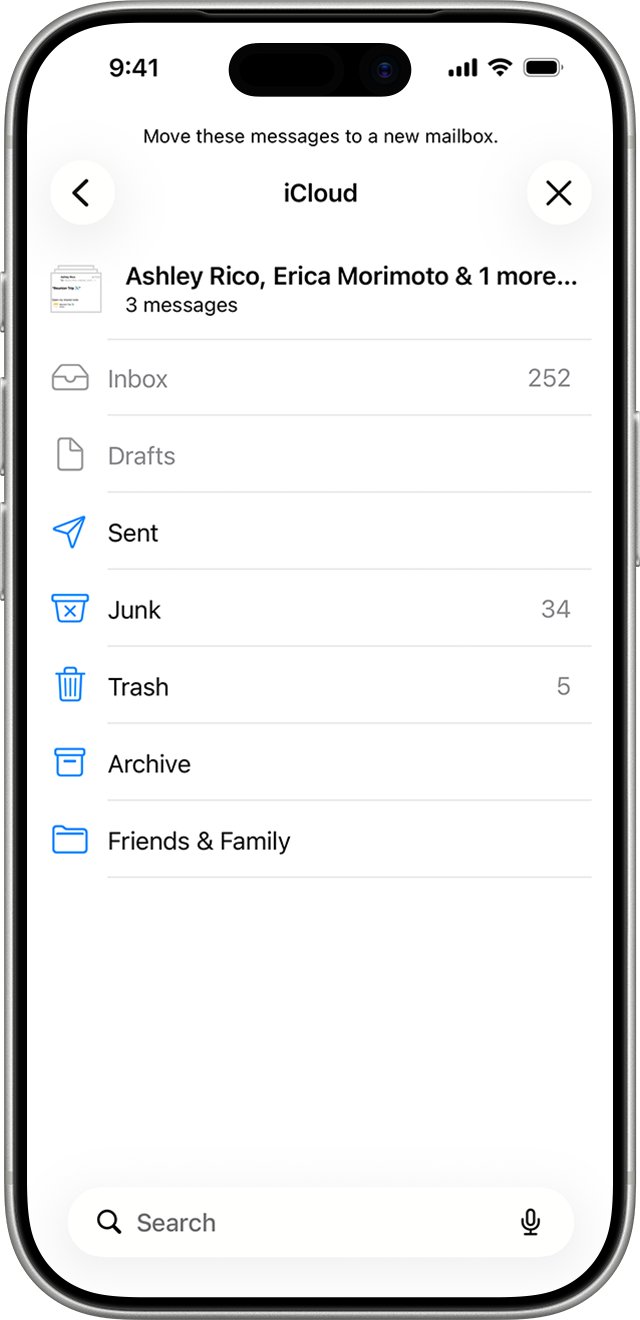
The Mail app on iPhone shows the same iCloud Trash, plus an optional mailbox that gathers deleted mail from every account.
- Open the Mail app and tap the back button until you see Mailboxes.
- Tap Trash under your iCloud account.
- Tap a message you want to recover.
- Tap the move button, then choose another mailbox.
- To see deleted mail from all accounts in one place, tap Edit on the Mailboxes screen and select All Trash.
If you were clearing out large batches when the folder vanished, the same Trash rules apply to mass-deleted iCloud emails.
How long does iCloud keep deleted emails
These limits decide whether there is anything left to recover. Check them before you spend time on a backup.
| Item | How long it lasts | Can you get it back |
|---|---|---|
| Email in iCloud Trash | 30 days, then permanently erased | Yes, move it out of Trash before then |
| Email after Empty Trash | Erased at once | No, Apple says it cannot be recovered |
| Email deleted with Move deleted messages to turned off | Erased at once | No, it never reaches Trash |
| Email deleted in another Mail app | Can be shorter than 30 days, based on that app's settings | Only while it is still in Trash |
| iPhone Trash set to Never remove | Still no longer than 30 days for iCloud | Only within 30 days |
| Email in Archive | Until you delete it | Yes, it is still in your account |
| Deleted iCloud folder | Removed with its emails and subfolders | Only from a Mac backup or an export |
| iPhone iCloud Backup | Does not hold iCloud Mail, which is already stored in iCloud | No, restoring a backup will not bring mail back |
How to archive iCloud emails instead of deleting them
Archiving keeps emails out of your inbox without starting the 30-day clock. An occasional mailbox export on a Mac gives you a copy that survives a deleted folder.
- On iPhone, go to Settings > Apps > Mail > Mail Accounts > iCloud > Mailbox Behaviors.
- Select Archive Mailbox under Move Discarded Messages Into.
- On iCloud.com, open Mail settings, select Viewing, and select Show Archive button in the toolbar.
- On a Mac, select the folders you want to keep, choose Mailbox > Export Mailbox, and save the .mbox packages somewhere safe.
- Keep Time Machine backing up the Mac so Mail's downloaded messages are covered too.
With Archive turned on in iPhone Mail, touch and hold the archive button and tap Trash Message when you really want to delete.
iCloud emails missing after deleting a folder
Time Machine shows the mailbox, but it is empty or incomplete
Time Machine restores only what Mail had downloaded to that Mac.
- Try an older backup in the Time Machine timeline.
- Restore the mailbox from each Mac that used the iCloud account, if you have more than one.
- Check Trash on iCloud.com for any emails the Mac never downloaded.
Folder still exists on Mac, but emails look missing or garbled
Mail's message list for that mailbox is out of date.
- Select the mailbox in the Mail sidebar.
- Choose Mailbox > Rebuild.
- Wait for the rebuild to finish, then search the mailbox again.
iCloud Trash is empty after deleting a folder
Trash was emptied, more than 30 days passed, or deleted mail is set to erase immediately.
- On iCloud.com, open Mail settings and select Mailbox Behavior.
- Check whether Move deleted messages to is selected, and which folder it names.
- Open that folder if it is not Trash.
- If nothing is there, use a Time Machine backup or an exported mailbox.
Deleted emails vanish sooner than 30 days
Another Mail app is set to remove Trash sooner.
- On iPhone, go to Settings > Apps > Mail > Mail Accounts > iCloud > Mailbox Behaviors.
- Tap Remove and choose a longer interval.
- On a Mac, choose Mail > Settings > Accounts, select iCloud, click Mailbox Behaviors, and change Erase deleted messages.
Recovered emails show only on the Mac
The restored mailbox is local to the Mac, not on the iCloud server.
- Create a new mailbox with Location set to your iCloud account.
- Drag the recovered messages into it.
- Check icloud.com/mail for the folder.
iCloud deleted mail folder recovery FAQ
Can I retrieve deleted emails in iCloud?
Yes, for up to 30 days. Deleted iCloud emails sit in Trash for 30 days, and you can move them to another folder on iCloud.com or in the Mail app. After Trash is emptied or the 30 days pass, only a backup such as Time Machine can return them.
How to recover deleted iCloud emails?
Open Trash on icloud.com/mail, select the emails, select Move and choose a folder. On iPhone, open Mailboxes, tap Trash, open the message and move it to another mailbox. Check the Archive folder too, since archived emails stay until you delete them.
How to recover a deleted folder in iCloud Mail?
Restore it from a Time Machine backup of Mail on a Mac, or import an exported .mbox copy with File > Import Mailboxes. iCloud.com has no restore option for deleted folders, and Apple says deleting a folder deletes everything inside it.
How to recover permanently deleted emails in iCloud?
Apple says emails removed with Empty Trash cannot be recovered from iCloud. Your only route is a copy kept elsewhere, such as a Time Machine backup of Mail on a Mac or a mailbox you exported earlier.
How to recover lost emails in iCloud?
Check Trash and Archive on icloud.com/mail first, then search the whole mailbox. On a Mac, select the mailbox and choose Mailbox > Rebuild if messages look missing. If the folder was deleted, restore it from Time Machine.
How to retrieve mail from iCloud?
Go to icloud.com/mail and sign in with your Apple Account, or turn on Mail for iCloud on an iPhone, iPad or Mac. Folders you create show on every device that has iCloud Mail turned on.
How do I recover my iCloud email account?
If the problem is signing in rather than lost messages, recover the Apple Account first, then open icloud.com/mail.
Does iCloud Backup include iCloud Mail?
No. iCloud Backup holds only data that is not already stored in iCloud, and iCloud Mail lives on Apple's servers. Restoring an iPhone backup will not bring back a deleted mail folder.
Can deleting a mailbox on Mac be undone?
No. Apple warns that deleting a mailbox in Mail on Mac permanently deletes it and everything inside, and the action cannot be undone. A Time Machine backup made before the deletion is the way back.