To get more storage on a PC without deleting anything, move large files to an external drive or OneDrive, compress folders you rarely open, or add a second drive and point new downloads and apps at it.
This guide covers each route in Windows 11 and Windows 10, how to extend C: into unallocated space, how to pool drives with Storage Spaces, and how to get files back if something was deleted by mistake.
How to get more space on C drive without deleting files
The quickest gain comes from moving big personal files off C: and making sure new ones land somewhere else. Nothing is removed; the files just live on another drive.
- Connect a USB drive, SD card or external hard drive with enough free space.
- Open File Explorer, go to Videos, Pictures, Music or Downloads, and select the large files you want to keep but rarely open.
- Right-click the selection, select Show more options > Send to, and choose the external drive.
- Open the external drive and check that every file copied, then move the originals off C: by cutting and pasting them to the same drive.
- Open Settings > System > Storage > Advanced storage settings > Where new content is saved.
- Choose the other drive for new apps, documents, music, pictures and videos so C: stops filling up again.
Select Eject before you unplug the external drive, so no file is left half-written. If you are happy to remove junk as well, you can free up space on Windows 11 with Disk Cleanup and Storage Sense.
Ways to add storage to a PC without deleting files
| Your situation | Use this | What you gain |
|---|---|---|
| Large photo, video or music collection on C: | Move it to an external or second drive | All the space those files used |
| You sign in with a Microsoft account | OneDrive Files On-Demand with Free up space | Online-only files use no local space; 5 GB free in the cloud, more with Microsoft 365 |
| Archive folders you seldom open on an NTFS drive | NTFS compression with compact |
Smaller files you still open normally |
| Small SSD where Windows itself takes most of the room | Compact OS | Several GB from compressed Windows files |
| Desktop PC or laptop with a free drive slot | Add a second SSD or hard drive | A whole new drive for apps and files |
| Disk Management shows Unallocated space right after C: | Extend Volume | C: grows into the empty space |
| Two or more spare drives | Storage Spaces | One large virtual drive, with optional mirroring |
Every route here keeps your files. The only one that changes how files are stored is compression, and it can be reversed at any time.
How to move files to an external hard drive in Windows 11
Copying first and removing the originals second means you never have a moment where a file exists nowhere.
- Connect the external storage device to the PC.
- Select File Explorer on the taskbar.
- Open the folder that holds the files, and hold Ctrl as you select several files or folders.
- Right-click the selection and select Show more options > Send to, then choose the external drive.
- Repeat for Documents, Desktop, Downloads, Music, Pictures and Videos if they hold large files.
- Browse the external drive to check the files are there, then cut the originals from C: if you want the space back.
- Select Eject for the drive before you disconnect it.
A drive that is unplugged is not available to apps, so keep files you open every day on an internal drive.
How to change where new content is saved in Windows 11
Windows lets you pick a default drive for each type of new content, so a second drive starts filling instead of C:. Files already on C: stay where they are.
- Open Settings and select System.
- Select Storage.
- Expand Advanced storage settings and select Where new content is saved.
- Pick a different drive under each type: new apps, new documents, new music, new photos and new videos.
- Check Storage used on other drives on the Storage page to see the new drive's usage over the following days.
The drive must be connected to appear in the list, which is why a permanent internal drive works better here than a USB stick.
How to use OneDrive Files On-Demand to free up space
OneDrive Files On-Demand shows every OneDrive file in File Explorer, but online-only files take no space on the PC. Changing a file to online-only does not delete it from OneDrive. It is on by default from OneDrive build 23.066.
- Make sure you are signed in to OneDrive on the PC.
- Select the OneDrive cloud icon in the notification area, select the Help and Settings icon, then Settings.
- Open the Sync and back up tab, expand Advanced settings, and turn on Files On-Demand.
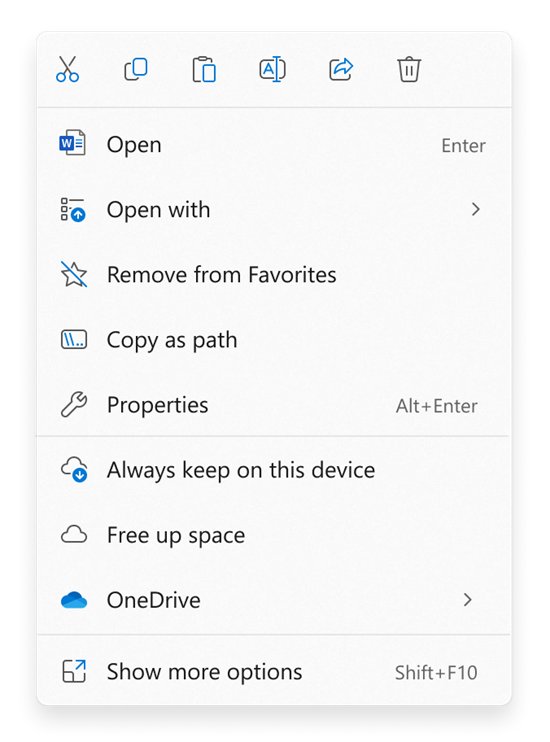
- In File Explorer, right-click a large file or folder inside your OneDrive folder.
- Select Free up space; the file now shows a blue cloud icon.
- Right-click any file you need offline and select Always keep on this device.
A free Microsoft account includes 5 GB of cloud storage, Microsoft 365 Basic 100 GB, and Microsoft 365 Personal 1 TB. Online-only files open only when the PC is connected to the internet.
Do not delete an online-only file to save space: that deletes it from OneDrive on every device, and personal accounts can restore it from the OneDrive recycle bin for only 30 days.
How to compress a folder with NTFS compression in Windows 11
NTFS compression shrinks files in place, and you still open them normally. It works on NTFS volumes only, not FAT or FAT32. Use it on archive folders rather than files you edit all day; the example uses D:\Archive.
compact /c /s:D:\Archive/c compresses the files and marks the folder so files added later are compressed too; /s:D:\Archive applies it to that folder and all its subfolders. Add /i to keep going past errors instead of stopping.
You should see: Run compact inside the folder with no switches to display the compression state of each file. Run compact /u /s:D:\Archive to uncompress it again.
Run the command from Command Prompt; open it from Start by searching for cmd. Without /i, the command stops at the first error it meets.
How to turn on Compact OS in Windows 11
Compact OS runs Windows from compressed files on UEFI and BIOS PCs, and Windows Update can still replace individual files afterwards. Microsoft measured more than 3.7 GB saved on a 64-bit Windows 10 version 1607 image; a current Windows 11 install will show a different figure.
- Select Start and search for cmd.
- Right-click Command Prompt and select Run as administrator.
- Run
Compact.exe /CompactOS:queryto see whether Windows is already compacted. - Run
Compact.exe /CompactOS:alwaysand wait for the command to finish. - Run
Compact.exe /CompactOS:neverlater if you want the system files uncompressed again.
The state stays until an administrator changes it. On the same test image, turning off the hibernation file saved more than 1.5 GB, but it also removes the Hibernate option, so keep it if you use Hibernate.
How to add a second hard drive or SSD to a PC
A new internal or external drive gives you the most room for the money. Windows needs the drive initialized and formatted before it shows up in File Explorer. You must sign in as an administrator.
- Install or connect the new drive, then right-click Start and select Disk Management.
- If the new disk shows Offline, right-click it and select Online.
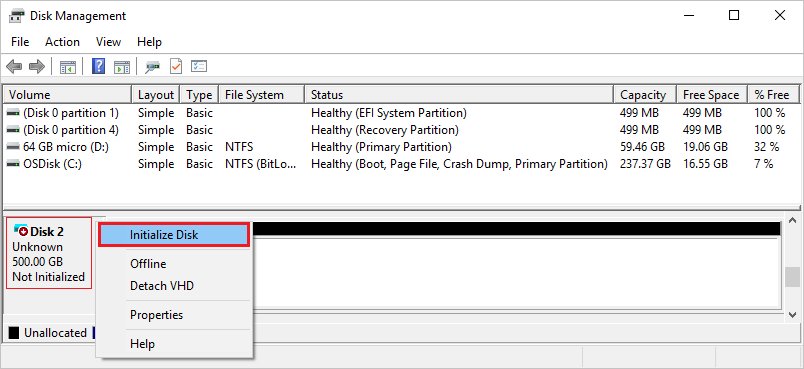
- Right-click the disk, select Initialize Disk, choose GPT for a modern UEFI PC (or MBR for older hardware), and select OK.
- Right-click the Unallocated area of the new disk and select New Simple Volume, then select Next.
- Accept the maximum size and the suggested drive letter, then select Next.
- Keep the default format settings, select Next, then select Finish.
Some USB disks cannot be initialized; Windows only formats them and assigns a drive letter. Once the drive appears in File Explorer, point Where new content is saved at it, and manage its partitions and formatting in Disk Management later if needed.
How to extend C drive with unallocated space in Windows 11
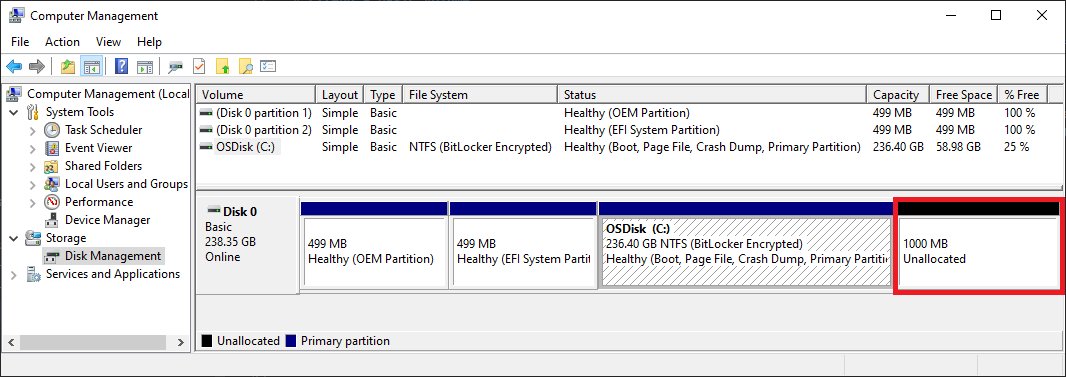
Extend Volume adds empty space to C: without touching the files on it. The unallocated space must sit immediately after C: on the same disk, and the volume must be NTFS or ReFS.
- Right-click Start and select Disk Management.
- Look for a black bar labelled Unallocated directly to the right of C: on the same disk.
- Right-click the C: volume and select Extend Volume.
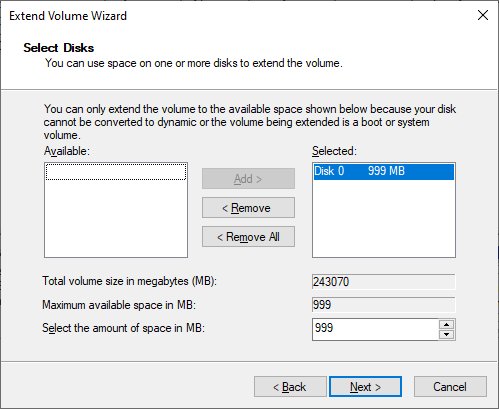
- In the Extend Volume Wizard, select Next.
- Leave the default amount, Maximum available, or enter a smaller size, and select Next.
- Select Finish; C: now shows the larger size.
If another partition sits between C: and the unallocated space, Extend Volume stays gray. Create a new volume in the empty space instead and use it as a second drive.
How to combine drives with Storage Spaces in Windows 11
Storage Spaces groups two or more drives into a pool and gives you one virtual drive from it. You need at least two extra drives besides the one Windows is installed on, and you can add more drives to the pool later.
- Connect the drives you want to pool, then type Storage Spaces in the taskbar search box and open it.
- Under Add a new Storage Pool, select Add.
- Name the pool, choose the drives under Add disks, and select Create.
- Type a name for the storage space and choose a resiliency: Simple, Two-way mirror, Three-way mirror, Parity or Dual-parity.
- Enter the maximum size and select Create.
- Type a volume label, assign a drive letter, choose a file system, and select Format.
Use spare drives for the pool rather than drives that hold files you need. A Simple space gives the most capacity but no protection; a Two-way mirror keeps two copies and survives one drive failure.
How to see how much storage is free on a Windows PC
- Open File Explorer and select This PC.
- Look under Devices and drives; each drive shows a bar with its free space and total size.
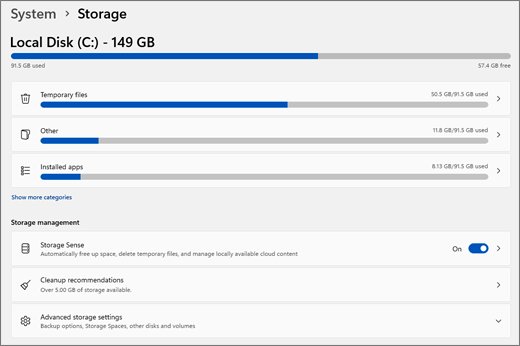
- Open Settings > System > Storage to see what is using space on C:, broken into categories such as Installed apps and Temporary files.
- Expand Advanced storage settings > Storage used on other drives to check the external or second drive.
- Run
compactinside a compressed folder to check its files show as compressed.
A red bar under a drive in This PC means it is nearly full. For a full breakdown, you can check disk space by category in Settings.
How to recover files deleted from the Recycle Bin in Windows 11
Freeing space sometimes ends with the wrong file deleted. Files still in the Recycle Bin restore to their original folder in a few clicks; files emptied from it need a backup or Windows File Recovery.
- Open the Recycle Bin on the desktop. If it is missing, open Settings > Personalization > Themes > Desktop icon settings and tick Recycle Bin.
- Select the files you want back, right-click them and select Restore.
- If the files were in OneDrive, go to onedrive.com, select Recycle bin, select the files and select Restore.
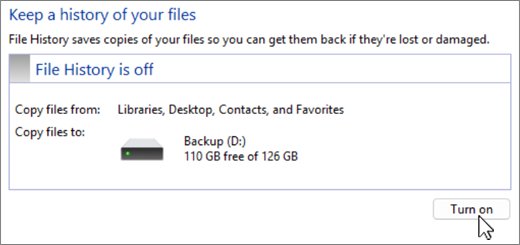
- If File History was backing up to an external drive, restore the files from it.
- If the Recycle Bin was emptied and there is no backup, stop using the PC and use Windows File Recovery as shown below.
Online-only OneDrive files that you delete never appear in the Windows Recycle Bin, so check the OneDrive recycle bin for those.
Recover deleted files in Windows 11 with software and without
| Route | Software needed | Works when | Limit |
|---|---|---|---|
| Windows Recycle Bin | None | The file was deleted normally and the bin has not been emptied | Emptying the bin removes the files from it |
| OneDrive recycle bin | None, uses onedrive.com | The file was in OneDrive | 30 days for personal accounts, 93 days for work or school |
| File History | Built into Windows | File History was saving copies to an external drive or network location | Only files backed up before the deletion |
Windows File Recovery (winfr) |
Free Microsoft Store app | The file is gone from the bin and no backup exists | Not for cloud storage or network shares; overwritten space cannot be recovered |
Try the routes in that order. Every file you save after the deletion can overwrite the free space that still holds the deleted data.
Windows File Recovery: a complete review of the winfr app
Windows File Recovery is a free command-line app from the Microsoft Store. It recovers files from internal drives, external drives and USB devices, but not from cloud storage or network shares. The source and destination drives must be different.
winfr C: E: /regular /n \Users\<username>\Documents\Recovers the Documents folder from C: to a recovery folder on E:. Replace <username> with your account's folder name under C:\Users. Use /regular for files recently deleted from a healthy NTFS drive, and /extensive for older deletions, a formatted or corrupted disk, or FAT and exFAT drives.
You should see: Enter Y when asked to continue. Windows creates a folder named Recovery_ followed by the date and time on the destination drive, and the recovered files appear inside it. Press Ctrl + C to stop.
When recovering from the Windows drive, always add /n filters such as /n *.docx, or the results fill with system files. If you tried Regular mode and the file did not come back, run the same command with /extensive. On an SSD, the free space can already be overwritten, so run the recovery as soon as possible.
How to recover deleted files from pen drive, USB drive, SD card
SD cards and flash drives under 4 GB usually use FAT or exFAT, and Windows File Recovery supports those only in extensive mode. Larger flash drives and external hard drives are usually NTFS.
- Stop saving anything to the pen drive, USB drive or SD card.
- Connect it to the PC, right-click it in File Explorer, select Properties and note the File system.
- Install Windows File Recovery from the Microsoft Store, then search for it from Start and select Yes at the prompt.
- Run
winfr E: C: /extensive /n *.jpg, replacingE:with the card's drive letter and*.jpgwith the file type you lost. - Enter Y to start, then open the Recovery_ folder on C: when it finishes.
Do not create a new partition or format the card after losing data, because both reduce the chance of a successful recovery.
Extend Volume grayed out and other storage upgrade problems in Windows
Extend Volume is grayed out in Disk Management
Disk Management is not running as administrator, or the unallocated space is not directly after the volume on the same disk.
- Type
diskmgmt.mscin the taskbar search box, right-click it and select Run as administrator. - Check that the black Unallocated bar sits immediately to the right of C:.
- If another volume is in between, right-click the unallocated space and select New Simple Volume to use it as a separate drive instead.
External USB drive does not appear in Storage Spaces
The USB enclosure or hub reports the drive as removable or hides it behind one device, so Storage Spaces excludes it.
- Open Disk Management, right-click the disk itself and check whether Windows reports it as fixed or removable.
- Connect the drive directly by SATA if it is an internal drive in an enclosure.
- Use the drive on its own as a second drive instead of in a pool.
"Source and Destination cannot refer to the same physical partition" in winfr
The recovery is saving to the same drive it is reading from.
- Connect a USB or external hard drive.
- Run the command again with that drive as the destination, for example
winfr C: E: /regular /n *.pdf.
"Destination disk is full" during Windows File Recovery
The recovered files need more space than the destination drive has.
- Move other files off the destination drive to make room.
- Return to the Command Prompt window and press R to resume, S to skip the file, or A to abort.
Get more storage on PC without deleting FAQ
Does OneDrive Free up space delete my files?
No. Free up space turns a file online-only, so it stays in OneDrive and you can still open it from File Explorer when the PC is online. Deleting an online-only file is different: that removes it from OneDrive on every device.
Does compressing files delete anything?
No. NTFS compression and Compact OS store the same files in less space, and you open them normally. You can reverse either one with compact /u or Compact.exe /CompactOS:never. Compression works only on NTFS drives, not FAT or FAT32.
How much free OneDrive storage do I get?
A free Microsoft account includes 5 GB of OneDrive cloud storage. Microsoft 365 Basic includes 100 GB, Personal 1 TB, and new Family and Premium subscriptions from October 8, 2026 include 2 TB shared between up to six people.
Can I extend C drive without deleting partitions?
Yes, if unallocated space sits immediately after C: on the same disk and C: is NTFS or ReFS. Right-click C: in Disk Management and select Extend Volume. If another partition is in the way, create a separate volume in the empty space instead.
Can I use an external hard drive to get more storage on a PC?
Yes. Move large files to it with Send to in File Explorer, or set it as the default for new content in Settings > System > Storage > Advanced storage settings. Keep files you open daily on an internal drive, because an unplugged drive is unavailable.
Can I add more storage to a PC with Storage Spaces?
Yes, with at least two spare drives besides the Windows drive. Storage Spaces pools them into one virtual drive, and you can add drives later. Many USB enclosures are not eligible because Windows sees their drives as removable.
Can I recover files after emptying the Recycle Bin?
Often, if you act quickly. Restore from File History or the OneDrive recycle bin if you have them; otherwise install Windows File Recovery from the Microsoft Store and run winfr to a different drive. Overwritten free space cannot be recovered.
What is the best data recovery software for Windows 11 and Windows 10?
Start with the free tools built into Windows and Microsoft services: the Recycle Bin, the OneDrive recycle bin, File History and Windows File Recovery from the Microsoft Store. Windows File Recovery handles NTFS, FAT and exFAT drives, including USB drives and SD cards.