When CarPlay shows the route but says nothing, the directions are usually muted in the app or playing at a volume the car keeps low, so unmute them on the navigation screen and turn up the car volume while a direction is being spoken.
This guide covers Apple Maps, Google Maps and Waze on CarPlay, the iPhone settings that control spoken directions, and fixes for each symptom.
How to fix CarPlay not giving voice directions in Apple Maps
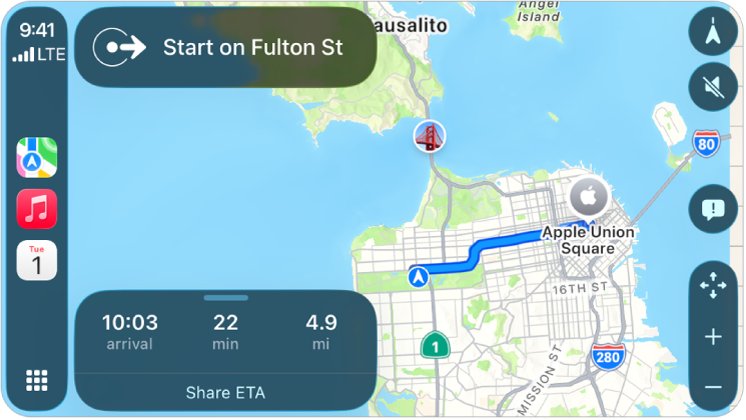
Apple Maps speaks turn-by-turn directions in CarPlay as it follows your route. These steps clear the most common reasons it stays silent.
- Start the route from your current location and select Go, not Steps.
- On the CarPlay Maps screen, tap the audio button and choose the option that speaks all directions instead of muting them.
- When the next direction plays, turn up the car's volume knob or steering wheel volume at that moment.
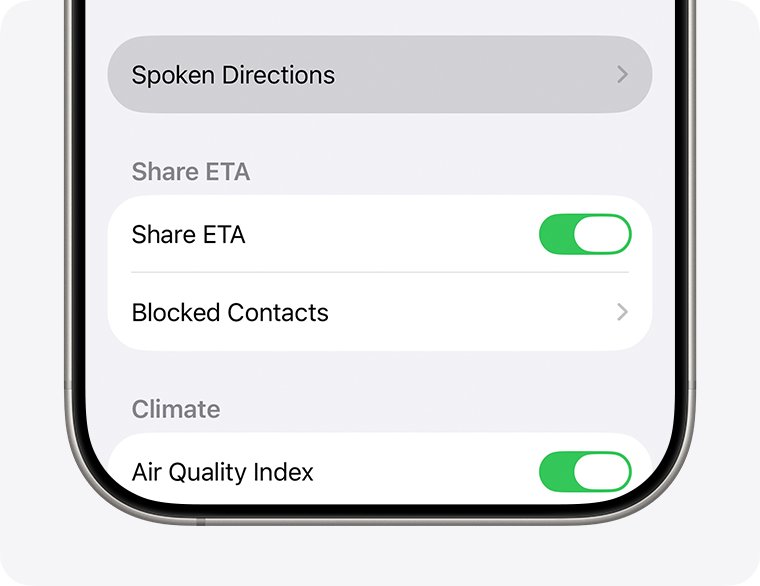
- On iPhone, open Settings > Apps > Maps > Spoken Directions and choose a louder level below Voice Volume.
- Check that iPhone has an internet connection and that Precise Location is on for Maps.
- Restart your iPhone and your car, then start the route again.
Use the car's own volume controls while a direction is being spoken, the same way Google recommends for Google Maps on CarPlay, so the change lands on the navigation prompt rather than on music.
Why CarPlay navigation has no voice directions
Each navigation app has its own mute control, and the iPhone and the car each add their own volume level on top.
| Cause | What you notice | Fix |
|---|---|---|
| Directions muted in the app | Route and arrows show, no speech at all | Unmute with the audio or sound button on the navigation screen |
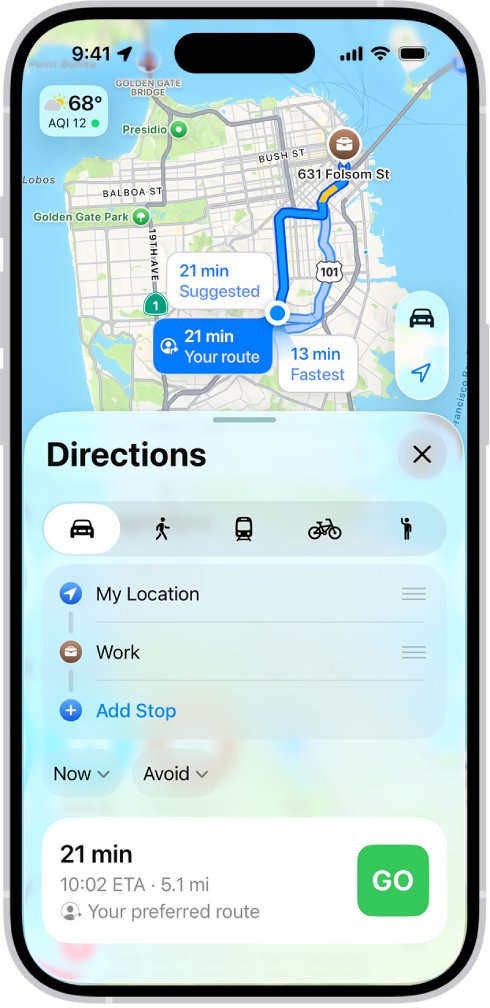
| Route started from a place other than your location | Maps shows Steps instead of Go and never speaks | Start the route from My Location |
| Navigation volume set low in the car | Music is loud, directions are faint or silent | Raise the car volume while a direction plays |
| No internet or Precise Location off | Apple Maps directions stay silent or the position drifts | Turn on cellular data and Precise Location for Maps |
| Voice files not downloaded in Google Maps | A chime plays instead of spoken directions | Get directions online and keep Maps open while voices download |
| Old iOS, old car stereo firmware or a stale CarPlay pairing | Voice stopped after an update or works only in another car | Update iOS, update the stereo, then Forget This Car and set it up again |
How to unmute Apple Maps directions in CarPlay
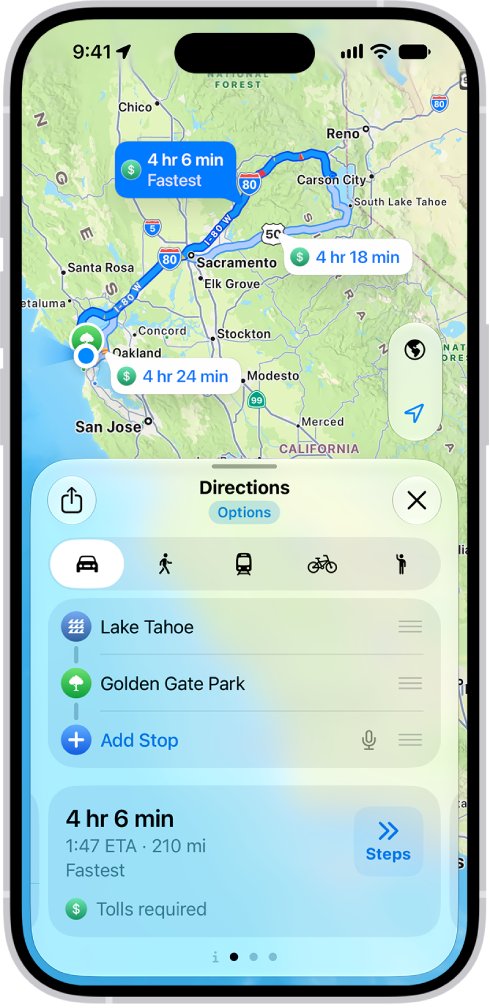
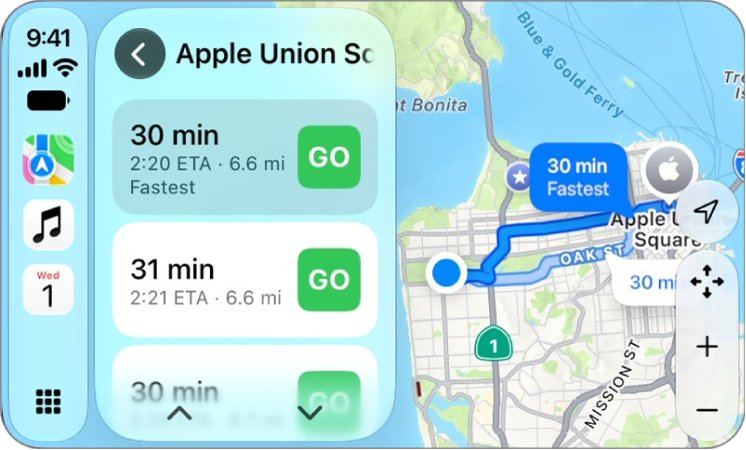
The CarPlay Maps screen has a button that mutes every direction, or mutes everything except alerts and hazards. Either setting stops turn-by-turn speech.
- Open Maps in CarPlay and start directions with Go.
- Tap the audio button on the map.
- Choose the option that plays all spoken directions.
- Avoid the option that keeps only alerts and hazards, because it silences turn-by-turn steps.
- Wait for the next turn and listen for the spoken step.
The same choice is on iPhone while you navigate: tap the Audio Control button on the map and pick an option.
How to change Apple Maps spoken directions settings on iPhone
The default voice level and how directions mix with podcasts or the car radio are set on the iPhone, not in CarPlay.
- Open the Settings app on your iPhone.
- Tap Apps, then tap Maps.
- Tap Spoken Directions.
- Choose a louder option below Voice Volume.
- Turn on Directions Pause Spoken Audio so podcasts and audiobooks pause while each step is spoken.
- Turn on Directions on Radio if your car supports it, so steps play over the car speakers while the radio is on.
- Turn on Directions Wake Device if you also follow directions on the iPhone screen.
To change the voice or language of spoken directions, open Settings > Siri, then tap Voice or Language. Maps speaks in the Siri voice you choose.
Google Maps voice navigation not working on CarPlay
Google Maps on CarPlay has its own sound setting, and its spoken directions follow the vehicle's volume while guidance is speaking.
- Start navigation in Google Maps.
- Tap the sound icon and switch it from Mute or Alerts to Sound.
- While Google Maps is speaking a direction, turn up the volume with your car's controls.
- On iPhone, open Google Maps, tap your profile picture or initial, then tap Settings > Navigation.
- Under Guidance volume, choose Louder.
- If you hear a chime instead of a voice, connect to the internet, get directions to any place, and keep Google Maps open while the voice files download.
Alerts gives traffic, construction and crash updates but no turn-by-turn directions. Sound gives both.
Waze voice directions not working on CarPlay
Waze applies the sound settings from your phone when it runs in the car. Change them with the phone disconnected from CarPlay, then reconnect.
- During a drive in CarPlay, tap the sound icon and choose Sound on.
- To change the defaults, disconnect your iPhone from CarPlay first.
- Open Waze on iPhone, tap the menu icon, then tap Settings > Voice and sound.
- Set Sounds to On for navigation guidance and alerts.
- Move the Guidance volume slider up.
- Tap Current voice and select the voice you want, then reconnect to CarPlay.
If Waze stays silent, clear its voice cache: in the Waze search bar type ##@cctts in lowercase and tap return on the keyboard, then pick the voice again under Current voice.
How to forget a car and reset CarPlay on iPhone
If voice directions stopped after an iOS update, or work in one car but not in yours, set up the CarPlay connection again.
- Update your iPhone to the latest version of iOS in Settings > General > Software Update.
- Open Settings > General > CarPlay.
- Tap your car, then tap Forget This Car.
- Start the car and make sure Siri is on.
- Connect again with an Apple USB cable, or by holding the steering wheel voice button for wireless CarPlay.
- Start a route and listen for the first spoken direction.
Ask the car maker or dealer whether a newer CarPlay stereo firmware is available. Apple lists the latest stereo firmware as a CarPlay requirement.
How to test CarPlay voice directions before you drive
Test while parked so you can change settings safely.
- Connect your iPhone to CarPlay and open Maps.
- Search for a nearby place and select Go.
- Listen for the first spoken direction as the route starts.
- Turn up the car volume while it speaks if it is too quiet.
- Play music and start the route again to check that directions are still heard over it.
- End the route by selecting the ETA display, then End Route.
If Apple Maps speaks but Google Maps or Waze does not, the problem is in that app's own sound settings, not in CarPlay.
CarPlay voice navigation not working on iPhone
Maps shows Steps instead of Go and never speaks
The route starts somewhere other than your current location, and those directions are not spoken.
- End the route.
- Set the start point to My Location.
- Select the destination again and tap Go.
Directions are spoken only when music is not playing
The car keeps navigation prompts at a lower level than media, or the app is set to alerts only.
- Turn up the car volume while a direction is speaking, not while music plays.
- Check the app's sound button is on full sound, not alerts only.
- In Apple Maps, turn on Directions Pause Spoken Audio for podcasts and audiobooks.
- Turn on Directions on Radio if your car supports it.
Voice directions stopped after an iOS update
The CarPlay connection or the car stereo needs to be set up again or updated.
- Install the latest iOS update.
- Restart your iPhone and your car.
- Tap Forget This Car in Settings > General > CarPlay and set CarPlay up again.
- Check for a stereo firmware update from the car maker.
Voice works in one car but not in another
The silent car's own volume levels, connection or firmware differ.
- Try a different USB cable and a different USB port in the silent car.
- For wireless CarPlay, check that Bluetooth and Wi-Fi are on and Auto-Join is on for the CarPlay network.
- Raise that car's volume while a direction speaks.
- If CarPlay also drops out, fix CarPlay disconnects before testing voice again.
Apple Maps is silent with no signal
Turn-by-turn spoken directions need an internet connection and Precise Location.
- Check that cellular data is on for your iPhone.
- Open Settings > Privacy & Security > Location Services.
- Tap Maps and leave Precise Location turned on.
- Start the route again with Go.
CarPlay voice directions FAQ
Why is Apple Maps not talking in CarPlay?
Usually the directions are muted with the audio button on the Maps screen, the route was started from somewhere other than your location, or the car's navigation volume is low. Unmute directions and raise the volume while a step is spoken.
How do I turn on voice directions in CarPlay?
Start a route with Go, tap the audio button on the CarPlay Maps screen, and choose the option that speaks all directions. In Google Maps choose Sound, and in Waze choose Sound on.
How do I make CarPlay navigation louder?
Turn up the car volume while a direction is being spoken. On iPhone you can also open Settings > Apps > Maps > Spoken Directions and choose a louder Voice Volume, or set Google Maps Guidance volume to Louder.
Can I change the Apple Maps navigation voice?
Yes. Open Settings > Siri and tap Voice to choose a different voice, or Language to change the language. Apple Maps speaks its turn-by-turn directions in that Siri voice and language.
Do Apple Maps spoken directions need internet?
Yes. Apple states that turn-by-turn spoken directions need iPhone connected to the internet with Precise Location turned on, and they are not available in every country or region.
Why does Google Maps play a chime instead of voice directions?
The voice files have not downloaded. Connect to the internet, get directions to a place, and keep Google Maps open while the voice directions download, then try again in CarPlay.
Why does Waze have no sound on CarPlay?
Waze may be set to Alerts only or Sound off, or its voice cache needs clearing. Tap the sound icon and choose Sound on, then pick the voice again under Settings > Voice and sound > Current voice.
How do I mute Waze during calls?
Open Waze, tap the menu icon, then Settings > Voice and sound, and turn on Mute Waze during calls. Waze then stays quiet while you are on a phone call.