iCloud Drive syncs everything stored inside it, so to exclude a file or folder you move it out of iCloud Drive into a local folder: your Mac's home folder, On My iPhone, or a folder on your PC's disk.
This guide covers moving items out on Mac, iPhone, iPad and Windows, stopping Desktop & Documents and app folders from syncing, keeping files in iCloud without downloading them, and checking what still syncs.
How to stop a file or folder syncing to iCloud Drive
Apple's iCloud Drive settings switch syncing on or off for a whole device, for the Mac's Desktop and Documents folders, or for an app. None of them skips chosen files inside a synced folder, so those files have to live outside iCloud Drive.
- Create a folder outside iCloud Drive for the files you want to keep local, for example a new folder in your home folder on a Mac.
- Open iCloud Drive in Finder on a Mac, in the Files app on iPhone or iPad, or in File Explorer on Windows.
- Select only the files or folders you want to exclude, and leave the rest where they are.
- Drag them to the local folder on a Mac or PC, or tap Move in the Files app and choose On My iPhone or On My iPad.
- Wait for the move to finish. The items stay on that device and are removed from iCloud Drive on every device signed in to the same Apple Account.
Because a moved item leaves iCloud Drive everywhere, move it on the device that should keep it. For an archive you rarely open, you can also download iCloud files to an external drive and then remove them from iCloud Drive.
Does iCloud Drive have selective sync?
iCloud Drive has no list where you tick the folders to skip. Each control below acts on a whole device, on the Desktop and Documents pair, on an app, or only on the local download.
| iCloud Drive control | What it keeps out of iCloud | Where to find it |
|---|---|---|
| Move items out of iCloud Drive | Any file or folder you pick; it leaves iCloud Drive on all devices | Finder, the Files app or File Explorer |
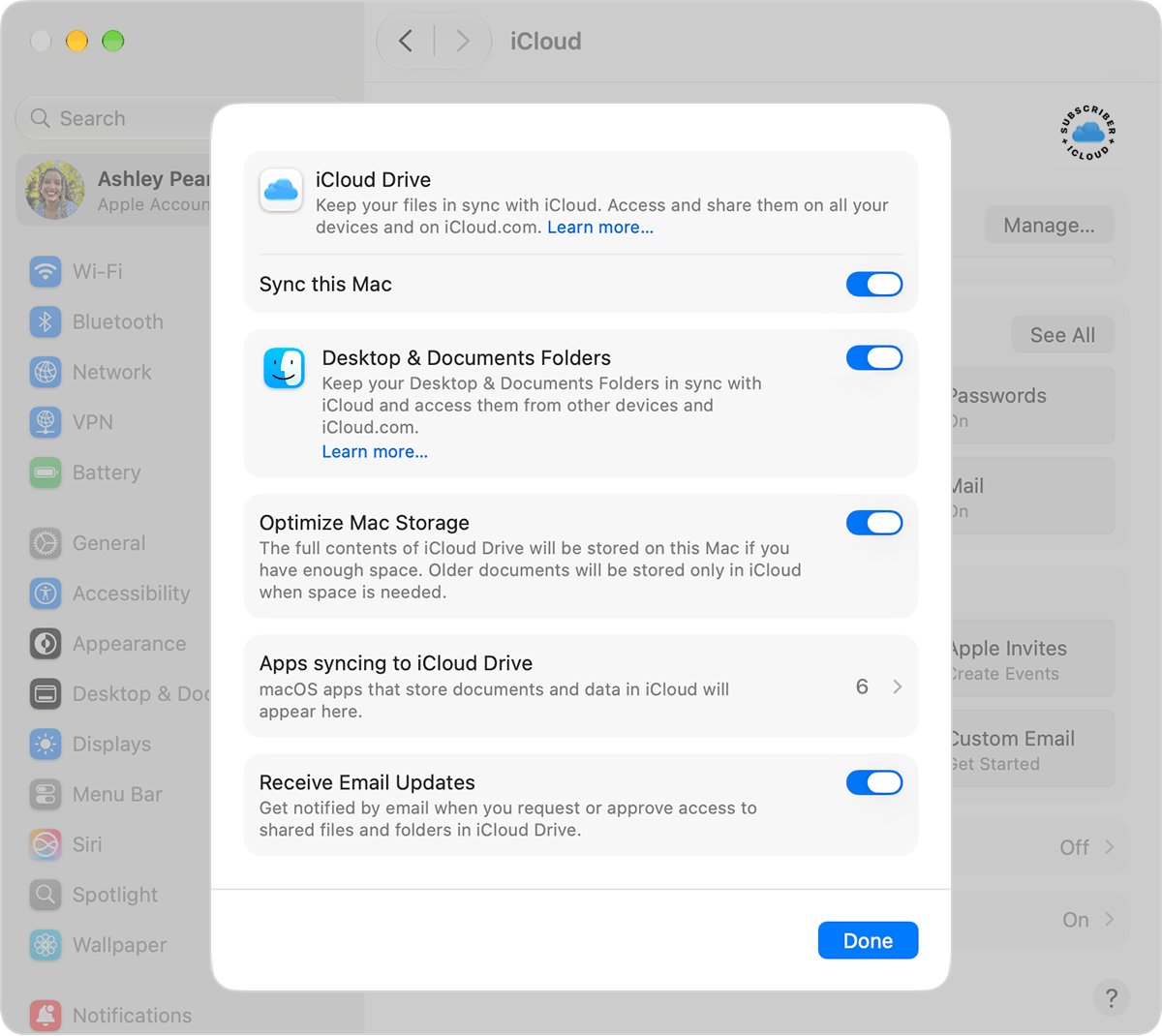
| Desktop & Documents Folders off | New files saved to the Mac's Desktop and Documents; files already uploaded stay in iCloud Drive | System Settings > your name > iCloud > Drive |
| App switches | An app's ability to store its data in iCloud | The list of apps below iCloud Drive; on a Mac, Apps Syncing to iCloud Drive |
| Sync this [device] off | All of iCloud Drive on that device | iCloud > Drive on iPhone, iPad or Mac |
| Remove Download or Free up space | Nothing; only the local copy goes and the file stays in iCloud | Control-click, touch and hold, or right-click the item |
| Optimize Mac Storage | Nothing; older documents are kept in iCloud only when the Mac needs space | System Settings > your name > iCloud > Drive |
How to move files out of iCloud Drive on Mac
A folder outside iCloud Drive, such as one in your home folder, is not uploaded. Apple uses the home folder as its example of a place on the Mac that sits outside iCloud Drive.
- Click the Finder icon in the Dock to open a Finder window.
- Click iCloud Drive in the sidebar and open the folder that holds the files.
- If an item shows the In iCloud icon, Control-click it and choose Download Now so the full file is on the Mac.
- Select only the files or subfolders you want to exclude.
- Drag them to a folder outside iCloud Drive, such as Downloads or a folder in your home folder.
- Check the destination folder. The items are copied to the Mac and removed from iCloud Drive on all your devices.
The rest of the original folder keeps syncing, so you can exclude a few hundred files from a folder without stopping the whole folder.
How to stop Desktop and Documents syncing to iCloud on Mac
Turning off Desktop & Documents Folders stops new files in those two folders from going to iCloud. Files already uploaded stay in iCloud Drive until you move them.
- Choose Apple menu > System Settings.
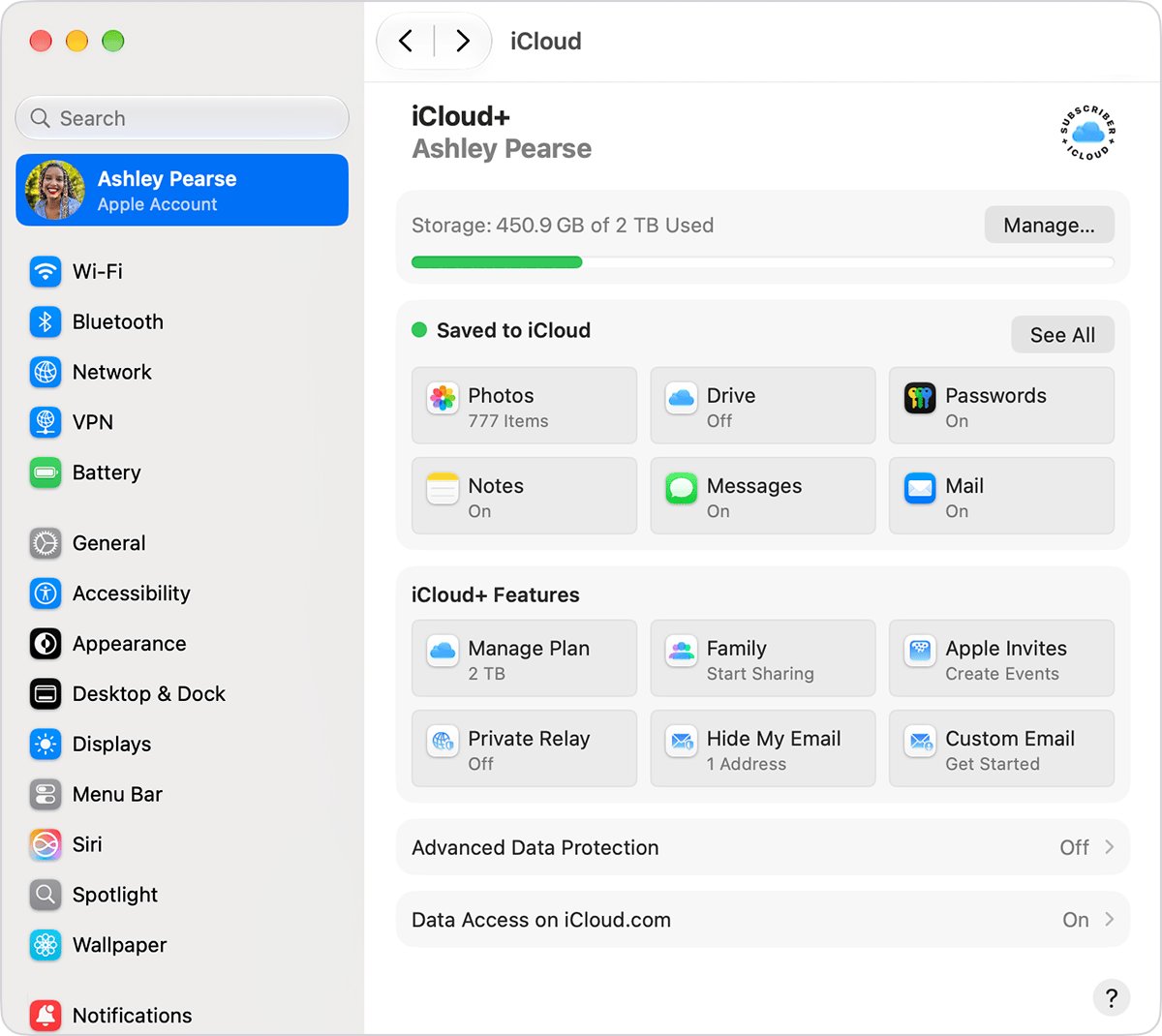
- Click your name, then click iCloud.
- Click Drive (or iCloud Drive).
- Turn off Desktop & Documents Folders.
- Click Done.
- Open your home folder in Finder. New, empty Desktop and Documents folders are there, and new files save to them locally.
- To bring older files back to the Mac only, open the Desktop or Documents folder in iCloud Drive, select the files and drag them into the new local folders.
If another cloud service should store these folders instead, install it, then turn on Sync Desktop & Documents folders with [service name] in Finder > Settings > General.
How to stop an app from syncing to iCloud Drive on iPhone and Mac
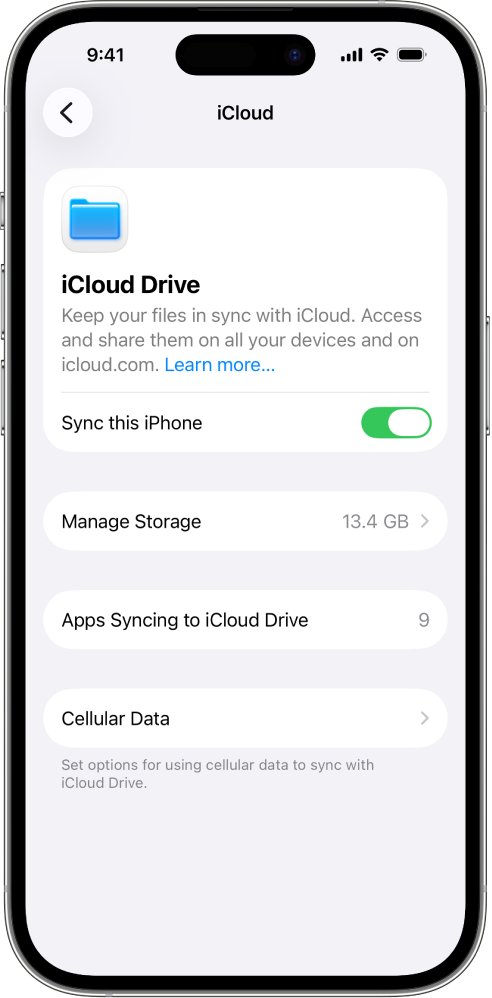
An app in this list can store data in iCloud only while its switch is on. On iPhone and iPad, an app's own folder (labeled with the app name) cannot be moved in the Files app, so the switch is the way to keep that app out.
| Device | Open | Then |
|---|---|---|
| iPhone or iPad | Settings > your name > iCloud > Drive (or iCloud Drive) | Turn off the app in the list of apps below iCloud Drive |
| Mac with macOS 13.3 or later | System Settings > your name > iCloud > Drive | Turn off the app; if no apps are shown, click Apps Syncing to iCloud Drive first |
| Mac with macOS 13 to 13.2 | System Settings > your name > iCloud > iCloud Drive > Options | Deselect the app |
How to move files from iCloud Drive to iPhone
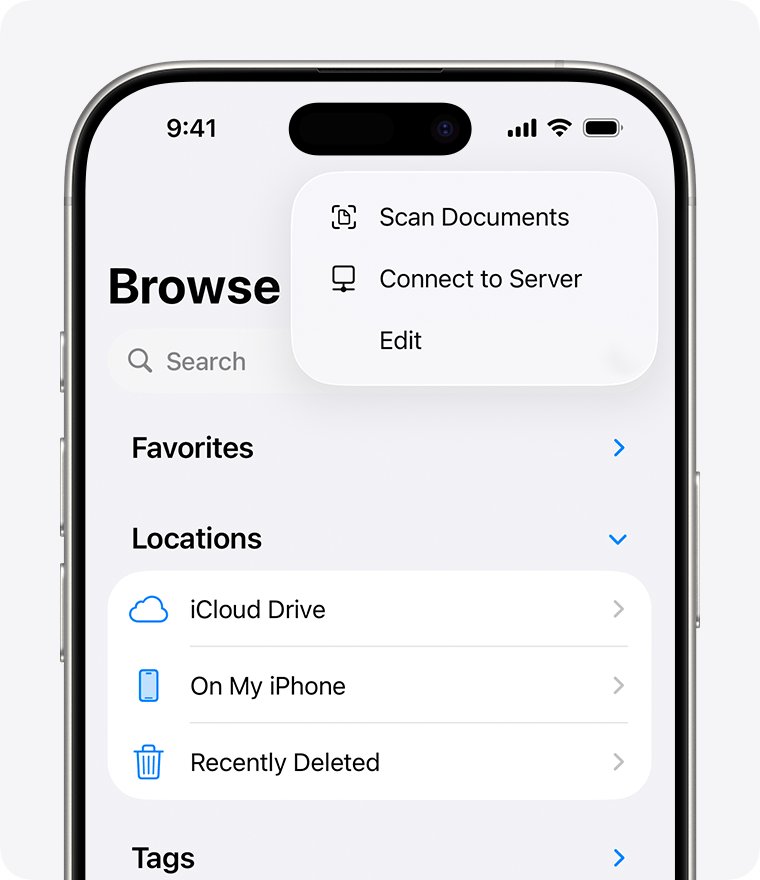
In the Files app, On My iPhone (or On My iPad) holds files saved locally on the device, while iCloud Drive holds files that sync across your devices.
- Open the Files app and tap Browse.
- Under Locations, tap iCloud Drive and open the folder that holds the files.
- Tap the More button, tap Select, then select the files or folders to exclude.
- Tap Move at the bottom of the screen.
- Choose On My iPhone (or On My iPad) and a folder there, then confirm the move.
- Tap Browse > On My iPhone to find the files, which no longer sync through iCloud Drive.
To move a single item, touch and hold it and choose Move from the menu.
How to move files out of iCloud Drive on Windows
iCloud for Windows keeps iCloud Drive in C:\Users\[user name]\iCloud Drive by default. Files elsewhere on the PC are not part of iCloud Drive.
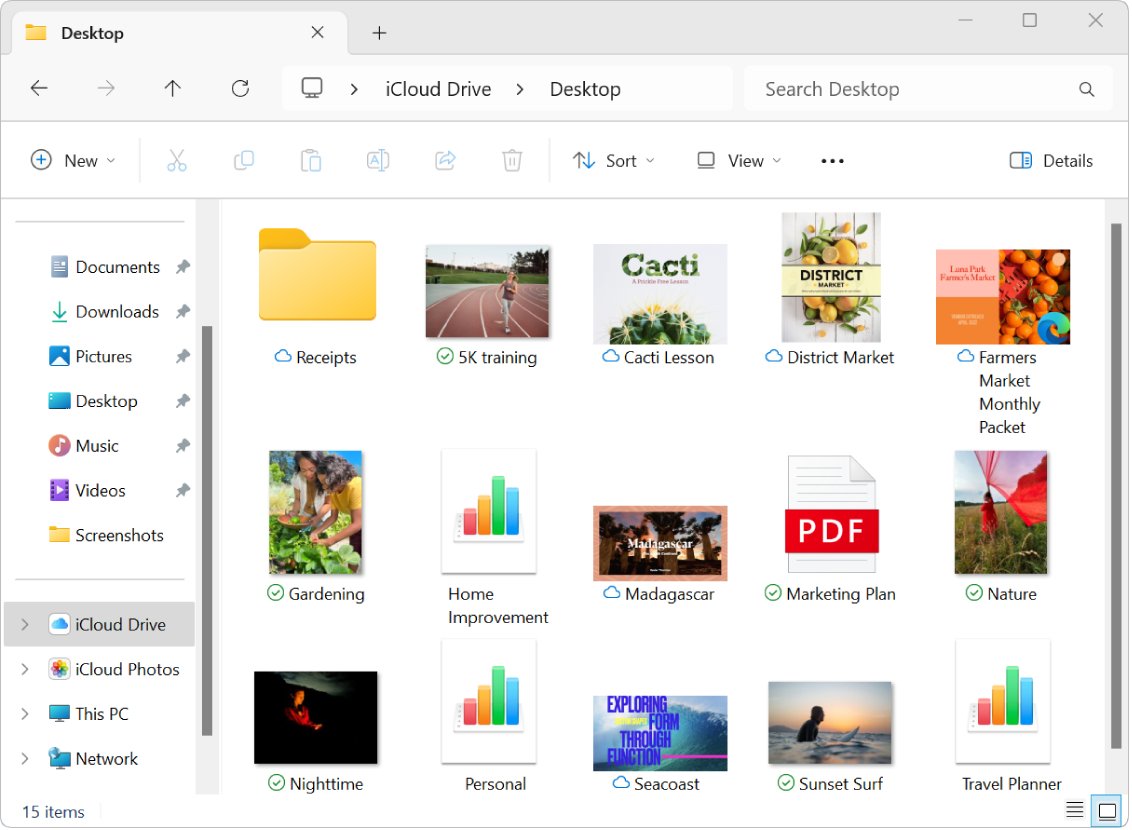
- Open File Explorer and click iCloud Drive in the Navigation pane.
- Locate the files or folders you want to exclude.
- If an item shows a cloud icon, right-click it and choose Always keep on this device, then wait until it is downloaded.
- Drag the items from iCloud Drive to the desktop or another folder on your hard disk.
- Open the new location. The items are on the PC and removed from iCloud Drive on all your devices that have iCloud Drive turned on.
How to change the iCloud Drive folder location on Windows
If the goal is to keep iCloud Drive off drive C rather than to exclude files, iCloud for Windows 14 or later can store the whole folder on another NTFS drive.
- Open iCloud for Windows.
- Click the arrow button to the right of iCloud Drive.
- If iCloud Drive is turned on, turn it off.
- Click Change.
- Choose a different drive formatted as NTFS, click Select Folder, then click OK.
- Turn iCloud Drive on again, then click Done.
How to remove iCloud Drive downloads without deleting the files
These options keep a file off the device's disk, which is the usual answer when iCloud Drive takes up space on a MacBook, but they do not take it out of iCloud. The file stays in iCloud Drive, keeps syncing and still uses your iCloud storage.
| Device | Remove the local copy | Keep a file downloaded instead |
|---|---|---|
| Mac | Control-click the item in iCloud Drive and choose Remove Download; or turn on Optimize Mac Storage so older documents stay in iCloud when space is needed | Control-click the item and choose Keep Downloaded |
| iPhone or iPad | Touch and hold the file in Files and select Remove Download | Touch and hold the file and tap Keep Downloaded |
| Windows | Right-click the file or folder in iCloud Drive and choose Free up space; pinned items are unpinned | Right-click it and choose Always keep on this device |
On Windows, Free up space and pinning are not available in iCloud for Windows version 7, which downloads the whole of iCloud Drive.
How to check iCloud Drive sync status on Mac and Windows
- On a Mac, open Finder, click iCloud Drive in the sidebar and choose View > as List.
- Choose View > Show View Options, then select iCloud Status.
- Check that the excluded items are gone from iCloud Drive and present in the local folder.
- Read the status of what remains: Waiting to Upload means an item is not in iCloud yet, and a pie chart shows a transfer in progress.
- On a PC, open File Explorer, click iCloud Drive and read the icon beside each item; a cloud icon means it is stored only in iCloud.
- Sign in at iCloud.com and open iCloud Drive to see exactly what is stored in iCloud.
What happens when you turn off iCloud Drive on Mac
Turning off Sync this Mac, or signing out of iCloud, excludes the whole of iCloud Drive from that Mac rather than one folder. New Desktop and Documents folders are created in the home folder, and you can choose to keep a local copy of your files.
That local copy goes into a folder called iCloud Drive (Archive), which no longer syncs.
- Open Finder.
- Under Locations in the sidebar, select your home folder, which is named after your user name.
- Look for iCloud Drive (Archive).
- To copy a file to or from it, hold the Option key while you drag the file.
How to add excluded files back to iCloud Drive
- On a Mac, drag the items from the local folder back into iCloud Drive in the Finder sidebar.
- On a PC, drag files into iCloud Drive in the File Explorer Navigation pane, or right-click a file, choose Share, select iCloud Drive below Share using, pick a folder and click OK.
- On iPhone or iPad, touch and hold the item in On My iPhone or On My iPad, tap Move and choose a folder in iCloud Drive.
- To sync the Mac's Desktop and Documents again, turn Desktop & Documents Folders back on under System Settings > your name > iCloud > Drive.
- Keep the device online until the upload finishes; the files then appear on your other devices.
If the files do not show up elsewhere, refresh iCloud Drive on the device that is missing them. On a PC that sits on a pending status, fix iCloud Drive sync pending before moving more files.
iCloud Drive exclusion not working on Mac, iPhone or PC
Files moved out of iCloud Drive vanished from my other devices
Moving an item out of iCloud Drive removes it from iCloud Drive on every device set up with the same Apple Account.
- Find the items in the local folder on the device where you moved them.
- If another device still needs them, drag them back into iCloud Drive.
- Move them out again on the device that should keep the only copy.
Desktop and Documents are empty after turning off Desktop & Documents Folders
The old files stay in iCloud Drive; the new local folders start empty.
- Open Finder and click iCloud Drive in the sidebar.
- Open the Desktop or Documents folder inside iCloud Drive.
- Select the files and drag them into the local Desktop or Documents folder in your home folder.
An app folder will not move out of iCloud Drive in the Files app
A folder labeled with an app name is an app library, and the Files app cannot move or delete it.
- Open Settings and tap your name.
- Tap iCloud > Drive (or iCloud Drive).
- Turn off that app in the list of apps below iCloud Drive.
Finder shows Ineligible next to a file or library
iCloud Drive does not upload iMovie, Photos or Aperture libraries from Desktop and Documents, and it cannot store any single file or folder over 50 GB.
- Leave the item where it is if you only need it on this Mac; it is already excluded.
- To clear the label, drag the item to a folder outside iCloud Drive, such as one in your home folder.
Finder shows Out of Space next to iCloud Drive
iCloud storage is full, so new items stay on the Mac until space is available.
- Move large folders you do not need on other devices out of iCloud Drive.
- Delete files you no longer need from iCloud Drive; they stay in Recently Deleted for 30 days.
- Upgrade your iCloud storage if every file must stay in iCloud.
A file still uses iCloud storage after Remove Download or Free up space
Both options remove only the local copy; the file is still stored in iCloud.
- Download the file again if it is not on the device.
- Move it out of iCloud Drive to a local folder so it leaves iCloud.
Exclude files from iCloud Drive FAQ
How do I exclude a folder from iCloud Drive?
Move the folder out of iCloud Drive to a local location. In Finder or File Explorer, drag it from iCloud Drive to another folder; in the Files app, tap Move and choose On My iPhone. The folder is then removed from iCloud Drive on all your devices.
How do I exclude certain files in a folder I still want synced?
Move only those files out of the folder to a location outside iCloud Drive and leave the rest in place. iCloud Drive syncs everything inside a synced folder, so a file stays excluded only while it lives outside iCloud Drive.
How do I make an exclusion folder on Mac that iCloud Drive ignores?
Create a folder in your home folder, outside iCloud Drive and outside Desktop and Documents when Desktop & Documents Folders is on. Anything you save there stays on the Mac and is not uploaded to iCloud Drive.
Can I stop iCloud from syncing my Desktop and Documents folders?
Yes. Open System Settings, click your name, then iCloud and Drive, and turn off Desktop & Documents Folders. Files already uploaded stay in iCloud Drive, and new files save to empty local Desktop and Documents folders in your home folder.
Does Remove Download stop a file syncing to iCloud Drive?
No. Remove Download on a Mac, iPhone or iPad, and Free up space on Windows, delete only the local copy. The file stays in iCloud Drive, keeps syncing and still counts against your iCloud storage.
Why are some files and folders excluded from iCloud Drive automatically?
Finder labels an item Ineligible when it cannot be stored in iCloud. That happens with any single file or folder over 50 GB, and with iMovie, Photos and Aperture libraries saved in Desktop or Documents.
How do I exclude iCloud Drive folders from Spotlight search on Mac?
Open System Settings, click Spotlight, click Search Privacy, then click the add button and select the folder. This hides the folder from Spotlight results only; it keeps syncing with iCloud Drive.
How do I exclude the iCloud Drive folder from Windows Search?
Open Settings, select Privacy & security, choose Search, then select Customize search locations and Modify, and clear the iCloud Drive folder. Classic indexing covers only Documents, Pictures, Music and the desktop by default. Removing a folder from search does not stop it syncing.