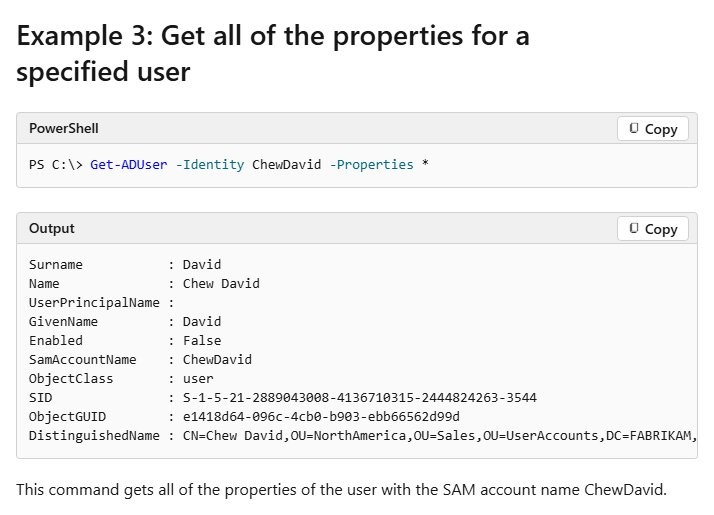
Run Get-ADUser -Identity jsmith -Properties * in PowerShell to see every Active Directory attribute set on the user jsmith; drop -Properties * to get only the default ten properties.
This guide covers installing the Active Directory module, the parameters that matter, -Filter and -LDAPFilter examples, last logon and password expiry reports, group membership, exporting users to CSV or TXT, and the errors Get-ADUser throws most often.
How to find AD user and list properties with Get-ADUser
-Identity accepts a SAM account name, a distinguished name, a GUID or a SID. Run the commands from a domain-joined PC or server that has the Active Directory module.
- Open Windows PowerShell and load the module with
Import-Module ActiveDirectory. - Find the user and show the default properties:
Get-ADUser -Identity jsmith. - Show every attribute that has a value:
Get-ADUser -Identity jsmith -Properties *. - Ask for only the properties you need:
Get-ADUser -Identity jsmith -Properties EmailAddress, Department, LastLogonDate, PasswordLastSet. - Trim the output to those columns with
| Select-Object Name, SamAccountName, EmailAddress, Department, LastLogonDate, PasswordLastSet. - List the property names available on the object with
Get-ADUser -Identity jsmith -Properties * | Get-Member.
Without -Properties, Get-ADUser returns ten properties: DistinguishedName, Enabled, GivenName, Name, ObjectClass, ObjectGUID, SamAccountName, SID, Surname and UserPrincipalName.
How to install the Active Directory module for PowerShell
Get-ADUser ships in the Active Directory module, which comes with Remote Server Administration Tools (RSAT). RSAT installs only on Windows 10 (October 2018 update or later) and Windows 11 Pro or Enterprise, or on Windows Server, and the install commands need PowerShell running as administrator.
- Right-click Windows PowerShell and select Run as administrator.
- On Windows 10 or 11, check what is installed with
Get-WindowsCapability -Online | Where-Object Name -like 'RSAT*'. - Install the AD tools:
Add-WindowsCapability -Online -Name Rsat.ActiveDirectory.DS-LDS.Tools~~~~0.0.1.0. - On Windows Server, list the tools with
Get-WindowsFeature -Name RSAT*, then runInstall-WindowsFeature -Name RSAT-AD-Tools -IncludeAllSubFeature. - Run
Import-Module ActiveDirectoryto load the cmdlets.
The desktop route on Windows 11 is Start > type Optional features > Add an optional feature, then search for the Active Directory tools. The same package lets you install Active Directory Users and Computers for a graphical view of the same accounts. On Windows 11, version 25H2 for Arm64, RSAT comes through Turn Windows features on or off instead.
How to tell if the Active Directory module is installed
Get-Module -ListAvailable ActiveDirectory
Get-Command Get-ADUser
The first line lists the module if it is on the computer; the second confirms PowerShell can find the Get-ADUser cmdlet.
You should see: A row named ActiveDirectory from the first command, and a Cmdlet row for Get-ADUser from the second. No output means RSAT's AD tools are missing.
Get-ADUser cmdlet in the Active Directory PowerShell module
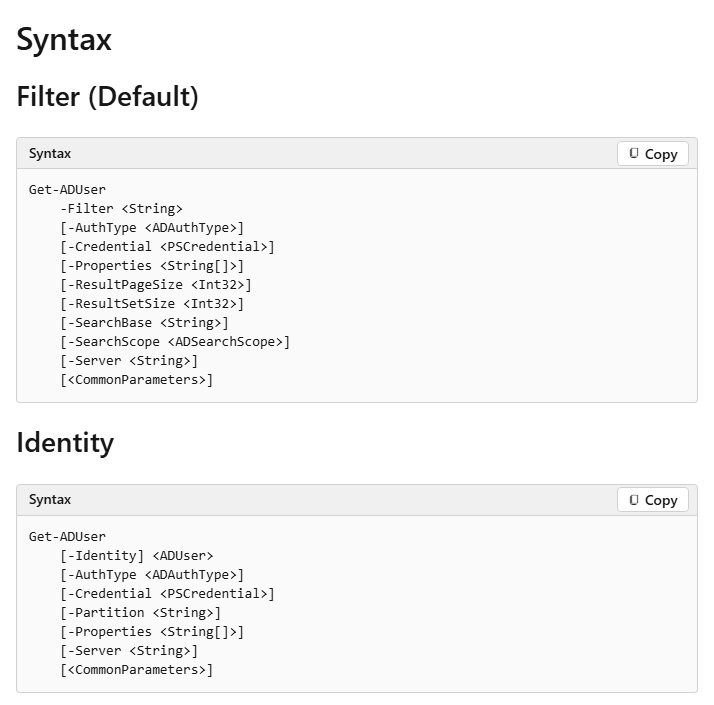
Get-ADUser runs in one of three modes: -Identity for one known user, -Filter for PowerShell-style searches, and -LDAPFilter for existing LDAP query strings. The other parameters narrow the search or change where it runs.
| Parameter | What it does | Example value |
|---|---|---|
-Identity |
Gets one user by SAM account name, distinguished name, GUID or SID | jsmith |
-Filter |
Searches with PowerShell Expression Language | 'Department -eq "Sales"' |
-LDAPFilter |
Searches with an LDAP query string | '(mail=*)' |
-Properties |
Adds properties beyond the default set; * returns all |
EmailAddress, LastLogonDate |
-SearchBase |
Starts the search at an OU or container | "OU=Sales,DC=contoso,DC=com" |
-SearchScope |
Base, OneLevel or Subtree (default) | OneLevel |
-Server |
Queries a specific domain or domain controller, including server:port | dc01.contoso.com |
-Credential |
Runs the query as another account; prompts for its password | CONTOSO\admin |
-ResultSetSize |
Caps the number of results; $null returns all |
50 |
-ResultPageSize |
Objects per page in a search; default 256 | 100 |
Without -Server, Get-ADUser queries the domain of the computer running PowerShell. It does not work against an Active Directory snapshot.
Get-ADUser properties list
Many useful fields are extended properties that the module builds from LDAP attributes. Request them by name with -Properties, or use the LDAP display name for anything else.
| Property | Comes from LDAP attribute | What it tells you |
|---|---|---|
| EmailAddress | Primary email address | |
| LastLogonDate | lastLogonTimestamp | Approximate last domain logon, as a date |
| PasswordLastSet | pwdLastSet | When the password was last changed |
| PasswordNeverExpires | userAccountControl | Whether the password is exempt from expiry |
| PasswordExpired | userAccountControl | Whether the password has expired |
| LockedOut | lockoutTime and userAccountControl | Whether the account is locked out now |
| AccountExpirationDate | accountExpires | When the account itself expires |
| BadLogonCount | badPwdCount | Failed password attempts counted |
| Created | createTimeStamp | When the account was created |
| MemberOf | memberOf | Distinguished names of the user's groups |
| Department, Manager, MobilePhone | department, manager, mobile | Organization and contact fields |
Get-ADUser -Filter examples
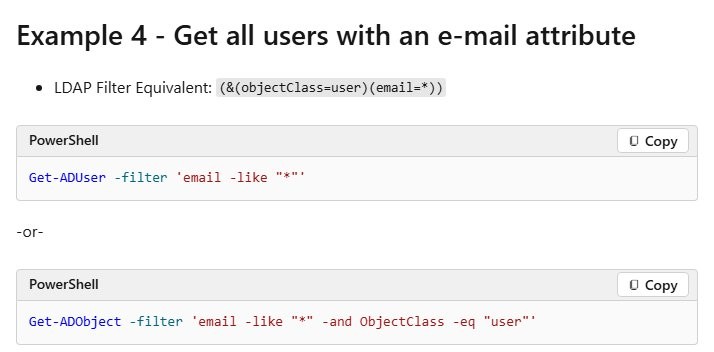
Put the filter in single quotes and string values in double quotes. The only wildcard -Filter supports is *.
| Goal | Command |
|---|---|
| Every user in the domain | Get-ADUser -Filter * |
| Names ending in SvcAccount | Get-ADUser -Filter 'Name -like "*SvcAccount"' |
| Users with an email address | Get-ADUser -Filter 'Email -like "*"' |
| Users without an email address | Get-ADUser -Filter 'Email -notlike "*"' |
| Email set and surname Smith | Get-ADUser -Filter 'Email -like "*" -and SurName -eq "smith"' |
| Common name starts with andy, or is steve | Get-ADUser -Filter 'CN -like "andy*" -or CN -eq "steve"' |
| Five or more bad password attempts | Get-ADUser -Filter 'badpwdcount -ge 5' |
| Users in one department | Get-ADUser -Filter 'Department -eq "Sales"' -Properties Department |
| Logged on in the last 5 days | $date = (Get-Date) - (New-TimeSpan -Days 5) then Get-ADUser -Filter 'lastLogon -gt $date' |
To use a variable, wrap a double-quoted filter around single-quoted variables, as in Get-ADUser -Filter "Name -like '$UserName'", or use braces with no quotes: Get-ADUser -Filter {Name -like $UserName}.
Get-ADUser -LDAPFilter examples
-LDAPFilter runs existing LDAP queries unchanged, which helps when a query already works in another tool.
| Goal | Command |
|---|---|
| Enabled accounts only | Get-ADUser -LDAPFilter '(!userAccountControl:1.2.840.113556.1.4.803:=2)' |
| Disabled accounts only | Get-ADUser -LDAPFilter '(userAccountControl:1.2.840.113556.1.4.803:=2)' |
| Users with a mail attribute | Get-ADUser -LDAPFilter '(mail=*)' |
| Common name containing bob | Get-ADUser -LDAPFilter '(cn=*bob*)' |
The bitwise rule 1.2.840.113556.1.4.803 is the LDAP form of -band. Microsoft advises avoiding bitwise and NOT operators in large searches because they slow the query.
Get-ADUser -SearchBase to list users in an OU
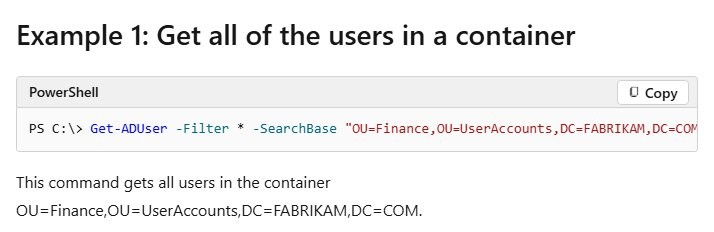
Get-ADUser -Filter * -SearchBase "OU=Finance,OU=UserAccounts,DC=contoso,DC=com" -SearchScope OneLevel | Select-Object Name, SamAccountName, Enabled-SearchBase starts the search at the Finance OU. -SearchScope OneLevel returns only users directly in that OU; leave it out to include every child OU, since Subtree is the default.
You should see: A table of Name, SamAccountName and Enabled for each user in the OU. An empty result with OneLevel usually means the users sit in a child OU.
Get-ADUser last logon date for all users
LastLogonDate comes from lastLogonTimestamp, which Windows rewrites only when the stored value is older than the msDS-LogonTimeSyncInterval. It can therefore trail the real logon by days, which suits stale-account reports but not exact logon times.
Get-ADUser -Filter * -Properties LastLogonDate | Sort-Object LastLogonDate | Select-Object Name, SamAccountName, LastLogonDate

Search-ADAccount -AccountInactive -TimeSpan 90.00:00:00 -UsersOnly | Select-Object Name, SamAccountName, LastLogonDate
The first command lists every user with the oldest logons first. The second returns user accounts that have not logged on in 90 days.
You should see: Name, SamAccountName and a LastLogonDate per user. A blank LastLogonDate means the account has no recorded domain logon.
For the exact time, read lastLogon from every domain controller, because each one records the logons it handled: foreach ($dc in Get-ADDomainController -Filter *) { $u = Get-ADUser -Identity jsmith -Properties lastLogon -Server $dc.HostName; [pscustomobject]@{ DC = $dc.HostName; LastLogon = [datetime]::FromFileTime($u.lastLogon) } }. The newest value is the real last logon; a value of zero means unknown.
Get-ADUser password last set and password expiration date
Get-ADUser -Identity jsmith -Properties PasswordLastSet, PasswordNeverExpires, PasswordExpired, msDS-UserPasswordExpiryTimeComputed | Select-Object Name, PasswordLastSet, PasswordNeverExpires, PasswordExpired, @{Name='PasswordExpires'; Expression={[datetime]::FromFileTime($_.'msDS-UserPasswordExpiryTimeComputed')}}msDS-UserPasswordExpiryTimeComputed holds the expiry time of the current password as a file-time number; [datetime]::FromFileTime() turns it into a readable date.
You should see: PasswordLastSet as a date, True or False for the two flags, and a PasswordExpires date.
To list accounts in bulk, run Search-ADAccount -PasswordExpired -UsersOnly for expired passwords or Search-ADAccount -PasswordNeverExpires -UsersOnly for accounts exempt from expiry.
Find disabled and locked out users in Active Directory
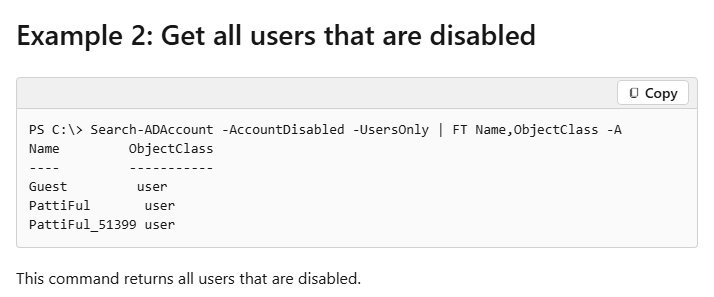
Search-ADAccount -AccountDisabled -UsersOnly | Format-Table Name, SamAccountName -AutoSize
Search-ADAccount -LockedOut -UsersOnly | Format-Table Name, SamAccountName -AutoSize
Search-ADAccount -AccountExpiring -TimeSpan 10.00:00:00 -UsersOnly | Format-Table Name, AccountExpirationDate -AutoSize
Search-ADAccount sits in the same module as Get-ADUser and searches by account state. -UsersOnly drops computer and service accounts; -TimeSpan 10.00:00:00 means the next 10 days.
You should see: One table per command. An empty table means no user matches that state.
To check one person, run Get-ADUser -Identity jsmith -Properties LockedOut, AccountLockoutTime, BadLogonCount, LastBadPasswordAttempt.
Get-ADUser group membership in PowerShell
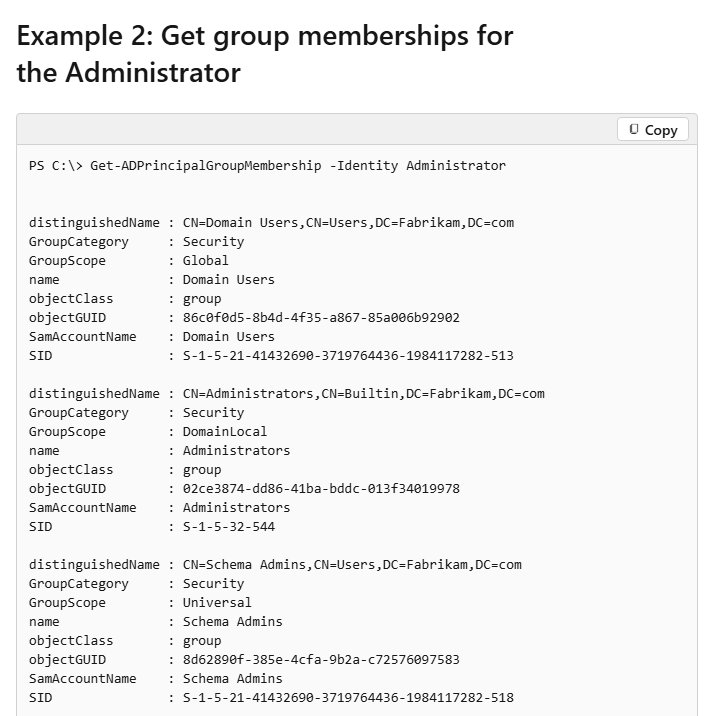
Get-ADPrincipalGroupMembership -Identity jsmith | Select-Object Name, GroupScope, GroupCategory
(Get-ADUser -Identity jsmith -Properties MemberOf).MemberOf
Get-ADPrincipalGroupMembership returns group objects and needs a global catalog in the forest. The second line reads the user's memberOf attribute as a list of group distinguished names.
You should see: Group names with their scope and category, then one distinguished name per line.
To test nested membership in one group, search with the in-chain rule: Get-ADUser -Filter 'memberOf -RecursiveMatch "CN=Administrators,CN=Builtin,DC=contoso,DC=com"' -SearchBase "CN=jsmith,CN=Users,DC=contoso,DC=com". A result means the user is a member directly or through another group.
Exporting Active Directory users to CSV/TXT files with PowerShell
Get-ADUser -Filter * -SearchBase "OU=Sales,DC=contoso,DC=com" -Properties EmailAddress, Department, LastLogonDate, MemberOf |
  Select-Object Name, SamAccountName, EmailAddress, Department, Enabled, LastLogonDate, @{Name='Groups'; Expression={$_.MemberOf -join ';'}} |
  Export-Csv -Path C:\Temp\ad-users.csv -NoTypeInformation -Encoding UTF8

Get-ADUser -Filter * | Select-Object -ExpandProperty SamAccountName | Out-File -FilePath C:\Temp\usernames.txt
The first command writes one CSV row per user with the chosen columns; -join ';' flattens the group list into one cell. The second writes a plain TXT file with one user name per line.
You should see: ad-users.csv opens in Excel with a header row and no #TYPE line; usernames.txt lists one SAM account name per line.
-NoTypeInformation is only needed in Windows PowerShell 5.1, because PowerShell 6 and later leave out the #TYPE header by default, so check your PowerShell version if you are unsure which one runs the script. Create the C:\Temp folder first, or change the path.
Get-ADUser usage examples
| Task | Command |
|---|---|
| Count all users | (Get-ADUser -Filter *).Count |
| Find a user by email | Get-ADUser -Filter "EmailAddress -eq '[email protected]'" |
| Find by user principal name | Get-ADUser -Filter "UserPrincipalName -eq '[email protected]'" |
| Show a user's manager | Get-ADUser -Identity jsmith -Properties Manager | Select-Object Name, Manager |
| Users created in the last 30 days | $d = (Get-Date).AddDays(-30) then Get-ADUser -Filter 'whenCreated -ge $d' -Properties whenCreated |
| First 10 matches only | Get-ADUser -Filter 'Name -like "a*"' -ResultSetSize 10 |
| Query another domain | Get-ADUser -Identity jsmith -Server dc01.fabrikam.com -Credential (Get-Credential) |
| Query an AD LDS instance | Get-ADUser -Filter "Name -eq 'ChewDavid'" -SearchBase "DC=AppNC" -Properties mail -Server lds.fabrikam.com:50000 |
| Pipe users into another cmdlet | Get-ADUser -Filter 'Department -eq "Sales"' | Get-ADPrincipalGroupMembership |
Get-ADUser not recognized and other errors
PowerShell says Get-ADUser is not recognized as a cmdlet
The Active Directory module is not installed or not loaded.
- Run
Get-Module -ListAvailable ActiveDirectoryto check for the module. - Install RSAT's AD tools with
Add-WindowsCapability -Online -Name Rsat.ActiveDirectory.DS-LDS.Tools~~~~0.0.1.0from an elevated prompt. - On Windows 10 or 11 Home, move to a Pro or Enterprise PC or a server, because RSAT does not install on Home.
- Run
Import-Module ActiveDirectoryand try again.
Get-ADUser cannot find a server running Active Directory Web Services
The module talks to Active Directory Web Services on a domain controller over TCP port 9389, and no reachable DC answered.
- Check the PC is joined to the domain and can reach a domain controller.
- Name a domain controller directly with
-Server dc01.contoso.com. - Ask the network team to allow TCP 9389 between the PC and the domain controllers.
- Check that the Active Directory Web Services service is running on the domain controller.
Get-ADUser cannot find an object with the identity you typed
The value is not a SAM account name, distinguished name, GUID or SID in the domain being searched.
- Use the SAM account name (jsmith), not the display name (John Smith).
- Search by name instead:
Get-ADUser -Filter 'Name -like "*Smith*"'. - Add
-Serverwith the other domain's name if the account lives in a different domain.
A filter with a variable returns nothing or an error
The variable is quoted the wrong way for the filter string.
- With a double-quoted filter, put the variable in single quotes:
-Filter "Name -like '$UserName'". - With braces, leave the variable unquoted:
-Filter {Name -like $UserName}. - Use only
*as a wildcard;?is not supported.
Large searches stop with a TimeoutException
Each page of results has a 2-minute timeout.
- Lower the page size with
-ResultPageSize 100. - Narrow the search with
-SearchBaseor a tighter filter. - Split one broad query into several smaller ones.
Access is denied or the command stops with a permissions error
The account running PowerShell lacks directory-level permission for the request.
- Rerun with
-Credential CONTOSO\adminand enter that account's password. - Ask a domain admin to grant read access to the OU you are querying.
Get-ADUser FAQ
What module is Get-ADUser in?
Get-ADUser belongs to the ActiveDirectory PowerShell module, which Remote Server Administration Tools install. On Windows 10 and 11 Pro or Enterprise, add the capability Rsat.ActiveDirectory.DS-LDS.Tools~~~~0.0.1.0; on Windows Server, install the RSAT-AD-Tools feature.
How do I get all properties of an AD user in PowerShell?
Run Get-ADUser -Identity username -Properties *. The asterisk returns every attribute that has a value on the account, instead of the default ten properties. Pipe it to Get-Member to see each property name and type.
How do I find an AD user by email address?
Use a filter on the EmailAddress property: Get-ADUser -Filter "EmailAddress -eq '[email protected]'". The same pattern works with UserPrincipalName when the sign-in name matches the email address.
How do I get the last logon date of an AD user?
Run Get-ADUser -Identity username -Properties LastLogonDate. That value comes from lastLogonTimestamp and can lag by days. For the exact time, read lastLogon from every domain controller and take the newest value.
Can I run Get-ADUser on Windows 11 Home?
No. Remote Server Administration Tools, which provide the Active Directory module, install only on Windows 10 and Windows 11 Pro or Enterprise editions and on Windows Server. Use a Pro or Enterprise PC or a server instead.
What is the difference between -Filter and -LDAPFilter?
-Filter uses PowerShell Expression Language with operators such as -eq and -like and supports PowerShell variables. -LDAPFilter takes a standard LDAP query string, so existing LDAP queries from other tools run unchanged.
How do I export AD users to CSV with PowerShell?
Pipe Get-ADUser to Select-Object to choose columns, then to Export-Csv -Path C:\Temp\users.csv -NoTypeInformation. Join multi-value fields such as MemberOf into one string first so each group list fits in a single cell.
How do I search for a user in another domain?
Add -Server with the other domain's name or a domain controller in it, such as Get-ADUser -Identity jsmith -Server dc01.fabrikam.com. Add -Credential when your current account has no rights in that domain.