When app controls overlap the clock, Wi-Fi and battery icons after the iPadOS 26 update, update the app, then set Settings > Multitasking & Gestures to Full Screen Apps so every app fills the screen again.
iPadOS 26 is the iPad version of iOS 26, and its new windowing system resizes apps that were never built for it. This guide covers why layouts break, every fix from Apple's own settings, how to report the bug to the app's developer, and how to customize or reset the Home Screen layout in iOS 26.
How to fix app screen layout problems in iPadOS 26
Run these steps in order and test the app after each one, since the first change that works is enough.
- Open the App Store, tap your picture at the top right, tap App Updates, and tap Update next to the affected app.
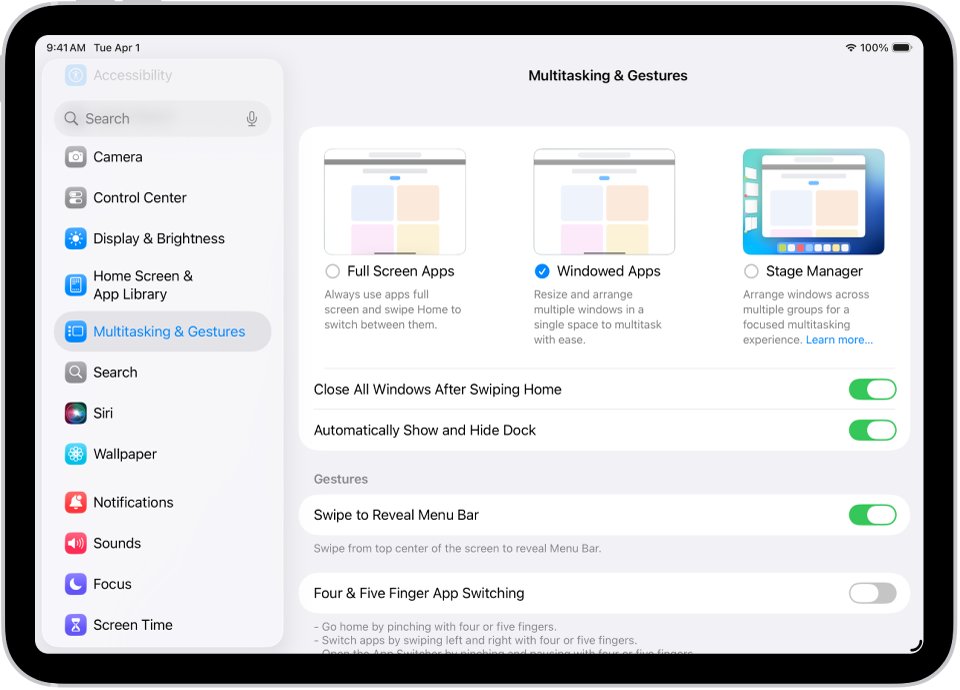
- Open Settings, tap Multitasking & Gestures, and select Full Screen Apps.
- Open Exposé by swiping up from the bottom of the screen and pausing in the center, then swipe up on the app to quit it.
- Reopen the app from the Home Screen, App Library or Dock and check the top of the screen.
- Install any iPadOS update from Settings > General > Software Update.
- If the layout is still wrong, report it to the developer through the app's App Support link in the App Store.
A factory reset does not fix this kind of problem, because the layout comes from the app's own code rather than from data on the iPad.
Why apps overlap the status bar after the iOS 26 update
Before iPadOS 26, an app could tell the iPad it only ran full screen and never had to handle resizing. Apple deprecated that option in iPadOS 26, and warns developers that apps which do not update may show broken layouts, misplaced controls and content that does not fit.
| What you see | Likely cause | Fix |
|---|---|---|
| Video or photo screens stretch up under the clock, Wi-Fi and battery icons | The app has not been updated for iPadOS 26 resizing | Update the app, then report the layout to its developer |
| Buttons at the very top need several taps or do nothing | The top edge belongs to the status bar and, in Windowed Apps or Stage Manager, to the menu bar gesture | Switch to Full Screen Apps, which has no menu bar |
| The app opens in a small window or in an odd spot | iPadOS 26 reopens a resized app at its last size and position | Make the window full screen with its window controls |
| Text and buttons look cramped in every app | Display Zoom is set to More Space, or text size is large | Change Display Zoom or Text Size in Display & Brightness |
| The same app works on iPhone but not on iPad | iPad apps are resized by the windowing system; iPhone apps are not affected the same way | Keep the iPad app updated and use Full Screen Apps until the developer fixes it |
How to switch iPad to full screen apps in iPadOS 26
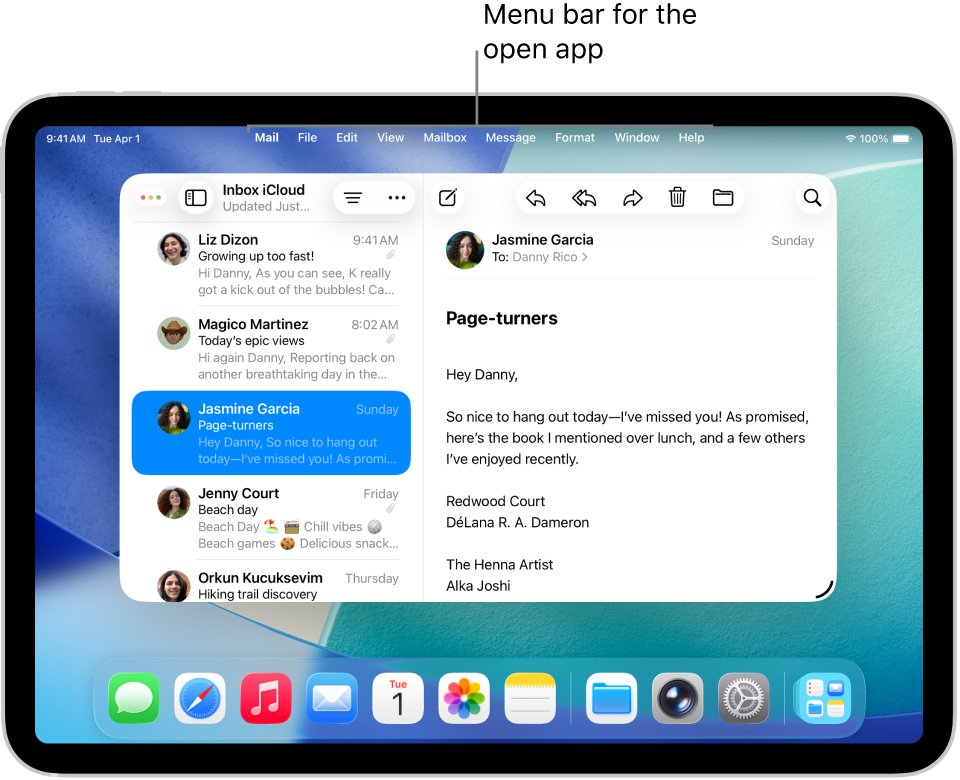
iPadOS 26 offers three ways to show apps: Full Screen Apps, Windowed Apps and Stage Manager. Full Screen Apps behaves like older iPadOS versions, with each app filling the screen and no menu bar at the top.
- Open the Settings app on the iPad.
- Tap Multitasking & Gestures.
- Select Full Screen Apps.
- Return to the Home Screen and open the affected app.
- Switch between apps from the Home Screen or the App Switcher from now on.
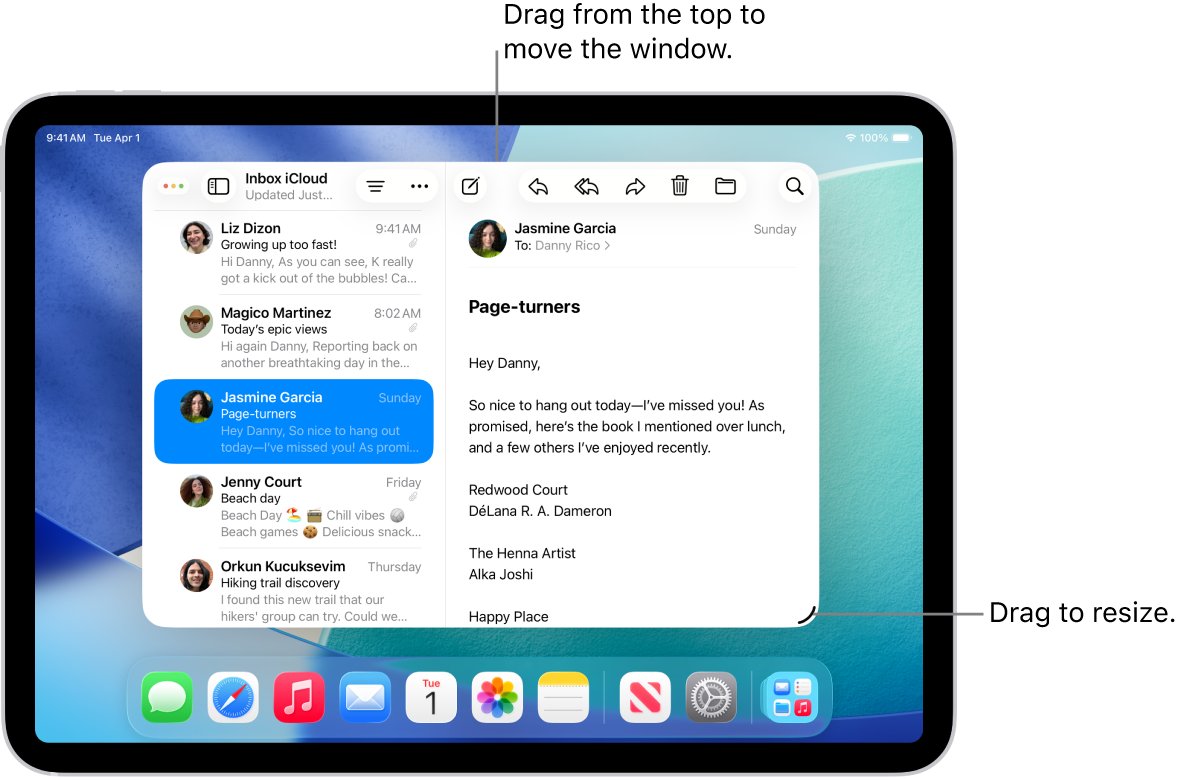
To keep Windowed Apps but fix one app, tap the window controls at the top left of its window and choose the full screen option. You can also drag the window down from the top, hold, and swipe it up quickly toward the top of the screen.
How to tell if an iPad app is in windowed mode
- Look at the top left of the app: window controls appear there once a window has been resized.
- Look at the bottom right corner for a resize handle you can drag.
- Swipe down from the middle of the top edge; if a menu bar with the app's commands appears, the iPad is using Windowed Apps or Stage Manager.
- Check a list of recent apps on the left side of the screen, which means Stage Manager is on.
- Open Settings > Multitasking & Gestures to see which of the three options is selected.
How to update apps on iPad after the iOS 26 update
App updates are where developers fix iPadOS 26 layouts. Apps from the App Store update automatically by default, but a manual check gets the fix as soon as it is released.
- Open the App Store app.
- Tap your picture or the account button at the top right.
- Tap App Updates.
- Tap Update next to the app with the broken layout, or tap Update All.
- To keep updates automatic, open Settings > Apps > App Store and leave App Updates on.
Apple's own apps, such as Safari and Mail, update with iPadOS rather than through the App Store.
How to quit and reopen an app on iPad in iPadOS 26
Quitting forces the app to lay out its screen again. It does not save battery, so do it only when an app misbehaves.
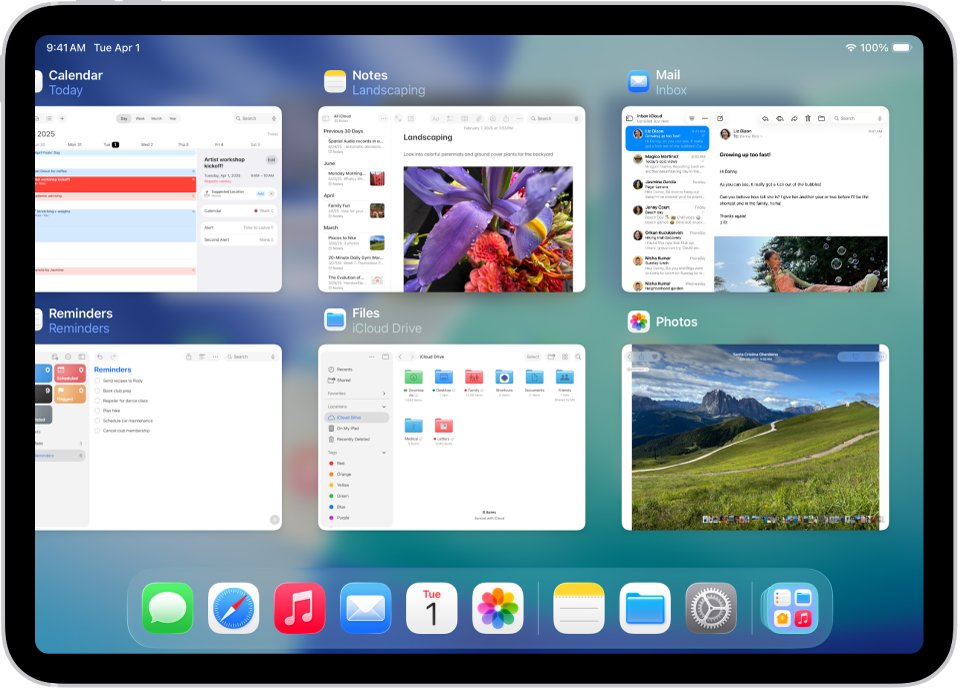
- Swipe up from the bottom edge of the screen and pause in the center to open Exposé.
- Swipe left or right to find the app.
- Swipe up on the app to quit it.
- Tap the app on the Home Screen, in App Library or in the Dock to reopen it.
How to update iPadOS 26 to the latest version
- Back up the iPad with iCloud or a computer.
- Plug the iPad into power and connect to Wi-Fi.
- Open Settings and tap General.
- Tap Software Update to see the installed version and any available update.
- Tap Download and Install and follow the onscreen instructions.
If the download sits on Update Requested, sort out an update stuck on Update Requested before trying the app again.
iOS 26 display settings that change app layout
Display settings change how much fits on screen in every app. They will not fix one badly coded app, but they can make cramped or overlapping controls worse.
| Setting | Where it is | Effect on app layout |
|---|---|---|
| Display Zoom | Settings > Display & Brightness > Display Zoom | More Space makes text and buttons smaller so more fits on screen, on supported iPad models; on iPhone, Larger Text zooms the screen |
| Text Size | Settings > Display & Brightness > Text Size | Larger text can push labels and buttons out of place in apps that do not adapt |
| Bold Text | Settings > Display & Brightness > Bold Text | Wider text in apps that follow the system font |
| Liquid Glass | Settings > Display & Brightness > Liquid Glass | Clear is more transparent; Tinted adds contrast and opacity behind controls |
| Reduce Transparency and Increase Contrast | Settings > Accessibility | When on, they block the Liquid Glass choice above |
If the see-through controls themselves are the problem, you can turn down the Liquid Glass effect without touching app layouts.
How to turn off screen rotation lock in iOS 26
Many apps draw a different layout when you rotate the iPad, so turning it sideways and back makes the app recalculate its screen. That only works when rotation lock is off.
- Open Control Center.
- Check the rotation lock button; it is red when the lock is on.
- Tap it to turn the lock off.
- Turn the iPad sideways, wait for the app to redraw, then turn it back.
- To lock the orientation again later, tap the same button; a lock icon then shows in the status bar.
How to restart an iPad running iPadOS 26
Apple recommends a restart when quitting and reopening an app does not solve a problem.
- On an iPad without a Home button, press and hold either volume button and the top button until the power off slider appears.
- On an iPad with a Home button, press and hold the top button until the slider appears.
- Drag the slider, then wait 30 seconds for the iPad to turn off.
- Press and hold the top button until the Apple logo appears.
- Open the affected app and check the top of the screen.
How to contact an app developer from the App Store on iPad
When the layout stays broken after updates, the fix has to come from the developer. Apple's App Store links every app to its developer's support page.
- Open the App Store and search for the app, then tap it.
- If it does not show, tap your picture, tap Apps, tap My Apps, then Not on this iPad, and select the app.
- Scroll to the Ratings & Reviews section of the app's page.
- Tap App Support.
- Describe the iPad model, the iPadOS version from Settings > General > About, and which screens overlap the status bar.
If App Support is missing, check that you are signed in with the Apple Account that downloaded the app.
iPadOS 26 app buttons not responding at the top of the screen
Buttons under the clock, Wi-Fi or battery icons need several taps
The app places its controls in the status bar area, where the system also listens for its own gestures.
- Switch Settings > Multitasking & Gestures to Full Screen Apps to remove the menu bar from the top edge.
- Rotate the iPad sideways and back so the app redraws its screen.
- Quit the app from Exposé and reopen it.
- Update the app and report the screen to its developer through App Support.
A menu bar drops down when you tap near the top
In Windowed Apps and Stage Manager, swiping down from the middle of the top edge opens the app's menu bar.
- Tap a little lower in the app, away from the middle of the top edge.
- Turn on Automatically Show and Hide Menu Bar in Multitasking & Gestures to keep only the app's name at the top.
- Select Full Screen Apps if you do not need windows at all.
The app opens small or in the same odd position every time
iPadOS 26 reopens a previously resized app at the exact same size and position.
- Tap the window controls at the top left of the window and choose full screen.
- Or touch and hold the window controls and pick one of the preset layouts.
- Turn on Double-tap Top of Window to Zoom in Multitasking & Gestures to make any window full screen with a double-tap.
The layout is still broken after a factory reset
The app itself does not handle iPadOS 26 resizing, so erasing the iPad changes nothing.
- Keep Full Screen Apps selected.
- Check App Updates in the App Store every few days.
- Use the app's website in Safari until the developer ships a fix, if the service has one.
How to customize home screen in iOS 26
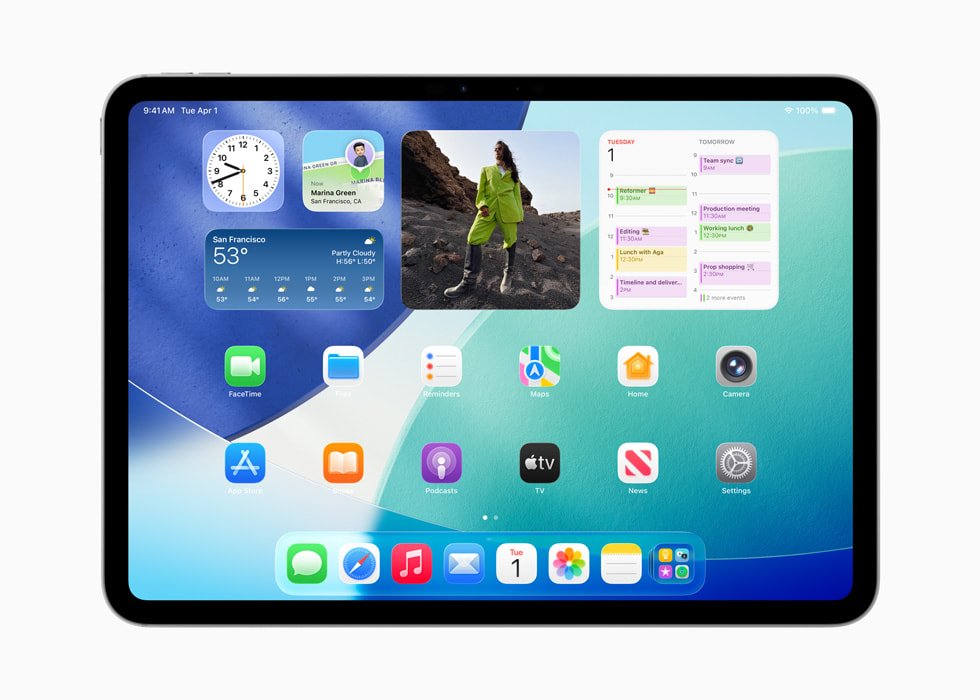
The Home Screen layout is separate from the layout inside apps. iOS 26 and iPadOS 26 let you move icons anywhere on a page and restyle them.
- Go to the Home Screen and touch and hold the background until the icons jiggle.
- Drag apps or widgets anywhere on the page, including the top, bottom or sides, to frame your wallpaper.
- Drag an item to the right edge to move it to another Home Screen page, or down to the Dock.
- Tap Edit at the top of the screen, then Customize, to change icon size and appearance.
- Tap Done at the top right when you finish.
How to change app appearance in iOS 26
- Touch and hold the Home Screen background until the icons jiggle.
- Tap Edit, then choose Customize.
- Tap the large icon option to make icons bigger; app names disappear at that size.
- Tap Dark for dark icons and widgets, or Auto to switch between light by day and dark at night.
- Tap Clear for translucent icons, then choose Light, Dark or Auto.
- Tap Tinted and use the sliders or the eyedropper to pick a color, then choose Light, Dark or Auto.
How to reset the home screen layout in iOS 26
Resetting returns the iOS 26 default Home Screen layout. Folders you created are removed, and downloaded apps are listed alphabetically after the built-in apps.
- Open Settings and tap General.
- Tap Transfer or Reset iPad, or Transfer or Reset iPhone on an iPhone.
- Tap Reset.
- Tap Reset Home Screen Layout.
- On iPhone, confirm with Reset Home Screen.
This reset only rearranges icons. It does not change how apps draw their own screens, so it will not fix controls that overlap the status bar.
iOS 26 app screen layout FAQ
Is the app layout problem an iOS 26 bug or the app?
Usually the app. iPadOS 26 deprecated the setting that let apps refuse resizing, and Apple warns that apps which do not update may show broken layouts and misplaced controls. Updating the app and reporting the screen to its developer is the lasting fix.
How do I make an app full screen on iPad in iPadOS 26?
Tap the window controls at the top left of the app window and choose full screen, or drag the window down from the top and swipe it up quickly. To make every app full screen, select Full Screen Apps in Settings > Multitasking & Gestures.
Why does a menu bar appear at the top of my iPad?
The menu bar appears in iPadOS 26 when Windowed Apps or Stage Manager is selected, and it opens when you swipe down from the middle of the top edge. Select Full Screen Apps in Multitasking & Gestures to remove it.
Will a factory reset fix app layout problems in iPadOS 26?
No. A layout that overlaps the clock and battery icons comes from how the app handles iPadOS 26 resizing, so erasing and restoring the iPad leaves it unchanged. Update the app, use Full Screen Apps, and contact the developer.
How to customize home screen iOS 26?
Touch and hold the Home Screen background until icons jiggle, then drag apps and widgets anywhere on the page or to another page. Tap Edit, then Customize, to change icon size and choose Dark, Clear or Tinted looks. Tap Done to finish.
How to change app appearance iOS 26?
Touch and hold the Home Screen background, tap Edit, then Customize. Choose Dark or Auto for dark icons, Clear for translucent icons, or Tinted with a color you pick, and tap the large icon option to make icons bigger without names.
What is the iOS 26 default home screen layout?
It is the original arrangement your iPhone or iPad shipped with: built-in apps first, then downloaded apps in alphabetical order, with no custom folders. Restore it from Settings > General > Transfer or Reset > Reset > Reset Home Screen Layout.
Does Display Zoom affect app layout on iPad?
Yes. On supported iPad models, Display Zoom set to More Space makes text and buttons smaller so more content fits, which changes how every app lays out its screen. Change it under Settings > Display & Brightness > Display Zoom.