Open Chrome settings from More (the three dots at the top right) > Settings, or type chrome://settings in the address bar.
This guide maps Chrome's settings, then covers updating Chrome, installing and managing extensions, clearing cache and cookies, chrome://flags, error codes, and resetting Chrome on Windows 11 and Windows 10.
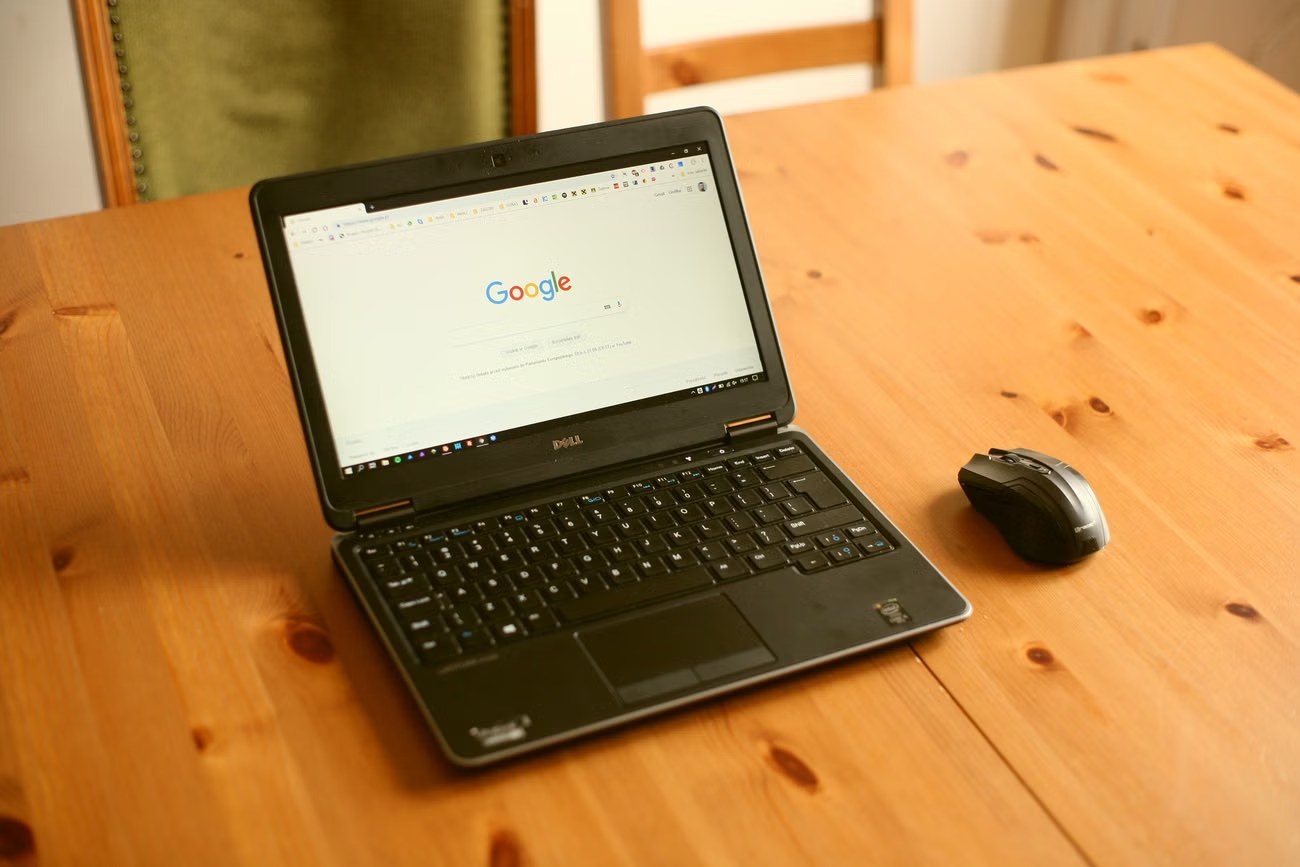
Open Chrome settings on desktop
- Open Chrome on your computer.
- Select More (the three dots) at the top right.
- Select Settings.
- Pick a category in the left pane, or type a word into the search box at the top of the Settings page.
Chrome has no classic menu bar, so the three-dot button is the settings menu, as the guide to where Chrome's menus are explains.
Quick access URLs for power users
These internal pages open straight from the address bar.
| Address | What it opens | Menu route |
|---|---|---|
chrome://settings |
Chrome settings, the main page | More > Settings |
chrome://extensions |
Installed extensions, Developer mode and the Update button | More > Extensions > Manage extensions |
chrome://flags |
Experimental features | No menu entry |
chrome://version |
Full version and the command line Chrome started with | More > Help > About Google Chrome shows the version |
| Type *Delete browsing data* in the address bar | An action chip that opens the clear data dialog | More > Delete browsing data |
What you can do inside Chrome settings
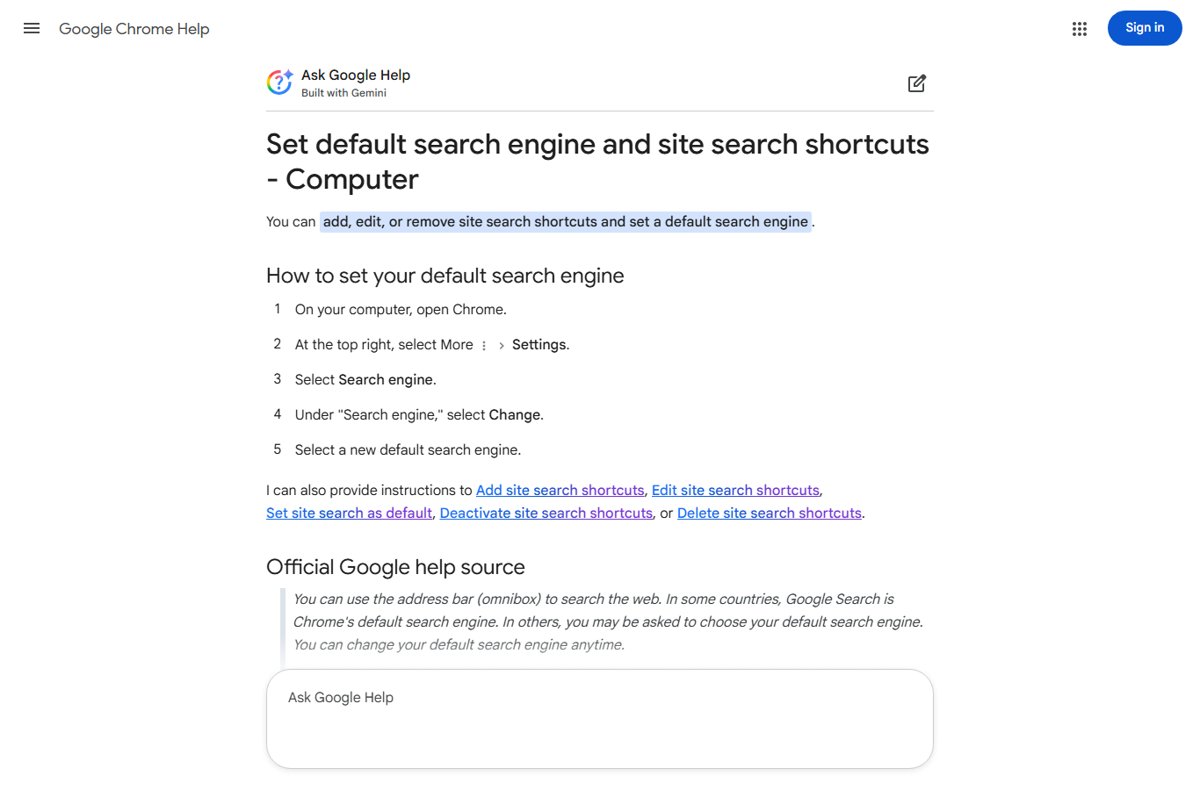
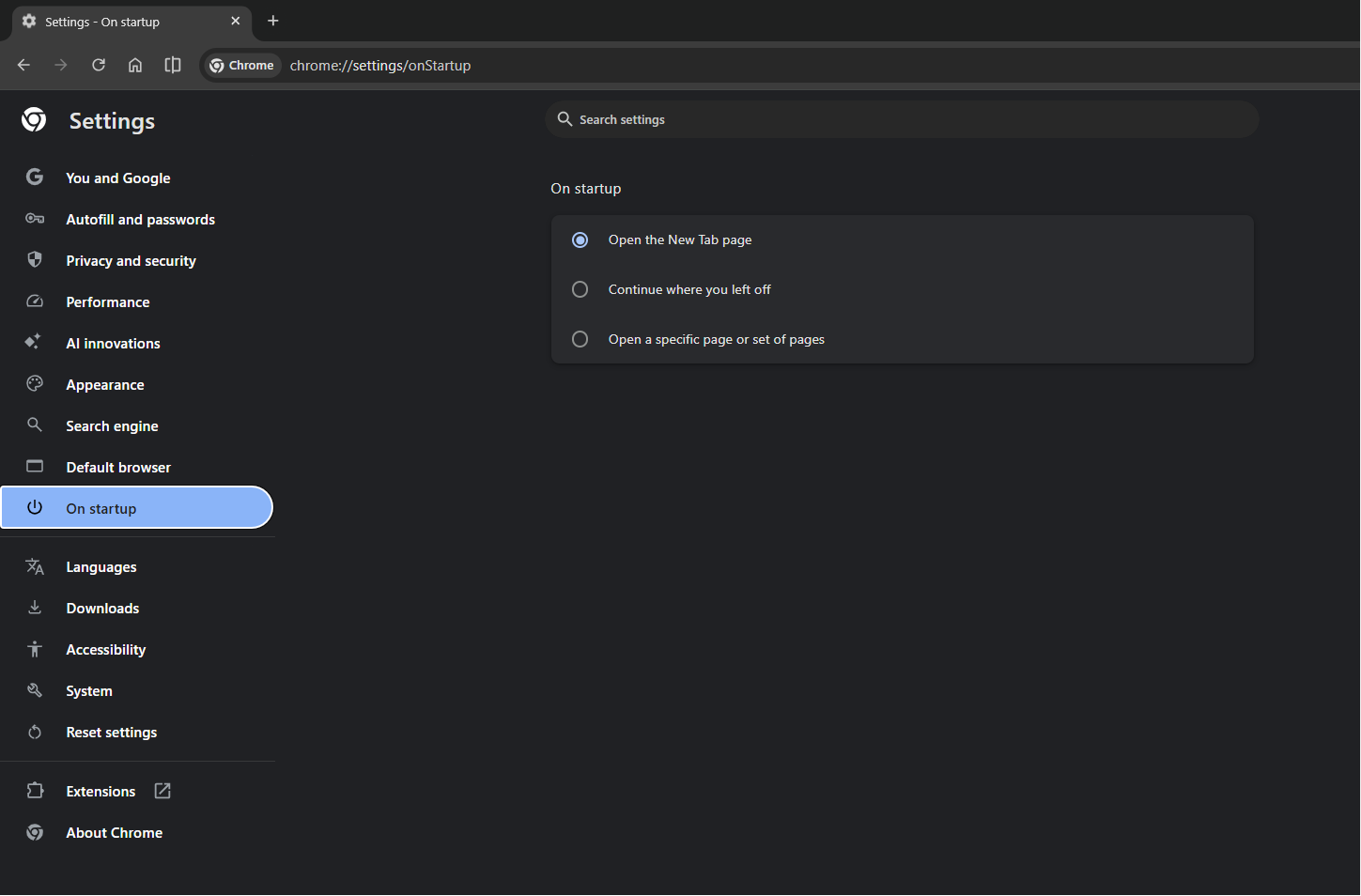
Explore the main settings categories before changing anything. Site permissions and content settings, such as pop-ups and the microphone, sit under Privacy and security > Site settings.
| Task | Where in Settings | Full walkthrough |
|---|---|---|
| Startup page and homepage | On startup; Appearance > Show Home button | change the Chrome start page |
| Website notifications | Privacy and security > Site settings > Notifications | turn off Chrome notifications |
| Camera, location, pop-ups per site | Privacy and security > Site settings | manage site settings in Chrome |
| Cookies | Privacy and security | enable or disable cookies |
| Google Account sign-in and sync | You and Google | sign in and out of Chrome |
| Browsing history | More > History | view Chrome history |
Review advanced settings such as languages, downloads, accessibility and system only when a specific problem points there. The startup page offers three choices: a new tab, Continue where you left off, or a specific set of pages.
Get a Chrome update when available
Chrome normally updates in the background when you close and reopen it. A pending update shows next to your profile picture when the browser has been open a long time.
- Open Chrome on your computer.
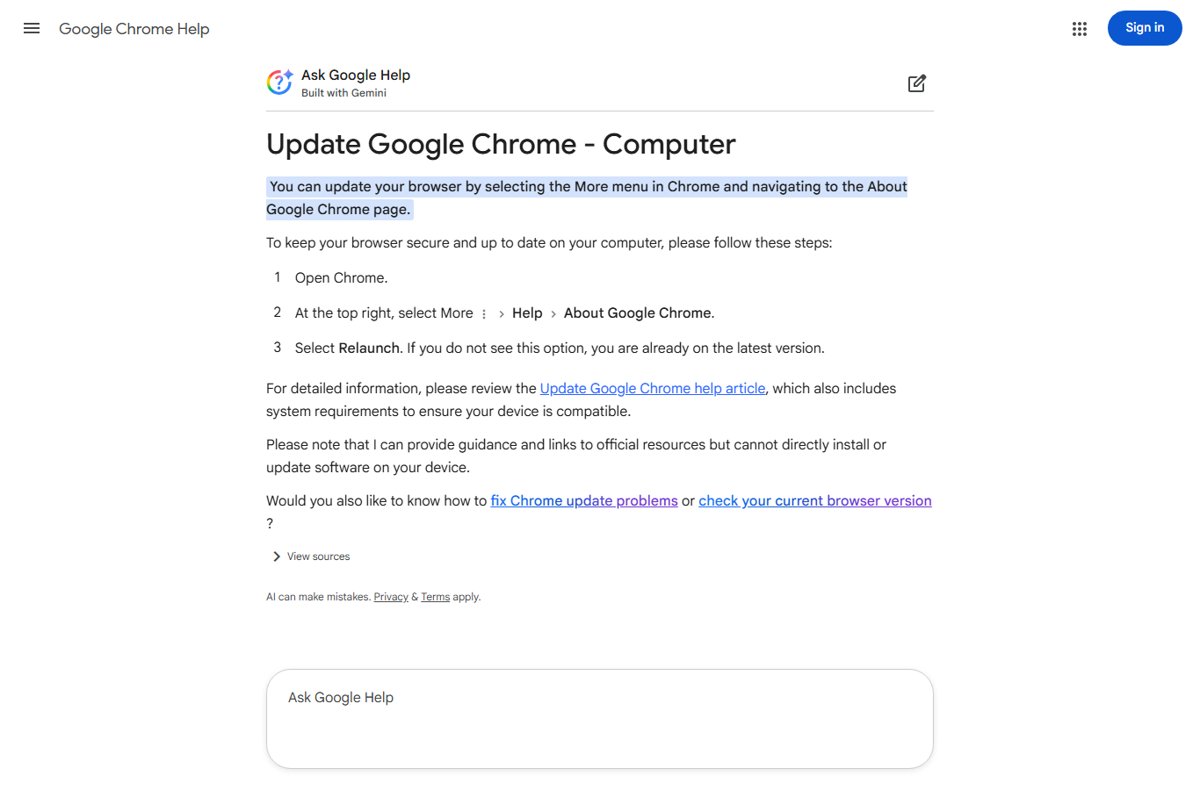
- Select More > Help > About Google Chrome. Chrome checks for updates on this page.
- Select Relaunch. If there is no Relaunch button, you are on the latest version.
- Select Not now instead to apply the update the next time you restart Chrome.
Chrome reopens your tabs after the relaunch, but not Incognito windows. More routes, including fixes for failed updates, are in the steps to update Google Chrome, and a full restart of Google Chrome applies a stuck update on Windows.
How to update Google Chrome on mobile
| Device | How to update Chrome |
|---|---|
| Windows | Close all Chrome windows and tabs, then relaunch Chrome |
| Mac | About Google Chrome > Automatically update Chrome for all users if Chrome is in Applications |
| Android | Play Store > profile icon > Manage apps & device > Updates available > Chrome > Update |
| iPhone and iPad | App Store > profile icon > Available Updates > Chrome > Update |
| Chromebook | Update the Chromebook's operating system |
| Linux | Use your package manager |
Why keep Chrome updated? Updates carry security fixes and new features, and Google ships critical security updates through the same automatic channel. A new copy of the browser comes from the Google Chrome download page.
Check system requirements to use Chrome
| Platform | Requirement |
|---|---|
| Windows on Intel | Windows 10 or later, SSE3-capable Pentium 4 or later |
| Windows on ARM | Windows 11 or later |
| Mac | macOS 13 Ventura or later |
| Linux | 64-bit Ubuntu 18.04+, Debian 10+, openSUSE 15.5+ or Fedora Linux 39+ |
Learn more about Chrome updates on the version page: the number under the Google Chrome heading is your current version.
Install an extension
Installing Chrome extensions: fast facts first. You can't add extensions in Incognito mode or as a guest, and a work or school PC may block some.
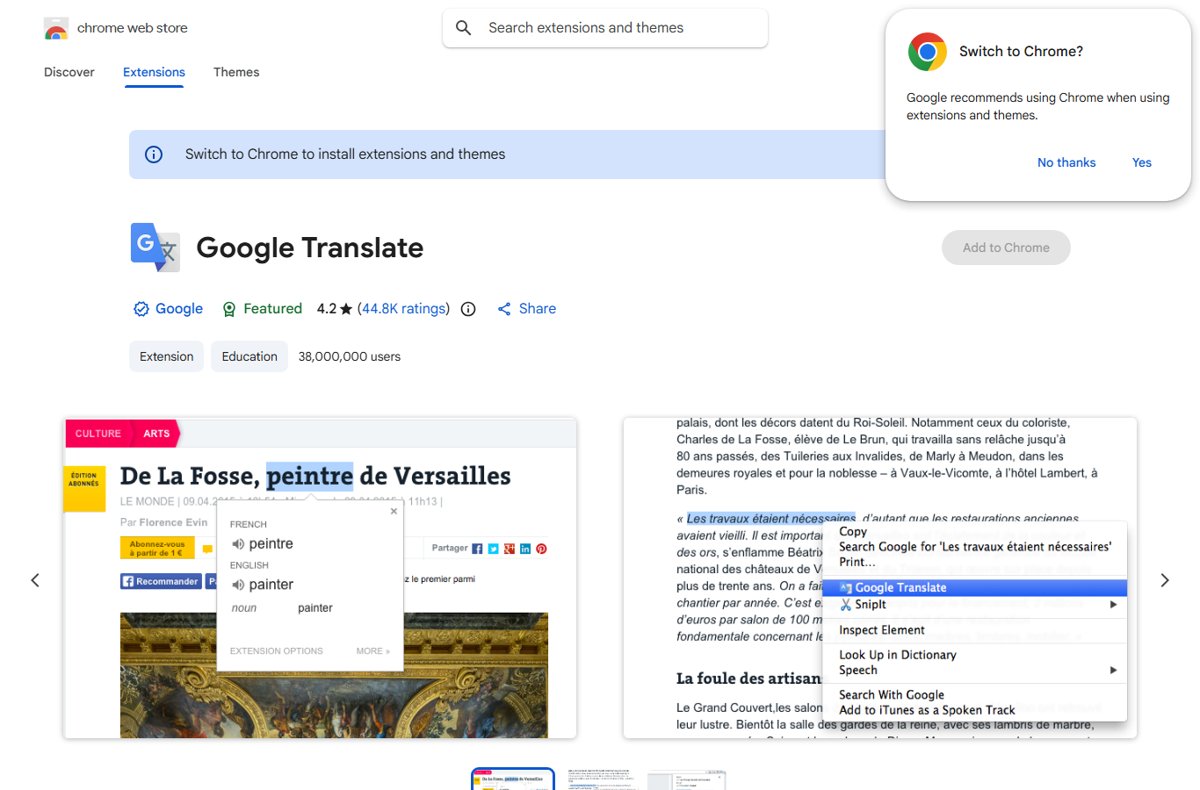
- Open the Chrome Web Store.
- Find and select the extension.
- Select Add to Chrome.
- If it asks for permissions, review them and select Add extension.
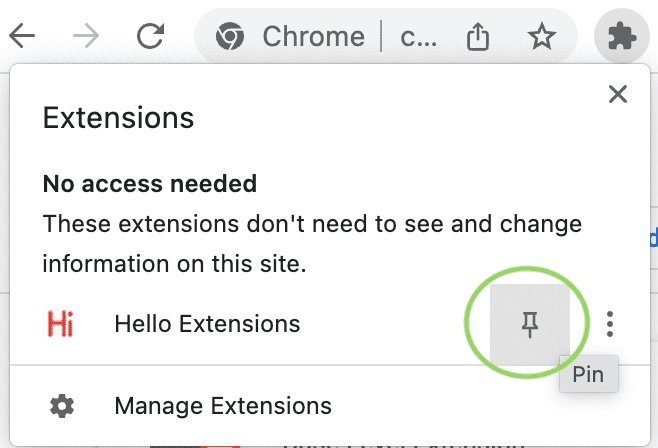
- Select the extension's icon to the right of the address bar to use it.
Turn on Safe Browsing's Enhanced protection and Chrome warns you when an extension is not trusted. Popular picks have their own setup guides: the Bitwarden extension in Chrome, the Google Translate extension and Google Input Tools for Chrome.
Manage your extensions
- Select More > Extensions > Manage extensions.
- Use the toggle on an extension to turn it on or off.
- Select Details > Allow in Incognito to run it in Incognito windows.
- If an extension shows as corrupted, select Repair > Repair extension.
- To update all extensions now, turn on Developer mode at the top right and select Update.
If an extension stays corrupted after a repair, a program on the PC may be changing its files, and the older note on repairing corrupted Chrome extensions shows the message Chrome displays.
Let extensions read and change site data
- Select Extensions to the right of the address bar.
- Select More next to the extension and point to This can read and change site data.
- Choose When you click the extension, On [current site] or On all sites.
- To list specific sites, open Manage extensions > Details and use Add next to Allowed sites.
Uninstall an extension
- Right-click the extension's icon to the right of the address bar.
- Select Remove from Chrome.
- If the icon is hidden, open More > Extensions > Manage extensions and select Remove on the extension.
- Select Remove to confirm.
Unsupported extensions that no longer meet Chrome Web Store requirements may be disabled; open Details > Find Alternatives to replace one. The walkthrough to install and uninstall Chrome extensions covers pinning and hiding icons too.
Important: cache vs. cookies vs. history
| Data | What it is | What happens when cache and cookies are deleted |
|---|---|---|
| Cache (cached images and files) | Copies of pages and images that make repeat visits faster | Sites load fresh copies; the first visit is slower |
| Cookies and other site data | Sign-ins and preferences that sites store | You are signed out of most sites |
| Browsing history | The list of pages you visited | The list is gone; with sync on, it is removed from your Google Account and other devices too |
Why you should clear your cache: outdated copies cause pages to look broken or show old content. Signing out of Chrome signs you out of your Google Account on every website.
How to clear cache in Chrome
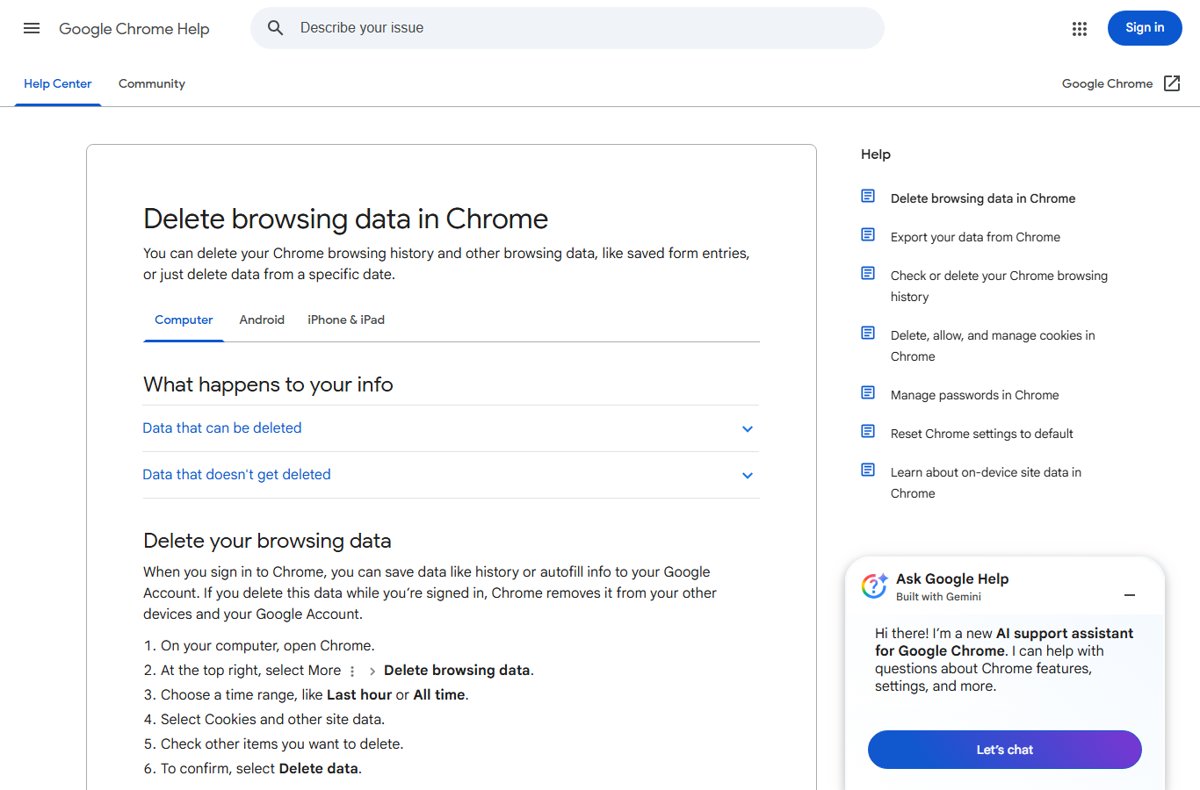
- Open Chrome on your computer.
- Select More > Delete browsing data.
- Choose a time range, such as Last hour or All time.
- Select Cookies and other site data and any other items you want gone, such as cached images and files.
- Select Delete data.
To clear only the cache and stay signed in, leave Cookies and other site data unticked. The shortcut route and a one-page hard refresh are in the steps to clear or refresh the Chrome cache.
How to clear cache in Chrome (advanced user)
- Click the address bar.
- Type Delete browsing data.
- Select the action chip that appears under the address bar.
- Pick the time range and items, then select Delete data.
Browse in Incognito to avoid building up data at all: Chrome removes cookies and site data when you close every Incognito window, as the guide to going incognito in every browser shows.
What are Chrome flags? Understand the risks
Most people never need Chrome flags; use a setting or Chrome Beta instead, and change one flag at a time if you must. Flags switch experimental features on or off. They are temporary, can break or vanish without notice, and Google warns that changing them can lose browser data or weaken security and privacy. What about Chrome settings? Settings customise default features, while flags test unfinished ones; origin trials let a website turn on an experiment for its own visitors without any flag.
Turn Chrome flags on or off
- Open a new tab.
- Type
chrome://flagsin the address bar and press Enter. - Search for the flag under Available and read its description.
- Set the drop-down next to it to Enabled or Disabled.
- Select Relaunch.
Why and when to use Chrome flags: to try a feature early or to troubleshoot an issue by switching one feature off. Flags you changed are listed first on the page. Chrome flags are available on mobile builds too, but they are just as experimental there.
How to reset Chrome flags if problems occur
- Open
chrome://flags. - Select Reset all at the top.
- Relaunch Chrome.
- If problems remain, reset Chrome settings to default and update Chrome.
Troubleshooting Chrome flags issues: if a flag set on the command line seems ignored, check chrome://version, because chrome://flags does not show command-line flags and its own values override them.
How to enable Chrome flags using the command line
Command-line flags start Chrome with switches that chrome://flags does not offer. A fresh user data directory makes Chrome behave like a new install, which isolates profile problems.
chrome.exe --user-data-dir="%TEMP%\chrome-test" --no-first-run --no-default-browser-checkRun it from the folder that holds chrome.exe. --user-data-dir points Chrome at an empty profile folder; the other two switches skip the first-run and default-browser prompts.
You should see: Chrome opens with no bookmarks or extensions. If a problem disappears here, your normal profile is the cause.
Make Chrome your default browser
- Open Settings in Windows.
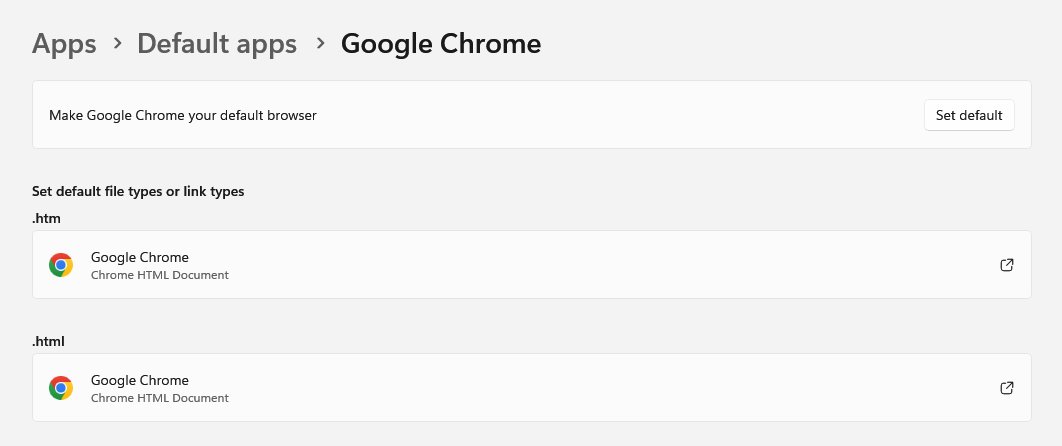
- Select Apps > Default apps.
- Select Google Chrome under Set defaults for applications.
- Select Set default next to the default browser option.
Some countries show a browser choice screen instead. The steps to make Chrome your default browser cover Windows 10, Mac and phones. On a phone you can also add Chrome to the home screen, and Mac owners leaving Chrome can uninstall Chrome on a Mac completely.
Chrome memory, profiles and built-in tools
| Job | Where to start | Full walkthrough |
|---|---|---|
| Find the tab or extension using memory | Chrome's own Task Manager | Chrome's built-in Task Manager |
| Stop Windows throttling Chrome | Windows Task Manager | Efficiency mode for Chrome |
| Stop Chrome discarding inactive tabs | Chrome performance settings | turn off Memory Saver |
| Remove a Chrome profile | The profile icon | delete a Chrome profile |
| Reach your PC from another device | remotedesktop.google.com | Chrome Remote Desktop setup |
| Search what you see in an image | Right-click an image | Google Lens on a desktop PC |
| Play while offline | The offline error page | the Chrome Dino game |
Chrome error codes and what they mean
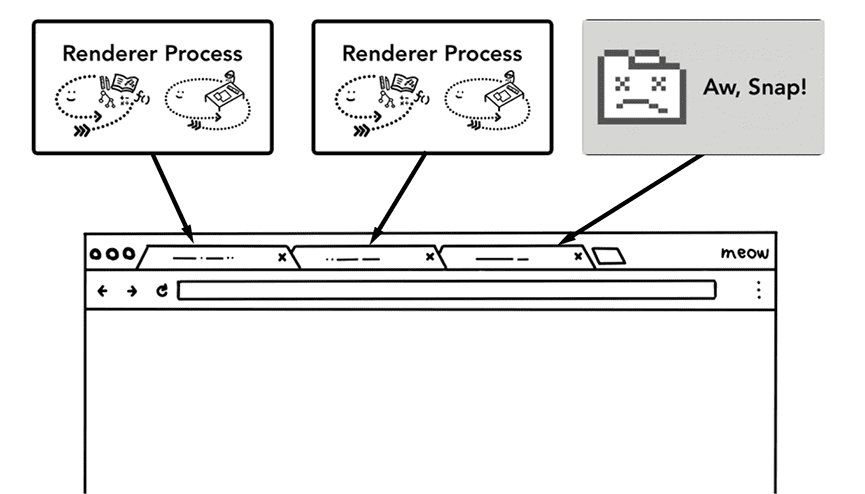
Chrome groups its messages into page loading errors, page crashes such as Aw, Snap!, certificate errors, redirect errors and secure connection errors.
| Error | Type | Fix |
|---|---|---|
| ERR_CONNECTION_CLOSED | Page loading | fix ERR_CONNECTION_CLOSED |
| ERR_NETWORK_CHANGED | Page loading | fix ERR_NETWORK_CHANGED |
| ERR_CONNECTION_TIMED_OUT | Page loading | fix ERR_CONNECTION_TIMED_OUT |
| STATUS_ACCESS_VIOLATION | Page crash | fix STATUS_ACCESS_VIOLATION |
| NET::ERR_CERT_AUTHORITY_INVALID | Certificate | untrusted certificate error |
| NET::ERR_CERT_COMMON_NAME_INVALID | Certificate | certificate name mismatch |
| ERR_TOO_MANY_REDIRECTS | Redirect | redirect loop fixes |
| .crdownload file left behind | Download | open a .crdownload file |
Troubleshooting & common issues
Chrome settings don't open or the menu is missing
A damaged installation or a program changing Chrome.
- Uninstall Chrome.
- Download Chrome again from google.com/chrome and reinstall it.
- If it happens again, remove programs that change browser settings.
Chrome keeps resetting my settings
Chrome checks its settings at every launch and restores the originals if a program changed them.
- Look for recently installed software that bundled a toolbar or search add-on.
- Uninstall it from Windows Settings > Apps.
- Set your search engine and startup pages again.
Bing or Yahoo shows up in Chrome settings as the search engine
Unwanted software changed the default search engine.
- Open Settings > Search engine and pick Google or your choice.
- Remove unknown extensions in Manage extensions.
- Follow the steps to remove Yahoo search from Chrome if it comes back.
Pages won't load or show connection errors
The site, the network, extensions, cookies or low memory.
- Check the URL and reload the page.
- Check your internet connection.
- Update and restart Chrome.
- Try the page in an Incognito window, then disable extensions.
- Delete browsing data, free up memory, and reset Chrome settings as a last step.
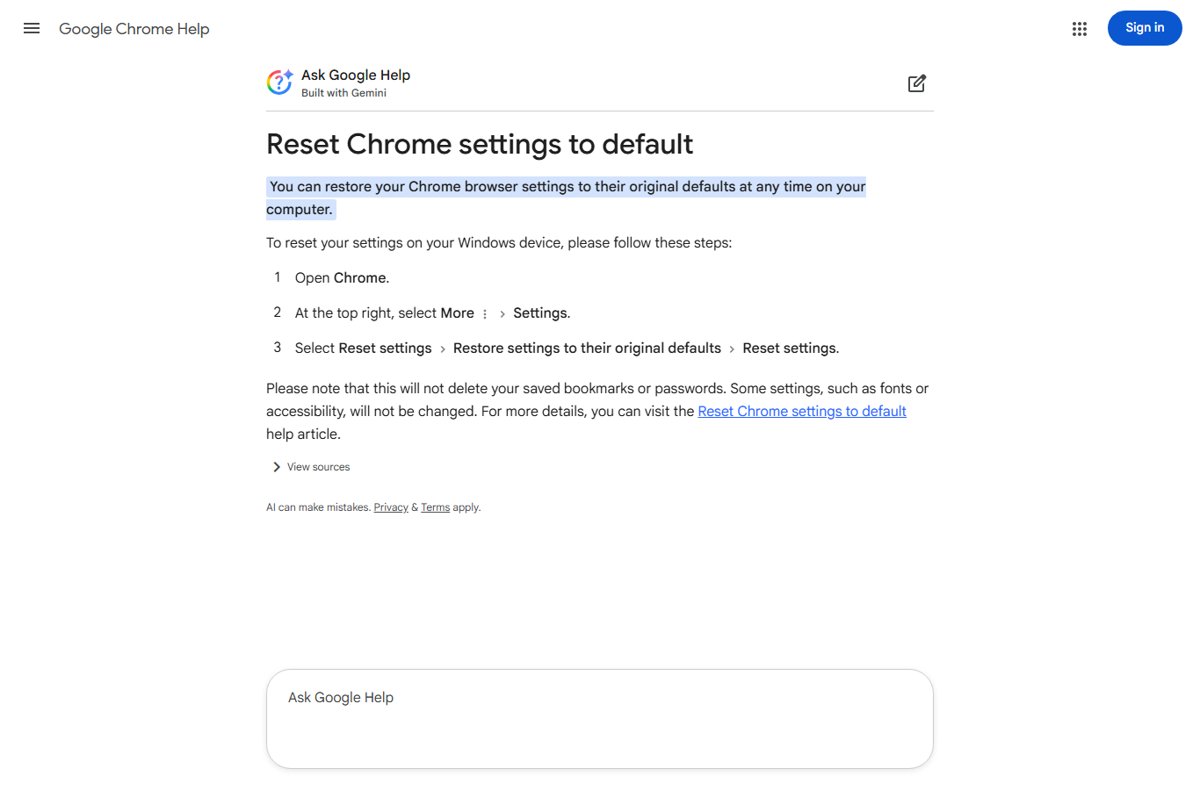
Reset Chrome settings if something looks wrong
- Open Chrome and select More > Settings.
- Select Reset settings.
- Select Restore settings to their original defaults.
- Select Reset settings to confirm.
What changes when you restore your settings: the default search engine, homepage and startup tabs, new tab page, pinned tabs, content settings, cookies and site data, and extensions and themes. Bookmarks and passwords stay, and fonts and accessibility settings are not reset. Troubleshoot reset problems and what each step leaves behind with the walkthrough to reset Chrome settings to defaults.
Google Chrome settings FAQ
Where is the Chrome settings menu on my computer?
Select More, the three dots at the top right of Chrome, then Settings. You can also type chrome://settings into the address bar.
How do I reset Chrome settings to default?
Open Settings > Reset settings > Restore settings to their original defaults > Reset settings. Bookmarks and passwords are kept, while the search engine, startup pages, pinned tabs and extensions return to their defaults.
Why does my Chrome keep resetting settings?
Chrome restores its original settings when it detects that a program changed them. Remove recently installed software that changes the homepage or search engine, then set your choices again.
How do I update Chrome on Windows 11?
Select More > Help > About Google Chrome, wait for the check, then select Relaunch. If no Relaunch button appears, Chrome is already up to date.
How do I update Chrome to the latest version?
Open About Google Chrome from the Help menu. Chrome checks automatically and installs any update; select Relaunch to finish. Updates also install when you close and reopen Chrome.
How do I update a Chromebook?
Chrome on a Chromebook updates with ChromeOS, so update the Chromebook's operating system from its own settings. There is no separate Chrome update.
How do I import Chrome settings to Edge?
In Microsoft Edge, open Settings and more > Settings, select Import browser data in the Profiles settings, then select Import next to Import data from Google Chrome and choose what to import, such as favorites and passwords.
Does clearing cache in Chrome sign me out?
Clearing only cached images and files keeps you signed in. Deleting Cookies and other site data signs you out of most sites.
Can I add extensions in Incognito mode?
No. Chrome blocks installing extensions in Incognito mode or as a guest. Install the extension in a normal window, then turn on Allow in Incognito in its details.