Anti aliasing is a graphics setting that smooths the jagged, stair-stepped edges on 3D objects, and for most players it should stay on at a low or medium level unless you need every frame for competitive play.
This guide explains what it changes, the common types, what each costs in performance, how it compares with resolution and upscaling, and how to fix blur or shimmer it can cause.
Should you turn anti aliasing on or off? A decision guide
| Your situation | Setting | Why |
|---|---|---|
| Single-player game, frame rate comfortably above your target | On, medium or high | Cleaner edges with frames to spare |
| Competitive shooter on a high refresh rate monitor | Off or the cheapest option | Every frame and the sharpest image matter more |
| Frame rate dips below your target | Lower it one step, or switch to a cheaper type | Anti aliasing is one of the settings that costs GPU time |
| NVIDIA RTX card with spare performance | DLAA | AI anti aliasing at native resolution |
| Game runs slowly at native resolution | An upscaler such as DLSS or XeSS | Raises frame rate and includes its own anti aliasing |
| Very high resolution on a small screen | Low or off | Small pixels make jaggies far less visible |
Anti Aliasing 101: what it is and why you see jaggies
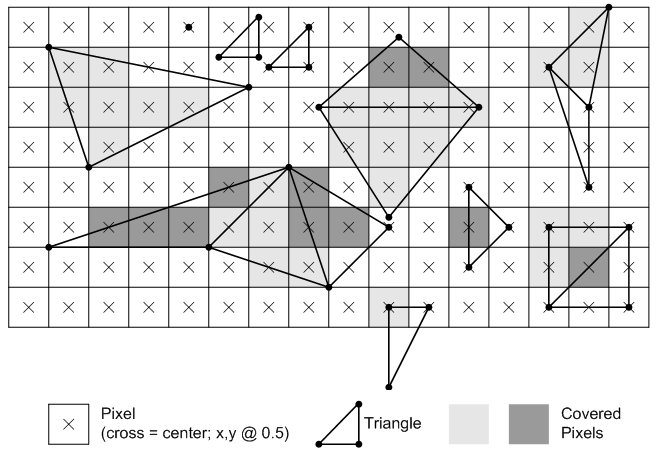
A screen is a grid of square pixels. A diagonal or curved edge has to be drawn with those squares, so it comes out as a staircase. These steps are called jaggies, and the effect is aliasing.
| Kind of aliasing | What you see |
|---|---|
| Geometry aliasing | Stair-steps along the outline of objects such as roofs, rails and weapons |
| Surface aliasing | Flicker or crawling inside textures and fine patterns |
| Thin line aliasing | Power lines, fences and foliage that break up or vanish as you move |
| Shimmer | Edges that crawl from frame to frame, most noticeable in motion |
What anti aliasing actually changes in your image
| Without anti aliasing | With anti aliasing |
|---|---|
| Each edge pixel is either fully object or fully background | Edge pixels blend the object and background colours |
| Hard, stepped outlines | Smoother outlines that look closer to a real edge |
| Thin details flicker in motion | Thin details stay more stable from frame to frame |
| Maximum sharpness and frame rate | Some softness and a frame rate cost, depending on the type |
Anti aliasing does not add detail. It decides how edge pixels are coloured, which is why some types make the whole image look slightly softer.
Common types of anti aliasing (and what to expect)
| Type | How it works | Quality | Cost |
|---|---|---|---|
| SSAA (supersampling) | Renders more pixels than the screen has, then scales down | Very clean | Very high |
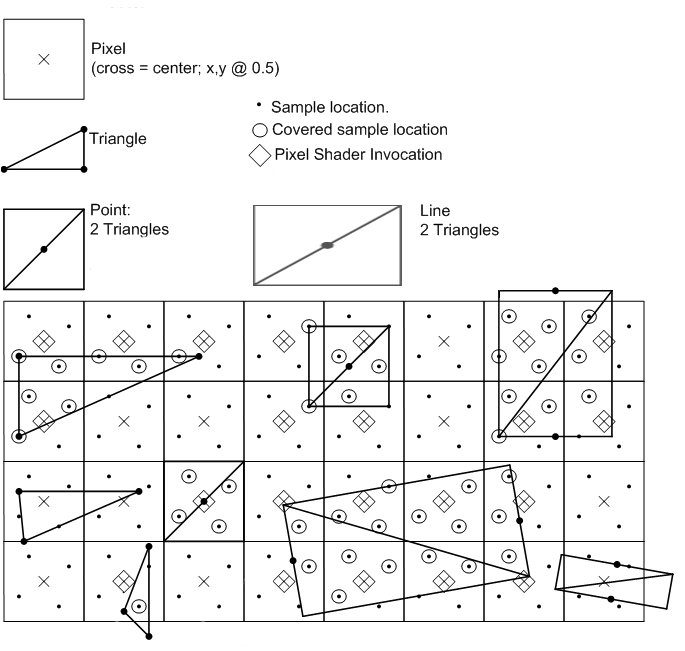
| MSAA (multisample) | Tests several sample points per pixel on object edges, but shades each pixel once | Clean geometry edges; does not fix surface aliasing | Medium to high, grows with 2x, 4x, 8x |
| FXAA and other post-process filters | Finds edges in the finished frame and blurs them | Smooth but softer overall | Very low |
| TAA (temporal) | Combines samples from previous frames using motion data | Very smooth, can blur or ghost in motion | Low to medium |
| DLAA (NVIDIA) | AI anti aliasing using DLSS Super Resolution technology at native resolution | High | Medium; RTX cards only |
| DLSS, XeSS and similar upscalers | Render at lower resolution, then reconstruct a sharper frame with motion data and previous frames | High, varies by mode | Saves GPU time overall |
How to choose settings in real games
- Open the game's Settings or Options menu and find the Graphics or Video section.
- Set the display resolution to your monitor's native resolution first.
- Turn on the in-game frame rate counter or a performance overlay.
- Pick the anti aliasing option you want, for example TAA, or DLAA on an RTX card.
- Play the same busy scene for a minute and note the frame rate and edge quality.
- If the frame rate drops below your target, lower anti aliasing one step or switch to an upscaler mode.
- Apply the change and restart the game if it asks you to.
Set anti aliasing inside the game rather than forcing it from the graphics driver. The game knows which methods suit its renderer, and a driver override can conflict with it.
Anti aliasing vs render resolution vs upscaling
| Setting | What it does | Effect on jaggies | Effect on frame rate |
|---|---|---|---|
| Anti aliasing | Smooths edges at the current resolution | Directly reduces them | Lowers it, by an amount that depends on the type |
| Higher render resolution or render scale | Draws more pixels per frame | Reduces them, because each step is smaller | Lowers it sharply |
| Upscaling (DLSS, XeSS, FSR) | Renders fewer pixels and reconstructs a full-resolution frame | Includes anti aliasing in the reconstruction | Raises it |
| Native AI anti aliasing (DLAA) | Uses the upscaler's model without lowering resolution | Strong reduction | Lowers it moderately |
When an upscaler is on, you do not need a separate anti aliasing method on top, because the upscaler already handles edges.
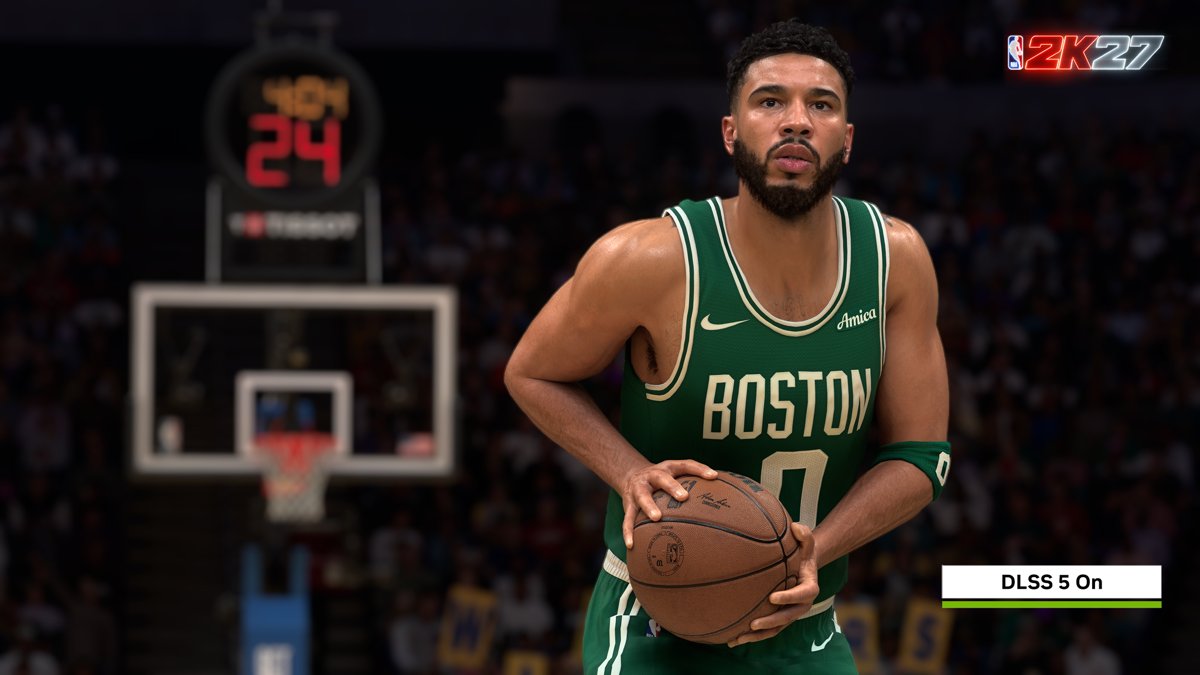
Performance tradeoffs: what costs GPU time
| Factor | Why it costs performance |
|---|---|
| Sample count (2x, 4x, 8x MSAA) | More coverage and depth tests per pixel, plus more video memory |
| Supersampling | Renders and shades far more pixels than the screen shows |
| Resolution | Every anti aliasing method does more work at 1440p and 4K |
| Temporal methods | Store and process previous frames, which costs memory and time |
| Post-process filters | Run once on the final frame, so the cost is small |
| Upscalers | Add a reconstruction pass but save more by rendering fewer pixels |
Turning anti aliasing off does improve performance, but on modern GPUs a temporal or post-process option often costs only a few frames.
When anti aliasing makes things worse (and how to fix it)
The whole image looks blurry or soft
Post-process and temporal methods blur edges and some fine texture detail.
- Turn on the game's sharpening slider if it has one.
- Try DLAA or MSAA instead of FXAA or TAA.
- Make sure the game runs at your monitor's native resolution.
Ghosting or smearing behind moving objects
Temporal anti aliasing reuses past frames and can leave trails.
- Switch from TAA to another method or a newer upscaler version if the game offers one.
- Raise the frame rate, since temporal methods have less error between closer frames.
- Update the game and graphics driver.
Frame rate drops when anti aliasing is on
A high sample count or supersampling is too heavy for the GPU.
- Lower MSAA from 8x or 4x to 2x.
- Switch to a temporal or post-process option.
- Use an upscaler quality mode instead.
Edges are still jagged with anti aliasing on
MSAA reduces geometry aliasing but not surface aliasing, or the setting did not apply.
- Restart the game after changing the setting.
- Check that a driver profile is not overriding the game's setting.
- Try a temporal method, which also treats texture and foliage shimmer.
Troubleshooting checklist
- Confirm the game runs at your monitor's native resolution.
- Confirm only one anti aliasing method is active, in the game or the driver, not both.
- Compare frame rate with anti aliasing off and on in the same scene.
- Check edges on a high-contrast diagonal, such as a roof against the sky.
- Update your graphics driver and the game.
- Reset the game's graphics settings to a preset and change one setting at a time.
Frequently asked questions
Should anti aliasing be turned on or off?
Turn it on for most games, because it removes distracting jagged edges for a small cost with modern methods. Turn it off or use the cheapest option only when you need maximum frame rate, such as in competitive shooters.
What does anti aliasing do?
It smooths the stair-stepped edges that appear when diagonal and curved lines are drawn on a grid of square pixels. It does this by blending edge pixels between the object and background colours, or by sampling each pixel several times.
Does anti aliasing improve performance?
No. Anti aliasing costs GPU time, so it lowers frame rate. Upscalers such as DLSS and XeSS are the exception: they include anti aliasing but raise performance because they render fewer pixels first.
Should anti aliasing be high or low?
Use the highest level that keeps your frame rate above your target. On a fast GPU, high is fine; on a slower one, low or a temporal option gives most of the benefit for far less cost.
What anti aliasing should I use?
Use DLAA on an NVIDIA RTX card when you have frames to spare, TAA as the general default in modern games, and FXAA when you need the lightest option. Use MSAA in older games that support it well.
What anti aliasing should I use with AMD?
Use the game's own TAA or AMD's FSR upscaler if the game offers it. DLAA and DLSS run only on NVIDIA RTX cards, while TAA, FXAA and MSAA work on any modern GPU.
What anti aliasing should I use in Fortnite or Valorant?
In competitive shooters, most players keep anti aliasing low or off to protect frame rate and sharpness. If your frame rate stays well above your monitor's refresh rate, a light option makes enemies' outlines cleaner without much cost.
Is anti aliasing good?
Yes, for image quality. It makes edges and thin details steadier, especially in motion. The trade-offs are lower frame rate and, with some methods, a softer image, so the best level depends on your GPU and game.
How do you avoid aliasing without anti aliasing?
Play at a higher resolution or render scale, or on a screen with smaller pixels. Each stair-step becomes smaller and harder to see, though this costs more performance than most anti aliasing methods.
Bottom Line
Leave anti aliasing on in most games, using TAA or DLAA, and switch to an upscaler rather than turning it off when performance is short. Modern methods remove jaggies for a small cost, and upscalers recover frame rate while still handling edges; only competitive players chasing every frame gain much from turning it off.

![How to Change System Cooling Policy in Windows 11/10 [Guide]](https://techdows.com/wp-content/uploads/2026/09/Power-Options-Advanced-settings-with-System-cooling-policy-set-to-Active-600x338.jpg)