Press Win + Ctrl + Shift + B to reset the graphics driver, which clears most grey screens on Windows 10 in one keystroke.
The rest of this page covers the hardware checks, Safe Mode routes, driver roll backs, system file repair and reset options that handle the stubborn cases.
The fastest fix for a grey screen on Windows 10
A grey screen usually means Windows is still running and only the display stack has stalled.
Work through these four in order. Each takes seconds and none of them costs you any data.
- Press Win + Ctrl + Shift + B to reset the graphics driver. The screen flickers and the PC beeps when the driver restarts.
- Press Win + P, then tap P again and press Enter to cycle the display mode through PC screen only, Duplicate and Extend.
- Press Ctrl + Alt + Del. If the security screen appears, open Task Manager, right-click Windows Explorer and select Restart.
- If nothing responds at all, press and hold the power button for 20 seconds, then start the PC again.
Still grey after all four? The fault survives a shell restart, so it belongs to the display driver, a startup item or the hardware.
Which fix matches your grey screen?
Match the row that describes your screen, then jump to that section.
| What you see | Start here | Why |
|---|---|---|
| Grey screen, but the mouse pointer still moves | Restart the Windows Explorer process | The shell crashed; the graphics driver is alive because the pointer redraws |
| Grey screen with a spinning circle after sign-in | Safe Mode, then roll back the display driver | A display driver or a startup app is hanging the desktop |
| Grey screen started right after a Windows update | Uninstall the update from update history | A quality update replaced a driver that was working |
| Screen is washed out and colourless but fully usable | Turn off Color filters | An accessibility filter is draining colour from everything on screen |
| Only the second monitor is grey | Win + P, then the cable and port checks | The projection mode or the link to that display has failed |
| One app shows a grey window, the desktop is fine | Restart the app, then turn off its hardware acceleration | The fault sits in that app's renderer, not in Windows |
| Grey panel appears before the Windows logo | Hardware and firmware checks | Windows has not loaded yet, so no Windows setting can be to blame |
Understanding the Grey Screen Issue in Windows 10
Grey is not one fault. It is what several different failures happen to look like on a modern display.
| Cause | What it looks like | Where it is fixed |
|---|---|---|
| Display driver stall | Grey or blank panel, pointer may still move | Win + Ctrl + Shift + B, then a driver roll back |
| Windows Explorer crash | Grey desktop with no icons and no taskbar | Restart Windows Explorer from Task Manager |
| Bad graphics driver after an update | Grey screen on every boot since a recent update | Safe Mode, then Roll Back Driver |
| Damaged system files | Grey screen alongside apps that refuse to start | DISM and sfc /scannow |
| A startup app or a background service | Grey on a normal boot, clean in Safe Mode | Clean boot |
| A damaged user profile | Grey for one account, fine on another | A new user account |
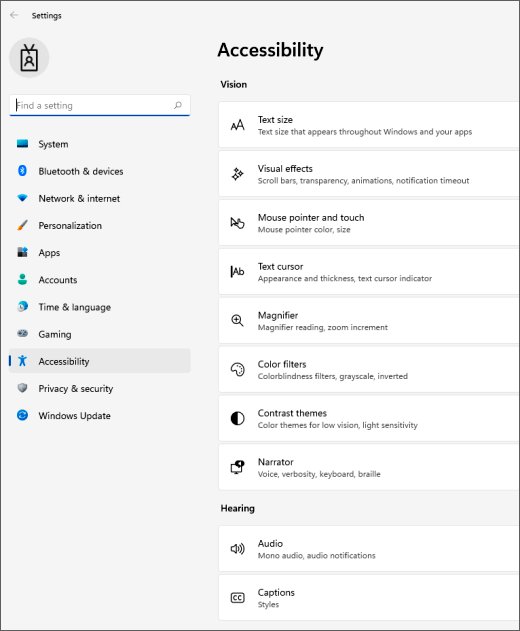
| Colour filters turned on | Whole screen greyed out but responsive | Settings > Ease of Access > Color filters |
| Monitor, cable or port fault | Grey panel before Windows loads | Hardware checks and firmware |
Preliminary Troubleshooting Steps
These checks cost nothing and rule out half the causes before you touch a setting.
- Check the video cable is seated firmly at both ends, at the PC and at the display.
- Swap the video cable for a known-good one of the same type.
- Move the cable to a different video output on the PC if one is free. Typical ports are HDMI, VGA, DVI and DisplayPort.
- Connect the display to another computer to see whether the display itself is at fault.
- Unplug every USB device except the keyboard and mouse.
- Press and hold the power button for 20 seconds to force a shutdown, then start the PC.
A grey screen that also appears on a second computer is a display fault, and nothing in Windows will change it.
Boot into Safe Mode
Safe Mode loads a basic display driver and no startup apps. A grey screen that disappears there is caused by software.
- Press and hold the power button for 10 seconds to shut the PC down.
- Press the power button to start it, then hold the power button for 10 seconds again as soon as Windows begins to load.
- Repeat until the PC starts the Windows Recovery Environment.
- Select Troubleshoot > Advanced options > Startup Settings > Restart.
- Press 5 or F5 to choose Safe Mode with Networking.
From a desktop that still works, hold Shift while you select Restart to reach the same Advanced startup menu without forcing shutdowns.
To leave Safe Mode later, press Win + R, type msconfig, open the Boot tab and clear the Safe boot checkbox.
In-Depth Solutions for Fixing the Grey Screen: Update or Roll Back Graphics Drivers
Do this from Safe Mode if the normal desktop never draws. Device Manager works there.
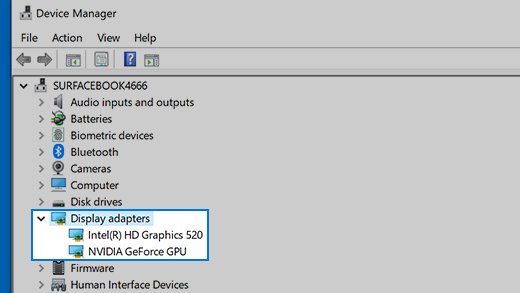
- Right-click Start and select Device Manager.
- Select the arrow next to Display adapters and right-click your graphics card.
- Select Update driver, then Search automatically for updated driver software.
- If the grey screen began after a driver change, right-click the card and select Properties instead.
- Open the Driver tab and select Roll Back Driver.
- Choose a reason when prompted, select Yes, and restart the PC.
A display driver that half-loads can also produce flicker rather than grey; the same roll back clears both, and Fix Screen Flashing Issue in Windows 10 covers that symptom in detail.
Boot into Low-Resolution Video Mode
Low-resolution video mode starts Windows at a low resolution with a basic driver, which is enough to reach Settings when the normal resolution produces grey.
- Reach the Windows Recovery Environment, then select Troubleshoot > Advanced options > Startup Settings > Restart.
- Press 3 or F3 to choose Enable low-resolution video.
- Sign in when the desktop appears.
- Open Settings > System > Display and set Display resolution back to the value marked (Recommended).
- Restart the PC normally.
Restart the Windows Explorer Process
Use this when the pointer moves but the desktop, icons and taskbar are missing.
- Press Ctrl + Shift + Esc to open Task Manager.
- Select More details if it opens in compact view.
- Find Windows Explorer, right-click it and select Restart.
- If Windows Explorer is not listed, select File > Run new task, type
explorer.exeand press Enter.
Run System File Checker (SFC) and DISM
Damaged system files produce a grey desktop alongside apps that fail to launch. Repair the component store first, then the protected files.
DISM.exe /Online /Cleanup-image /Restorehealth
sfc /scannow
Type cmd in the search box, right-click Command Prompt and select Run as administrator. DISM.exe /Online /Cleanup-image /Restorehealth repairs the component store that sfc draws replacement files from, so run it first and let it finish. sfc /scannow then scans every protected system file and replaces any incorrect version. Do not close the window until the verification reaches 100%.
You should see: Windows Resource Protection did not find any integrity violations. or Windows Resource Protection found corrupt files and successfully repaired them. Details land in %windir%\Logs\CBS\CBS.log. If you see Windows Resource Protection could not perform the requested operation., run the scan again in Safe Mode.
Check for Windows Updates
An update can fix a grey screen or cause one, so this section works in both directions.
- Select Start > Settings > Update & Security > Windows Update.
- Select Check for Windows updates and install everything offered, including optional driver updates.
- Restart the PC and sign in.
- If the grey screen instead started the day an update installed, open View update history on the same page.
- Select Uninstall updates and remove the most recent quality update.
- Restart and check the desktop again.
Perform a Clean Boot to Disable Third-Party Applications
A clean boot starts Windows with Microsoft services only. If the grey screen vanishes, a third-party app or service is causing it.
Security suites and overlay tools are common offenders; Windows 8 Showing Black Screen Due to Avast is an example of exactly this pattern.
- Press Win + R, type
msconfigand select OK. - On the Services tab, select Hide all Microsoft services, then select Disable all and select Apply.
- Open the Startup tab and select Open Task Manager.
- Select each item marked Enabled and select Disable. Write down what you turn off.
- Close Task Manager, select OK in System Configuration and restart the PC.
- If the grey screen is gone, re-enable the services and startup items a few at a time until it returns. The last group you enabled holds the culprit.
- Uninstall the app you identify from Settings > Apps.
To return to a normal startup, open msconfig, select Normal startup on the General tab, clear Hide all Microsoft services on the Services tab, select Enable all, and re-enable your startup items in Task Manager.
Create a New User Profile
A grey screen that appears for one account and not another is a damaged profile, not a damaged Windows installation.
- Open Settings > Accounts > Other users.
- Under Add other user, select Add account.
- Select I don't have this person's sign-in information.
- Select Add a user without a Microsoft account, then set a user name and password.
- Select the new account, select Change account type next to Account options, and pick the administrator role if you need admin rights.
- Sign out, sign in to the new account, and check the desktop.
Copy your documents, pictures and downloads across from the old profile folder once the new account is working.
Troubleshooting Hardware-Related Issues and Firmware
A grey panel that appears before the Windows logo is hardware or firmware. No Windows setting reaches it.
- Test this display on another computer, and test another display on this computer, to identify which unit is faulty.
- Try each video output on the PC in turn, including HDMI, DisplayPort, DVI and VGA.
- Remove adapters, splitters and docks from the chain and connect the display straight to the PC.
- On a desktop with onboard graphics, move the cable to the motherboard's video port to take the add-in card out of the picture.
- Open the display's own on-screen menu and confirm the input source matches the port you are using.
- Install the current BIOS or UEFI firmware and chipset drivers from your PC maker's support site, using your model or serial number.
- Install the graphics driver from the GPU maker's own support site if the card is an add-in card.
Reset Windows 10
A reset reinstalls Windows and undoes every software cause at once. Keep it for last, and back up anything you cannot lose first.
- Select Start > Settings > Update & Security > Recovery.
- Under Reset this PC, select Get started.
- Select Keep my files to keep personal files, or Remove everything for a clean slate.
- Select Cloud download to pull a fresh copy of Windows, or Local reinstall to rebuild from the files already on the PC.
- Follow the prompts and let the PC restart as many times as it needs.
If the desktop never loads, reach the same option from the Windows Recovery Environment under Troubleshoot > Reset this PC. Have the BitLocker recovery key to hand if the drive is encrypted.
How to check the grey screen is really gone
A grey screen that clears once can still be waiting on the next driver load. Confirm it properly.
- Restart the PC normally and sign in. The desktop, icons and taskbar should all draw within a few seconds.
- Press Win + Ctrl + Shift + B. The screen should flicker once and recover, not stay grey.
- Open Settings > System > Display and confirm Display resolution shows the value marked (Recommended).
- Open Device Manager, expand Display adapters, and confirm the card carries no warning icon.
- Play a video full screen for a minute so the graphics driver is under load, and watch for a flicker.
- Sleep the PC and wake it, because a stalled driver often shows itself on resume.
Fix a grey screen that comes back or never clears
Why is my Windows screen grey, but everything still responds?
A colour filter or the display's own picture mode is draining colour, not a fault in Windows.
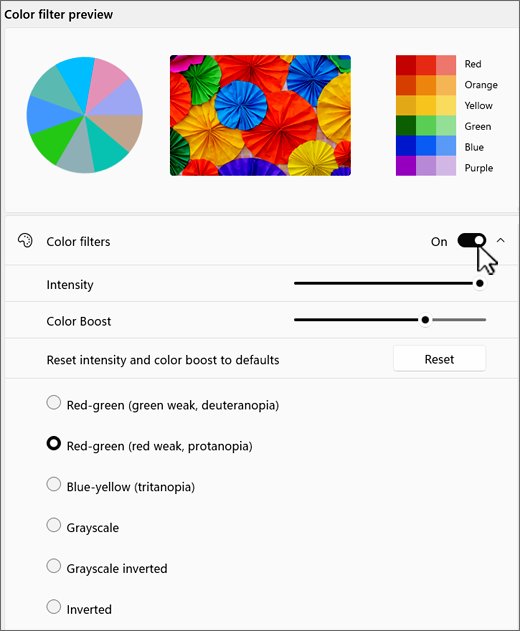
- Select Start > Settings > Ease of Access > Color filters.
- Turn off Turn on color filters.
- On Windows 11, the same switch sits under Settings > Accessibility > Color filters.
- If the switch was already off, open the monitor's own on-screen menu and check its picture mode and saturation settings.
How to fix a grey screen on a laptop
The internal panel, its ribbon cable or the hybrid graphics switch fails while the rest of the machine keeps running.
- Connect an external display by HDMI or USB-C and press Win + P, then select Duplicate.
- If the external display is correct, the internal panel or its cable is the fault and needs service.
- If both screens are grey, boot into Safe Mode and roll back the display driver.
- Install the display driver from the laptop maker's support site rather than a generic package, because hybrid graphics laptops need the vendor build.
- Open Settings > System > Display and move the Brightness slider up, in case the panel is lit but dim.
How to fix a grey screen on Windows 11
Windows 11 uses the same display stack, so the fixes match. Only the Settings paths moved.
- Press Win + Ctrl + Shift + B to reset the graphics driver, exactly as on Windows 10.
- Open Settings > Windows Update to install pending updates and driver updates.
- Open Settings > Accessibility > Color filters to rule out a filter.
- Open Settings > System > Recovery for Advanced startup, Safe Mode and Reset this PC.
How to fix the Discord grey screen on Windows 11
One app renders grey while the desktop is fine, so the fault is in that app's renderer.
- Press Ctrl + Shift + Esc, find the app on the Processes tab, right-click it and select End task, then reopen it.
- Open the app's own settings and turn off its hardware acceleration option, then restart the app.
- Open the same service in a browser to confirm the account and network are fine.
- Reinstall the app from its official site if the grey window survives both.
- Browsers show the same pattern; Fix Chrome shows black Screen when minimized or maximized walks through the browser version of this fault.
How to get rid of a grey screen that returns after every restart
The same driver or startup item loads on each boot and stalls the desktop again.
- Boot into Safe Mode and confirm the desktop draws there.
- Roll back the display driver in Device Manager under Display adapters.
- Run a clean boot to find the startup item or service responsible.
- If the grey screen returns only after Windows Update installs a display driver, install the PC maker's own driver package so Windows keeps that version.
Preventive Measures to Avoid Future Grey Screen Issues
Every grey screen above traces back to a driver, an update or a cable. These habits close all three.
- Keep System Restore turned on, so a bad display driver can be undone in minutes instead of rebuilt.
- Note the display driver version that works, so you always have a roll back target.
- Install graphics drivers from the GPU maker's or PC maker's own support site, never from a bundled driver tool.
- Install Windows quality updates promptly from Settings > Update & Security > Windows Update rather than letting months stack up.
- Check your PC maker's support site for BIOS or UEFI firmware once or twice a year.
- Replace any video cable that has to be wiggled to hold a picture, and keep the ports free of dust.
When to Seek Professional Help
Stop and book hardware service when the grey screen appears before the Windows logo, survives a full reset, or follows a drop or a spill. Those three signs point at the panel, the video cable or the graphics chip, and no Windows setting reaches any of them. A machine still under warranty should go back to its maker rather than be opened, because opening it usually voids the cover.
Additional Resources
Every path, key and command above comes from these official pages.
| Official page | What it settles |
|---|---|
| Troubleshooting blank screens in Windows | Graphics driver reset, projection modes, restarting Windows Explorer |
| Start your PC in safe mode in Windows | Startup Settings keys, including low-resolution video and Safe Mode with Networking |
| Use the System File Checker tool | DISM and sfc order, the result messages and the CBS log path |
| How to perform a clean boot in Windows | The msconfig steps and the route back to a normal startup |
| Reset your PC | Keep my files, Remove everything, Cloud download and Local reinstall |
| Troubleshoot external monitor connections in Windows | Cable, port and second-display checks |
| Update drivers manually in Windows | Device Manager driver update and Roll Back Driver steps |
Frequently Asked Questions
Why is my Windows screen grey?
A grey screen almost always means the display driver stalled or Windows Explorer crashed while Windows itself kept running. Press Win + Ctrl + Shift + B to reset the graphics driver, then press Ctrl + Shift + Esc and restart Windows Explorer from Task Manager.
How do I fix a grey screen on Windows 11?
Windows 11 uses the same display stack, so Win + Ctrl + Shift + B and a Windows Explorer restart work identically. The Settings paths differ: colour filters sit under Settings > Accessibility > Color filters, and Safe Mode and Reset this PC sit under Settings > System > Recovery.
How do I get rid of a grey screen when the mouse pointer still moves?
A moving pointer proves the graphics driver is alive and the shell has crashed. Press Ctrl + Shift + Esc, right-click Windows Explorer and select Restart. If it is not listed, select File, then Run new task, type explorer.exe and press Enter.
How do I fix a grey screen on a laptop?
Connect an external display and press Win + P, then select Duplicate. A correct picture on the external display means the internal panel or its cable is faulty and needs service. If both screens are grey, boot into Safe Mode and roll back the display driver.
How do I fix the Discord grey screen on Windows 11?
A grey window in one app while the desktop is fine is an app fault. End the app on the Processes tab of Task Manager and reopen it, then turn off hardware acceleration in the app's own settings. Open the service in a browser to confirm your account works.
Why does my screen look gray and washed out in Windows?
A colour filter is the usual cause when the screen is grey but fully usable. Select Start, Settings, Ease of Access, then Color filters, and turn off Turn on color filters. If it was already off, check the monitor's own picture mode.
How do I turn the screen gray on purpose?
Open Settings, select Ease of Access on Windows 10 or Accessibility on Windows 11, then select Color filters. Turn the colour filters switch on and pick a filter from the list. The change applies to everything on screen, including video and games.
How do I fix a gray computer screen that appears before Windows starts?
Nothing in Windows can fix that, because Windows has not loaded yet. Reseat the video cable, try another cable and another port, confirm the monitor's input source, and update the BIOS or UEFI firmware from your PC maker's support site.
How do I fix a grey screen on a PC that will not reach the desktop?
Force three shutdowns with the power button to reach the Windows Recovery Environment, then select Troubleshoot, Advanced options, Startup Settings and Restart. Press F5 for Safe Mode with Networking, then roll back the display driver in Device Manager.
How do I fix a grey screen on Android?
An Android grey screen is unrelated to Windows and none of these steps apply. Force a restart by holding the power button, then check the device maker's own support pages. A grey screen on a Windows PC connected to that phone is a Windows display fault instead.
Final Tips
Work outward from the keyboard: graphics driver reset, Windows Explorer restart, Safe Mode, driver roll back, and only then a reset. The first three cost seconds and clear the majority of grey screens, while a reset costs an afternoon and rebuilds a machine that may only have needed one driver rolled back.