To view your Google Maps Timeline, open the Google Maps app on your phone, tap your profile picture or initial, and tap Your Timeline.
Timeline now lives on each phone rather than on the web, so this guide covers Android and iPhone, backups, editing, exporting, deleting, and why it no longer opens on a computer.
The fastest way to open your Timeline
These steps are the same on Android and iPhone. Timeline must already be turned on, or the screen will be empty.
- Open the Google Maps app on your phone or tablet.
- Tap your profile picture or initial at the top right.
- Tap Your Timeline.
- Tap Today at the top (Android) or Show calendar (iPhone) to pick another day.
If Your Timeline is missing from the menu, update the Maps app first. Google lists version 11.106 or later on Android and 6.93 or later on iPhone and iPad.
What Google Maps Timeline and Location History are
Timeline is the Google Account setting that automatically saves your visits and routes on each signed-in device. Google's help pages still describe the Timeline map as built on your Location History, which is the older name readers search for.
| Question | Current answer from Google |
|---|---|
| What it records | Places you visited and routes you traveled, including walking, biking, driving or public transport |
| Where the data is stored | On each of your signed-in devices, not in a web Timeline |
| Is it on by default? | No. Timeline is off by default and only turns on if you opt in |
| How location is estimated | Wi-Fi and mobile network signals, GPS and sensor information |
| Does it run in the background? | Yes. Your precise device location is saved regularly, even when Google apps are not open |
| Cloud copy | Optional encrypted backup on Google's servers, turned on per device |
| What it does not change | Google Location Services, Location Sharing and Find Hub keep their own settings |
Before you start: what you need
| Requirement | Android | iPhone and iPad |
|---|---|---|
| Google Maps app version | 11.106 or later | 6.93 or later |
| Device support | Not available on Android Go devices | Supported |
| Device location | Location is on in Timeline settings | Location Services set to Always for Google Maps |
| Timeline setting | Timeline is on | Timeline is on |
| Account | Signed in to the Google Account that owns the history | Signed in to the Google Account that owns the history |
| Older history on a new phone | A Timeline backup from the old device | A Timeline backup from the old device |
How to view Google Maps Timeline on Android
- Open the Google Maps app on your Android phone or tablet.
- Tap your profile picture or initial, then tap Your Timeline.
- Read today's visits and routes in the list and on the map.
- Tap Today at the top to open the calendar.
- Swipe left or right on the calendar and tap the day you want.
- Switch between the Places, Cities and World tabs at the top to browse where you have been.
How to view Google Maps Timeline on iPhone
Before you start, confirm that iPhone location permission for Google Maps is set to Always, or Timeline has gaps whenever Maps is closed.
- Open the Google Maps app on your iPhone or iPad.
- Tap your profile picture or initial, then tap Your Timeline.
- Tap Show calendar to find another day or month.
- Swipe left or right, then tap a day.
- Use the Places, Cities and World tabs at the top to browse trips, cities and countries.
Can you view Google Maps Timeline on a computer?
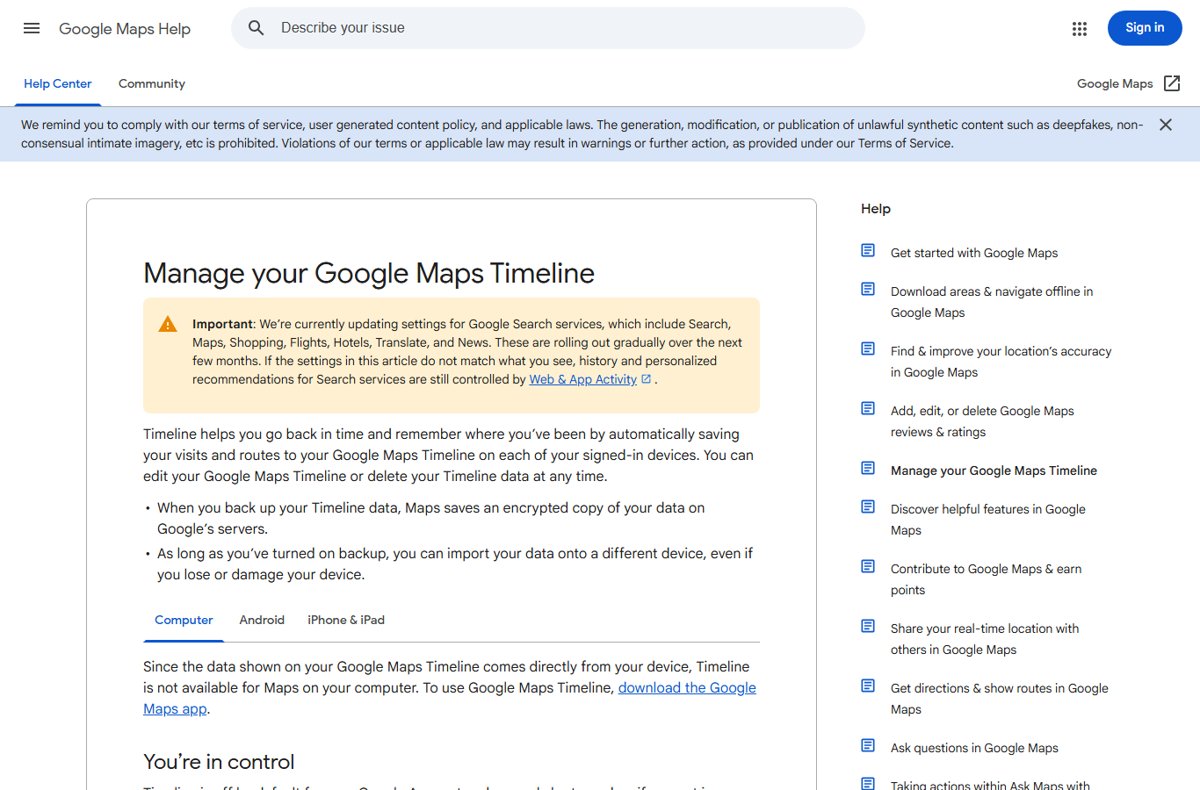
No. Google's Computer help page states that Timeline is not available for Maps on your computer, because the data shown comes directly from your device. Google tells computer users to download the Google Maps app instead.
| Task | On a computer | In the phone app |
|---|---|---|
| View visits, routes and the calendar | Not available | Your Timeline |
| Edit a visit or add a missing place | Not available | Edit > Edit day |
| Delete one visit, one day or a date range | Not available | Available |
| Turn Timeline off or delete all of it | Available in My Google Activity | Available |
| Delete backups from every device | Available in My Google Activity | Per device only |
To look at an Android export on a PC, export the file on the phone first and copy it across. Google does not offer a web viewer for that file.
How to turn on Location History (now called Timeline)
Turning Timeline on means Google regularly saves each device's precise location to that device, including when Google apps are not open.
- Open the Google Maps app and tap your profile picture or initial > Your Timeline.
- Tap More > Location & privacy settings.
- Under Location settings, check for Location is on (Android) or Location Services is on (iPhone).
- If location is off on Android, tap Location is off and turn on Location. On iPhone, tap Location Services is not set to always > Location > Always.
- Under Location settings, tap Timeline is off.
- Turn on Timeline. On iPhone, tap Turn on > Turn on.
You can also switch it from your Google Account: open the Timeline section of your account and turn Timeline on at the top. On iPhone, the Google app route is Manage your Google Account > Data & privacy > History settings > Timeline.
How to enable Timeline backup
A backup stores an encrypted copy of your Timeline on Google's servers so you can move it to a new phone. You must opt in separately on each device, and changes can take a few days to reach the backup.
- Open Google Maps and tap your profile picture or initial > Your Timeline.
- Tap the cloud icon at the top right.
- On iPhone, if auto-delete is on, tap Don't auto delete activity when asked.
- On the Backup screen, turn on Backup.
- Tap Turn on (Android) or Yes (iPhone) to confirm.
Restore Timeline on a new phone: open Your Timeline, tap the cloud icon, pick the old device under Your backups, tap More > Import, then tap Import on the Import Timeline from backup screen.
How to search and understand your Timeline
Timeline shows two kinds of entries: visits to places and the routes between them, each labelled with how you traveled. Use the table to jump to the right tool for what you remember.
| What you remember | Where to look | What you get |
|---|---|---|
| A date | Today (Android) or Show calendar (iPhone), then tap the day | That day's visits and routes |
| A place but not the date | Search the place in Maps, scroll to the bottom, tap Your visits and Maps history | The last time you visited it |
| Only the kind of place or the city | The Places and Cities tabs | Visited places grouped for browsing |
| A country or trip abroad | The World tab | Countries you have visited |
| Home or work | Save home and work addresses to your Google Account | They show up labelled on Timeline |
| Distances in the other unit | Profile > Settings > Navigation > Distance units (Android) | Automatic, Kilometers or Miles |
How to edit Google Maps Timeline
Edits stay on the device where you make them. They do not sync to your other phones.
- Open Google Maps and tap your profile picture or initial > Your Timeline.
- Open the day with the wrong entry.
- At the bottom right, tap Edit > Edit day.
- Scroll to the incorrect entry.
- Choose the right place from the Select place dropdown. If it is not listed, tap Search for a place (iPhone).
- To fix the time, tap the entry time, enter the correct time and tap Save.
- Tap Done.
When you edit, you can choose to share your edits with Google to improve Timeline accuracy. Manage or delete that shared data in My Google Activity.
How to delete Location History and Timeline data
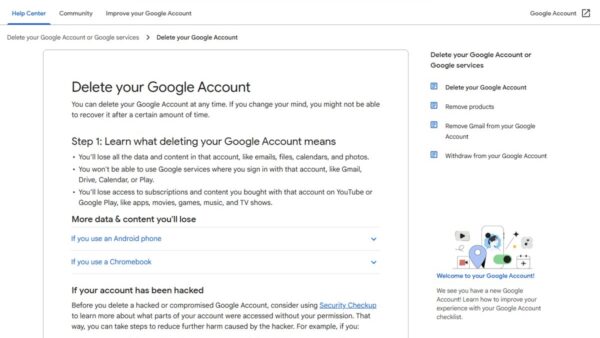
Deleted Timeline data is permanently deleted and cannot be recovered. Deleting on one device does not delete copies on your other devices or in your backups.
| What to delete | Path in the Google Maps app | Final step |
|---|---|---|
| One place or activity | Your Timeline > Today > pick the day > More next to the visit | Remove, then follow the prompts |
| One day | Your Timeline > Today > pick the day > More | Delete day > Delete |
| A date range | Your Timeline > More > Location & privacy settings | Delete range of Timeline data |
| All Timeline data | Your Timeline > More > Location & privacy settings | Delete all Timeline data |
| Old data automatically | Your Timeline > More > Location & privacy settings | Auto-delete Timeline and choose 3, 18 or 36 months |
| This device's backup | Your Timeline > cloud icon > pick the device under Your backups > More | Delete > Turn off & delete |
| Backups for every device | My Google Activity > Menu next to Backing up data from # devices | Turn off and Delete Backups > Turn off & delete |
A factory reset also removes Timeline from that device, as does clearing Google Play services data on Android or deleting Google Maps on iPhone.
How to pause or turn off Location History
- Open Google Maps and tap your profile picture or initial > Your Timeline.
- Tap More > Location & privacy settings.
- Tap Timeline is on.
- Under Timeline, open the dropdown menu.
- Tap Turn off to keep existing history, or Turn off and delete activity to erase it as well.
From the Google app on iPhone, go to Data & privacy > History settings > Timeline, turn it off, then tap Pause > Okay. Turning Timeline off does not stop Location Sharing or Find Hub.
How to export your Location History
Export saves a copy of your on-device Timeline as a file you control. The route differs by platform: Android exports from the phone's Settings app, iPhone from inside Google Maps.
- Android: open the Settings app and tap Location > Location services > Timeline.
- Android: under Timeline, tap Export Timeline data > Continue, pick a storage location and tap Save. Wait for the Export complete notification.
- iPhone: in Google Maps, tap your profile picture or initial > Settings > Location & Privacy.
- iPhone: tap Export Timeline data, then Save to Files on the share sheet.
- iPhone: pick a storage location and tap Save. The file is named location-history.json.
How to check Timeline is recording
- Open Your Timeline and tap More > Location & privacy settings.
- Confirm Location settings shows Timeline is on and location is on.
- Carry your phone to a place you do not visit every day.
- Open Your Timeline again later that day and check that the visit and route appear under today.
- If you turned on backup, tap the cloud icon and confirm your device is listed under Your backups.
Why your Timeline is missing, blank, or inaccurate
Timeline will not open on a PC or in Google Maps on the web
Google no longer offers Timeline for Maps on a computer, because the data lives on your phone.
- Install or open the Google Maps app on your phone.
- Tap your profile picture or initial > Your Timeline.
- Use My Google Activity on the computer only to turn Timeline off or delete all of it.
Your Timeline is missing from the profile menu
The Maps app is too old, or the phone is an Android Go device where Timeline is not available.
- Update Google Maps to 11.106 or later on Android, or 6.93 or later on iPhone.
- Reopen the app and tap your profile picture or initial.
- On an Android Go device, use another phone, because Google does not support Timeline there.
Timeline is blank or has gaps
Timeline or device location is off, or iPhone location permission is not set to Always.
- Open Your Timeline > More > Location & privacy settings.
- Turn on location if it reads Location is off, or set iPhone location to Always.
- Tap Timeline is off and turn Timeline on.
- Check that auto-delete has not removed the period you are looking for.
Old history is missing on a new phone
Timeline is stored per device, so history only moves through a backup.
- On the new phone, open Your Timeline and tap the cloud icon.
- Under Your backups, select the old device.
- Tap More > Import, then Import.
- If no backup is listed, the old device never had backup turned on and the history cannot be imported.
"Your encrypted data is locked on this device"
The backup was encrypted on another device that has not confirmed your password.
- On the original device, open Your Timeline and tap Backup.
- Re-enter your password when prompted.
- Return to the new device and restore the backup.
- Without the original device, turn off Timeline backups and delete all existing backups, then create new ones.
Timeline shows the wrong place
In dense urban areas, Timeline can pick a nearby place instead of the one you visited.
- Tap Edit > Edit day and correct the entry.
- Turn on Search Services History, which Google says helps improve Timeline accuracy.
Privacy tips for using Timeline safely
| Tip | Why it matters |
|---|---|
| Set Auto-delete Timeline to 3 months | Old movements disappear without manual cleanup |
| Delete backups you no longer need | Backups stay on Google's servers after you replace a phone |
| Delete on every device, not just one | Deletions and edits do not sync between devices |
| Review Search Services History and Web & App Activity | They can still save location from your general area and IP address when Timeline is off |
| Check your camera app's location setting | Photos can store location separately from Timeline |
| Keep backup encryption tied to a device you control | Restoring needs that device or a fresh set of backups |
Common questions about Google Maps Timeline
How do I view my Google Maps Timeline?
Open the Google Maps app, tap your profile picture or initial, and tap Your Timeline. Tap Today on Android or Show calendar on iPhone to choose another day. Timeline must be turned on, or the screen stays empty.
How do I view Google Maps Timeline on a PC?
You cannot. Google states that Timeline is not available for Maps on your computer because the data comes directly from your phone. On a computer, My Google Activity only lets you turn Timeline off or delete all of it.
How do I view Timeline in Google Maps on the web?
Google Maps on the web no longer shows Timeline. Your visits and routes are stored on each signed-in phone, so view them in the Google Maps app on Android or iPhone under your profile picture > Your Timeline.
How do I check my timeline on Google Maps?
Tap your profile picture or initial in the Google Maps app, then Your Timeline. To check whether it is recording, open More > Location & privacy settings and confirm it says Timeline is on and location is on.
How do I get on Google Maps Timeline if it is not in the menu?
Update the Google Maps app to version 11.106 or later on Android, or 6.93 or later on iPhone. Timeline is not available on Android Go devices, so the menu entry never appears on those phones.
How do I access my Google Maps Timeline on a new phone?
Import it from a backup. Open Your Timeline, tap the cloud icon, choose the old device under Your backups, and tap More > Import. The old phone must have had Timeline backup turned on.
Where do I find Timeline in Google Maps settings?
Timeline settings sit under Your Timeline > More > Location & privacy settings. On Android, the phone's Settings app also has Location > Location services > Timeline, which is where the export option lives.
How do I do a Google Maps Timeline for the first time?
Turn it on. Open Your Timeline, tap More > Location & privacy settings, make sure location is on, then tap Timeline is off and turn it on. Visits start appearing as you move around with the phone.
Is Location History the same as Google Maps Timeline?
Yes, in practice. Google's help pages now call the setting Timeline, while some still describe the Timeline map as based on your Location History. Both names refer to the saved record of your visits and routes.