Apple does not offer a single printable PDF of the iPhone User Guide for current iOS versions, but you can save or print any part of the official online guide at support.apple.com/guide/iphone.
This guide shows where the official guide lives, how to pick your iOS version, and how to turn its pages into a PDF or a paper copy on iPhone, Mac and Windows.
How to download a printable iPhone User Guide
The official iPhone User Guide is a website, so the printable copy is one you make yourself from its pages.
The steps below work in Safari on a Mac, which has the most direct Save as PDF option.
- Open Safari and go to
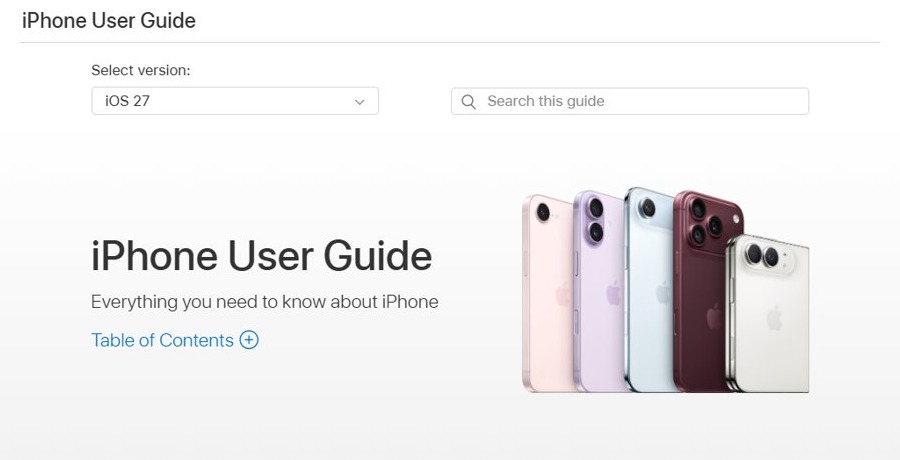
support.apple.com/guide/iphone. - Use Select version at the top of the page to pick the iOS version on your iPhone.
- Click Table of Contents and open the topic you want, or type a word into Search this guide.
- Choose File > Print.
- Open the PDF pop-up menu and choose Save as PDF, or pick a printer and click Print for a paper copy.
- Name the file, choose where to save it, and click Save.
Repeat for each topic you want in your printed copy. Each topic in the guide is its own page.
Is there an iPhone User Guide PDF?
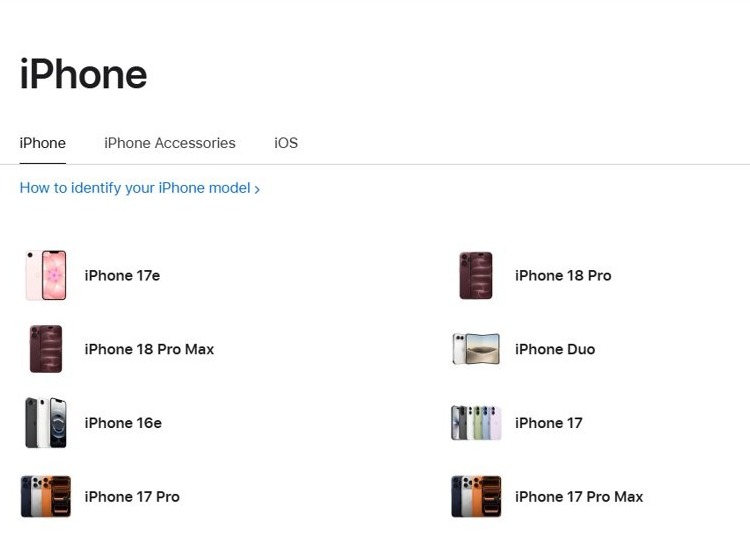
Apple's documentation pages at support.apple.com/docs list each iOS version and each iPhone model with the documents Apple publishes for it.
For recent iOS versions the only user guide listed is the online one. Older software sometimes had a PDF.
| Apple documentation page | User guide listed | Format |
|---|---|---|
| iOS 27 and iOS 26 | iPhone User Guide | Online guide at support.apple.com |
| iOS 15 | iPhone User Guide and iPod touch User Guide | Online guides at support.apple.com |
| iOS 8 | iPod touch User Guide for iOS 8.4 | |
| iPhone 17 model page | iPhone User Guide, iPhone 17 Repair Manual, iPhone 17 – Info | Online guide, online repair manual, and a short PDF info sheet |
The model pages link to the same online iPhone User Guide, because the guide is written per iOS version rather than per phone model. The "Info" PDF on a model page is not the user guide.
Where to find the official iPhone User Guide online
Every current Apple device guide sits on support.apple.com and opens with the same layout: a version picker, a search box and a Table of Contents button.
Bookmark the address for your device so you never need a third-party manual site.
| Device | Official user guide address | Versions in the picker |
|---|---|---|
| iPhone | support.apple.com/guide/iphone | iOS 12 to iOS 27 |
| iPad | support.apple.com/guide/ipad | iPadOS 13 to iPadOS 27 |
| Mac | support.apple.com/guide/mac-help | macOS High Sierra to macOS 27 |
| Apple Watch | support.apple.com/guide/watch | watchOS 5 to watchOS 27 |
| Any Apple product | support.apple.com/docs | Lists guides, manuals and PDFs per product |
How to find the iPhone User Guide for your iOS version
The guide changes with each iOS release, so check your version first and match it in the guide.
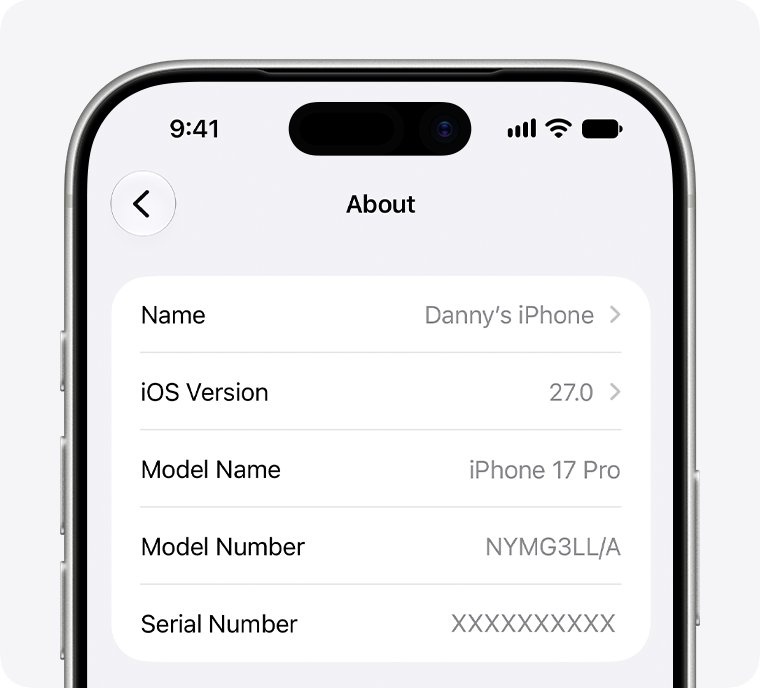
- On your iPhone, open Settings.
- Tap General, then tap About.
- Read the number next to iOS Version.
- Open
support.apple.com/guide/iphonein a browser. - Choose the matching iOS release from Select version. The page reloads with that version's guide.
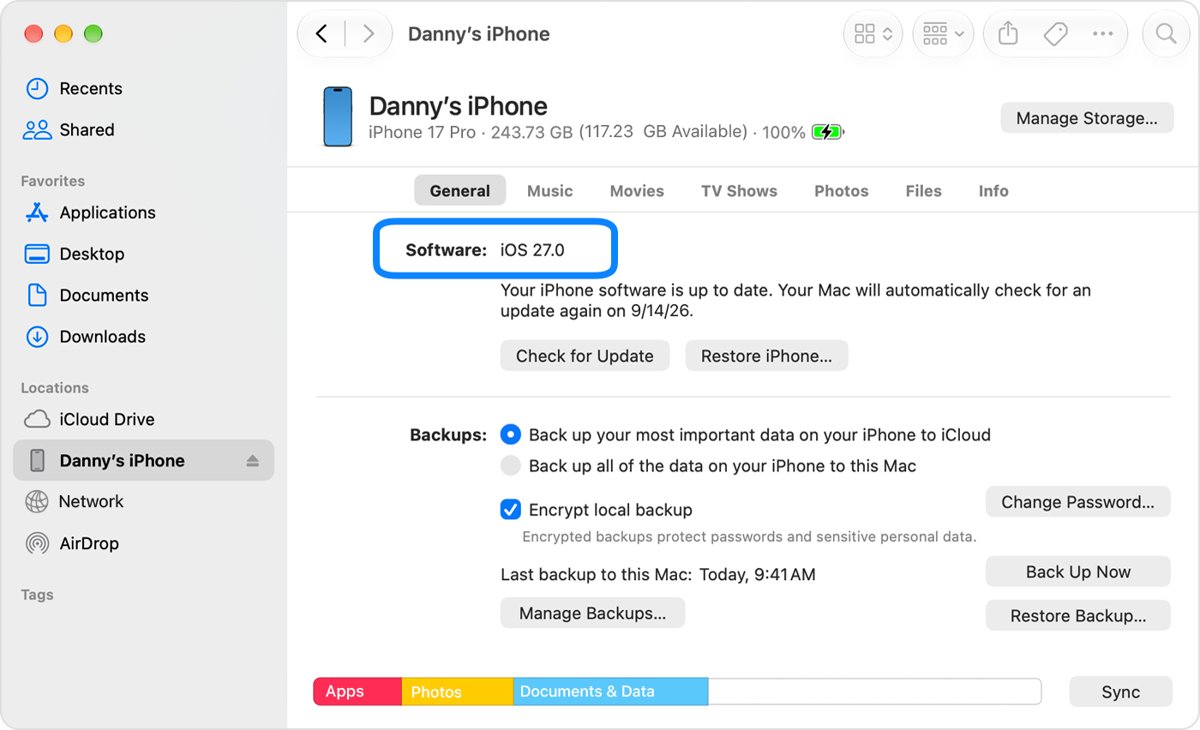
You can also read the version on a computer. Connect the iPhone and look on the General tab in the Finder or the Apple Devices app, or on the Summary tab in iTunes.
Save iPhone User Guide pages as a PDF on iPhone
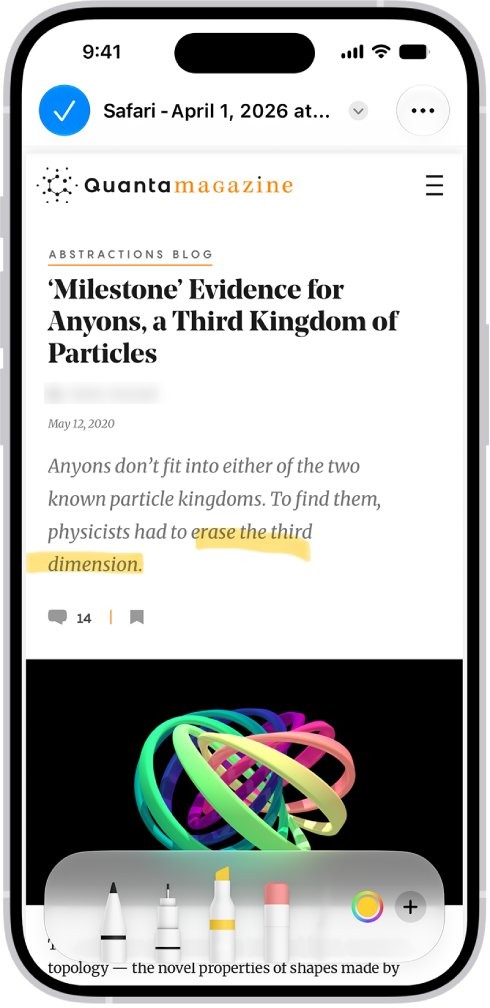
Safari on iPhone can turn any guide page into a PDF in the Files app, with your own highlights and notes if you want them.
- Open the Safari app and go to the iPhone User Guide topic you want.
- Tap Share. Depending on your Safari tabs layout, it is in the toolbar or behind the page menu beside the address bar.
- Tap Markup if you want to highlight or write on the page before saving.
- Choose Save File To.
- Enter a name for the file, then tap Save.
The PDF lands in the Files app, where you can find saved files on iPhone and share or print them later.
How to print the iPhone User Guide from iPhone
AirPrint sends a guide page straight from Safari to a supported printer. The printer and the iPhone must be on the same Wi-Fi network.
- Open the guide topic in Safari.
- Tap Share, then scroll down and tap Print.
- Tap No Printer Selected and choose your AirPrint printer.
- Set the number of copies and the page range.
- Tap Print in the upper-right corner.
The same route works for a PDF you saved earlier: open it in Files, tap Share, then Print. If your printer does not support AirPrint, there are other ways to print from your iPhone.
Print the iPhone User Guide from a Windows PC
On any Windows PC, Microsoft Edge can print web pages from the online guide, and Immersive Reader strips page clutter where the site supports it.
- Open
support.apple.com/guide/iphonein Microsoft Edge and go to the topic you want. - Press F9 to open Immersive Reader for a cleaner printout, if the icon appears in the address bar.
- Press Ctrl + P, or select Settings and more > Print.
- Choose your printer, then set Copies, Color and Pages.
- Open More settings to turn on Headers and footers or Background graphics if you want them.
- Select Print.
To print only part of a topic, highlight the text, right-click it and select Print. If Windows lists your printer as offline, bring the printer back online before you print.
Read the iPhone User Guide offline with Safari Reading List
If you want the guide on the phone rather than on paper, save topics to Reading List and let Safari keep offline copies.
- Open the guide topic in Safari on your iPhone.
- Tap Share, then tap Add to Reading List.
- Open Settings and tap Apps, then Safari.
- Turn on Automatically Save Offline below Reading List.
- Open your Reading List from the Safari start page to read saved topics without a connection.
To add a linked topic without opening it, touch and hold the link in the Table of Contents, then tap Add to Reading List.
How to download a printable page from the iPhone User Guide on Mac
Safari on Mac offers more than one way to keep a guide page, and the right one depends on whether you want paper, a PDF or a full offline copy.
| You want | Do this in Safari on Mac | Result |
|---|---|---|
| A PDF to print or share | File > Print, then PDF > Save as PDF | One PDF per topic, optionally password protected through Security Options |
| A paper copy | File > Print, choose the printer, click Print | Printed topic |
| An offline copy with working links | File > Save As, then Format > Web Archive | A web archive file that opens in Safari |
| One paragraph only | Highlight the text and drag it to a document or the desktop | A text clipping or pasted text |
iPhone User Guide printing not working
Print is missing from the Share menu on iPhone
Not every app supports printing, and the option sits lower in the Share menu.
- Open the guide page in Safari rather than inside another app.
- Tap Share and scroll down the list of actions to Print.
- If it is still missing, save the page as a PDF with Save File To, then print the PDF from Files.
The printer does not appear under No Printer Selected
AirPrint needs a supported printer on the same Wi-Fi network or a wired network connection.
- Connect the iPhone and the printer to the same Wi-Fi network.
- Ask the printer maker whether your model supports AirPrint.
- Note that printers attached by USB to an AirPort Base Station or Time Capsule, or by Bluetooth, cannot use AirPrint.
The printout includes menus and site navigation
The browser prints the whole web page, not just the guide text.
- In Microsoft Edge, press F9 to open Immersive Reader before printing.
- Or highlight the guide text only, right-click it and select Print.
- In Safari on iPhone, use Markup to mark the parts you need before you save the PDF.
Printable iPhone User Guide FAQ
Is there a free PDF user manual for iPhone?
Apple publishes the iPhone User Guide free of charge as an online guide at support.apple.com/guide/iphone. For current iOS versions it is not offered as one PDF file, but you can save any topic as a PDF from Safari on iPhone or Mac.
How do I download a printable page from the iPhone User Guide?
Open the topic in Safari on a Mac and choose File > Print, then pick Save as PDF from the PDF menu. On iPhone, tap Share, choose Save File To and tap Save. Both give you a PDF you can print later.
Where is the user guide for my iPhone 13 Pro Max?
The iPhone User Guide is written per iOS version, not per model, so an iPhone 13 Pro Max uses the same guide as other iPhones on that iOS release. Open support.apple.com/guide/iphone and choose your iOS version in Select version.
Can I get the iPhone User Guide for an older iOS version?
Yes. The Select version menu on the iPhone User Guide goes back to iOS 12. Pick the version shown under Settings > General > About > iOS Version, and the page reloads with the matching guide.
Where is the user guide for this computer if it is a Mac?
The Mac User Guide lives at support.apple.com/guide/mac-help. Its Select version menu covers macOS High Sierra through macOS 27, and you can print or save any topic as a PDF with File > Print.
Where can I find a printer user guide online?
Printer manuals come from the printer maker, not from Apple. Apple's AirPrint article tells you to contact the printer manufacturer to check AirPrint support, so look up your model on that maker's own support site.
Is it user guide or user's guide?
Both forms are used in English, but Apple calls its documents user guides: iPhone User Guide, iPad User Guide and Mac User Guide. Searching with Apple's exact name finds the official page fastest.
What is a user guide for iPhone?
The iPhone User Guide is Apple's official manual for iOS. It starts with setup basics and personalising iPhone, then covers each built-in app, with a Table of Contents and a search box at the top of every page.