To fix a Nintendo Switch that won’t charge, unplug the AC adapter for 30 seconds, hold POWER for 20 seconds, then plug the adapter directly into a wall outlet and the console.
These 14 fixes cover the original Nintendo Switch, Switch Lite and OLED Model. The newer Nintendo Switch 2 console has its own support article and battery figures.
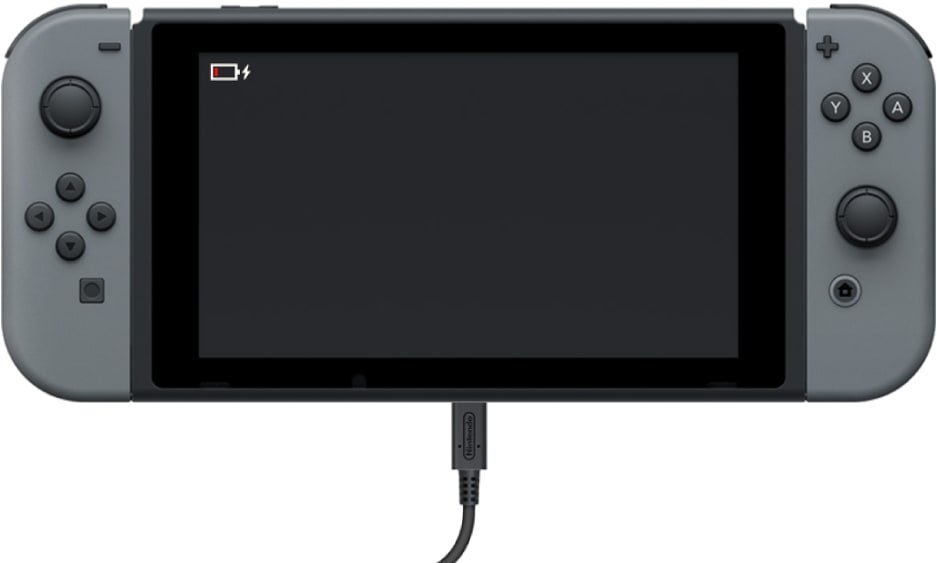
Fastest way to fix a Nintendo Switch that won’t charge
Take the console out of the dock first. A docked screen turns off by design, so it can look like a dead battery.
- Unplug the AC adapter from the wall and from the console or dock, then leave it unplugged for 30 seconds.
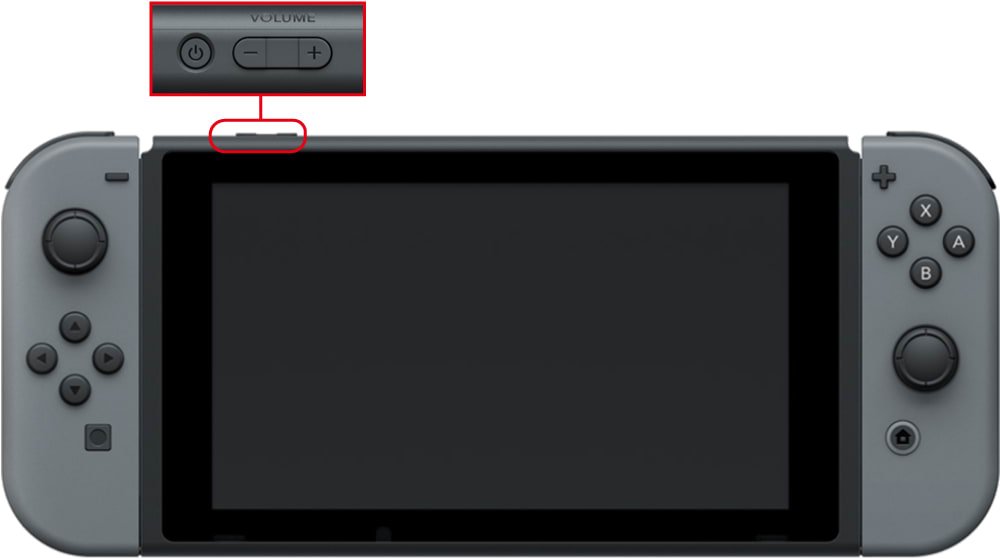
- Hold the POWER button on the console for 20 seconds, then release it to force a shutdown.
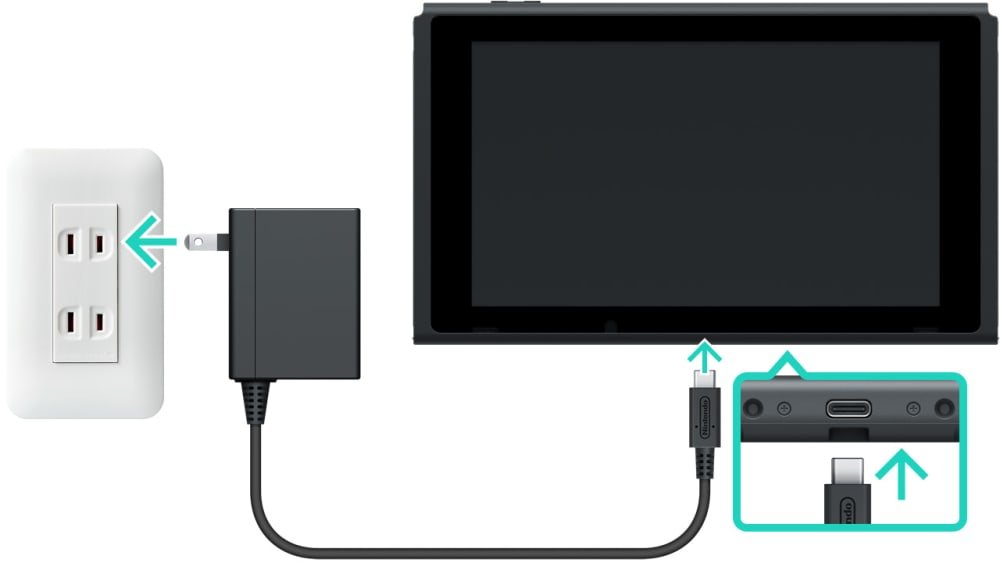
- Plug the AC adapter directly into a wall outlet, then into the USB-C port on the bottom of the console.
- Press POWER once and look for a battery charging icon.
- If the screen stays off or only flashes an indicator at the top left, charge for at least 30 minutes, then press POWER again.
A charging icon means the console and adapter are talking to each other. If no icon appears, work through the 14 fixes below.
Ways to charge your Switch
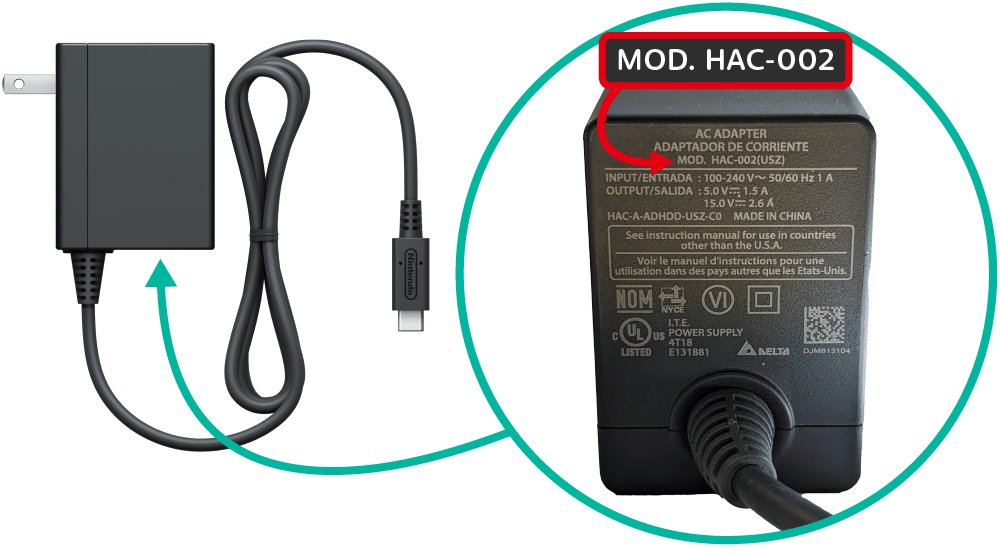
Nintendo documents three charging setups, and all of them use the same Nintendo Switch AC adapter, model HAC-002. Testing with the direct method first removes the dock and stand from the problem.
| Charging method | How to connect it | Works with |
|---|---|---|
| AC adapter directly | USB plug into the connector on the bottom of the console, then the adapter into a wall outlet | Nintendo Switch, Switch Lite, OLED Model |
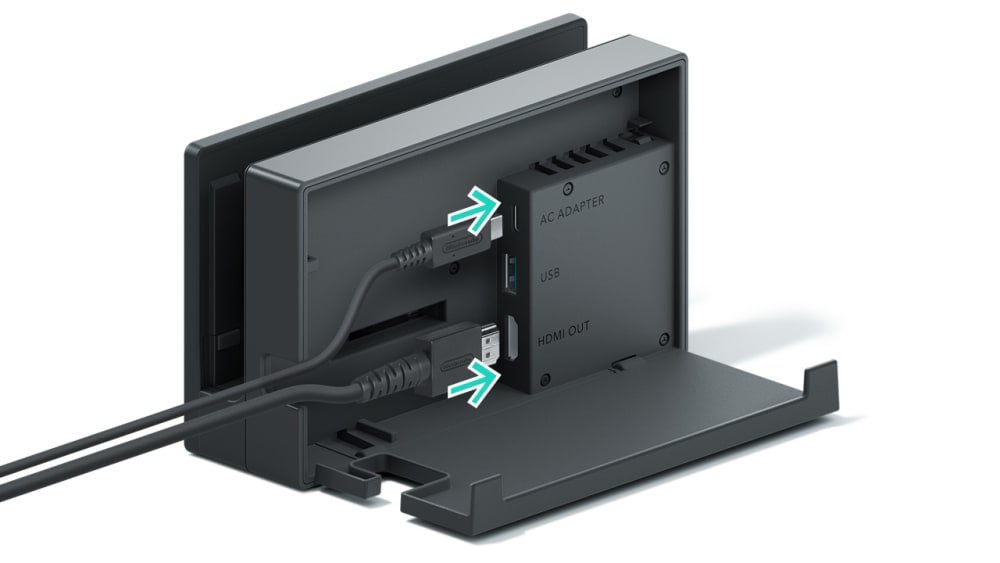
| Nintendo Switch dock (HAC-007) | Open the back cover, connect the adapter to the top terminal labeled AC Adapter, close the cover, seat the console, then plug into the wall | Nintendo Switch, OLED Model |
| Dock with LAN port (HEG-007) | Same connection as the standard dock, with the console screen facing the same way as the dock’s front panel | Nintendo Switch, OLED Model |
| Adjustable Charging Stand | Seat the console so the stand’s USB plug is fully inserted, connect the AC adapter to the stand, then plug into the wall | Nintendo Switch, Switch Lite, OLED Model |
Switch Lite does not work with either dock because it has no TV mode. Nintendo’s console charging page lists only the HAC-002 adapter as compatible.
How to fix my Switch not charging
Work through these in order. The early fixes take seconds and change nothing on the console, while the later ones involve menus or a repair.
1. Wait…
A nearly empty battery keeps the screen off when you first plug in, so a healthy console can look dead.
- Connect the AC adapter directly to the console.
- Watch the top-left corner of the screen for a charging indicator, which appears only for a moment.
- Leave the console plugged in for at least 30 minutes before you press POWER again.
2. Change your charging method
A fault in the dock or stand can look like a console that won’t charge.
- Remove the console from the dock or stand.
- Plug the AC adapter straight into the console.
- If the charging icon appears only with the direct connection, troubleshoot the dock or stand next.
3. Check your outlet
The adapter gets no power if the outlet itself has a problem.
- Plug the AC adapter directly into a wall outlet.
- If the console still shows no charging icon, move the adapter to a different outlet and test again.
4. Check your cables
The Switch adapter has a fixed cord, so visible cord damage means replacing the whole adapter.
- Look along the cord for fraying, splits or kinks, and check both connectors for looseness.
- Find the model number on the adapter and confirm it reads MOD. HAC-002.
- Replace the adapter if it is damaged or carries a different model number.
5. Reposition the Switch
A console that is not fully seated may not connect to the dock or stand.
- In a dock, lift the console out and seat it again with its screen facing the same way as the dock’s front panel.
- On the Adjustable Charging Stand, set the console flush against the stand with the USB plug fully inserted.
- Check that the adapter is connected to the terminal labeled AC Adapter behind the dock’s back cover.
6. Reset the AC adapter
Nintendo’s first charging step is a short power reset for the adapter.
- Unplug the adapter from the wall.
- Unplug it from the console or dock.
- Wait 30 seconds, then reconnect it to the wall first and the console second.
7. Reset the Switch
A forced shutdown clears a console that looks asleep or stuck.
- Hold POWER for 20 seconds.
- Release the button to complete the forced shutdown.
- Connect the adapter and press POWER once.
8. Update the Switch
Nintendo includes the latest system update in its charging and battery display fixes.
- Connect to the internet and select System Settings on the HOME Menu.
- Scroll down, select System, then select System Update.
- If the update fails, hold POWER for at least three seconds, select Power Options, select Restart, and try again.
9. Examine your charging port
Damage inside the USB-C connector stops power from reaching the battery.
- Inspect the USB-C connector on the bottom of the console in good light.
- Look for bent metal or other visible damage.
- Stop using the port if you find damage, because Nintendo says the console will need service.
10. Safe mode and soft reboot
The Switch has no PC-style safe mode. Its nearest tools are a normal restart from Power Options and the recovery menu called Maintenance Mode.
- For a soft reboot, hold POWER for at least three seconds, select Power Options, then select Restart.
- To reach Maintenance Mode, turn the console fully off, then hold volume up and volume down while you press POWER.
- Keep holding both volume buttons until the Maintenance Mode menu appears.
- Select Initialize Console Without Deleting Save Data only if the console also freezes or stops responding, because software on the microSD card must then be redownloaded.
11. Clean the charging ports
Nintendo publishes general cleaning advice for the Switch but no port-cleaning procedure.
- Turn the console off and unplug every accessory.
- Wipe the outside of the console with a soft cloth lightly dampened with water, then dry it with a clean part of the cloth.
- Never pour liquid onto the console, because moisture damages its rechargeable battery.
- If you see debris lodged inside the connector, send the console for service rather than probing the port.
12. Try other chargers
A second device or adapter tells you whether the adapter or the console has failed.
- Plug the adapter into another Nintendo USB-C product, such as a Pro Controller, Joy-Con Charging Stand or dock.
- If that device also fails to charge, replace the adapter.
- If you own another Nintendo Switch AC adapter, test it on the console.
- Avoid unlicensed chargers during this test, because Nintendo does not evaluate them and warns of compatibility problems.
13. Leave it to charge
Full charging takes about three hours with the console off or asleep, and longer during play.
- Put the console into sleep mode or turn it off.
- Leave the adapter connected for at least three hours.
- If the battery has not reached 100% after several hours, treat it as an adapter or port fault.
14. Reach out to Nintendo
A console that fails with a working HAC-002 adapter needs a repair, not another reset.
- Open Nintendo’s online service request process from its support site.
- Describe the charging tests you already ran.
- Include the AC adapter with the console so Nintendo can test both.
Initialize Console Without Deleting Save Data keeps saves, screenshots and user information, so you won’t need to make a new user account afterward.
Nintendo Switch not charging in the dock
Test the console with the adapter directly before you touch the dock. If direct charging works, power-cycle the dock with the steps below.
- Remove the console and disconnect every cable from the dock.
- Leave the AC adapter disconnected from both ends for at least 30 seconds.
- Open the back cover and plug the adapter into the top terminal labeled AC Adapter, then close the cover.
- Plug the adapter into a wall outlet.
- Seat the console with its screen facing the same way as the dock’s front panel.
- If the console charges directly but still not in the dock, contact Nintendo about servicing the dock.
When the adapter is first plugged into a dock, its power light may turn on for a moment. That brief light confirms the adapter is delivering power.
Nintendo Switch won’t turn on after charging
Run the forced shutdown from the first section, then check the screen. What appears there tells you which branch to follow.
A battery charging icon appears on a blank screen
The battery is nearly empty, and the console is accepting power.
- Charge for at least 15 to 30 minutes with an undamaged HAC-002 adapter.
- Press POWER to turn the console on.
- Install the latest update from System Settings > System > System Update.
- If the screen stays blank, send the console and adapter to Nintendo for service.
No charging icon appears on a blank screen
The adapter or the console’s USB-C connector is the likely fault.
- Test the adapter on another Nintendo USB-C product.
- Replace the adapter if it fails that test, shows damage or is not model HAC-002.
- Check the console’s USB-C connector for bent metal or other damage.
- Try a different adapter if you have one, then request service if the screen stays blank.
How to check Nintendo battery life
Check the battery after each fix so you can see whether the charge is rising. The HOME Menu can show a live percentage.
- Press ZL and ZR at the same time to show the battery percentage briefly.
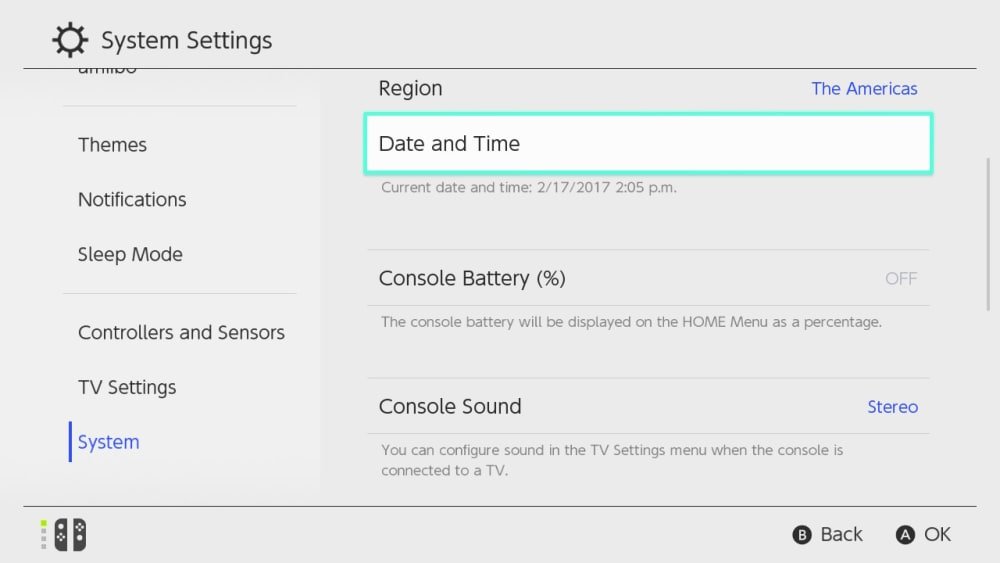
- For a constant readout, select System Settings on the HOME Menu.
- Scroll down the left side and select System.
- Select Console Battery (%), then press the A button to turn the percentage on.
- To see controller batteries, select Controllers on the HOME Menu.
Nintendo Switch battery percentage wrong or stuck at 1%
If the console plays for hours while reading almost empty, the indicator is wrong rather than the battery. Nintendo’s fix takes several rounds, and the reading improves gradually.
- Install the latest system update.
- Set Auto-Sleep to Never so the console stays awake during the battery drain.
- Connect the AC adapter directly until the battery reaches 100% or three hours have passed.
- Leave the console connected for one more hour.
- Disconnect the adapter and leave the HOME Menu on screen for three to four hours, or until the battery is almost empty.
- Turn the console off and leave it alone for at least 30 minutes.
- Repeat the charge, drain and rest steps several times.
Request service if the indicator shows no gradual improvement after several rounds.
How long does a Nintendo Switch battery last on a full charge?
Compare your real playtime with Nintendo’s range before you decide the battery has failed. Actual time depends on the game and the functions you use.
| Console | Model and serial prefix | Approximate battery life |
|---|---|---|
| Original Nintendo Switch | HAC-001, serial starts with XAW | 2.5 to 6.5 hours |
| Later Nintendo Switch | HAC-001(-01), serial starts with XKW | 4.5 to 9 hours |
| Nintendo Switch Lite | HDH-001 | 3 to 7 hours |
| Nintendo Switch – OLED Model | HEG-001, serial starts with XTW | 4.5 to 9 hours |
Does my Switch battery degrade?
Yes, the battery gradually loses capacity like most lithium-ion batteries. Nintendo says battery life drops to about 80% of a new console’s after about 800 charge cycles, and it treats that as normal. Request service if a console charges fully yet runs well below the listed range for its model.
Nintendo Switch charging FAQ
How do you charge a dead Nintendo Switch?
Connect a Nintendo Switch AC adapter directly to the console and a wall outlet, then charge for at least 30 minutes. The screen may stay off, with only a brief charging indicator at the top left. Press POWER after that time.
Is there another way to charge Switch?
Yes. Besides direct adapter charging, Nintendo Switch and OLED Model consoles charge in a dock. All three models, including Switch Lite, can also charge on the Adjustable Charging Stand. Each setup uses the Nintendo Switch AC adapter, model HAC-002.
How long does it take to charge Nintendo Switch to one percent?
Nintendo does not publish a one-percent figure. It says a nearly empty console should charge for at least 15 to 30 minutes before you press POWER. A full charge takes about three hours with the console off or in sleep mode.
Does the Switch charge faster in the dock?
Nintendo does not list a faster dock charging time. Its console charging page gives about three hours for a full charge, and both setups use the HAC-002 adapter. Charging takes longer when the console is in use.
Is it ok to charge Nintendo Switch overnight?
Nintendo’s charging pages set no limit on how long a console may stay plugged in, and its battery display fix even leaves the adapter connected for an hour after a full charge. Use an undamaged HAC-002 adapter and unplug it if you notice cord damage.
Can you charge a Nintendo Switch with a phone charger?
Nintendo lists only the Nintendo Switch AC adapter, model HAC-002, as compatible for console charging. It warns that unlicensed products skip its testing and may have compatibility problems. Rule out the phone charger by testing with a genuine adapter first.
Can you charge a Switch Lite in the dock?
No. Switch Lite does not support TV mode and is not compatible with either Nintendo Switch dock. Charge it directly with the HAC-002 AC adapter, or use the Adjustable Charging Stand, which also lists Switch Lite as compatible.
Why does my Switch say it is charging but the percentage does not go up?
A charge that never reaches 100% after several hours points to the AC adapter or charging port, so test the adapter on another Nintendo device. If the console still plays for hours while reading nearly empty, the battery indicator needs Nintendo’s repeat charge and drain process.