Connect a Brother printer to WiFi from its control panel: open Network > WLAN > Setup Wizard, pick your network, enter the password and wait for Connected.
This guide covers button, touchscreen and no-display models, WPS, hidden networks, computer and phone setup afterwards, and the fixes for common connection errors.
Connecting Brother printer to WiFi: Step by step
Have your network name (SSID) and password ready, and find your WiFi password on a connected device if you have lost it. The menu names below match Brother's HL-L2325DW instructions, and other models can use slightly different wording.
- Turn on your Brother printer.
- Press ▲ or ▼ to select Network, then press OK.
- Select WLAN, press OK, select Setup Wizard and press OK.
- Select On if the printer asks to enable WLAN.
- Select your network name from the list and press OK.
- Enter the password, which Brother calls the network key, and press OK.
- Select Yes if the printer asks to apply the settings.
- Wait for Connected to appear on the display.
Next, install the software on each computer or phone that will print. A printer that was on a wireless network before needs a network reset first.
Brother printer WiFi setup by model and router
| Your situation | Use this route | Why |
|---|---|---|
| Small LCD with arrow buttons | Network > WLAN > Setup Wizard | Lists nearby networks and asks for the password |
| A WiFi key on the control panel | WiFi > Find Wi-Fi Network | The same search, reached in one press on models like the MFC-J1010DW |
| Touchscreen | Settings > Network > WLAN (Wi-Fi) > Find Wi-Fi Network | Used on models like the MFC-J5010DW |
| No display at all | Brother's software package on a computer | There is no screen to type a password on |
| Router has a WPS button | Network > WLAN > WPS | The router sends its settings, so you type no password |
| Network name is hidden | <New SSID> in the Setup Wizard | A hidden network never appears in the list |
| No router available | Wi-Fi Direct | A phone joins the printer directly |
Connect Brother printer to WiFi on a touchscreen
These steps come from Brother's instructions for touchscreen inkjets such as the MFC-J5010DW and MFC-J6960DW.
- Press the Settings gear icon.
- Press Network, then WLAN (Wi-Fi), then Find Wi-Fi Network.
- Press Yes when Enable WLAN? appears, and let the printer search.
- Press ▲ or ▼ to find your network name, then press OK.
- Enter the network key if prompted, and press OK.
- Wait for Connected to appear.
Models with a WiFi key, such as the MFC-J1010DW, start differently. Press WiFi, select Find Wi-Fi Network, press OK, then press ► at Enable WLAN? and continue from the network list.
Connect Brother printer to WiFi using WPS
WPS suits routers with a WPS button and needs no password typing. These steps match the HL-L2350DW and HL-L2370DW, so place the printer within WPS range of the router first.
- On the control panel, go to Network > WLAN > WPS.
- Select On if WLAN Enable? appears.
- Turn on WPS on your router when the LCD asks, using its WPS button if it has one.
- Press ▲ on the printer.
- Press OK when Connected appears.
For the PIN version, go to Network > WLAN > WPS w/ PIN Code, note the 8-digit PIN on the LCD, and enter it in the router's WPS PIN page. Only one WPS device can be set up at a time, so do not start WPS on anything else during this.
Connect Brother printer to WiFi without a display
A printer with no screen gets its WiFi settings from a computer. Brother's instructions for no-screen models use the full software package from support.brother.com.
- Go to support.brother.com and open the downloads for your model.
- Download the Full Driver & Software Package on Windows, or the Full Software Package on a Mac.
- Run the installer and follow its prompts.
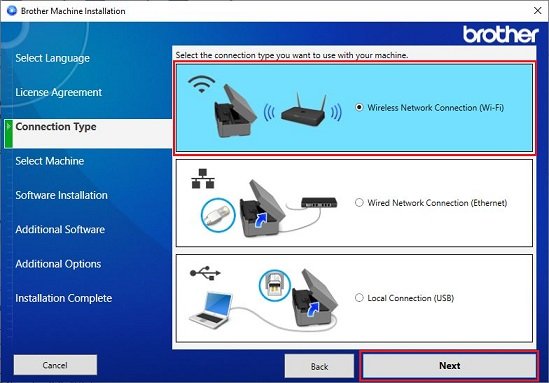
- On Windows, select Wireless Network Connection (Wi-Fi) and click Next.
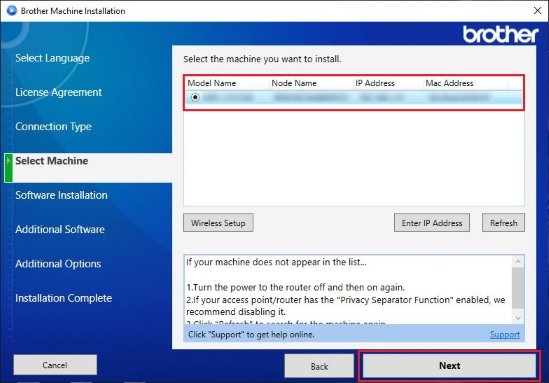
- On Windows, select your printer when the installer finds it, then click Next.
- Finish the remaining on-screen steps.
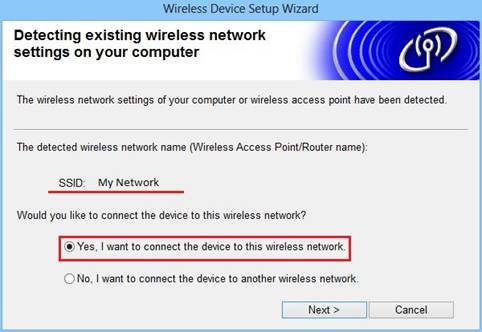
Some older Brother installers show a Wireless Device Setup screen. Choose Temporarily use a USB cable (Recommended), connect the cable, pick your network, enter the key, and disconnect the cable when told. The cable is not in the box.
Add Brother printer to Windows after WiFi setup
The printer can show Connected while Windows still has no driver for it. Brother's installer adds the printer and its scanning software.
- Go to setup.brother.com on the PC and download the installer.
- Run the installer and follow the wizard.
- Select Wireless Network Connection (Wi-Fi) and click Next.
- Select your printer from the list and click Next.
- Follow the remaining prompts to install the print and scan software.
When the printer is missing from that list, confirm the PC is on the same network and search again. You can also add a printer in Windows 11 from Settings once the printer has a valid IP address.
Add Brother printer to Mac over WiFi
- Open the Apple menu and select System Settings.
- Select Printers & Scanners, then Add Printer, Scanner, or Fax….
- Select your Brother printer from the list.
- Choose the Brother XXXX series driver from the Use list, where XXXX is your model.
- Click Add.
For scanning from a Mac, install Brother iPrint&Scan from the App Store.
Connect Brother printer to iPhone or Android
Brother's phone app finds printers on the network your phone is using. iPhone owners can also print from an iPhone once the printer is online.
- Connect the phone to the same WiFi network as the printer.
- Install Brother Mobile Connect from the App Store or Google Play.
- Open the app and tap Add Machine.
- Tap Add your machine to the app and select your printer from the list.
How to print a Brother network configuration report
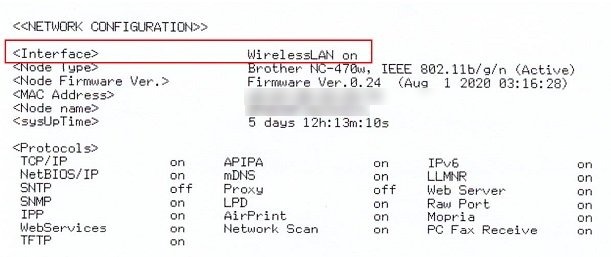
This report shows the network and IP address the printer actually joined. These steps match models like the HL-L3220CDW and HL-L5210DW.
- Use ▲ or ▼ to highlight Print Reports, then press OK.
- Highlight Network Config, then press OK.
- Press Go to print the report.
- Find the page whose Interface line at the top matches your wireless connection.
- Check that the SSID matches your network and the printer has a valid IP address.
An IP address of all zeros or one starting 169.254 means the connection failed. On the MFC-L2700DW, press Menu, 5, 6, then Start. On the MFC-J1010DW, press Settings, select Print Reports, select Network Config, then press ►.
How to reset Brother printer network settings
Brother asks for a network reset before you connect a printer that was on a wireless network before. It returns the network settings to factory defaults, so you set up WiFi again afterwards.
| Models | Reset path | Confirm with |
|---|---|---|
| MFC-J1010DW, MFC-J4335DW, MFC-J4355DW, MFC-T780DW, MFC-T980DW | Settings > Network > Network Reset | Hold ► for two seconds; the printer restarts |
| MFC-T580DW | Menu > Initial Setup > Reset > Network Reset | Press ▲ to confirm, then ▲ again for Yes |
For another model, search its number on Brother's support site, because the reset path changes by model.
Change WiFi password on Brother printer
A new router password stops the printer connecting until it gets the new key. A new router or network name needs the same steps.
- Reset the printer's network settings using the path for your model.
- Open Network > WLAN > Setup Wizard, or Find Wi-Fi Network on inkjets.
- Select your network name and press OK.
- Enter the new network key exactly as the router has it, and press OK.
- Wait for Connected, then print a network configuration report.
Connect Brother printer to a hidden WiFi network
A network that does not broadcast its name never appears in the printer's list. You need the name, authentication method and encryption type from your router.
- Open Network > WLAN > Setup Wizard and select On if asked.
- Select <New SSID> and press OK.
- Enter the network name exactly as the router has it, and press OK.
- Select Infrastructure and press OK.
- Select WPA/WPA2-PSK, select AES, and press OK.
- Enter the network key and press OK.
- Select Yes if asked to apply the settings, then wait for Connected.
Brother printer Wi-Fi Direct without a router
Wi-Fi Direct creates a secured link between the printer and a phone, with no router involved. These steps match the HL-L2325DW, HL-L2350DW and HL-L2370DW.
- On the printer, go to Network > Wi-Fi Direct > Manual.
- Select On if Wi-Fi Direct On? appears.
- Note the network name and password, which stay on screen for two minutes.
- Open WiFi settings on your phone and join that network with that password.
- Print with Brother iPrint&Scan once the LCD shows Connected.
Does Brother printer work with 5GHz WiFi?
Brother's compatibility article says the machines it lists connect only to the 2.4 GHz band and cannot see 5 GHz. A computer on 5 GHz can still print to a printer on 2.4 GHz.
| Your network | What happens | What to do |
|---|---|---|
| Dual-band router with one name per band | The network name shows twice on your computer, labeled by band | Join the printer to the 2.4 GHz name, often ending in g or 2G |
| Both bands share one name | The printer and computer can lose contact repeatedly | Give the 5 GHz network a unique name |
| Mesh system | The printer can go offline again and again | Split the name by band if the system allows it, then use 2.4 GHz |
| eero mesh router | Brother links these to frequent wireless drops and offers no further support | Use Ethernet if the printer has it, or USB |
Brother wireless LAN report error codes
Some Brother printers print a Wireless LAN report after a connection attempt. These codes come from Brother's list for the HL-2280DW and its mono laser relatives.
| Code | Meaning | Fix |
|---|---|---|
| TS-01 | Wireless is turned off | Unplug any LAN cable, run Setup Wizard and choose On at WLAN Enable? |
| TS-02 | Router or access point not found | Confirm the router is on, remove obstructions, and set up about one meter from it |
| TS-04 | Authentication or encryption method not supported | Set the router to WPA2-Personal with AES |
| TS-05 | SSID or network key is wrong | Recheck both against the router |
| TS-06 | Authentication, encryption or key is wrong | Compare all three with the router's settings |
| TS-07 | No WPS or AOSS router detected | Confirm the router supports it and turn it on at both ends |
| TS-08 | Two or more routers have WPS or AOSS active | Leave it on one router only, wait a few minutes and retry |
Additional tips for connecting Brother printer to WiFi
| Tip | Why it helps |
|---|---|
| Read the settings from the router's admin page, not its label | Brother warns that the printed label may be outdated |
| Type the key with the correct capitals | Network keys are case-sensitive and must match the router exactly |
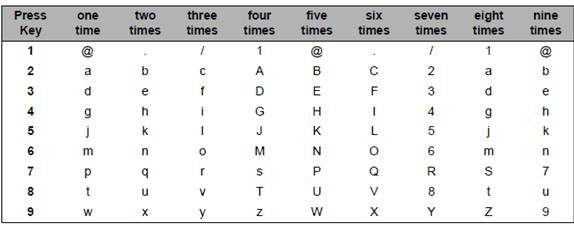
| Enter text with ▲ or ▼, OK and Back on LCD models | Hold or repeatedly press an arrow to pick a character, OK adds it, Back deletes it |
| Set up WPS close to the router, then move the printer | It can sit anywhere it still reaches the router once connected |
| Avoid WPA/WPA2 Enterprise networks with the home steps | Enterprise authentication uses a separate Brother procedure |
| Pick another route if WPS keeps failing | Brother recommends the control panel when one-push setup fails repeatedly |
Why won't my Brother printer connect to WiFi?
Brother printer shows Wrong Password or Wrong Network Key
The key, authentication method or encryption type does not match the router.
- Press OK and open the router's wireless security page.
- Check the key letter by letter, including capitals.
- Run the setup again with the key from the router.
Brother printer shows Connection Fail
The printer could not join the network, often because of the router's security or address settings.
- Turn the router off for about 15 seconds, then back on and wait a minute.
- Set the router to WPA2-PSK with AES, because WPA2-PSK with TKIP causes this error. You can change your WiFi router settings from its admin page.
- Confirm DHCP is on so the router assigns an IP address automatically.
- Allow the printer's address if MAC filtering is on, then run the setup again.
Brother printer shows Connection Error or No Access Point after WPS
Another WPS session overlapped, or the printer is too far from the router.
- Turn off WPS on other nearby devices.
- Move the printer closer to the router and try again.
- Use the Setup Wizard if WPS still fails.
Brother printer does not list my WiFi network
The network is on 5 GHz, or it is hidden and does not broadcast a name.
- Confirm the router's 2.4 GHz band is on and has its own name.
- Select that 2.4 GHz name on the printer.
- Choose <New SSID> and enter the name if the network is hidden.
Windows asks for a WPS PIN when adding a Brother printer
Wi-Fi Direct is on, and you are adding that connection through Printers and Scanners.
- Click Cancel on the WPS PIN request.
- Reset the printer's network settings.
- Reconnect the printer to WiFi from the control panel or the wireless setup wizard.
- Install the software package from support.brother.com.
Brother printer keeps going offline on WiFi
A mesh system or shared band name can drop the printer. Windows can also mark a printer as offline after those drops.
- Print a network configuration report and check the SSID and IP address.
- Join the printer to a 2.4 GHz name separate from the 5 GHz one.
- Use Ethernet or USB if your router keeps dropping it.
Brother Mobile Connect cannot connect to the printer
The phone and printer are on different networks, or the printer's connection has stalled.
- Print the report and confirm its SSID matches your phone's WiFi network.
- Turn the printer off and on, then wait at least three minutes.
- Restart the router, then turn WiFi off and on on your phone.
- Connect the phone to the 2.4 GHz band and add the printer using Not Connected.
- Move the printer closer to the router if it still fails.
Brother printer WiFi FAQs
Why won't my Brother printer connect to WiFi?
The usual causes are a wrong network key, a router using WPA2-PSK with TKIP, DHCP turned off, MAC filtering, or a network on 5 GHz. Restart the router, set it to WPA2-PSK with AES, and rerun the setup on the 2.4 GHz band.
Does every Brother printer support wireless connectivity?
No. Brother also sells printers with no wireless at all. The HL-L2400D, for example, lists Hi-Speed USB 2.0 as its only standard interface. Check the interface list on your model's product page before you look for WiFi settings.
Can I connect my Brother printer without using a USB cable?
Yes. The control panel Setup Wizard and WPS both connect the printer to WiFi with no cable. A USB cable only appears as a temporary option in some Brother computer installers, mainly useful when the printer has no display.
What should I do if I change my WiFi password?
Reset the printer's network settings, then rerun the Setup Wizard or Find Wi-Fi Network and enter the new key. It must match the router's spelling and capitals exactly. Print a network configuration report afterwards to confirm the printer has a valid IP address.
Can multiple devices print to the same Brother printer?
Yes. Any computer or phone on the same network can use the printer once it has Brother's software or app. A computer on the router's 5 GHz band can also print to a printer on the 2.4 GHz band.
How do I know if my Brother printer is connected to WiFi?
The display shows Connected at the end of setup. For proof, print the network configuration report and check the SSID and IP address. An address of all zeros or one starting 169.254 means the connection failed.
Can a Brother printer connect to 5GHz WiFi?
No, for the models in Brother's compatibility article. Brother says its machines connect only to the 2.4 GHz band and cannot see 5 GHz. Connect the printer to your router's 2.4 GHz network name, and give the 5 GHz network a different name.
What is the network key on a Brother printer?
The network key is your WiFi password. Brother also calls it the passphrase, WEP key or security key. Enter it when the printer asks, exactly as the router has it, because the printed label on a router may be out of date.