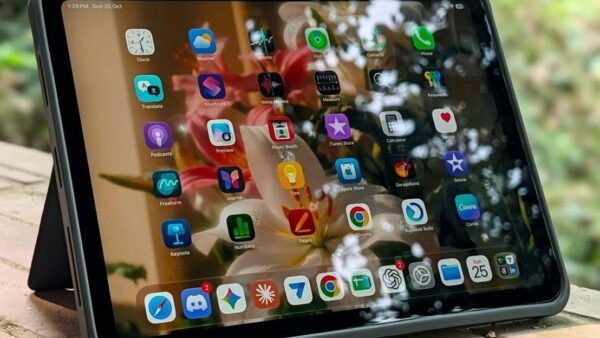
iPhone notifications stop popping up when a Focus is on, the app's Banners alert is unchecked, the app was muted from the Lock Screen, or Scheduled Summary is holding its alerts back.
This guide covers each of those settings, why alerts land silently in Notification Center or on an Apple Watch, missing sounds, and Lock Screen previews.
How to make iPhone notifications pop up as banners
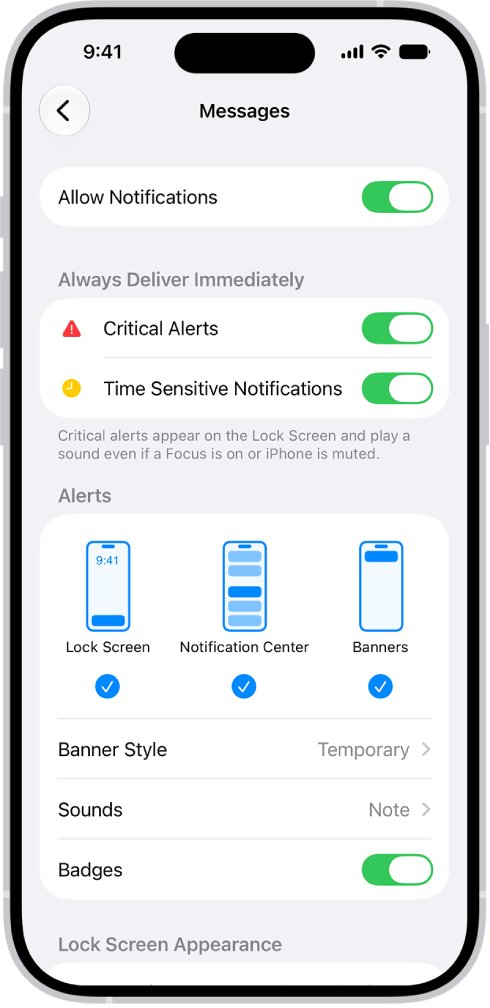
Apple's notification settings are per app, so start with the app whose alerts are not appearing. Banners are the alerts that slide onto the screen while you use the iPhone.
- Open Control Center and check the Focus tile. If a Focus such as Do Not Disturb is named there, tap it to turn it off.
- Open the Settings app and tap Notifications.
- Tap the app below Notification Style.
- Turn on Allow Notifications.
- Under Alerts, select Banners, and also Lock Screen and Notification Center if you want the alert kept there.
- If Notification Delivery appears, choose Immediate Delivery instead of Scheduled Summary.
- Turn on Sounds if you also want an audible alert.
Unless a Focus silences them, iPhone shows notifications as they arrive. Ask a friend to send a message, or trigger an alert in the app, to see the banner appear.
Why am I not getting notifications on iPhone?
Each setting below stops a notification from popping up in a different way. Match what you see to the row, then use the section for that cause.
| What you notice | Most likely cause |
|---|---|
| No alerts at all, and a Focus icon in the status bar | A Focus such as Do Not Disturb, Sleep, Work or Reduce Interruptions is on |
| Nothing from one app, even in Notification Center | Allow Notifications is off for that app |
| Alerts sit in Notification Center but never slide onto the screen | Banners is unchecked, or the app is muted for an hour or for the day |
| Alerts arrive in bunches at set times | The app is in Scheduled Summary |
| Alerts show on your Apple Watch, not the iPhone | The iPhone was locked and the watch was on your wrist |
| Banners appear but make no sound | Silent mode is on, the volume is down, or Sounds is off for the app |
| Mail alerts arrive late | Low Power Mode turns off email fetch |
| One Messages conversation never alerts | Hide Alerts is on for that conversation |
iPhone Focus blocking notifications
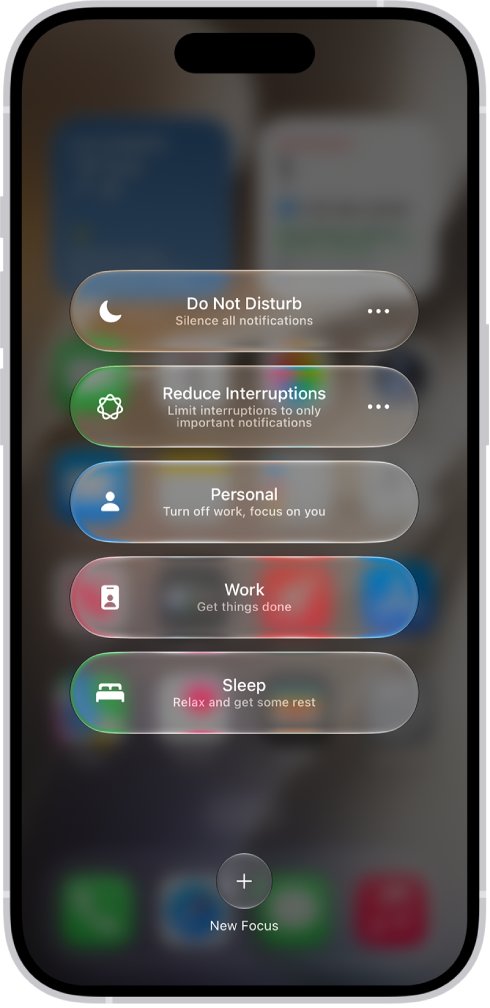
A Focus delays notifications so they do not interrupt you. Focus can also turn on by schedule, location or app, and from another Apple device when Share Across Devices is on.
- Open Control Center and tap Focus.
- Tap the Focus that is on, such as Do Not Disturb, Sleep or Reduce Interruptions, to turn it off.
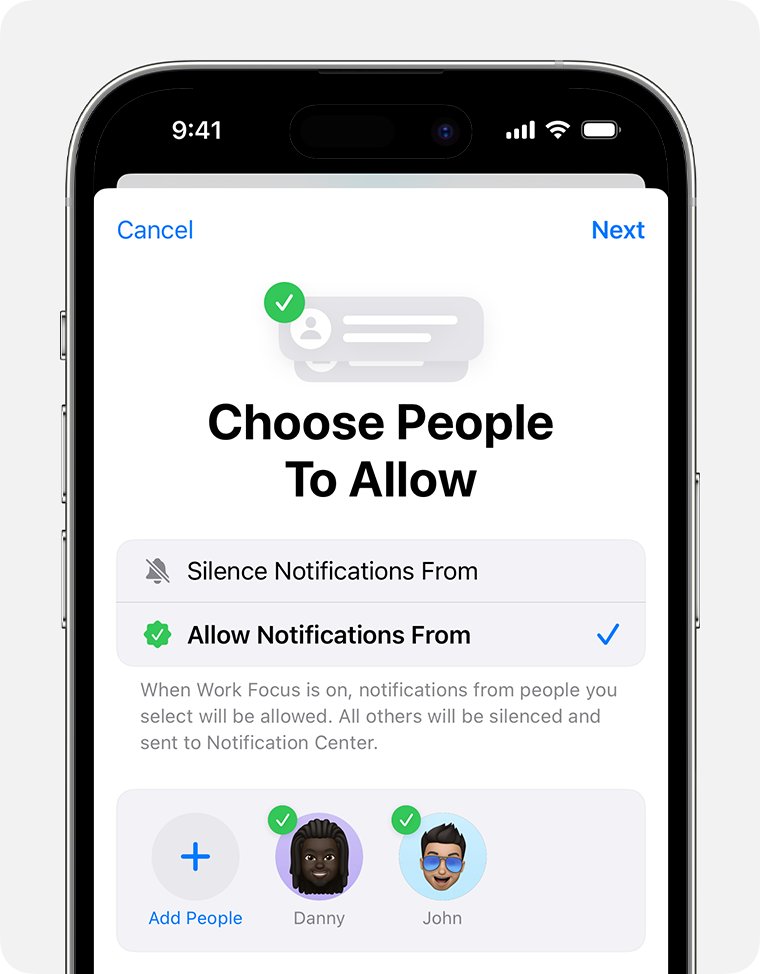
- To keep the Focus but let an app through, open Settings, tap Focus, then tap that Focus.
- Tap Apps (or Choose Apps), tap Allow Notifications From, then add the app.
- Tap People to add contacts whose notifications should still pop up.
- Turn on Time Sensitive Notifications in the same Focus so urgent alerts arrive immediately.
- Under Set a Schedule, tap any time listed and change it if the Focus turns on when you do not want it.
Driving Focus does not allow notifications from apps. If you use an iPad or Mac with the same Apple Account, check that it is not in a Focus too, because a shared Focus turns on across linked devices.
Notifications going straight to Notification Center on iPhone
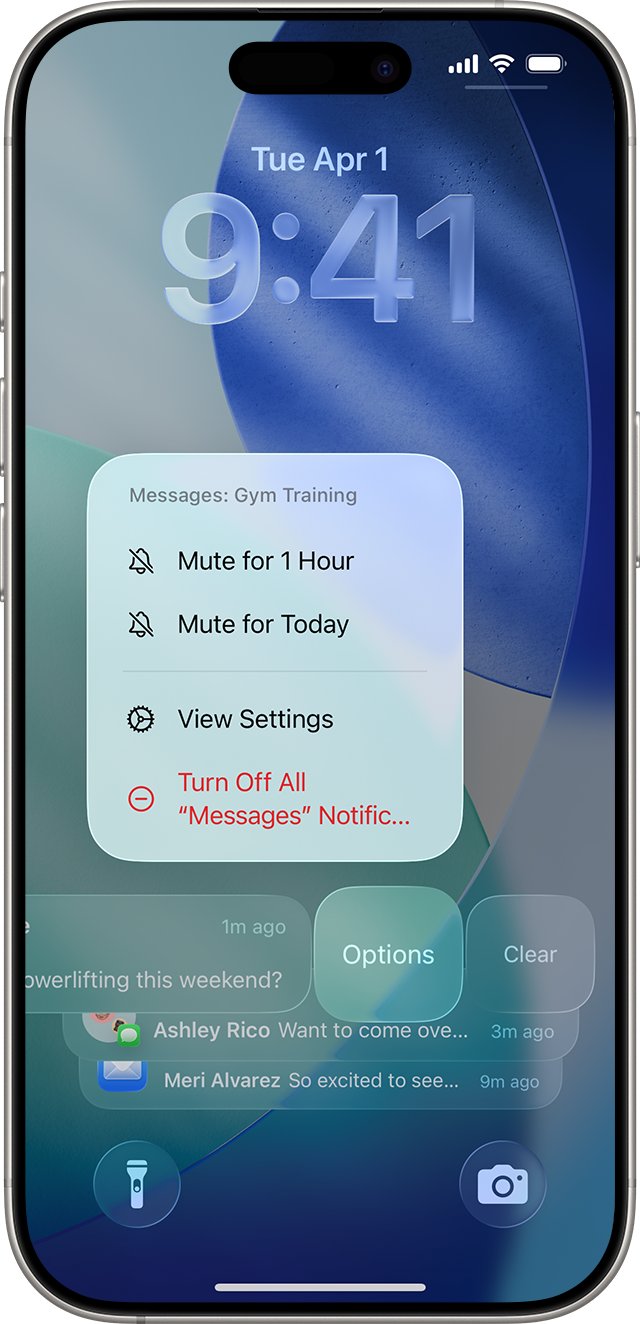
Muting an app from the Lock Screen sends its notifications directly to Notification Center. A muted app does not show a banner, play a sound or light up the screen.
- On the Lock Screen, swipe up from the middle of the screen, or on any other screen swipe down from the top-left corner to open Notification Center.
- Find a notification from the app that stopped popping up.
- Swipe left on the notification or its group.
- Tap Options, then tap Unmute.
- If Unmute is not offered, tap View Settings and check that Banners is selected under Alerts.
The mute choices are Mute for 1 Hour and Mute for Today, so a muted app also starts alerting again on its own once the time runs out.
iPhone notifications delayed or arriving in bunches
Scheduled Summary holds notifications from the apps you pick and delivers them together at set times. When you first use an app, iPhone may ask whether you want its notifications immediately, not at all or in a scheduled summary.
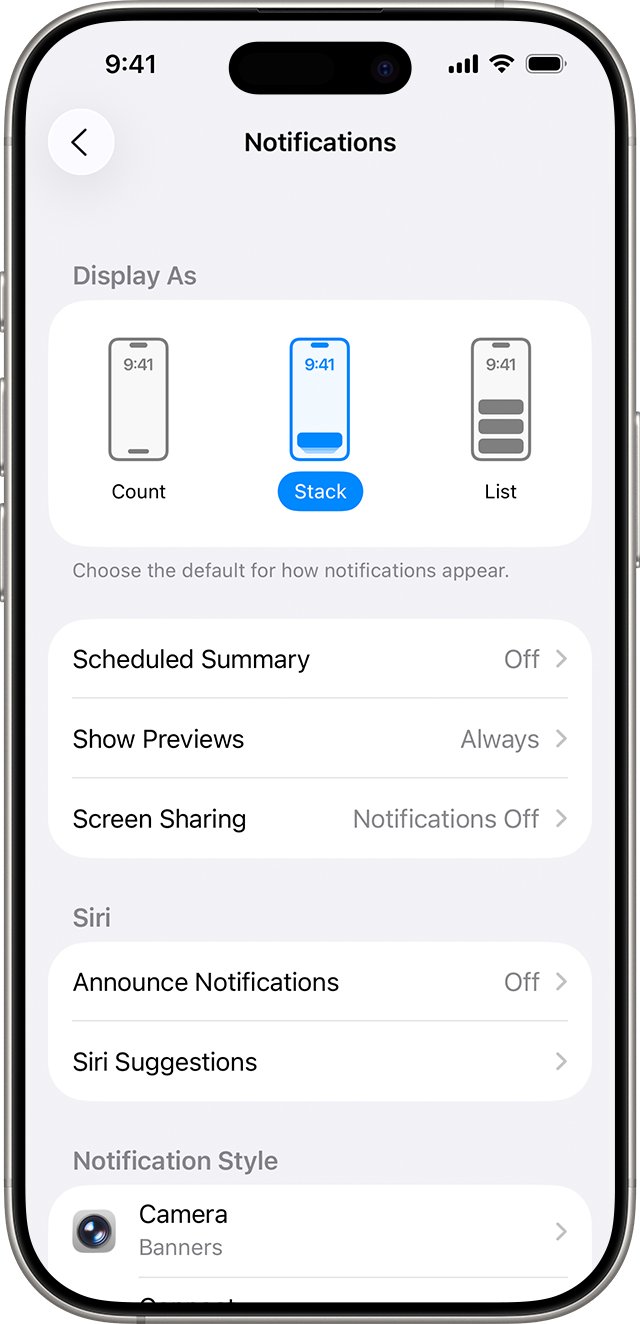
- Open Settings and tap Notifications.
- Tap Scheduled Summary.
- Turn off Scheduled Summary to send every app's notifications immediately.
- To keep the summary for other apps, go back to Notifications and tap the app below Notification Style.
- Under Notification Delivery, choose Immediate Delivery.
Why is my iPhone not sounding notifications?
When Silent mode is on, iPhone does not ring or play alerts, though it may still vibrate. A banner can still appear without any sound.
- Open Control Center and tap the Silent mode button to turn Silent mode off.
- On an iPhone with an Action button, press and hold it to switch Silent mode off; on a model with a Ring/Silent switch, flip it toward the front.
- Open Settings, tap Sounds & Haptics, and drag the ringtone volume slider up.
- If Match Ringtone Volume is off under Alerts and System Sounds, drag that separate slider up too.
- Go to Settings > Notifications, tap the app, and turn on Sounds.
- For Messages, tap Notifications > Messages > Sounds and pick a tone other than None.
Apps that support Critical Alerts can sound even when the iPhone is muted or in a Focus. Turn on Critical Alerts for the app under Notification Style if it is offered.
iPhone notifications not showing on Lock Screen
Lock Screen alerts depend on the app's Lock Screen alert, the preview setting and whether Notification Center is allowed while locked.
- Open Settings > Notifications, tap the app, and select Lock Screen under Alerts.
- Go back to Notifications, tap Show Previews, and choose Always to see message text without unlocking.
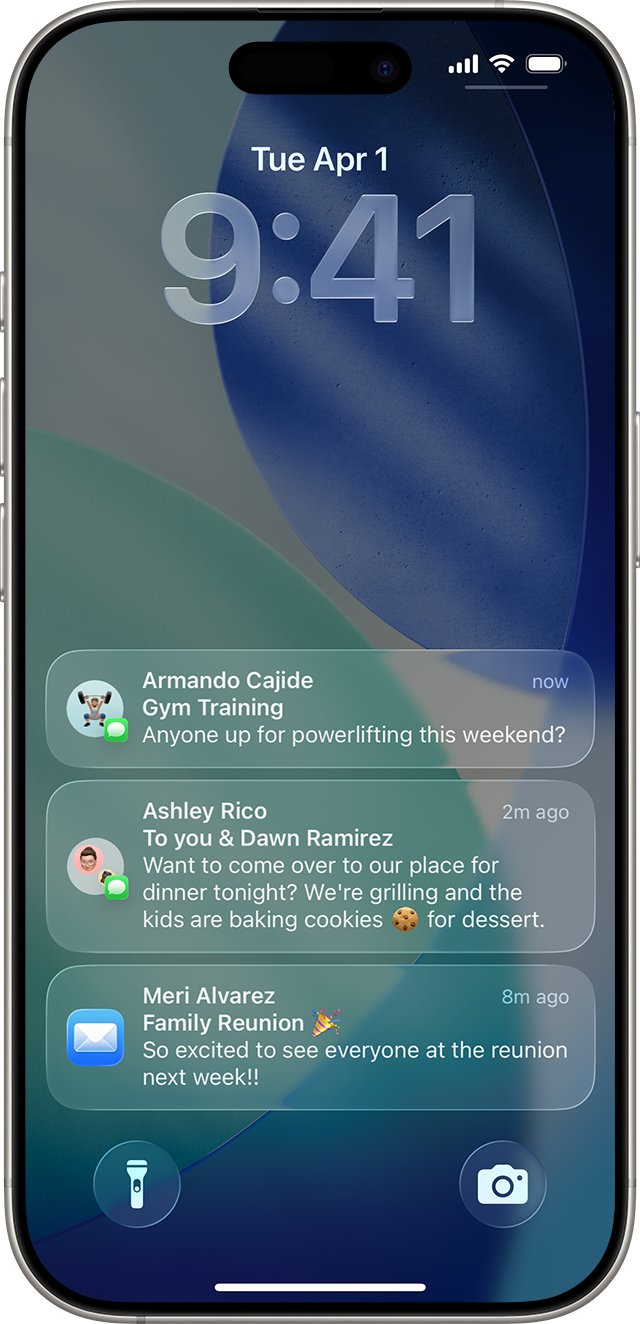
- Under Display As, tap List if a Count view is hiding the alerts behind a number.
- Open Settings > Face ID & Passcode (or Touch ID & Passcode) and enter your passcode.
- Under Allow Access When Locked, turn on Notification Center.
You can also pinch the notifications on the Lock Screen to switch between the list, stack and count layouts.
iPhone notifications going to Apple Watch instead of iPhone
By default, notifications go to either the Apple Watch or the iPhone, not both. When the iPhone is unlocked it gets them; when it is locked or asleep, the unlocked watch on your wrist gets them.
- Open the Apple Watch app on your iPhone and tap My Watch.
- Tap Notifications, then tap the app.
- Tap Mirror my iPhone to use the same alert settings as the iPhone.
- Or tap Custom and choose Allow Notifications so the watch alerts you and the alert also reaches Notification Center.
- Check that the watch is not in a Focus, because a Focus shared across devices silences the iPhone too.
Reading or dismissing a notification on the watch also dismisses it on the iPhone, which is why it can look as if nothing arrived.
How to tell if notifications are silenced on iPhone
A few icons and labels show when iPhone is holding notifications back.
- Look at the status bar and Lock Screen for a Focus icon, such as the Do Not Disturb icon.
- Look for the Silent mode icon in the status bar, which appears while Silent mode is on.
- Open Notification Center and swipe left on an app's alert, then tap Options: an Unmute choice means the app is muted.
- Open Control Center: a Focus name on the Focus tile means notifications are being held back.
- In Messages, open a conversation's contact details: Hide Alerts turned on means that conversation is muted.
When none of these show, a test message should slide in from the top of the screen as a banner.
Notifications not coming through on iPhone
Not getting notifications on new iPhone
While you use an app, iPhone may ask how to deliver its notifications: immediately, not at all, or in a scheduled summary. Choosing not at all or summary during setup keeps banners away.
- Open Settings > Notifications and look through the apps below Notification Style.
- Tap each app you want alerts from and turn on Allow Notifications.
- Select Banners under Alerts, and choose Immediate Delivery if Notification Delivery appears.
- For apps with their own options, tap App Name Notification Settings at the bottom of the app's page and turn alerts on there too.
iPhone not receiving notifications from Messages
A conversation is set to hide alerts, or the message was filtered as from an unknown sender or spam.
- In Messages, swipe left on the conversation and tap the alerts button, or open the contact details and turn off Hide Alerts.
- Check the unknown senders and spam folders in Messages for texts you expected.
- Go to Settings > Notifications > Messages and make sure Allow Notifications is on.
iPhone not giving notifications for Mail
Low Power Mode turns off email fetch and Background App Refresh to save battery.
- Open Settings and tap Battery.
- Turn off Low Power Mode (on iPhone 15 and later, tap Power Mode first).
- Go to Settings > Notifications > Mail and select Banners.
iPhone not giving notifications for an app you rarely use
iPhone can suggest turning off notifications for apps you have not used for a while, and accepting the suggestion turns them off.
- Open Settings > Notifications and tap the app.
- Turn on Allow Notifications.
- Turn on Time Sensitive Notifications if the app offers it, so urgent alerts get through a Focus.
If alerts stopped right after a system update, work through the push notification fixes for iOS 18, which also cover Summarize Notifications and Priority Notifications.
iPhone notifications not popping up FAQ
Why am I not getting notifications on iPhone?
The usual causes are an active Focus, Allow Notifications turned off for the app, or Banners unchecked under Alerts. A muted app, Scheduled Summary or an Apple Watch on your wrist can also keep alerts from popping up on the iPhone.
Why are notifications not showing on iPhone?
Open Settings, tap Notifications, then tap the app. Turn on Allow Notifications and select Lock Screen, Notification Center and Banners under Alerts. If the alert still does not show, turn off any Focus in Control Center.
Why is my iPhone not sounding notifications?
Silent mode or a low volume stops alert sounds, even when banners still appear. Turn Silent mode off in Control Center or with the Action button or Ring/Silent switch, raise the volume in Sounds & Haptics, and turn on Sounds for the app.
Why is my iPhone not receiving notifications?
Usually one app's notifications are off, muted or in a scheduled summary. Open Settings, tap Notifications, tap the app, turn on Allow Notifications and choose Immediate Delivery. Some apps also have their own notification switches inside the app.
Why aren't notifications showing on my iPhone Lock Screen?
The app may not have Lock Screen selected under Alerts, or Notification Center may be blocked while locked. Turn on Notification Center under Allow Access When Locked in Face ID & Passcode, and set Show Previews to Always.
Why is my iPhone not getting notifications?
If you wear an Apple Watch, notifications go to the watch while the iPhone is locked or asleep and the watch is unlocked on your wrist. Unlock the iPhone to get them there, or adjust each app in the Apple Watch app under My Watch, Notifications.
Why don't my iPhone notifications work?
A Focus such as Do Not Disturb is the most common reason. It silences notifications unless you allow specific apps or people. Turn it off in Control Center, or in Settings tap Focus, choose the Focus, then add apps and people under Allow Notifications From.
Why is my phone not getting notifications after I muted an app?
Muting for an hour or for the day sends that app's alerts straight to Notification Center with no banner or sound. Swipe left on one of its notifications in Notification Center, tap Options, then tap Unmute.