Night light stops working in Windows 11 and Windows 10 mostly because of the display driver: Microsoft states it is unavailable with DisplayLink or Basic Display drivers and that a grayed-out switch usually needs a driver update.
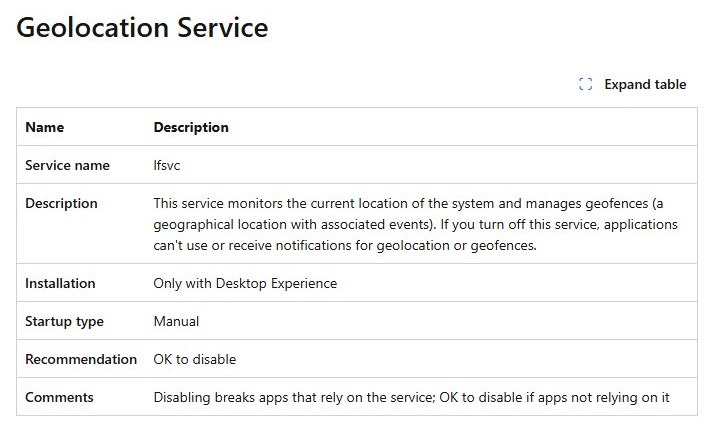
When the switch works but the schedule does not, the cause is usually location: Location services, the Geolocation Service (lfsvc) and the time zone decide when Sunset to sunrise fires.
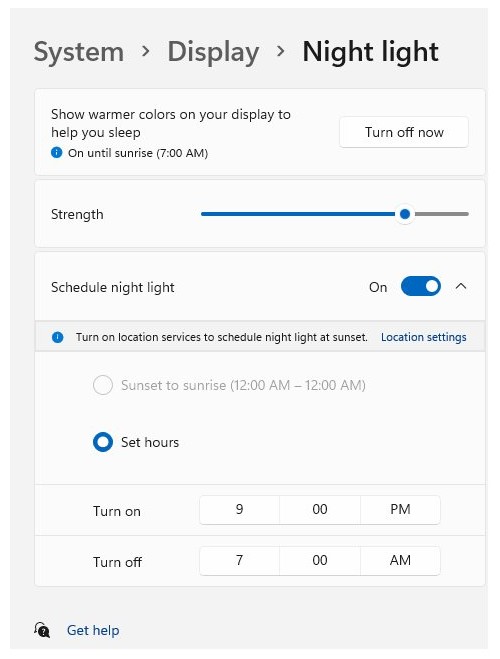
Primary procedure to fix Night light not working
Work through these steps in order and test the Night light switch after each one. Most PCs are fixed by step 3 or 4.
- Open Start > Settings > System > Display and turn Night light off and back on (in Windows 10, select Night light settings and use Turn on now).
- On Windows 11, press Windows logo key + Ctrl + Shift + B to reset the graphics driver.
- Right-click Start, select Device Manager, expand Display adapters, right-click your graphics adapter and select Update driver > Search automatically for updated driver software.
- Open Settings > Windows Update > Advanced options > Optional updates (Windows 10: Update & Security > Windows Update > View optional updates) and install any display driver listed there.
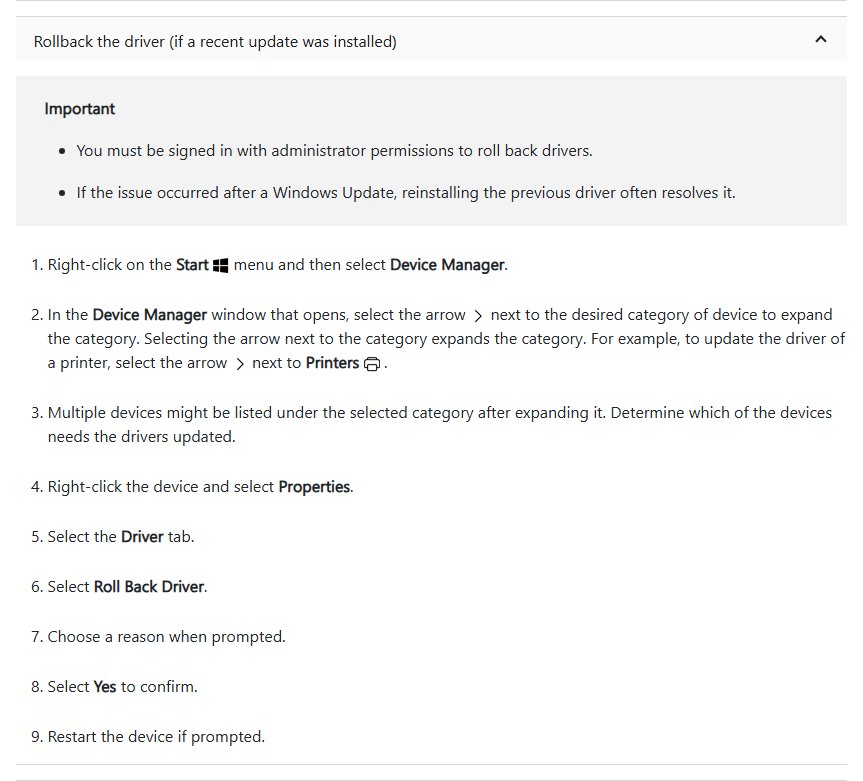
- If the problem started after a driver update, roll that driver back from the Driver tab in Device Manager (steps below).
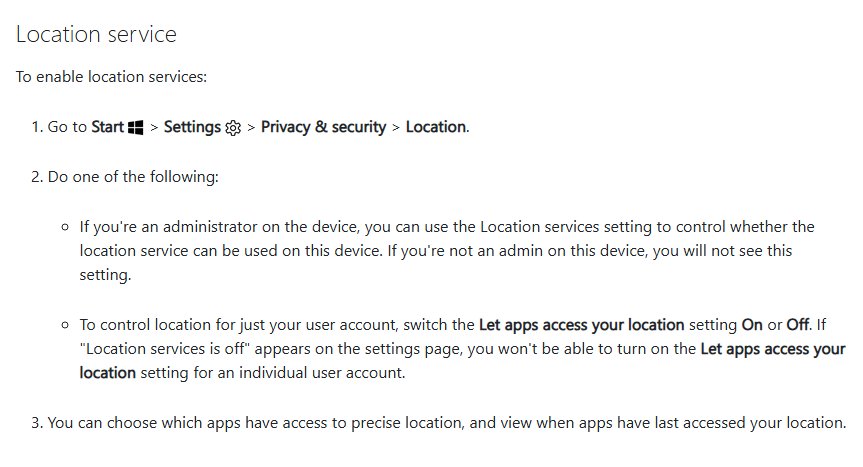
- If only the schedule fails, turn on Location services in Settings > Privacy & security > Location (Windows 10: Privacy > Location) and set the Geolocation Service to Manual.
- Restart the PC from Start > Power > Restart and test Night light again.
Where is Night light in Windows 11 and Windows 10 settings
Microsoft keeps Night light under Display settings in both versions, but the labels differ. Use this table to find each control on your version.
| Control | Windows 11 | Windows 10 |
|---|---|---|
| Night light on/off switch | Settings > System > Display > Night light, or the Night light button in Quick Settings (select the Network or Speakers icon on the taskbar) | Settings > System > Display > Night light switch above the Night light settings link |
| Strength | Night light page > Strength slider | Night light settings > Strength slider |
| Schedule | Schedule night light > Sunset to sunrise or Set hours | Night light settings > Schedule > Schedule night light > Sunset to sunrise or Set hours |
| Location for the schedule | Settings > Privacy & security > Location > Location services | Settings > Privacy > Location > Location for this device |
| Time zone | Settings > Time & language > Date & time > Set time zone automatically | Settings > Time & language > Date & time > Set time zone automatically |
| Driver updates | Settings > Windows Update > Advanced options > Optional updates | Settings > Update & Security > Windows Update > View optional updates |
Windows 10 support ended on October 14, 2025, so new display drivers and fixes arrive for Windows 11 first. If you want a regular evening routine, you can schedule Night light once the switch works again.
Night light compatibility with DisplayLink and Basic Display drivers
The prerequisites are short: a supported display driver from your graphics vendor or Windows Update, and Location services for the sunset schedule. Driver compatibility is the part most people miss.
| What Device Manager shows under Display adapters | Night light | What to do |
|---|---|---|
| Intel, AMD or NVIDIA adapter with a current driver | Available | Nothing; use the switch in Display settings |
| Microsoft Basic Display Adapter | Not available (Basic Display driver) | Install the vendor driver through Windows Update or the PC maker's site |
| Monitor connected through a DisplayLink dock or adapter | Not available on that display | Use the monitor's own low-blue-light mode, or connect it directly to the PC's video port |
| Adapter with a yellow warning icon | Often grayed out | Update or reinstall the driver from the Driver tab |
If Device Manager lists the basic adapter, update the Microsoft Basic Display Adapter to the real vendor driver before anything else.
Update the display driver to fix Night light in Device Manager
A grayed-out or unresponsive Night light switch usually needs a newer display driver. Device Manager checks Windows Update for one first.
- Right-click Start and select Device Manager.
- Expand Display adapters.
- Right-click your graphics adapter and select Update driver.
- Select Search automatically for updated driver software.
- If Windows reports the best driver is already installed, select Search for updated drivers on Windows Update and install any display driver offered.
- If Windows Update has nothing, download the driver for your Windows version from the PC or graphics maker's website, then use Update driver > Browse my computer for drivers and point it at the downloaded folder.
- Restart the PC and test the Night light switch.
Laptop owners should prefer the PC maker's driver, since it is tuned for the built-in panel. The full routine to update the graphics driver covers Intel, AMD and NVIDIA tools.
Alternate method: roll back a newly installed graphics driver
If Night light stopped working right after a driver or Windows update, rolling back the display driver is the quickest fix. You must be signed in as an administrator.
- Right-click Start and select Device Manager.
- Expand Display adapters, right-click your graphics adapter and select Properties.
- Open the Driver tab.
- Select Roll Back Driver.
- Choose a reason when prompted and select Yes.
- Restart the PC when asked, then test Night light.
If Roll Back Driver is unavailable, Windows has no earlier driver to restore. Use the reinstall steps under the driver-installation section below instead.
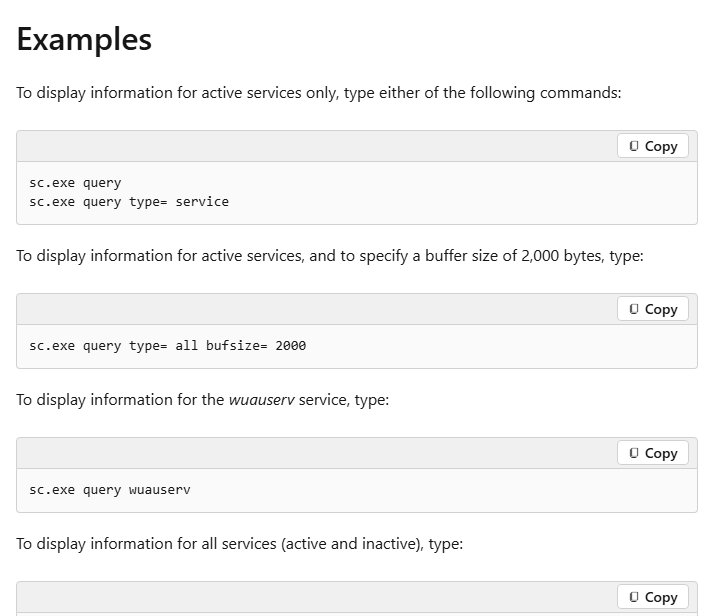
sc query lfsvc: check the Geolocation Service from Command Prompt
The Geolocation Service's service name is lfsvc. Microsoft describes it as the service that monitors the system's current location, and its default startup type is Manual.
sc.exe query lfsvc
sc.exe config lfsvc start= demand
sc.exe start lfsvc
Run these in an elevated Command Prompt (Run as administrator). The first line shows the service STATE. The second sets the startup type back to Manual (demand); the space after start= is required. The third starts the service now.
You should see: sc.exe query lfsvc reports STATE : 4 RUNNING, or STOPPED with no error, which is normal for a Manual service that has nothing to do yet.
Verification of success: is Night light working?
- Turn on Night light and move the Strength slider to the far right. The screen should turn clearly warmer.
- Move the slider back to a comfortable level. The tint should change as you drag.
- Turn on Schedule night light, select Set hours and set the on time two minutes ahead. Night light should switch on by itself at that time.
- Switch the schedule back to Sunset to sunrise. The setting should show today's sunset and sunrise times instead of an empty value.
- Restart the PC after sunset. Night light should come back on by itself after you sign in.
The Night light switch is grayed out
Grayed out after a clean install or a new PC
Windows is still on the Basic Display driver, and Night light is not available with it.
- Open Device Manager and expand Display adapters.
- If you see Microsoft Basic Display Adapter, right-click it and select Update driver > Search automatically for updated driver software.
- Install any display driver under Optional updates in Windows Update.
- Restart the PC and check the switch again.
Grayed out only on a docked or USB-connected monitor
Night light is not available on displays driven by DisplayLink.
- Connect the monitor to the PC's own HDMI, DisplayPort or USB-C video output if it has one.
- If the dock is the only option, keep its DisplayLink software current; to install DisplayLink drivers correctly, use DisplayLink's own package.
- Use the monitor's built-in low-blue-light or warm color mode for that screen.
Night light turns on but the screen color does not change
Switch is On, screen looks the same
The Strength slider is near zero, or the graphics driver has stopped applying the color change.
- Open the Night light page and drag Strength to the right.
- Press Windows logo key + Ctrl + Shift + B on Windows 11 to reset the graphics driver.
- Turn Night light off and on again.
Tint still missing after a driver reset
The installed display driver is damaged or mismatched.
- In Device Manager, open your adapter's Properties > Driver tab and select Uninstall Device.
- Tick Attempt to remove the driver for this device (Windows 10: Delete the driver software for this device) and select OK.
- Restart the PC so Windows reinstalls a driver, then install the latest one from Windows Update.
Night light works manually but will not follow Sunset to sunrise
Sunset to sunrise is missing, blank or never fires
Sunset times depend on where the PC is, so the schedule needs location turned on.
- Open Settings > Privacy & security > Location (Windows 10: Privacy > Location).
- Turn on Location services (Windows 10: select Change and turn on Location for this device). Only an administrator can change this.
- If the PC has no GPS or Wi-Fi location, select Set default under Default location and enter your address.
- Go back to Night light settings and select Sunset to sunrise again.
Night light turns on at the wrong time
The time zone is wrong, so local sunset is calculated for the wrong place.
- Open Settings > Time & language > Date & time.
- Turn on Set time zone automatically, or pick the right zone from the Time zone drop-down.
- Turn on Set time automatically.
- If the schedule still misfires, select Set hours in Night light settings and enter your own on and off times.
The Geolocation Service is disabled
Location services turns itself off or the Location page is grayed out
The Geolocation Service (lfsvc) has been set to Disabled, often by a tweaking tool or a policy.
- Press Windows key + R, type
services.mscand press Enter. - Double-click Geolocation Service.
- Set Startup type to Manual and select Apply.
- Select Start, then OK.
- Turn on Location services in Settings and reselect Sunset to sunrise.
Startup type is locked or changes back after a restart
A work or school policy manages the service.
- Run the
sc.exe config lfsvc start= demandcommand above from an elevated Command Prompt. - If the setting still reverts, ask your IT administrator, because the PC is managed.
- Use Set hours as the schedule in the meantime.
Night light broke after a driver installation and rollback is unavailable
Roll Back Driver is grayed out after a driver update
Windows has no earlier driver stored for the adapter, so a clean reinstall is the route back.
- In Device Manager, right-click the adapter under Display adapters and select Uninstall device.
- Tick Attempt to remove the driver for this device (Windows 10: Delete the driver software for this device) and confirm.
- Restart the PC from Start > Power > Restart; Windows reinstalls a driver on its own.
- Install a known-good driver version from the PC or graphics maker's website if the reinstalled one still breaks Night light.
- If the check box only appears in Safe mode, start the PC in Safe mode and repeat these steps.
Night light troubleshooting and escalation
Nothing above fixed Night light
A pending Windows or driver update, or a hardware-specific driver problem, is left.
- Open Settings > Windows Update and select Check for updates; install everything, including Optional updates.
- Restart the PC even if no update asked for it.
- Download the newest display driver for your exact model from the PC maker's support site.
- Contact the PC maker or graphics vendor's support with the adapter name and driver version shown on the Driver tab.
Windows Night light not working FAQ
Why is Night light grayed out in Windows 11?
Night light is grayed out when the display driver does not support it. Microsoft lists DisplayLink and Basic Display drivers as unsupported, so install the vendor's display driver through Device Manager or Windows Update and restart the PC.
Does Night light need location services?
Only the Sunset to sunrise schedule needs location, because sunset times depend on where the PC is. The manual switch and the Set hours schedule work with Location services turned off.
What is the Geolocation Service in Windows?
The Geolocation Service, service name lfsvc, monitors the PC's current location and manages geofences. Its default startup type is Manual. If it is disabled, apps and Windows features cannot receive location, so Sunset to sunrise cannot work.
Why does Night light not work on my external monitor?
Night light is not available on displays that use DisplayLink, which most USB docks rely on. Connect the monitor to the PC's own video port, or use the monitor's built-in low-blue-light mode for that screen.
How do I reset the graphics driver without restarting?
Press Windows logo key + Ctrl + Shift + B together on Windows 11. This resets the graphics driver and can bring back the Night light tint. If Night light still fails, restart the PC, which Microsoft lists as the fallback.
Can I roll back a display driver if Night light stopped working?
Yes. Open Device Manager, open the adapter's Properties, select the Driver tab and choose Roll Back Driver. If the button is unavailable, Windows has no earlier driver, so uninstall the device and reinstall a known-good driver instead.
Why does Night light turn on at the wrong time?
The time zone or location is usually wrong. Turn on Set time zone automatically in Time & language, turn on Location services, then reselect Sunset to sunrise. Set hours gives you fixed times if the automatic schedule keeps misfiring.
Is Night light available in Windows 10?
Yes. Open Settings > System > Display > Night light settings to turn it on, change Strength and schedule it. Windows 10 support ended on October 14, 2025, so newer driver fixes target Windows 11.