A GUI (graphical user interface) lets you work with icons, windows and a mouse; a CLI (command-line interface) takes typed commands one line at a time; and a TUI (text-based user interface) draws menus and panels out of text characters inside a terminal.
This guide defines each one with real examples on Windows, Linux and macOS, compares them side by side, and shows when each is the right tool.
The difference in one table
| GUI | CLI | TUI | |
|---|---|---|---|
| Full form | Graphical user interface | Command-line interface | Text-based (or terminal) user interface |
| How you interact | Click, tap and drag icons, windows and menus | Type a command, press Enter, read the text reply | Move through full-screen text menus with keys, and often a mouse |
| Runs in | A desktop or touch screen | A shell such as Command Prompt, PowerShell or Bash | A terminal or console window |
| Example | File Explorer, Finder, Settings | ipconfig, winget, ls |
Microsoft Edit, Vim, Midnight Commander, btop |
| Best for | Beginners and visual work | Automation, scripting and remote servers | Keyboard-driven tools over a remote connection |
Graphical user interface (GUI)
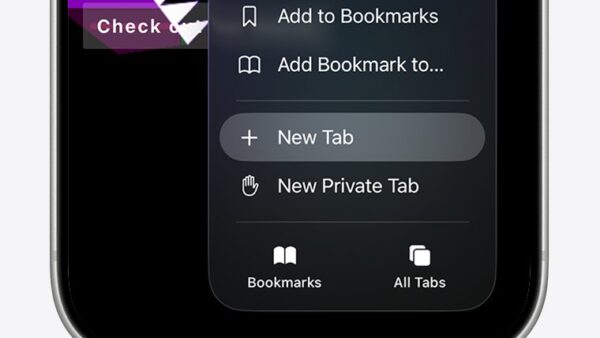
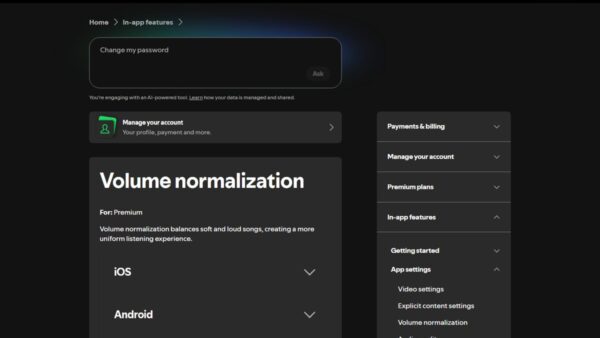
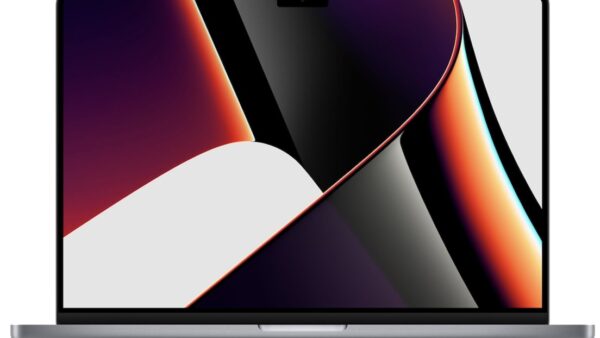
A GUI lets you interact through graphical icons and visual indicators instead of typed commands. GUIs were introduced in reaction to the steep learning curve of command-line interfaces, and most use the WIMP model: windows, icons, menus and a pointer.
| Aspect | Details |
|---|---|
| Definition | Interaction by direct manipulation of graphical elements on a 2D screen |
| History | Engelbart's NLS and the mouse in the late 1960s; the Xerox Alto in 1973; the Xerox Star in 1981; the Apple Lisa in 1983 and Macintosh in 1984; the Atari ST and Amiga in 1985 |
| Characteristics | Windows, icons, menus, buttons, check boxes and a pointer or touch input |
| Advantages | Easy to learn, discoverable menus, visual feedback, suited to images, video and layout work |
| Disadvantages | Uses more system resources, and repetitive jobs are slow because each one needs clicks |
| Use cases | Desktop apps, phones and tablets, ATMs, self-service checkouts, car infotainment screens |
Command line interface (CLI)
A CLI, also called a command-line shell, lets you control software through commands, each written as one line of text. The program that reads them is called a command-line interpreter or shell.
| Aspect | Details |
|---|---|
| Definition | Text commands typed at a prompt, with text output in reply |
| History | Teleprinters such as the Teletype Model 33 (1963); MIT's CTSS in 1961 introduced the first true command-line interpreter; Louis Pouzin introduced the shell for Multics in 1964 |
| Characteristics | A prompt, commands with options, command history, and scripts that run many commands as one program |
| Advantages | Needs fewer system resources than a GUI, options take a few characters, and repetitive tasks are easy to automate |
| Disadvantages | Commands and options must be learned, often from manuals or a help option; no visual layout |
| Use cases | Server administration, software development, batch jobs and scripting, troubleshooting |
| Examples | Windows cmd.exe and PowerShell; Unix shells such as Bash, zsh and sh |
Text-based user interface (TUI)
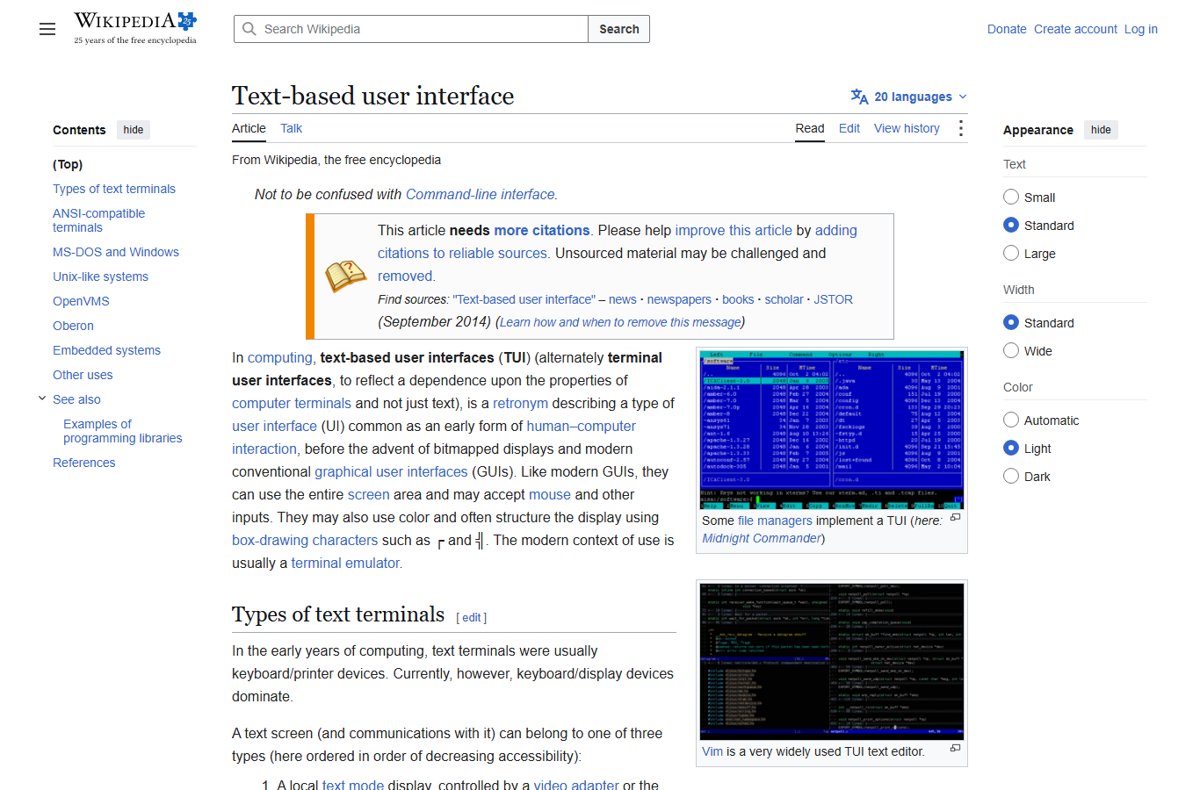
A TUI, also called a terminal user interface, sits between the two. It runs in a text terminal but, like a GUI, can use the whole screen, accept mouse input, use colour and draw boxes with characters such as ┌ and ╣.
| Aspect | Details |
|---|---|
| Definition | A full-screen interface made of text characters, usually running in a terminal emulator |
| History | Common before bitmapped displays; DOS-era programs such as WordPerfect, Norton Commander, Lotus 1-2-3 and Borland Turbo Pascal used TUIs with menus and dialog boxes |
| Characteristics | Menus, panels and dialogs drawn in text; keyboard shortcuts; often mouse support |
| Advantages | Light on resources, works over SSH and other remote text connections, more discoverable than a bare CLI |
| Disadvantages | Limited graphics, and behaviour depends on the terminal's support for escape sequences |
| Use cases | Text editors, file managers, system monitors, installers and configuration tools |
| Examples | Microsoft Edit on Windows 11, Vim, Midnight Commander, btop, the Lynx web browser, tmux and GNU Screen |
On Unix-like systems, TUIs are usually built with the curses or ncurses library, or with S-Lang.
Comparisons: GUI vs CLI vs TUI
| Your situation | Use this | Why |
|---|---|---|
| You are new to a tool or doing a one-off task | GUI | Menus show what is possible without learning commands |
| You repeat the same job many times | CLI | Commands can be saved in a script and run again |
| You manage a server with no desktop | CLI or TUI | Windows Server Core has no desktop and is managed through the command line, PowerShell or remote tools |
| You are connected over SSH and want menus | TUI | Full-screen menus work over a plain text connection |
| You edit images, video or page layouts | GUI | The work itself is visual |
| The PC has little memory or processing power | CLI or TUI | Both use fewer resources than a GUI |
Try a CLI and a TUI on Windows 11
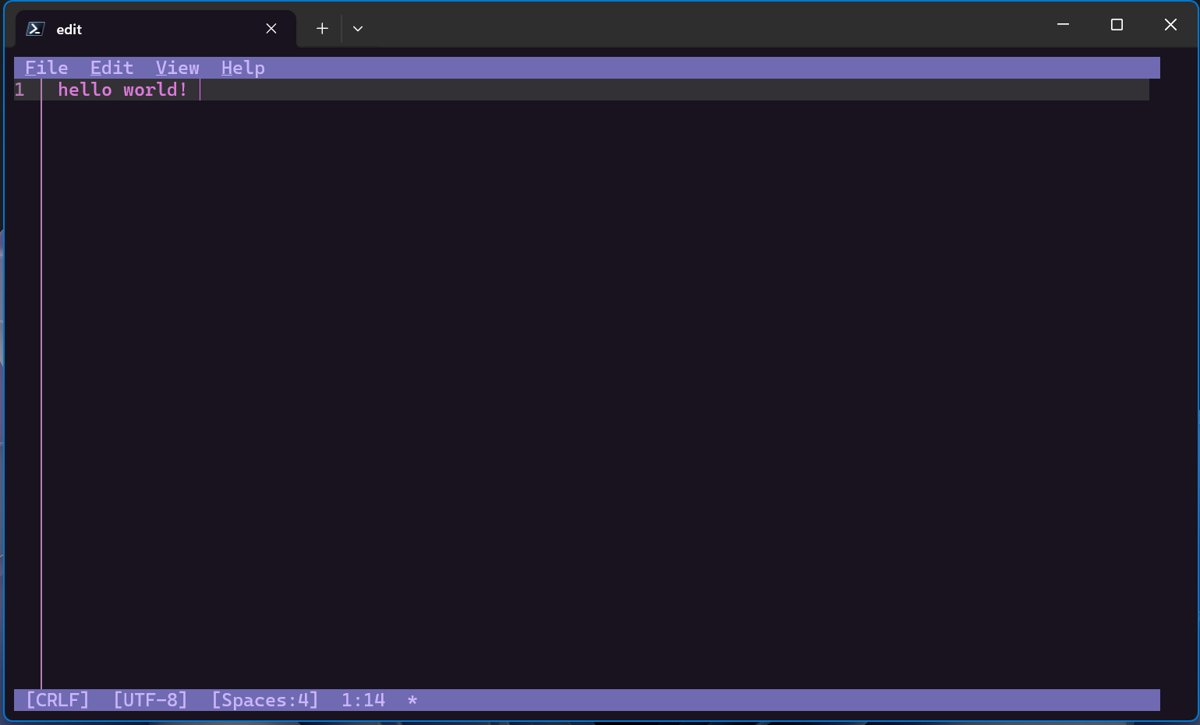
Windows 11 includes both. Microsoft Edit is a TUI text editor that ships with Windows 11 version 25H2 and the September 2025 optional update or later.
- Select Start, type Terminal and open Windows Terminal. This is a CLI host for PowerShell and Command Prompt.
- Type
ipconfigand press Enter to run a classic CLI command and read its text output. - Type
editand press Enter to open Microsoft Edit, a TUI with menus inside the terminal. - If Edit is missing, run
winget install Microsoft.Editto install it. - Use the mouse or keyboard shortcuts in Edit; for example, Ctrl + F opens Find and Alt + Z toggles word wrap.
- Compare the experience with Notepad, the GUI equivalent.
Future trends
The three styles are not replacing each other. Each keeps evolving in its own direction.
| Interface | Current direction | Example |
|---|---|---|
| GUI | Post-WIMP touch interaction on phones and tablets | iOS and Android multi-touch interfaces, popularized by the iPhone (2007) and iPad (2010) |
| CLI | Command-line package managers and cross-platform tooling | WinGet and Windows Terminal on Windows |
| TUI | New text tools for terminals on every platform | Microsoft Edit, released for Windows, Linux and macOS |
| Servers | Minimal installs without a desktop | Windows Server Core, with a smaller disk footprint and attack surface |
Frequently asked questions
What is GUI and CLI?
A GUI, or graphical user interface, lets you use a computer through icons, windows and a mouse or touch. A CLI, or command-line interface, lets you control it by typing text commands. Both reach the same features in different ways.
What is the full form of GUI and CLI?
GUI stands for graphical user interface. CLI stands for command-line interface. TUI, the third type, stands for text-based user interface or terminal user interface.
What is TUI in computers?
A TUI is a text-based user interface: a full-screen program made of text characters that runs in a terminal. It can show menus, panels and colour, and often accepts mouse input. Vim and Microsoft Edit are examples.
What is a TUI in coding?
In programming, a TUI is an app interface drawn in the terminal with text, colour and box characters. Developers usually build one with a library such as curses or ncurses on Unix-like systems.
What is TUI vs GUI?
Both can use the whole screen, menus and the mouse. A GUI draws with graphics and pixels in a desktop window, while a TUI draws with text characters inside a terminal, so it uses fewer resources and works over remote text connections.
What is the difference between CLI and GUI?
A CLI needs typed commands and fewer system resources, and it is easy to automate with scripts. A GUI shows options visually and is easier to learn, but repetitive jobs take more clicks.
Is Linux a TUI or GUI?
Linux supports both, plus the CLI. Desktop environments such as GNOME and KDE Plasma provide a GUI, shells such as Bash provide a CLI, and tools such as Vim, btop and Midnight Commander are TUIs.
What is GUI in IT?
In IT, the GUI is the graphical layer of an operating system or app, such as the Windows desktop and File Explorer. Admins often compare it with the CLI, since servers like Windows Server Core run without a GUI.