To see your iCloud login history, sign in at account.apple.com and select Devices, or request a copy of your Apple Account data, which includes sign-in records.
This guide covers both routes on iPhone, Mac and the web, what each one shows, and what to do when a login in the list is not yours.
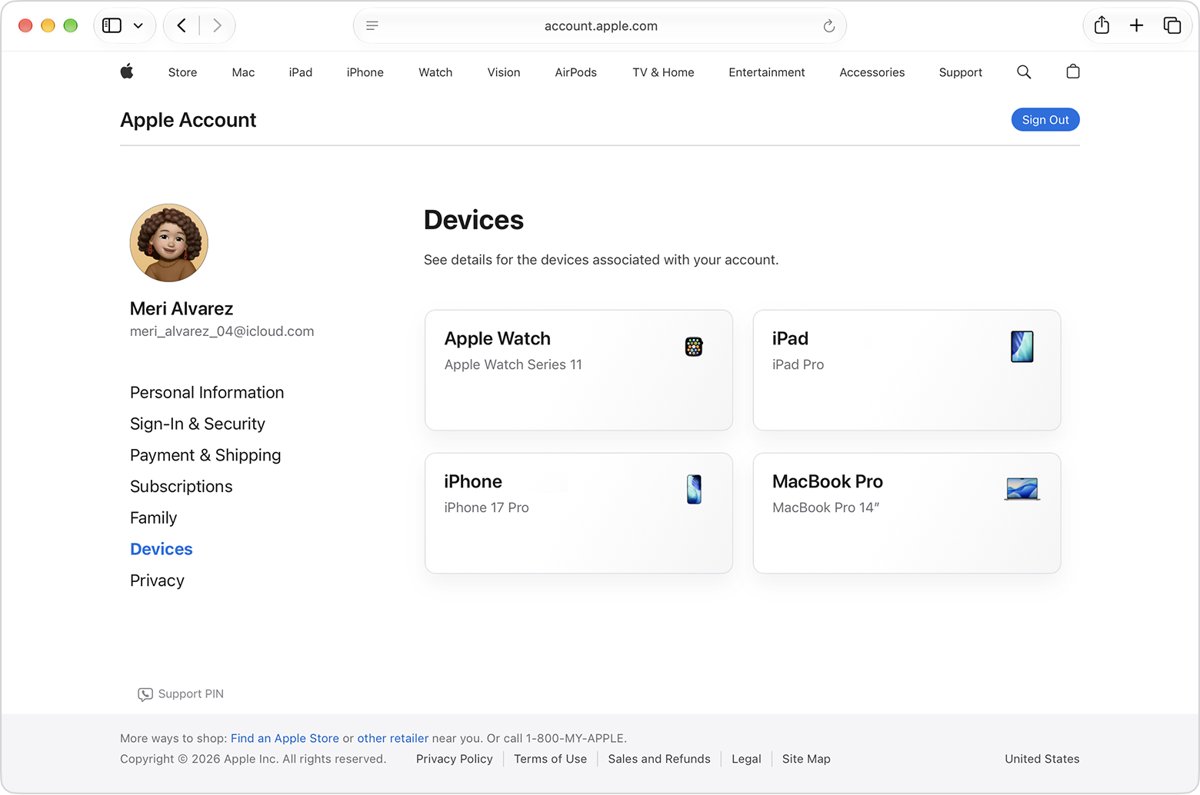
Check iCloud login history at account.apple.com
Apple has no dated sign-in log on screen. The closest thing is the device list: every device you sign in to with your Apple Account is added to it, including Windows PCs with iCloud for Windows, Android phones and streaming devices.
- Go to account.apple.com in a browser and sign in to your Apple Account.
- Select Devices.
- Click View Details and confirm your identity if the devices do not appear right away.
- Click any device name to see that device's information.
- Note any device you do not recognize, then remove it with Remove from Account.
iCloud login history options compared
| What you want to know | Where to look | What you get |
|---|---|---|
| Which devices are signed in now | Devices at account.apple.com, or [your name] in Settings | A live list of devices with their details |
| A record of past sign-ins | Request a copy of your data on Apple's Data & Privacy page | Account details and sign-in records as downloadable files |
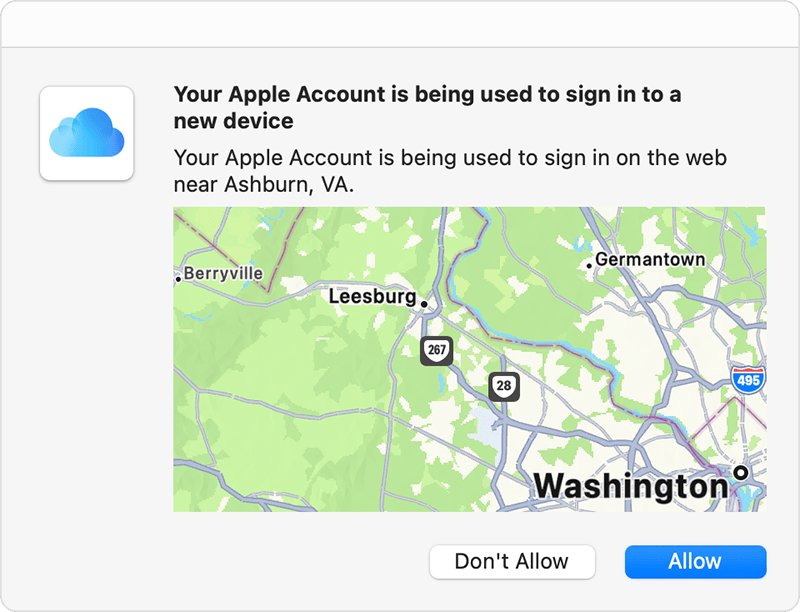
| Where a new sign-in is coming from | The sign-in notification on a trusted device | A map of the approximate location, based on the IP address |
| Whether someone else signed in | Apple's notifications or emails about account activity | An alert when a device you don't recognize signs in |
| Which browsers are signed in to iCloud.com | No list exists; sign out of all browsers instead | Every iCloud.com browser session ends |
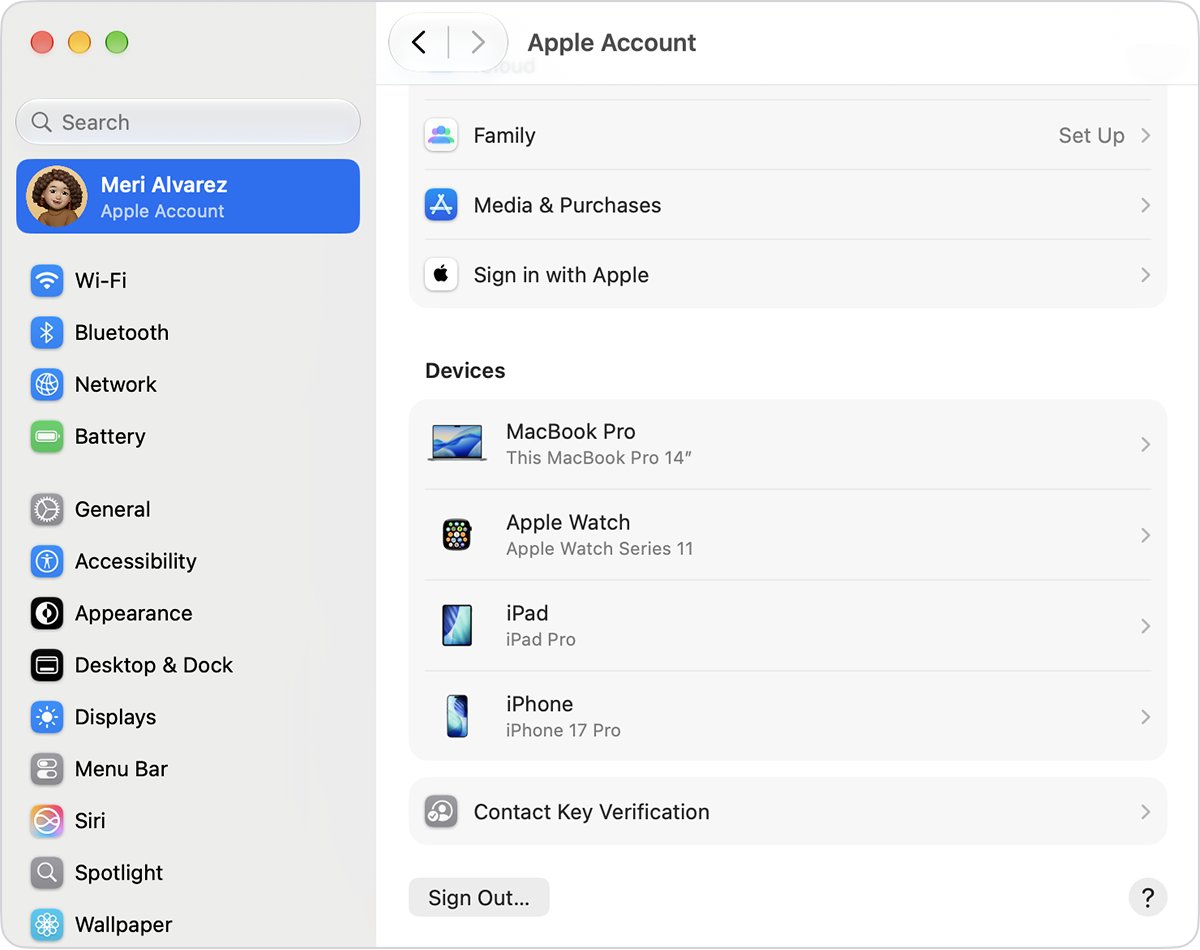
See devices signed in to iCloud on iPhone or Mac
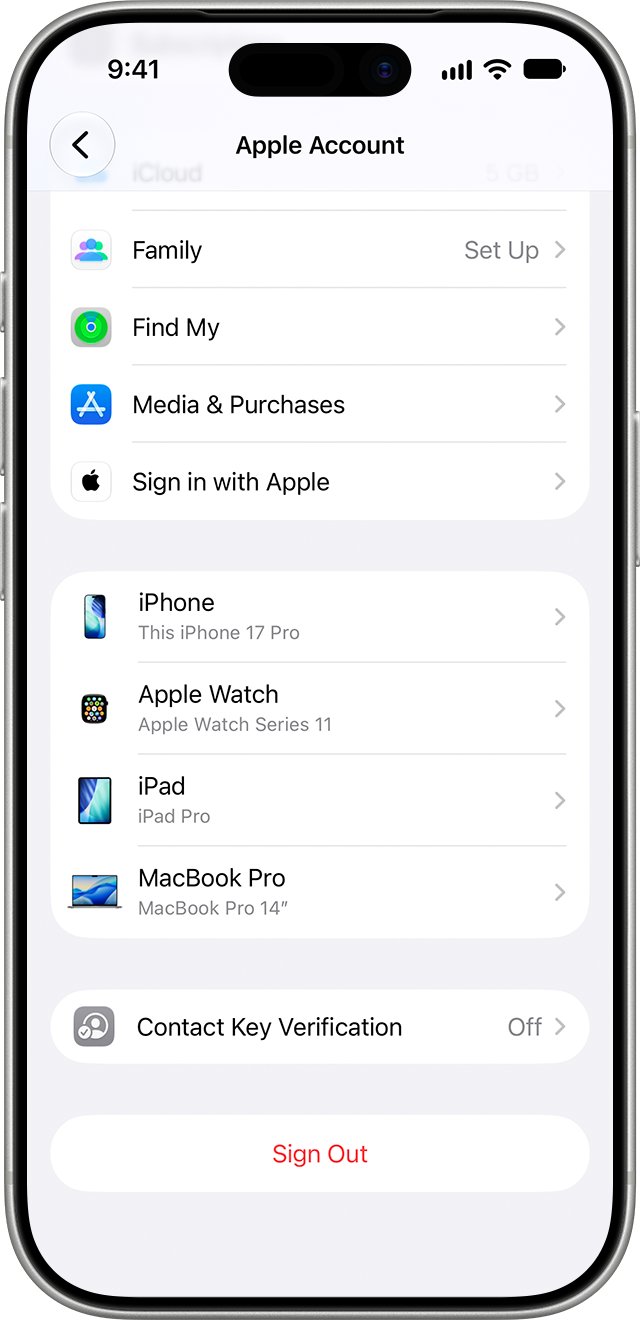
- On iPhone or iPad, open Settings and tap [your name].
- On a Mac, choose Apple menu > System Settings, then click [your name].
- Scroll down to the list of devices.
- Tap or click a device name to view its information.
- Select Remove from Account to sign out a device remotely, then confirm.
A removed device loses access to iCloud, Find My and other Apple services and stops showing verification codes. It reappears only if someone signs in on it again.
Request Apple Account sign-in records from Data & Privacy
Apple's data copy includes your Apple Account details and sign-in records. Access to the feature varies by country and region.
- Sign in to your Apple Account on Apple's Data & Privacy page at privacy.apple.com.
- Select Request a copy of your data.
- Select the data you want, including your Apple Account details.
- Select Continue and complete the identity check.
- Wait for Apple's notice that the data is ready on your Data & Privacy page.
- Download the files on a Mac or Windows PC within 14 days.
If the option is missing, the feature is not available in your country or region.
What iCloud sign-in records show
| Detail | How it appears |
|---|---|
| Dates and times | In Coordinated Universal Time (UTC), not your local time zone |
| Device identifiers | Masked for your security |
| Email addresses | Masked for your security |
| Location of a new sign-in | Shown only as an approximate map in the sign-in notification, based on the IP address |
| Older activity | Some data is held only for a short time and may no longer be on Apple's servers |
| Messages content | Not included, because messages are encrypted on your device |
A login that Apple no longer stores cannot be recovered, so deleted or very old sign-ins may be missing from the file.
Sign out of iCloud.com on all browsers
iCloud.com does not list the browsers you are signed in to, so ending every web session is the way to clear logins you cannot see.
- Sign in at iCloud.com.
- Select your Apple Account photo in the top-right corner of the window.
- Select iCloud Settings.
- Select Sign Out Of All Browsers, then select Sign Out.
Unknown login in iCloud history: what to do
A device you don't recognize appears in your device list
Someone may have signed in with your Apple Account.
- Change your Apple Account password to a strong, unique one.
- At account.apple.com, select Devices and remove every device you don't recognize.
- Update any personal or security information that isn't correct.
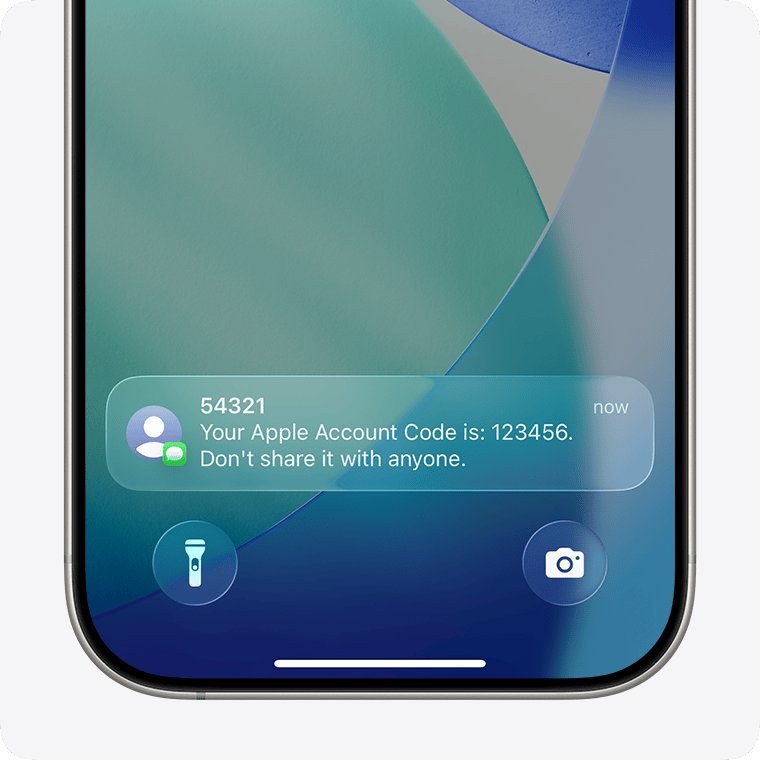
You get a verification code you didn't request
Someone is trying to sign in with your password.
- Do not select Allow on the sign-in notification.
- Change your Apple Account password.
- Check with your carrier that SMS forwarding is not set up on your trusted phone number.
The sign-in map shows a city you have never visited
The location comes from the IP address and may reflect your network rather than where you are.
- Select Allow only if you are the person signing in right now.
- Treat the attempt as suspicious if you are not signing in, and change your password.
Your password no longer works
Someone else may have changed it.
- Reset your password.
- If you can't reset it or sign in, go to iforgot.apple.com to start account recovery.
Check that your iCloud account is secure
- Reopen Devices at account.apple.com and confirm only your own devices are listed.
- On iPhone, go to Settings > [your name] > Sign-In & Security and confirm two-factor authentication is on.
- On each device, tap your name in Settings and confirm the email address shown is your Apple Account.
- Confirm you control every email address and phone number on the account.
iCloud login history FAQ
How do I see iCloud logins?
Sign in at account.apple.com and select Devices to see every device signed in to your Apple Account. For past sign-in records, request a copy of your data on Apple's Data & Privacy page at privacy.apple.com.
How do I check iCloud logins on my iPhone?
Open Settings, tap your name and scroll down to the device list. Tap any device to see its details, and tap Remove from Account to sign it out if you don't recognize it.
Can I see deleted iCloud login history?
No. Apple shows no deleted sign-in log, and some account data is held only for a short time. A data request returns only the sign-in records Apple still stores for your account.
How can I see texts on iCloud login?
iCloud.com has no Messages app, so you cannot read texts by logging in on the web. Read them on an iPhone, iPad or Mac signed in to the same Apple Account with Messages in iCloud turned on.
What is my iCloud login?
Your iCloud login is your Apple Account: the email address or phone number and password you use with Apple services. After you create an @icloud.com address, you can also use it to sign in.
How do I find my iCloud login?
On an iPhone or Mac, open Settings or System Settings and tap or click your name. The email address shown there is the Apple Account you use to log in to iCloud.
How do I log in to my iCloud account?
Go to iCloud.com and enter your email address or phone number and password, or use Face ID, Touch ID or a passkey. Enter the verification code sent to a trusted device if asked.
Where do I log in to iCloud?
Log in to iCloud on the web at iCloud.com, or on a device through Settings on iPhone and iPad and System Settings on Mac. Account details and the device list are at account.apple.com.
Does Apple tell me when someone logs in to my iCloud?
Yes. Apple sends a notification or email about account activity you don't recognize, such as a sign-in on a new device. Sign-ins on a new device or browser also need a verification code from a trusted device.