Install iCloud for Windows from the Microsoft Store to get iCloud Photos, iCloud Drive, passwords, bookmarks and Outlook calendars on a PC, pair AirPods and a Magic Mouse through Windows Bluetooth settings, and use the Apple Devices app to back up or restore an iPhone.
This hub covers each Apple app for Windows, AirPods and Magic Mouse pairing, iPhone and iPad jobs on a PC, iTunes and Apple Music, and the fixes for the errors people hit most.
How to set up iCloud on Windows
Apple's own iCloud for Windows user guide gives this order, and it works the same on Windows 11 and Windows 10. Set up iCloud on your iPhone, iPad or Mac first, then use the same Apple Account on the PC.
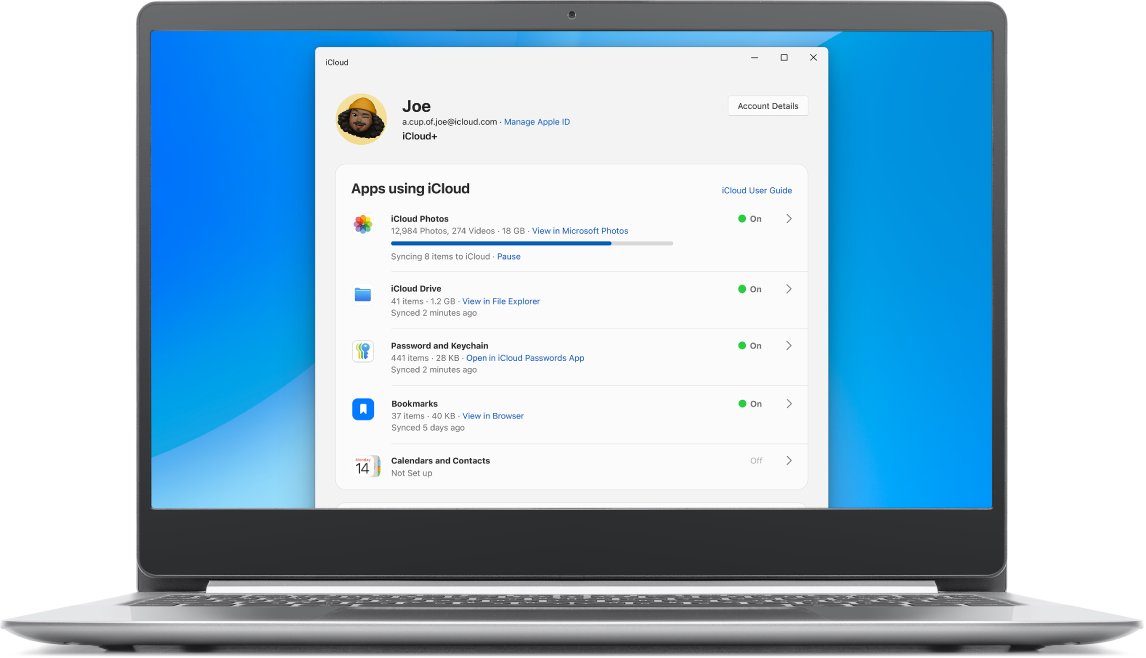
- Open the Microsoft Store, search for iCloud and click Get.
- Open iCloud for Windows and sign in with your Apple Account.
- Enter the verification code from your trusted device, or use your security key.
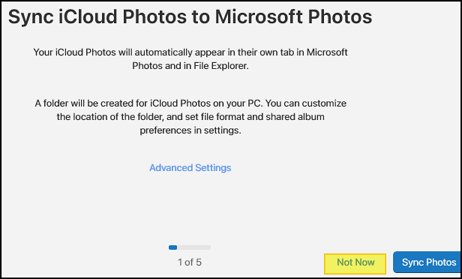
- Click Sync for each feature you want, or Not Now to skip it.
- Click Finish Setup.
Tips for using iCloud on Windows come down to two habits: keep the app updated from the Microsoft Store, and sign in with the exact Apple Account your iPhone uses.
Apple apps for Windows: iCloud, Apple Devices, Apple Music, Apple TV and iTunes
Apple split the old iTunes jobs into dedicated apps, and all of them come from the Microsoft Store. Pick the app by the job, not by habit.
| You want to | Use this app | What it handles |
|---|---|---|
| Get iPhone photos, files, passwords and calendars on the PC | iCloud for Windows | iCloud Photos, Shared Albums, iCloud Drive in File Explorer, Outlook calendars and contacts, the iCloud Passwords app, bookmarks |
| Back up, update, restore or sync an iPhone or iPad | Apple Devices | Manual backups, iOS and iPadOS updates, restores, music and photo sync |
| Play music and your iTunes Store music purchases | Apple Music | Music from your iTunes library, Apple Music streaming |
| Watch purchased or rented movies and TV shows | Apple TV | Movies and TV shows in your library, including purchases |
| Manage podcasts and audiobooks | iTunes | Apple says podcasts and audiobooks on a Windows PC are still managed in iTunes |
Use iTunes now only for podcasts, audiobooks, or a PC where the newer apps are not installed. Once Apple Devices, Apple Music or Apple TV is installed, those apps take over their jobs.
iCloud on Windows prerequisites
Apple lists both minimum and recommended setups. iCloud for Windows compatibility also depends on the account type: Managed Apple Accounts are not supported.
| Requirement | Minimum or recommended |
|---|---|
| Windows version | Windows 10 May 2019 Update or later to install from the Store; Windows 11 for the latest version |
| iCloud for Windows version | Version 15 recommended; security keys need 15 or later |
| Outlook for calendars and contacts | Outlook 2021 or later, classic Outlook |
| Accounts | A Microsoft account for the Store, plus your Apple Account and password |
| Advanced Data Protection | iCloud for Windows 14.1 or later; from 14.2 the trusted Apple device must be in Bluetooth range or on the same Wi-Fi router |
| Bookmarks browsers | Firefox 128, Chrome 130 or Edge 130 or later |
| Media playback | Media Features turned on in Turn Windows features on or off |
What if I don't meet the system requirements? Sign in at iCloud.com in a supported browser instead; Photos, Drive, Mail, Contacts and Calendar all open there without installing anything.
Install iCloud for Windows
Apple points every iCloud for Windows download to the Microsoft Store, and Store updates keep the app current. The same Store listing serves Windows 11 and Windows 10 PCs that meet the minimum build.
- Open the Microsoft Store from Start.
- Search for iCloud and select the app published by Apple.
- Click Get and wait for the install to finish.
- Click Open to start the sign-in screen.
- Check for updates in the Microsoft Store later to keep it current.
The app installs like any other Store app, and the iCloud for PC download page lists install errors and the macOS side.
Sign in to iCloud on Windows 11
Sign-in is where most iCloud for Windows problems start. Keep your iPhone unlocked and nearby, because the code arrives there.
- Open iCloud for Windows from Start.
- Enter your Apple Account email or phone number and password.
- Tap Allow on your trusted iPhone, iPad or Mac.
- Type the six-digit code into the PC.
- If no code arrives, click Didn't Get a Code? to get it by text or call.
- Turn off any VPN for the sign-in if Advanced Data Protection is on.
Choose the iCloud features you want to use
Each feature has its own switch, and you can change them later from the app's main window. The two rival steps on passwords and bookmarks sit in this table.
| Feature | Turn it on if | What you get on the PC |
|---|---|---|
| iCloud Photos | You shoot on an iPhone and want copies on the PC | An iCloud Photos folder in File Explorer, plus Shared Albums |
| iCloud Drive | You keep documents in iCloud | An iCloud Drive folder in File Explorer |
| 6. Set up iCloud Passwords on Windows 11 | You save passwords in iCloud Keychain | The iCloud Passwords app and browser extension for saved passwords |
| 7. Sync iCloud bookmarks with Windows 11 | You want Safari bookmarks in Edge, Chrome or Firefox | Bookmarks synced to a supported browser |
| Contacts and Calendars | You use classic Outlook | iCloud calendars and contacts inside Outlook |
Set up iCloud Photos on Windows 11
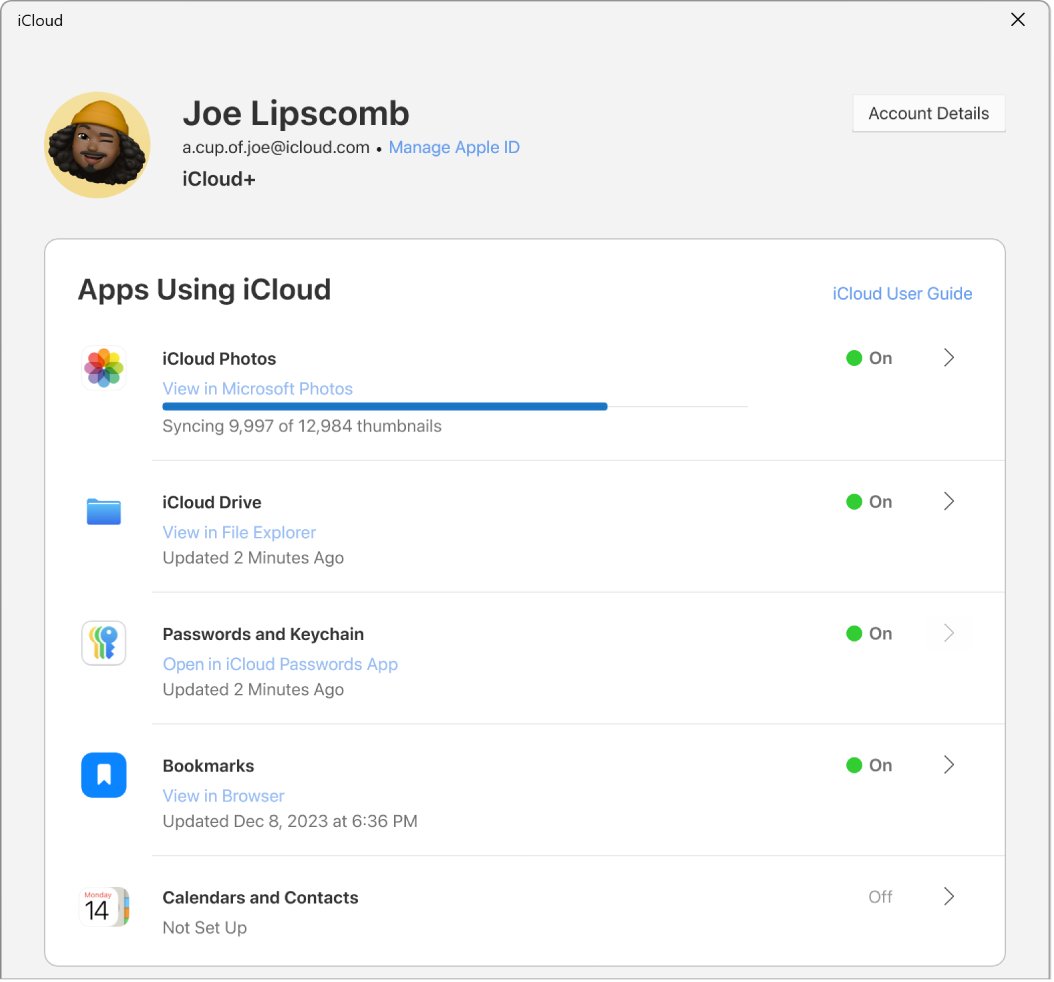
- Open iCloud for Windows.
- Click the button to the right of iCloud Photos.
- Turn on iCloud Photos, and Shared Albums if you use them.
- Click Done.
- Open File Explorer and select iCloud Photos in the navigation pane.
- Drag photos into that folder to upload them from the PC.
Photos land in C:\Users\[user name]\Pictures\iCloud Photos\Photos by default. Optimized versions download first, and opening one fetches the full version.
Set up iCloud Drive on Windows 11
How to view your iCloud files on Windows: once iCloud Drive is on, open File Explorer and select iCloud Drive. A file must be downloaded before it opens.
- Open iCloud for Windows and click the button to the right of iCloud Drive.
- Turn on iCloud Drive and click Done.
- Open File Explorer and select iCloud Drive.
- Right-click a file or folder and choose Always keep on this device to pin it offline.
- Right-click and choose Free up space to remove the local copy and keep it in iCloud.
The default folder is C:\Users\[user name]\iCloud Drive, and version 14 or later can move it to another NTFS drive. Dragging an item out of iCloud Drive removes it from iCloud on every device, so copy files when you save iCloud Drive to an external drive.
Set up iCloud contacts and calendars
iCloud for Windows syncs calendars and contacts with classic Outlook only. New Outlook adds iCloud as an email account instead, using an app-specific password.
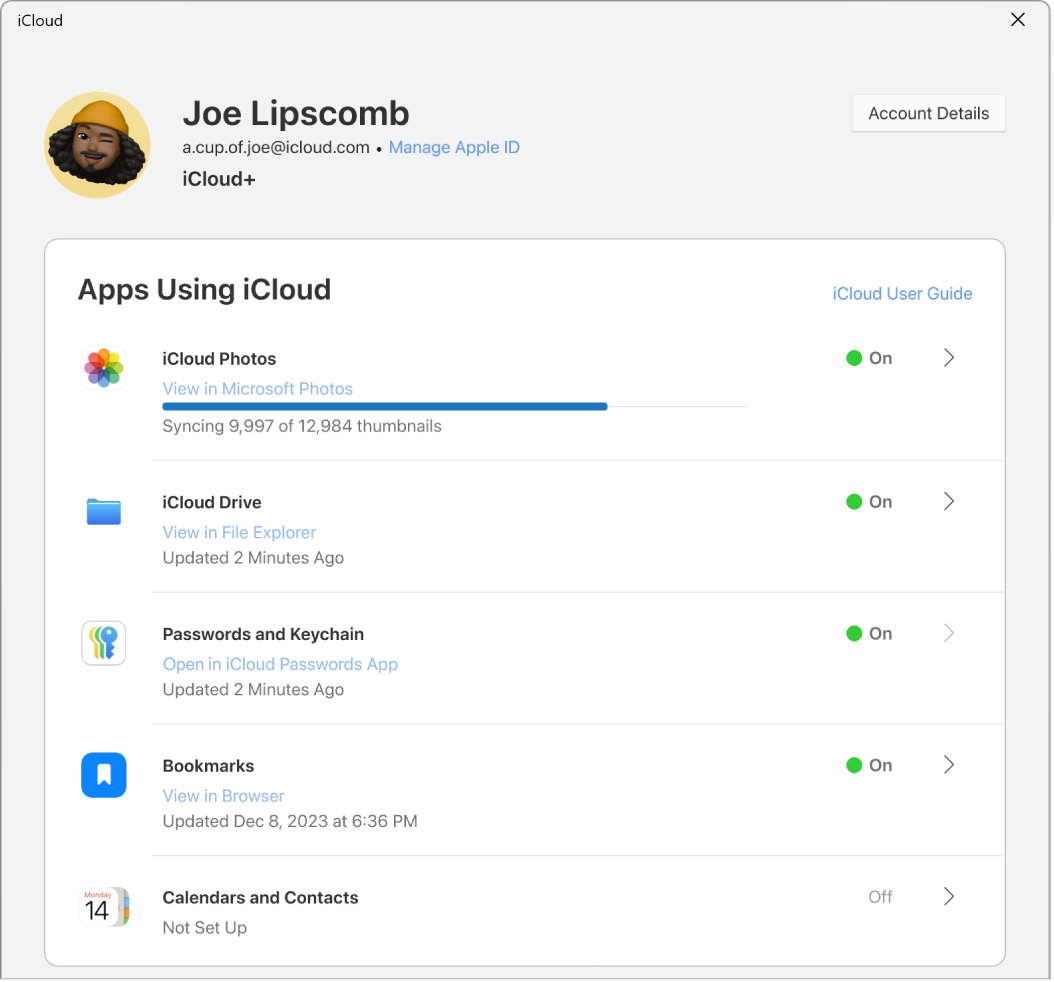
- Open iCloud for Windows.
- Click the button to the right of Contacts and Calendars.
- Turn it on and click Done.
- Open classic Outlook and look for the iCloud calendar in the folder pane.
- If it is missing, check that the iCloud Outlook Add-in is enabled in Outlook's add-ins list.
You can also add iCloud Calendar to Outlook through new Outlook, which needs the 16-character app-specific password from account.apple.com.
How to check iCloud Mail and iMessages on a Windows PC
iCloud for Windows has no Mail or Messages app. Mail opens in a browser or in Outlook over IMAP; Messages has no Windows or iCloud.com client at all.
- Open icloud.com/mail in Edge, Chrome or Firefox and sign in with your Apple Account.
- For Outlook, create an app-specific password at account.apple.com under Sign-In and Security.
- Add the account in Outlook with your @icloud.com address and that password.
- For texts, pair the iPhone with Phone Link, which shows messages while it is connected over Bluetooth.
If the web page rejects you, sign in to iCloud email with the server settings and fixes in that walkthrough. Messages in iCloud keep your history on Apple devices only, so you view messages on iCloud from an iPhone, iPad or Mac.
Method 1: Pair AirPods with Windows PC (first-time setup)
What you need before starting: a PC with Bluetooth turned on, and the AirPods in their case with the lid open. This works the same way to connect AirPods to Windows 10.
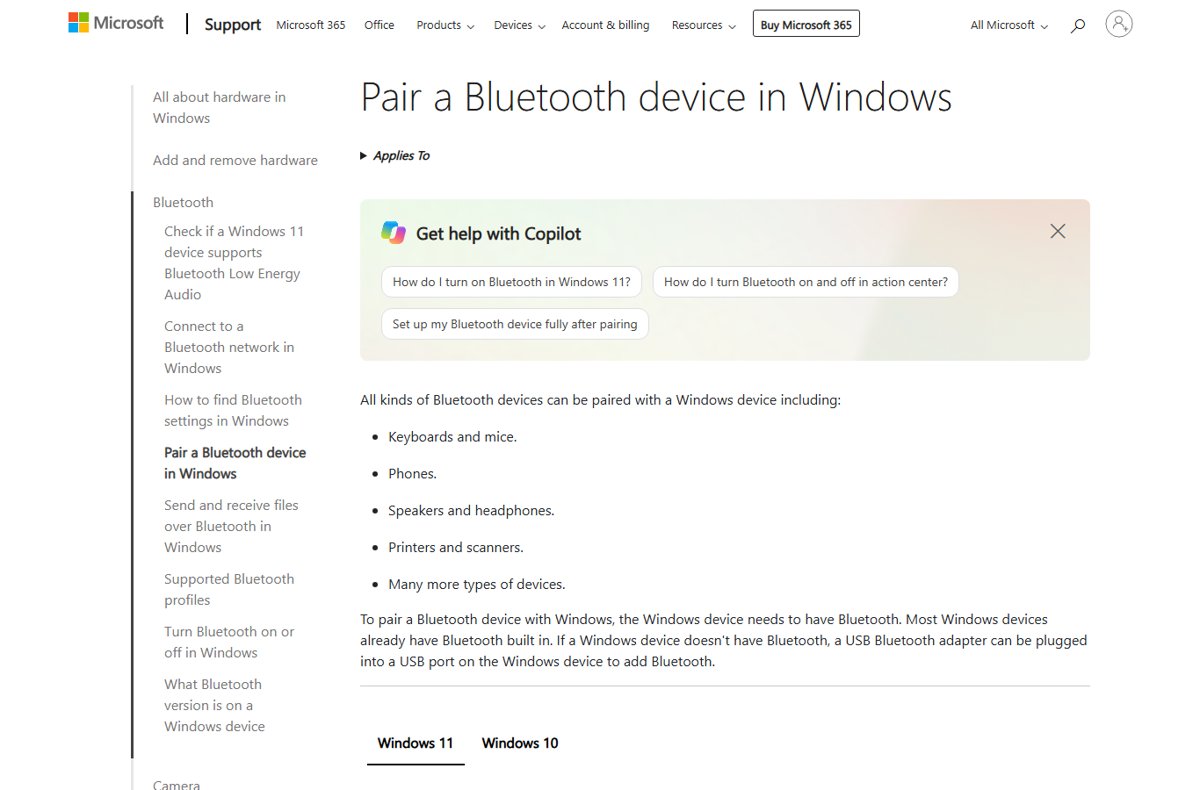
- Turn on Bluetooth on your Windows 11 PC from Quick settings or Settings > Bluetooth & devices.
- Select Add device, then Bluetooth.
- Put the AirPods in their case and open the lid.
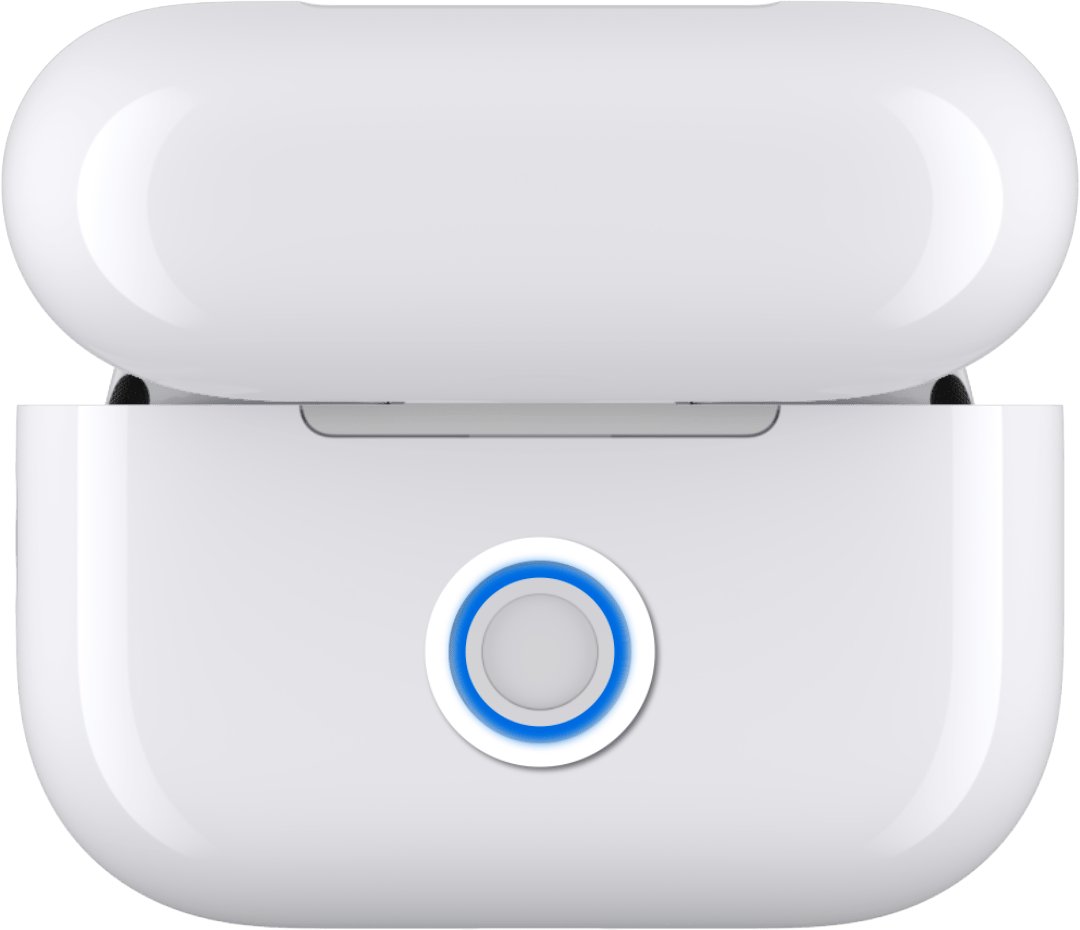
- Press and hold the setup button on the back of the case for about 5 seconds until the light flashes white.
- Select the AirPods in the Windows list and click Done when they connect.
Connecting different AirPods models changes step 4: on AirPods 4 and AirPods Pro 3 with no button, double-tap the front of the case; on AirPods Max, hold the listening mode button for 5 seconds. Every route to connect AirPods to a Windows PC ends in the same Bluetooth list.
Method 2: Reconnect AirPods to Windows PC
Windows reconnects paired AirPods on its own once they are out of the case, but an iPhone nearby often grabs them first. Managing AirPods connections means picking the PC by hand.
- Take the AirPods out of the case.
- Open Settings > Bluetooth & devices.
- Find the AirPods under your devices and click Connect.
- Click the speaker icon on the taskbar and select the AirPods as the output.
- To stop using them on the PC, click the … next to them and choose Disconnect.
How to use AirPods with Windows 11 day to day: they act as a standard Bluetooth headset, so volume and playback come from Windows, not from Siri.
Magic Mouse on Windows 11: pairing and scrolling drivers
Apple lists Magic Mouse for Bluetooth Macs and iPads, so a normal PC pairs it as a basic Bluetooth mouse. Apple's Windows support software, which adds scrolling, ships for Boot Camp on Intel Macs only.
- Slide the power switch on the bottom of the mouse so green shows.
- Open Settings > Bluetooth & devices > Add device > Bluetooth.
- Select the Magic Mouse and wait for Connected.
- On an Intel Mac running Windows, run Boot Camp's Windows Support Software installer and choose Repair.
Boot Camp is where Apple supplies the Windows 11 drivers for Apple mouse hardware. With that software in place, you can enable Magic Mouse scrolling and set the scroll options.
Back up iPhone to PC with the Apple Devices app
The Apple Devices app replaced iTunes for iPhone and iPad backups, updates and restores on Windows. Install it from the Microsoft Store; the Apple Devices app download page shows the Store listing.
- Connect the iPhone to the PC with a USB or USB-C cable.
- Unlock the iPhone and tap Trust, then enter the passcode.
- Open Apple Devices and select the iPhone in the sidebar.
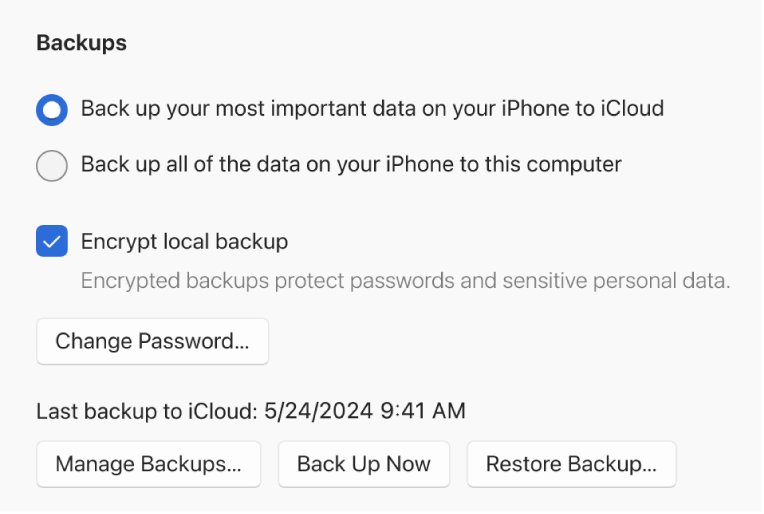
- Select General, then choose to back up all data to this computer.
- Turn on Encrypt local backup to include saved passwords and Health data.
- Click Back Up Now.
Backups are stored under %USERPROFILE% for Apple Devices; Manage Backups lists them by date. Restore, archive and Wi-Fi sync are in the full guide to back up iPhone to PC.
Transfer photos between iPhone and a Windows PC
From iPhone to PC, the Windows Photos app imports over USB once you tap Trust or Allow. From PC to iPhone, use Apple Devices photo sync or upload to iCloud Photos.
- Connect the iPhone and open Apple Devices.
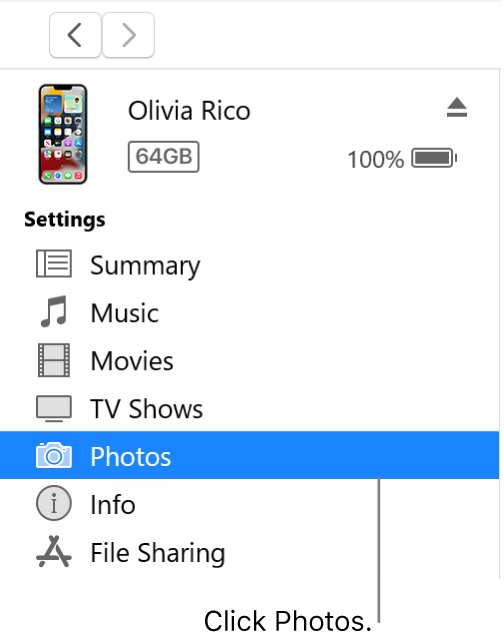
- Select the iPhone, then Photos in the sidebar.
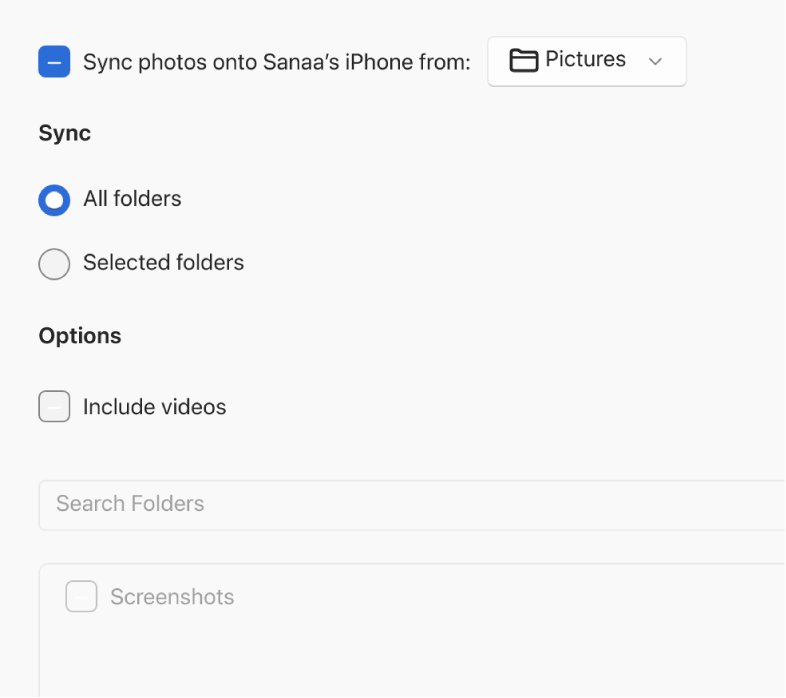
- Turn on Sync Photos to your device from and pick the folder.
- Choose All folders or Selected folders, and tick Include videos if needed.
- Click Apply, then Eject when the sync ends.
Photo sync is hidden while iCloud Photos is on, and the next sync removes anything you deleted from the folder. You can also transfer pictures from desktop to iPhone with iCloud.com uploads.
Phone Link for iPhone: send texts from a Windows PC
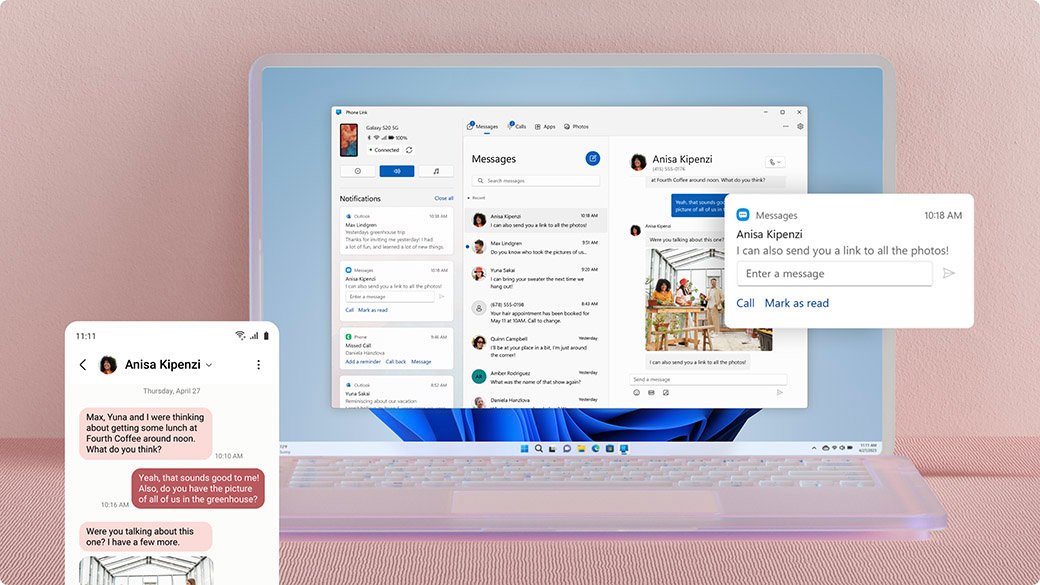
Microsoft's Phone Link pairs an iPhone running iOS 16 or later with a Windows 10 or 11 PC that supports Bluetooth LE. It covers texts, calls, contacts and notifications.
- Open Phone Link on the PC and choose iPhone under Pick your phone.
- Scan the QR code with the iPhone's default Camera app.
- Approve the Bluetooth pairing on both screens.
- On the iPhone, turn on Share System Notifications, Show Notification and Sync Contacts.
- Open Messages in Phone Link to read and send texts.
You can set up Phone Link for calls and photos too. Text limits for iPhone, and the Android route, are in the walkthrough to send text messages from a PC.
Use an iPad as a second monitor on Windows 11
Apple's Sidecar needs a Mac, so a Windows PC uses a third-party display app from the App Store instead, such as spacedesk or Duet Display.
- Install the display app on the iPad and its matching driver or desktop app on the PC.
- Connect over USB, or put both devices on the same Wi-Fi network.
- Open Settings > System > Display on the PC and click Identify.
- Drag the iPad screen to match where it sits on your desk, then click Apply.
- Press Windows + P and choose Extend.
Wired connections perform better, and the full iPad second monitor setup compares both apps.
Apple Music on Windows: install and sign in
- Open the Microsoft Store, search for Apple Music and click Get.
- Open Apple Music and click Sign In at the bottom of the sidebar.
- Enter your Apple Account and approve the code on your trusted device.
- Your iTunes library and iTunes Store music purchases appear in the library.
Signing in to the Apple TV app also signs you in to Apple Music. The Apple Music app for PC is the same Store app on Windows 11 and 10.
Check that iCloud is syncing correctly
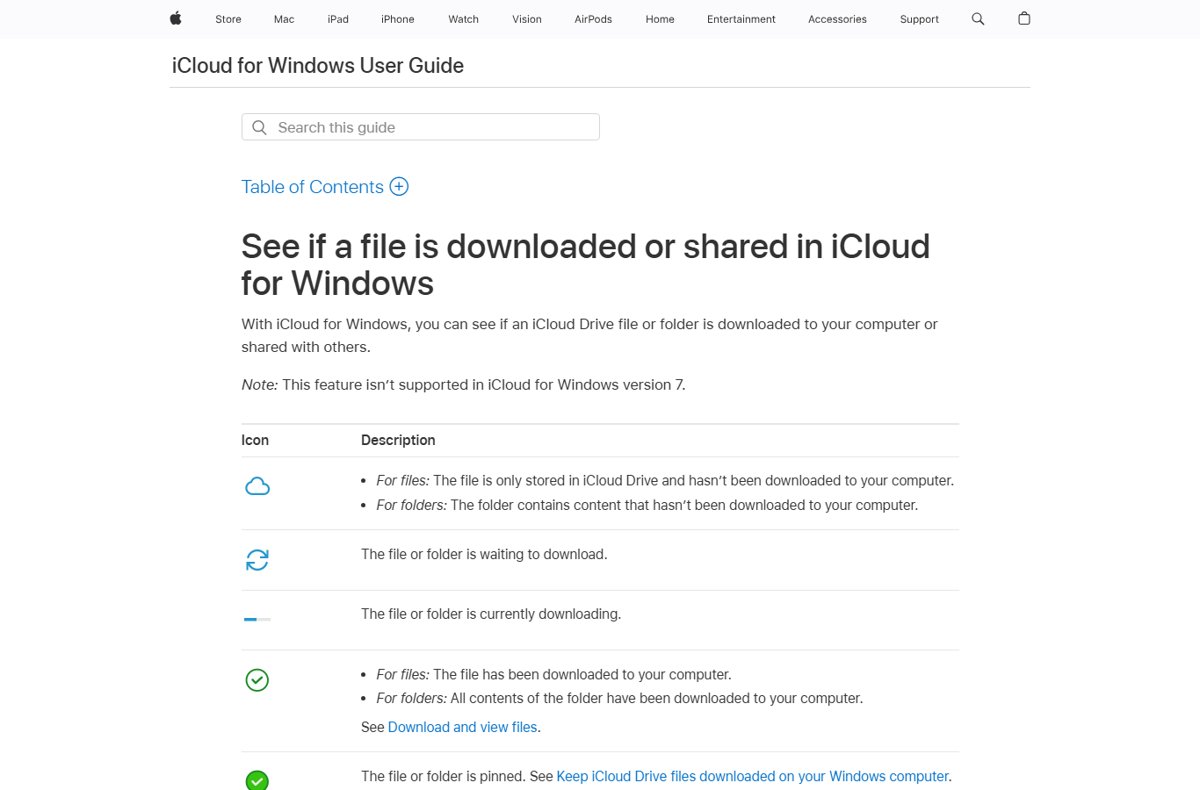
- Open File Explorer > iCloud Drive and read the status icon next to each file.
- A cloud icon means the file is stored only in iCloud; a green tick means it is downloaded.
- Check the iCloud icon in the notification area for upload and download progress.
- Open iCloud for Windows and read the storage bar graph.
- Open Account Details to confirm the signed-in Apple Account and app version.
What is iCloud for Windows?
iCloud for Windows is Apple's app that brings iCloud data into File Explorer, Outlook and your browser. Why you may need to use iCloud on Windows: an iPhone user with a PC gets photos and files without emailing them around.
| iCloud for Windows features | Where it shows up on the PC |
|---|---|
| iCloud Photos, Shared Library and Shared Albums | File Explorer navigation pane |
| iCloud Drive | File Explorer, with per-file status icons |
| Calendars and Contacts | Classic Outlook |
| Passwords | The iCloud Passwords app and browser extension |
| Bookmarks | Edge, Chrome or Firefox |
| Storage | Bar graph in the app, with Manage to change your plan |
Do Apple AirPods work with Windows 11 PCs?
Yes, as Bluetooth headphones. Understanding AirPods compatibility with Windows means knowing which Apple features stay behind on the iPhone, and the same split applies to an iPhone paired through Phone Link.
| Feature | On a Windows PC | Notes |
|---|---|---|
| AirPods music and calls | Works | Paired as a standard Bluetooth headset |
| AirPods microphone | Works | Pick the AirPods as the input device in Sound settings |
| Siri on AirPods | Not available | Apple lists no Siri on non-Apple devices |
| AirPods firmware updates | Not available | Updates install through an iPhone, iPad or Mac |
| iPhone texts in Phone Link | Works with limits | Only while connected over Bluetooth; no group replies, images or deleting |
| iPhone calls in Phone Link | Works | Uses the Bluetooth connection; primary SIM only |
| iMessage history from iCloud | Not available | iCloud.com has no Messages app |
| Sidecar to an iPad | Not available | Mac only; use a third-party display app |
About iTunes
What operating systems are compatible with iTunes? iTunes for Windows installs from the Microsoft Store on Windows 10 and Windows 11; Macs use Music, TV and Finder instead. Why should I download iTunes? Only for podcasts and audiobooks, which Apple still manages there on a PC.
| Old iTunes job | Alternatives to iTunes on Windows |
|---|---|
| Music library and purchases | Apple Music app |
| Movies and TV purchases | Apple TV app |
| iPhone and iPad backup, update and restore | Apple Devices app |
| Podcasts and audiobooks | iTunes, still |
| Updates for all of them | Check for updates in the Microsoft Store |
Apple directs iTunes install help to Microsoft. The iTunes download for PC page covers the Store and offline installers.
Apple devices on Windows: symptom, cause and fix table
| Symptom | Likely cause | Fix |
|---|---|---|
| iCloud keeps asking you to sign in again | Old app version or wrong PC clock | Update from the Store, set the time automatically, then break the iCloud login loop |
| "Verification failed" in iCloud for Windows | Advanced Data Protection rules or a VPN | Keep the trusted iPhone nearby and fix iCloud verification failed |
| iCloud Drive files stuck on sync pending | Full iCloud storage or files not downloaded | Check the storage bar, then clear iCloud Drive sync pending |
| iCloud stalls at log-in and nothing syncs | Sync switches off after a failed sign-in | Repair the app and fix iCloud not syncing |
| AirPods connected but silent | Windows plays to another output | Pick them under Sound and fix AirPods with no sound |
| AirPods drop out, one side plays, or the mic fails | Power saving, pairing or privacy settings | Re-pair them and fix AirPods not working |
| iPhone never appears in Apple Devices | No Trust tap, a charge-only cable or a stopped service | Restart Apple Mobile Device Service and fix the Apple Devices app |
| Apple Devices window opens off screen | Saved position from a disconnected monitor | Press Alt + Tab, then pull the window back |
| usbaapl64.inf will not install | The Apple mobile device driver is missing | Reinstall Apple Devices and fix the usbaapl64.inf driver |
| iTunes rejects your Apple Account | Clock, password or verification code | Sign in from Account > Sign In or fix iTunes sign-in on Windows 11 |
| Error -42110 on a movie download | Movies moved to the Apple TV app | Authorize the PC and fix iTunes error -42110 |
| "iPhone is disabled, connect to iTunes" | Too many wrong passcodes | Use recovery mode to restore a disabled iPhone 5 |
| "iPad is disabled, connect to iTunes" | Too many wrong passcodes | Erase it or restore a disabled iPad |
| Apple Music says verification failed | Apple service status, clock or password | Check Apple System Status and fix Apple Music verification failed |
If iCloud is not syncing on Windows 11
Why is iCloud for Windows not working after sign-in
An outdated app, or a sign-in that never finished.
- Check for an iCloud update in the Microsoft Store.
- Open Settings > Time & language > Date & time and turn on Set time automatically.
- In iCloud for Windows, open Account Details and click Sign Out, then sign in again.
"Can't connect to server"
No internet connection or an Apple service outage.
- Check that other sites load on the PC.
- Open Apple's System Status page and check iCloud Account & Sign In.
- Try again once the service shows as available.
Media Feature Pack message at launch
Windows media features are turned off.
- Search Start for Turn Windows features on or off.
- Tick Media Features and click OK.
- Restart the PC and open iCloud again.
Files stop updating across devices
iCloud storage is full.
- Read the storage bar in iCloud for Windows.
- Click Manage and delete what you no longer need, or choose Change Storage Plan.
Method 3: Fix AirPods not connecting
Troubleshooting common connection issues starts with the case and Bluetooth, then moves to drivers. Advanced tips for using AirPods with Windows sit in the last group.
AirPods do not show up in Add device
The case is not in pairing mode, or Windows hides the device.
- Put both AirPods in the case, charge it, and wait 15 seconds.
- Hold the setup button until the light flashes white.
- In Bluetooth & devices, set Bluetooth devices discovery to Advanced and search again.
Connect AirPods to PC fails after pairing
A stale pairing record.
- Click … next to the AirPods and choose Remove device.
- Turn Bluetooth off for 10 seconds, then on.
- Reset the AirPods: hold the setup button until the light flashes amber, then white.
- Pair them again with Add device.
AirPods keep disconnecting
Windows powers down the Bluetooth adapter, or USB 3.0 devices interfere.
- Open Device Manager > Bluetooth, open the adapter's Power Management tab and clear Allow the computer to turn off this device to save power.
- Move unshielded USB 3.0 devices away from the Bluetooth adapter.
- Run Settings > System > Troubleshoot > Other troubleshooters > Bluetooth.
iCloud for Windows FAQ
What is iCloud for Windows?
iCloud for Windows is Apple's app that puts iCloud Photos and iCloud Drive in File Explorer, syncs iCloud calendars and contacts with classic Outlook, and adds iCloud passwords and bookmarks to your browser. It installs from the Microsoft Store.
Where can I download iCloud for Windows?
Download iCloud for Windows from the Microsoft Store. Apple's own download page links straight to the Store listing, and the Store also delivers every later update, so there is no separate installer to keep current.
Does iCloud for Windows work with Windows 11?
Yes. Apple recommends Windows 11 with iCloud for Windows 15, and the latest version needs Windows 11. Windows 10 with the May 2019 Update or later can still install the app from the Microsoft Store.
Where is iCloud for Windows on my PC?
Open it from the Start menu by searching for iCloud. Its files appear in File Explorer: iCloud Drive at C:\Users\[user name]\iCloud Drive and photos under Pictures\iCloud Photos\Photos.
How do I update iCloud for Windows?
Check for updates in the Microsoft Store. iCloud for Windows updates through the Store like any other Store app, and the version number shows in Account Details inside the app.
How do I uninstall iCloud for Windows 11?
Sign out first from Account Details > Sign Out. Then open Settings > Apps > Installed apps, click More next to iCloud, and choose Uninstall. Your data stays in iCloud and on your other devices.
Can I access iCloud on Windows without the app?
Yes. Sign in at iCloud.com in Edge, Chrome or Firefox to use Photos, Drive, Mail, Contacts and Calendar. With Advanced Data Protection on, web access stays off until you approve it on a trusted device.
Does iCloud for Windows work with new Outlook?
Calendar and contact sync through iCloud for Windows works with classic Outlook only. New Outlook can add your iCloud email account directly, using an app-specific password created at account.apple.com.
Why won't iCloud for Windows open?
Update it from the Microsoft Store first. If it still fails, open Settings > Apps > Installed apps, click More next to iCloud, choose Advanced options and click Repair, then Reset if Repair does not help.
Is iCloud for Windows safe?
iCloud for Windows is published by Apple and installs from the Microsoft Store. It signs in with your Apple Account and two-factor code, and supports security keys from version 15 and Advanced Data Protection from version 14.1.