To update drivers in Windows 11, open Settings > Windows Update > Advanced options > Optional updates, tick the driver updates you need and select Download & install.
This guide also covers Device Manager, the PC maker's site, pnputil, reinstalling and rolling back a driver, and fixes for graphics, audio, network, Bluetooth, printer and peripheral drivers.
How do I update drivers in Windows 11?
Windows Update is Microsoft's recommended source for drivers. It already covers network adapters, printers, scanners and video cards, and it installs most drivers on its own.
- Open Settings and select Windows Update.
- Select Check for updates and install anything waiting.
- Select Advanced options > Optional updates.
- Expand Driver updates, tick the drivers for your devices and select Download & install.
- Restart the PC when Windows asks.
Optional drivers never install automatically, so this list is where a missing touchpad or Wi-Fi driver usually waits. Each route has its own screens, and the walkthrough for every driver update method shows them in order.
Where to update drivers in Windows 11 and Windows 10
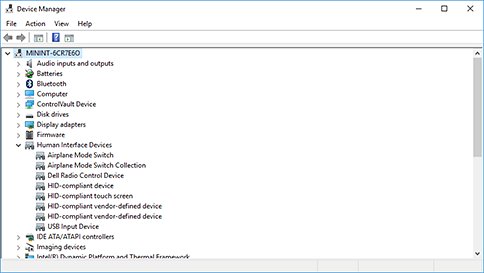
Driver controls live in two places: Windows Update for new versions, and Device Manager for everything you do to one device.
| Task | Windows 11 | Windows 10 |
|---|---|---|
| Check for driver updates | Settings > Windows Update > Check for updates | Settings > Update & Security > Windows Update > Check for updates |
| Optional driver updates | Windows Update > Advanced options > Optional updates > Driver updates | Windows Update > View optional updates > Driver updates |
| Updates for other Microsoft products | Advanced options > Receive updates for other Microsoft products | Advanced options > Receive updates for other Microsoft products when you update Windows |
| Update, roll back or uninstall one driver | Device Manager > right-click the device | Same |
| Driver version and date | Device Manager > device Properties > Driver tab | Same |
| Device error code | Device Properties > General > Device status | Same |
| Find a removed or new device | Device Manager > Action > Scan for hardware changes | Same |
You can open Device Manager by right-clicking Start. Some changes need elevated rights, so it helps to run Device Manager as admin from the Run box.
Which driver update method should you use?
| Your situation | Use this | Why |
|---|---|---|
| New PC or fresh Windows install | Windows Update, including optional updates | Signed drivers matched to your hardware by Microsoft |
| One device misbehaves | Device Manager > Update driver | Targets just that device |
| You downloaded a driver folder or INF file | Device Manager > Browse my computer for drivers | Installs the package you choose |
| Windows has nothing newer than you need | The device or PC maker's support site | Makers often post newer versions first |
| Games need the newest graphics driver | NVIDIA, AMD or Intel's own site or app | GPU makers release drivers more often than Windows Update carries them |
| Many PCs or scripted setup | pnputil from an admin prompt |
Adds and installs INF drivers from the command line |
| A driver update broke something | Device Manager > Roll Back Driver | Restores the previous version |
Usually, you don't need to update drivers
Windows Update picks drivers by the hardware they target, not by the newest date, so a working device rarely gains from a manual update.
| Situation | Update the driver? | Reason |
|---|---|---|
| Device works and nothing is wrong | No | Windows Update already installs the driver certified for it |
| A device shows a yellow warning or error code | Yes | The driver is missing, damaged or wrong |
| A new game asks for a newer graphics driver | Yes | Game fixes ship in GPU driver releases |
| Sound, Wi-Fi or Bluetooth stopped after a Windows update | Reinstall or roll back first | The older driver often works again |
| A driver site you do not know offers a newer file | No | Microsoft warns against drivers from sites other than the maker's |
Method 1: Update drivers using Device Manager (built-in tool)
Device Manager updates one device at a time. Search automatically for drivers checks the PC, and Browse my computer for drivers installs a package you downloaded.
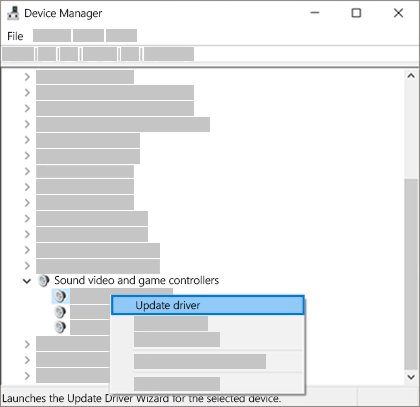
- Right-click Start and select Device Manager.
- Expand the category, right-click the device and select Update driver.
- Select Search automatically for drivers to update the device driver automatically.
- To update a device driver manually, select Browse my computer for drivers > Browse, pick the driver folder and select Next.
- Restart if Windows asks.
If Windows reports The best drivers for your device are already installed, select Search for updated drivers on Windows Update or use the maker's site.
Method 2. Update drivers using Windows Update
This is the safest way to update your drivers, because Microsoft only publishes signed drivers that hardware partners certify. Related drivers for one device install together.
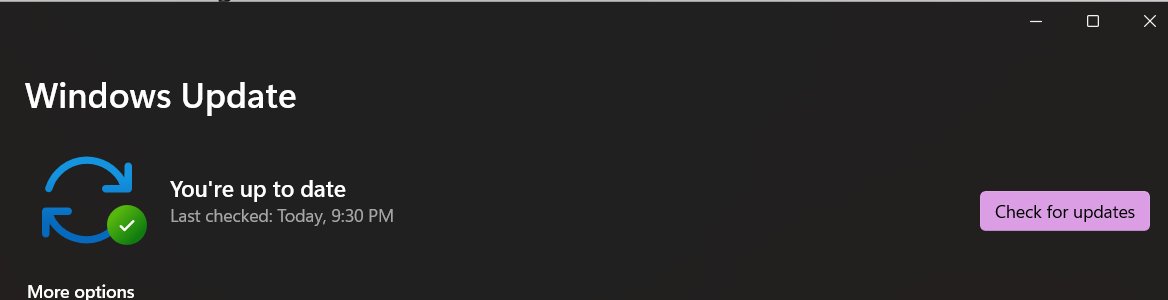
- On Windows 11, open Settings > Windows Update > Advanced options and turn on Receive updates for other Microsoft products.
- Go back and select Check for updates.
- Open Advanced options > Optional updates > Driver updates.
- On Windows 10, open Settings > Update & Security > Windows Update > View optional updates.
- Tick the drivers you need, install them and restart.
Method 3. Update drivers using manufacturer website
The best place to manually download updated drivers is the support page of the PC or device maker. Contact the device manufacturer when Windows Update has no driver or the device still fails.
- Note your model from the label, or the device name in Device Manager.
- Open the maker's support site and enter the model or serial number.
- Download the driver for your exact Windows version.
- Run the installer, or point Device Manager's Browse my computer for drivers at the extracted folder.
- Restart and check the version on the Driver tab.
PC makers ship their own apps for this. You can keep Dell drivers updated by Service Tag, use HP Support Assistant for driver and firmware updates, or update an Acer laptop's drivers from Acer's support page.
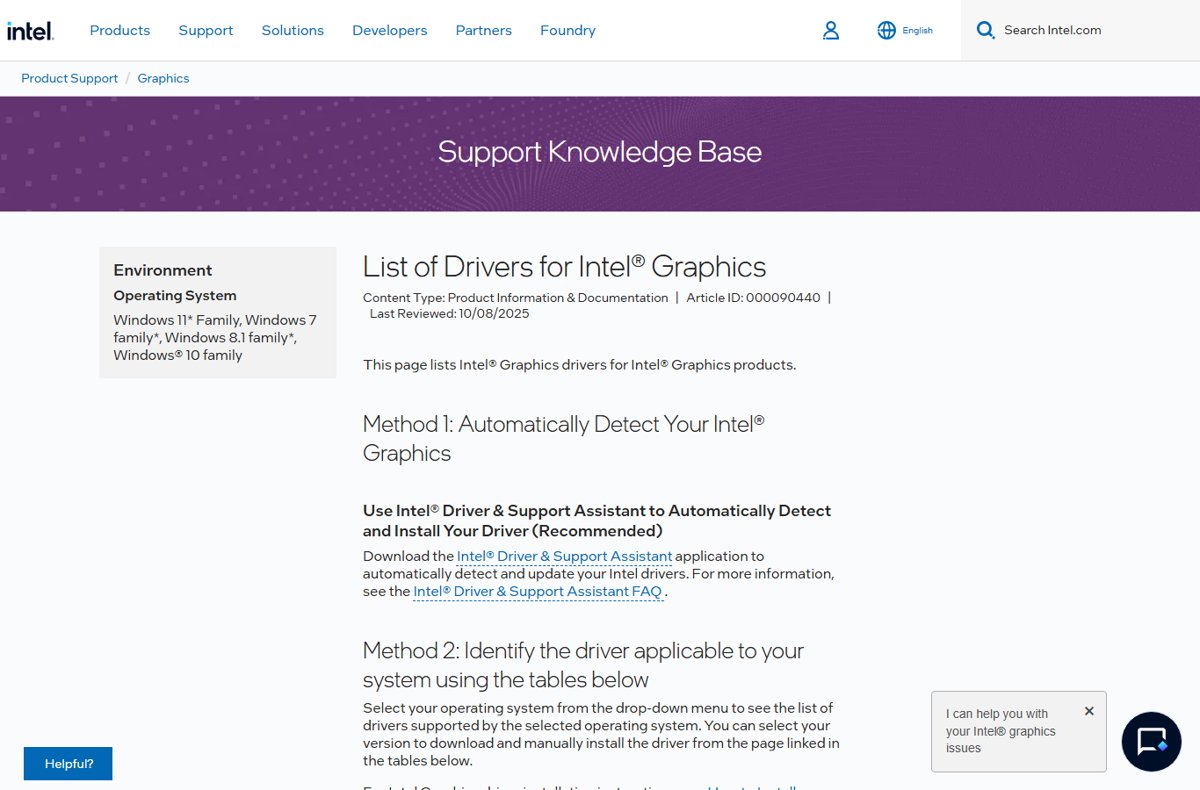
Intel's tool detects Intel parts and lists newer drivers. You can scan with Intel Driver & Support Assistant once you get the Intel Driver & Support Assistant from intel.com.
Method 4: Should you use driver updater tools?
No. Skip third-party driver update software and use Windows Update, Device Manager or the hardware maker's own tool. Microsoft advises against drivers from sites other than the manufacturer's, and Windows Update already delivers certified drivers matched to your hardware.
The free maker tools are worth a look, and a comparison of driver updater options lists them next to the paid ones.
Update drivers using Command Prompt with pnputil
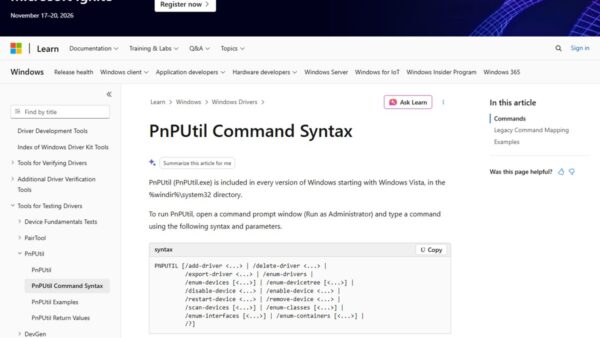
pnputil ships with Windows and needs an administrator Command Prompt. It adds an INF driver to the driver store and installs it on matching devices.
pnputil /add-driver C:\Drivers\*.inf /subdirs /installAdds every INF in C:\Drivers and its subfolders, then installs them on matching devices. Run pnputil /enum-drivers to list third-party drivers, and pnputil /scan-devices to rescan hardware.
You should see: The output names each added package as oem#.inf and reports how many drivers were added and installed.
How to reinstall a device driver
Reinstalling replaces a damaged driver with a clean copy. Windows puts it back when it detects the device again.
- In Device Manager, right-click the device and select Uninstall device.
- Select Uninstall to confirm.
- Restart the PC so Windows reinstalls the driver.
- If the device is still missing, select Action > Scan for hardware changes.
- Printers may need to be added again by hand.
Rollback the driver (if a recent update was installed)
Roll back when a device broke right after a driver update. The button is grey when no earlier driver is stored.
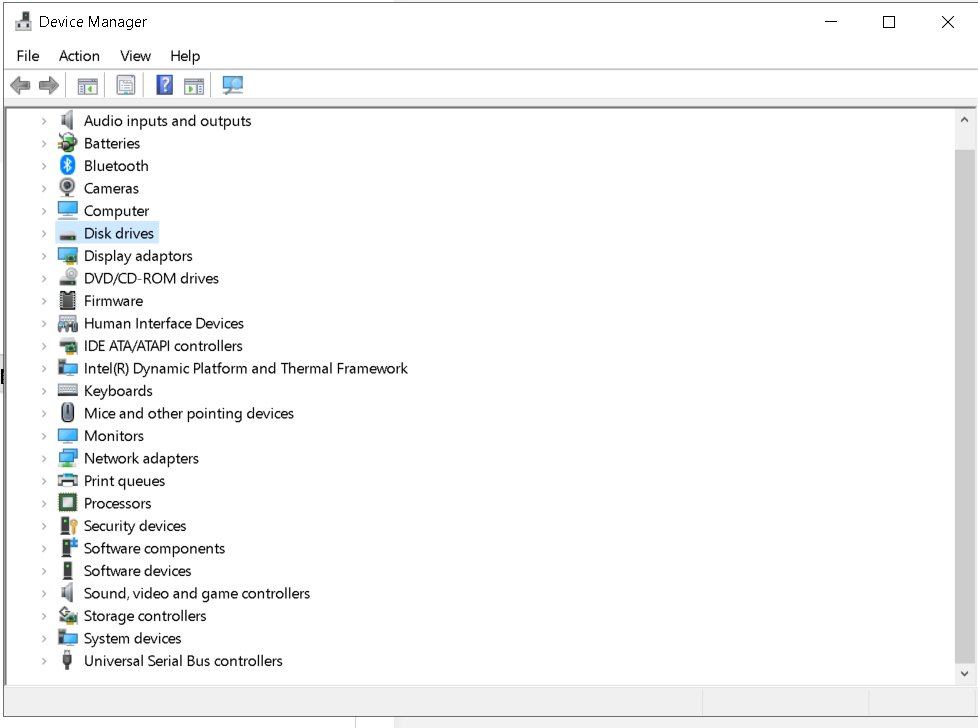
- In Device Manager, right-click the device and select Properties.
- Open the Driver tab.
- Select Roll Back Driver.
- Pick a reason and select Yes.
- Restart the PC.
How to verify a driver update
- Open the device's Properties in Device Manager.
- On the General tab, check that Device status reads that the device is working properly.
- On the Driver tab, compare Driver Version and Driver Date with the version you installed.
- Open Settings > Windows Update > Update history and look under Driver updates.
- Test the device itself: play sound, load a web page, pair a Bluetooth device.
How to update graphics card drivers on Windows 11
Graphics drivers change more often than any other driver. Windows Update carries a tested version, and NVIDIA, AMD and Intel post newer ones on their own sites.
- Expand Display adapters in Device Manager and note the GPU name.
- Check Optional updates > Driver updates for a graphics driver.
- For a newer version, download the driver for your GPU from the maker's site.
- Run the installer and restart.
- If the screen breaks, roll the driver back from Display adapters.
Each GPU brand has its own download page, and the guide to update your graphics driver compares them. You can download NVIDIA drivers for GeForce cards or the Intel graphics driver package for Arc and Iris Xe.
Settings for the card live in the maker's app. The NVIDIA Control Panel from the Microsoft Store needs a DCH driver, and Intel users can open Intel Graphics Command Center from Start. If setup stops, fix the NVIDIA installer error before trying again.
What is NVIDIA Update?
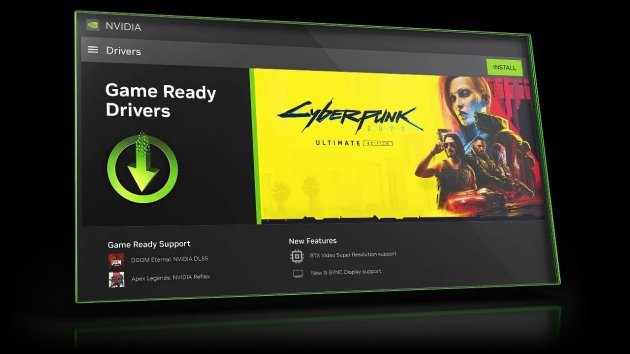
NVIDIA Update tells you when a new driver is out and links to it on nvidia.com. It does not install the driver silently.
| Question | Answer |
|---|---|
| Which products are supported by NVIDIA Update? | GeForce and ION GPUs in desktops and notebooks; other NVIDIA GPUs are not supported |
| How do I get NVIDIA Update? | It is offered as an option when you install a Release 270 or later GeForce or ION driver from nvidia.com |
| How does NVIDIA Update work? | It scans your hardware and current driver version, matches them against NVIDIA's driver database and notifies you of driver updates |
| What data is sent to NVIDIA? | Graphics hardware, operating system, language and current driver version; no personally identifiable information |
| Game profiles | From R275 drivers, it also updates game and program profiles, including SLI profiles |
How do I configure NVIDIA Update?
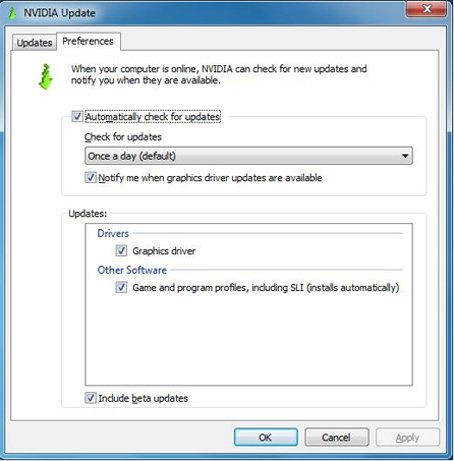
The NVIDIA Update control panel opens from the NVIDIA Control Panel or from the NVIDIA icon in the system tray, with the tabs and options shown below.
- Right-click the desktop, select NVIDIA Control Panel, then Help > Updates. Or right-click the tray icon and select Update preferences.
- On the preferences tab, untick Automatically check for updates to turn it off, or pick how often it checks.
- Untick Notify me when graphics driver updates are available to stop tray balloons.
- Tick Include beta updates for beta drivers, or Game and Program Profiles for automatic profiles.
- On the Updates tab, view available and installed updates and select Check for Updates.
- Select a driver update link to open its page on nvidia.com.
Update audio drivers in Windows 11 and Windows 10
Audio drivers sit under Sound, video and game controllers. Update first, then reinstall if the sound is still missing.
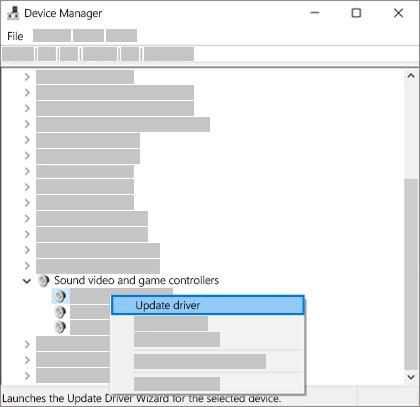
- Expand Sound, video and game controllers in Device Manager.
- Right-click the audio device and select Update driver > Search automatically for drivers.
- If nothing changes, select Uninstall device and restart.
- Still silent? Install the audio driver from your PC maker's support page.
The same idea works when you reinstall audio drivers on Windows 10. HP owners can get HP audio drivers for Windows 11 from HP's own tools.
Realtek chips need the right driver before their app appears, so install Realtek Audio Console only after the driver. Older PCs can boost sound with Realtek HD Audio Manager, and there are separate Realtek fixes for 26H2 audio after the feature update.
Update network adapter driver in Windows 11
Network adapter drivers come through Windows Update, so a PC with no connection needs the driver copied in from another computer.
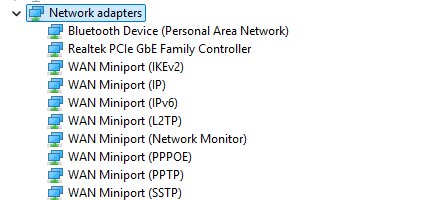
- Expand Network adapters in Device Manager.
- Right-click the Wi-Fi or Ethernet adapter and select Update driver.
- With no internet, download the driver on another PC, copy it over on a USB drive and use Browse my computer for drivers.
- If the adapter stopped after an update, select Properties > Driver > Roll Back Driver.
- Restart and test the connection.
You can update the network adapter driver offline the same way. Wired connections that broke after the feature update have their own 26H2 Ethernet driver fixes.
Reinstall Bluetooth drivers in Windows 11 and Windows 10
- Expand Bluetooth in Device Manager.
- Right-click the Bluetooth adapter and select Update driver.
- If that fails, select Uninstall device, then restart.
- If Bluetooth broke after an update, use Roll Back Driver on the Driver tab.
- Install the Bluetooth driver from your PC maker's site if Windows has none.
You can reinstall Bluetooth drivers when the toggle vanishes from Settings. Many laptops use an Intel adapter, and the Intel wireless Bluetooth driver comes from intel.com.
Install or update a printer driver in Windows 11
Windows Update supplies most printer drivers. Use the maker's package only when Windows has none for your model.
- Connect the printer and turn it on.
- Check Optional updates > Driver updates for the printer.
- If none is listed, download the driver for your model from the printer maker's site.
- Run the installer and print a test page.
- To start clean, remove the printer, uninstall its driver and add it again.
You can install or update a printer driver from Printers & scanners too, and install optional printer drivers Windows holds back. It is even possible to add a printer driver without the printer before it arrives, and to uninstall a printer driver that keeps coming back.
Drivers for controllers, docks, mice and other devices
Most peripherals get their driver from Windows Update when you plug them in. These are the cases where that is not enough.
| Device | Where the driver comes from | Help |
|---|---|---|
| Xbox Wireless Adapter | Windows Update | Xbox Wireless Adapter drivers |
| Xbox One controller | Windows Update on first connection | Xbox One controller driver |
| USB docks and DisplayLink adapters | The dock maker or Windows Update | install DisplayLink drivers |
| Apple Magic Mouse | Bluetooth pairing, or Boot Camp on an Intel Mac | Apple mouse drivers |
| iPhone over USB for iTunes | Apple's software | fix the usbaapl64.inf driver |
| DYMO label printers | The maker's desktop software | DYMO drivers for Windows 11 |
| Fingerprint reader | Windows Update or the PC maker | fingerprint driver for Windows Hello |
| Intel storage and RAID | Intel or the PC maker | Intel Rapid Storage Technology driver |
Method 5. Things to keep in mind when updating drivers in Windows
Before you update device drivers, know what you have and how to get back to it. These best practices for updating device drivers stop most problems.
| Check | Why it matters |
|---|---|
| Note the current version on the Driver tab | You can confirm the update and spot a downgrade |
| Create a restore point first | Gives you a way back if the PC will not start properly |
| Download only from Windows Update or the maker | Microsoft warns against drivers from other sites |
| Match the driver to your Windows version | A driver built for another version may not install |
| Update one device at a time | You know which driver caused a new problem |
| Restart after each install | Many drivers only load at startup |
Device Manager error codes and fixes
Open the device's Properties and read Device status on the General tab. The code tells you which fix to try.
| Symptom | Likely cause | Fix |
|---|---|---|
| Code 10: device cannot start | Driver fails to load | Update the driver, or reinstall it |
| Code 28: drivers not installed | No driver installed | Update the driver from Windows Update or the maker |
| Code 31: device not working properly | Windows cannot load the driver | Update or reinstall the driver |
| Code 43: Windows stopped this device | The device or driver reported a problem | Update, roll back, or uninstall and select Scan for hardware changes |
| Code 45: device not connected | Hardware was unplugged | Reconnect the device |
| Code 52: digital signature cannot be verified | Unsigned or damaged driver | Install a signed driver from Windows Update or the maker |
| Screen shows Microsoft Basic Display Adapter | Generic driver in place of the GPU driver | Install the GPU driver from Windows Update, then the maker's site |
Method 6. Troubleshooting driver update errors and messages (Windows 10 and Windows 11)
Why won't my drivers update?
Device Manager only offers what Windows Update holds, so it reports the best drivers are already installed.
- Select Search for updated drivers on Windows Update.
- Check Optional updates > Driver updates.
- Download the newer driver from the maker's site and use Browse my computer for drivers.
Why won't my NVIDIA drivers update?
The driver does not match the GPU or Windows version, or an earlier install is damaged.
- Check the GPU name under Display adapters.
- Download the driver for that GPU and your Windows version from nvidia.com.
- Install Windows updates and restart before running the installer again.
- If it still fails, uninstall the display driver in Device Manager, restart and install again.
Why can't I update my AMD drivers?
A laptop may need the PC maker's tested graphics driver, or the installer does not match the GPU.
- Note the GPU under Display adapters.
- Try the driver on the laptop maker's support page first.
- Otherwise get the driver for your exact GPU from amd.com and restart after installing.
Device stopped working after a driver update
The new driver does not suit your hardware.
- Open Properties > Driver and select Roll Back Driver.
- Restart.
- If the button is grey, uninstall the device and restart so Windows installs its own driver.
Windows drivers update FAQ
How do I update drivers in Windows 10?
Open Settings > Update & Security > Windows Update, select Check for updates, then View optional updates > Driver updates. Tick the drivers you need, install them and restart. Device Manager's Update driver option works the same way as on Windows 11.
Can I update drivers for free?
Yes. Windows Update, Device Manager and the drivers on hardware makers' support sites cost nothing. Paid driver updater programs are not needed, and Microsoft advises getting drivers only from Windows Update or the manufacturer.
How do I update drivers on a laptop?
Use Windows Update optional updates first, then the laptop maker's support page or app with your model or serial number. Laptop makers often tune graphics, audio and touchpad drivers for that model, so their versions are the safest manual choice.
How do I update drivers using Command Prompt?
Open Command Prompt as administrator and run pnputil /add-driver with the path to the INF file, adding /install to install it on matching devices and /subdirs to include subfolders. pnputil /enum-drivers lists the third-party drivers already in the store.
Why update drivers on a computer?
Updated drivers fix device faults, add support for new hardware features and fix bugs in games and apps. If every device works, Windows Update keeps the drivers current and you rarely need to update anything by hand.
Where do I update drivers in Windows 11?
Open Settings > Windows Update > Advanced options > Optional updates > Driver updates for new drivers. To update one device, right-click Start, open Device Manager, right-click the device and select Update driver.
How do I update NVIDIA or AMD drivers?
Check Windows Update optional updates, or download the driver for your exact GPU from nvidia.com or amd.com and run the installer. NVIDIA Update can also notify you when a new GeForce driver is out and link you to its page.
How do I roll back a driver in Windows?
Open Device Manager, right-click the device, select Properties, open the Driver tab and select Roll Back Driver. Choose a reason, select Yes and restart. The button is unavailable when Windows has no earlier driver stored.