The essential Windows keyboard shortcuts are Ctrl + C, Ctrl + V and Ctrl + Z to copy, paste and undo, Win + Shift + S for a screenshot, Alt + Tab to switch apps, Win + Ctrl + Left/Right arrow to switch desktops, and Win + . (period) for emoji and symbols.
For a symbol that is not on the keys, hold Alt and type its code on the numeric keypad, such as Alt + 0176 for °. If a keyboard stops working, reconnect it, try another USB port, check the batteries and update its driver through Windows Update.
Best Windows 11 keyboard shortcuts
If you only learn ten, learn the first ten rows. They work in Windows 11 and Windows 10, though an app can change what a shortcut does.
| Shortcut | What it does | Go further |
|---|---|---|
| Ctrl + C, Ctrl + V | Copy the selection, then paste it | Clipboard history and plain-text paste: copy and paste with the keyboard |
| Ctrl + Z | Undo the last action | Undo in File Explorer and Office: undo on a keyboard |
| Ctrl + Y | Redo what Ctrl + Z undid | Redo keys in other apps: the opposite of Ctrl + Z |
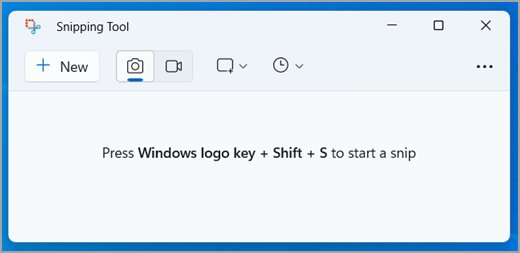
| Win + Shift + S | Select a region and copy the screenshot to the clipboard | |
| Alt + Tab | Switch between open windows; hold Alt and press Tab to cycle | |
| Win + Ctrl + Left/Right arrow | Switch virtual desktops | |
| Win + . | Open the emoji panel with emoji, GIFs, kaomoji and symbols | |
| Ctrl + Shift + Esc | Open Task Manager | |
| Ctrl + Alt + Del | Open the security screen to lock, switch user, sign out or open Task Manager | You can also require Ctrl + Alt + Delete at sign-in |
| F5 or Ctrl + R | Refresh the active window | Black screen and restart keys: refresh a laptop with the keyboard |
| Ctrl + Tab | Next tab in Edge, File Explorer and dialog boxes; add Shift to go back | Keys for every browser: change tabs with the keyboard |
| F11 | Toggle full screen in Edge; Win + Shift + Enter makes a UWP app full screen | Exit keys and app players: go full screen on Windows 11 |
| Win + Ctrl + O | Turn on the On-Screen Keyboard | Sign-in screen access: enable the on-screen keyboard |
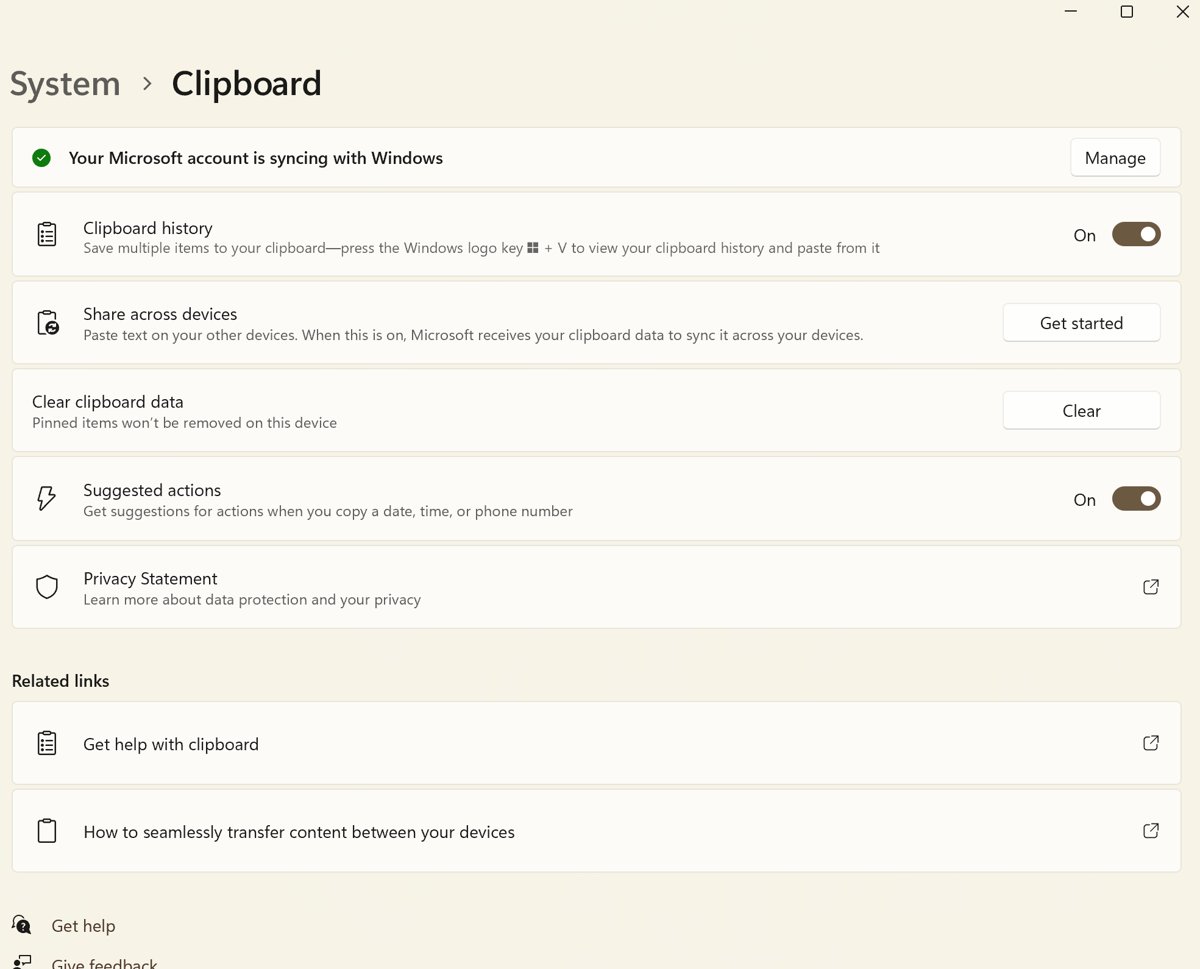
| Win + V | Open clipboard history | Turn it on in Settings > System > Clipboard |
| Win + D, Win + L | Show the desktop, lock the PC | Win + E opens File Explorer |
Most daily editing runs through the Ctrl key, and the Ctrl key commands for Windows 11 list every one. For additional keyboard shortcuts beyond these tables, there is a complete list sorted by category.
Text editing keyboard shortcuts
These editing, clipboard and text cursor and selection keys work in Notepad, Word, browsers and most text boxes. Ctrl + Shift + V may not paste plain text in every app.
| Shortcut | Action |
|---|---|
| Ctrl + A | Select all text |
| Ctrl + X | Cut the selected text |
| Ctrl + Shift + V | Paste as plain text |
| Ctrl + B, Ctrl + I, Ctrl + U | Bold, italic, underline |
| Ctrl + F, Ctrl + H | Find, find and replace |
| Ctrl + Backspace, Ctrl + Del | Delete the word to the left or right of the cursor |
| Ctrl + Left/Right arrow | Jump to the previous or next word |
| Ctrl + Home, Ctrl + End | Start or end of the document |
| Shift + arrow keys | Select characters or lines |
| Shift + Ctrl + Left/Right arrow | Select word by word |
| Ctrl + N, Ctrl + P | New document, printing dialog |
Windows key keyboard shortcuts
The Windows logo key runs most system and window management shortcuts.
| Shortcut | Action |
|---|---|
| Win | Open or close Start |
| Win + A | Open Quick Settings |
| Win + C or the Copilot key | Open Microsoft Copilot; opens Windows Search when Copilot is unavailable or turned off |
| Win + H | Open voice typing |
| Win + S | Open search |
| Win + Tab | Open Task View |
| Win + U | Open Accessibility settings |
| Win + W | Open Widgets |
| Win + X | Open the Quick Link menu, the same as right-clicking Start |
| Win + Z | Open snap layouts |
| Win + Left/Right arrow | Snap the window to the left or right side |
| Win + Up/Down arrow | Maximize, or minimize the active window |
| Win + Shift + Left/Right arrow | Move the window to the monitor on the left or right |
| Win + Ctrl + V | Open the sound output page with the volume mixer |
| Win + Ctrl + Shift + B | Wake the device when the screen is blank or black |
To change what the Copilot key or Win + C does, go to Settings > Personalization > Text input > Customize Copilot key on keyboard.
Desktop and other general Windows keyboard shortcuts
| Shortcut | Action |
|---|---|
| Alt + F4 | Close the active window; with no windows open, prompt to shut down |
| Ctrl + F4 | Close the active document but not the app |
| Ctrl + Alt + Tab | Show thumbnails of open apps; pick one with the arrow keys |
| Alt + Spacebar | Open the window menu of the active window |
| Alt + Left/Right arrow | Navigation back and forward |
| Alt + F8 | Show your password on the sign-in screen |
| Ctrl + Shift | Switch keyboard layout when several are installed |
Windows screenshot keyboard shortcuts
| Shortcut | What it captures | Where it goes |
|---|---|---|
| PrtScn | A region you select | Clipboard; open Snipping Tool to mark it up |
| Alt + PrtScn | The active window | Clipboard |
| Win + PrtScn | The full screen | A file in the Screenshots folder inside Pictures |
| Win + Shift + S | A region you select | Clipboard |
| Win + Shift + R | A screen region as video | MP4 in the Screen Recordings folder inside Videos |
To stop PrtScn opening screen snipping, go to Settings > Accessibility > Keyboard and turn off Use the Print Screen button to open screen snipping.
Multiple desktops keyboard shortcuts
Virtual desktops keep work and personal windows apart on one display.
| Shortcut | Action |
|---|---|
| Win + Tab | Open Task View |
| Win + Ctrl + D | Create another desktop |
| Win + Ctrl + Right arrow | Switch to the desktop on the right |
| Win + Ctrl + Left arrow | Switch to the desktop on the left |
| Win + Ctrl + F4 | Close the desktop you are using |
Taskbar keyboard shortcuts

| Shortcut | Action |
|---|---|
| Win + number (0-9) | Open or switch to the app pinned in that taskbar position |
| Win + Shift + number | Start a new instance of that pinned app |
| Win + Ctrl + Shift + number | Open a new instance of that app as administrator |
| Win + T | Cycle through taskbar apps |
| Ctrl + Shift + click an app icon | Open the app as administrator |
File Explorer keyboard shortcuts
These cover file management: new folders, renaming, deleting and switching views.
| Shortcut | Action |
|---|---|
| Win + E | Open File Explorer |
| Ctrl + L or Alt + D | Select the address bar |
| Ctrl + T, Ctrl + W | Open a new tab, close the active tab |
| Ctrl + Shift + N | Create a new folder |
| F2 | Rename the selected item |
| Alt + P | Show or hide the preview pane |
| Alt + Up arrow | Go up one folder level |
| Shift + Delete | Delete permanently, skipping the Recycle Bin |
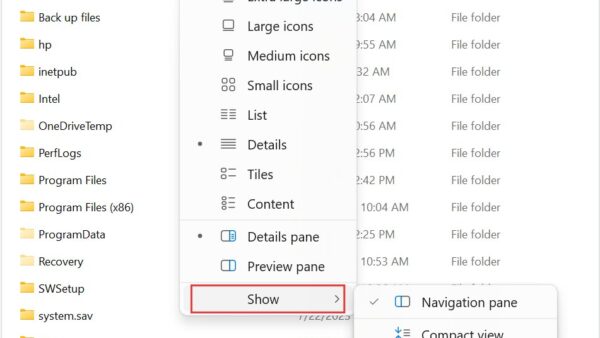
| Ctrl + Shift + number (1-9) | Change the view; 2 is Large icons, 6 is Details |
Dialog box and Settings keyboard shortcuts
| Shortcut | Where | Action |
|---|---|---|
| Tab, Shift + Tab | Dialog box | Move forward or back through options |
| Ctrl + Tab, Ctrl + 1, 2, 3 | Dialog box | Move to the next tab, or to a tab by number |
| Alt + underlined letter | Dialog box | Run the command or pick the option with that letter |
| Backspace | Open or Save As dialog | Open the folder one level up |
| Backspace | Settings app | Go back |
Command prompt keyboard shortcuts
| Shortcut | Action |
|---|---|
| Ctrl + C or Ctrl + Insert | Copy the selected text |
| Ctrl + V or Shift + Insert | Paste |
| Ctrl + M | Enter Mark mode |
| Ctrl + Up/Down arrow | Move one line through the output history |
Windows keyboard shortcuts for accessibility
| Shortcut | Action |
|---|---|
| Shift five times | Turn Sticky Keys on or off |
| Hold Right Shift for eight seconds | Turn Filter Keys on or off |
| Hold Num Lock for five seconds | Turn Toggle Keys on or off |
| Left Alt + Left Shift + Num Lock | Turn Mouse Keys on or off |
| Left Alt + Left Shift + PrtScn | Turn High Contrast on or off |
| Win + Plus (+), Win + Esc | Turn Magnifier on, turn it off |
| Win + Ctrl + Enter | Open Narrator |
Windows tips and tricks: pressing Shift five times by accident turns on Sticky Keys.
Function keys, Fn Lock, Num Lock and keyboard backlight keys
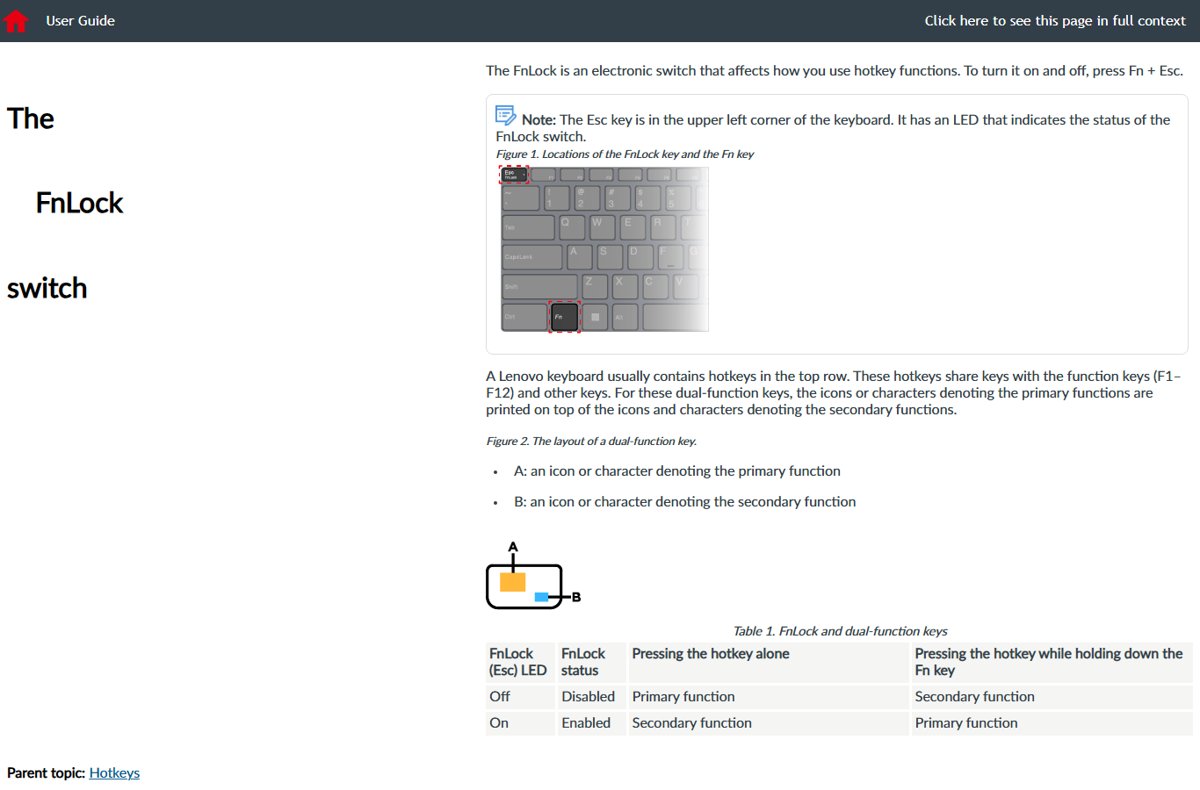
On a keyboard with an Fn key, hold Fn and press a top-row key for its alternate command. An F Lock or Fn Lock key toggles which set works by default. On Surface keyboards, press Fn so its light turns off to go back to the special keys.
| Key | What it does in Windows | Go further |
|---|---|---|
| F1 | Help in the active app | Every key from F1 to F12 and its Alt, Ctrl and Shift combos: function keys in Windows |
| F2 | Rename in File Explorer; edit the active cell in Excel | |
| F3, F4 | Search in File Explorer; select its address bar | |
| F5 | Refresh the active window | |
| F11 | Full screen in Edge; maximize File Explorer | |
| Fn Lock or F Lock | When the F Lock light is on, F1-F12 work; when off, the alternate commands work | Brand key combinations: turn off Fn Lock |
| Num Lock | Makes the numeric keypad type numbers, which Alt codes need | Laptops without a keypad: turn Num Lock on or off |
| Speaker keys | Mute, volume down and volume up, sometimes with Fn | When they do nothing: keyboard volume control |
| Backlight key | On Surface, the top-row backlight key cycles through brightness levels, including off; other makers print a light icon on one key | Key combos by brand: turn on keyboard backlight |
| Backlight timeout | How long the light stays on after idle time varies by laptop model | Per-brand options: keep the backlight always on |
Windows keyboard shortcuts for symbols
Windows has two built-in routes: Win + . then Symbols in the emoji panel, or Alt plus a code on the numeric keypad with Num Lock on. In Word, you can also type a Unicode code and press Alt + X.
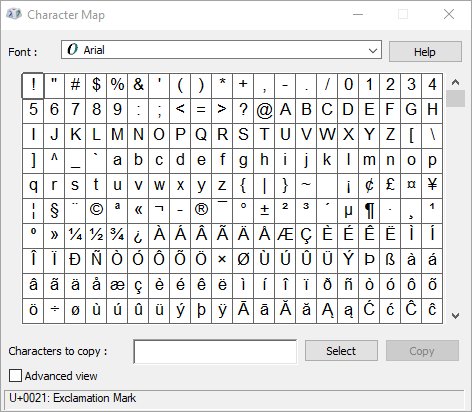
This symbol quick reference covers the characters readers ask about most. Alt codes do not work with the number row above the letters.
| Symbol | Windows method | Full guide |
|---|---|---|
| ° degree | Alt + 0176 | Word, Excel and phone methods: type the degree symbol |
| é accent | Alt + 130; in Word and Outlook, Ctrl + ' then e | è, ê and ë too: e with an accent mark |
| ≠ not equal | Character Map, or its Unicode code then Alt + X in Word | Excel and Character Map steps: type the not equal sign |
| π pi | Character Map, or its Unicode code then Alt + X in Word | Linux, Mac and HTML codes: type the pi symbol |
| ¥ yen | Alt + 0165 | Japanese keyboard route: type the yen symbol |
| \ backslash | Its own key, or Alt + 92 | UK layouts and file paths: type a backslash |
| / forward slash | The / key beside right Shift, or Alt + 47 | Layout fixes: type a forward slash |
| ~ tilde | Shift + the key left of 1, or Alt + 126 | Every platform: the squiggly line key |
| ¡ inverted exclamation | Alt + 0161; in Word Alt + Ctrl + Shift + ! | Mac and phones: type the upside-down exclamation point |
| ✓ check mark | Word, Excel, Outlook or PowerPoint: Insert > Symbol, font Wingdings, character code 252 | See the ribbon steps below |
| ⌀ diameter in AutoCAD | AutoCAD has its own text codes, so a Windows Alt code is not the route | Text, MText and dimension prefix: diameter symbol in AutoCAD |
| 😂 emoji | Win + . then type laugh to search | Codes and phones: type the crying laughing emoji |
| 🤞 emoji | Win + . then type fingers to search | Mac and web apps: the fingers crossed emoji |
| © ® ™ | Alt + 0169, Alt + 0174, Alt + 0153 |
Character Map lists every character in a font: type character in the taskbar search box, open Character Map, select a character, then Select and Copy, and paste it where you need it.
Insert the degree symbol by using a keyboard shortcut
Typing the degree symbol on a Windows PC works in any app, as long as the keyboard has a numeric keypad.
- Press Num Lock if the keypad light is off.
- Place the cursor where the degree sign should go.
- Hold down Alt.
- Type 0176 on the numeric keypad, not the number row.
- Release Alt; ° appears.
Use it for temperature (21 °C), angles, and degrees in coordinates (40° N). The look-alike º (Alt + 0186) is a different character, so a search for ° will not match it; check text for fake degree signs by searching for ° and comparing the hits.
Insert the degree symbol by using the ribbon
Making a degree symbol in Microsoft Word without a numeric keypad takes the Symbol dialog.
- Place the cursor where the symbol should go.
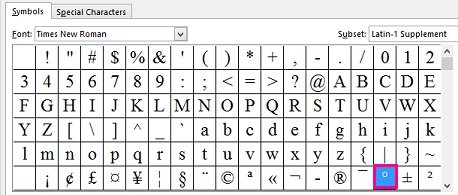
- Select Insert > Symbol > More Symbols.
- Choose your font in the Font list.
- Select Latin-1 Supplement in the Subset list.
- Select the degree sign, then Insert.
In Excel and PowerPoint the dialog is under Insert > Symbols > Symbol. For a check mark symbol in Word or in Excel, pick Wingdings and enter character code 252 (or 254 for the boxed one). For more check marks to choose from, use Segoe UI Symbol with code 2713, 2714 or 2705.
Insert emojis, GIFs and symbols with the emoji panel
- Click into any text box, document or chat.
- Press Win + . (period) or Win + ; (semicolon).
- Type a word to search, or browse the emoji grid.
- Switch to GIFs, kaomoji or Symbols for punctuation marks and accented letters.
- Select an item to insert it.
The panel also opens from the touch keyboard, and the Windows emoji keyboard has a fix list for when it will not appear.
Add a keyboard layout or another language in Windows 11
- Select Start > Settings > Time & language > Language & region.
- To add a language, select Add a language next to Preferred languages, pick it and install.
- To add a layout only, select the … next to a language, then Language options.
- Under Keyboards, select Add a keyboard next to Installed keyboards and choose the layout.
- Press Win + Spacebar to switch forward through layouts, or Win + Shift + Spacebar to go back.
You can add another keyboard language for typing without changing the display language. The same route installs an Arabic keyboard layout or the Dvorak keyboard layout.
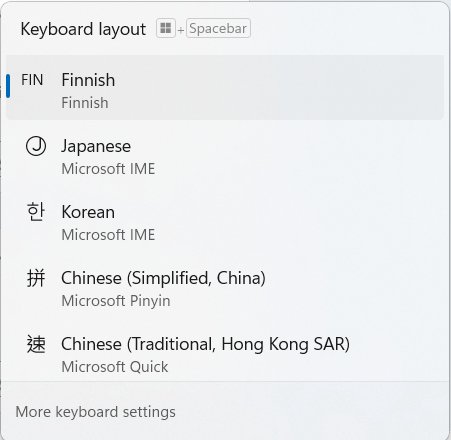
If the layout keeps changing on its own, switch keyboard language back and remove the extra one: … next to it > Remove. The legacy language bar sits under Time & language > Typing > Advanced keyboard settings.
Change keyboard shortcuts in Windows 11
Microsoft's tool for remapping keys and shortcuts is PowerToys Keyboard Manager, and PowerToys must keep running for a remap to apply. Win + L and Ctrl + Alt + Del cannot be remapped.
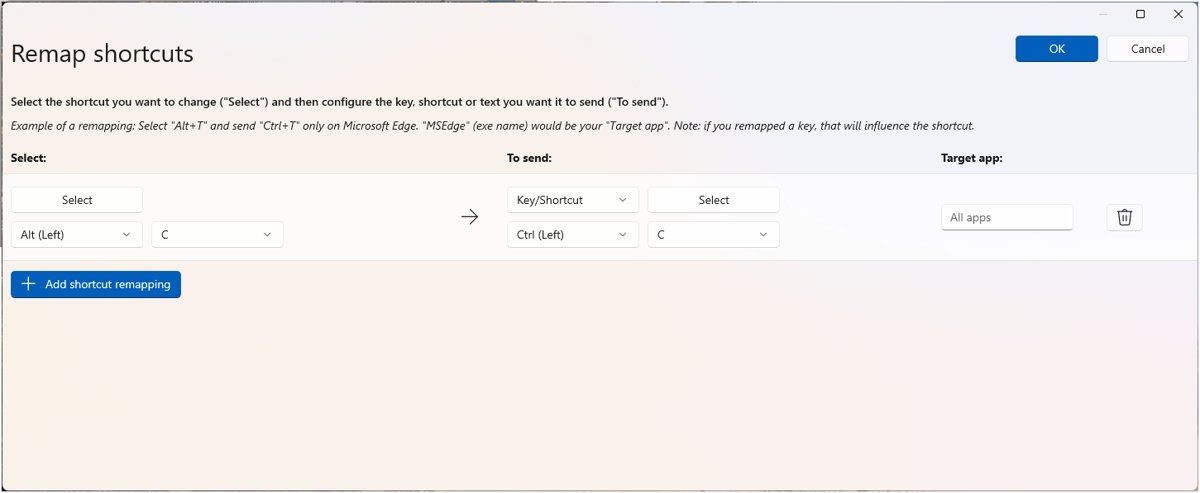
- Open PowerToys settings and select Keyboard Manager.
- Select Remap a shortcut, then Add shortcut remapping.
- In the Select column, press the shortcut you want; it must start with Ctrl, Shift, Alt or Win.
- In the To send column, choose the new shortcut, a text string or an app to start.
- Optionally type a Target app so the remap applies to one program only.
- Select OK; the change applies immediately.
To make a single key send something else, use Remap a key instead. Hotkeys for desktop shortcuts and taskbar apps need no extra tool: set hotkeys in Windows 11 with a shortcut key or Win + number.
Mouse and cursor settings in Windows 11
| Setting | Where it lives | Go further |
|---|---|---|
| Pointer speed | Settings > Bluetooth & devices > Mouse > Mouse pointer speed | Control Panel and touchpad speed: change mouse speed |
| DPI | Depends on the mouse model; Windows Settings adjusts Mouse pointer speed | Defaults and buttons: change mouse DPI |
| Primary button, scrolling | Mouse > Primary mouse button; options under Scrolling | Swap buttons and schemes: customize mouse buttons and pointer |
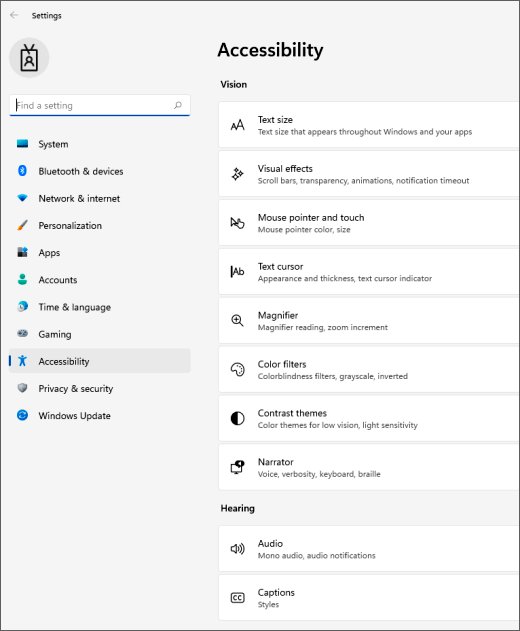
| Pointer size and color, text cursor | Accessibility > Mouse pointer and touch; Accessibility > Text cursor | Custom colors: change cursor size and color |
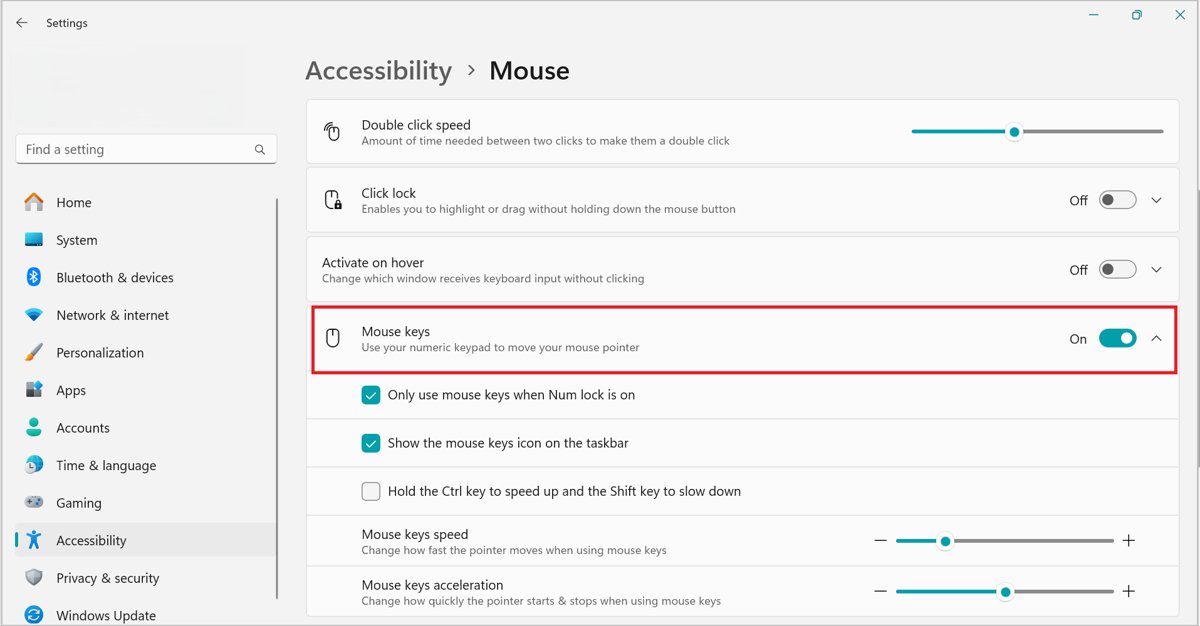
| Mouse Keys | Accessibility > Mouse > Mouse keys; keypad 5 clicks, / selects the left button, – the right | Right-click and drag: use Mouse Keys |
| Apple Magic Mouse | Pair it in Bluetooth & devices; scrolling depends on Apple's drivers | Driver options: Apple mouse drivers for Windows 11; scroll settings: Magic Mouse scrolling |
| Mouse turned off | Device Manager > Mice and other pointing devices | Windows 10 steps: enable a mouse in Windows 10 |
Touchpad settings and gestures in Windows 11 and Windows 10
| Task | How | Go further |
|---|---|---|
| Open touchpad settings | Windows 11: Settings > Bluetooth & devices > Touchpad; Windows 10: Settings > Devices > Touchpad | Device Manager and no-mouse routes: turn the touchpad on or off |
| Keep the touchpad on with a mouse plugged in | A switch in the Touchpad section controls it | Registry value and fixes: leave the touchpad on with a mouse |
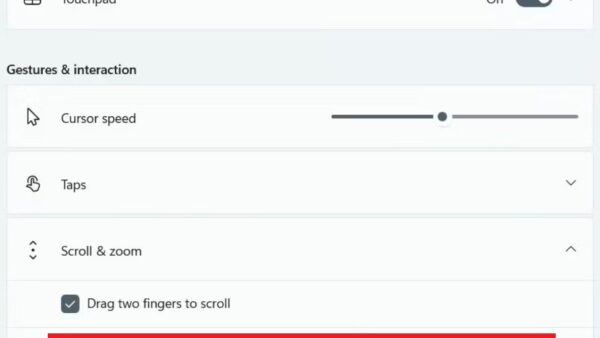
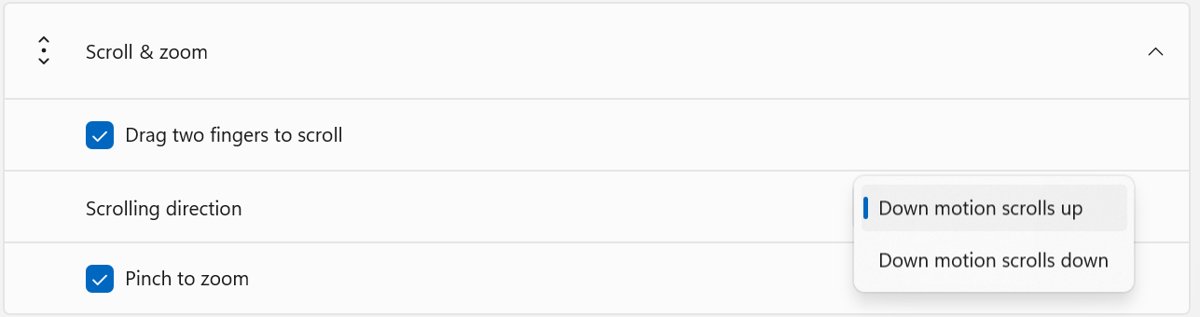
| Scroll, zoom | Two fingers slide to scroll; pinch or stretch to zoom | |
| Show all windows, show the desktop | Three fingers swipe up; three fingers swipe down | |
| Update or reinstall the driver | Device Manager > Human Interface Devices or Mice and other pointing devices |
Quick symptom-based diagnosis
Laptop keyboard problems and what they mean: most trace to the connection, an accessibility setting, a lock key or the driver.
| Symptom | Likely cause | Fix first | Full fix |
|---|---|---|---|
| No key types on Windows 11 | Filter Keys, connection or driver | Turn off Filter keys in Accessibility > Keyboard, reconnect, try another port | keyboard not typing on Windows 11 |
| Wireless keyboard stops | Batteries, receiver or Bluetooth pairing | Fresh batteries; unplug the receiver for 10 seconds; press the Reset button | wireless keyboard fixes |
| Logitech keyboard dead | Receiver or pairing lost | Re-pair the receiver or Bluetooth connection | Logitech keyboard repairs |
| Lenovo laptop keys dead | Fn Lock, Filter Keys or driver | Restart, check Fn Lock, then the driver | Lenovo keyboard fixes |
| Every key types |zxcvbnm? | Stuck key, layout or failing keyboard | Test with the On-Screen Keyboard | the zxcvbnm typing fault |
| Arrow keys scroll the sheet in Excel | Scroll Lock is on | Press Scroll Lock, or ScrLk on the On-Screen Keyboard | Excel arrow key fixes |
| Keys stick or shortcuts fire on their own | Sticky Keys | Turn off Sticky keys in Accessibility > Keyboard | |
| Pointer frozen or missing | Connection, batteries or driver | Reconnect, swap ports, update the driver | fix a mouse that isn't working |
| Logitech mouse not moving | Receiver, batteries or pairing | Check the receiver port and batteries, re-pair | Logitech mouse fixes |
| Touchpad does nothing | Turned off in Settings, the touchpad key, or the driver | Turn it on under Touchpad, then update the driver | touchpad not working in Windows 11 |
How to fix a laptop keyboard that isn’t working
These checks are universal across brands. Start with fast checks before drivers and deeper diagnostics, and test each one before moving on.
Keyboard does not type at all
Immediate basic solutions first: a loose connection, flat batteries or a hung device are the common reasons a keyboard quit working.
- Restart the PC.
- Unplug the USB cable, wait a moment, and plug it back in.
- Try a different USB port, and remove any USB hub between the keyboard and the PC.
- Replace or charge the batteries of a wireless keyboard.
- Clear dirt that may be blocking keys.
Keys lag, repeat, stick or open shortcuts
Accessibility settings or software conflicts change how keystrokes register.
- Press Win + U and select Keyboard.
- Turn off Sticky keys and Filter keys.
- Close apps that remap keys, such as PowerToys Keyboard Manager, and test again to identify the conflict.
Keyboard stopped after a Windows update (driver related issues)
A missing or out-of-date driver; Windows Update problems can leave the wrong one installed.
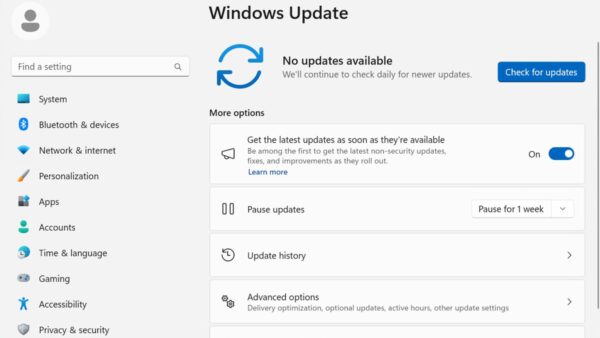
- Type check for updates in the taskbar search and select Check for updates.
- Open Device Manager, expand Keyboards and double-click the keyboard.
- On the Driver tab, select Update Driver.
- If that fails, reinstall the device from Device Manager so Windows fetches the driver again.
What if an external keyboard works but the laptop keyboard doesn’t?
Windows input works, so the built-in keyboard, its driver or its cable is at fault.
- Press Win + Ctrl + O and type with the On-Screen Keyboard to confirm Windows accepts input.
- Update or reinstall the built-in keyboard in Device Manager > Keyboards.
- Connect a keyboard that fails here to another PC; if it fails there too, it needs replacing.
- If nothing helps, contact the laptop maker; warranty is the main consideration before paying for professional repair, and the keyboard can be repaired or replaced.
App keyboard shortcuts for Excel, Teams, Outlook and Gmail
Each app keeps its own list on top of the Windows keys. Browser controls in Edge follow the same tab keys as File Explorer.
| App | Shortcuts worth knowing | Full list |
|---|---|---|
| Excel | Ctrl + Page Down/Page Up next or previous sheet; F2 edit cell; Ctrl + ; today's date; Alt shows ribbon key tips | Excel shortcut keys A to Z; Mac and web keys: cycle through Excel tabs |
| Microsoft Teams | Ctrl + . shows all shortcuts; Ctrl + Shift + M mute; Ctrl + Shift + O video; Ctrl + E search; Ctrl + N new chat | Microsoft Teams shortcuts |
| Outlook | Ctrl + N new message; Ctrl + R reply; Ctrl + F forward; Ctrl + Enter send; Ctrl + 1 Mail, Ctrl + 2 Calendar; Win + . emoji | emojis in an Outlook email |
| Gmail in a browser | Turn on with the gear > See all settings > Keyboard shortcuts on > Save Changes; then c compose, r reply, e archive, / search, ? shortcut list | Gmail hotkeys |
Windows 11 vs Windows 10: what actually changed
Microsoft's shortcut list, including Win + Z for snap layouts, applies to both versions. The differences are Recall, which needs specific Windows 11 hardware, and settings that moved.
| Item | Windows 11 | Windows 10 |
|---|---|---|
| Win + J | Opens Recall on a Windows 11 AI+ PC or Copilot+ PC that meets the Secured-core standard | Not among Recall's supported devices |
| Touchpad settings | Bluetooth & devices > Touchpad | Devices > Touchpad |
Windows keyboard shortcuts FAQ
How do I change keyboard shortcuts in Windows 11?
Use PowerToys Keyboard Manager. Select Remap a shortcut, add a row, press the old shortcut in Select and the new one in To send, then select OK. The remap only works while PowerToys runs, and Win + L and Ctrl + Alt + Del cannot be changed.
Can I create keyboard shortcuts in Windows 11?
Yes. Win + number already opens the app pinned in that taskbar position. PowerToys Keyboard Manager can also map a shortcut to start an app, open a URI or type a text string, either globally or for one target app.
How do I remove keyboard shortcuts in Windows 11?
Built-in Windows shortcuts cannot be deleted. To stop a remap you made, open Remap a shortcut in PowerToys Keyboard Manager and delete its row, or turn off Keyboard Manager. Sticky Keys and Filter Keys can be turned off under Accessibility > Keyboard.
How do I enable keyboard shortcuts in Windows 11?
Windows shortcuts are on by default and need no setting. If they stop working, check Fn Lock, Sticky Keys and any remapping tool. Web apps differ: Gmail needs Keyboard shortcuts on under See all settings.
Why is my keyboard opening shortcuts?
Pressing Shift five times turns on Sticky Keys, which latches Ctrl, Alt, Shift and the Windows key so later presses act as shortcuts. Turn off Sticky keys under Settings > Accessibility > Keyboard. A stuck modifier key can cause the same thing.
What is the purpose of keyboard shortcuts?
Keyboard shortcuts are keys or combinations of keys that do what you would normally do with a mouse. They save trips to menus, keep your hands on the keys, and help people who cannot use a mouse easily.
Why are keyboard shortcuts important?
They make common jobs faster: Ctrl + C and Ctrl + V copy and paste in one move, and Win + Shift + S takes a screenshot without opening an app. For keyboard-only users, they are the main way to work with Windows.