Open PowerShell as administrator, run wsl --install, restart, and Windows 11 gives you WSL 2 with Ubuntu, ready for Linux tools next to your Windows apps.
This hub then walks through Python and pip, VS Code and Visual Studio, Git, Node.js, Docker, Java, .NET and PATH, plus the errors people hit most, with the full walkthrough for each tool one click away.
Install WSL command
One command enables the required Windows features, installs the WSL 2 platform and adds Ubuntu as the default distribution. It needs Windows 10 version 2004 (build 19041) or later, or any Windows 11 build.
- Right-click Start and select Terminal (Admin), or right-click PowerShell and choose Run as administrator.
- Type
wsl --installand press Enter. - Restart the PC when the command finishes.
- Open Ubuntu from the Start menu and wait while the files decompress on first launch.
- Create the Linux user name and password when asked.
The command only runs the full setup when WSL is not installed at all. For screenshots of every stage and fixes for each error code, the WSL 2 install walkthrough goes further.
Step 1 – Choose a method to install Linux
Microsoft recommends WSL for people new to Linux, a VM when you need isolation or a server, and bare metal when Linux becomes your main system. The table also covers the older Windows-side options people ask about.
| Your situation | Use this | Why |
|---|---|---|
| You write code and want Linux tools beside Windows apps | WSL 2 (wsl --install) |
Real Linux kernel in a managed VM, no reboot to switch, files shared both ways |
| You need a fully isolated desktop or a snapshot to roll back | Virtual machine in Hyper-V, VirtualBox or VMware | Easier to clone or migrate than a WSL distro; you manage RAM, disk and updates yourself |
| You want Linux as the main OS on the hardware | Dual boot from a USB installer | No virtualization overhead, but you reboot every time you switch |
| You want to test Linux without changing the disk | Live USB session | Runs from the stick; nothing is written to Windows |
| You only need Unix-style commands for Windows programs | Cygwin for Windows | Native Windows builds of GNU tools, no Linux kernel |
| You wanted Android apps rather than Linux | Not WSA: Windows Subsystem for Android support ended | Microsoft ended WSA, so use an emulator or a phone link instead |
Understanding WSL vs VirtualBox: which method fits your workflow
WSL 2 is the default for new installs. WSL 1 still exists for one reason: it does not use the virtualization stack that clashes with some hypervisors.
| Feature | WSL 1 | WSL 2 | VirtualBox or VMware VM |
|---|---|---|---|
| Full Linux kernel and full system call compatibility | No | Yes | Yes |
| systemd support | No | Yes | Yes |
| Fast access to files on the Windows drive | Yes | Slower across file systems | Only through shared folders |
| Runs alongside current VMware and VirtualBox | Yes | VMware 15.5.5+ only; VirtualBox unsupported | Not applicable |
| Boot time and footprint | Fast, small | Fast, small | Slow boot, fixed RAM and disk allocation |
| Best for | Projects stored on C: with heavy Windows-side tooling | Most development, Docker, Node.js and Python | Isolated test systems and other operating systems |
Choosing between WSL and VirtualBox for your Windows machine comes down to isolation: keep project files inside the Linux file system for WSL 2 speed, and pick a VM only when the guest must be sealed off from Windows.
Prerequisites
| Requirement | Detail | How to check |
|---|---|---|
Windows version for wsl --install |
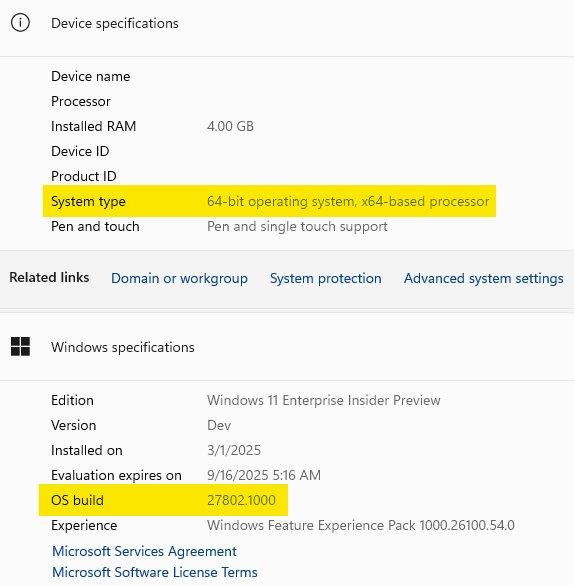
Windows 11, or Windows 10 version 2004 (build 19041) or later | Press Win + R, type winver, select OK |
| Windows version for Ubuntu's own guide | Windows 11 recommended, or Windows 10 21H2 or later on a physical machine | winver |
| CPU virtualization | Enabled in UEFI/BIOS, usually under CPU options | Error 0x80370102 during install means it is off |
| SLAT-capable processor | Required by WSL 2; Intel Core 1st generation (Nehalem) or AMD Opteron and newer | Older chips such as Core 2 Duo cannot run WSL 2 |
| Administrator rights | Needed for the first install and for Visual Studio | Right-click the terminal and choose Run as administrator |
| Docker Desktop | WSL 2.1.5 or later; Windows 11 23H2 or Windows 10 22H2 (build 19045) | wsl --version |
Ubuntu's documentation lists what you will need in the same terms: a supported Windows build and virtualization turned on.
Step 2 – Choose a Linux distribution
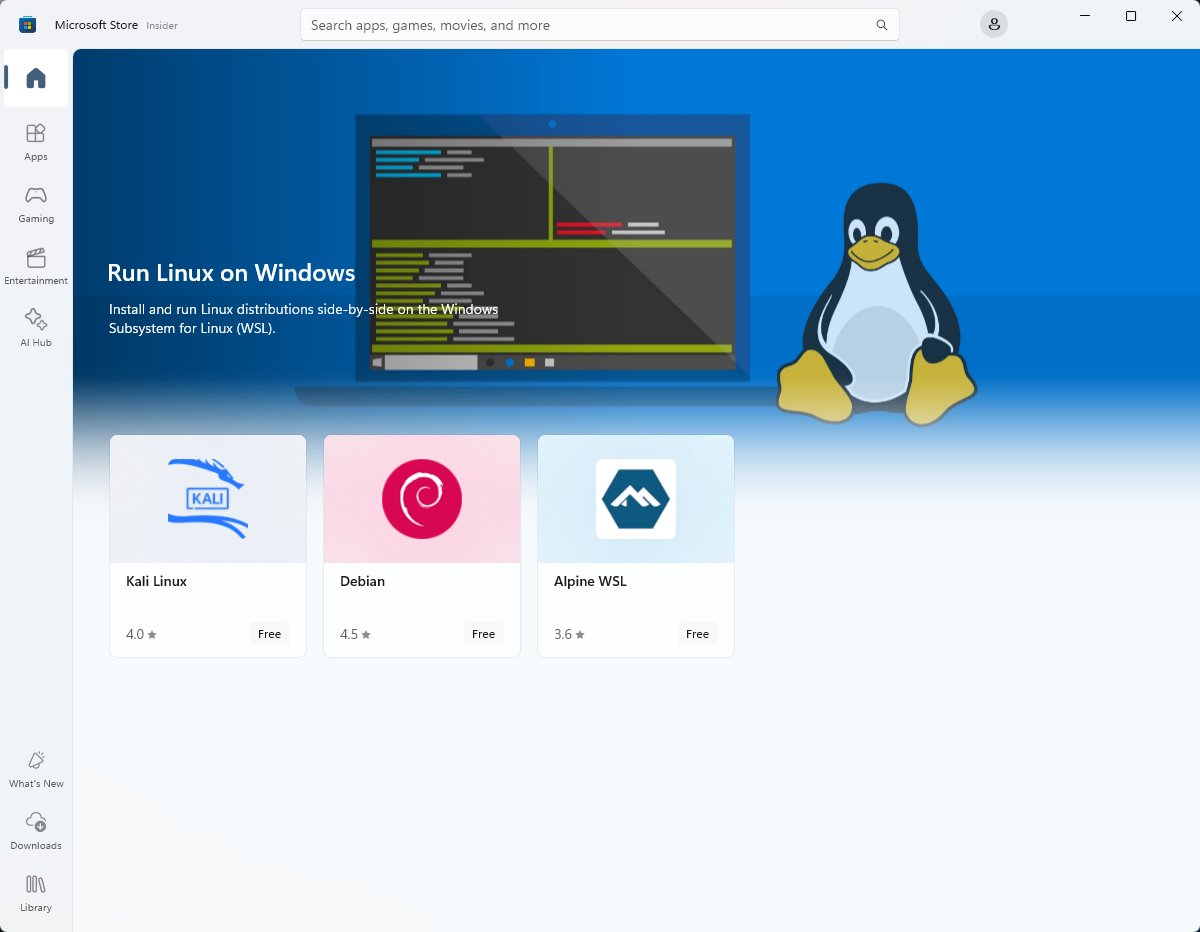
There is no single "Linux" to install; you pick a distribution. Run wsl --list --online to see what WSL can install directly.
| If you are | Pick | Install name or route |
|---|---|---|
| New to Linux or following most tutorials | Ubuntu (LTS) | Ubuntu or Ubuntu-24.04 in WSL |
| Doing penetration testing or security research | Kali Linux | Pick it from wsl --list --online, or the Kali Linux for Windows builds |
| Matching a Red Hat style server | Fedora or Oracle Linux | FedoraLinux-44 in WSL, or a Fedora Workstation live USB |
| Wanting a lightweight base for containers | Alpine Linux | Import a TAR file into WSL |
| Wanting a hands-on, rolling system | Arch Linux | archlinux in WSL |
| Needing paid enterprise support | RHEL, SUSE Linux Enterprise or Oracle Linux | Vendor subscription |
Change the default Linux distribution installed
wsl --install -d DebianThe -d flag installs the named distribution instead of Ubuntu. Replace Debian with any NAME from wsl --list --online. To make an installed distro the one wsl opens by default, run wsl --set-default Debian (short form wsl -s Debian).
You should see: The distro downloads, opens a console and asks you to create a user.
If WSL is already installed and wsl --install prints help text, this is the form to use. When a download hangs at 0.0%, add --web-download. To put the distro on another drive, add --location D:\WSL\Debian.
Install specific versions of Ubuntu on WSL
Ubuntu publishes each LTS release as its own WSL distro, so a project that needs 22.04 can sit beside one on 26.04. Install and enable WSL first, then add the version.
- Open PowerShell and run
wsl --list --online. - Find the NAME you want, such as
Ubuntu-26.04orUbuntu-22.04. - Run
wsl --install Ubuntu-26.04. - Start the Ubuntu instance with
wsl -d Ubuntu-26.04, or open it from the Start menu. - Run
wsl ~ -d Ubuntu-26.04to start in the Ubuntu home directory rather than/mnt/c/Users/<you>.
Ubuntu 20.04 and later arrive in WSL's tar-based format, which needs WSL 2.4.10 or higher; run wsl --update if the install refuses.
Set up your Linux user info
- Launch the new distro for the first time.
- Enter a UNIX user name when prompted; it does not have to match your Windows name.
- Enter and confirm a password.
- Run
sudo apt update && sudo apt upgradeon Ubuntu or Debian to install current packages. - Remember the password:
sudoasks for it every time you install software.
This account is the default user for that distro and has sudo rights. Each distro you add gets its own separate account.

Set up and best practices
Step 4 after installing Linux is shaping the environment around your work. These choices decide how fast builds run and how Windows and Linux tools share files.
| Area | Recommended setup | Why |
|---|---|---|
| Project files | Keep them in the Linux file system, e.g. ~/projects |
WSL 2 is slower across file systems; git clone and npm install run fastest on the Linux side |
| Windows drives | Reach them at /mnt/c, /mnt/d |
WSL mounts fixed drives automatically |
| Terminal | Windows Terminal | Tabs for PowerShell, Command Prompt and every distro |
| Editor | VS Code with the WSL extension | Editor UI on Windows, tools and debugger in Linux |
| Git | Git inside each distro plus Git for Windows on the host | Git Credential Manager in Git for Windows shares sign-ins with WSL |
| Linux packages | apt first, then Homebrew on Linux and WSL for newer tools |
Brew installs to your home folder without root |
| File permissions | Use 644 for files and 755 for scripts, not chmod 777 permissions | 777 lets every user write to the file |
| Backups and moving | wsl --export then wsl --import |
Saves a distro to a file and restores it to any drive |
Check which version of WSL you are running
wsl --list --verboseLists every installed distro with its state and the WSL version (1 or 2) it uses. The short form is wsl -l -v. Run wsl --version to see the WSL package and kernel versions, and wsl --status for the default distro.
You should see: A row such as * Ubuntu Running 2, where the asterisk marks the default distro and 2 means WSL 2.
Want to try the latest WSL preview features? Run wsl --update --pre-release, or join the Windows Insider Program and pick a channel to receive WSL previews with each build.
Upgrade version from WSL 1 to WSL 2
wsl --set-version Ubuntu 2Converts the named distro to WSL 2. Use 1 instead of 2 to go back. Run wsl --set-default-version 2 so future distros start on WSL 2.
You should see: wsl -l -v shows 2 in the VERSION column for that distro.
If you get "Invalid command line option", WSL is not enabled or Windows is older than build 18362. Manual WSL installs from before wsl --install may also need the Virtual Machine Platform component and the kernel package.
Ways to run multiple Linux distributions with WSL
WSL runs as many distributions as you install, each with its own user, packages and files.
| You want to | Do this |
|---|---|
| Switch between distros in tabs | Open Windows Terminal and pick the distro from the new-tab menu |
| Open a distro in its own window | Type its name, such as Ubuntu, in the Start menu |
| Start an Ubuntu instance from PowerShell | Type ubuntu, or wsl for the default distro |
| Run one Linux command without leaving PowerShell | wsl date or wsl -l -v |
| Use a non-default distro once | wsl --distribution Debian |
| Start an instance in the right directory | cd to the Windows folder in PowerShell, then run wsl; use wsl ~ for the Linux home folder |
| Remove a distro and all its data | wsl --unregister Debian (permanent) |
| Leave a WSL shell | Type exit |
Offline install
Machines without Store access, or behind strict proxies, can install WSL from files. Grab the WSL MSI package and a .wsl distro file on another PC first; the WSL MSI and Store package are both official Microsoft builds.
- Install the latest WSL MSI package from the WSL GitHub releases page.
- Open PowerShell as administrator.
- Run
dism.exe /online /enable-feature /featurename:VirtualMachinePlatform /all /norestart. - Restart the PC.
- Double-click the
.wslfile for your distro, or import it withwsl --import, to install it.
Step 3 – Follow install method instructions
Each route from Step 1 has its own short path. The WSL route is the install command at the top of this page; the others follow.
| Method | Key steps |
|---|---|
| How to install Linux on Windows using WSL | Admin PowerShell, wsl --install or wsl --install -d <Distro>, restart |
| How to install Linux on Windows using VirtualBox or Hyper-V | Download the distro ISO, create a VM in the hypervisor, assign RAM and disk, attach the ISO, run the installer |
| Linux VM in the cloud | Sign in to the Azure portal, choose Create a Virtual Machine, set user name, SSH key and ports |
| Bare metal or dual boot | Write the ISO to a USB drive, boot from it, install alongside or instead of Windows |
Dual boot Linux and Windows 11 from a USB drive
Dual boot gives Linux the whole machine but means a restart every time you switch. If the PC uses BitLocker, save the recovery key before you touch the disk.
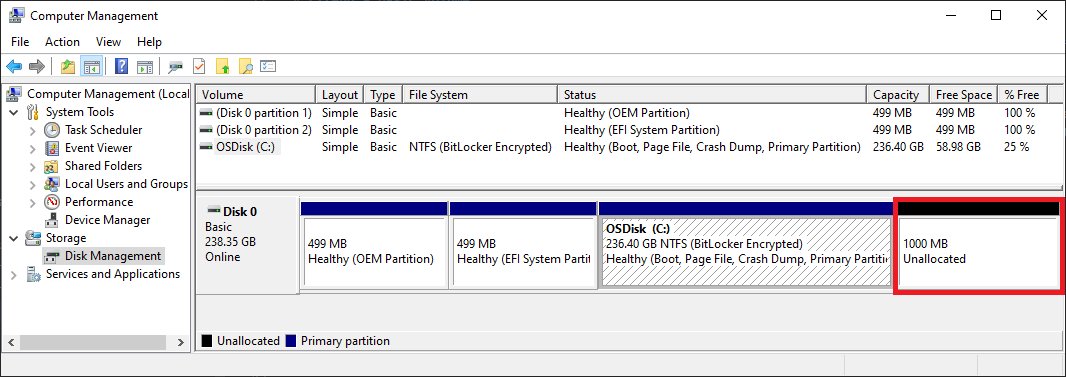
- Back up your files and save the BitLocker recovery key.
- Download an ISO, such as Ubuntu Desktop LTS or Linux Mint Cinnamon.
- Write the ISO to a USB drive with balenaEtcher or Rufus.
- Shrink the Windows partition in Disk Management to free space for Linux.
- Boot from the USB drive, choose the live session to test hardware, then start the installer.
- Pick the option to install alongside Windows and finish the installer.
- Choose Windows or Linux from the boot menu at each start.
Partitioning screens differ by distro; the Linux Mint dual boot walkthrough covers each screen for Mint.
How to install Python on Windows
Since Python 3.14 the python.org team ships the Python install manager, which installs runtimes and puts python, py and pymanager on every terminal. The Store and python.org versions of the manager are identical.
- Open the Microsoft Store, search for Python install manager and select Get, or download it from python.org/downloads.
- Open a new terminal and run
py installto add the latest runtime. - Accept the prompt to add
%LocalAppData%\Python\binto PATH if you want aliases such aspython3.14. - Run
pythonto start the interpreter, andexit()to leave it.
Prefer a single command? You can install Python from cmd with winget, which suits scripted machines. Inside WSL, Ubuntu already includes Python 3; add pip with sudo apt install python3-pip.
Python install manager
winget install 9NQ7512CXL7T -e --accept-package-agreements --disable-interactivityInstalls the Python install manager from the Store through winget, the route python.org documents for scripted installs. Follow it with py install --configure -y to finish setup. Then py install 3.13 adds another version, py list shows what is installed and which is default, and py -V:3.13 runs a specific one.
You should see: py list prints a table of runtimes with the default marked.
What if you have multiple versions of Python installed? The manager handles them side by side: python launches the default, py -V:<tag> picks another, and managed installs win over older unmanaged ones.
Which Python version should you use?
Use the newest stable release unless a library pins an older one. Older Windows versions cap how new you can go.
| Option or setting | What it is | When it matters |
|---|---|---|
| Supported Windows versions | Current Python supports Windows 10 and newer | Windows 8.1 tops out at Python 3.12; Windows 7 at Python 3.8 |
| The full installer (deprecated) | The classic .exe from python.org, deprecated since 3.14 and not produced from 3.16 |
Still works for older versions; use it only if a course requires it |
| Python launcher for Windows (deprecated) | The old py.exe, replaced by the install manager |
Its py command overrides the manager's; use pymanager instead |
| The embeddable package | A minimal ZIP Python for bundling inside another app | py install 3.15-embed --target=<directory> |
| Removing the MAX_PATH limitation | Lifts the 260-character path limit | Enable the Enable Win32 long paths policy or set LongPathsEnabled to 1 under HKEY_LOCAL_MACHINE\SYSTEM\CurrentControlSet\Control\FileSystem, then reboot |
| UTF-8 mode | Default text encoding UTF-8 instead of the ANSI code page | On by default from Python 3.15; matters when sharing files with WSL |
Verify your Python installation
- Open a new Terminal window so it reads the updated PATH.
- Run
python --versionand confirm the version number prints. - Run
py listto see every installed runtime. - Run
python -m pip --versionto confirm pip is present. - Install a test package with
python -m pip install requests.
pip ships inside Python, so a separate pip setup for Windows is only needed when it was removed or broken.
Don't mess with your system install, use Python virtual environments instead
python -m venv .venvCreates a .venv folder holding its own Python and Lib\site-packages. Activate it in PowerShell with .venv\Scripts\Activate.ps1 or in Command Prompt with .venv\Scripts\activate.bat; in WSL use source .venv/bin/activate. If PowerShell blocks the script, run Set-ExecutionPolicy -ExecutionPolicy RemoteSigned -Scope CurrentUser.
You should see: The prompt starts with (.venv) and pip install writes only into that project.
Add Python to PATH manually
Python, Java, .NET and Git all rely on PATH. A tool that says "not recognized" is usually missing from it.
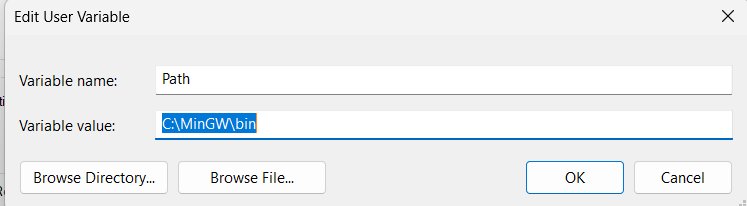
- Select Start, type Edit environment variables for your account and open it.
- Select Path under user variables, then Edit.
- Select New and add
%LocalAppData%\Python\binfor the Python install manager. - Select OK on each dialog.
- Close and reopen every terminal, then run
python --version.
For system-wide entries, setx or PowerShell, edit environment variables on Windows from the full dialog. Java tools also read JAVA_HOME, which the Java settings in Windows article sets up, and .NET tools may read DOTNET_ROOT.
Step 2 – Determine which version and edition of Visual Studio to install
Visual Studio and VS Code share a name but not a job. Visual Studio is a full IDE installed by workloads; VS Code is a lightweight editor extended with extensions, and it is the one that works inside WSL.
| Product | Best for | Cost | Installer |
|---|---|---|---|
| VS Code | Python, web, Node.js, editing inside WSL | Free | User setup, System setup or ZIP |
| Visual Studio Community | C#, C++ and .NET desktop and web apps | Free | Bootstrapper, then Visual Studio Installer |
| Visual Studio Professional | Commercial teams | Subscription; 30-day trial, 90 days when signed in | Same installer |
| Visual Studio Enterprise | Large teams needing IntelliTrace and Live Unit Testing | Subscription | Same installer; compare Professional vs Enterprise features |
| Visual Studio 2019 | Projects locked to the older toolset | Matches the edition | Visual Studio 2019 bootstrapper, side by side with newer versions |
Install VS Code on Windows
The User setup is the recommended choice: no admin rights, installs under %LOCALAPPDATA%\Programs\Microsoft VS Code, and updates quietly. The System setup installs for all users under Program Files and needs elevation.
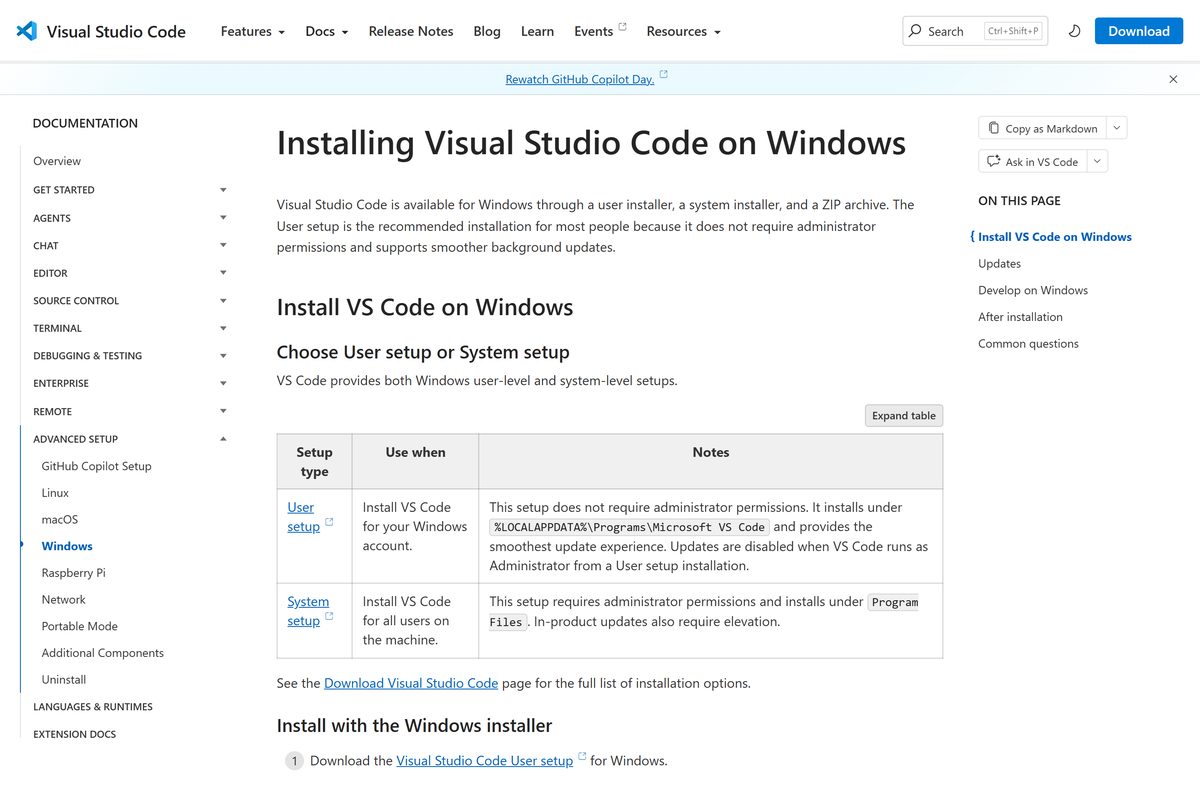
- Download the VS Code User setup for Windows from code.visualstudio.com.
- Run the
VSCodeUserSetupinstaller and accept the defaults, which add VS Code to PATH. - Restart your terminal and run
code .in a project folder. - Install the WSL extension, then run
code .from inside your distro to open Linux files. - Accept update prompts; VS Code ships new releases weekly.
After installation, add Git, Node.js and language runtimes, then extensions for each language. A ZIP copy works too, but it never updates itself.
Step 3 – Initiate the installation
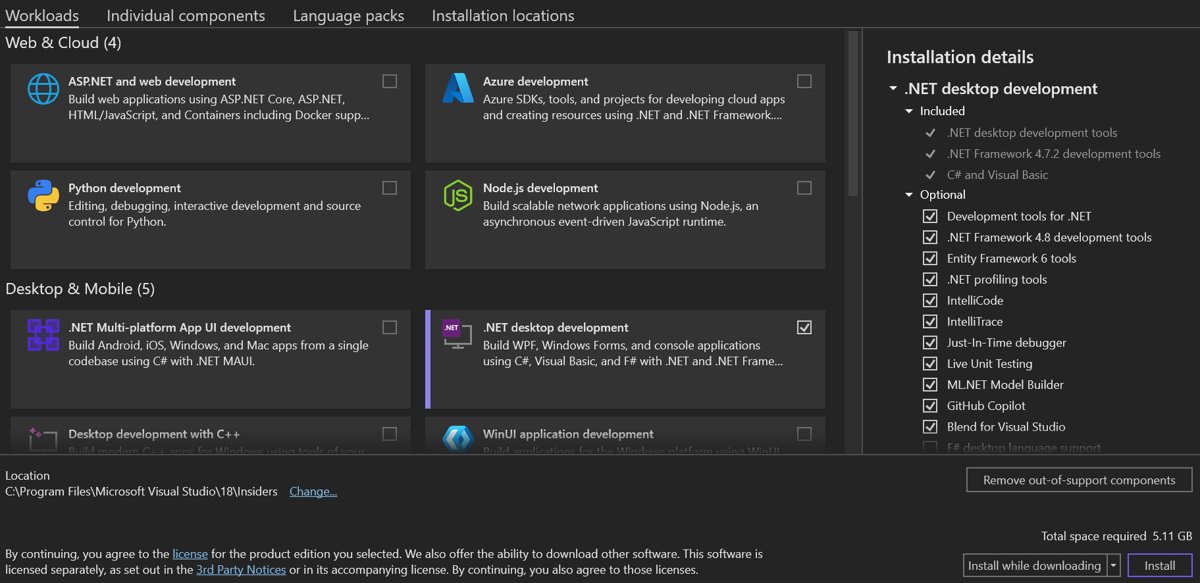
Step 1 is making sure your computer is ready for Visual Studio: check the system requirements, apply Windows updates, restart and free disk space. The initial install needs an administrator account.
- Run the bootstrapper, such as
VisualStudioSetup.exe, from Downloads, or runwinget install --id Microsoft.VisualStudio.Community. - Select Yes at the User Account Control prompt, then Continue.
- Step 4 – choose workloads: tick what you build, such as ASP.NET and web development or a Desktop & Mobile workload.
- Step 5 – choose individual components (optional) on the Individual components tab.
- Step 7 – select the installation location (optional); the IDE and download cache drives can only be changed on first install.
- Select Install and wait for the progress screen to finish.
- Step 9 – start developing: select Launch, then Create a new project.
Add workloads later from Tools > Get Tools and Features, or open Visual Studio Installer and choose Modify.
Install Git, Node.js, Docker, Java and .NET on Windows
Every core tool has an official installer and most have a winget package. The last column links the full download and setup walkthrough.
| Tool | Install route | Note | Full walkthrough |
|---|---|---|---|
| Python | Python install manager (Store or winget) | Classic installer deprecated | Python 3 installer for Windows |
| VS Code | User setup installer | Add the WSL extension | VS Code for Windows 11 |
| Visual Studio | Bootstrapper or winget install --id Microsoft.VisualStudio.Community |
Pick workloads | Visual Studio Community download |
| Git | Git for Windows installer or winget; sudo apt-get install git in WSL |
Includes Git Credential Manager | Git for Windows, plus Git LFS for large files |
| Node.js | nvm-windows (Microsoft's recommendation) or the LTS MSI | Remove old installs before nvm | Node.js LTS installers |
| Docker | Docker Desktop installer, WSL 2 backend | Per-user install needs no admin | Docker Desktop for Windows and Docker Compose |
| Java (JDK) | Oracle .exe or .msi installer |
Set JAVA_HOME |
Oracle JDK for Windows, or update Java on Windows 11 |
| Java runtime only | java.com JRE installer | For running, not building, Java apps | Java 8 JRE 32-bit and 64-bit |
| .NET | winget install Microsoft.DotNet.SDK.10 |
Installs to Program Files\dotnet |
.NET SDK installers |
| Android | Android Studio installer; platform tools ZIP | Add platform-tools to PATH for adb |
Android Studio for Windows and ADB platform tools |
Troubleshooting common installation issues
Match the message you see to a row. The WSL rows come from Microsoft's troubleshooting docs; the fix column links the deeper walkthrough where one exists.
| Symptom | Cause | Fix |
|---|---|---|
| Error 0x80370102 or 0x80070003 | Virtualization off in firmware, or Virtual Machine Platform missing | Enable virtualization in UEFI/BIOS and the Virtual Machine Platform feature |
| WslRegisterDistribution failed with error 0x8007019e | WSL optional component not enabled | Turn on Windows Subsystem for Linux in Windows Features |
| Install stuck at 0.0% | Store download stalled | wsl --install --web-download -d <Distro> |
wsl --install shows help text |
WSL is already installed | wsl --install -d <Distro> |
| Error 0x800704ec, blocked by group policy | A policy blocks WSL | wsl --update, then ask your administrator |
python opens the Store or is not recognized |
App execution alias or PATH | Check Manage app execution aliases, then PATH |
pip not recognized or failing |
Scripts folder missing from PATH, or broken pip | Use python -m pip, then fix pip install errors |
| Visual Studio shows "Object reference not set to an instance of an object" | Null variable in code, or a damaged IDE | Debug the null, or repair the Visual Studio null reference error |
Advanced troubleshooting: common WSL and VirtualBox issues
Why can't I install WSL?
Usually virtualization is off, the CPU lacks SLAT, or Windows is older than build 19041.
- Run
winverand update Windows if it is below build 19041. - Enable virtualization in UEFI/BIOS using your PC maker's instructions.
- Open PowerShell as administrator and run
wsl --installagain. - If system files are damaged, run
SFC /SCANNOWandDISM /Online /Cleanup-Image /RestoreHealth.
Why is WSL taking so long to install?
The Microsoft Store download is slow or stalled.
- Press Ctrl + C to stop the install.
- Run
wsl --install --web-download -d Ubuntuto download from the web instead. - Use the offline install route on locked-down networks.
WSL 2 and VirtualBox will not run together
WSL 2 uses the Windows hypervisor, which VirtualBox does not support alongside it.
- Run
wsl --set-version <Distro> 1to move that distro to WSL 1. - Or switch the VM to Hyper-V or VMware 15.5.5 or later.
WSL installed but the distro list is empty
You are signed in as the built-in Administrator account, which by design shows no distros.
- Sign in with your normal account.
- Open the terminal with Run as administrator from that account instead.
Error 0x80370102 inside a virtual machine
Nested virtualization is off on the host.
- On the Hyper-V host, open PowerShell as administrator.
- Run
Set-VMProcessor -VMName <VMName> -ExposeVirtualizationExtensions $true. - Start the VM and run
wsl --install.
WSL and Windows development setup FAQ
How do I install WSL2 on Windows 11?
Open PowerShell as administrator, run wsl --install and restart. New installs use WSL 2 by default, so no extra step is needed. Confirm with wsl -l -v, which should show 2 in the VERSION column.
How do I install WSL in Windows 10?
Windows 10 version 2004 (build 19041) or later supports the same wsl --install command as Windows 11. Older builds need the manual steps: enable the WSL and Virtual Machine Platform features, install the kernel package, then add a distro.
How do I install WSL Ubuntu on Windows 11?
Ubuntu is the default, so wsl --install installs it. For a specific release, run wsl --list --online and then wsl --install Ubuntu-24.04 or another listed name.
Can I install WSL on the D drive?
Yes. Add --location D:\WSL\Ubuntu to wsl --install -d Ubuntu, or move an existing distro with wsl --export followed by wsl --import to a folder on D:.
Can I install WSL without admin rights?
No. The first install enables Windows features and needs an administrator. After that, standard users can add and run distributions, and tools such as Docker Desktop's per-user install work without elevation.
Can I install WSL via winget?
WSL itself installs with wsl --install, which pulls the Store package. Winget is useful for the rest of the stack, such as winget install --id Microsoft.VisualStudio.Community or the .NET SDK.
Can I install WSL on a VM?
Yes, if the VM has nested virtualization enabled. On a Hyper-V host run Set-VMProcessor -VMName <VMName> -ExposeVirtualizationExtensions $true. Azure VMs with Trusted Launch do not support nested virtualization.
Why install WSL?
WSL runs real Linux tools, shells and package managers next to Windows apps without a dual boot or a separately managed VM. It suits web, Python, Node.js and Docker work that targets Linux servers.
How do I install Python on Windows 11 from cmd?
Run winget install 9NQ7512CXL7T -e --accept-package-agreements --disable-interactivity to get the Python install manager, then py install --configure -y. Open a new window and run python --version to confirm.
How do I install Python on Windows 10?
The Python install manager works on Windows 10 the same way as on Windows 11: install it from the Microsoft Store or python.org, then run py install. Current Python releases support Windows 10 and newer.