To join a Teams meeting, select the meeting link in the invite email, choose the app or Continue on this browser, then select Join now; Zoom and Google Meet links work the same way.
This hub covers every way to join Teams, Zoom and Google Meet meetings on Windows, plus scheduling, recording, the free limits, and fixes for camera, microphone and join problems.
Join by link
The email link is the quickest route into a Teams meeting, and it also works when the invite sits in your Outlook calendar. You can join with or without the Teams app installed.
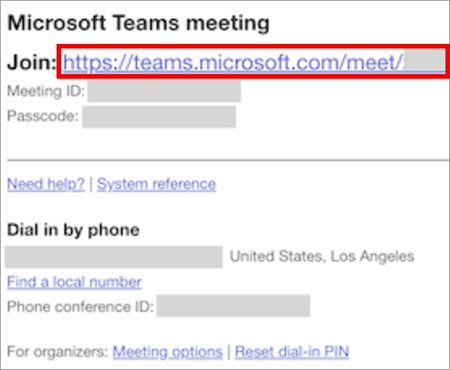
- Open the invite email or the Outlook calendar entry and select the meeting link, or select Join the meeting now.
- Choose Join on the Teams app, or Continue on this browser if you do not have the app.
- Select Sign in to join with your account, or type your name if the organizer allows people without an account.
- Set your camera and microphone on the pre-join screen, then select Join now.
- Wait in the lobby until someone in the meeting admits you.
Teams for the web runs in Microsoft Edge or Google Chrome. The other five routes, from a meeting ID to a chat, are in the six ways to join Teams meetings walkthrough.
Ways to join a meeting in Teams, Zoom and Google Meet
How to join a Microsoft Teams meeting depends on what you were sent, and Zoom and Google Meet follow the same pattern. Match what is in front of you to a row, and you can join from anywhere: the desktop app, a browser or a phone.
| What you have | Microsoft Teams | Zoom | Google Meet |
|---|---|---|---|
| An email link | Select the link, then Join now | Select the link under Join Zoom Meeting, then Join | Click the link, then Join now |
| A calendar entry | Calendar > meeting > Join | Zoom app Meetings or Calendar tab > Join | Google Calendar event > Join with Google Meet |
| A meeting ID or code | Calendar > arrow next to Meet now > Join with an ID #, then ID and passcode | Enter the meeting ID at join.zoom.us | Enter the code at meet.google.com, then Join |
| A notification | Select the notification or the live meeting bar | Not documented on the page used | Not documented on the page used |
| A chat or channel | Select Join at the top of the chat or in the channel | Not applicable | Click the link in the chat message |
| Only a phone | Dial the number and conference ID in the invite | Dial the invite number, then meeting ID and passcode | Dial the number, then the PIN and # |
| No account | Join without signing in, type a name | Join from your browser, enter a name | Enter your name, then Ask to join |
What you need before joining a Teams meeting
None of the three services needs an account just to join, but some features do. The app is optional for all three; you can grab the Microsoft Teams desktop app, the Zoom Workplace installer or the Google Meet desktop app if you meet often.
| Requirement | Teams | Zoom | Google Meet |
|---|---|---|---|
| Account to join | Not required if the organizer allows it | Not required for a browser join | Not required; you must ask to join |
| Do you need a Google account? | No | No | Only to create meetings; guests can request entry |
| Supported browser | Microsoft Edge or Google Chrome | Chrome and Firefox can open the web client | Chrome is the browser Google's fixes refer to |
| Waiting area | Lobby; removed after 30 minutes if no one admits you | Waiting room until the host admits you | Organizer or a participant must let you in |
| Join with an ID | Needs an Exchange Online mailbox | Meeting ID from the host | 10-character code or nickname |
Join from calendar or ID
The Teams calendar holds every meeting you accepted. Join from a calendar link in the Microsoft Teams app, or use your meeting ID and passcode when you only have the numbers.
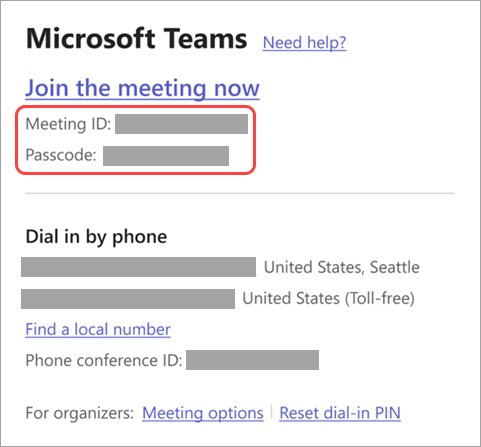
- Select Calendar in Teams and select the meeting, then Join to join from calendar.
- To use an ID, select the dropdown arrow next to Meet now and choose Join with an ID #.
- Find the meeting ID and passcode at the top of the invite email, or under Details > Show meeting info in the calendar entry.
- Enter the meeting ID and passcode, then join.
On a phone, tap Calendar > More > Join with meeting ID, then Join meeting.
Join from chat
Meetings started in a chat or a channel show a Join button where the conversation happens. If you mostly work in conversations, the Teams chat basics cover group chats and files too.
- Select Chat and open the conversation, then select Join at the top.
- To join in a channel, open the channel and select Join when the meeting is running there.
- To join from the live meeting bar, select Join on the bar for a meeting you accepted, or View meetings when several are live.
- To hide the bar, open Settings and more > Settings > Notifications and activity > Meetings and turn off Show meeting join bar.
On mobile, you can also join from a notification: tap it when the meeting starts.
Dial in or out by phone
To dial in, call the phone number in the invite and enter the conference ID. Teams can also call your phone for you, which helps when the PC microphone fails.
- Select Calendar, choose the meeting and select Join.
- Select more join options, then Call me.
- Enter your phone number and select Call me.
- Answer and say OK or press 1, depending on your organization's settings.
- To add someone by phone during the meeting, select People, type the number under Invite someone or dial a number, then Add phone.
Join anonymously or from a different account
Guests and people with a second work account use the pre-join screen to pick an identity. Other attendees see a label next to your name: Unverified, Email verified or External.
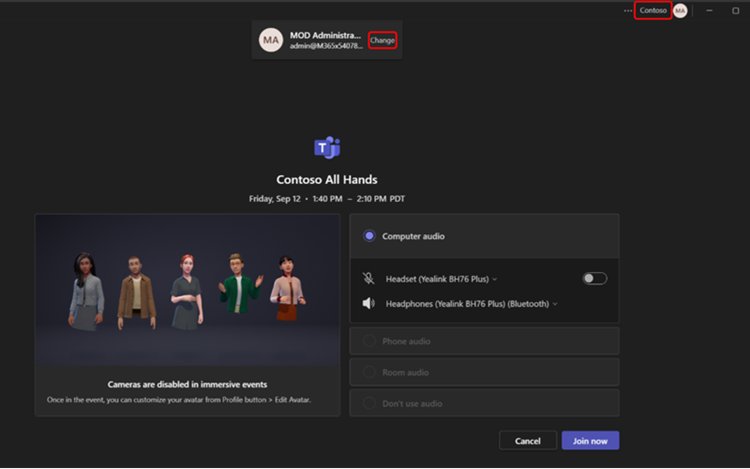
- Select the meeting in Calendar, then Join.
- On the pre-join screen, select Change next to your account.
- Pick another account or select Add another account.
- To join anonymously, select Join without signing in and type your name.
- If the meeting asks for verification, enter your email and select Send code, then enter the code.
In the organizer's view, an alert shows who is waiting. The organizer selects Admit, or View lobby to admit or deny each person.
Join a meeting organized by a Teams personal account user
Meetings from Teams for personal use, the free consumer version, open the same way as work meetings. These meetings allow up to 100 participants for up to 60 minutes.
- Select Calendar and find the meeting, or select the link in the chat invite.
- Select the meeting, then Join, or Join now from the chat.
- Choose your camera and audio, then enter the meeting.
Connect to a room while you join
In an office with Teams Rooms, the pre-join screen can send your audio through the room's equipment.
- Turn on Bluetooth so Teams can detect nearby rooms.
- On the pre-join screen, select Room audio and confirm the suggested room.
- Select X to dismiss a wrong suggestion and search for another room.
- Select Join now.
Join on multiple devices
You can join a Teams meeting on a laptop and a phone at once, for example to share a screen from the PC and talk on the phone.
- Join the meeting from your primary device first.
- Open Teams on your phone, signed in to the same account.
- Tap Join the meeting on this device in the notification at the top of the screen.
Join with Apple CarPlay
CarPlay joins need a compatible vehicle, an iPhone and the Teams iOS app.
- Connect the iPhone to the car by Bluetooth or USB.
- Tap Teams on the car display to start Siri.
- Say "Call next meeting using Teams".
- Use the meeting controls on the car display.
How to join a Google Meet: All the ways to connect
Joining a Google Meet session works from a link, a code, Google Calendar or a phone. A Meet code is short enough to read out, and the Google Meet join code explainer covers why codes fail.
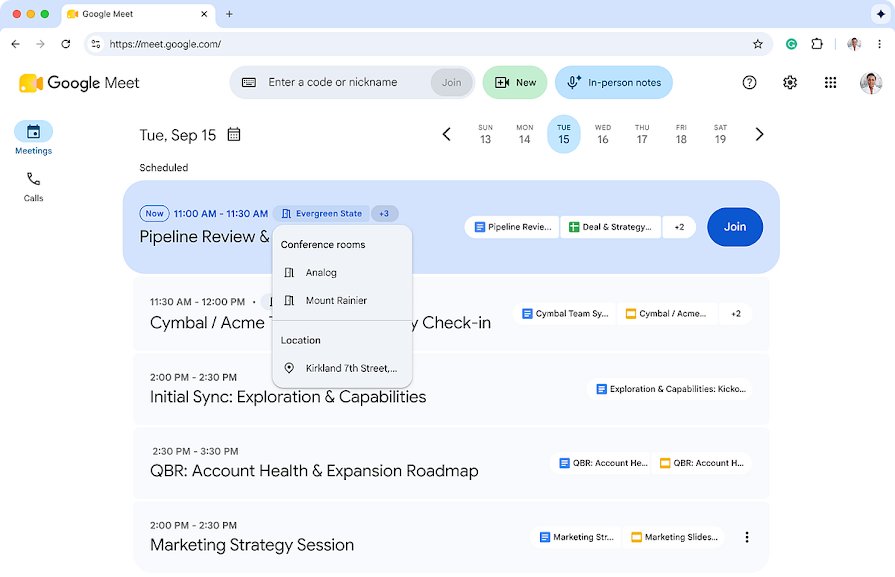
- Go to meet.google.com and pick the meeting from your scheduled list, or type the meeting code or nickname and click Join.
- From Google Calendar, select the event and click Join with Google Meet.
- From an email or chat, click the meeting link.
- Click Join now in the window that opens, or Ask to join if you are not on the invite.
- By phone, dial the number in the invite, enter the PIN followed by #, and press \*6 to mute or unmute.
Phone dial-in only works for meetings organized by a Google Workspace user whose admin turned it on, from 15 minutes before the start. The ways to join Google Meet roundup also covers Gmail and the mobile app.
How to join a Zoom meeting on Windows
- Click the link under Join Zoom Meeting in the invite.
- Open it in the Zoom Workplace app, or select Join from your browser.
- Check your audio and video, then click Join.
- Without a link, go to join.zoom.us, enter the meeting ID and click Join.
- Wait in the waiting room if the host has not admitted you yet.
From the desktop app, sign in and open the Home, Meetings or Calendar tab, then click Join on the meeting, or Start if you are the host.
How to start or create a Google Meet
Starting a Google Meet session needs a Google account, and there is no separate setup: the one-time process is signing in at meet.google.com or in Gmail.
- Go to meet.google.com and click New Meeting.
- Choose Create a meeting for later to copy a link to send, Start an instant meeting to begin now, or Schedule in Google Calendar.
- In Gmail, click Meet in the left sidebar, then New meeting, and use Send invite to share it.
- In Google Calendar, click Create > Event > Add Google Meet video conferencing, add guests and click Save.
Google Workspace Essentials users cannot schedule meetings in Google Calendar.
Schedule a meeting in Microsoft Teams
A Teams meeting created in the calendar sends the link to everyone you add. Teams for personal use creates a link from the Meet tab with Create a meeting link instead.
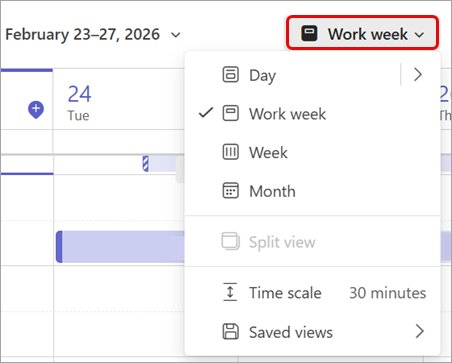
- Select Calendar, then a time slot or New.
- Enter a title, details and attendees.
- Turn on the Teams meeting toggle.
- Select Save.
- From a chat, select More chat options > Schedule a meeting, fill in the details and select Send.
The same calendar lets you block time for focus work, and organizers can cancel a Teams meeting for one date or the whole series.
Record a meeting in Teams, Zoom and Google Meet
All three apps record, but each has different rules about who can start it and where the file lands. In Teams, select More actions > Record, pick what to record and select Confirm.
| App | Start recording | Who can record | Where the file goes |
|---|---|---|---|
| Microsoft Teams | More actions > Record > Confirm; Audio only is an option | Organizer and people in the same organization with a supported license; not guests or anonymous users | Organizer's OneDrive for work or school, linked in the meeting chat |
| Zoom | Computer recording in the desktop app on Windows, macOS or Linux | Free and paid accounts; participants need host permission; cloud recording is hosts and co-hosts only | Computer recording saves files to your PC |
| Google Meet | Meeting tools > Recording > Start recording | Paid Workspace editions, Workspace Individual and Google One 2 TB+ plans | Organizer's Google Drive in a Google Meet folder; up to 8 hours per recording |
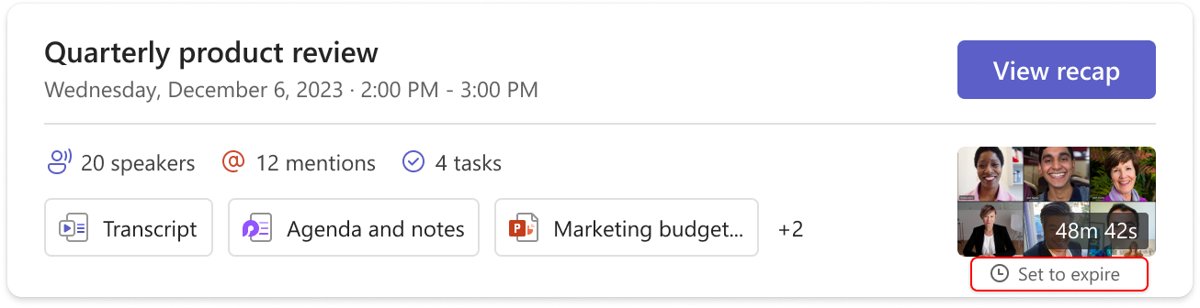
Once a Teams recording is processed, you can download or share the recording from the chat, OneDrive or SharePoint.
Where camera and microphone permissions live in Windows 11
Most camera and mic failures in Teams, Zoom and Meet trace back to one of these switches. Teams can confirm the fix with a Teams test call, which plays back your recorded message.
| Setting | Where it lives | What to turn on |
|---|---|---|
| Windows camera access | Settings > Privacy & security > Camera | Let apps access your camera and the app's own toggle |
| Windows microphone access | Settings > Privacy & security > Microphone | Microphone access, Let apps access your microphone, Let desktop apps access your microphone |
| Windows input device | Settings > System > Sound > Input | The right mic under Choose a device for speaking or recording |
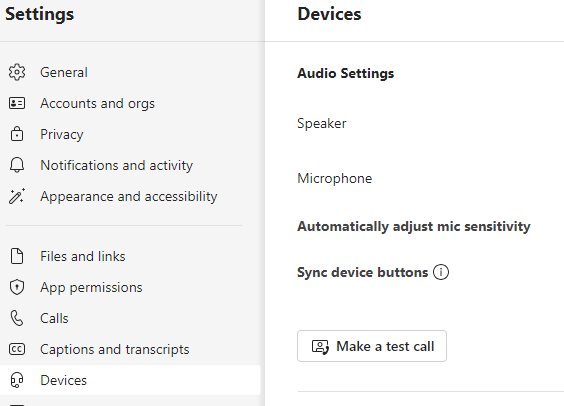
| Teams devices | Settings and more > Settings > Devices | The right camera and Microphone, then Make a test call |
| Chrome site access | Settings > Privacy and security > Site settings > Permissions | Sites can ask to use your camera and microphone |
| Edge site access | Settings > Privacy, search, and services > Site permissions > All permissions | Ask before accessing (recommended) |
For output devices, drivers and Windows-level audio problems, the Windows sound and microphone hub goes further.
What is Google Meet?
Google Meet is Google's video meeting service, built into Gmail and Google Calendar and reachable at meet.google.com. It works in the browser with no install, which answers how it works for most people: open a link and click Join now.
| Question | Answer |
|---|---|
| Is Google Meet free? | Yes, with a personal Google account: up to 100 participants |
| Free meeting length | 24 hours one-to-one; one hour with 3 or more participants |
| How to access Google Meet | meet.google.com, the Meet item in Gmail, Google Calendar, or the mobile app |
| Key features | Join codes, phone dial-in, recording on eligible plans, chat, Gemini note-taking on eligible plans |
| Workspace limits | Some Workspace editions allow longer meetings and more participants |
Microsoft Teams vs Zoom vs Google Meet comparison
The facts below come from each vendor's own help pages. Where a vendor page did not state a value, the cell says so instead of guessing.
| Feature | Microsoft Teams | Zoom | Google Meet |
|---|---|---|---|
| Free personal meetings | 100 participants, up to 60 minutes | Not stated on the Zoom pages used | 100 participants; 1 hour for 3+ people |
| Join without an account | Yes, if the organizer allows it | Yes, from the browser | Yes, by asking to join |
| Browser join | Edge or Chrome | Zoom Web App or browser link | Any supported browser at meet.google.com |
| Join with a code or ID | Meeting ID and passcode | Meeting ID and passcode | Meeting code or nickname |
| Phone dial-in | Yes, plus Call me dial-out | Yes, meeting ID and passcode | Workspace organizers whose admin allows it |
| Recording saved to | OneDrive for work or school | Your PC (computer recording) | Organizer's Google Drive |
| Waiting area | Lobby | Waiting room | Ask to join request |
Using Google Meet: Essential functions
These essential in-meeting features sit in the toolbar at the bottom of the meeting window. They are the basics of how to use Google Meet once you are in.
| Task | Control |
|---|---|
| Mute or unmute | Turn on microphone at the bottom of the meeting; \*6 by phone |
| Record | Meeting tools > Recording |
| Share the invite | Send invite > Copy meeting invite |
| Check site permissions | View site information in the address bar |
| Leave | Leave call |
Advanced Google Meet features: Host controls
Host controls decide who can record and who gets in. These advanced tips and best practices for using Google Meet come from Google's own help pages.
| Feature or practice | What it does |
|---|---|
| Host controls on | Participants cannot change the recording status |
| Ask to join requests | The organizer or a participant admits people who are not on the invite |
| Dial-in timing | Call in from 15 minutes before the start to avoid a PIN error |
| Close other camera apps | Reload Meet afterwards so it can take the camera |
| Companion mode | Turns off your mic and speaker; leave and rejoin to talk |
| Keep the browser updated | An outdated browser is a listed cause of join failures |
Teams and Zoom meeting tools: polls, breakout rooms, chat and shortcuts
Beyond joining and recording, most meeting questions are about the tools inside a call. In Teams you can run a poll during meetings, create breakout rooms in Teams, send requests with Approvals in Teams and learn the Teams keyboard shortcuts.
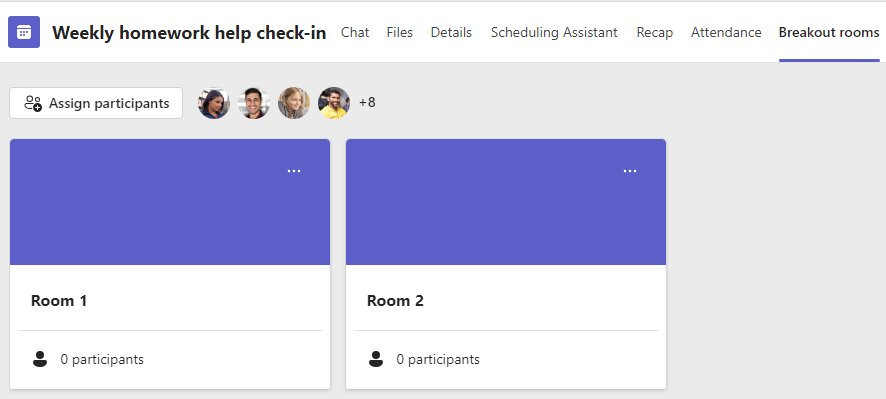
Zoom has its own versions: Zoom chat during meetings and breakout rooms in Zoom, which the host turns on in the web portal first.
| Tool | Teams | Zoom |
|---|---|---|
| Polls | Polls app in the meeting | Not covered here |
| Breakout rooms | Rooms in the meeting controls | Breakout Rooms in the meeting toolbar |
| In-meeting chat | Meeting chat | Chat in the meeting toolbar |
| Requests and sign-offs | Approvals app | Not applicable |
Edit your display name
You can change the name others see in a Teams meeting only if the organizer turned on Let people edit their display name in the meeting options. Teams also lets you join a meeting as an avatar, which Microsoft documents separately.
- Select People in the meeting controls.
- Hover over your name in the Participants pane.
- Select More options > Edit display name.
- Type the new name and select Save.
Teams, Zoom and Meet problems: symptom, cause and fix
Find your symptom, then work through the fix. Each row links the full walkthrough where one exists.
| Symptom | Likely cause | Fix |
|---|---|---|
| Camera shows black or is not found | Another app holds the camera, or Windows blocks access | Close other camera apps, then turn on Let apps access your camera |
| Others cannot hear you | Muted, wrong mic selected or Windows blocks the mic | Select Unmute mic, pick the mic in Devices, then check the Windows microphone toggles |
| No sound or mic in a remote session | Remote Desktop does not pass the mic through, or a VDI build of Teams is missing | Set Record from this computer in Remote Desktop; admins can deploy Teams for VDI |
| Can't join a Teams meeting | Stuck in the lobby, or the meeting ID needs an Exchange Online mailbox | Use the invite link instead of the ID, and rejoin after 30 minutes in the lobby |
| Google Meet says the meeting is full | The edition's participant limit is reached | Join from a shared room device, or ask the organizer |
| Teams or Zoom behaves oddly after a Windows update | The app is out of date | Update Microsoft Teams on Windows or update the Zoom app |
Why can't I join a Teams meeting?
There is no join button on the Teams meeting
The live meeting bar only appears for meetings you accepted or tentatively accepted, and it can be turned off.
- Open Calendar, select the meeting and select Join.
- If the bar is missing, turn on Show meeting join bar under Settings > Notifications and activity > Meetings.
- Use the link in the invite email if the meeting is not in your calendar.
Join with meeting ID does not work
Joining with an ID requires an Exchange Online mailbox.
- Open the invite email and select the meeting link instead.
- Or dial in with the phone number and conference ID in the invite.
You were removed from the lobby
Nobody admitted you within 30 minutes.
- Select the meeting link again to rejoin.
- Message the organizer to watch for the lobby alert.
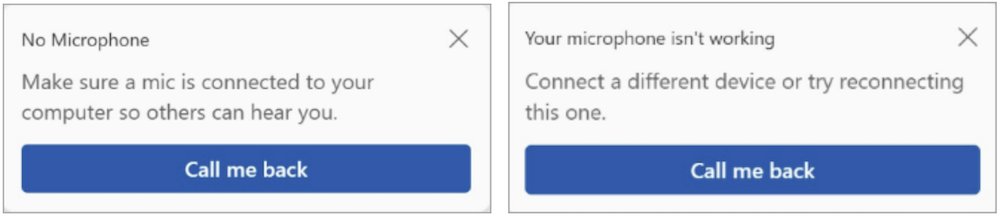
Mic not detected on the PC
Windows privacy settings or a disconnected device.
- Turn on the toggles in Settings > Privacy & security > Microphone.
- Close all apps and restart the PC.
- If it is still missing, select Call me back, enter your number and select Call me to use phone audio.
Troubleshooting: Google meeting not working?
Camera not working in Google Meet
Another app uses the camera, or Windows or Chrome blocks it.
- Close other apps that use the camera, then reload Meet.
- Open Settings > Privacy & security > Camera and turn on camera access for apps.
- In Chrome, allow sites to ask to use your camera and remove any block for Meet.
Microphone not working in Google Meet
Muted, Companion mode, or Chrome lacks permission.
- Click Turn on microphone at the bottom of the meeting.
- Leave and rejoin if you joined in Companion mode.
- Click View site information in the address bar and turn on Microphone.
- Update Chrome, go to chrome://restart and rejoin.
Can't join a Google Meet meeting
An outdated browser, a firewall error, or meetings turned off for your organization.
- Update your browser and try the link again.
- If you see a network transport timeout or firewall error, ask the network admin to open the ports Meet needs.
- Check you are signed in to the account the meeting was sent to.
Teams, Zoom and Google Meet meetings FAQ
How do I join a Teams meeting with a meeting ID?
In Teams, select Calendar, select the arrow next to Meet now and choose Join with an ID #. Enter the meeting ID and passcode from the invite. This route needs an Exchange Online mailbox; otherwise use the invite link.
How do I join a Teams meeting as a guest?
Select the link in the invite, choose Continue on this browser or the app, type your name and select Join now. The organizer must allow people without an account, and you wait in the lobby until admitted.
Can I join a Teams meeting without the Teams app?
Yes. Select the meeting link and choose Continue on this browser. Teams for the web runs in Microsoft Edge or Google Chrome and asks for camera and microphone access before you join.
How do I join a Teams meeting by phone?
Dial the phone number in the invite and enter the conference ID. You can also join on the PC, select more join options > Call me, and Teams calls your phone for the audio.
How do I join a Teams meeting anonymously?
On the pre-join screen, select Join without signing in, type your name and select Join. Other attendees see an Unverified label next to your name, and the organizer still has to admit you.
Can I join a Teams meeting on a laptop and phone?
Yes. Join on the laptop first, then open Teams on the phone with the same account and tap Join the meeting on this device in the notification at the top of the screen.
Why can't I join my own Teams meeting?
Join from Calendar with your organizer account rather than an ID or a second account. If the join bar is missing, turn on Show meeting join bar in the meeting notification settings.
How does a Teams meeting work?
An organizer schedules a meeting with the Teams meeting toggle on, and Teams sends a link. Attendees join by link, calendar, ID, chat or phone, and people outside the organization wait in the lobby.
How do I join a Teams meeting with a code?
The code is the meeting ID and passcode printed at the top of the invite. Enter both under Join with an ID # in the Teams calendar, or on mobile under Calendar > More > Join with meeting ID.
Bottom line: Teams, Zoom or Google Meet for meetings on Windows
Use whichever app the organizer sent, and join from the invite link: it works in all three without an account. Each service lets guests join by link from a browser, so the only real choice is when you host. Teams for personal use and a free Google account both cap group meetings at about an hour with 100 people.
Other services follow the same link-first pattern, including the Webex desktop app and GoTo Meeting for Windows. If an old Skype install still sits on the PC, you can uninstall Skype in Windows 11 once your calls have moved.