To open a file type in Windows 11 or Windows 10, read its extension, then double-click it or right-click it and pick an app under Open with; if no app can read it, add the missing Microsoft Store extension or a free tool such as 7-Zip.
This hub covers file associations, archives (ZIP, 7Z, RAR), images (HEIC, AVIF, PNG), documents and data files, video, and installer packages such as MSI, JAR and APK.
How to open file types in Windows 11 and Windows 10
Windows picks the app from the file name extension, so the first job is seeing that extension.
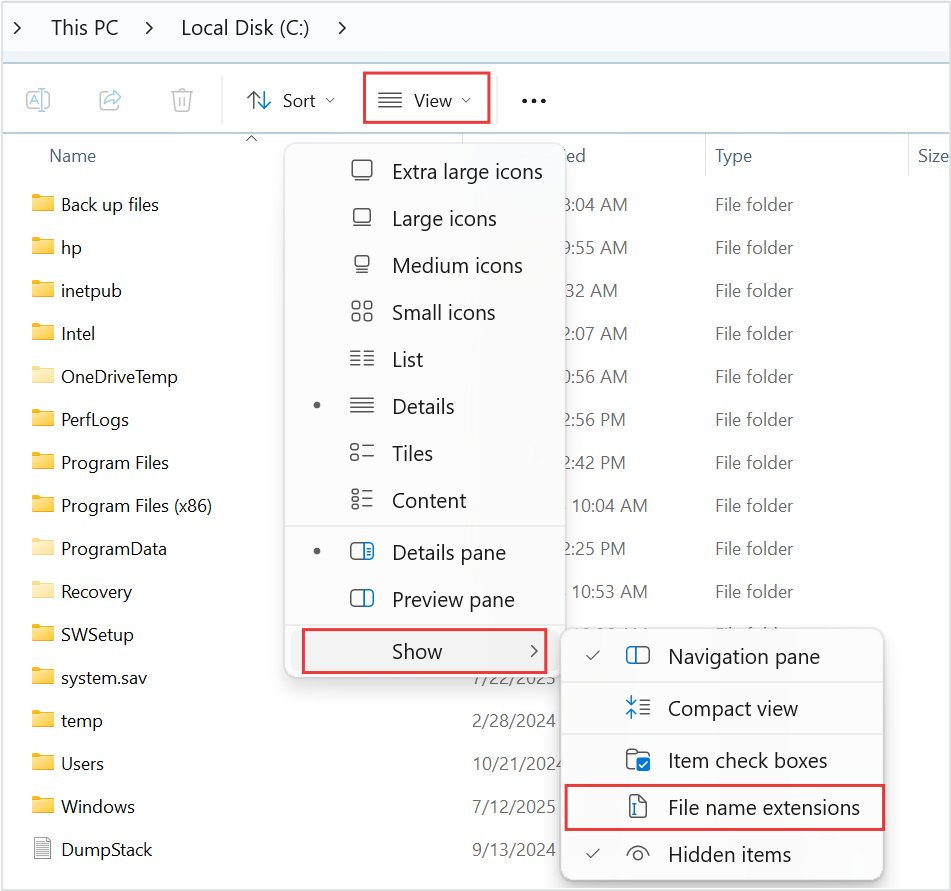
- Open File Explorer and turn on file name extensions (Windows 11: View > Show > File name extensions).
- Note the letters after the last dot, for example
.heicor.7z. - Double-click the file to open it in its default app.
- If the wrong app opens, right-click the file, select Open with and pick a different app.
- If no installed app can read it, find the extension in the table below and install the Store extension or free app listed there.
Renaming a file to a different extension does not convert it. Windows only changes which app tries to open it.
Which method should you use?
| Your situation | What to do | Why |
|---|---|---|
| File opens in the wrong app | Right-click > Open with, or change it under Settings > Apps > Default apps | The extension is linked to another app |
| "No app associated" message | Set a default app for that extension | Windows has no handler for the type |
| Photos says it needs an extension (HEIC, AVIF) | Install the HEIF, HEVC or AV1 extension from the Microsoft Store | The codec is not built into every PC |
| ZIP archive | Open it like a folder or use Extract All | ZIP support is built into File Explorer |
| 7Z, RAR or TAR archive | Windows 11 version 24H2 opens them; older builds need 7-Zip | Native support arrived in 24H2 |
| Password-protected archive | Use 7-Zip | Windows 11 24H2 does not handle encrypted archives |
| Video plays without picture, or not at all | Add the Store codec extension or use VLC | MPEG-2 and HEVC need extra decoders |
| Mac or Android package (DMG, PKG, APK) | Extract or emulate it; it will not install on Windows | The file targets another operating system |
Common file extensions and the app that opens each
Every type in this hub is listed here. "Not in Microsoft's list" means the extension is missing from Microsoft's own table of common Windows extensions, so Windows ships no app tied to it.
| Extension | What it is | Built-in Windows app / free app | Techdows guide |
|---|---|---|---|
| .zip | Compressed file | File Explorer | ZIP section below |
| .7z | 7-Zip archive (LZMA/LZMA2) | File Explorer on Windows 11 24H2; 7-Zip | 7Z section below |
| .rar | Roshal Archive compressed file | File Explorer on Windows 11 24H2; 7-Zip (extract only) | 7Z section below |
| .heic | HEIF image compressed with HEVC | Photos + HEIF Image Extensions + HEVC Video Extensions | HEIC section below |
| .avif | HEIF image compressed with AV1 | Photos + AV1 Video Extension; Chrome 85 or later | AVIF section below |
| .png | Portable Network Graphics image | Photos | open PNG images in Windows 11 |
| .aae | Not in Microsoft's list | No built-in app | AAE sidecar files from iPhone |
| .csv | Comma-separated values file | Excel | CSV section below |
| Portable Document Format file | Microsoft Edge; Word converts it to .docx for editing | PDF files in Windows 11 | |
| .json | Data format common in configuration files | Visual Studio Code validates and formats it | seven ways to open JSON |
| .eml | Email file | New Outlook | Outlook section below |
| .pst | Outlook data store | Classic Outlook | Outlook section below |
| .odg | ODF Drawing | LibreOffice Draw (free) | ODG drawings in Microsoft Office |
| .numbers | Not in Microsoft's list | Numbers for iCloud in a browser, then Download a Copy as Excel or CSV | Apple Numbers files on a PC |
| .asd | Not in Microsoft's list | Word; its AutoRecover folder is set under File > Options > Save | ASD recovery files in Word |
| .chm | Compiled HTML Help file | Windows HTML Help viewer; 7-Zip can unpack it | compiled CHM help files |
| .bak | Not in Microsoft's list | The app that wrote the backup | BAK backup files |
| .dat | Not in Microsoft's list | The app that created it | read DAT files |
| .vob | Video object file | Media Player + MPEG-2 Video Extension; VLC | Video section below |
| .ts | Not in Microsoft's list | VLC; Media Player lists the related .m2ts | Video section below |
| .msi | Microsoft installer file | Windows Installer (msiexec) | Installer section below |
| .jar | Java architecture file | Java runtime (java -jar) |
Installer section below |
| .apk | Android package | No Windows app since March 5, 2025; Android Studio emulator | APK section below |
| .dmg | Not in Microsoft's list | 7-Zip unpacks DMG, HFS and APFS images | DMG disk images on a PC |
| .pkg | Not in Microsoft's list | No built-in app | PKG packages on Windows 11 |
| .crdownload | Not in Microsoft's list | Chrome's Downloads page to resume it | unfinished CRDOWNLOAD files |
Show file name extensions in Windows 11 and Windows 10
File Explorer hides known extensions by default, which is why a file called photo looks identical whether it is a JPG or a HEIC.
| Windows version | Path | Setting |
|---|---|---|
| Windows 11 | File Explorer > View > Show | Check File name extensions |
| Windows 10 | File Explorer > View > Options > Change folder and search options > View tab | Clear Hide extensions for known file types, then select OK |
Change the default app that opens a file type
File associations live in Settings. The same steps apply to Windows 11 and Windows 10.
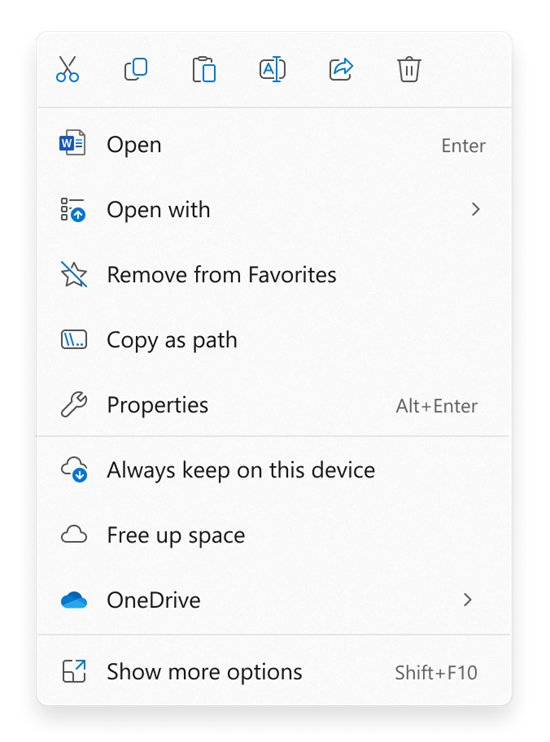
- Open Settings and select Apps > Default apps.
- Type the extension, such as
.csv, into the search box on that page. - Select the matching result.
- Choose the app that should open that type from now on.
To work the other way round, select an app on the Default apps page and change each file type it can open.
Fix "this file does not have an app associated with it"
This message means no installed app is linked to the extension. The no app associated error also shows up after an app that owned the type is removed.
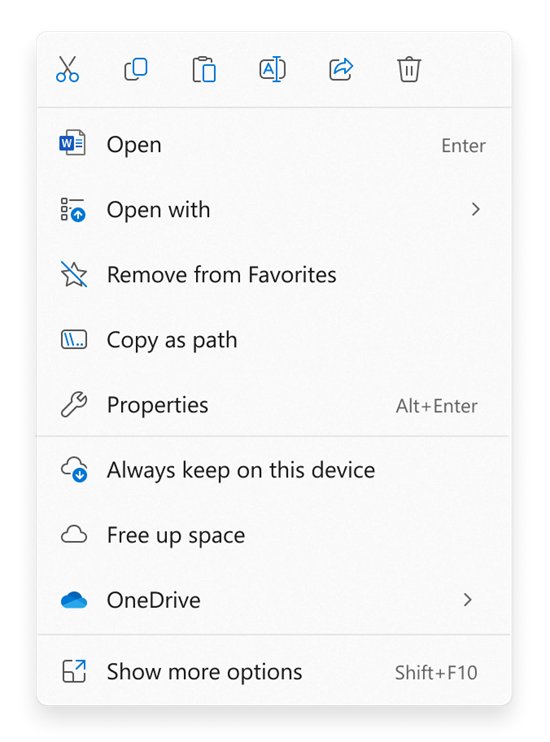
The message appears for a common type such as .pdf or .csv
The default app for that extension was uninstalled or reset.
- Open Settings > Apps > Default apps.
- Search for the extension.
- Pick an installed app that reads it.
The message appears for an unusual type such as .heic, .avif or .7z
Windows needs an extension or a newer build to read that format.
- Show file name extensions so you know the exact type.
- Find it in the extension table above.
- Install the Microsoft Store extension or free app listed for it.
The file was renamed and now nothing opens it
Renaming changes the extension but not the format inside.
- Rename the file back to its original extension.
- Open it in the app that created it.
How to unzip files on Windows 11
ZIP support is built into File Explorer, and a zipped folder behaves like any other folder until you extract it.
- Find the zipped folder in File Explorer.
- Double-click it to browse the files inside, or drag one item out to copy only that item.
- To unzip everything, right-click the folder and select Extract All.
- Choose a destination and follow the prompts.
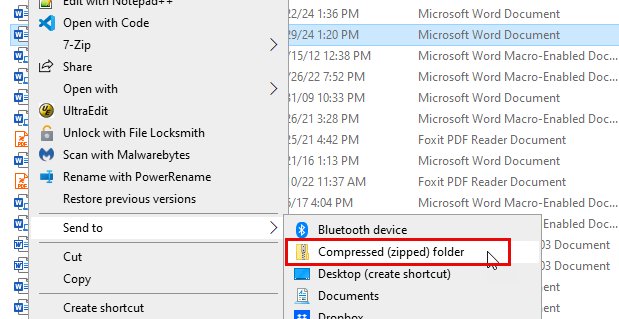
Going the other way takes one menu: right-click the files, select Show more options > Send to > Compressed (zipped) folder. You can also compress files and folders with the newer Windows 11 menu, and there are more routes to open ZIP files on Windows.
File Explorer cannot add a password. 7-Zip offers AES-256 encryption for ZIP and 7z archives, which is how you password protect a ZIP file.
What’s a 7z file anyway?
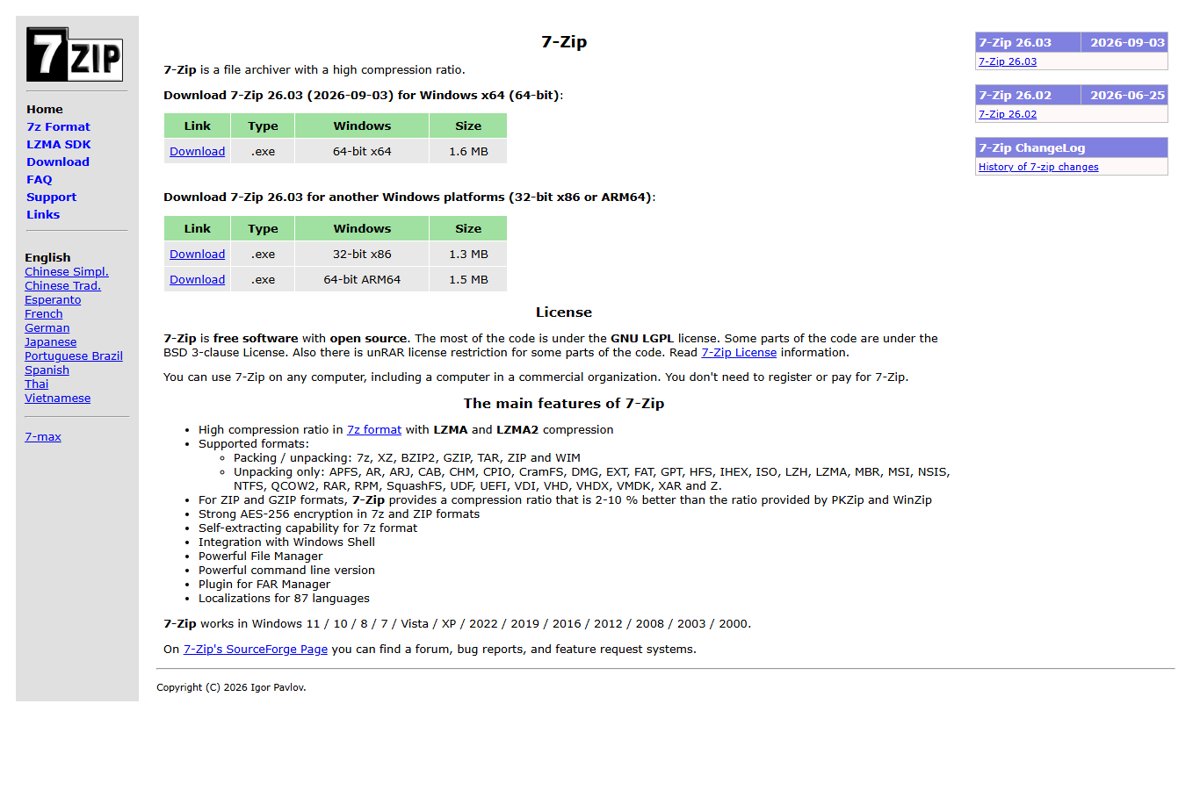
A .7z file is the native archive of 7-Zip, which compresses with LZMA and LZMA2. 7-Zip is free and open source, needs no registration, and is allowed on company PCs, so you can download 7-Zip for Windows without a licence question.
| Archive | Windows 11 24H2 File Explorer | Older Windows | 7-Zip |
|---|---|---|---|
| .zip | Open, extract, create | Open, extract, create | Open, extract, create, AES-256 password |
| .7z | Open and extract | Not supported | Open, extract, create, AES-256 password |
| .rar | Open and extract | Not supported | Extract only |
| .tar | Open and extract | Not supported | Open, extract, create |
| Encrypted archive | Not supported | Not supported | Supported for 7z and ZIP |
How to extract 7z files on Windows 11
Windows 11 version 24H2 extracts 7z, RAR and TAR in File Explorer. On older builds and on Windows 10, install 7-Zip first.
- Right-click the .7z file in File Explorer.
- On Windows 11 24H2, select Extract All and choose a folder.
- On older Windows, install 7-Zip, then right-click the archive and open it with 7-Zip.
- Choose to extract it and confirm the destination folder.
- Enter the password if the archive asks for one.
7-Zip also splits, joins and repacks archives; the complete 7-Zip walkthrough covers those jobs.
Troubleshooting 7z extraction
Extract All is missing for a .7z or .rar file
Native support for those formats starts with Windows 11 version 24H2.
- Install 7-Zip.
- Open the archive with 7-Zip and extract it.
Windows cannot extract a password-protected archive
Windows 11 24H2 does not work with encrypted archive files.
- Open the archive in 7-Zip.
- Type the password when asked.
- Extract to a folder you can find again.
You need to create a RAR file
7-Zip unpacks RAR but cannot create it.
- Create a .7z or .zip instead, both of which 7-Zip can password protect.
What is a HEIC file?
HEIC is a HEIF image compressed with HEVC, the default photo format on most Apple devices running iOS 11 or later. HEIC files may not open in Windows 11 because the HEVC codec is not on every PC.
| Piece | What it does | Price in the Microsoft Store |
|---|---|---|
| HEIF Image Extensions | Lets Windows read the HEIF container | Free |
| HEVC Video Extensions | Decodes the HEVC-compressed picture inside | $0.99 |
| Photos app | Shows the image once both are installed | Built in |
Method 1: Install HEIF image extensions
Photos shows "You need an extension to use this file" until both codecs are present. Microsoft notes that both are required even if you only open photos.
- Open the Microsoft Store.
- Search for HEIF Image Extensions and select Get.
- Search for HEVC Video Extensions and buy it.
- Close and reopen the Photos app.
- Double-click the .heic file to open it in Photos.
The Store route is one of several ways to open HEIC files for free, and the HEVC Video Extension download explains the listing options.
Method 2: View it instantly in your browser (no install)
The OneDrive website displays HEIF photos in any browser, and OneDrive converts uploaded HEIF photos automatically, which doubles as a way to convert the HEIC to JPG.
- Sign in to the OneDrive website in any browser.
- Upload the .heic photos.
- Select a photo to view it.
- Download it again if you need a copy other apps can read.
Troubleshooting: HEIC still won’t open on Windows 11
Photos still asks for an extension
Only one of the two codecs is installed, or Photos was open during the install.
- Check that both HEIF Image Extensions and HEVC Video Extensions are installed.
- Restart the Photos app.
You cannot buy the HEVC extension
The paid codec is the only Microsoft route for local HEIC viewing.
- Upload the photos to OneDrive so they convert.
- Or reimport them from the phone, or email them to yourself, after changing the phone's camera format setting.
What about Windows 10?
Windows 10 uses the same two Store extensions and the same Photos app, so the HEIC steps above work unchanged. Only the File Explorer route to show extensions differs: Windows 10 uses View > Options > Change folder and search options instead of View > Show.
What is an AVIF file?
AVIF uses the same HEIF container as HEIC but compresses the picture with AV1 instead of HEVC. Windows can't open AVIF on its own when the AV1 codec is missing, because that codec is not installed on all PCs.
| Format | Container | Compression | Codec to add on Windows |
|---|---|---|---|
| .heic | HEIF | HEVC | HEIF Image Extensions + HEVC Video Extensions |
| .avif | HEIF | AV1 | HEIF Image Extensions + AV1 Video Extension |
Method 1: Install the AV1 Video Extension
The AV1 Video Extension is Microsoft's own codec listing, published alongside the MPEG-2, HEVC and VP9 extensions.
- Open the Microsoft Store and search for AV1 Video Extension.
- Select Get and wait for it to install.
- Install HEIF Image Extensions too if it is not already present.
- Restart Photos, then double-click the .avif file.
Method 2: Open AVIF in your web browser
Google Chrome has decoded AVIF since version 85, so open AVIF files via web browsers when you only need a quick look.
- Right-click the .avif file in File Explorer.
- Select Open with and pick Google Chrome.
- View the image in the browser tab.
Troubleshooting AVIF on Windows
Photos opens HEIC but not AVIF
HEIC and AVIF need different codecs inside the same container.
- Install the AV1 Video Extension.
- Restart Photos.
Another app or website rejects the AVIF file
Many apps read JPEG and PNG but not AV1-compressed images.
- Open the AVIF in an app that reads it.
- Use that app's save or export command to convert AVIF to JPG or PNG.
- Use the JPG or PNG copy and keep the original.
A third-party codec pack is suggested
Microsoft strongly discourages codec packs because some cause playback problems and system corruption.
- Uninstall the pack if you added one.
- Install the codec from the Microsoft Store instead.
How to open a CSV file
A CSV file is a comma-separated values file: plain text that Excel splits into columns. Double-clicking opens it with Excel's default data settings; the import route gives you control over each column.
- In Excel, select File > Open and browse to the folder.
- Set the file type list to Text Files and double-click the .csv file.
- For more control, start in an empty sheet and select Data > From Text/CSV.
- Select the file and Import, then pick the right character under Delimiter.
- Select Load to place the data in the sheet.
Fix CSV not opening properly
Everything lands in one column
The file uses a separator other than the one Excel expected.
- Import with Data > From Text/CSV.
- Change the Delimiter in the preview until the columns split.
Leading zeros disappear from ZIP codes or IDs
Excel applies its default number format when it opens a CSV.
- Rename the copy to .txt to start the Text Import Wizard.
- Set that column to text so the zeros stay.
Open PST and EML files in Outlook
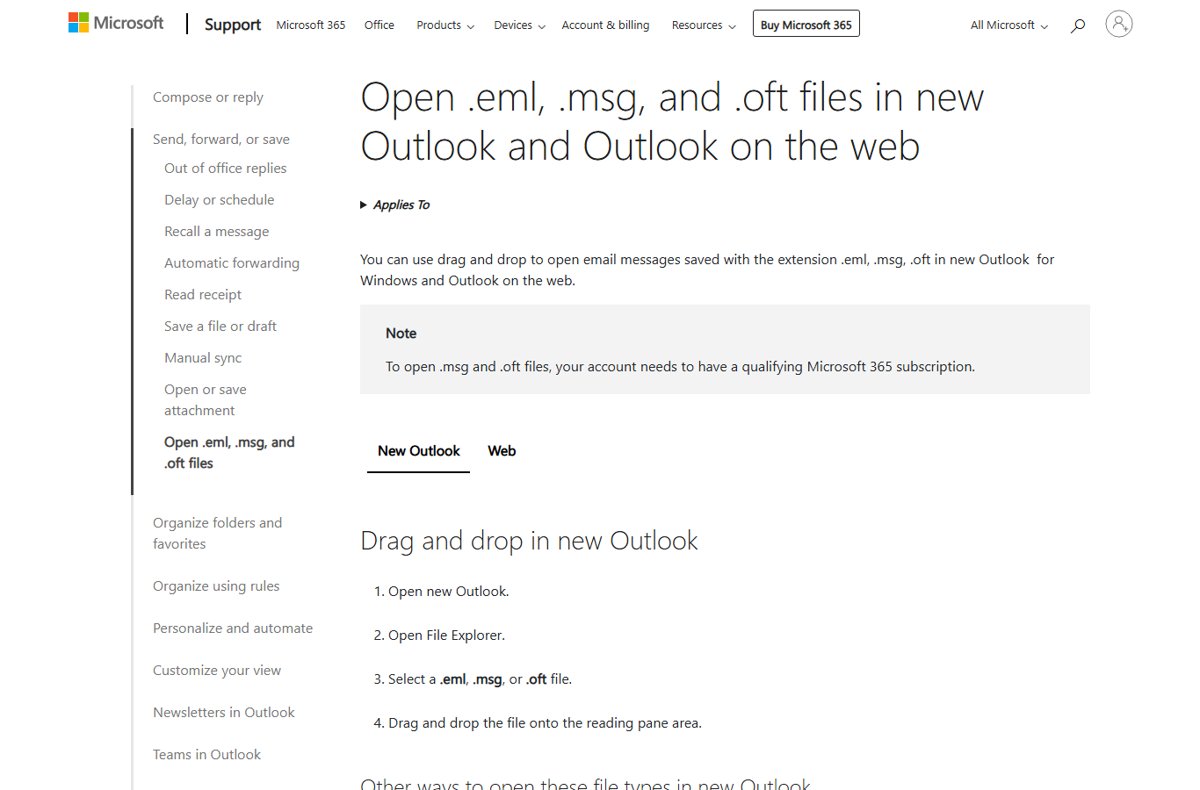
A .pst file is an Outlook data store and only classic Outlook opens it directly; new Outlook can open one only when classic Outlook of the same 32-bit or 64-bit architecture is also installed. Background on whether to keep mail in PST files is worth a read before you archive.
- In classic Outlook, select File > Open & Export > Open Outlook Data File.
- Select the .pst file and then Open.
- Find its folders in the folder pane.
- For a single saved email, right-click the .eml file in File Explorer and select Open with > Outlook (new).
If a double-clicked message does not open in new Outlook, set Outlook as the default app for .eml. Other mail apps can open saved EML messages.
Play VOB, TS and HEVC video files in Windows
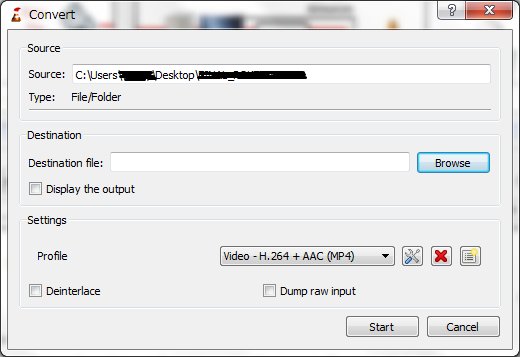
Windows ships codecs for WMA, WMV and MP3. MPEG-2 video, used by DVD VOB files, needs an extra decoder, and Microsoft offers MPEG-2 and HEVC extensions in the Store. VLC reads DVD Video, MPEG-1/2 and MPEG transport streams without them, which is the quick route to play VOB files and open TS video files.
| Extension | Inside | Windows route | Free alternative |
|---|---|---|---|
| .vob | MPEG-2 video from a DVD | Media Player + MPEG-2 Video Extension | VLC |
| .ts / .m2ts | MPEG transport stream | .m2ts is on Media Player's list | VLC |
| HEVC | H.265 video | HEVC Video Extensions ($0.99) | VLC |
Run MSI and JAR files from Command Prompt
Double-clicking an MSI runs Windows Installer, and the same engine takes switches from Command Prompt; more on what an MSI file does helps before you script it. A JAR needs Java and a Main-Class entry in its manifest, which matters when you run JAR files.
- Open Command Prompt in the folder that holds the file.
- Install an MSI with
msiexec /i Example.msi. - Remove the same product with
msiexec /x Example.msi. - Run a Java app with
java -jar app.jar. - To see an MSI's files without installing, open it in 7-Zip, which unpacks MSI.
How to open APK files on Windows 11
An APK is the archive Android devices use to install an app, so Windows cannot run it by itself. Windows Subsystem for Android and the Amazon Appstore left the Microsoft Store on March 5, 2025, so the official route on a PC is now the Android Emulator in Android Studio, as the APK walkthrough explains.
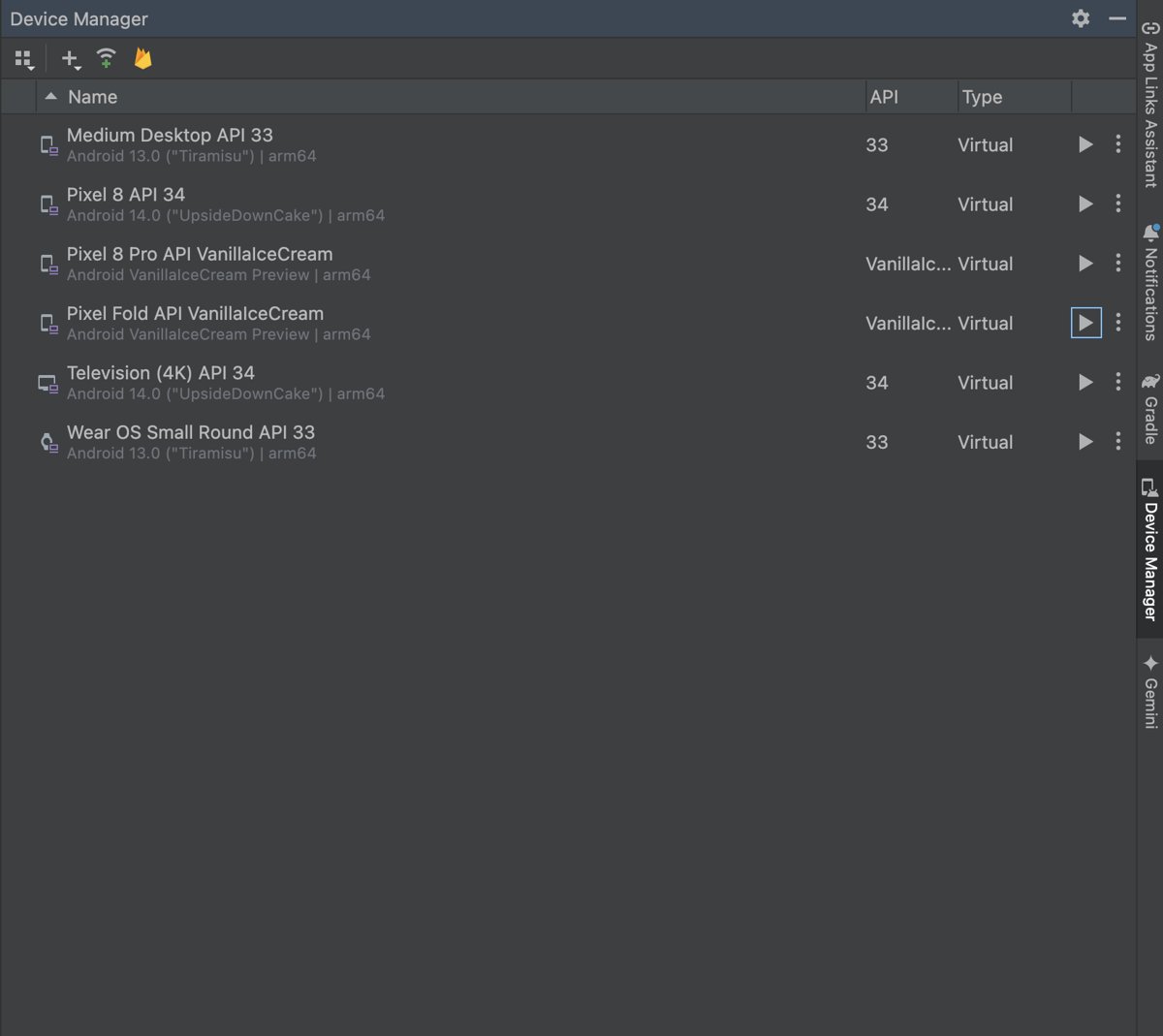
- Install Android Studio and start a virtual device in the Android Emulator.
- Drag the .apk file onto the emulator screen.
- Wait for the APK Installer dialog to finish.
- Open the app from the emulator's apps list.
File won't open in Windows: symptom and fix
| Symptom | Likely cause | Fix |
|---|---|---|
| "You need an extension to use this file" | Missing HEIF, HEVC or AV1 codec | Install the Store extension and restart Photos |
| "This file does not have an app associated with it" | No default app for the extension | Settings > Apps > Default apps |
| Wrong app opens the file | Association points elsewhere | Right-click > Open with, then change the default |
| Extract All missing for 7Z or RAR | Windows older than 11 24H2 | Use 7-Zip |
| Archive asks for a password Windows can't take | Encrypted archive | Use 7-Zip |
| Video has sound but no picture | MPEG-2 or HEVC decoder missing | Store extension or VLC |
| CSV columns merged or zeros lost | Default Excel import | Data > From Text/CSV |
| PST will not open in new Outlook | Classic Outlook not installed | Install classic Outlook of the same bitness |
| APK does nothing on Windows | Android package; WSA retired | Android Emulator |
Open file types in Windows FAQ
Why can't I open HEIC files on my PC?
Windows needs two Microsoft Store codecs to read HEIC: HEIF Image Extensions, which is free, and HEVC Video Extensions, which costs $0.99. Install both and restart Photos. Without them, Photos shows a message that it needs an extension.
How do I open HEIC files on Windows 11 for free?
Upload the photos to the OneDrive website, which displays HEIF images in any browser and converts uploaded HEIF photos automatically. Local viewing in Photos needs the HEVC Video Extensions, which is a paid Store item.
How do I open HEIC files on Windows 10?
Windows 10 uses the same route as Windows 11. Install HEIF Image Extensions and HEVC Video Extensions from the Microsoft Store, restart the Photos app, and double-click the file.
How do I unzip files on Windows 11?
Right-click the zipped folder and select Extract All, then choose a destination. To take out a single file, open the zipped folder like any folder and drag that file somewhere else. Windows 11 24H2 does the same for 7z, RAR and TAR archives.
Can I open an APK file on a PC?
Not directly. An APK is an Android install package. Windows Subsystem for Android and the Amazon Appstore left the Microsoft Store on March 5, 2025, so use the Android Emulator in Android Studio and drag the APK onto its screen.
Why can't I open APK files on Windows?
APK files are built for Android devices, and Windows has no Android runtime since Windows Subsystem for Android was withdrawn in March 2025. Double-clicking one does nothing useful. Install it in the Android Emulator instead.
What opens a CSV file on Windows?
Excel opens CSV files directly through File > Open, and Data > From Text/CSV lets you choose the delimiter and column types. Because a CSV is plain text, the Excel import preview shows how each row will split before you load it.
How do I see a file's extension in Windows 11?
Open File Explorer, select View > Show and check File name extensions. Every file then shows the letters after its last dot, such as .heic or .7z, which tell you which app is needed.
Does renaming a file change its format?
No. Renaming an extension only changes which app Windows tries to use. The data inside stays in its original format, so a renamed file often refuses to open until you restore its real extension.
The bottom line: how to open any file type in Windows
Show file name extensions first, then match the extension to the table: most failures are fixed by one Microsoft Store codec, 7-Zip, or a changed default app. Windows chooses the app purely by extension, so knowing the exact type tells you whether you need a codec, an archive tool, or a different operating system.