To install Microsoft 365, sign in at m365.cloud.microsoft/apps with the account tied to your plan, select Install apps, run the setup file, then open Word and accept the licence to activate it.
This guide covers Microsoft 365, Office 2024, 2021 and older one-time purchases on Windows, Mac and mobile, plus product keys, activation errors and the admin side.

Install Microsoft 365 apps in Windows
This quick guide to installing Office works for Microsoft 365 and Office 2024 on Windows 11 and Windows 10. If you redeemed a key once already, or your work assigned you a licence, start at step 1.
- Go to m365.cloud.microsoft/apps and select Sign in if you are not signed in already.
- Sign in with the Microsoft account, or work or school account, linked to your plan.
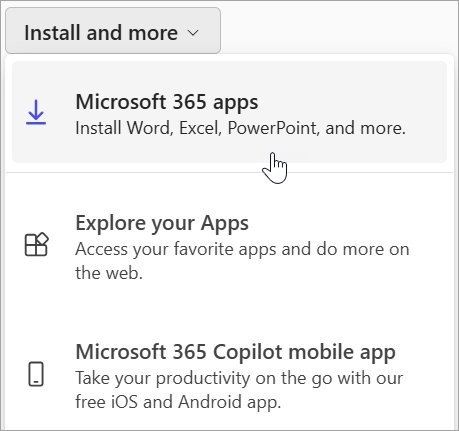
- With a Microsoft account, select Install apps, then Install. With a work or school account, select Install apps and then Microsoft 365 apps.
- Open the downloaded file: Run in Edge, Setup in Chrome, or Save File in Firefox.
- Select Yes at the User Account Control prompt Do you want to allow this app to make changes to your device?
- Wait for You're all set! Office is installed now, then select Close.
- Press Start, type Word, open it and accept the license agreement to activate.
The same steps apply when installing on a Windows PC for the first time or reinstalling on a new laptop. For every Office download option on PC and Mac, including offline setup, use the Microsoft Office download options page.
Microsoft 365 vs Office 2024 and 2021: decide which Office you actually have
Microsoft 365 is a subscription; Office 2024 and Office 2021 are one-time purchases. The install route, the device limit and the activation step all depend on which one you own.
If the names still blur together, the Microsoft Office suite explainer sets out how Word, Excel, PowerPoint, Outlook and OneNote are bundled.
| Item | Microsoft 365 (Personal, Family, Premium, Pro) | Office 2024 / Office 2021 (one-time purchase) |
|---|---|---|
| How you pay | Monthly fee, or save by paying for a full year | A single up-front cost |
| Desktop apps | Latest Word, Excel, PowerPoint, Outlook and OneNote for Windows or Mac; PC users also get Access and Publisher | Word, Excel and PowerPoint, plus Outlook in Home & Business |
| Feature updates | All new features, security updates and bug fixes | Security updates only; major upgrades are not included |
| Devices | Install on all your devices and sign in on five at the same time | One PC or one Mac |
| Sharing | Family, Premium and Pro share with up to five other people | Not shareable |
| Cloud storage | 1 TB with Personal; 2 TB pooled with Family and Premium; 5 TB pooled with Pro | Not included |
| Copilot AI | Copilot in Word, Excel, PowerPoint, Outlook and OneNote for the subscription owner | Not included |
| Phones and tablets | Extra features in the free mobile apps after sign-in | Basic editing on devices under 10.1 inches |
| Activation | Sign in with your Microsoft account | Sign in with the account you redeemed the key to |
| Support | Ongoing chat and call-back support | Support resources and chat; call-back for activation only |
Subscription versus one-time purchase comes down to this: pay once if you only need Word, Excel and PowerPoint on one computer; subscribe if you want every device, cloud storage and new features.
Microsoft 365 and Office 365 plans
Office 365 is the older name; the available plans now carry the Microsoft 365 brand. Features available across all plans include Word, Excel and PowerPoint, but feature availability across some plans differs for Access, Publisher, Visio, storage and Copilot.
| Plan | Who it is for | Desktop apps | Worth knowing |
|---|---|---|---|
| Microsoft 365 Basic | One person | No desktop apps | 100 GB cloud storage, ad-free email and Microsoft support |
| Microsoft 365 Personal | One person | Full desktop apps | 1 TB cloud storage; the Microsoft 365 free trial download starts here |
| Microsoft 365 Family / Premium | Owner plus up to five people | Full desktop apps | 2 TB pooled storage; AI benefits stay with the owner |
| Microsoft 365 Pro | Owner plus up to five people | Full desktop apps | 5 TB pooled storage |
| Microsoft 365 Business Standard | Small and midsized businesses (up to 300 users) | Full desktop apps once an admin assigns a licence | Includes Copilot Chat; Copilot in Business Standard apps costs extra |
| Enterprise, school and non-profit plans | Organisations | Most include desktop apps; basic plans are web-only | IT usually installs these |
| Office Home 2024 / Home & Business 2024 | One PC or Mac | Word, Excel, PowerPoint (Outlook in Home & Business) | One-time purchase, no upgrades |
Access is a PC-only app included with Microsoft 365 for home. Once installed, you can open Access in Office 365 from the Start menu, and a beginner's look at Microsoft Access explains what the database app does. Standalone installers exist for the Microsoft Access desktop app and the Microsoft Publisher installer.
Visio and Project are sold separately as a subscription or one-time purchase, for PCs only. Read what the Visio diagramming app does before you grab the Visio trial download.
What is included in Microsoft 365?
Microsoft 365 works as a subscription to the installed apps plus cloud services, so your files follow your account across devices. Who uses it ranges from one person on Basic to enterprises with thousands of seats.
| Part of Microsoft 365 | What you get | Plans |
|---|---|---|
| Word, Excel, PowerPoint | Full desktop apps for Windows and Mac | Personal, Family, Premium, Pro, most business plans |
| Outlook and OneNote | Desktop email client and notebook app | Personal, Family, Premium, Pro, most business plans |
| Access and Publisher | Database and desktop publishing apps | Home plans, Windows PCs only |
| OneDrive storage | 1 TB to 5 TB depending on the plan | All home plans except Basic (100 GB) |
| Copilot | AI features in Word, Excel, PowerPoint, Outlook and OneNote | Home plans for the subscription owner; extra on most business plans |
| Microsoft 365 for the web | Browser versions of the apps | Free with any Microsoft account |
Key features beyond the apps are cloud storage, advanced security and sharing. If OneNote is part of the reason you subscribed, these OneNote note-taking tips get more out of it.
Pros and cons of using Microsoft 365, in short: you always have the latest version and every device covered, but you pay for as long as you use it.
Free web apps
Microsoft 365 is not free as a desktop install, but Microsoft 365 for the web is. Use Microsoft 365 on the web with any Microsoft account, new or existing.
| Free option | What it gives you | Limit |
|---|---|---|
| Microsoft 365 for the web | Word, Excel, PowerPoint and more in a browser | No desktop apps |
| Office mobile apps | Free install on phones and tablets | Basic editing on screens under 10.1 inches without a subscription |
| Office 365 Education | Word, Excel, PowerPoint and OneNote for students and teachers | Needs a valid school email address |
| Pre-installed trial on a new PC | A 1-month Microsoft 365 Family trial | Editing stops when the trial ends unless you buy |
Ready to install Microsoft 365 or Office 2024?
Check these before you install for the first time. Reinstalls skip straight to signing in.
| Check | What to do |
|---|---|
| System requirements | Windows 10 or 11, or a supported macOS; Windows XP and Vista cannot install current Office |
| Home product with a key | Redeem the key once at microsoft365.com/setup to add it to your Microsoft account |
| Business plan | An admin must assign you a licence before Install apps appears |
| Workplace Discount Program | Install first, then enter the key from your order |
| Volume licence (Office Professional Plus at work) | Ask your IT department; these have no consumer download |
| Third-party seller key | Make sure the key came with genuine software before you redeem it |
These are the facts the Microsoft page groups under learn more about product keys, Workplace Discount Program, and volume licenses.
Product keys and first-time installs
A new, never-used product key is redeemed once, and from then on your Microsoft account replaces it. To activate a brand new Microsoft 365 product key, redeem it before you install.
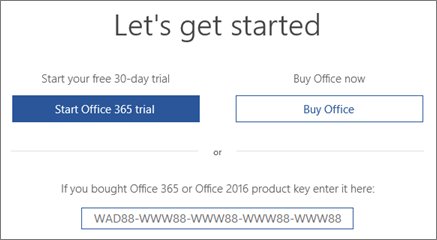
- Go to microsoft365.com/setup (office.com/setup also works).
- Sign in with an existing Microsoft account or create one.
- Enter the 25-character key in the format XXXXX-XXXXX-XXXXX-XXXXX-XXXXX.
- Follow the prompts to add the product to your account.
- Install the apps from m365.cloud.microsoft/apps with that same account.
If you have no key yet, the ways to get an Office product key are buying from the Microsoft Store or a retail card. When renewing with a new key, use the same Microsoft account as the expired subscription.
Sign in to download Office
Office 2021, Office 2019 and Office 2016 install from your Microsoft account dashboard rather than the Microsoft 365 apps page. Support for Office 2016 and Office 2019 ended on October 14, 2025, with no extended security updates.
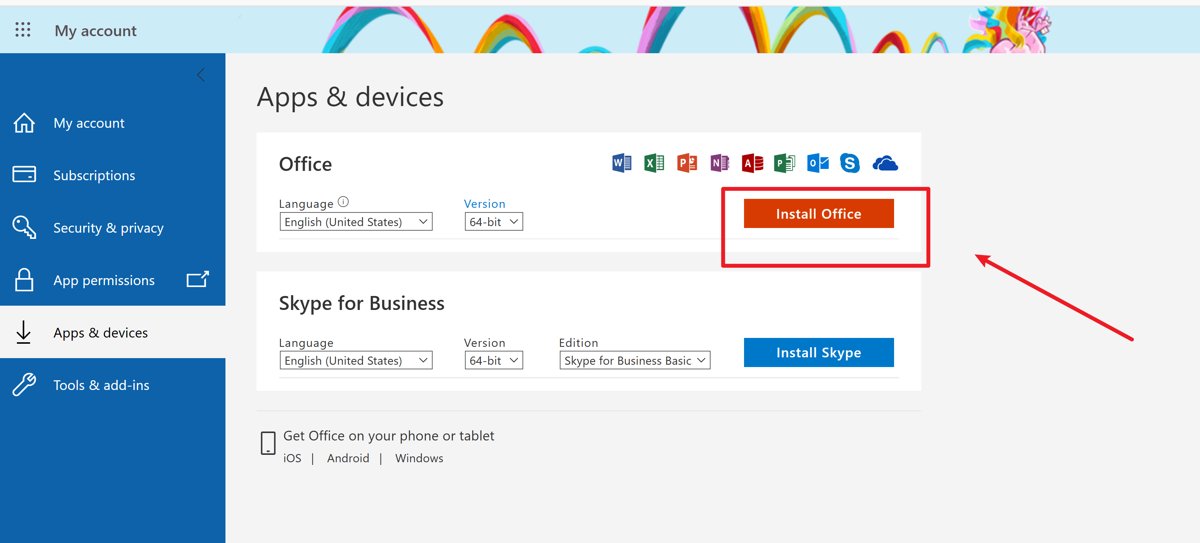
- Go to your Microsoft account dashboard and select Sign in.
- Sign in with the Microsoft account linked to this version of Office.
- On the Overview page, select Office apps.
- Find the Office product and select Install; use the dropdown for another language or the 64-bit version.
- Open the setup file, select Yes at User Account Control and wait for You're all set! Office is installed now.
- Open Word or Excel and select Accept on the license terms to activate.
A one-time purchase is licensed for one install only. If you own a licence, you can download Office 2021, 2019 or 2016 legally from Microsoft, and the Office 2019 installer for Windows covers that version on its own.
32-bit or 64-bit?
The 64-bit version installs by default. Setup picks 32-bit only when it finds a 32-bit Office, Project or Visio already on the PC. You cannot mix the two, so switching means uninstalling first.
- Uninstall Microsoft 365 and any stand-alone Project or Visio apps.
- Restart the PC.
- Sign in again at m365.cloud.microsoft/apps and select Install apps.
- In the Install apps window, choose the language and the 64-bit or 32-bit version.
- Select Install and complete setup.
Installing on a Mac
- Go to m365.cloud.microsoft/apps, sign in and select Install apps (work or school accounts select Microsoft 365 apps).
- Open Finder, go to Downloads and double-click the Microsoft Office installer.pkg file.
- Select Continue, review the licence, select Continue again and then Agree.
- Choose the install type, select Install and enter your Mac password, then Install Software.
- Select Close when setup finishes.
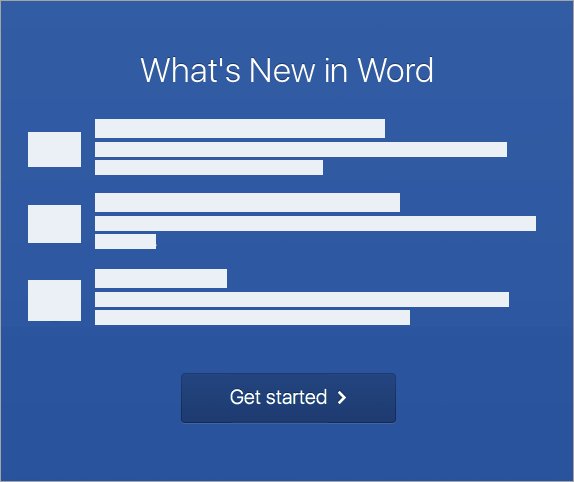
- Open Launchpad, start Word and select Get Started in the What's New window to activate.
Trying to install the PC version on a Mac, or the reverse, gives an unsupported operating system error. Mac one-time purchases need the Mac download.
Mobile devices and Chromebooks
The Install button on the Microsoft 365 page downloads the PC or Mac version, so it fails on an iPad, iPhone or Chromebook.
- Open the App Store on an iPhone or iPad, or Google Play on Android.
- Install the Microsoft 365 app (or Word, Excel and PowerPoint individually).
- Open the app and sign in with your Microsoft 365 account to unlock subscription features.
- On a Chromebook, install the mobile apps from Google Play if your model supports Android apps, or use Microsoft 365 for the web.
Install Office 365 offline with the Office Deployment Tool
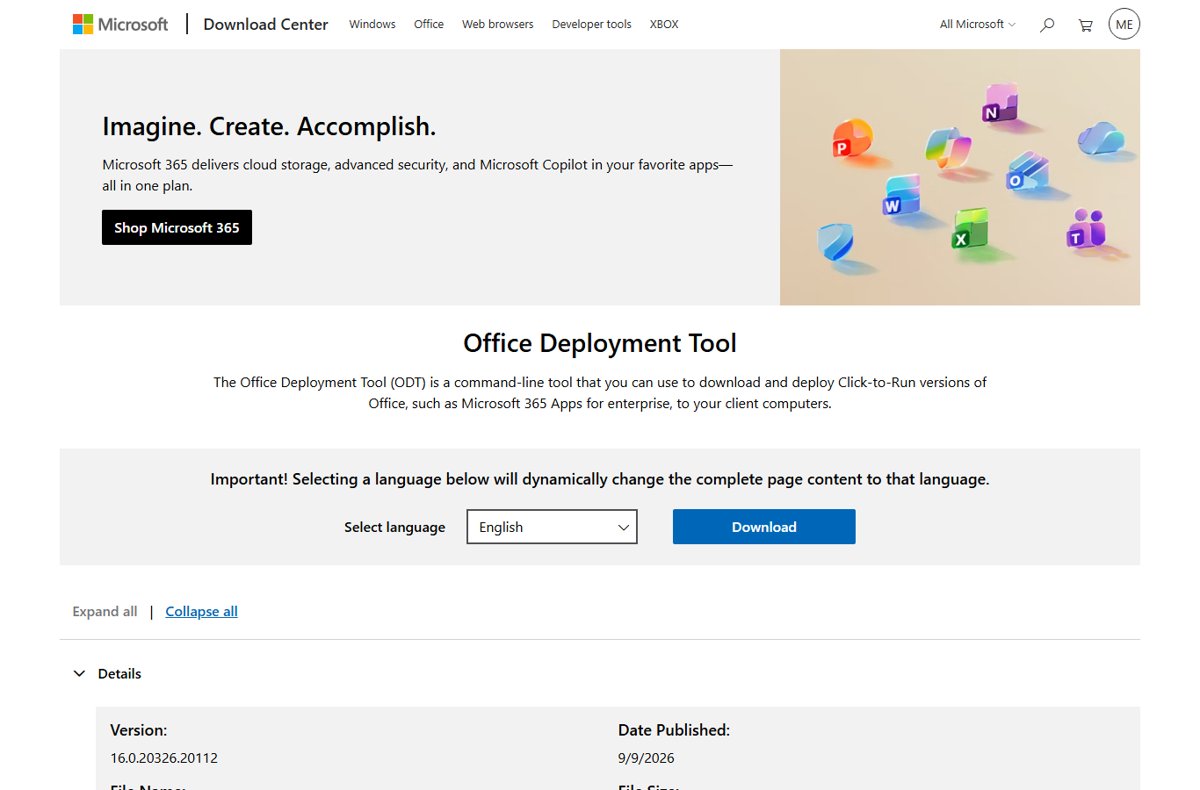
The offline installer can get past proxy, firewall or slow-connection problems that stall the online setup. IT teams use the Office Deployment Tool to download once and install on many PCs.
setup.exe /download configuration.xml
setup.exe /configure configuration.xml
The first line downloads the Office files described in configuration.xml; the second installs Office using the same file. Run both from the folder that holds setup.exe.
You should see: Office apps appear in the Start menu and open without asking you to install.
Building configuration.xml is covered step by step in the Office Deployment Tool walkthrough. The same method drives an Office Professional Plus 2019 offline install.
How Microsoft 365 handles administration (for IT folks)
In business plans, admins assign licences, and users only see Install apps after that. The tasks below all start from the admin center.
| Admin task | Where it happens |
|---|---|
| Assign licences so users can install | Microsoft 365 admin center at admin.microsoft.com, opening the admin center with an admin work account |
| Push Microsoft 365 Apps to managed PCs | Microsoft Intune, using a Microsoft 365 Apps deployment with Intune |
| Download invoices | Billing > Bills & payments, where you can download a Microsoft 365 invoice |
| Replace the starter domain | Settings > Domains, to change the onmicrosoft.com domain |
Activate Microsoft 365 or a non-subscription version of Office
When you start an app that is not activated, it asks you to sign in. Use the Microsoft account, or work or school account, you bought or subscribed with. Find your case below.
| Your situation | What to do | Why |
|---|---|---|
| Microsoft 365 subscription or Office 2024/2021 bought online | Open Word and sign in with the buying account | The account holds the licence, so no key is needed |
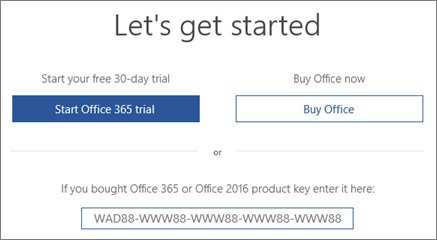
| Activate Microsoft 365 or a non-subscription version of Office that's pre-installed on a new Windows device, with a try/buy/activate screen | Start the 1-month Microsoft 365 Family trial, buy, or enter a key from a new card | The PC shipped with a trial, not a licence |
| Activate an Microsoft 365 purchase or offer that's included on a new Windows device | Sign in with a Microsoft account when Word opens | A digital key arrived with Windows activation; signing in adds it to your account |
| Activate Office from Microsoft Workplace Discount Program | Select I don't want to sign in or create an account and enter the key | Workplace Discount Program copies (formerly Home Use Program) activate by key |
| New product key card | Redeem it at microsoft365.com/setup first | Redeeming links the product to your account once |
| Activation Wizard appears | Follow the wizard's prompts | Office needs help completing activation |
How to check Office is activated
- Open Word or any Office app.
- Select File > Account.
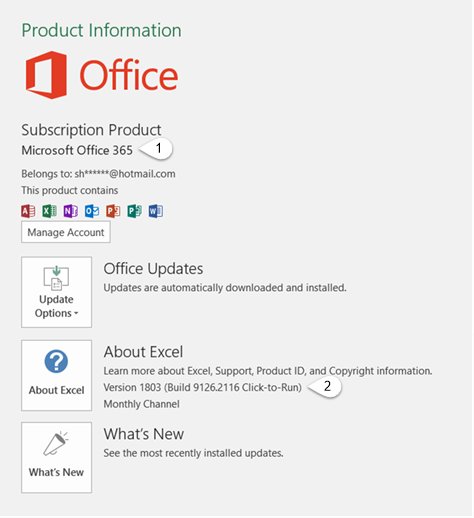
- Under Product Information, confirm the product name and the email after Belongs to.
- Check that the title bar does not say Unlicensed Product and no yellow or red banner is showing.
The Belongs to address is the account to use for every future reinstall.
Common questions about Microsoft 365 product keys
Your Microsoft account takes the place of the product key for most tasks, including activating and reinstalling.
I just bought Microsoft 365. Where do I enter my product key?
Enter a new, unused key at microsoft365.com/setup. If you bought through the Microsoft Store, sign in at microsoftstore.com, open Order History and select Install to see and use the key.
My new Windows PC came with Office but I can't find a product key
A try/buy/activate screen means a 1-month Microsoft 365 Family trial. If you paid for Office with the PC, a digital key was sent when Windows activated, so you sign in instead of typing a key.
I bought a product key card but there's no key on it
Scratch off the silver foil on the back of the card carefully. The key always uses the format XXXXX-XXXXX-XXXXX-XXXXX-XXXXX; other numbers and bar codes are not the key.
Microsoft 365 is prompting me for a product key
Sign in with the Microsoft account you bought with instead. Exceptions are Workplace Discount Program and volume licence copies, an expired subscription that needs renewal, and pre-installed trials.
Do I need a product key to reinstall Office?
No. Sign in to the Microsoft account Services & subscriptions page with the buying account and install from there. Workplace Discount Program copies are the exception and still need the key.
Can I change my product key?
Yes, for Office Home & Business, Home & Student, Professional and individual apps. You can also switch an existing install from Office Home & Business to Microsoft 365 after subscribing.
Can I view my product key in Office or online?
No. For security, Office never shows the full key and your account page does not either; File > Account shows the account the licence belongs to. You can find the installed Office product key details that remain recoverable.
Can I view my key in the Microsoft Store?
Yes, for one-time purchases not yet installed. Sign in at microsoftstore.com, open Order History and select Install Office to show the key without installing.
Why do my product keys don't match?
This is normal. The key on your Services & subscriptions page is a different type of key from the one on the card or email receipt, even though both share the same format.
Can I buy a product key?
Yes, as a retail card or from the Microsoft Store for one-time purchases. Microsoft 365 bought from the Store needs no key. Renew a subscription online without one.
I lost or damaged my product key. What now?
With a valid proof of purchase, contact Microsoft support; they may replace the key or offer other options.
My Office product key isn't working. Having problems with your product key?
Check the error shown at office.com/setup first. If a key bought separately from the software fails, ask the seller for a refund, because it may be stolen or blocked. Contact support about my product key when you have proof of purchase.
How many devices can you use?
| Product | Installs | Signed in at once | Sharing |
|---|---|---|---|
| Microsoft 365 Personal | All your devices | Five | None |
| Microsoft 365 Family, Premium, Pro | All your devices | Five per person | Up to five other people |
| Office 2024 / 2021 / 2019 / 2016 one-time purchase | One PC or Mac | One | None; transfer allowed under the licence terms |
Read the Software License Terms to review terms on transferring Office
Reactivating a Microsoft 365 subscription on a new PC is just a sign-in. Office Home & Business, Home & Student and Professional are licensed to one computer, so moving them can trigger a maximum-activations error. Plan the move with the Office transfer to a new computer steps.
- Open Word and select File > Account > About Word > View the Microsoft Software License Terms.
- Read section 3, Transfer to a Third Party, for Office 2019 and Office 2016.
- Install Office on the new computer from your account.
- Activate it by phone when Office reports the maximum number of activations.
- Uninstall Office from the original computer.
Does Microsoft 365 update automatically?
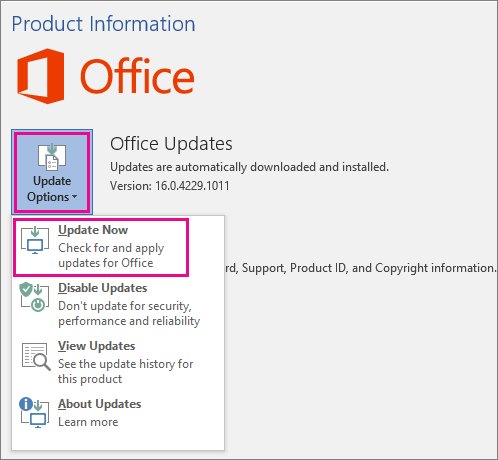
Microsoft 365 receives new features, security updates and bug fixes; Office 2024 and 2021 get security updates only. To check whether Microsoft 365 is up to date, use the path below.
| Task | Where |
|---|---|
| Install updates now on Windows | File > Account > Update Options > Update Now |
| Step-by-step check on Windows, Mac and iPhone | check for Office updates |
| Force the latest release by hand | manually update to the latest Office |
Troubleshoot activation errors
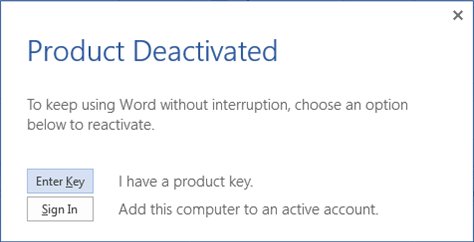
When activation fails, the title bar shows Unlicensed Product and most editing features turn off. Match the message to a fix.
| Error | Cause | Fix |
|---|---|---|
| Unlicensed Product or Non-commercial use / Unlicensed Product in the title bar | Activation failed: wrong account, two Office copies, or an expired subscription | Sign in with the buying account, remove extra copies in Programs and Features, then check Services & subscriptions |
| We couldn't find any Office products | Signed in with an account that does not own Office, or the subscription expired | Try each personal or work address; renew the subscription |
| The products we found in your account can't be used to activate <app> | Pre-installed apps include one your product lacks, such as Outlook with Home & Student, or Office needs updating for an Office 2019 key | Update Office, or install your own product from your account |
| SUBSCRIPTION EXPIRED banner | Microsoft 365 subscription lapsed | Renew the subscription |
| PRODUCT NOTICE: most features disabled | Pre-installed trial never activated | Start a Family trial, sign in with an account that owns Office, or buy Office |
| 0x80070005: something went wrong and we can't do this for you right now | Permissions problem, often after a Windows update | Run Office as administrator and update via File > Account > Update Options > Update Now |
| Maximum number of activations reached | One-time purchase moved to another PC or new hardware | Activate by phone and uninstall from the old PC |
| Activation still fails | Date, time or time zone wrong, or a proxy blocking sign-in | Set Set time automatically in Date and time settings, then run the Microsoft 365 activation troubleshooter on Windows 10 or later |
No install button? Check these in order
Why won't Office 365 install from my account?
The account you signed in with does not own the product, or no licence was assigned.
- Sign in with the exact account you redeemed the key to or bought with.
- Open Services & subscriptions and confirm the product is listed.
- For work or school, ask your admin to assign a licence.
- If several accounts are mixed up on one PC, manage multiple Microsoft 365 accounts so the right one is active.
Unsupported operating system error after selecting Install
Wrong download for the device, or Windows XP or Vista.
- Download the Mac version on a Mac and the PC version on Windows.
- Use the mobile apps on iPad, iPhone or Chromebook.
- Use Microsoft 365 for the web on an unsupported PC.
Common installation snags
Why is Office 365 taking so long to install?
A slow internet connection, firewall or proxy slows the online installer.
- Move to a faster, stable connection and restart the install.
- Restart the PC and try again.
- Use the offline installer or the Office Deployment Tool instead.
Install fails or an older copy blocks setup
A partial or conflicting Office install is still on the PC.
- Run the Microsoft uninstall troubleshooter on Windows 10 or later (it cannot remove Office 2024).
- Restart when prompted.
- Reinstall from m365.cloud.microsoft/apps.
Office installs but shows errors or blank icons
A damaged install, sign-in cache or file association.
- Run an Online Repair from Programs and Features.
- Fix the Office Something Went Wrong error by signing in again.
- Reset file associations when Office icons are not showing.
Office installs only on the system drive, usually C:, and every app in your product installs together.
Staying safe
Buy Microsoft 365 or Office only from Microsoft, the Microsoft Store or an established retailer, and avoid product keys sold separately from the software. Microsoft warns that many keys sold alone are stolen or fraudulently obtained and later blocked, which leaves Office unlicensed with no refund route except the seller.
Microsoft 365 setup FAQ
How to set up Microsoft 365?
Redeem any product key at microsoft365.com/setup, then sign in at m365.cloud.microsoft/apps, select Install apps and run the installer. Open Word and accept the licence to finish activation.
How to get started with Microsoft 365?
Install the apps on your PC or Mac, sign in to OneDrive to store files in the cloud, and add the mobile apps to your phone with the same account. Your files then follow you.
How to install Office 365 on Windows 11?
Sign in at m365.cloud.microsoft/apps, select Install apps, open the setup file and select Yes at User Account Control. The steps are the same on Windows 10.
How to install Office 365 for free?
There is no free desktop install outside the 1-month trial and Office 365 Education for eligible students and teachers. Microsoft 365 for the web and the mobile apps are free with a Microsoft account.
How to install Office 365 on iPad?
Install the Microsoft 365 app from the App Store and sign in. iPads over 10.1 inches need a Microsoft 365 subscription for editing.
How to install Office 365 32 bit?
Uninstall any 64-bit Office, sign in at m365.cloud.microsoft/apps, select Install apps, choose the 32-bit version under the language options and select Install.
Why is Microsoft 365 on my computer?
Many new Windows PCs ship with Microsoft 365 pre-installed as a 1-month Family trial. You can start the trial, buy a plan, or activate an Office product you already own.
Why do I need Microsoft 365 Basic?
Basic is for people who want 100 GB of cloud storage, ad-free email and Microsoft support without the desktop apps.
Is Microsoft 365 upgrade worth it?
It is if you use several devices, want cloud storage or Copilot, or share with family. A one-time Office 2024 purchase suits one computer and basic needs.
Does Microsoft 365 update automatically?
Microsoft 365 apps receive new features and security fixes continuously. To check now, open any app and select File > Account > Update Options > Update Now.
Bottom line: is Microsoft 365 worth it over Office 2024?
Choose Microsoft 365 if you use more than one device or want storage and new features; choose Office 2024 for one computer and no recurring cost. Either way, install by signing in rather than typing a key. Is Microsoft 365 worth it depends on devices and sharing: it covers every device and five people, while a one-time purchase covers one PC or Mac and gets no new features.


![How to Manage Power Management Settings in Windows 11/10 [Guide]](https://techdows.com/wp-content/uploads/2026/10/How-to-Manage-Power-Management-Settings-in-Windows-1110-Guide-600x338.jpg)