Open the BIOS (UEFI) in Windows 11 or 10 from Settings > Recovery > Advanced startup > Restart now > Troubleshoot > Advanced options > UEFI Firmware Settings, and reach Safe Mode, System Restore and Reset this PC from the same Windows Recovery Environment.
This hub covers entering BIOS by brand key, BIOS settings and updates, Secure Boot and TPM, every Safe Mode route, restore, reset, reinstall, bootable USB drives and Fast Startup.
Enter the BIOS on Windows 11 from Settings
This route works on any UEFI PC that still starts Windows, and it avoids racing a startup key. You can also access BIOS on your PC with a key or a command, as the next sections show.
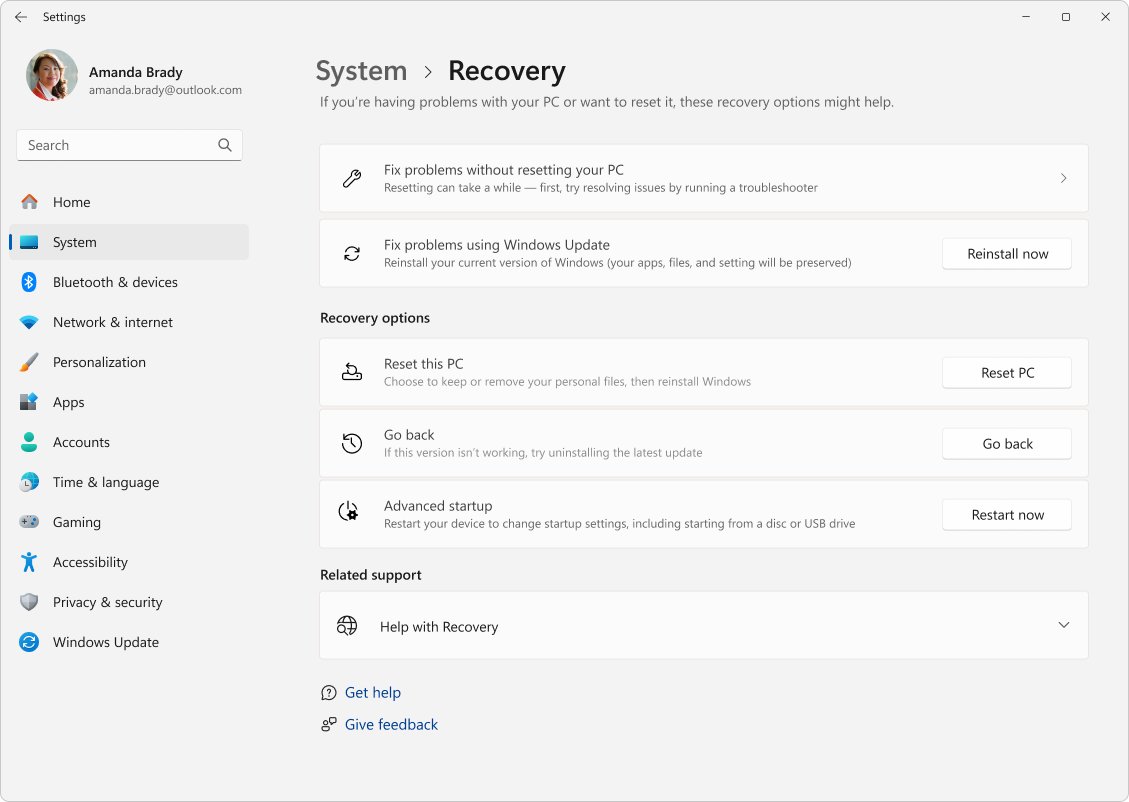
- Open Settings and select System > Recovery. On Windows 10, select Update & Security > Recovery.
- Next to Advanced startup, select Restart now.
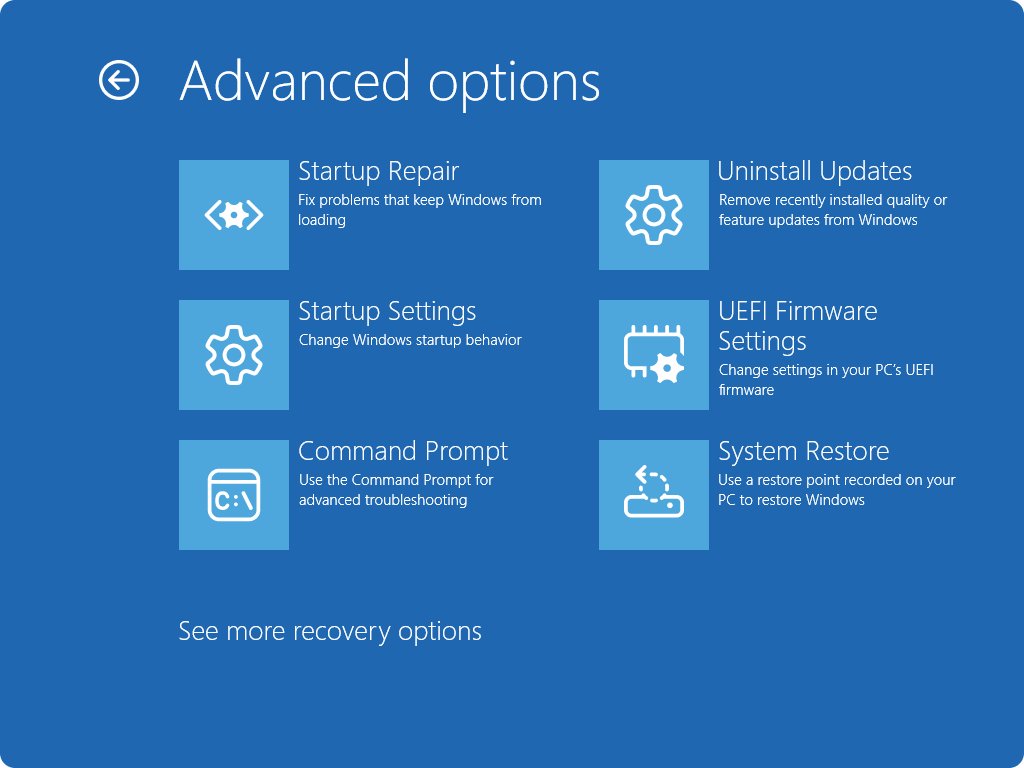
- On the blue menu, select Troubleshoot > Advanced options.
- Select UEFI Firmware Settings, then Restart.
- The PC restarts straight into the firmware setup screen.
If UEFI Firmware Settings is missing, the PC was installed in legacy BIOS mode, because Microsoft lists that menu only for UEFI systems.
What does BIOS mean?
| Term | What it is | What it does at startup |
|---|---|---|
| BIOS | Basic Input/Output System, firmware that loads before Windows | Checks devices such as RAM, drives and keyboard, then loads the operating system |
| POST | Power-On Self Test | Confirms hardware works; errors show as beeps, LEDs or a code display on many motherboards |
| Setup screen | The menu you open with a hotkey during POST | Changes boot drive, memory profile (Intel XMP), CPU tuning and security options |
What does UEFI mean?
UEFI stands for Unified Extensible Firmware Interface, the newer firmware that most people still call the BIOS. Microsoft recommends UEFI mode because it supports Secure Boot, and a PC boots in the mode Windows was installed with.
| Point | UEFI | Legacy BIOS (CSM) |
|---|---|---|
| Disk partition style | GPT | MBR |
| Secure Boot | Supported | Not available |
| TPM 2.0 use by Windows | Supported | Not supported in Legacy/CSM mode |
| Windows 11 | Required (UEFI, Secure Boot capable) | Not supported |
| Large drives | Handles drives over 2.1 TB | Limited |
Before switching modes, compare Legacy BIOS and UEFI and convert the disk to GPT first, since the conversion must happen before the firmware change.
Enter Windows 11's BIOS by pressing a key
Power the PC on and tap the key repeatedly as soon as the maker's logo appears. Microsoft lists Esc, Delete, F1, F2, F10, F11 and F12 as the common setup keys, and the startup screen often names the right one. The table keeps only keys confirmed on each maker's own support site.
| PC brand | BIOS setup key | Boot menu key | Source note |
|---|---|---|---|
| Dell | F2 at the Dell logo | F12 (One Time Boot Menu) | Dell support |
| HP | Esc or F10 at the HP logo | Not confirmed on an HP page | HP Tech Takes |
| Lenovo IdeaPad, Yoga, Slim | F2 (Fn + F2 with hotkey mode on), or Novo button > UEFI/BIOS Setup | F12 | Lenovo user guides |
| Lenovo ThinkPad | F1 (or Fn + F1) | F12 | Lenovo user guide |
| ASUS laptops | Hold F2, then press Power | Not confirmed | ASUS FAQ |
| ASUS desktop boards | Del at the ASUS logo | Not confirmed | ASUS FAQ |
| Microsoft Surface | Hold Volume Up, press and release Power | Volume Down + Power boots USB | Microsoft Surface |
| Acer, MSI | Check the key in your PC manual or on the maker’s support site | Not listed | Use the Settings route |
Brand guides go further: Dell's F2 setup screen, the HP BIOS and boot menu keys and the Lenovo boot menu and Novo button.
Enter Windows 11's BIOS by clicking Restart
- Select Start > Power.
- Hold Shift and select Restart. This also works from the power icon on the sign-in screen.
- Select Troubleshoot > Advanced options > UEFI Firmware Settings.
- Select Restart.
Enter Windows 11's BIOS using Windows Terminal
shutdown /r /fw /t 0/r restarts the PC, /fw sends the next start to the firmware user interface, and /t 0 removes the default 30-second delay. Run it in Windows Terminal, Command Prompt or PowerShell.
You should see: Windows closes and the PC opens the UEFI setup screen instead of loading Windows.
How to use BIOS settings on Windows 11/10 computers
Menu names differ by maker, but the same handful of settings cover most jobs. You can tune UEFI boot, security and memory settings once you know which menu holds each one.
| Setting | Typical menu | Why change it |
|---|---|---|
| Boot order / boot priority | Boot or Startup | Start from a USB drive or another disk |
| Boot mode (UEFI / Legacy, CSM) | Boot | Windows 11 needs UEFI |
| Secure Boot | Security or Boot | Blocks unsigned boot loaders |
| TPM (Intel PTT, AMD fTPM, Security Device) | Advanced, Security or Trusted Computing | Required by Windows 11, BitLocker and Windows Hello |
| Virtualization (Intel VT-x, AMD-V) | Advanced or CPU configuration | Virtual machines and Virtual Machine Platform |
| XMP / EXPO memory profile | Memory or AI Tweaker | Runs RAM at its rated speed |
| Storage controller mode | Storage or SATA configuration | Changing it can cause INACCESSIBLE_BOOT_DEVICE |
Changing BIOS settings
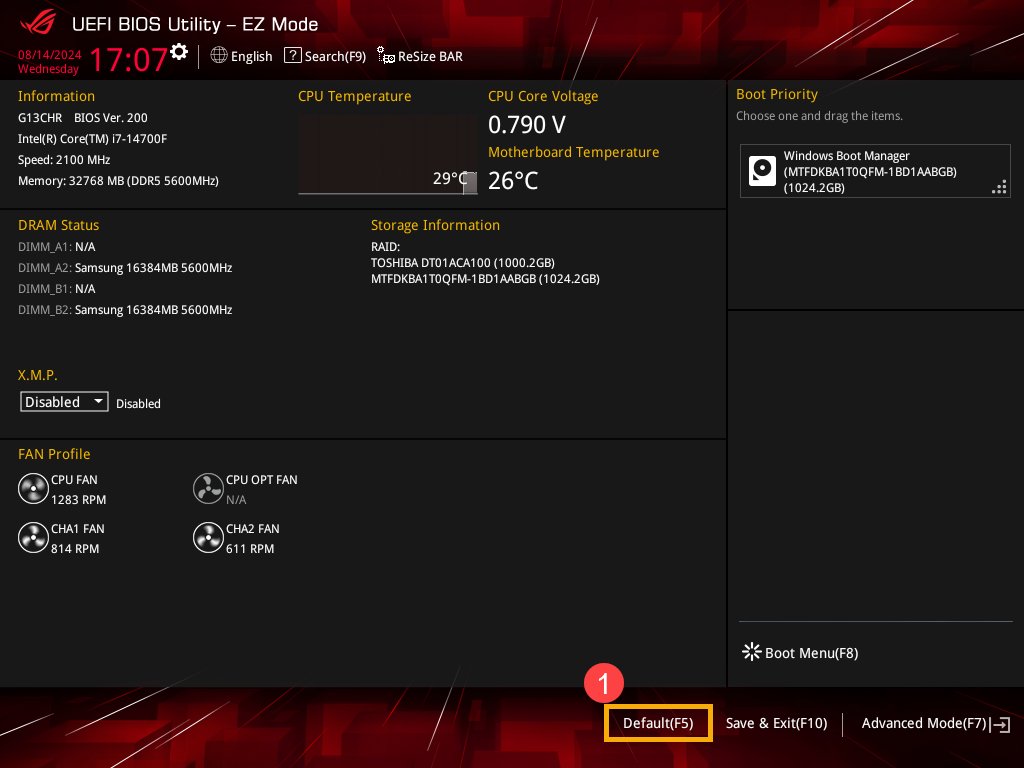
- Enter setup with the Settings route or your brand key.
- Move between menus with the arrow keys, or the mouse on most UEFI screens.
- Change one setting at a time; Microsoft warns that changing others can stop Windows from starting.
- Save and exit, usually with F10 or Exit > Save Changes and Exit.
- If Windows misbehaves afterwards, load defaults: F9 on ASUS notebooks, F5 on ASUS desktops, or Load Defaults on Dell.
Secure Boot, TPM and boot menu settings in BIOS
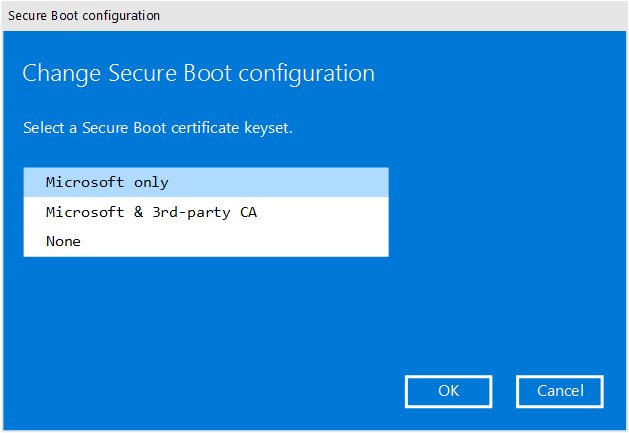
These are the settings Windows 11 checks and the ones people open the firmware for most often.
| What you want | Where to check in Windows | What to do in firmware |
|---|---|---|
| Boot once from USB or another drive | Not needed | Open the boot menu key, or access the Windows 11 boot manager |
| Turn on Secure Boot | msinfo32 > Secure Boot State | Set boot mode to UEFI, then enable Secure Boot |
| Turn on TPM 2.0 | tpm.msc | Enable Intel PTT, AMD fTPM or Security Device; find a TPM 2.0 module only if the board needs one |
| Understand both features | Windows Security > Device security | Read how TPM 2.0 and Secure Boot protect startup |
| Boot from the network | Not applicable | Enable the network stack, then PXE boot Windows 10 |
How to check your current BIOS version in Windows
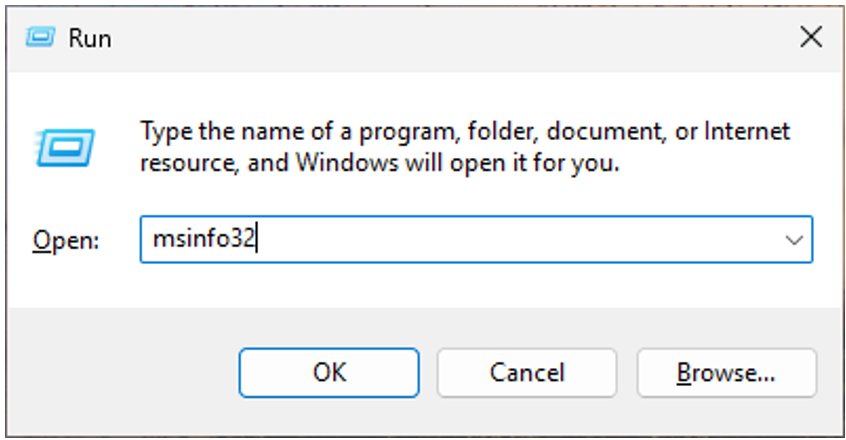
- Press Win + R, type
msinfo32and press Enter. - Select System Summary.
- Read BIOS Version/Date for the firmware version.
- Read Secure Boot State to see whether Secure Boot is on.
- Note BaseBoard Manufacturer and BaseBoard Product to find the right update for a desktop motherboard.
Dell also shows the version on the F2 setup screen under System Information.
When should you update your BIOS?
Update the BIOS only when your PC or motherboard maker advises it, or when the release notes fix a problem you have: new CPU or memory support, a stability fix, a feature such as Resizable BAR, or a security flaw. Intel notes that BIOS updates generally do not boost performance, a power loss mid-update can corrupt the firmware, and an update resets BIOS settings to their defaults.
How to update your BIOS
Every maker ships its own tool, so match the method to the badge on your PC or board.
| Your PC | Update tool | Notes |
|---|---|---|
| Dell laptop or desktop | SupportAssist, Windows Update, Dell Command | Update, standalone file, or F12 > BIOS Flash Update from USB | Full routine: update BIOS on Dell |
| ASUS laptop | F2 > F7 Advanced Mode > ASUS Firmware Update / EZ Flash 3 | Battery 20% or higher on AC power; FAT32 USB |
| ASUS desktop motherboard | EZ Flash 3 from the Tool menu, or USB BIOS FlashBack | Download the .CAP file from the ASUS Download Center |
| Lenovo | Lenovo Vantage System Update, Windows Update, or the BIOS/UEFI package from Lenovo support | Do not press power during the blank memory-retraining screen |
| Board with an AMI BIOS | The update from the PC or motherboard maker | AMI writes the core, the maker publishes it: upgrade an American Megatrends BIOS |
How to install a BIOS update
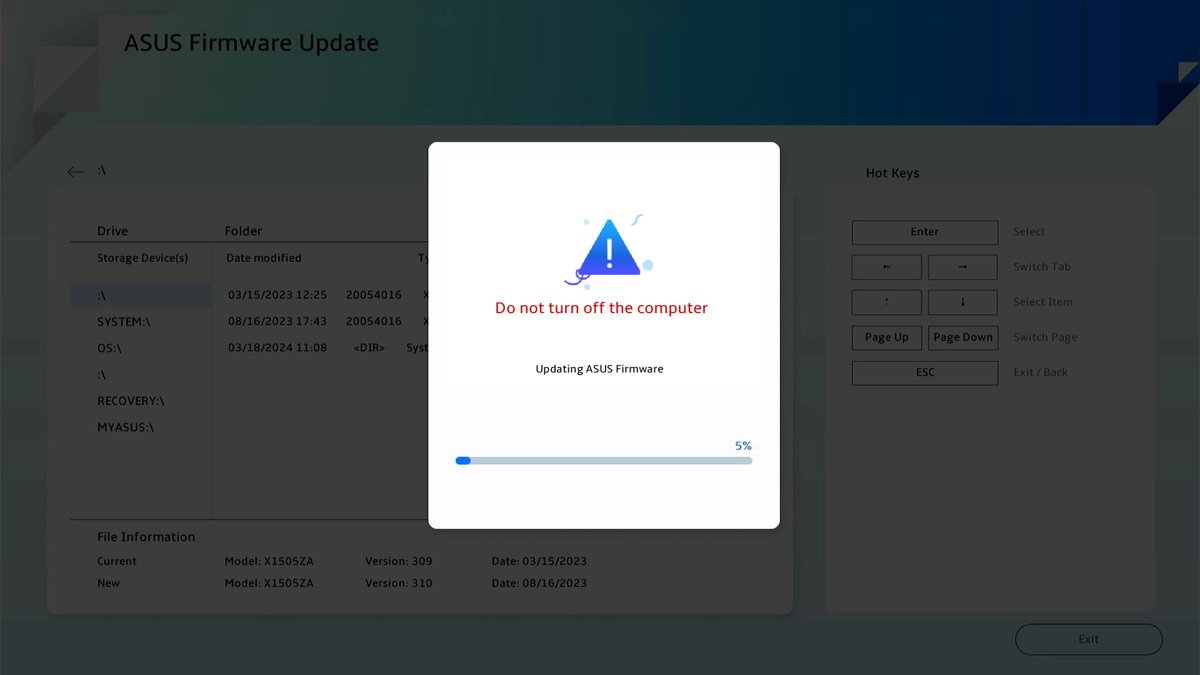
- Find the model with
msinfo32, then open its support page on the maker's site. - Download the BIOS file listed for that exact model.
- For a USB flash, copy the file to a FAT32 USB drive.
- Restart into the BIOS or the maker's boot menu and open its flash tool.
- Select the file and confirm the update.
- Leave the PC alone until it restarts on its own; Intel puts a typical update at about five minutes.
Safety checklist
Keep the maker's instructions open on a phone or second PC, because a browser is not available inside the firmware.
| Check | Why |
|---|---|
| Laptop on AC power with charge (Dell: at least 10%, ASUS: 20%) | Power loss mid-flash can corrupt the firmware |
| Suspend BitLocker (Manage BitLocker > Suspend protection) | Otherwise a recovery key prompt appears at restart |
| Back up personal files | Recovery may need a reset if the flash fails |
| Disconnect docks, printers and extra USB drives | Dell lists this for failed updates |
| Note custom BIOS settings | Updates reset settings to defaults |
| Know the maker's recovery method | Dell BIOS Recovery, ASUS FlashBack and similar tools exist for a failed flash |
Ways to boot into Safe Mode in Windows 11
| Your situation | Use this | Why |
|---|---|---|
| Windows starts and you can sign in | Settings > Recovery > Advanced startup > Startup Settings | No keys to time |
| Signed out, at the sign-in screen | Shift + Power > Restart | Reaches the same menu without signing in |
| You need Safe Mode for several restarts | msconfig > Boot > Safe boot | Stays on until you clear it |
| Windows will not start | Interrupt startup twice to reach Automatic Repair | Opens Windows RE on the third start |
| You want the old F8 key | bcdedit bootmenupolicy legacy | Restores the classic startup menu |
How to boot into Safe Mode when you can log in to Windows 11
- Open Settings > System > Recovery (Windows 10: Update & Security > Recovery).
- Next to Advanced startup, select Restart now.
- Select Troubleshoot > Advanced options > Startup Settings > Restart.
- After the restart, press 4 or F4 for Safe Mode, 5 or F5 for Safe Mode with Networking, or 6 or F6 for Safe Mode with Command Prompt.
From the sign-in screen, hold Shift while you select Power > Restart to reach the same menu.
Enter Safe Mode with msconfig
- Press Win + R, type
msconfigand select OK. - Open the Boot tab.
- Under Boot options, tick Safe boot and choose Minimal, or Network for internet access.
- Select OK, then Restart.
- To return to normal startup, open
msconfigagain and clear Safe boot.
How to boot into Safe Mode when you can’t sign in to Windows 11
- Turn the PC on and wait for the Windows or maker logo.
- Hold the power button until the PC shuts down.
- Repeat once more.
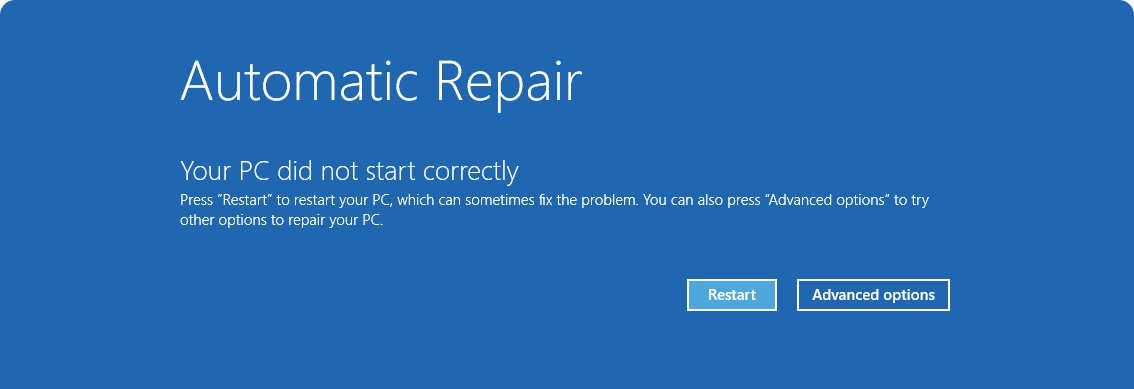
- Turn it on a third time; Windows shows Automatic Repair.
- Select Advanced options > Troubleshoot > Advanced options > Startup Settings > Restart, then press 4 or F4.
To press a key at boot instead, enable the F8 key for Safe Mode with bcdedit while Windows still works. A BitLocker-encrypted PC asks for its recovery key at this point.
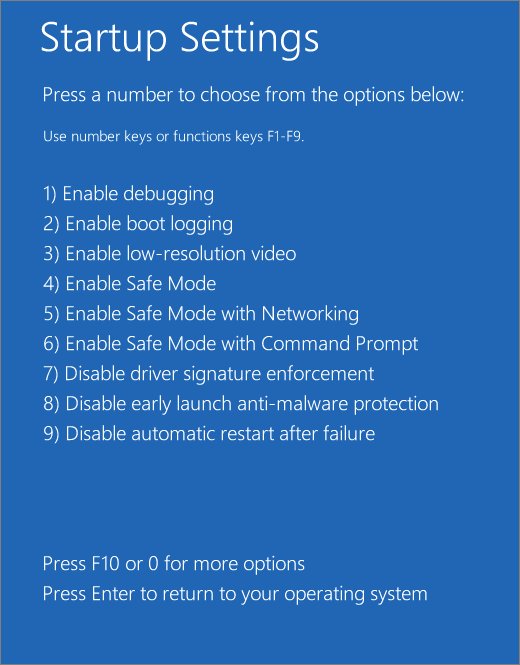
What you get when you start Windows 11 in Safe Mode
Safe Mode starts Windows with a limited set of files and drivers. If a problem does not happen there, default settings and basic drivers are not the cause.
| Key | Startup Settings option | Use it for |
|---|---|---|
| 4 / F4 | Enable Safe Mode | Testing without third-party drivers and startup apps |
| 5 / F5 | Safe Mode with Networking | Downloading a driver or scanner while in Safe Mode |
| 6 / F6 | Safe Mode with Command Prompt | Repair commands without the desktop |
| 3 / F3 | Enable low-resolution video | Resetting display settings after a bad driver |
| 2 / F2 | Enable boot logging | Writes ntbtlog.txt with every driver loaded |
| 9 / F9 | Disable automatic restart on system failure | Reading a stop error stuck in a restart loop |
System Restore and point-in-time restore in Windows 11
System Restore rolls back system files, registry and installed programs to a restore point and leaves personal files alone. It needs System Protection turned on first, so create System Restore points while the PC works.
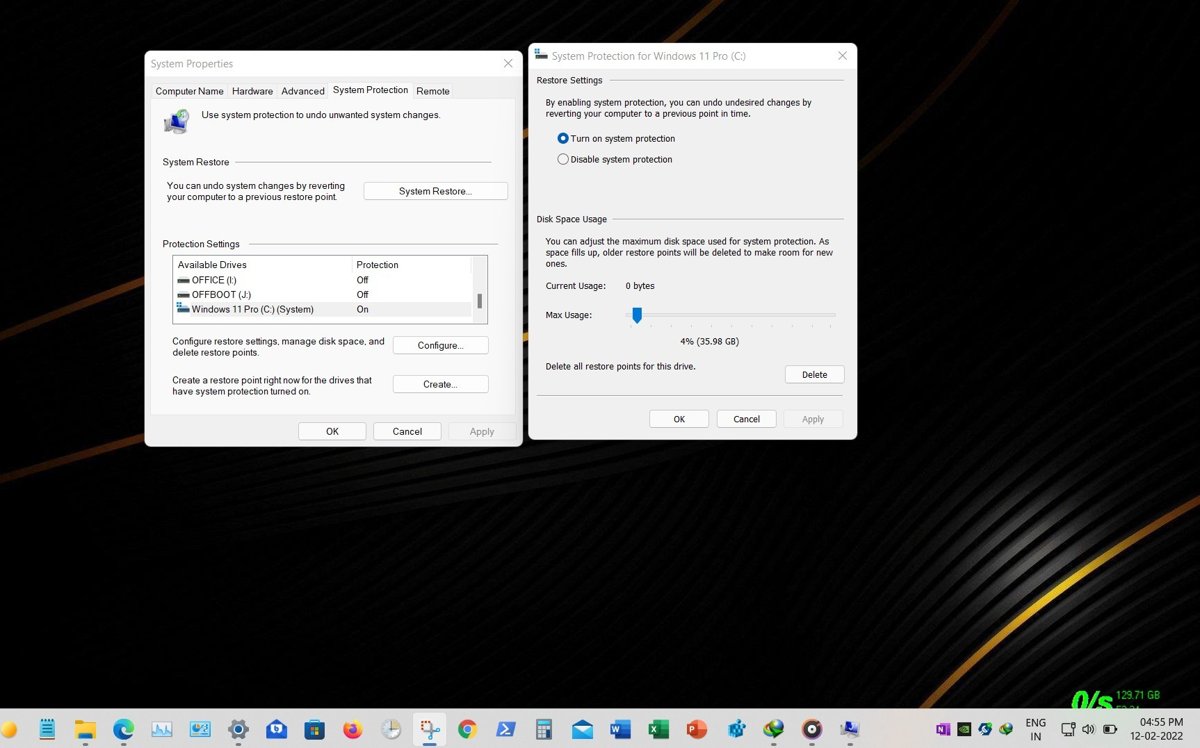
- Press Win + R, type
rstrui.exeand press Enter. - Select Next, pick a restore point dated before the problem, and select Scan for affected programs to preview changes.
- Select Next > Finish and let the PC restart.
- If Windows will not start, open Windows RE and select Troubleshoot > Advanced options > System Restore.
- On Windows 11 24H2 or later, Troubleshoot > Point-in-time restore rolls back the whole drive, including personal files, to a recent automatic point.
Reset options
Microsoft advises trying the least disruptive fix first. This table compares the four routes people mix up.
| Option | What it changes | Your files | Apps and settings | When to pick it |
|---|---|---|---|---|
| Restore (System Restore) | Rolls system files and registry back to a restore point | Kept | Programs installed after the point are removed | A recent update, driver or app broke Windows |
| Repair (Reinstall Windows, 22H2+) | Reinstalls the current Windows version from Windows Update | Kept | Kept | Windows starts but is unstable; repair Windows 11 without losing files |
| Reset this PC: Keep my files | Reinstalls Windows | Kept | Removed | Repair did not help |
| Reset this PC: Remove everything | Reinstalls Windows and wipes the drive (Clean data option) | Removed | Removed | Selling or giving away the PC |
| Reinstall from USB media | Clean install from installation media | Removed | Removed | Reset fails or you want a fresh drive; uninstall and reinstall Windows 11 |
Reset also asks for Cloud download, which fetches a fresh copy of Windows, or Local reinstall, which uses files already on the PC.
Reset your PC from Settings
Before you reset your PC, back up important files and have your BitLocker recovery key ready. The screen can stay black for 15 minutes or more; restarting it yourself can make the reset fail.
- Open Settings > System > Recovery (Windows 10: Update & Security > Recovery).
- Next to Reset this PC, select Reset PC.
- Choose Keep my files, or Remove everything to delete everything on the PC.
- Choose Cloud download or Local reinstall.
- Under Change settings, turn on Clean data if the PC is leaving your hands.
- Select Reset and wait for setup to finish.
Windows 11 users can use Reset this PC with Keep my files as a lighter option than a wipe.
Reset your PC from Windows RE
Use this when Windows will not start, or to factory reset Windows 10 and wipe all data from the Windows Recovery Environment.
- Open Windows RE with Shift + Restart, or by interrupting startup twice.
- Select Troubleshoot > Reset this PC.
- Choose Keep my files or Remove everything.
- Enter the BitLocker recovery key if asked.
- Pick Cloud download or Local reinstall, then Reset.
Dell PCs also include their own recovery tool, so you can use Dell SupportAssist OS Recovery from the F12 menu.
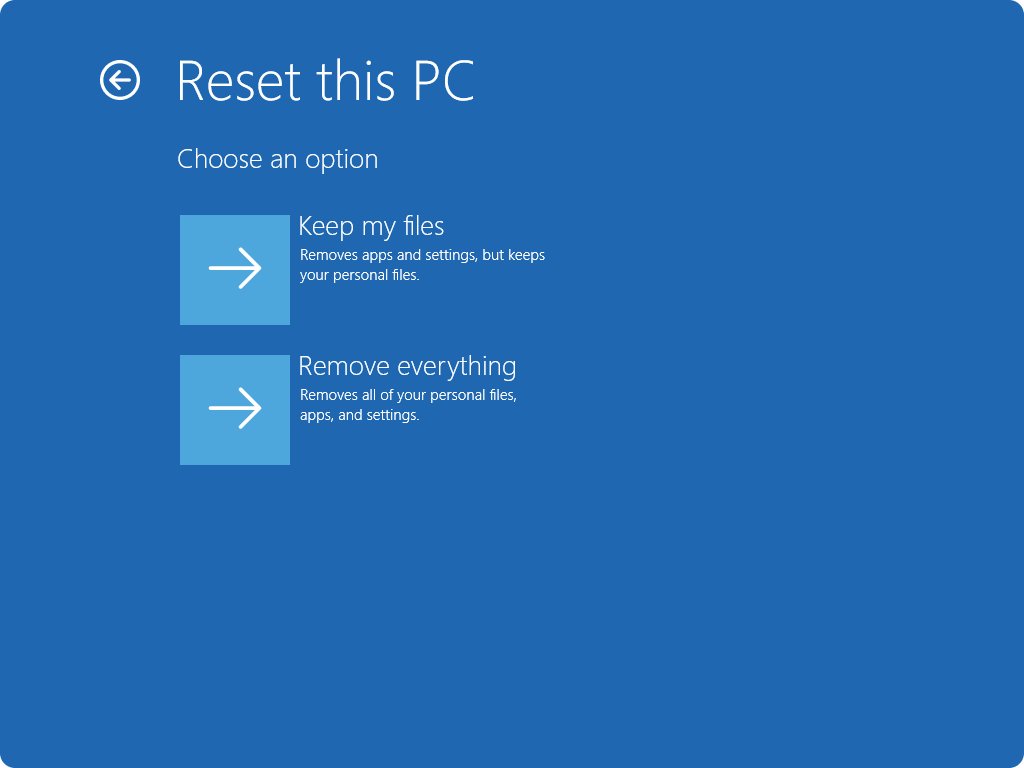
Why would you factory reset your Windows 10 PC?
Factory reset Windows 10 when troubleshooters, uninstalling an update and System Restore have failed, or when the PC is being sold, donated or recycled (use Remove everything with Clean data). Microsoft ranks Reset this PC as the most disruptive recovery option, and Windows 10 support ended on 14 October 2025, so a reset also suits a move to a fresh, supported setup.
Windows 10 owners can reset Windows 10 to factory settings from Settings or from boot.
Create a bootable USB or recovery drive for Windows
A USB drive reaches Windows RE or Setup when the PC will not start. Make it on a working PC, then pick it from the boot menu key.
- For a recovery drive, search Create a recovery drive in Start, then follow the wizard; the USB drive is erased.
- For installation media, create bootable Windows 10 USB media with the Media Creation Tool.
- For Windows 11 from an ISO, use Rufus for a bootable USB.
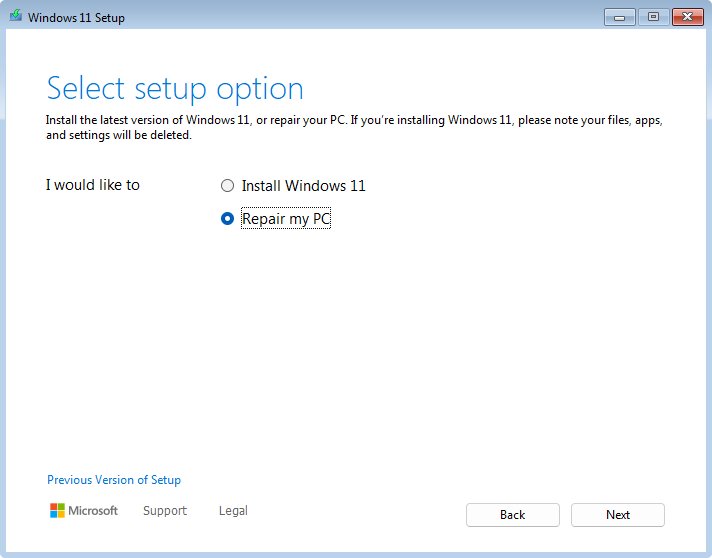
- Boot the PC from the drive and choose Repair my PC to reach Windows RE, or Install for a clean install.
- To keep Windows and add Linux, shrink C: and dual boot Linux Mint and Windows.
Fix BIOS update and boot errors in Windows 11/10
Windows Boot Manager has been blocked by the current security policy
The firmware's Secure Boot check stopped the boot loader from starting.
- Enter BIOS setup.
- Load the firmware defaults (ASUS: F9 notebooks, F5 desktops; Dell: Load Defaults).
- Confirm boot mode is UEFI and save with F10.
- If the message stays, contact the PC maker's support.
Fix alert, system battery voltage is low message
The board's settings battery is reported low; a maker-specific fix was not verifiable, so use the maker's support.
- Note the full message and your model.
- Enter BIOS setup and check the date and time.
- Contact the PC or motherboard maker for battery replacement steps.
Accidentally turned off PC during BIOS update on Windows 11
An interrupted flash can corrupt the firmware.
- Connect AC power and turn the PC on once.
- Dell: hold Ctrl + Esc while powering on to start BIOS Recovery.
- ASUS desktop boards: use USB BIOS FlashBack with the renamed .CAP file.
- If there is no picture or POST, contact the maker's support.
Why is my BIOS update failing
Low battery, attached devices or the wrong file for the model.
- Plug in the charger and charge the battery past the maker's minimum.
- Unplug docks and extra USB devices.
- Download the file again for the exact model from the maker's site.
- Suspend BitLocker and retry.
BIOS key does nothing at startup
The PC starts too fast for the keypress.
- Use Restart rather than shut down, since Fast Startup does not apply to a restart.
- Use the Settings route or
shutdown /r /fw /t 0instead. - If you still prefer a cold boot, disable Fast Startup in Power Options.
Windows keeps booting in Safe Mode
Safe boot is still ticked in System Configuration.
- Press Win + R, type
msconfigand select OK. - Open the Boot tab and clear Safe boot.
- Select OK and restart.
BIOS, Safe Mode and recovery FAQ
How do I update the BIOS on Windows 11?
Check the model and version in msinfo32, then use the PC maker's tool: SupportAssist or Dell Command | Update on Dell, EZ Flash 3 on ASUS, Lenovo Vantage on Lenovo. Keep a laptop on AC power and suspend BitLocker first.
Why is a BIOS update needed?
A BIOS update adds support for new CPUs, memory or drives, fixes hardware stability bugs, enables features such as Resizable BAR and closes firmware security flaws. Intel advises against updating a PC that is working normally unless the maker recommends it.
Does a BIOS update improve performance?
Usually not. Intel states that BIOS updates generally do not boost performance; they fix bugs and add hardware compatibility. If you want more frame rate in games, a BIOS update is not the tool for it.
Is a BIOS update safe?
It is safe when you follow the maker's steps: correct file for the exact model, laptop on AC power, BitLocker suspended, and no shutdown during the flash. The real risk is power loss mid-update, which can corrupt the firmware.
Can I update BIOS without a USB flash drive?
Yes, on many PCs. Dell and Lenovo offer Windows-based tools and Windows Update delivery, and Dell supports an over-the-air update from the F12 menu. Desktop motherboards often need a FAT32 USB drive.
What is BIOS Update Utility on a laptop?
It is the maker's program or firmware tool that writes a new BIOS version to the motherboard. Its name differs by brand, so download it only from your PC maker's support page for your exact model.
Does the BIOS update automatically?
It can. Dell and Lenovo deliver BIOS updates through Windows Update as optional or driver updates, and maker apps such as SupportAssist and Lenovo Vantage can install them. Desktop motherboards usually need a manual update.
Does updating the BIOS delete my files?
No. Dell states that a BIOS update does not affect data on the drive. It does reset firmware settings to defaults, so note custom settings such as boot order or memory profiles first.
Can a BIOS update enable Secure Boot?
An update does not switch Secure Boot on by itself. Secure Boot is a firmware setting you enable in UEFI mode, and the drive must use GPT. An update can add or fix the option on some boards.
How do I get out of Safe Mode?
Restart the PC. If it returns to Safe Mode, press Win + R, run msconfig, open the Boot tab, clear Safe boot and restart again.