Windows 11 and Windows 10 ship two Microsoft players: the modern Media Player app and Windows Media Player Legacy, an optional feature you can add from Settings.
Most playback failures come from a missing codec, and HEVC, AV1, VP9 and MPEG-2 each need a separate Microsoft Store extension, while VLC plays them without any add-on.
This hub shows where each player lives, which extension each format needs, how the main third-party players compare, and how to fix files that will not play.
How to open Media Player in Windows 11/10
The Start menu search finds both players, so it is the quickest route whichever one you want.
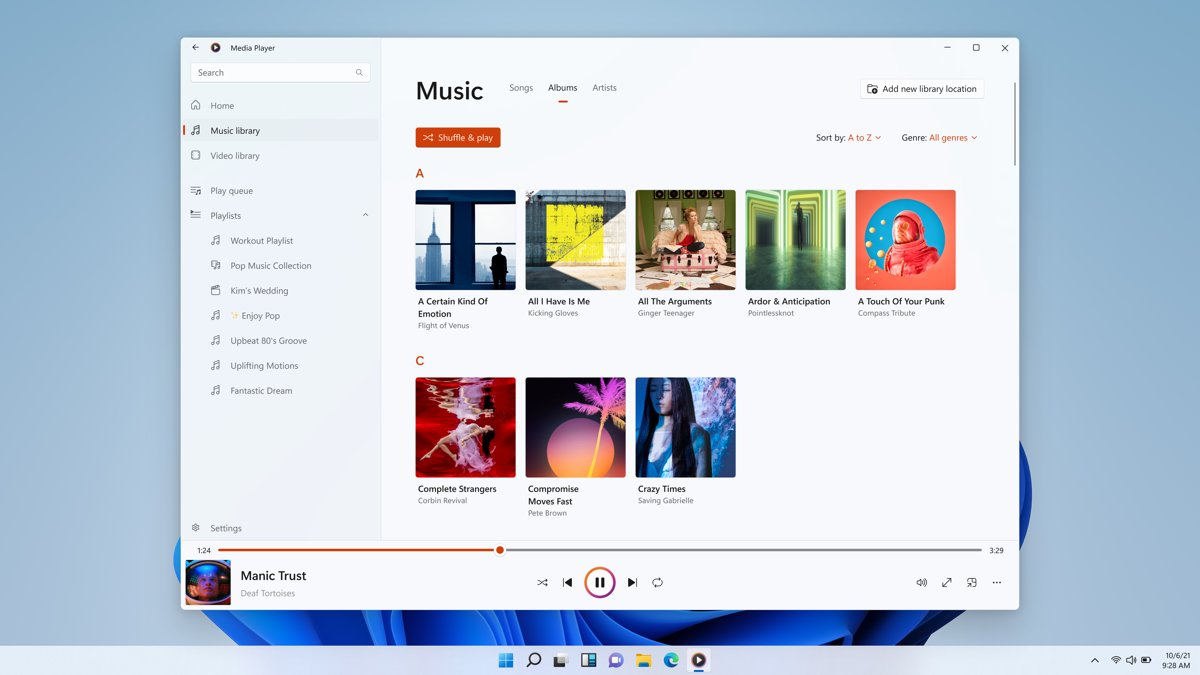
- Select Start and type Media Player.
- Select Media Player for the modern app, which handles 4K video and your music library.
- Type Windows Media Player Legacy instead if you want the classic player with CD burning and ripping.
- If the Legacy entry does not appear, add it as an optional feature (steps below) and search again.
- Inside Windows Media Player Legacy, press Ctrl + M to show the classic menu bar.
The modern app replaced Groove Music on Windows 11 and kept existing libraries and playlists; the Groove Music to Media Player switch explains what changed in detail.
Quick comparison: Media Player vs Windows Media Player Legacy vs VLC
Every fact in this table comes from Microsoft Support or VideoLAN, the two vendors involved.
| Feature | Media Player (app) | Windows Media Player Legacy | VLC media player |
|---|---|---|---|
| Who makes it | Microsoft | Microsoft | VideoLAN (free, open source) |
| How you get it | Included with Windows 11; Microsoft Store listing | Optional feature in Windows 11 and 10 | Download from videolan.org |
| Microsoft's advice | Recommended for modern video such as 4K | Kept for older features | Not applicable |
| HEVC, AV1, VP9, MPEG-2 | Needs the matching Store extension | Needs the matching Store extension | Plays them with built-in codecs, no packs |
| DVD playback | Not included | Not included on Windows 10 or 11 | Plays DVDs, audio CDs and VCDs |
| CD burning and ripping | Not covered in Microsoft's burn/rip help | Burn tab and Rip CD button | Not covered here |
| Ads or tracking | Not stated | Not stated | VideoLAN states no spyware, ads or tracking |
You can get the official VLC installers for x64 and ARM64 PCs, and if VLC refuses a network address, fix the MRL error before blaming the stream.
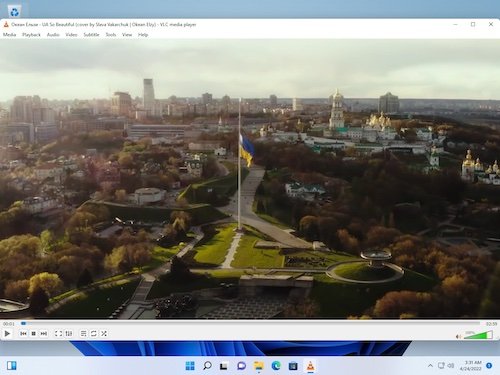
Top media players for Windows 11
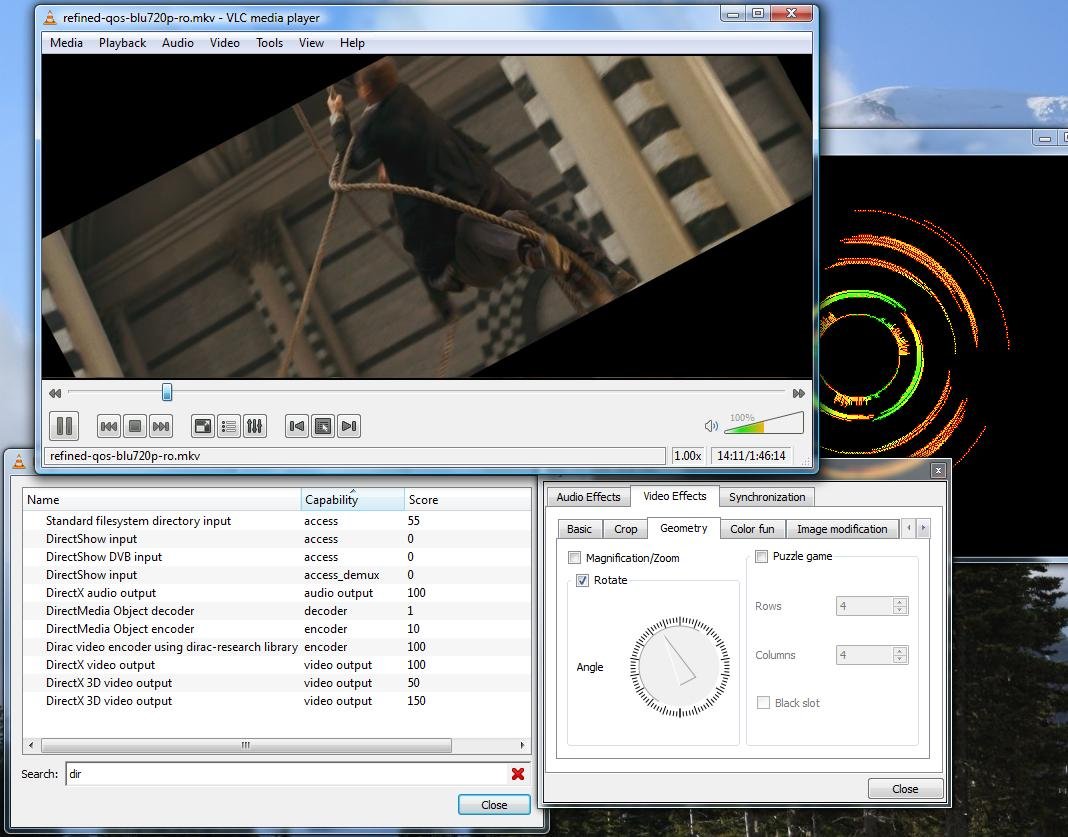
Rival roundups rank the players below, but rankings depend on testing, so this table lists only what each player is and where to confirm its details.
| Player | What it is | Where to confirm price and formats |
|---|---|---|
| VLC Media Player | Free open-source player that plays most video files, DVDs and streams | videolan.org |
| Windows Media Player | Microsoft's Media Player app plus the Legacy optional feature | support.microsoft.com |
| CyberLink PowerDVD | Commercial disc and media player from CyberLink | The CyberLink website |
| PotPlayer | Third-party Windows video player | The developer's site |
| KMPlayer | Third-party video player | The developer's site |
| 5KPlayer | Third-party video and radio streaming player | The developer's site |
| GOM Player | Third-party player often picked for subtitles | The developer's site |
| DivX Player | Player from the makers of the DivX codec | The DivX website |
| CnX Player | Player distributed through the Microsoft Store | Its Microsoft Store listing |
| MediaMonkey | Music and video library manager aimed at serious collectors with large collections | The MediaMonkey website |
| Kodi | Open-source media center for organizing files | The Kodi website |
| MPV Player | Open-source command-line-friendly player | The mpv website |
For audio only, the list of best music players for Windows 11 covers MusicBee, foobar2000 and AIMP, and the free Microsoft Store music apps shows what each free tier includes. If Kodi or MediaMonkey appeals because of library features, a Plex Media Server setup streams the same collection to TVs and phones.
What is the best media player for Windows 11?
| Your situation | Use this | Why |
|---|---|---|
| You play MP4, music and 4K video | Media Player app | Microsoft recommends it for modern video and it is already installed |
| You burn or rip audio CDs | Windows Media Player Legacy | It has the Burn tab and Rip CD button |
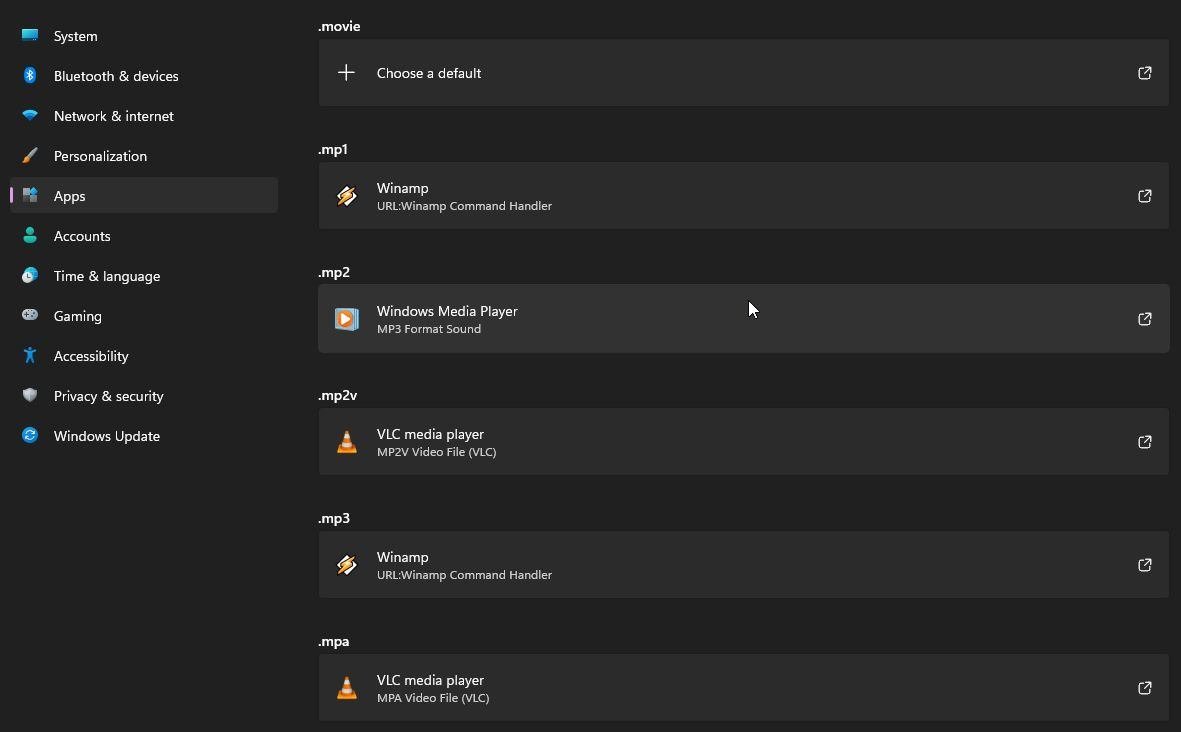
| You play HEVC, AV1 or MKV files and do not want extensions | VLC media player | VideoLAN states it needs no codec packs |
| You want to play a DVD | VLC media player | Neither Microsoft player includes DVD playback on Windows 10 or 11 |
| You run Windows 11 N or Windows 10 N | Install the Media Feature Pack first | N editions ship without Windows Media Player and its codecs |
Install Windows Media Player in Windows 11
Windows Media Player Legacy is an optional feature in Windows 11, so it is added from Settings rather than downloaded.
- Select Start > Settings > System > Optional features.
- Select View features next to Add an optional feature.
- Search for Windows Media Player Legacy and tick its box.
- Select Next, then Add.
- Open Start and search Windows Media Player Legacy once the install finishes.
The Windows Media Player download options cover the Microsoft Store listing for the modern app as well.
Install Windows Media Player in Windows 10
- Select Start > Settings > Apps > Apps & features.
- Select Manage optional features, then Add a feature.
- Select Windows Media Player in the list.
- Select Install and wait for it to finish.
- If it is installed but broken, open Control Panel > Programs > Turn Windows features on or off, clear Media Features, restart, then tick it again.
Install the Media Feature Pack on Windows 11 N and Windows 10 N
Windows N editions leave out Windows Media Player, Media Foundation and codecs such as MPEG, WMA, AAC, FLAC, H.264 and H.265, so no player extension works until the pack is installed.
- On Windows 11 N, select Start > Settings > Apps > Optional features.
- Select View features next to Add an optional feature, then choose Media Feature Pack.
- On Windows 10 N, open Settings > Apps > Apps and Features > Optional features, select Add a feature and choose Media Feature Pack.
- Restart the PC yourself, because Windows does not prompt you and the install is not finished until you do.
Windows codecs list: which video formats need an extension
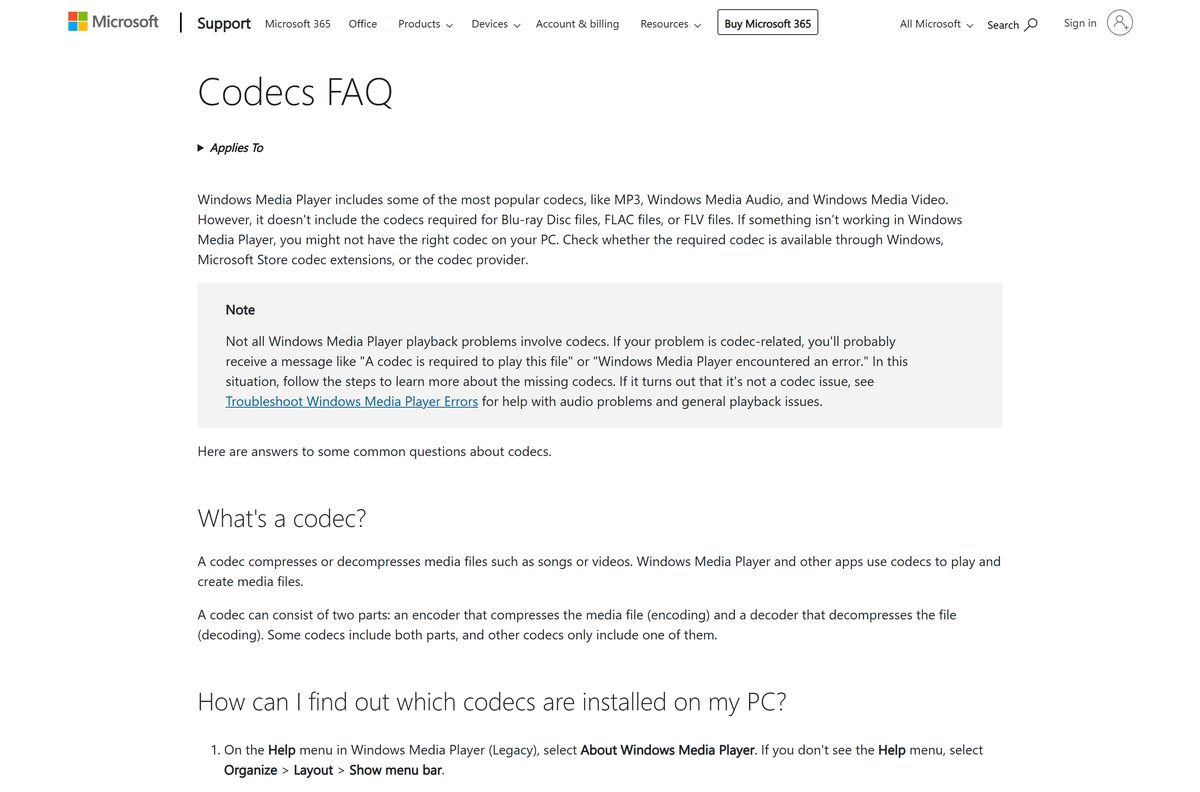
Microsoft lists these formats as built in or as Microsoft Store add-ons for its players. Right-click a file, select Properties and open the Details tab to see which codec it uses.
| Codec or format | What plays it | Extension needed |
|---|---|---|
| H.264 (MPEG-4), H.263, VC-1, WMV, VP8, DV, Motion JPEG | Media Player and Windows Media Player Legacy | None, built in |
| MP3, AAC, M4A, FLAC, ALAC, WAV, WMA, AMR | Both Microsoft players | None, built in |
| HEVC (H.265) | Both Microsoft players after the add-on; VLC natively | HEVC Video Extensions from the Microsoft Store |
| AV1 | Both Microsoft players after the add-on; VLC natively | AV1 Video Extension from the Microsoft Store |
| VP9 | Both Microsoft players after the add-on; VLC natively | VP9 Video Extensions from the Microsoft Store |
| MPEG-2 (.mpg, .mpeg, DVD video) | Microsoft players after the add-on; VLC natively | MPEG-2 Video Extension from the Microsoft Store |
| OGG, Vorbis, Theora | Microsoft players after the add-on | Web Media Extensions from the Microsoft Store |
| AC-3 (Dolby Digital) | Included before Windows 11 24H2; kept on upgraded PCs | Often preinstalled by the PC maker on 24H2 clean installs |
| MOV (QuickTime) | Windows Media Player plays only QuickTime 2.0 or earlier | Use Media Player or VLC instead of the old QuickTime for Windows |
Apple no longer supports QuickTime Player on Windows, so remove it rather than reinstalling it for MOV files. For surround sound on top of AC-3, the Dolby Access app for Atmos adds the headphone trial, and HDR or battery behaviour lives under video playback settings in Windows.
What is HEVC and why do I need it?
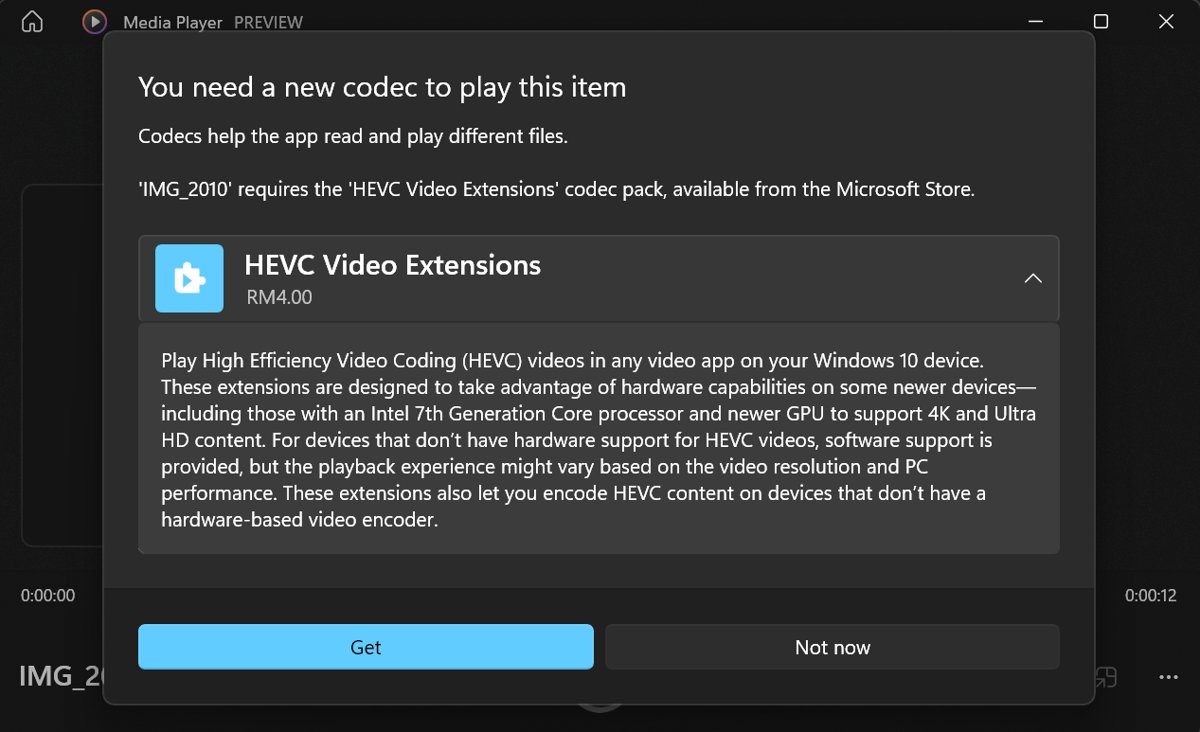
HEVC, also called H.265, is the successor to H.264 and stores the same picture in a smaller file. Windows does not decode it out of the box in its own players, so HEVC clips from phones and cameras fail until you add the extension.
| Question | Answer |
|---|---|
| What HEVC stands for | High Efficiency Video Coding, also known as H.265 |
| Why files use it | Adobe states it can cut bit rate and file size by up to 30% without visible quality loss |
| Maximum resolution | Up to 8K UHD |
| Why Windows needs an add-on | Microsoft lists HEVC among the codecs that come as a Microsoft Store extension |
| Who needs it | Anyone opening H.265 video in Media Player, Windows Media Player Legacy or the Photos app |
What is an HEVC file?
An HEVC file is a video encoded with H.265, usually inside an MP4, MOV or MKV container rather than a .hevc extension.
| Topic | Detail |
|---|---|
| History of the HEVC file | Developed by the Joint Collaborative Team on Video Coding with ISO/IEC MPEG and ITU-T VCEG, and launched in 2013 |
| Predecessor | H.264 (AVC), which Windows decodes without an extension |
| Common sources | Phones, cameras and 4K video downloads that save space with H.265 |
| How to use HEVC files | Play them in a player with the decoder, edit them in apps that support H.265, or convert them to H.264 for older devices |
Pros and cons of HEVC files
| Pros | Cons |
|---|---|
| High picture quality up to 8K in a smaller file | Still needs substantial storage for long 4K or 8K video |
| Up to around 30% smaller than H.264 at the same quality | Encoding and decoding need more processing power |
| Frame rates up to 300 fps | Windows players need an extra extension to play it |
| Lower start-up latency during playback | Large files are slow to send and share |
How do you get HEVC codecs on Windows 11?
Microsoft offers HEVC decoding as a Microsoft Store extension, and some PCs already have it from the manufacturer.
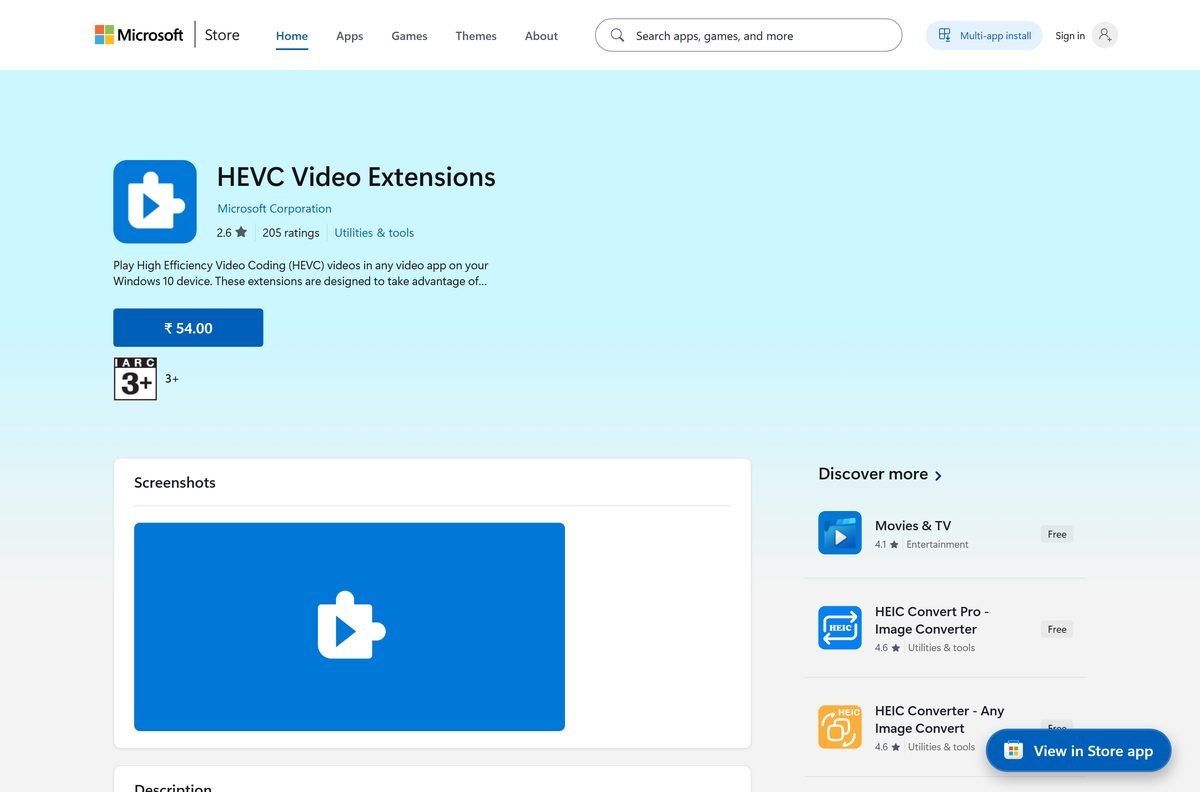
- Open Microsoft Store and search HEVC Video Extensions.
- Check whether HEVC Video Extensions from Device Manufacturer is offered for your PC; it appears for some devices.
- Select Get or Install on the listing that applies to you.
- Close and reopen Media Player, then play the HEVC file again.
- Repeat the search for AV1 Video Extension, VP9 Video Extensions or MPEG-2 Video Extension if the file uses those codecs.
Prices, sizes and install fixes for the paid listing are in the HEVC Video Extensions download page, and the free device manufacturer HEVC extension walks through the no-cost route.
How to open an HEVC file
- Right-click the HEVC video in File Explorer.
- Select Open with.
- Choose Media Player if the HEVC extension is installed, or VLC media player if it is not.
- Tick Always if you want that player to open every file of this type.
- If the target device cannot play H.265 at all, convert the file to H.264 instead.
HandBrake is the usual free converter for that last step, and the HandBrake installers for Windows include ARM64 builds.
How to play WMA files on Windows 11 and what to do if WMA does not play in WMP
WMA is built into both Microsoft players; a .wma file is an ASF file that holds Windows Media Audio.
- Right-click the WMA file, select Open with and choose Media Player or Windows Media Player Legacy.
- If neither player is listed on a Windows N edition, install the Media Feature Pack and restart.
- If playback still fails, check the file in Properties > Details for a protected (DRM) track, which shows error 0xC00D1163.
- Open VLC media player and drag the file in to confirm whether the file itself is damaged.
Burn and rip CDs with Windows Media Player Legacy
Microsoft's burn and rip help covers only Windows Media Player Legacy, so use it for discs.
- Open Windows Media Player Legacy and insert a blank or audio disc.
- To burn, select the Burn tab, open Burn options and choose Audio CD or Data CD or DVD.
- Drag songs into the list pane and select Start burn.
- To rip, insert an audio CD and select Rip CD; files go to the Music folder.
- Change the format (WMA, MP3 or WAV) under Rip settings > Format before ripping, because it does not change existing rips.
Windows Media Player error codes: symptom, cause and fix
| Error or symptom | Cause | Fix |
|---|---|---|
| 0xC00D11xx, such as C00D11B1 | Missing or outdated codec | Install the matching Store extension from the codecs table, or play the file in VLC |
| 0xC00D0BC2, 0xC00D36FA, 0xC00D10B3, 0xC00D1059 | Incompatible file or damaged library | Install Windows updates, then Ctrl + M > Tools > Advanced > Restore Media Library |
| 0xC00D0FEA | Network or hosting server problem | Check the connection and try the file locally |
| 0xC00D11CD | Corrupt player database | Close the player and delete the files (not the folder) in %LOCALAPPDATA%\Microsoft\Media Player\ |
| 0xC00D1163 | DRM-protected content | Play it in the app or store that sold it |
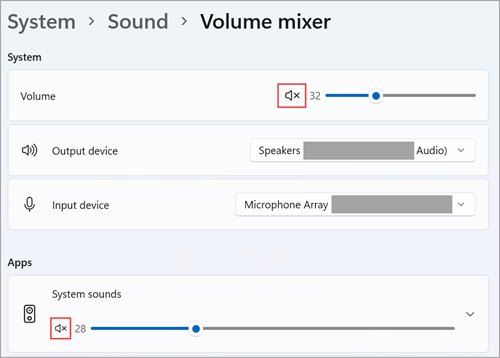
| Video plays with no sound | Output device or audio driver | Work through the Windows sound fixes |
| DVD will not play | Neither Microsoft player includes DVD playback | Use VLC or the PC maker's DVD software |
Error 0x10100be, file isn’t playable in Films & TV or Media Player app
Error 0x10100be: file isn't playable
The app has no decoder for the codec inside the file, or the file is damaged.
- Right-click the file, select Properties and read the codec on the Details tab.
- Install the matching extension (HEVC, AV1, VP9 or MPEG-2) from Microsoft Store.
- Restart Media Player and open the file again.
- If it still fails, open it in VLC; if VLC also fails, the file is damaged.
Wmpnetwk.exe high CPU or memory usage on Windows 11
wmpnetwk.exe uses high CPU or memory in Task Manager
The process ships with Windows Media Player Legacy's media sharing components.
- Press Ctrl + Shift + Esc and confirm wmpnetwk.exe is the process using resources.
- If you do not use Windows Media Player Legacy, open Settings > System > Optional features.
- Select Windows Media Player Legacy and choose Remove.
- Restart the PC and check Task Manager again.
Fix Windows Media Player not working in Windows 11/10
Start with the symptom below, and troubleshoot Windows Media Player in more depth for library, sound and ripping faults.
Windows Media Player won't open
Damaged app files or a broken optional feature.
- Open Settings > Apps > Installed apps, select the player and choose Advanced options.
- Select Repair; if that fails, select Reset, which keeps your media files and library.
- Run sfc /scannow from an administrator Command Prompt.
- Remove and re-add Windows Media Player Legacy from Optional features.
Windows Media Player cannot play MP4 or the file
The MP4 holds a codec such as HEVC that needs an extension.
- Check the codec on the Details tab of the file's Properties.
- Install the matching Microsoft Store extension.
- Play the file in Media Player rather than the Legacy app.
Windows Media Player won't play a DVD
DVD playback is not included in Windows 10 or Windows 11.
- Install VLC media player, which plays DVDs.
- Or use the DVD software that came with your PC or drive.
Windows Media Player not showing video, only sound
A missing video codec or outdated graphics driver.
- Install the video extension the file needs.
- Update the graphics driver through Windows Update.
- Clear history under Tools > Options > Privacy > Clear History in the Legacy player.
Windows Media Player not burning CDs
Wrong disc type or burn mode.
- Insert a blank writable disc.
- Choose Audio CD under Burn options for music players.
- Remove items over the disc's capacity, then select Start burn.
Check which codec a video uses in Windows
- Right-click the video in File Explorer and select Properties.
- Open the Details tab.
- Read the video and audio entries to see the codec.
- Match it to the codecs table above; if the extension is installed, the file now opens in Media Player.
Windows Media Player and codecs FAQ
What is Windows Media Player Legacy?
Windows Media Player Legacy is the classic Windows Media Player, now an optional feature of Windows 11 and Windows 10. It keeps CD burning and ripping, while Microsoft recommends the newer Media Player app for modern video such as 4K.
Where is Windows Media Player in Windows 11?
Select Start and type Windows Media Player Legacy. If nothing appears, add it from Settings > System > Optional features > View features. The modern Media Player app is found by searching Media Player.
How do I install Windows Media Player?
On Windows 11, add Windows Media Player Legacy from Settings > System > Optional features. On Windows 10, use Settings > Apps > Apps & features > Manage optional features > Add a feature and install Windows Media Player.
How do I update Windows Media Player?
Media Player updates through Microsoft Store, and Windows Media Player Legacy updates with Windows Update. Microsoft lists installing Windows updates as a fix for many playback errors.
Why can't Windows Media Player play MP4?
The MP4 usually holds a codec the player cannot decode, such as HEVC, AV1 or VP9. Check the codec under Properties > Details and install the matching Microsoft Store extension, or open the file in VLC.
Why won't Windows Media Player play a DVD?
DVD playback is not included in Windows Media Player on Windows 10 or Windows 11. Use VLC media player, which plays DVDs, or the DVD software supplied with your PC.
Why won't Windows Media Player open?
Damaged app files or a broken optional feature usually stop it opening. Repair or reset it from Settings > Apps > Installed apps > Advanced options, run sfc /scannow, or remove and re-add the optional feature.
Why is Windows Media Player not burning CDs?
The disc is not blank and writable, the wrong burn mode is selected, or the list exceeds the disc. Choose Audio CD under Burn options for music and select Start burn.
What is Windows Media Player 12?
Windows Media Player 12 is the version that became Windows Media Player Legacy in Windows 11 and 10. Microsoft's supported file types list for it includes WMA, WMV, MP3, AVI, FLAC and audio CD tracks.
Is Windows Media Player free?
Yes. Both Media Player and Windows Media Player Legacy come with Windows at no extra cost. Some codec extensions in Microsoft Store, such as HEVC, are separate Store listings.
What is the Windows Media Player extension?
Extensions are Microsoft Store add-ons that let Windows players decode more formats: HEVC Video Extensions, AV1 Video Extension, VP9 Video Extensions, MPEG-2 Video Extension and Web Media Extensions for OGG.