OneDrive sync keeps a folder on your Windows 11 or Windows 10 PC identical to your cloud storage: sign in to the OneDrive app once and every change you make in File Explorer uploads automatically.
This hub covers setup and a second account, choosing folders, Desktop and Documents backup, Files On-Demand, status icons, settings, Personal Vault, sync fixes, reset, and turning OneDrive off.
How to set up OneDrive sync: step-by-step
Windows 11 ships with OneDrive already installed, so setup is a sign-in and two screens.
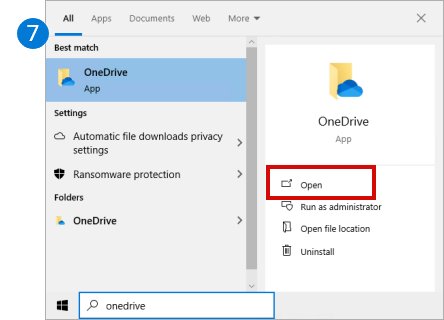
- Select Start, type OneDrive and open the OneDrive desktop app.
- Enter your Microsoft personal account or your work or school account, then select Sign in.
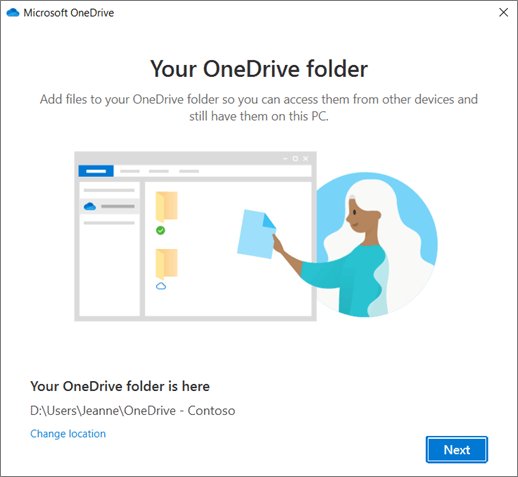
- On the This is your OneDrive folder screen, select Next to keep the default location, or Change location to move it now.
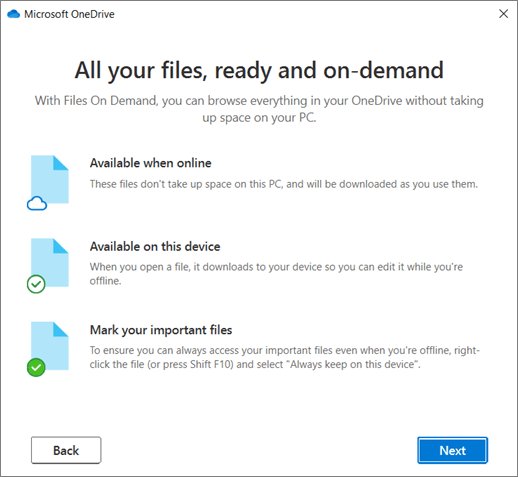
- On the All your files, ready and on-demand screen, read how online-only and local files are marked, then select Next.
- Wait for the first sync to finish. Your files appear under OneDrive in File Explorer and a cloud icon sits on the taskbar.
Repeat the same sign-in on every PC you own to sync files between Windows devices with one account.
Store, back up, and secure all your files
OneDrive is Microsoft's cloud storage, and the Windows app is the part that keeps a local folder in step with it. If you are still deciding whether you need OneDrive, these are the four jobs it does on a PC.
| Job | What OneDrive does | Where you control it |
|---|---|---|
| Store | Keeps files in the cloud, reachable from your PC, phone or OneDrive.com | The OneDrive folder in File Explorer |
| Sync | Mirrors every add, change or delete between the PC and the cloud | Settings > Account > Choose folders |
| Back up | Moves Desktop, Documents and Pictures into OneDrive so they follow you | Settings > Sync and back up > Manage back up |
| Secure | Locks sensitive files behind a second identity check in Personal Vault | The Personal Vault folder |
What OneDrive sync does (and why it is different from the browser)
| OneDrive sync app on the PC | OneDrive.com in a browser | |
|---|---|---|
| Where you work | Directly in File Explorer | In a browser tab |
| Changes | Upload automatically whenever you are online | Saved straight to the cloud |
| Offline access | Synced files open without internet | Needs a connection |
| Folders shown | Only the folders you chose to sync | Always every folder |
| Deleting | Deleting in the OneDrive folder deletes in the cloud too | Deleting online removes it from synced PCs |
Install OneDrive on Windows 11
OneDrive is preinstalled on Windows 11. On Windows 10, or after an uninstall, you need the sync app from Microsoft first.
- Select Start, type OneDrive, and check whether the OneDrive app appears.
- If it is missing, get the installer from microsoft.com/microsoft-365/onedrive/download and run it.
- Open OneDrive and sign in with your account.
- Look for the cloud icon in the taskbar notification area to confirm it is running.
Windows 10 users can install OneDrive on Windows 10 the same way, then sign in and pick folders.
How to add another OneDrive account on Windows
You can sign in to several work or school accounts at once, but only one personal Microsoft account per PC.
- Select the OneDrive cloud icon in the notification area.
- Select Help & Settings, then Settings.
- Open the Account tab and select Add an account.
- Sign in with the second account and finish setup.
File Explorer then shows OneDrive – Personal and OneDrive – [CompanyName] as separate folders, each with its own settings. The one-personal-account limit has workarounds when you use multiple OneDrive accounts.
Choosing which folders to sync (selective sync and Files On-Demand)
Selective sync decides which cloud folders exist on this PC at all. Files On-Demand decides whether a file inside them is downloaded.
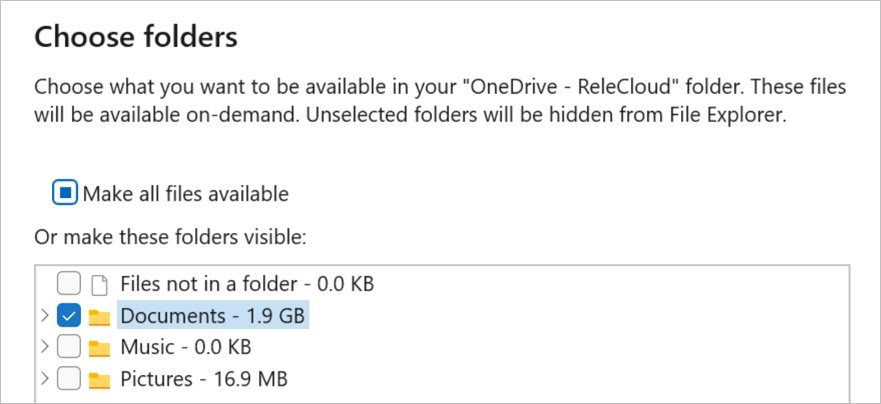
- Open OneDrive Settings from the cloud icon.
- Go to the Account tab and select Choose folders.
- Uncheck each folder you don't want on this computer.
- Select OK.
An unchecked folder leaves this PC but stays online. Documents, Desktop, Pictures and Personal Vault can't be unchecked, and folders outside OneDrive, such as a USB drive, can't be added. The choice is saved per computer and per account.
Back up Desktop, Documents and Pictures to OneDrive
Folder backup moves your standard Windows folders into OneDrive, so their contents roam to every PC signed in to the same account.
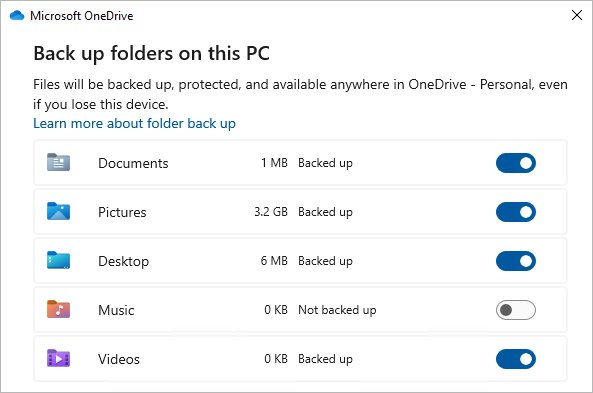
- Select the OneDrive cloud icon, then Help & Settings > Settings.
- Open the Sync and back up tab.
- Select Manage back up.
- Turn on each folder marked Not backed up.
- Select Save changes.
To stop, turn the folder's toggle off and choose whether the files stay only in OneDrive or only on your PC. Close any open file first, because open files can't be moved.
OneDrive Files On-Demand and offline files
Files On-Demand is on by default from OneDrive build 23.066. Every file is listed in File Explorer, but online-only files take no disk space until you open them.
- Right-click a file or folder in your OneDrive folder.
- Select Always keep on this device to keep it available offline.
- Select Free up space to turn it back into an online-only file.
- To check the feature itself, open Settings > Sync and back up, expand Advanced settings and look at Files On-Demand.
Newer builds replace the on/off switch with Free up disk space and Download all files, and you can still turn Files On-Demand off through policy.
Before a trip, keep OneDrive files offline by marking whole folders, so new files in them download too.
OneDrive status icons and what they mean
OneDrive shows two sets of icons: one on the taskbar cloud for the whole account, and one next to each file in File Explorer.
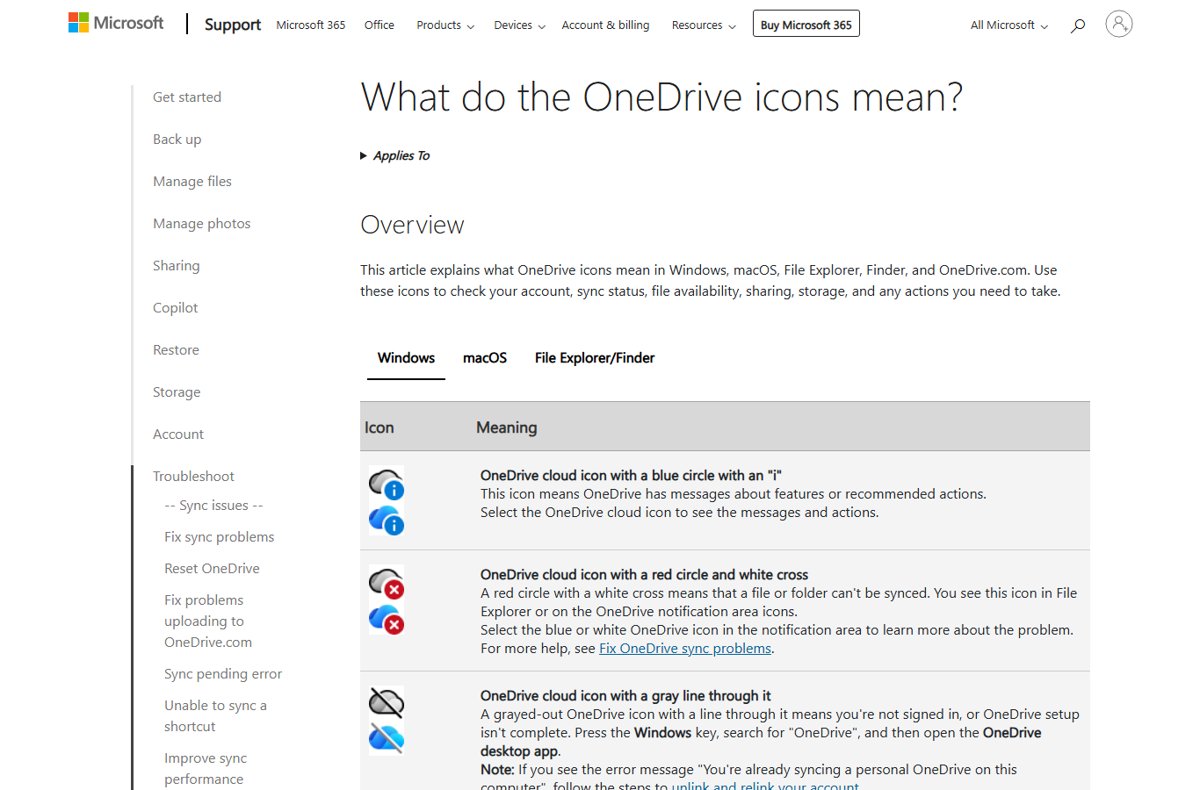
| Icon | Meaning | What to do |
|---|---|---|
| Blue cloud next to a file | Online-only, takes no space | Open it while online, or select Always keep on this device |
| Locally available file icon | Downloaded when you opened it, available offline | Select Free up space if you need the room back |
| Green circle with white check | Marked Always keep on this device | Nothing; it stays local |
| Red circle with white cross | A file or folder can't sync | Select the taskbar cloud to read the error |
| Gray cloud with a line through it | Not signed in, or setup is unfinished | Open the OneDrive app from Start and sign in |
| Pause symbol on the cloud | Sync is paused | Select the icon, then Resume syncing |
| Yellow triangle or brown exclamation | The account needs attention | Select the icon and read the activity center message |
| Blue circle with an i | Messages or recommended actions | Select the cloud icon to view them |
| Red no-entry circle | The account is blocked or frozen | Select the icon and follow the frozen-account message |
Mobile and Finder symbols differ slightly, and the full set is in this list of OneDrive icons and their meaning.
OneDrive sync settings in Windows 11 and 10
Select the cloud icon, then Help & Settings (the gear) > Settings. If the icon is hidden, select the Show hidden icons arrow first.
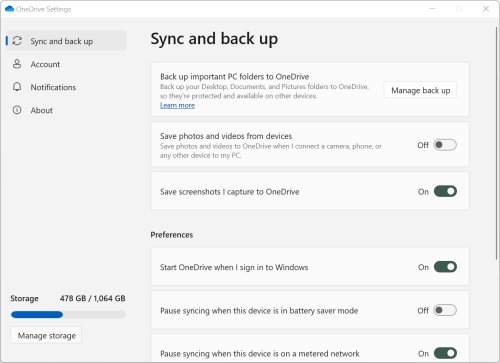
| Settings tab | What lives there |
|---|---|
| Sync and back up | Manage back up, Preferences for startup, battery saver and metered networks |
| Sync and back up > Advanced settings | File collaboration, upload and download rate limits, Files On-Demand |
| Account | Add an account, Unlink this PC, Choose folders, Personal Vault auto-lock time |
| Notifications | Turn alerts for some events on or off |
| About | Version number and device ID for support |
Each account has its own settings window, and the quick way into OneDrive settings also works from the web and phone apps.
How to set up OneDrive Personal Vault
Personal Vault is a folder that needs a second check, such as a fingerprint, face, PIN or a code, before it opens.
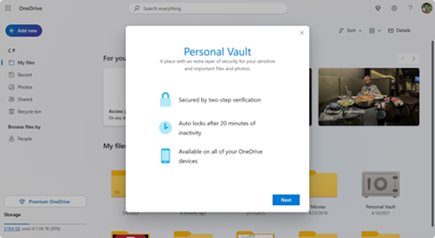
- Open your OneDrive folder and select Personal Vault, or select Get started on the first-run message.
- Select Next or Continue.
- In Verify your identity, check your account info and select Verify.
- Choose a method such as Text and enter the code you receive.
- Move files in with Move to > Personal Vault, or drag them.
Without a Microsoft 365 Family or Personal plan, the vault holds three files. It locks after 20 minutes idle on the web and you can change the PC lock time under Settings > Account. The steps to set up OneDrive Personal Vault also cover locking it and vault problems.
How often does OneDrive sync?
| Situation | Sync behaviour |
|---|---|
| PC online, OneDrive running | Changes sync automatically as they happen |
| Outlook PST data files | Supported, but synced less often than other files to cut network traffic |
| Battery saver on, or metered network | OneDrive pauses itself |
| Paused by you | Resumes after 2, 8 or 24 hours, or when you select resume |
| Storage full | New files stop uploading, editing and syncing |
To see when OneDrive files were last synced and what is waiting, select the taskbar cloud: the activity center lists recent files and any message holding sync up.
How to force OneDrive to sync using its “Pause syncing” feature
Pausing and resuming helps when the status shows Processing changes for a long time.
- Right-click the OneDrive cloud icon on the taskbar.
- Choose a pause length of 2, 8 or 24 hours.
- Check that the cloud icon now shows Paused.
- Select the paused icon and resume syncing from the activity center.
To do a OneDrive force sync using its menu instead, open the same cloud icon menu and use Help & Settings, as in the next section.
Quit and restart OneDrive
- Select the OneDrive cloud icon in the notification area.
- Select Help & Settings (the gear), then Close OneDrive.
- Select Start, type OneDrive, and open the OneDrive desktop app.
- Wait for the cloud icon to return and check its status.
OneDrive not syncing in Windows 11
Why is OneDrive not syncing my files? Match what you see to a row. Each cause is one of the common reasons Microsoft lists.
| Symptom | Cause | Fix |
|---|---|---|
| No cloud icon at all | OneDrive isn't running or the icon is hidden | Open OneDrive from Start; check Show hidden icons |
| Pause symbol on the cloud | Paused by you, battery saver or a metered network | Resume syncing; change Preferences |
| Gray cloud with a line | Not signed in | Select the icon and sign in at Set up OneDrive |
| Red cross on a file | Invalid name, path over 260 characters, or file over 250 GB | Rename, shorten the path, or move the file out |
| Stuck on Processing changes | Many files, a large video or PST, or an online file open in an app | Pause and resume; move the PST out of OneDrive |
| Uploads stop, account full warning | Storage quota exceeded | Check Manage storage in settings and free space |
| App never starts on a work PC | A Group Policy blocks onedrive.exe | Ask your administrator to change the policy |
| Still failing after all of the above | Corrupt sync state | Reset OneDrive, then unlink and sign in again |
Why does OneDrive stop syncing?
Check if OneDrive is paused, and resume it
Sync was paused manually or automatically.
- Select the OneDrive cloud icon with the pause symbol.
- Select Resume syncing.
Stop OneDrive from pausing on a metered network or battery saver
OneDrive pauses itself on battery saver and metered connections.
- Open Settings > Sync and back up.
- Open Preferences.
- Change the battery saver and metered network options.
Make sure your OneDrive isn’t full
Over-quota accounts can't upload, edit or sync new files.
- Open OneDrive Settings and read the storage usage.
- Select Manage storage to remove large files or add storage.
Look for files OneDrive can’t sync
A name, path or size breaks OneDrive's rules.
- Select the taskbar cloud and read the red-cross error.
- Remove characters such as \ : / * ? < > " | and leading spaces from the name.
- Rename files called desktop.ini, CON, PRN, AUX, NUL or starting with ~$.
- Shorten folder names so the full path stays under 260 characters.
- Move files larger than 250 GB out of OneDrive.
OneDrive is not signed in or says not connected
The account was signed out or the connection is blocked.
- Select the gray cloud icon.
- Enter your email and password at Set up OneDrive.
- If it still won't connect, test on a phone hotspot to rule out a firewall.
When OneDrive is not syncing after these five common causes, move on to the reset below; it is the documented next step to fix OneDrive sync issues in Windows 11 and Windows 10.
Folders look empty or files seem to be missing?
| What you see | Why | What to do |
|---|---|---|
| A folder exists online but not on the PC | It was unchecked in Choose folders | Recheck it under Settings > Account > Choose folders |
| Files show a blue cloud and won't open offline | They are online-only | Select Always keep on this device while online |
| Folder selection reset after a fix | A reset clears custom folder choices | Choose your folders again once sync finishes |
| Backed-up folder looks empty after stopping backup | Files were kept only in OneDrive | Move them back from the OneDrive folder |
OneDrive deleting files automatically in Windows 11
| What happened | Explanation | Recovery |
|---|---|---|
| File deleted on another device disappeared here | Deletes sync both ways | Restore it from the OneDrive recycle bin |
| Online-only file deleted on this PC | It is deleted from OneDrive everywhere | Recycle bin: 30 days personal, 93 days work or school |
| Local copies turned back into cloud icons | Storage Sense makes unused files online-only after the period you set | Nothing is lost; open the file or mark it Always keep on this device |
| File deleted from Personal Vault on a PC | It skips the PC recycle bin | Check the OneDrive.com recycle bin |
Open the online recycle bin from the taskbar cloud by selecting Recycle bin.
Unable to upload PST files to OneDrive
Keep Outlook .pst data files outside OneDrive. OneDrive syncs PST files less often than other files, and a PST open in Outlook can leave OneDrive on Processing changes. Close Outlook and move the PST out of the backed-up folder.
Reset OneDrive
A reset disconnects every sync connection, resets settings and runs a full sync. You don't lose files.
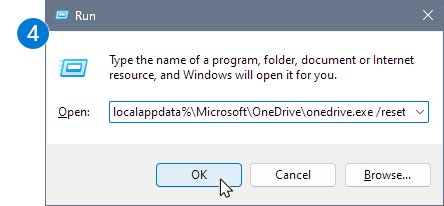
%localappdata%\Microsoft\OneDrive\onedrive.exe /resetPress Windows + R, paste this and select OK. If Windows can't find it, use C:\Program Files\Microsoft OneDrive\onedrive.exe /reset, then the Program Files (x86) path. Afterwards, open OneDrive from Start.
You should see: OneDrive restarts and rebuilds its sync data; pick your folders again if you used selective sync.
If none of the three paths exist, the sync app isn't installed, so download OneDrive for Windows and sign in again.
To reset the OneDrive store app
- Select Start and enter apps:onedrive.
- Select App settings.
- Scroll down and select Reset.
Unlink this PC and sign in again
Unlinking also is the cleanest way to stop using OneDrive. Your files stay on OneDrive.com.
- Select the OneDrive cloud icon in the notification area.
- Select Help & Settings, then Settings.
- Open the Account tab.
- Select Unlink this PC, then Unlink account.
- To relink, sign in again at the setup screen that appears.
Quit, disable, uninstall OneDrive in Windows 11
Pick the lightest option that solves your problem. None of them delete files stored online.
| Turn off (pause or close) | Unlink | Uninstall | |
|---|---|---|---|
| What it does | Stops syncing for a while | Disconnects the account from this PC | Removes the sync app |
| How | Pause 2-24 hours, or Close OneDrive | Account > Unlink this PC | Add or remove programs > Microsoft OneDrive > Uninstall |
| Files online | Kept | Kept | Kept |
| Undo | Resume or reopen the app | Sign in again | Reinstall and sign in |
| Best for | Slow or metered connections | Not using OneDrive, or a sync fix | Removing it from the PC |
Group Policy and startup options extend this list when you disable OneDrive in Windows 11 for good.
Hide OneDrive in Windows 10/11
OneDrive is built in to some Windows versions and can't be uninstalled there, but you can hide it.
- Unlink OneDrive from your computer as above.
- Open File Explorer, right-click OneDrive and select Properties.
- On the General tab, check Hidden next to Attributes.
- Select the cloud icon, then Help & Settings > Quit OneDrive.
Uninstall OneDrive on Windows 11
To remove OneDrive from a PC completely, unlink it first, then uninstall the app.
- Select Start, type Programs, and select Add or remove programs.
- Find Microsoft OneDrive in the list.
- Select Uninstall and confirm.
- Sign in at OneDrive.com whenever you need your files.
OneDrive sync FAQ
How does OneDrive syncing work?
The OneDrive app watches your OneDrive folder. Any file you add, change or delete there is added, changed or deleted on OneDrive.com, and changes made online come back to the PC. It runs automatically whenever you are online.
How do I sync OneDrive to File Explorer?
Open the OneDrive app from Start and sign in. Once setup finishes, a OneDrive folder appears in the File Explorer navigation pane, and everything in it syncs. A second account gets its own folder.
How do I sync OneDrive manually or immediately?
OneDrive has no sync-now button. Right-click the cloud icon, pause sync, then resume it, or close OneDrive from Help & Settings and reopen it from Start. Both make it rescan and upload pending changes.
Why is OneDrive always syncing?
A long Processing changes status usually means many files are queued, a large video or Outlook PST is uploading, or an online-only file is open in another app. Pause and resume sync, and move PST files out of OneDrive.
Can I sync OneDrive to an external hard drive?
Folders outside OneDrive, such as a USB drive, can't be added to sync. To keep a second copy, download everything with the app and back up OneDrive to a drive by copying the folder.
How do I reset OneDrive in Windows 11?
Press Windows + R, enter %localappdata%\Microsoft\OneDrive\onedrive.exe /reset and select OK. Then open OneDrive from Start. A reset doesn't delete files but clears settings and your folder choices.
What happens when you unlink OneDrive?
Unlinking disconnects your account from that PC and stops syncing. Files already on OneDrive.com stay there, and you can sign in again at any time to resume.
Does turning on Files On-Demand delete files?
No. Making a file online-only frees space on the PC, but it stays in OneDrive and appears on the web and mobile apps. Deleting an online-only file, though, removes it everywhere.