Google Docs, Sheets and Slides run in your Windows browser at docs.google.com and sheets.google.com, save as you type, and work offline once you turn on Offline in Google Drive settings in Chrome or Edge.
This hub covers creating, formatting and sharing files, the Docs tools worth knowing, Sheets basics, offline access with its error fixes, and Google Drive for desktop on Windows 11 and 10.
Step 1: Create a document
You need a Google Account and a browser. Nothing installs on Windows for basic editing.
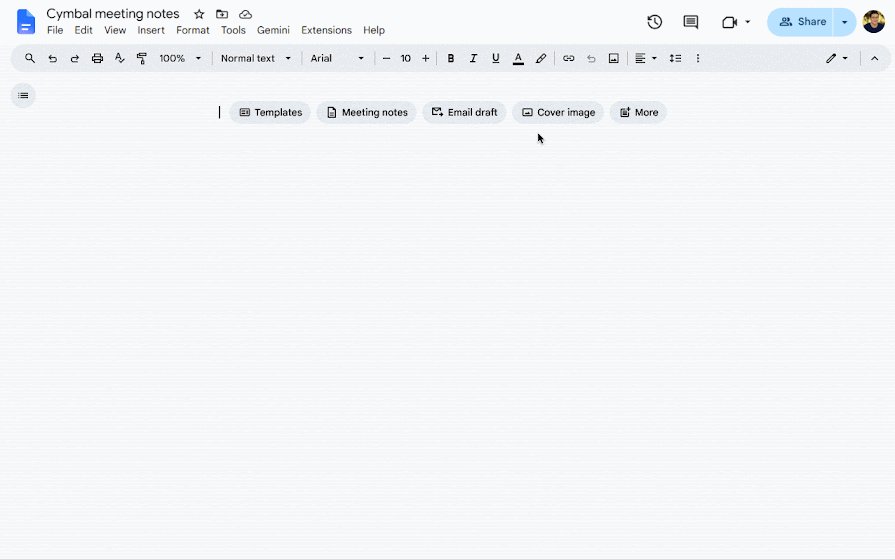
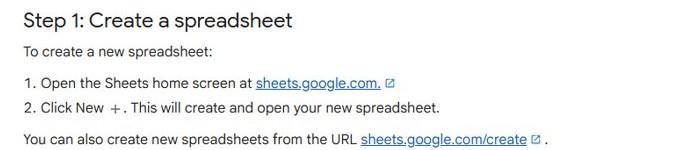
- Open your browser and go to docs.google.com, or go straight to docs.google.com/create for a new file.
- Sign in with your Google Account when asked.
- Under Start a new document, click Blank.
- Click Untitled document at the top left and type a file name.
- Start typing. Changes save automatically while you are online, so there is no save button.
- Click Share at the top right to invite people as viewers, commenters or editors.
Sheets works the same way from sheets.google.com, where New (the plus button) opens a blank spreadsheet.
What is Google Docs?
Google Docs is an online word processor in the same family as Sheets, Slides and Drive. Each app keeps its files in your Drive, so one account and one storage pool covers all of them.
| App | What it does | Where you open it on Windows |
|---|---|---|
| Google Docs | Word processing: letters, reports, notes, resumes | docs.google.com in Chrome, Edge or another browser |
| Google Sheets | Spreadsheets with formulas, charts and filters, the Google app closest to Excel | sheets.google.com |
| Google Slides | Presentations | slides.google.com |
| Google Drive | Storage for all of the above plus any other file type | drive.google.com, or File Explorer once Drive for desktop is installed |
| Drive for desktop | Windows app that puts Drive in File Explorer and syncs folders | System tray icon after installing GoogleDriveSetup.exe |
Docs, Sheets and Slides have no separate Windows program. Chrome and Edge can install Google Docs as an app with its own Start menu entry, and the same applies when you add Sheets to the Start menu or set up Slides on your PC.
Google Docs vs Sheets vs Drive for desktop: which one to use
| Your situation | Use this | Why |
|---|---|---|
| Writing text with headings, images and comments | Google Docs | Word processor with suggesting mode and version history |
| Lists of numbers, budgets, sign-up lists | Google Sheets | Cells, formulas and filters; each entry saves when you click out of the cell |
| Editing Word, Excel or PowerPoint files in desktop Office while keeping them in Drive | Drive for desktop | Office files sync from File Explorer to Drive |
| Opening Drive files from File Explorer | Drive for desktop | Drive appears like any other drive on the computer |
| Working on a Google Doc on a plane or with no Wi-Fi | Docs offline in Chrome or Edge | Recent Docs, Sheets and Slides files are stored in the browser |
| Keeping PDFs, photos or ZIP files available with no internet | Drive for desktop | Browser offline mode covers only Google Docs, Sheets and Slides files |
Where Google Docs, Sheets and Drive settings live
Press Alt + / in any Docs, Sheets or Slides file to open Tool finder and type a feature name instead of digging through menus. Ctrl + / lists every keyboard shortcut.
| Task | App | Menu path | Shortcut |
|---|---|---|---|
| Turn on offline access | Drive | Settings (gear, top right) > Offline | None |
| Make one file available offline | Docs / Sheets | File > Make available offline | None |
| Word count | Docs | Tools > Word count | Ctrl + Shift + C |
| Version history | Docs / Sheets | Last edit icon, top right | Ctrl + Alt + Shift + H |
| Suggesting mode | Docs | Editing drop-down (top right) > Suggesting | Ctrl + Alt + Shift + X |
| Spelling and grammar | Docs | Spelling and grammar check icon, top left | None |
| Personal dictionary | Docs | Tools > Spelling and grammar > Personal dictionary | None |
| Pages or pageless | Docs | File > Page setup | None |
| Markdown | Docs | Tools > Preferences > Enable Markdown | None |
| Voice typing | Docs | Tools > Voice typing | Ctrl + Shift + S |
| Download a copy (PDF, Word and more) | Docs / Sheets | File > Download | None |
| Trash | Drive | Trash in the left pane of drive.google.com | None |
| Drive for desktop settings | Drive for desktop | System tray icon > Settings | Ctrl + Alt + G opens search |
How to sign up for an account
Any Google Account opens Docs, Sheets and Drive. A Gmail address already is one.
- Go to docs.google.com and click Sign in.
- Click Create account and pick personal use, or sign in if you already have Gmail.
- Enter your basic info and birthday, then pick a new Gmail username or use an existing email address.
- Set a password, and add a phone number and recovery details when asked so you can get back into the account later.
- Return to docs.google.com; the Docs home screen lists your recent files.
Doc.new: instantly create a new blank doc
Typing a short address into the Edge or Chrome address bar is the fastest way to start a file when you are already signed in.
| To create | Type in the address bar | What opens |
|---|---|---|
| Blank document | docs.google.com/create | A new untitled Doc in My Drive |
| Blank spreadsheet | sheets.google.com/create | A new untitled Sheet in My Drive |
| Document from the Docs home screen | docs.google.com, then Blank | Same result, plus the template gallery |
How to import a Microsoft Word document
- Open drive.google.com and drag the .docx file into a Drive folder, or click New > File upload.
- Double-click the uploaded file. It opens in Google Docs.
- Edit it as normal. Password-protected .docx, .xlsx and .pptx files ask whether to Preview or Edit; Edit removes the password.
- To return it to Word format, click File > Download and pick the Word option.
Macros do not carry over, and charts or videos embedded in Word files turn into images.
Google Docs formatting tips
Most formatting sits under the Format menu, and the toolbar covers fonts, headings and lists. The page layout choices and the shortcuts below save the most clicks. Pageless format ditches the paper-centric view for one continuous page.
| Formatting job | How | Shortcut |
|---|---|---|
| Indent a paragraph | Increase indent button on the toolbar | Ctrl + ] (Ctrl + [ to undo) |
| Strikethrough text | Keyboard shortcut on the selected text | Alt + Shift + 5 |
| Pageless format (page layout) | File > Page setup > Pageless, or Format > Switch to Pageless format | None |
| Narrow, medium or wide pageless text | View > Text width | None |
| Automatic Markdown | Tools > Preferences > Enable Markdown, then type # Heading, *italic* or bold | None |
| Insert images, including Google Photos | Insert > Image > Drive & Photos | None |
| Outline of headings | View > Show outline | Ctrl + Alt, then A, then H |
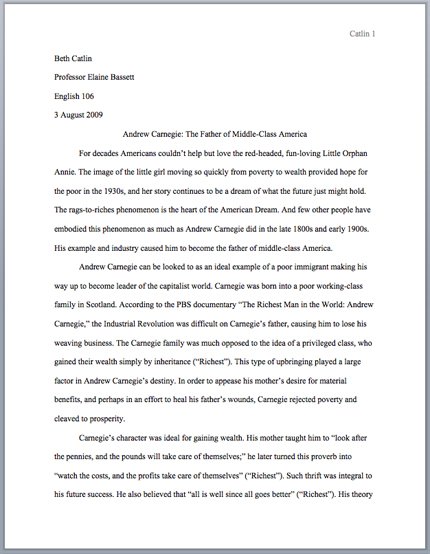
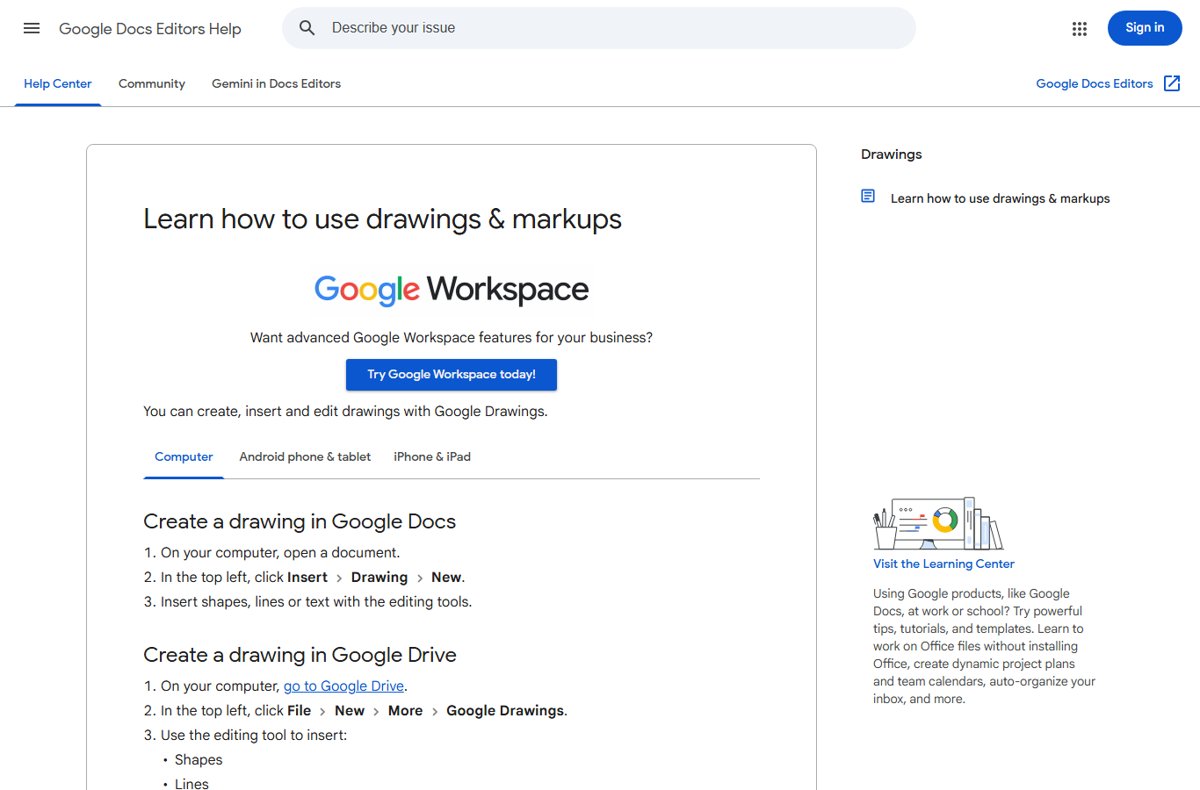
MLA and APA citations need hanging and first-line indents set from the ruler or Format menu. Edits that need to stay visible can be crossed out with strikethrough instead of deleted. Symbols come from the special characters panel, where you can type arrows into a Doc, and a drawing lets you add a bordered text box anywhere on the page. Pageless mode hides headers, footers, page numbers and watermarks until you switch back to pages.
Hacks to maximize productivity in Google Docs
These built-in tools cover basic productivity, writing and editing without add-ons.
| Tool | Open it with | What it does |
|---|---|---|
| Tool finder | Alt + / | Search the menus by name |
| Explore tool | Ctrl + Alt + Shift + I | Search the web and Drive beyond your document from a side panel |
| Dictionary | Ctrl + Shift + Y | Definitions and synonyms for the selected word |
| Smart chips | Type @ | People, files, dates, dropdowns and voting chips inside the text |
| Building blocks | Type @, then pick Meeting notes or Project roadmap | Ready-made templates for notes and trackers |
| Email draft | Type @email draft | Write an email in the Doc and send it to Gmail |
| Calendar invite draft | Type @calendar event draft | Draft an invite and preview it in Calendar |
| Custom building block | Save text as a building block, then type @ and its name | Insert your bio or signature in one step |
| Add-ons | Extensions > Add-ons | Extra features from Google Workspace Marketplace |
Automatic substitution in the Docs preferences expands typed shortcuts into longer text. For a distraction-free page, hide the menus and toolbars and switch the browser itself to full screen.
Smart Google Docs tips and tricks for collaboration
Collaboration features let several people work on one file without emailing copies.
| Task | How | Who can do it |
|---|---|---|
| React quickly with emoji | Hover over a comment and click the emoji icon, or right-click selected text and insert an emoji reaction | Commenters and editors |
| Add a comment | Select text and press Ctrl + Alt + M | Commenters and editors |
| Present in and join Google Meet calls right from Docs | Click the Meet icon next to Share | Anyone with access |
| Make a Doc more accessible with alternative text | Right-click an image or drawing > Alt text | Editors |
| Compare two Docs with ease | Tools > Compare documents, then pick a file from Drive | Editors |
| Create translated versions of Docs in seconds | Tools > Translate document; Docs makes a translated copy | Anyone who can make a copy |
Translate document helps decode a file written in foreign languages without leaving Docs.
Step 3: Share & work with others
- Open the file and click Share at the top right.
- Type the email addresses of the people to add.
- Pick Viewer, Commenter or Editor for each person.
- Click Send. Each person gets an email with the link.
Everyone with edit access types in the same file at the same time, so this is the core of how to collaborate on documents with others.
How to suggest an edit to a document and leave comments
- Open the document and click Editing at the top right.
- Select Suggesting from the drop-down, or press Ctrl + Alt + Shift + X.
- Edit the text. Additions appear in a new colour and deletions are crossed out.
- Click a suggestion, type a comment to explain it and click Reply.
- The owner gets an email and can accept or reject each suggestion.
Viewers without edit rights can click Request edit access to ask the owner for commenter or editor access.
How to see all the recent changes
- Hover over Last edit at the top right to see who changed the file last. A blue dot means it changed since your last visit.
- Click Last edit, or press Ctrl + Alt + Shift + H, to open version history.
- Pick a version in the right panel to view it.
- Click Restore this version, then Restore to roll back.
- Click More > Name this version to label a milestone.
Only editors can browse version history. Docs keeps up to 40 named versions per document and Sheets 15 per spreadsheet.
How to check your spelling in Google Docs
- Click the Spelling and grammar check icon at the top left.
- Click Change or Ignore on each suggestion in the box at the top right.
- Press Tab to accept an inline suggestion, or right-click a red (spelling) or blue (grammar) underline.
- To customize your dictionary in Google Docs, go to Tools > Spelling and grammar > Personal dictionary, type the word and click Add.
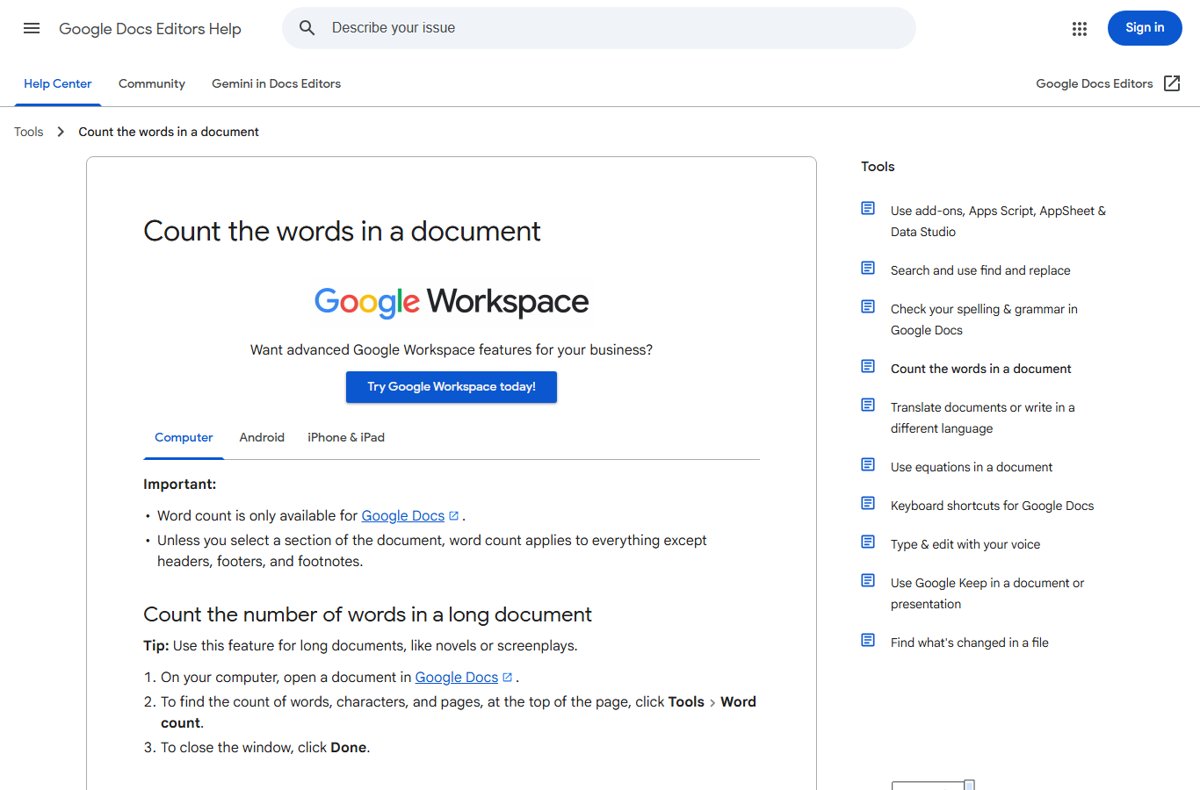
How to find the word and page count
- Open the document.
- Click Tools > Word count, or press Ctrl + Shift + C.
- Read pages, words and characters in the box.
- Select part of the text first to count only the selection.
A live counter can stay on screen as you type, and checking word count on a phone works from the mobile app menu.
Go hands-free with voice typing
Voice typing needs the latest Chrome, Edge or Safari and a working microphone. A work or school admin can turn it off.
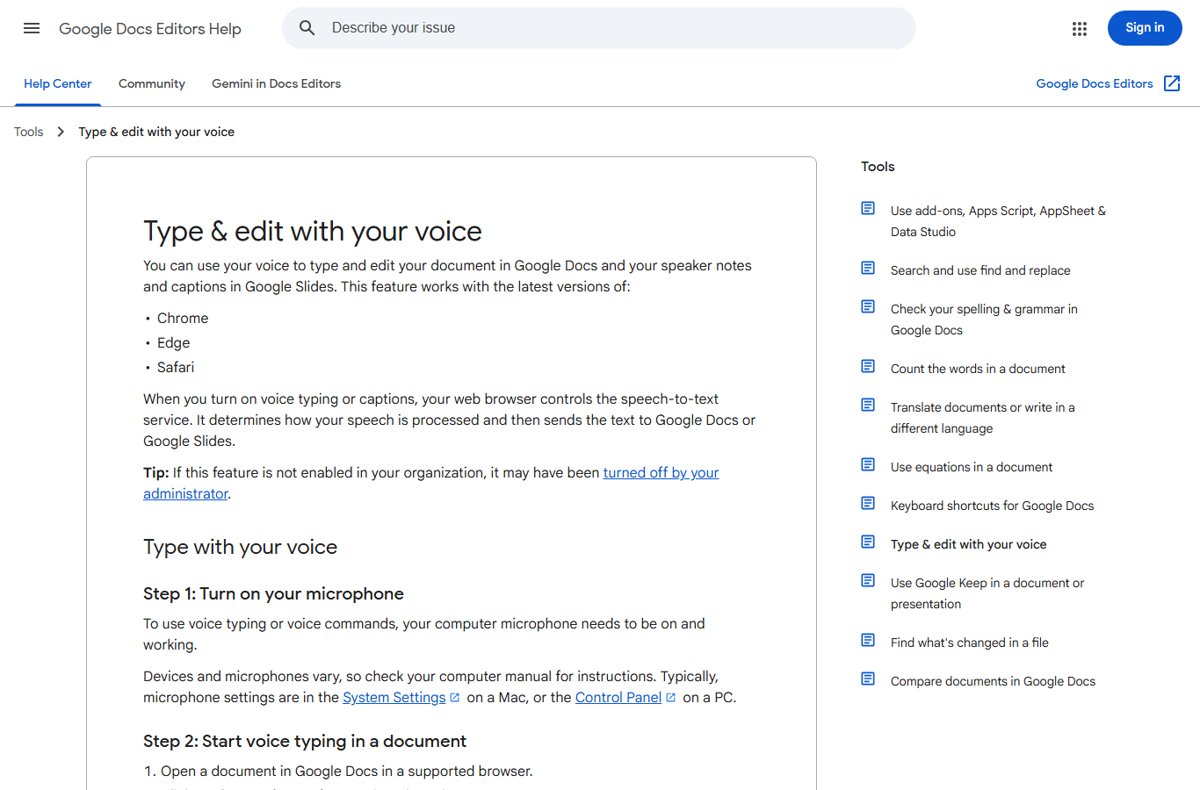
- Open a document in Chrome or Edge.
- Click Tools > Voice typing, or press Ctrl + Shift + S.
- Click the microphone and speak at a normal pace.
- Click the microphone again to stop.
Phones use the keyboard's dictation key instead, and the full guide to dictate in Google Docs covers punctuation commands and microphone fixes. To quickly cite your sources, open Tools > Citations, pick MLA, APA or Chicago and add each source.
How to use Google Sheets: data and basic formulas
The working environment matches Excel: lettered columns, numbered rows, sheet tabs along the bottom and a formula bar above the grid.
- Open sheets.google.com and click New, or go to sheets.google.com/create.
- Click a cell and type text or a number. The entry saves when you click outside the cell.
- Type a formula starting with =, such as =SUM(A1:A10), and press Enter.
- Drag the small square at the corner of a cell to copy the formula down a column.
- Use Data > Create a filter to sort and filter a table.
- Click Share to give others view, comment or edit access.
Killer features such as Explore, filters and charts, and intermediate techniques like pivot tables, build on these basics. Next steps: open an .xlsx file from Drive to edit Excel workbooks without Office.
What you need to access Google Docs offline
| Requirement | Detail |
|---|---|
| Internet connection during setup | Offline must be turned on while online |
| Browser | Google Chrome or Microsoft Edge |
| Normal window | Private or Incognito browsing does not work |
| Google Docs Offline extension | Installed and turned on; Edge sends you to the Chrome Web Store for it |
| Free disk space | Enough room to store your recent files |
How to enable offline access on desktop
Turning it on once makes Google Docs, Sheets, and Slides offline at the same time.
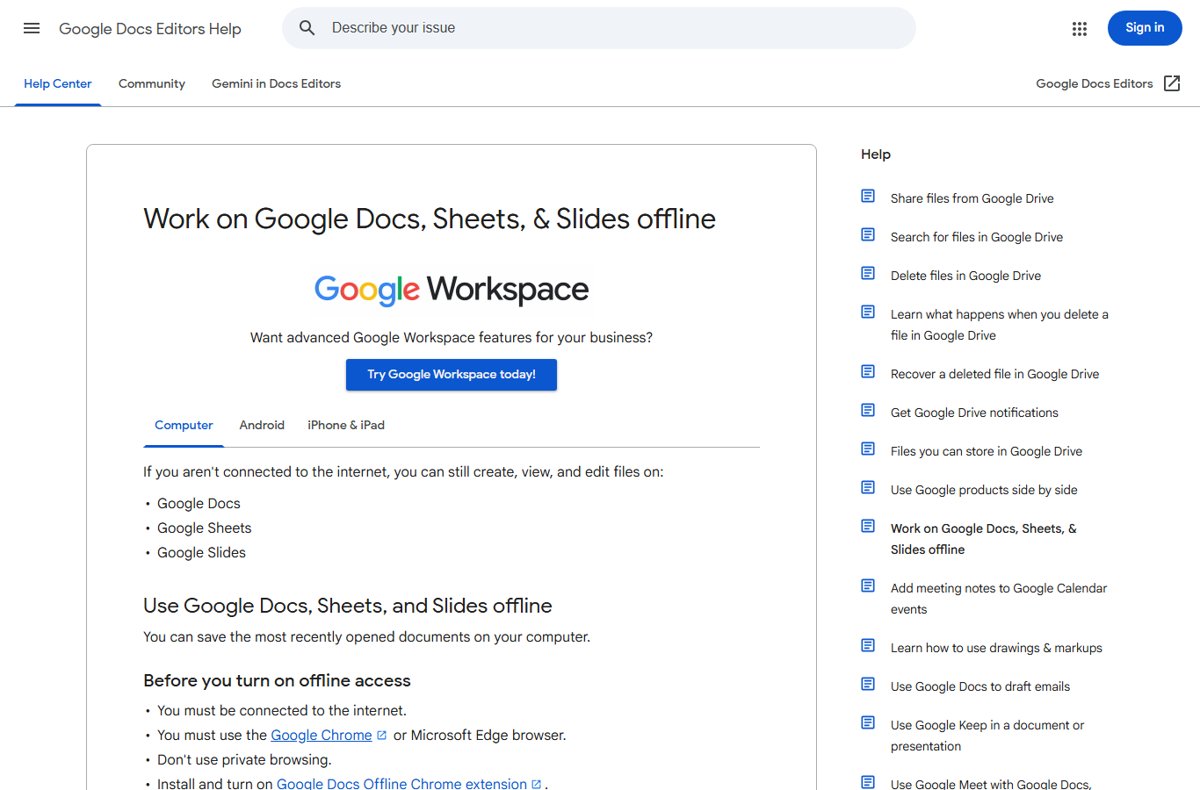
- Open drive.google.com in Chrome or Edge.
- Click Settings (gear) > Settings at the top right.
- Turn on Offline.
- On a file you need, click More > Available offline, or open it and click File > Make available offline.
- Open Docs, Sheets or Slides with no connection to work offline.
Mobile apps, the extension and sync behaviour are all in the guide to use Google Docs offline.
How to enable offline access on mobile
- Open the Google Docs, Sheets or Slides app.
- Tap Menu > Settings and turn on Make recent files available offline.
- For one file, tap More next to it and select Make available offline.
Check if a Google Doc is ready for offline use
- Open the file while online.
- Click See document status next to the file title.
- Look for the ready-for-offline message; if the file is not ready, the panel explains why.
- In the Docs home screen, files saved offline show a check mark in the bottom left corner.
Google Docs offline error messages and fixes
| Error | Cause | Fix |
|---|---|---|
| Checking offline sync status. Please wait. | Stuck site data for docs.google.com | Reload; then open chrome://settings/cookies/detail?site=docs.google.com (edge://settings/… in Edge) and click Remove all |
| Offline sync is disabled by your administrator. | Work or school policy | No workaround; ask your administrator |
| Another user has already enabled offline access on this computer. | Only one account per browser profile can use offline | Create a separate browser profile for each account |
| Offline setup failed | Damaged setup | Turn Offline off and on again, then clear docs.google.com site data |
| Offline is already on | ChromeOS, Chrome profile sync of Docs and Drive, or Drive for desktop installed | Use the turn-off steps in Docs settings if you do not want it |
| Could not sync document or trouble syncing | Network drop or a file too large | Check the connection, then re-tick File > Make available offline; split large files |
Fix problems with using files offline
Google Docs not working offline: check your browser
Wrong browser, Incognito, or the extension is off.
- Update Chrome or Edge to the latest version.
- Close any Incognito or InPrivate window and use a normal one.
- Turn on the Google Docs Offline extension in the browser's extensions page.
Error message: could not sync document
The file could not upload changes.
- Step 1: Check your network connection and reconnect.
- Open the file and click File > Make available offline to clear the check mark, then select it again.
- Step 2: Make your file smaller by copying sections into new documents and making each one available offline.
Install Google Drive for desktop
Drive for desktop puts all your Drive files in File Explorer, syncs edits both ways and keeps chosen files and folders, including shared drives, usable offline.
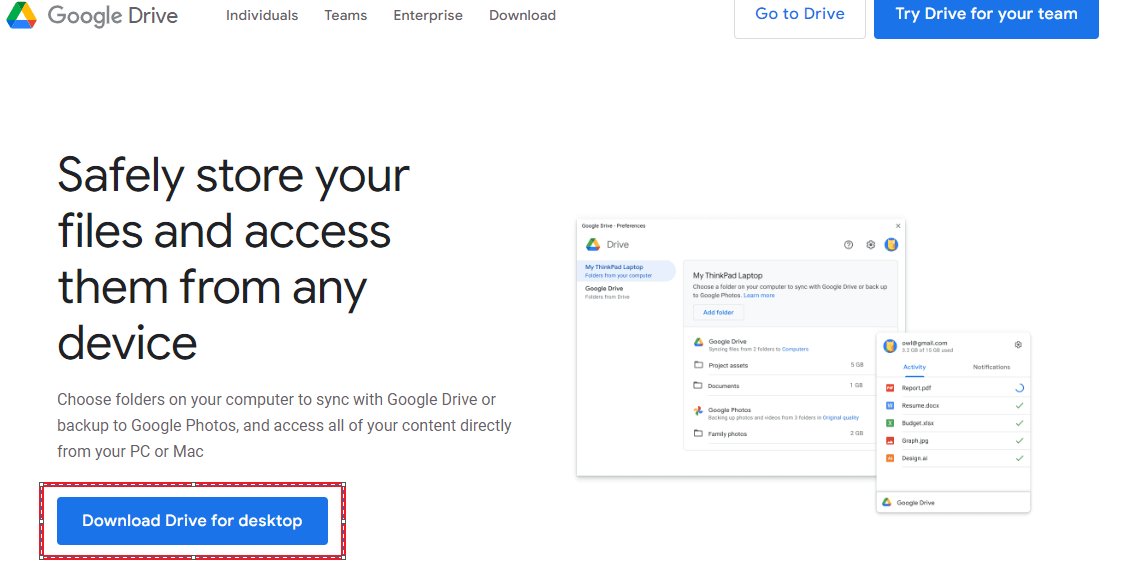
- Download GoogleDriveSetup.exe from Google's Drive for desktop page and run it.
- Follow the on-screen instructions.
- Open Google Drive for desktop and click Get started > Sign in.
- Sign in to Google Drive for desktop with the account you want in your browser.
- Find the Drive icon in the system tray; click the arrow to show hidden icons if needed.
- Right-click Google Drive in Start and choose Pin to Start or Pin to taskbar.
Work and school accounts may need the administrator to install it. The Drive for desktop installer page lists Windows and ARM64 builds. Older setups still called it Drive File Stream, and the stream or mirror choice decides how much disk space it uses: streaming uses almost none, mirroring keeps full copies.
Navigate key features in Google Drive for desktop
Learn about Google Drive for desktop benefits before syncing: shared files can fill your disk, but they never count against your Google storage.
| Feature | Where | What it does |
|---|---|---|
| Sync status | Home tile in the app | Recently synced files and current activity |
| Search | Search bar or Ctrl + Alt + G | Finds streamed Drive files that Windows Search misses |
| Pause or resume sync | App menu | Stops syncing temporarily |
| Add folders to sync | Settings | Backs up more computer folders to Drive |
| Google Drive folder | File Explorer | My Drive, Shared drives and other synced folders |
| Office integration | Word, Excel, PowerPoint | Edit Office files and sync them to Drive |
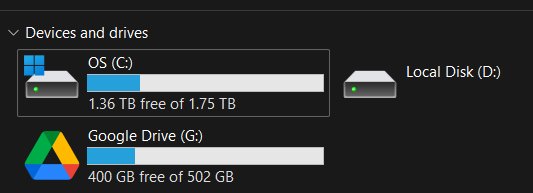
Double-clicking a Google Doc in File Explorer opens it in the browser; other files open in their usual Windows app. You can also mount Drive as a local disk with its own drive letter.
Use multiple accounts at the same time
Drive for desktop runs up to 4 Google Accounts at once.
- Click the Drive for desktop icon in the system tray.
- Click your profile picture > Add account.
- Sign in through the browser.
- Restart Google Drive for desktop.
- To remove one, click your profile picture > Disconnect account > OK. Offline files of a streaming account are removed.
Google Docs, Sheets and Drive FAQ
How do Google Docs work?
Google Docs runs in your browser and stores each document in Google Drive. Changes save automatically as you type, and several people can edit the same file at once after you share it as viewer, commenter or editor.
How do I turn a Google Doc into a PDF?
Open the document, click File > Download and choose the PDF file type. For very large documents in Chrome, click File > Print, set Destination to Save as PDF and click Save.
How do I strikethrough in Google Docs?
Select the text and press Alt + Shift + 5 on Windows, or ⌘ + Shift + X on a Mac. The same shortcut removes the line again.
Why is Google Docs not working?
The usual causes are an outdated or unsupported browser, a private window, or a sync problem. Update Chrome or Edge, use a normal window, reload the page and clear site data for docs.google.com if offline sync is stuck.
What is Google Docs?
Google Docs is Google's online word processor. It creates, formats and shares documents in the browser, keeps them in Google Drive and opens Word files without Microsoft Office.
Where is Google Docs on my computer?
Google Docs has no folder on Windows by default; files live in Google Drive. Install Drive for desktop to see them in File Explorer under Google Drive, or open docs.google.com in a browser.
Where is Google Docs trash?
Deleted Docs go to the Trash in Google Drive. Open drive.google.com and click Trash on the left. Files there are deleted forever after 30 days and still count toward storage until then.
Where is Google Docs saved?
Every Google Doc is saved in My Drive in your Google Account, and edits save automatically while you are online. Offline edits save to your device and sync to Drive when you reconnect.
Where is word count in Google Docs?
Word count is under Tools > Word count, or press Ctrl + Shift + C. The box shows pages, words and characters, and counts only the selection if text is selected.
What Google Doc is similar to Excel?
Google Sheets is the Google equivalent of Excel. It uses rows, columns and formulas, opens .xlsx files from Drive and saves each cell entry as soon as you click out of it.
Can I use Google Docs offline?
Yes. In Chrome or Edge, open Google Drive settings and turn on Offline while you are still connected. Recent Docs, Sheets and Slides files then open and edit without internet.
Become the Google Docs pro
Use Docs and Sheets in Chrome or Edge with Offline turned on, learn Alt + / and Ctrl + /, and add Drive for desktop only if you need Drive in File Explorer or Office files synced. Browser offline covers Google files with no install, while Drive for desktop is the only route for non-Google files and multiple accounts in File Explorer.