To change the default sound output device in Windows 11, open Start > Settings > System > Sound and select the speakers or headphones you want under Output.
This guide covers that route, the faster taskbar switch, the classic Sound control panel, the Windows 10 steps, per-app output in Volume mixer, and fixes for when your device is missing.
How to change default sound output device in Windows 11/10
The Output list in Sound settings shows every playback device Windows can use. The device you select there becomes the default for all apps that follow the system setting.
- Select Start, then open Settings.
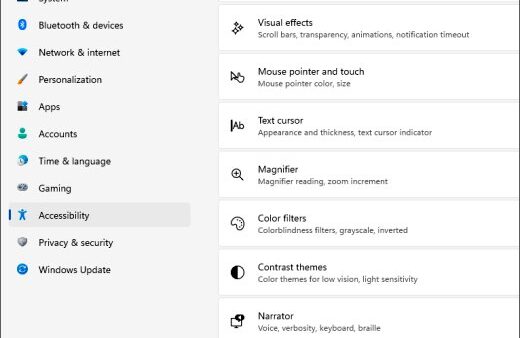
- Select System > Sound.
- Under Output, select the speakers, headphones or monitor you want to use.
- Check that the volume slider below it is turned up and not muted.
- Play a sound or video to confirm audio now comes from that device.
To open this page in one step, press Windows + R, type ms-settings:sound and press Enter. The same page is where you manage sound settings on Windows 11 beyond the output choice.
Which way to set the default audio output suits you?
| Your situation | Use this | Why |
|---|---|---|
| You switch between headphones and speakers often | Taskbar Speakers icon > arrow beside the volume slider | Two clicks from the desktop, no Settings window |
| You want to see every output and its volume | Settings > System > Sound > Output | Full list of devices, and selecting one sets it as default |
| You prefer the classic dialog or need device properties | More sound settings > Playback tab | Right-click menu with Set as default and device properties |
| You are still on Windows 10 | Control Panel > Hardware and Sound > Sound | The Set Default button on the Playback tab |
| Only one app should use a different device | Volume mixer > app > Output device | Changes that app without touching the system default |
Switch between headphones and speakers from the Windows 11 taskbar
The speaker flyout on the taskbar is the quickest way to change sound output when you swap devices several times a day.
- Select the Speakers icon at the right end of the taskbar.
- Select the arrow to the right of the volume slider. Its tooltip reads Select a sound output.
- Pick the device you want from the list.
- Select anywhere outside the panel to close it.
On Windows 10, select the Speakers icon and then the arrow above the volume slider to show the list. If the icon is missing, select Show hidden icons on the taskbar first.
Set the default playback device in the Sound control panel
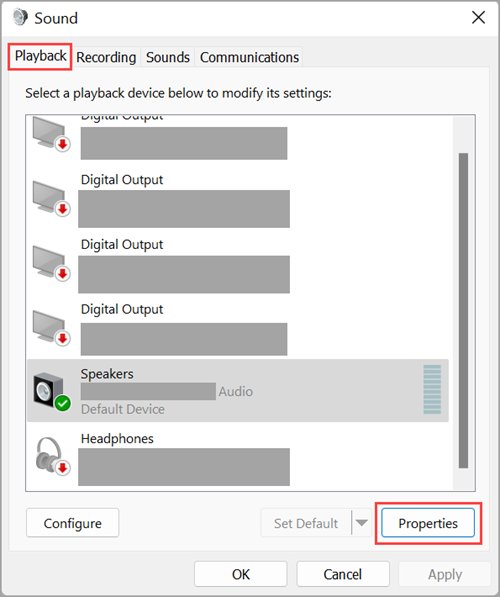
Windows 11 still includes the classic Sound dialog. Its Playback tab lists every output device and lets you set the default with a right-click.
- Open Start > Settings > System > Sound.
- Scroll down and select More sound settings.
- On the Playback tab, right-click the device you want.
- Select Set as default.
- Select OK to close the dialog.
You can also open this dialog directly: press Windows + R, type mmsys.cpl and press Enter. If Settings keeps sending you elsewhere, there are other ways to open the old Sound settings in Windows 11.
How to set audio device as default in Windows 10
Windows 10 uses the same Sound dialog, which you reach once you open the Control Panel. Microsoft ended Windows 10 support on October 14, 2025, but the steps still work on existing PCs.
- Open Control Panel from the search box on the taskbar.
- Select Hardware and Sound > Sound.
- On the Playback tab, select your audio device.
- Select Set Default, or right-click the device and select Set as Default Device.
- Select OK.
Right-clicking the Volume icon on the taskbar and selecting Sounds opens the same dialog. The device with the green tick on the Playback tab is the current default.
Change sound output for one app in Windows 11 Volume mixer
Windows 11 can send one app to a different device while everything else keeps the default. For example, a video call can stay on a headset while music plays through speakers.
- Open the app so it is playing sound or has played sound recently.
- Open Start > Settings > System > Sound.
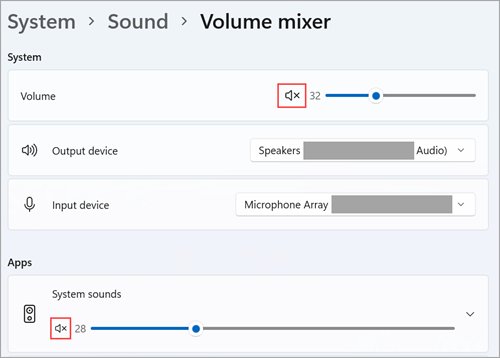
- Select Volume mixer.
- Under Apps, find the app and open its Output device list.
- Select the device that app should use.
The shortcut ms-settings:apps-volume in the Run box opens Volume mixer directly. If an app ignores your default device, check this list first, because a per-app choice overrides the system default.
Check which sound output device is the default
- Open Settings > System > Sound and confirm your device is selected under Output.
- Open More sound settings and check that your device shows the green tick on the Playback tab.
- Play audio in the app you care about and confirm it comes from the new device. If it does not, check that app in Volume mixer.
No speakers or headphones are plugged in on Windows 11
These fixes cover the common reasons a device will not appear, will not become the default, or plays no sound after you select it.
Your speakers or headphones are missing from the Output list
The device is disabled, hidden or has no working driver.
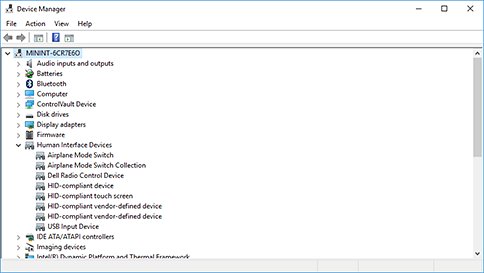
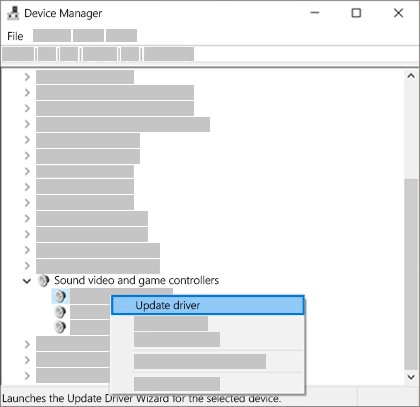
- Select Start, type Device Manager and open it.
- Expand Sound, video and game controllers.
- If your device is listed, right-click it and select Enable device if that option appears.
- If it is not listed, select View > Show hidden devices, then Action > Scan for hardware changes.
- Restart the PC and check the Output list again.
Windows says no audio output device is installed
The audio driver is missing or damaged.
- In Device Manager, right-click the audio device and select Update driver > Search automatically for drivers.
- If that finds nothing, download the latest audio driver from your PC or sound card maker's support site and install it.
- If sound broke after an update, open the device's Properties > Driver tab and select Roll Back Driver.
- Restart the PC.
The new default device is selected but plays no sound
The device is muted, its volume is at zero, or an audio enhancement is interfering.
- In Settings > System > Sound, check the volume slider and select Unmute if needed.
- Select the device under Output, scroll to Advanced settings and set Audio enhancements to Off.
- Go to Settings > System > Troubleshoot > Other troubleshooters and select Run next to Audio.
- Search for services, then restart Windows Audio, Windows Audio Endpoint Builder and Remote Procedure Call (RPC) if they are not running.
One app still plays through the old device
The app has its own output device set in Volume mixer.
- Open Settings > System > Sound > Volume mixer.
- Under Apps, set the app's Output device to the device you want.
- Close and reopen the app.
Bluetooth headphones need to be paired and connected before they show up. If they connect but stay silent, the steps to fix AirPods with no sound work for most Bluetooth audio too.
Default sound output device in Windows 11 FAQ
How do I change the default sound output in Windows 11?
Open Start > Settings > System > Sound and select the device you want under Output. Selecting a device there also makes it the default for every app that follows the system setting. The taskbar Speakers icon offers the same choice through the arrow beside the volume slider.
How do I change sound output on Windows quickly?
Select the Speakers icon on the taskbar, then the arrow to the right of the volume slider, and pick a device. The change applies straight away. On Windows 10, select the Speakers icon and the arrow above the slider to see the list of devices.
How do I set the default sound output device from Control Panel?
Open the Sound dialog with mmsys.cpl in the Run box, or through Settings > System > Sound > More sound settings. On the Playback tab, right-click the device and select Set as default, then select OK. The default device shows a green tick.
How do I change the default audio output in Windows 10?
Open Control Panel > Hardware and Sound > Sound. On the Playback tab, select your device and select Set Default, then OK. Right-clicking the Volume icon on the taskbar and choosing Sounds opens the same dialog.
How do I change sound output settings for a single app?
Open Settings > System > Sound > Volume mixer. Under Apps, open the Output device list next to the app and choose a device. That app then uses the chosen device while the rest of Windows keeps the system default.
How do I set sound settings back to default?
Select your normal speakers under Output in Settings > System > Sound and turn the volume back up. Then set Audio enhancements to Off under the device's Advanced settings if you changed them, and check that no app in Volume mixer is pointed at another device.