To manually download and install a Windows update, search for its KB number on the Microsoft Update Catalog, download the MSU file for your Windows version and processor, and double-click it to install.
This guide covers finding the right KB, installing cumulative updates in the correct order, the Settings, Command Prompt and PowerShell routes, optional and feature updates, and what to do when an update refuses to install.
Download from Microsoft Update Catalog
The Microsoft Update Catalog at catalog.update.microsoft.com is Microsoft's own library of standalone update packages. It holds cumulative updates, drivers and other fixes for every supported version of Windows.
- Note the KB number of the update you need, for example KB5127648. The next section shows where to find it.
- Open
https://www.catalog.update.microsoft.comin your browser. - Type the KB number in the Search box and press Enter.
- Find the row that matches your Windows version and processor, such as x64-based Systems or ARM64-based Systems.
- Select Download on that row.
- In the pop-up window, select the file link to save the
.msufile, then close the window. - Open the folder you saved it to and double-click the
.msufile. - Confirm the install, wait for it to finish, then restart the PC when Windows asks.
Microsoft describes the catalog as a tool for advanced users and administrators. If you only want the newest updates on one PC, the Windows Update page in Settings does the same job with less risk of picking the wrong file.
6 ways to update Windows 11 and Windows 10 manually
| Your situation | Use this | Why |
|---|---|---|
| You want the newest updates on this PC | Settings > Windows Update > Check for updates | Windows picks the right packages for you |
| Windows Update fails, or the PC is offline | Microsoft Update Catalog and the .msu file |
Standalone package you can copy to any PC |
| You manage several PCs or prefer typing | Command Prompt with DISM /Online /Add-Package |
Installs a package, or a folder of packages in order |
| You script your setup | PowerShell Add-WindowsPackage -Online |
Same engine as DISM, with a -NoRestart switch |
| You want a preview fix or a driver early | Advanced options > Optional updates | Optional updates never install on their own |
| The new Windows 11 version is not offered | Windows Update Assistant | Installs the latest feature update in place |
Why install Windows updates manually?
| Reason | What manual installation gives you |
|---|---|
| Windows Update fails with an error | The standalone package often installs when the automatic download does not |
| The PC has no or slow internet | Download once, copy the .msu file over USB and install offline |
| Several PCs need the same fix | One download serves every PC with the same version and processor |
| A metered connection blocks updates | Windows does not install some updates automatically on a metered connection |
| You need one specific KB | Pick the exact package instead of whatever Windows Update offers |
Checking Windows Update history
Check what is already installed before you download anything. This tells you whether the update you want is already on the PC.
- Select Start > Settings > Windows Update.
- Select Update history.
- Expand Quality updates to see cumulative updates by KB number and install date.
- Expand Feature updates, Driver updates and Other updates for the rest.
- Note the most recent KB number and compare it with the latest release for your version.
You can also open the page directly: press Windows + R, type ms-settings:windowsupdate-history and press Enter. For a longer list with uninstall options, view installed updates from Settings.
How to find and download the latest security update for Windows
Microsoft releases monthly security updates on the second Tuesday of each month, and each one is cumulative. Installing the latest one brings in every earlier fix for that version.
- Select the search box on the taskbar, type winver and open it. Note the version, such as 25H2, and the OS build number.
- Open the Windows 11 release information page at
learn.microsoft.com/windows/release-health/windows11-release-information. - Find the table for your version, for example Version 25H2 (OS build 26200).
- Read the top row. Updates marked B are the second-week security releases, and D marks the optional preview in the fourth week.
- Copy the KB number from that row.
- Search the Microsoft Update Catalog for that KB number and download the package for your processor.
As of the October 13, 2026 release, Windows 11 versions 25H2 and 26H2 share the same security update, KB5127648. The KB article linked from that table lists every MSU file the update needs.
Manually install cumulative security updates on Windows
Recent Windows 11 cumulative updates can arrive as more than one MSU file. The KB article names a checkpoint cumulative update that must be installed before the target update, and the servicing stack update is already included.
- Open the KB article for the update and check the Microsoft Update Catalog section for any checkpoint updates it lists.
- Download every MSU file it lists for your processor.
- Create a new folder and put only those MSU files in it, with no other files.
- Double-click the checkpoint MSU file first and let it finish.
- Double-click the target MSU file next. If the checkpoint is already installed, Windows says so and you can carry on.
- Restart the PC when the installer asks.
To skip the ordering, install the target file with DISM or PowerShell as shown below. Both scan the folder and install any required checkpoint update first.
Install updates from Windows Settings
Settings is still a manual route: you start the check and choose when to install from the Windows Update settings page, and Windows picks the correct packages.
- Select Start > Settings > Windows Update. On Windows 10, select Update & Security > Windows Update.
- Select Check for updates.
- If updates are listed, select Download & install.
- Wait for the download and installation to finish.
- Restart the PC when prompted, or select Start > Power > Update and restart.
If updates sit downloaded but unfinished, install pending Windows updates before trying the catalog.
Clear the downloaded Windows Update files
A damaged download in the Windows Update cache can make every retry fail. Renaming the download folder forces Windows to fetch fresh files. Run these commands in Command Prompt opened as administrator.
- Select Start, type cmd, right-click Command Prompt and select Run as administrator.
- Type
net stop bitsand press Enter. - Type
net stop wuauservand press Enter. - Type
ren %Systemroot%\SoftwareDistribution\Download Download.bakand press Enter. - Type
net start bitsand press Enter, thennet start wuauservand press Enter. - Return to Settings > Windows Update and select Check for updates.
Windows creates a new, empty download folder on the next check. Delete Download.bak once updates install normally again.
Install updates manually from Command Prompt on Windows 11
DISM installs a downloaded MSU file from an elevated Command Prompt. Point it at the target cumulative update in the folder that also holds any checkpoint files.
To open the Windows Update check from the same window instead, type start ms-settings:windowsupdate-action and press Enter.
DISM /Online /Add-Package /PackagePath:C:\Updates\<target-update>.msu/Online targets the running copy of Windows, and /PackagePath points at the MSU file. Replace C:\Updates\<target-update>.msu with the real folder and file name. DISM scans that folder and installs required checkpoint updates first.
You should see: DISM reports that the operation completed successfully and asks to restart the computer. Type Y to restart.
Install updates manually from PowerShell on Windows 11
The Add-WindowsPackage cmdlet from Microsoft's DISM module does the same job in PowerShell. Open Windows PowerShell or Terminal as administrator first.
Add-WindowsPackage -Online -PackagePath "C:\Updates\<target-update>.msu" -NoRestart-Online installs into the running system, -PackagePath accepts a single .msu or .cab file or a folder of them, and -NoRestart stops the automatic reboot so you can restart later.
You should see: PowerShell returns the image details with RestartNeeded set to True. Restart the PC to finish the installation.
If the command fails, the log at %WINDIR%\Logs\Dism\dism.log records the reason.
Install optional updates on Windows 11
Optional updates include the fourth-week preview cumulative update and some drivers. They never install until you choose them.
- Select Start > Settings > Windows Update.
- Select Advanced options.
- Under Additional options, select Optional updates.
- Expand the category you want, such as Driver updates.
- Tick the updates you want and select Download & install.
- Restart the PC if Windows asks.
The shortcut ms-settings:windowsupdate-optionalupdates in the Run box opens the same page.
How to manually upgrade a Windows build (feature update)
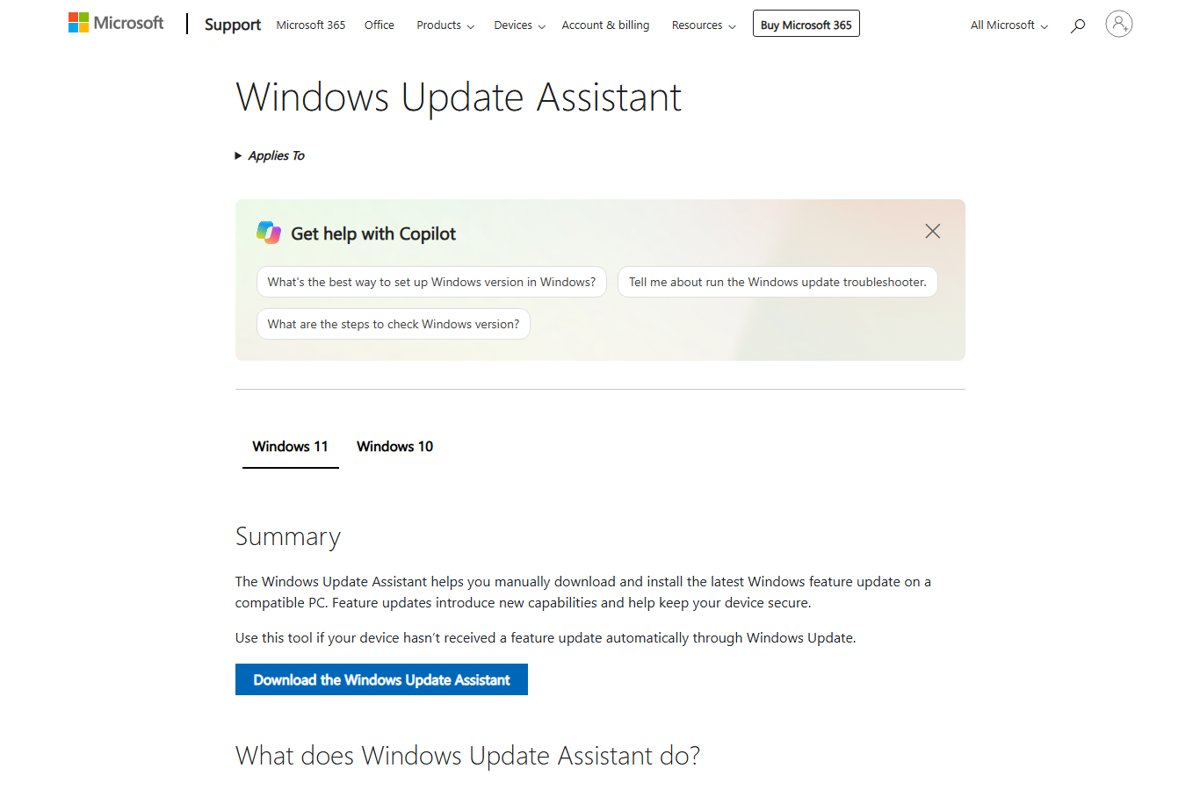
Feature updates are the yearly releases, such as Windows 11 version 26H2, and they change the build number. To install feature updates on Windows 11 when Windows Update does not offer one, use Microsoft's Windows Update Assistant. It runs on x64 PCs only, not on Arm-based PCs.
- Run winver and note your current version.
- Open
https://www.microsoft.com/software-download/windows11. - Download the Windows Update Assistant from that page and run it.
- Accept the license terms and let the tool check your PC.
- Keep the PC plugged in while the assistant downloads and installs the update.
- Restart when prompted, then run winver again to confirm the new version.
Leave at least 20 GB free on a 64-bit PC before you start. On Arm PCs, or if the assistant fails, you can install Windows 11 26H2 from media or an ISO instead.
Check that the manual Windows update installed
- Run winver and confirm the OS build matches the build listed for that KB on the release information page.
- Open Settings > Windows Update > Update history and look for the KB number under Quality updates.
- For a command-line check, run
Get-HotFix -Id KB5127648in PowerShell, using your own KB number. - If
Get-HotFixreturns nothing, rely on the build number. It lists only updates installed through Component Based Servicing.
Fix a manual Windows update that will not install
Windows Update keeps failing at the same download
Files in the update cache are damaged or incomplete.
- Clear the downloaded Windows Update files as shown above.
- Restart the PC.
- Select Check for updates again, or install the catalog MSU file.
The target MSU file fails or reports a missing prerequisite
A checkpoint cumulative update listed in the KB article is not installed yet.
- Open the KB article and note every checkpoint update listed for the catalog.
- Download those MSU files into the same folder as the target file.
- Install them in order, or run the DISM command against the target file so it installs them for you.
The update installs but an error code appears
Common causes are low disk space, damaged update files and incompatible drivers.
- Free up space. Upgrades need at least 16 GB free on a 32-bit system and 20 GB on a 64-bit system.
- Disconnect external drives, docks and other hardware you do not need.
- Run the Windows Update troubleshooter from the Get Help app.
- Check the hardware maker's website for updated third-party drivers, then retry.
Windows says the update does not apply to this computer
The package is for another version or processor, or it is already installed.
- Run winver and confirm the version and build.
- Check whether your PC is x64 or Arm64 and download the matching row from the catalog.
- Check Update history in case the update is already installed.
Uninstall a manually installed Windows update
If an update causes a problem, remove it from the same Settings area that lists it.
- Select Start > Settings > Windows Update > Update history.
- Scroll down and select Uninstall updates.
- Find the KB number you installed and select Uninstall next to it.
- Confirm, then restart the PC.
Pause updates from the Windows Update page if you need time before the same update downloads again.
Manual Windows update download FAQ
Where can I download Windows updates manually?
Download them from the Microsoft Update Catalog at catalog.update.microsoft.com. Search for the KB number, select Download on the row for your Windows version and processor, and save the MSU file. It is Microsoft's own site, so you never need a third-party download portal.
Which catalog file should I download, x64 or ARM64?
Download the x64-based Systems file for PCs with Intel or AMD processors and the ARM64-based Systems file for Arm PCs, such as Snapdragon laptops. The title of each catalog row also names the Windows version, so match that to the version winver shows.
How do I install an MSU file?
Double-click the MSU file and confirm the prompt, then restart when Windows asks. From an elevated prompt, DISM /Online /Add-Package /PackagePath followed by the file path installs it too, as does Add-WindowsPackage -Online -PackagePath in PowerShell.
Do I need to install every past update or only the latest one?
Windows security updates are cumulative, so the latest one includes earlier fixes for that version. Some Windows 11 updates also need a checkpoint cumulative update installed first, and the KB article lists it. Install the checkpoint, then the latest target update.
Can I install Windows updates offline?
Yes. Download the MSU files from the Microsoft Update Catalog on any PC with internet access, copy them to the offline PC with a USB drive, and double-click them in the order the KB article gives. Restart to finish.
How do I install a feature update manually?
Use the Windows Update Assistant from microsoft.com/software-download/windows11 when Windows Update does not offer the new version. It installs the latest feature update in place and keeps your files and apps. It does not run on Arm-based PCs.
How do I know if a manual update installed?
Run winver and compare the OS build with the build listed for that KB on Microsoft's release information page. The KB number also appears under Settings > Windows Update > Update history once the installation finishes and the PC restarts.
Can I still manually update Windows 10?
Microsoft ended support for Windows 10 on October 14, 2025, so new updates go only to PCs enrolled in Extended Security Updates. Those PCs can still use Settings > Update & Security > Windows Update or the catalog. Other Windows 10 PCs should move to Windows 11.
Is it safe to download updates from the Microsoft Update Catalog?
Yes, the catalog is run by Microsoft and hosts the same packages Windows Update delivers. The main risk is choosing a package for the wrong version or processor, which Windows rejects. Never take update files from unofficial download sites.