Microsoft Word is Microsoft's word processor for creating, editing, reviewing and sharing documents, and its features sit on a ribbon of tabs: Home for text formatting, Insert for tables and pictures, Layout for pages, Review for proofing and tracked changes, and more.
This overview shows where to find and open Word, how saving works, what every standard tab does, which tabs appear only in context, and where Microsoft's free beginner training lives.
Microsoft Word basics in five steps
These steps take you from a closed app to a saved, formatted document in Word for Windows.
- Select Start, type Word, and open Word from the results.
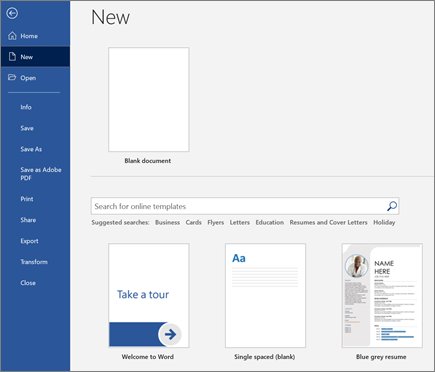
- Select Blank document, or click a template to preview it.
- Type your text, then select it and pick a heading or body style on the Home tab.
- Add a table or picture from the Insert tab, and set margins or orientation on the Layout tab.
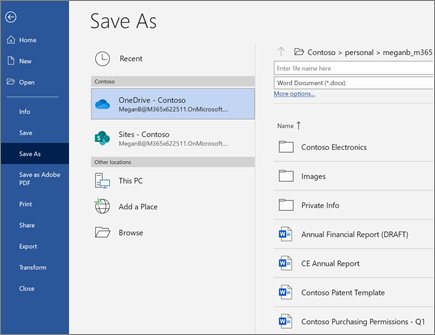
- Select File > Save As, choose OneDrive or a folder on This PC, type a descriptive name and select Save.
What is an overview of Microsoft Word?
Word runs as a desktop app on Windows and Mac and as Word for the web in a browser, which works with files stored on OneDrive or SharePoint. You can get Microsoft Word as a student at no cost through many schools, and paid options are listed with the current Microsoft Word price.
| Term | What it means in Word |
|---|---|
| Ribbon | The set of toolbars across the top of the window, grouped into tabs |
| Backstage view | The File tab screen for New, Open, Print, Share, Options and Account |
| Template | A ready-made document with preset themes and styles |
| Quick Access Toolbar | A small toolbar with shortcuts such as Save |
| .docx | Word's default file format |
| Compatibility Mode | Shown in the title bar when a file was made in an older Word version |
| Read Mode | A view that hides most tools for distraction-free reading |
| Track Changes | Marks additions, deletions and formatting changes for review |
Finding Microsoft Word
Word is part of Microsoft 365 and is also sold as a standalone app. If it is not on your PC yet, download Microsoft Word first.
- Select Start on the taskbar.
- Type Word in the search box.
- Select Word in the results to open it.
- If no result appears, Word is not installed on this PC; install it from your Microsoft account or use Word for the web with a OneDrive file.
Opening Microsoft Word
- Open Word from Start or the taskbar.
- Pick a recent file from the list on the start screen, or select Open to browse for a file that is not listed.
- To start fresh, select Blank document, browse a template category, or type into the template search box and press Enter.
- Inside an open document, select File > New to start another document, or File > Open to open an existing one.
- Press Esc or select the back arrow at the top left to leave the File screen and return to the document.
Saving your document
Microsoft 365 subscribers get AutoSave, which saves every few seconds and is on by default for files stored on OneDrive or SharePoint. Files on your PC are saved manually, with AutoRecover as a safety net.
- Select File > Save As (newer versions show Save a Copy once a file is saved to the cloud).
- Choose OneDrive for personal cloud storage, your work OneDrive for work files, or This PC or Browse for a local folder.
- Type a descriptive file name, such as the project and date, instead of the default first line of text.
- Leave Save as type on the default .docx format unless someone needs a different format such as PDF.
- Select Save, then use Save on the Quick Access Toolbar for later saves.
Microsoft Word tabs overview
The ribbon groups commands into tabs, and each tab into labelled groups. You can also show, hide or customize the Word ribbon to fit how you work.
| You want to | Open this tab | Example command |
|---|---|---|
| Format text, apply styles, find and replace | Home | Styles, Replace |
| Add tables, pictures, charts, headers, page numbers | Insert | Table, Pictures |
| Change the look of the whole document | Design | Themes, Watermark |
| Set margins, orientation and breaks | Layout | Margins, Breaks |
| Build a table of contents | References | Table of Contents |
| Send letters, labels, envelopes or emails in bulk | Mailings | Start Mail Merge |
| Proofread, comment and track edits | Review | Spelling & Grammar, Track Changes |
| Read, navigate and change views | View | Read Mode, Navigation Pane |
| Get help with Word | Help | Help content and support |
| Save, print, share, set options | File | Save As, Print, Options |
The Home tab
Home is where Word opens and where most everyday formatting happens.
| Group or command | What it does |
|---|---|
| Font | Font, size, bold, italic, underline and color for selected text |
| Paragraph | Bullets, numbering, alignment, Line and Paragraph Spacing, Shading and Borders |
| Styles | Heading 1, Heading 2, Normal and other styles; the More button expands the gallery |
| Find and Replace | Search the document (Ctrl + F) and swap text in bulk (Ctrl + H) |
| Show/Hide | Shows paragraph marks and section breaks so you can see hidden formatting |
Heading styles do more than change the look: the table of contents and the Navigation pane both read them.
The Insert tab
| Command | What it adds |
|---|---|
| Table | A grid you drag to size, or the Insert Table dialog, Draw Table and Convert Text to Table |
| Pictures | Images from This Device, Stock Images or Online Pictures |
| Chart | A chart with an editable data sheet |
| Header and Footer | Repeating text at the top or bottom of every page |
| Page Number | Page numbers in the header, footer or margins |
| Page Break | Starts the next content on a new page |
| Object | Embeds another file, such as a PDF, with Create from File |
Insert also holds the picture and object tools you need to add a signature in Word.
The Design tab
| Command | What it changes |
|---|---|
| Themes | Fonts, colors and effects across the whole document; point to a theme to preview it |
| Watermark | Faint text such as DRAFT, CONFIDENTIAL or DO NOT COPY behind the page; Custom Watermark adds a picture or your own text |
| Page Borders | A border around each page, applied per section, with Options for spacing |
The Layout tab
| Command | What it sets |
|---|---|
| Margins | Preset margins, or Custom Margins for exact values; margins apply to the current section |
| Orientation | Portrait or Landscape |
| Breaks | Section breaks: Next Page, Continuous, Even Page and Odd Page |
| Page Setup dialog launcher | The full Page Setup dialog, including applying landscape to selected text only |
Word for the web shows this tab as Page Layout and cannot add section breaks.
The References tab
References handles long-document tools. Its best-known command builds a table of contents from your heading styles.
- Apply Heading 1 or Heading 2 from Home > Styles to each heading you want listed.
- Click where the table of contents should go.
- Select References > Table of Contents and choose an automatic style.
- After editing, right-click the table of contents and choose Update Field.
Missing entries almost always mean the heading text was formatted by hand instead of with a heading style.
The Mailings tab
Mailings runs mail merge: one main document combined with a list of names and addresses from Excel, Outlook contacts or a new list.
| Command | What it does |
|---|---|
| Envelopes | Prints a single envelope with delivery and return addresses |
| Start Mail Merge | Picks the document type: letters, email messages, envelopes, labels or a directory |
| Select Recipients | Type a New List, Use an Existing List or Choose from Outlook Contacts |
| Insert Merge Field | Places a field such as first name; Address Block and Greeting Line insert ready-made sets |
| Preview Results | Shows each merged record with Next and Previous |
| Finish & Merge | Print Documents, Edit Individual Documents or Send Email Messages |
Word for the web keeps a merge document's settings but cannot run the merge; use the desktop app.
The Review tab
| Command | What it does |
|---|---|
| Spelling & Grammar | Opens the proofing pane; F7 opens Editor directly |
| Word Count | Counts words, characters, paragraphs and pages |
| Tracking > Track Changes | Marks additions with underline and deletions with strikethrough, per author color |
| Track Changes > Just Mine / For Everyone | Chooses whose edits are tracked |
| Lock Tracking | Uses a password so others cannot turn tracking off |
| Markup list | Simple Markup, All Markup, No Markup or Original |
| Show Markup > Balloons | Shows revisions in the margin or inline |
There are several ways to find the word count in Word, including the status bar at the bottom of the window.
The View tab
| Command | What it does |
|---|---|
| Read Mode | Hides most tools for reading; move with Page Up/Page Down, the arrow keys or the scroll wheel |
| Edit Document | Leaves Read Mode and returns to editing |
| Print Layout and Web Layout | Page-accurate and web-style views; tracked-change balloons need one of these |
| Navigation Pane | Opens a side pane with Headings, Pages thumbnails and search Results (also Ctrl + F) |
The Help tab
Help collects Word's built-in help in one place, and the same content is reachable from the keyboard and the search box.
- Select the Help tab on the ribbon to see the help commands your version offers.
- Press F1 at any time to open the Help pane for Word.
- Type a question into the search box at the top of the window and choose Get Help on for help articles on that phrase.
- On the File screen, select the question mark button at the top right to open help from Backstage view.
The Acrobat tab
The Acrobat tab is not part of Word. It is added by Adobe Acrobat's add-in when Acrobat is installed on the same PC, because Office add-ins can place their own commands on a custom ribbon tab.
| Your situation | What to use |
|---|---|
| Acrobat is installed and you see the tab | Its PDF commands to create a PDF from the open document |
| No Acrobat tab | File > Save As (or Save a Copy) > Browse, then choose PDF in Save as type |
| Word for the web | File > Export > Download as PDF |
| Tab was there and vanished | Check that the Acrobat add-in is still installed and enabled in Word |
Contextual design & formatting tabs
Contextual tabs stay hidden until you select a particular object, then appear at the right end of the ribbon. Click back into body text and they disappear again.
| Select this | Tab that appears | Typical commands |
|---|---|---|
| A table | Table Design and Table Layout | Table styles, borders, insert rows and columns |
| A header or footer | Header & Footer | Different First Page, Link to Previous, Close Header and Footer |
| A picture | Picture formatting tab | Wrapping, size, styles and Layout Options |
| A chart | Chart tabs | Chart Elements, Chart Styles, Chart Filters |
Word for the web uses a single-line ribbon that shows one combined Table tab instead of two.
How to turn on the Developer tab in Word
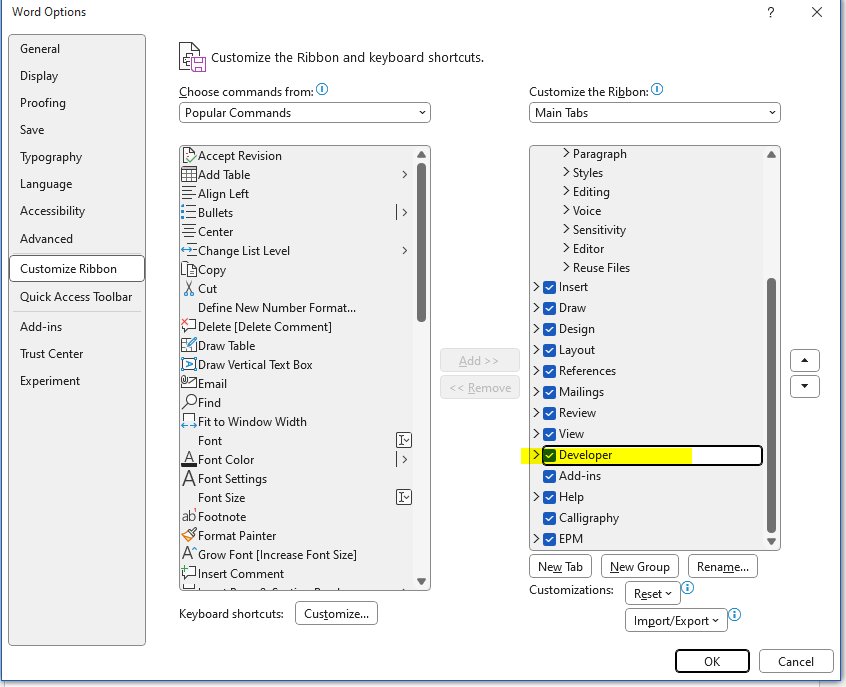
The Developer tab is hidden by default. It holds form controls such as check boxes and drop-down lists, plus macros.
- Select File > Options.
- Select Customize Ribbon.
- Under Main Tabs, select the Developer check box.
- Select OK to add the tab to the ribbon.
How to use Copilot in Word
Copilot in Word adds AI tools beside the ribbon: it drafts new content, rewrites selected text, and summarizes long documents from a chat pane. It needs an eligible Microsoft 365 subscription or a Microsoft Copilot license, and your organization's settings can hide it.
- Open a document in Word.
- Select the Copilot button in the corner of the document. The chat pane opens with Edit mode turned on.
- To start a draft, type a prompt that describes the outcome you want, such as an outline for a project update, and name any source material.
- To improve existing text, select it and choose a preset option such as Rewrite, or describe the change in your own words in the chat pane.
- To understand a document without changing it, select Chat only and ask for a summary, key takeaways or action items.
- Review what Copilot produces, then keep it, discard it, or refine it with a follow-up prompt.
Type / in the chat pane to point Copilot at a specific document, email or meeting. In a shared document, Copilot previews its suggested changes in the chat first and adds nothing until you approve them.
Copilot supports fewer languages than the Word interface, so if you do not see it, check your license and language as well as your organization's settings.
Microsoft Word basics training manual
Microsoft publishes free Word training on its support site, organised as short lessons, and Word itself ships practice templates.
| Lesson or resource | What it teaches | Where |
|---|---|---|
| Create a document in Word | Blank documents, templates and template search | Microsoft Support, Word training |
| Save your document to OneDrive | Save As to OneDrive, naming files | Microsoft Support, Word training |
| Design and edit in Word | Styles, themes, find and replace | Microsoft Support, Word training |
| Track changes in Word | Review, markup and locking | Microsoft Support, Word training |
| Welcome to Word | A hands-on practice document | File > New in desktop Word |
| Insert your first table of contents | A guided table of contents exercise | File > New, search table of contents |
Microsoft Word features FAQ
What is an overview of Microsoft Word?
Microsoft Word is a word processor for creating, editing, reviewing and sharing documents. Its commands sit on a ribbon of tabs, documents save as .docx by default, and it runs on Windows, Mac and in a browser as Word for the web.
What are the features of Microsoft Word?
Word's main features are text and paragraph formatting, styles and themes, tables, pictures and charts, page layout controls, tables of contents, mail merge, spelling and grammar checks, tracked changes, comments, and saving to OneDrive with AutoSave for Microsoft 365 subscribers.
What are the basic features of Microsoft Word for beginners?
Beginners need five: templates and blank documents, the Font and Paragraph groups on the Home tab, heading styles, the Insert tab for tables and pictures, and File > Save As. Everything else builds on those.
What are the special features of Microsoft Word?
Features that set Word apart from a basic editor include mail merge for bulk letters and labels, automatic tables of contents, tracked changes with locked tracking, watermarks, section-based layouts, and real-time co-authoring on files stored in OneDrive or SharePoint.
What features does Word for the web have?
Word for the web saves changes automatically, shares through File > Share, supports comments and co-authoring, and inserts headers, footers and page numbers. It cannot run a mail merge or add section breaks, so use the desktop app for those.
What is the default file format in Microsoft Word?
Word saves documents as .docx by default. You can choose another format, such as PDF, from the Save as type list in the Save As dialog. Files from older Word versions open in Compatibility Mode.
How do I open Microsoft Word on Windows?
Select Start, type Word, and open Word from the results. On the start screen, pick a recent file, select Open to browse, or select Blank document to start a new one.
Bottom line: which Word features to learn first
Learn the Home tab's styles, the Insert tab and File > Save As first, then add Layout and Review as your documents grow. Heading styles feed the table of contents and Navigation pane, Insert covers almost every object you add, and saving to OneDrive switches on AutoSave and sharing.