The Microsoft Store download you need is already on your PC. The Store ships inside Windows 11 and Windows 10, updates itself, and comes back with one winget command when it goes missing.
Microsoft publishes the app as a signed MSIX bundle through its own catalog, so there is no setup file to save. The Store listing, winget and the Appx commands are the three official routes.
This guide covers the official links, the winget and PowerShell commands, the current version and size, what replaces the Store on a Mac, fixes for a Store that will not open, and clean removal.
Check the Microsoft Store version, size and system requirements
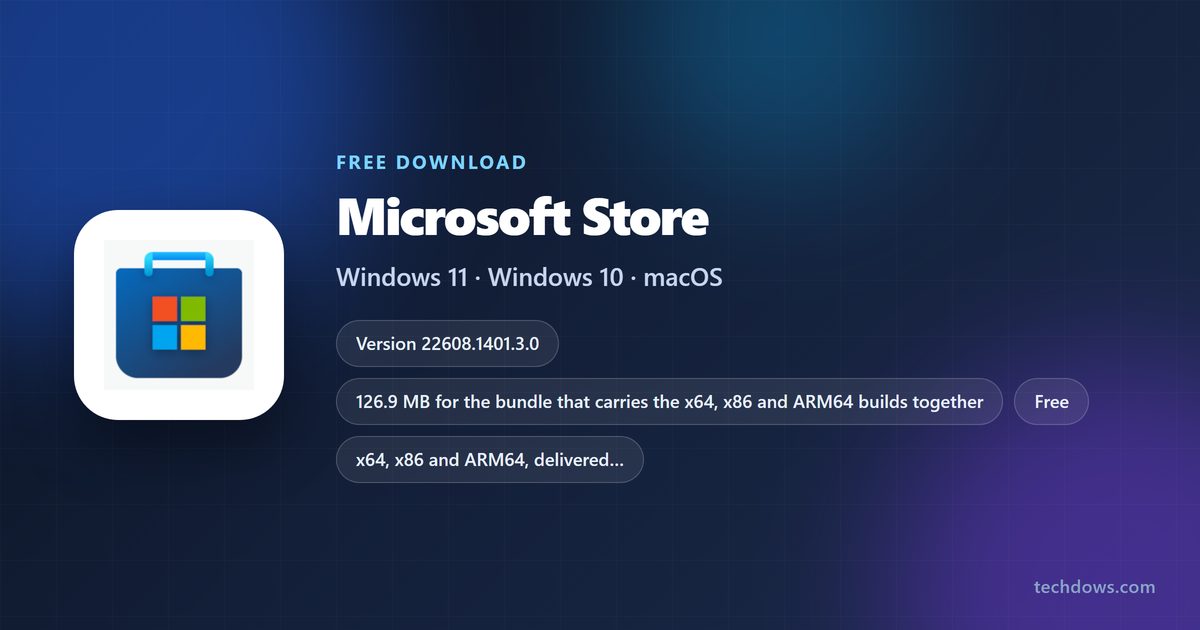
The Store is serviced as one MSIX bundle, so the size below covers all three processor builds together. Your PC installs only the build it needs.
| Field | Value |
|---|---|
| App | Microsoft Store |
| Developer | Microsoft Corporation |
| Latest version | 22608.1401.3.0 |
| License / price | Free, and part of Windows |
| Download size | 126.9 MB for the bundle that carries every architecture |
| Supported OS | Windows 11, and Windows 10 version 1903 (build 18362) or later |
| Architecture | x64, x86 and ARM64 |
| Package family name | Microsoft.WindowsStore_8wekyb3d8bbwe |
| Product ID | 9WZDNCRFJBMP |
| macOS | No macOS build exists |
| Offline installer | No |
| Official source | apps.microsoft.com listing |
| Last verified | 2026-09-22 |
Which Microsoft Store install route do you need?
Match your situation in the left column. Every route ends on a Microsoft or Apple page.
| Your situation | What to do | Official source |
|---|---|---|
| Store already on the PC and working | Open it from Start and let it update itself | Store listing |
| Store icon gone after a cleanup or reset | Reinstall it from the msstore source with winget | winget install reference |
| Store opens then closes, or fails for one account | Re-register the package with Add-AppxPackage | Add-AppxPackage reference |
| winget itself is missing | Install App Installer, which carries winget | App Installer listing |
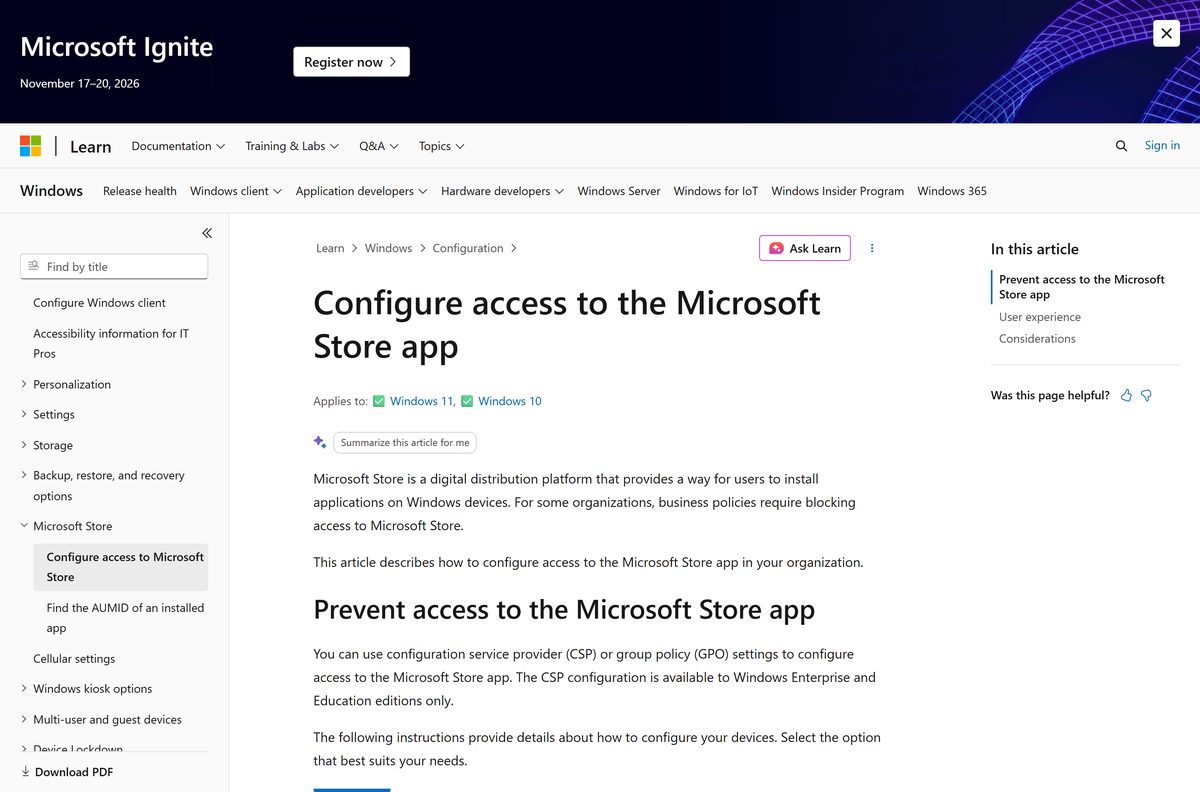
| Work or school PC shows a blocked message | Ask the admin about the Store policy | Store access policy |
| Mac | Use the App Store built into macOS | App Store guide for Mac |
Download Microsoft Store for Windows 11 and Windows 10
There is no standalone setup file for the Store, so these four Microsoft pages are the whole download surface.
- Microsoft Store listing (product 9WZDNCRFJBMP) — 126.9 MB bundle · version 22608.1401.3.0
- App Installer listing — supplies the winget command line
- winget install command reference — syntax for the msstore source
- Add-AppxPackage reference — re-registers a damaged package
The listing opens in the Store app on a PC that still has it. Use winget when the Store itself is gone.
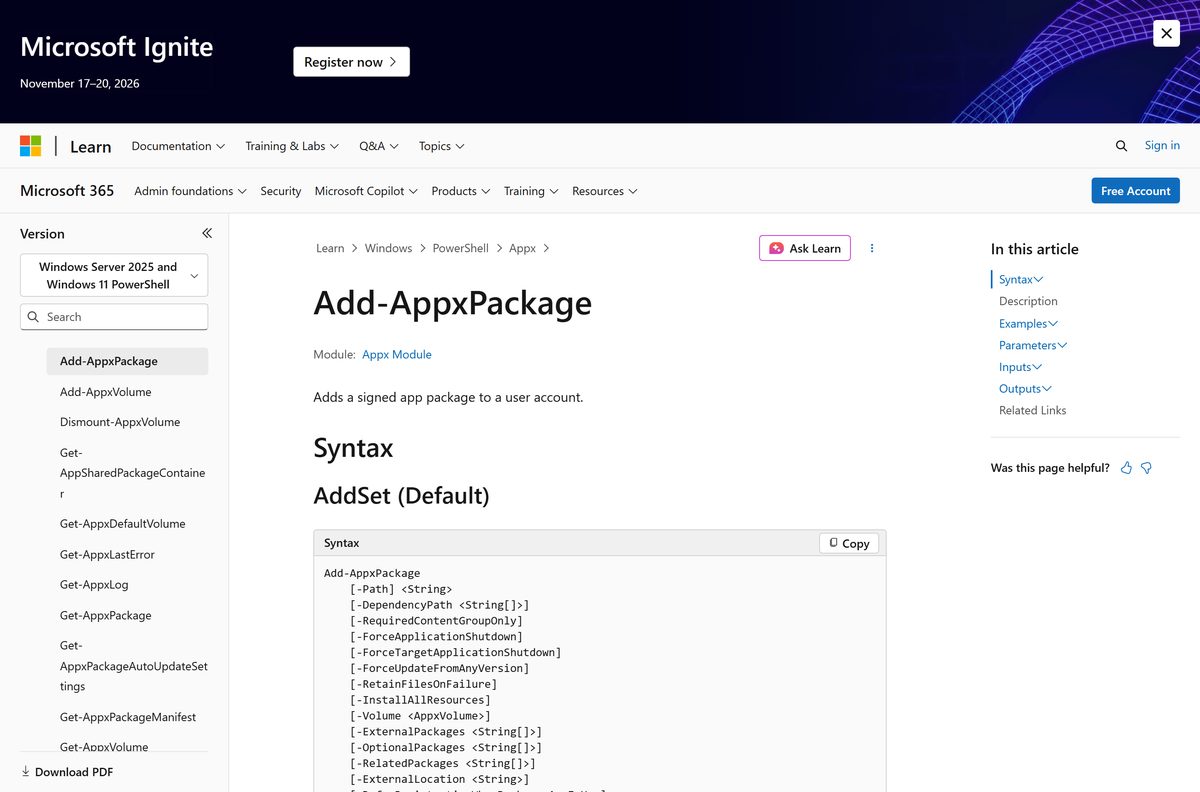
Install the Microsoft Store with winget from the msstore source
winget is part of App Installer and runs on Windows 11, Windows Server 2025 and Windows 10 version 1809 or later.
Its three default sources are msstore, winget and winget-font. The Store lives in the first one.
- Press Windows + S, type Terminal, and select Run as administrator.
- Run winget –version to confirm App Installer is present.
- Run winget source list and look for msstore in the output.
- Run winget source reset –force if msstore is absent, then accept the source agreement.
- Run winget install 9WZDNCRFJBMP -s msstore .
- Accept the package and source agreements at the prompt.
- Wait for the Successfully installed line.
- Open Start, type Microsoft Store, and launch it.
Microsoft Store IDs are unique, so this command needs no –exact option. Add –accept-package-agreements and –accept-source-agreements when you script it.
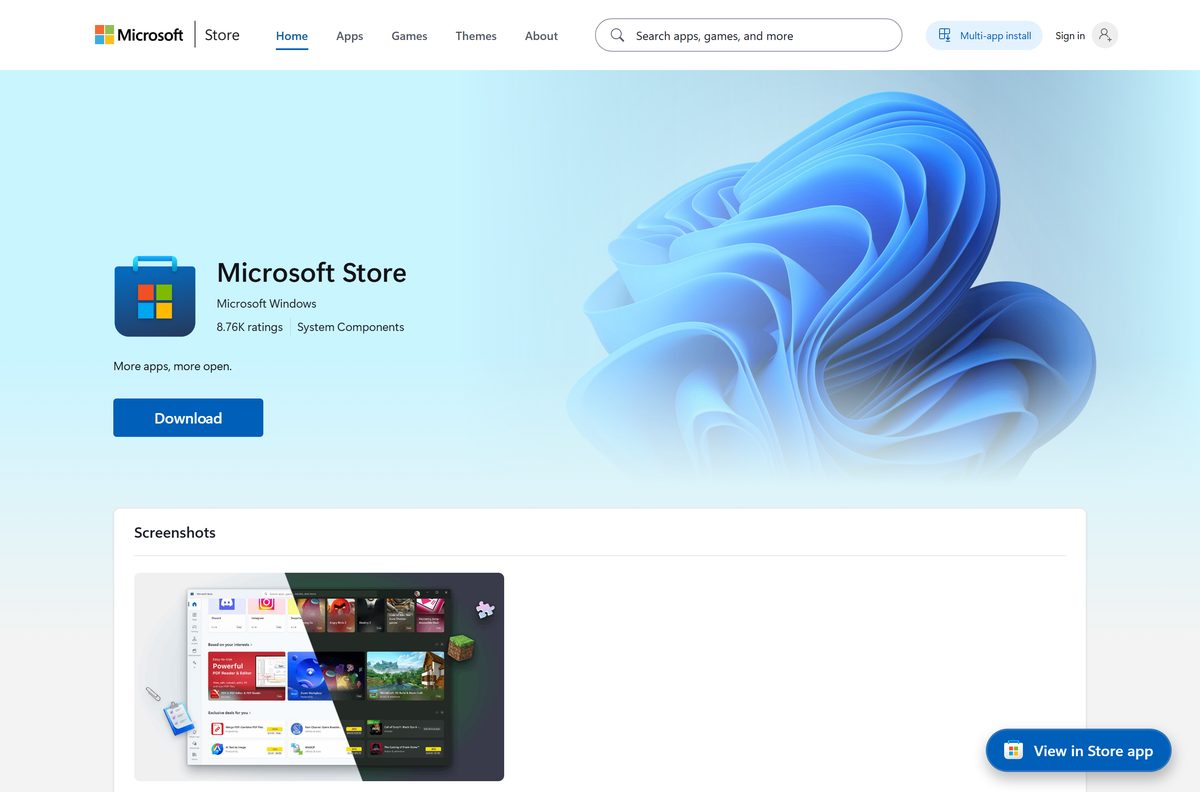
How to reinstall the Store from Windows when winget fails
Windows keeps the package files even when the app stops appearing in Start. Registering them again is faster than any reinstall.
- Right-click Start and select Terminal (Admin).
- Run Get-AppxPackage -AllUsers Microsoft.WindowsStore to see whether the package is still on disk.
- Copy the InstallLocation path from the output.
- Run Add-AppxPackage -Path “
\AppxManifest.xml” -Register -DisableDevelopmentMode . - Run Add-AppxPackage -RegisterByFamilyName -MainPackage Microsoft.WindowsStore_8wekyb3d8bbwe when the first command returns nothing.
- Sign out of Windows, then sign back in.
- Open Settings, select Windows Update, and select Check for updates.
- Launch Microsoft Store from Start and sign in.
-DisableDevelopmentMode tells Windows the manifest belongs to an existing install that was disabled or damaged, not to a developer folder.
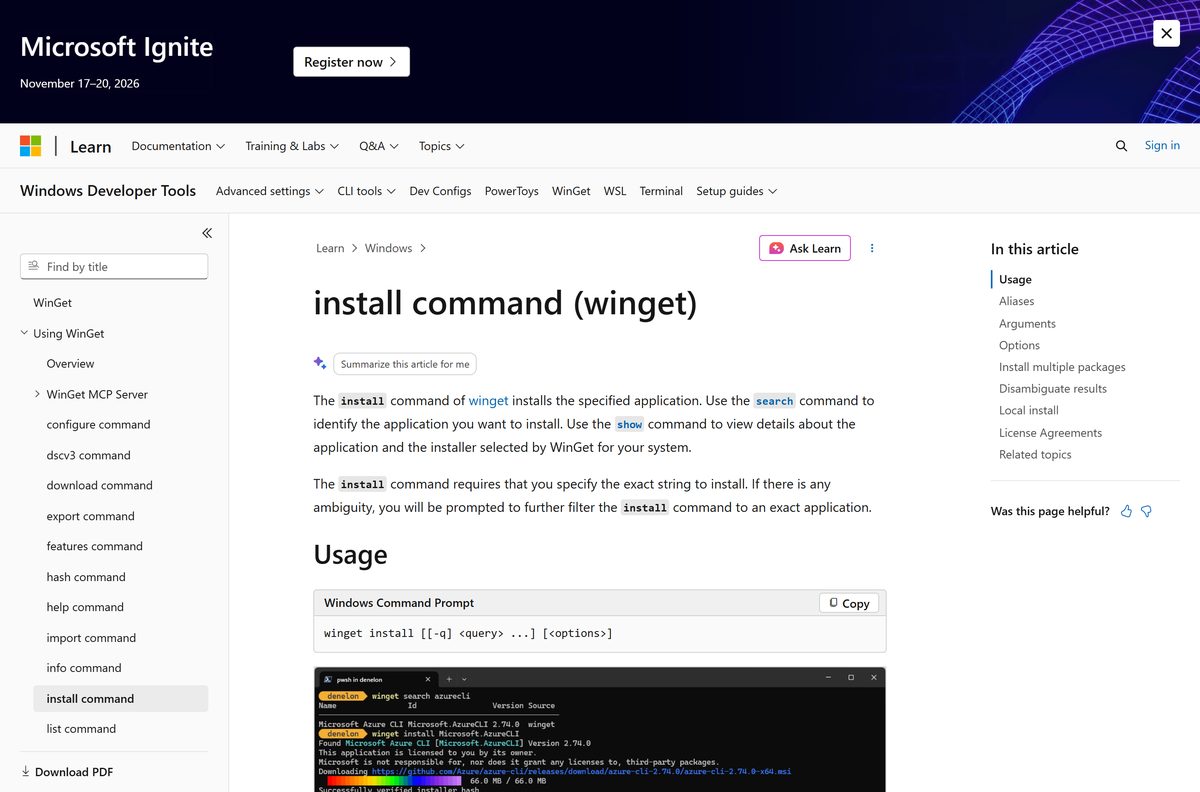
Is the Microsoft Store free?
The catalog entry for product 9WZDNCRFJBMP lists a price of 0.00 USD.
Yes. The Store costs nothing and arrives with Windows. Apps, games, films and subscriptions sold inside it are priced per item, and payment happens at checkout in the app. Any site charging a fee for the Store app itself, or offering it as an .exe, is not Microsoft.
Which Microsoft Store build runs on your processor
One bundle carries three builds. Windows picks the matching one during install, so the figure on the listing is larger than the space used on disk.
| Your PC | Build used | Runs the Store |
|---|---|---|
| Intel or AMD 64-bit | x64 | Yes |
| Snapdragon or other ARM64 | ARM64 | Yes |
| 32-bit Windows 10 | x86 | Yes |
| Windows 10 older than version 1903 | None | No, build 18362 is the floor |
| Mac, iPhone or Android | None | No Microsoft build exists |
How to check your Store version and update it
The app updates itself in the background. Reading the package version is the quickest way to confirm the update landed.
- Right-click Start and select Terminal.
- Run Get-AppxPackage Microsoft.WindowsStore | Select-Object Name, Version .
- Compare the number with 22608.1401.3.0.
- Open Microsoft Store from Start.
- Select Library in the left pane.
- Select Get updates and leave the window open until the list clears.
- Open Settings, select Windows Update, and select Check for updates.
- Run the PowerShell command again to confirm the version moved.
Which store do you use on a Mac instead of the Microsoft Store?
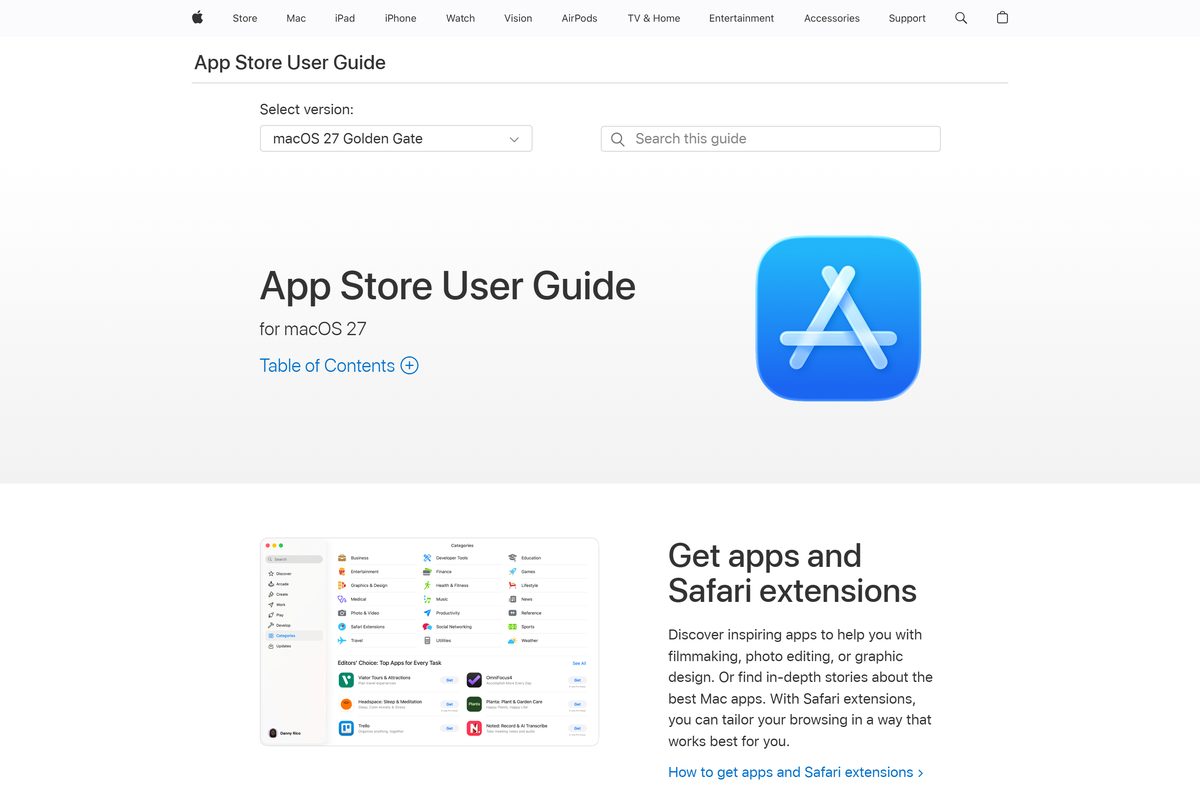
Microsoft ships no macOS version of the Store app. macOS carries Apple’s App Store instead, and Microsoft’s Mac software arrives through it.
| On your Mac | Use this | Official source |
|---|---|---|
| General Mac apps | App Store, built into macOS | App Store User Guide |
| Word, Excel, PowerPoint and Outlook | Microsoft 365 for Mac | Microsoft 365 for Mac |
| Reaching a Windows PC or Cloud PC | Windows App from the App Store | Windows App on the App Store |
| Browsing what Windows offers | The web catalog in any browser | apps.microsoft.com |
Fix the Microsoft Store not opening, downloading or installing apps
Each symptom below has one cause and one fix. Work through the matching block only.
The Store opens and closes within a second
The package registration for your account is damaged.
- Right-click Start and select Terminal (Admin).
- Run Get-AppxPackage -AllUsers Microsoft.WindowsStore and copy the InstallLocation value.
- Run Add-AppxPackage -Path “
\AppxManifest.xml” -Register -DisableDevelopmentMode . - Sign out, sign back in, and open the app again.
The Store is missing from Start and from Settings
The package was removed rather than disabled.
- Open Terminal as administrator.
- Run winget install 9WZDNCRFJBMP -s msstore .
- Accept both agreements when prompted.
- Restart the PC and search Start for the app.
A message says your organization blocked this app
The Turn off the Store application policy is enabled on the device.
- Open Run, type gpedit.msc , and press Enter on a Pro or Enterprise PC.
- Go to Computer Configuration > Administrative Templates > Windows Components > Store.
- Read the state of Turn off the Store application.
- Ask the administrator to change it, because managed devices re-apply the policy.
winget cannot find the msstore source
The source list was edited or the agreement was declined.
- Open Terminal as administrator.
- Run winget source list and check the three default names.
- Run winget source reset –force to restore msstore, winget and winget-font.
- Run winget source update , then retry the install command.
winget is not recognised as a command
App Installer has not registered for your user account yet.
- Open Terminal.
- Run Add-AppxPackage -RegisterByFamilyName -MainPackage Microsoft.DesktopAppInstaller_8wekyb3d8bbwe .
- Close and reopen the terminal window.
- Run winget –version to confirm the command answers.
How to uninstall the Microsoft Store and put it back
Windows offers no Uninstall button for the Store, and removal is a per-account action in PowerShell.
Store-delivered apps stop receiving updates on that account once the package is gone, so keep the restore command to hand.
- Right-click Start and select Terminal (Admin).
- Run Get-AppxPackage Microsoft.WindowsStore to confirm the package name.
- Run Get-AppxPackage Microsoft.WindowsStore | Remove-AppxPackage .
- Check that the tile has gone from Start.
- Run Add-AppxPackage -RegisterByFamilyName -MainPackage Microsoft.WindowsStore_8wekyb3d8bbwe to restore it.
- Run winget install 9WZDNCRFJBMP -s msstore if the restore command reports no package.
- Sign out and back in to finish the change.
Which Microsoft Store alternatives install Windows apps?
A blocked or broken Store does not stop software installs. These routes come from Microsoft and stay official.
| Route | What it installs | Official source |
|---|---|---|
| winget | Store packages and community-repository apps from the command line | winget documentation |
| App Installer | Single MSIX and .appinstaller packages by double-click | App Installer listing |
| The web catalog | The same listings in a browser, with the install handed to Windows | apps.microsoft.com |
| Managed deployment | Store apps pushed by an administrator to a locked-down PC | Store access policy |
| The vendor’s own installer | Desktop software straight from the developer’s site | No Store account needed |
Frequently asked questions
Is the Microsoft Store download free?
Yes. The app is part of Windows and its catalog entry lists a price of 0.00 USD. Individual apps, games and media inside the Store carry their own prices, and you pay for those at checkout.
Where is the official Microsoft Store download page?
The listing sits at apps.microsoft.com under product ID 9WZDNCRFJBMP, published by Microsoft Corporation. On a PC without the app, the winget command winget install 9WZDNCRFJBMP -s msstore installs it from the same catalog.
Does the Microsoft Store work on Windows 11?
Yes. Windows 11 ships with it, and it also runs on Windows 10 version 1903, build 18362, or later. The package covers x64, x86 and ARM64 hardware from one bundle.
How big is the Microsoft Store download?
The published bundle is 126.9 MB, and that figure covers the x64, x86 and ARM64 builds together. Your PC installs only the build that matches its processor, so the space used on disk is smaller.
Is there an offline installer or an .exe file?
No. Microsoft publishes the app as a signed MSIX bundle delivered by the Store platform, and it offers no standalone setup file. Reinstalling happens through winget or the Appx commands in PowerShell.
Can you get the Microsoft Store on a Mac?
No. It is a Windows app with no macOS build. macOS has Apple’s own App Store built in, and Microsoft sells its Mac software, including Microsoft 365, through that store.
What is the latest Microsoft Store version?
The current package is 22608.1401.3.0, published by Microsoft Corporation. Run Get-AppxPackage Microsoft.WindowsStore | Select-Object Name, Version in PowerShell to see the version on your own PC.
Is the Microsoft Store download safe?
Installing from apps.microsoft.com or with winget from the msstore source is safe, because both deliver the same signed package from Microsoft. Treat any third-party site offering a Store .exe as untrustworthy.
Why will the Microsoft Store not install apps?
The usual causes are a damaged package registration, a removed package, or an administrator policy that turns the app off. Re-register the package, reinstall with winget, or check the Store policy with your administrator.
Does the Microsoft Store run on ARM64 PCs?
Yes. The bundle includes an ARM64 build, so Snapdragon-based PCs get the same app as Intel and AMD machines. No separate download or emulation layer is involved.
Can you install the Microsoft Store without an account?
Yes. Installing or re-registering the app needs no sign-in, and free apps install without one. A Microsoft account is needed to buy paid items and to sync purchases between PCs.
How do you update the Microsoft Store itself?
It updates itself in the background. To force it, open Library in the app and select Get updates, then run a Windows Update check from Settings.