To factory reset an iPad remotely, go to icloud.com/find, sign in with the Apple Account used on the iPad, select the iPad and choose Erase This Device.
This guide covers the remote erase steps, what happens to an offline iPad, how to cancel an erase, and what to do when Find My was never turned on.
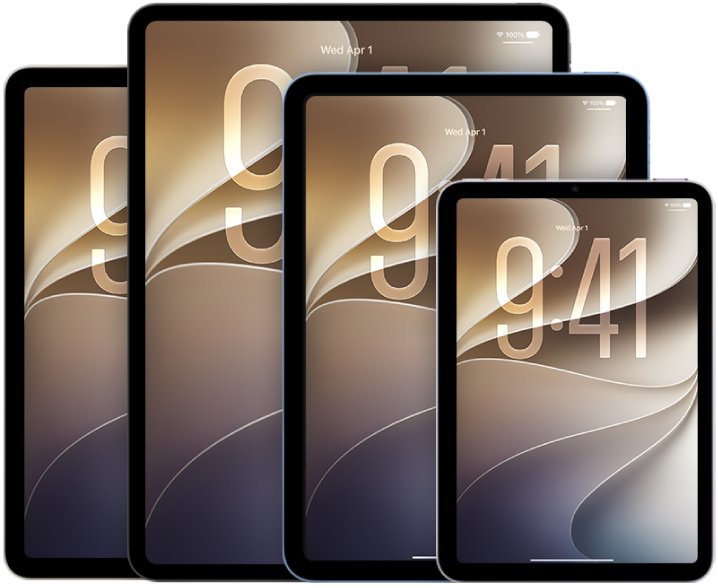
Remotely erase an iPad in Find Devices on iCloud.com
You can do this from a browser on a Windows PC, Mac or another phone, or from the Find My app on Windows and Mac. Find My needs to be on on the iPad before it went missing.
- Go to icloud.com/find and sign in to your Apple Account.
- Select the iPad in the list of devices. If another device is already selected, select All Devices to return to the list.
- Select Erase This Device.
- Follow the onscreen instructions and confirm with your Apple Account password.
- Enter a phone number or message if asked; it appears on the iPad's Lock Screen.
Apple sends a confirmation email to your Apple Account email address when the erase is requested.
Factory reset iPad remotely or on the device
| Your situation | Use this | Result |
|---|---|---|
| iPad lost, stolen or out of reach | Erase This Device on icloud.com/find | Erased; Activation Lock stays on |
| Another Apple device signed in to the same Apple Account | Find My app on that device | Same remote erase |
| iPad in your hands | Reset from the iPad itself | Erased locally, ready to set up |
| Family member's iPad in Family Sharing | Select their iPad in Find Devices | Remote erase of their device |
With the iPad in hand, a local reset is simpler: factory reset an iPad from its own settings instead.
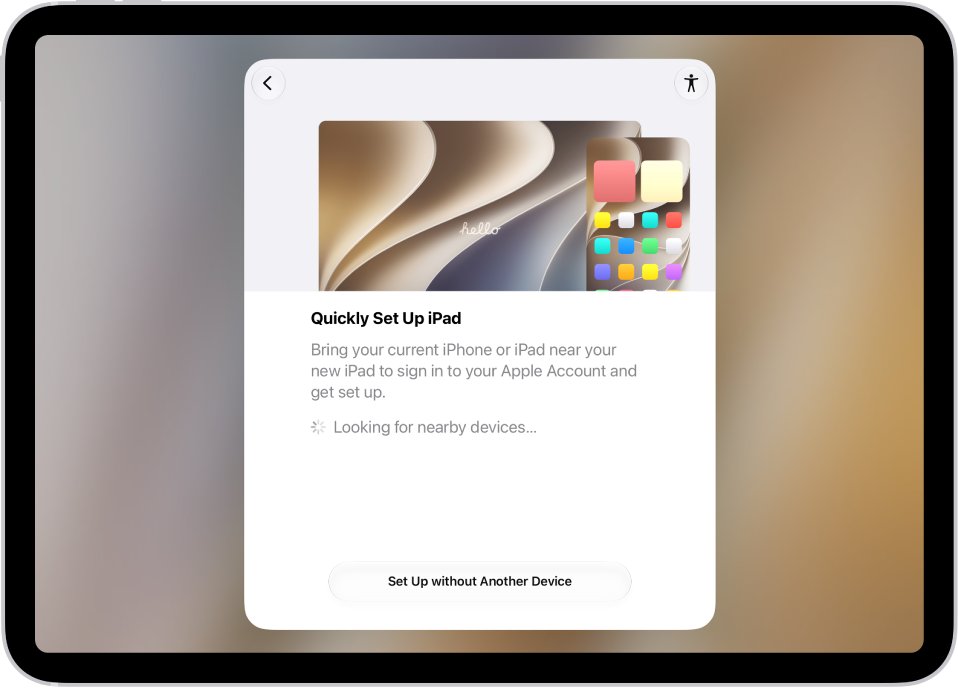
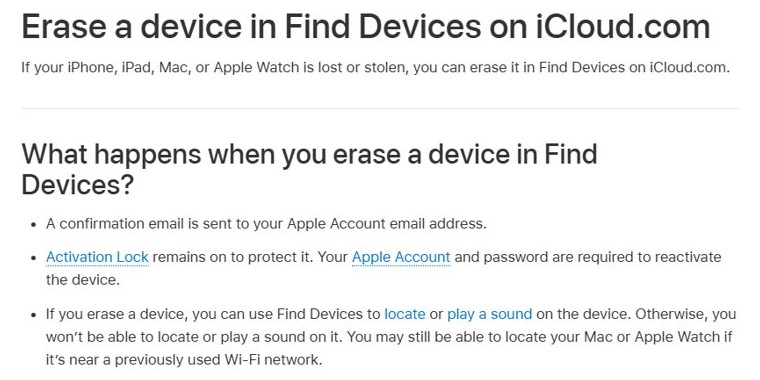
What happens when you erase an iPad remotely?
| After the erase | What it means |
|---|---|
| Data removed | Content and settings on the iPad are erased |
| Activation Lock stays on | Your Apple Account and password are needed to set the iPad up again |
| Location | You can no longer locate the iPad or play a sound on it |
| Offline iPad | The erase starts the next time the iPad comes online |
Cancel a remote erase on an offline iPad
If the iPad is offline and you find it before it reconnects, you can still stop the erase.
- Go to icloud.com/find and sign in.
- Select the iPad in the list of devices.
- Select Stop Erase Request.
- Enter your Apple Account password.
Check that the remote iPad erase started
- Look for the confirmation email at your Apple Account email address.
- Open icloud.com/find and select the iPad to see its current status.
- If the iPad is offline, expect the erase to run the next time it connects to the internet.
iPad remote factory reset not working
The iPad is not in the Find Devices list
Find My was not turned on, or the iPad uses a different Apple Account.
- Sign in at icloud.com/find with every Apple Account you may have used on the iPad.
- If it still does not appear, a remote erase is not possible; change your Apple Account password and report the loss to the police if it was stolen.
The erase is pending and never finishes
The iPad is offline.
- Leave the request in place; it runs once the iPad goes online.
- Contact your carrier to suspend service on a Wi-Fi + Cellular iPad you do not expect to recover.
The erased iPad asks for an Apple Account
Activation Lock remains on after a remote erase.
- Enter the Apple Account and password that was on the iPad.
- If you are selling it, remove it from Find Devices on iCloud.com after the erase so the next owner can set it up.
Factory reset iPad remotely FAQ
Can I factory reset an iPad remotely?
Yes, if Find My was on. Sign in at icloud.com/find, select the iPad and choose Erase This Device. It erases immediately if the iPad is online, or the next time it connects.
How do I factory reset an iPad when it is disabled?
If the disabled iPad has Find My on, erase it from icloud.com/find with your Apple Account. Afterwards Activation Lock asks for that Apple Account and password during setup.
Does a remote erase remove Activation Lock?
No. Activation Lock stays on after you erase an iPad in Find Devices. Your Apple Account and password are needed to reactivate it, which protects a lost or stolen iPad.
Can I stop a remote erase after I start it?
Only while the iPad is offline. Open icloud.com/find, select the iPad, choose Stop Erase Request and enter your Apple Account password before the iPad reconnects.
Can I still locate my iPad after erasing it?
No. After an iPad is erased in Find Devices you can no longer locate it or play a sound on it, so try locating it before you erase. If you only need the screen dark for now, you can turn off the iPad once you have it back.
Can I erase a family member's iPad remotely?
Yes. If they are in your Family Sharing group, their iPad appears in your Find Devices list on iCloud.com, and you can select it and choose Erase This Device.